azurearc
4 TopicsWhen Arc Goes Silent: Turning Visibility Gaps into SOC Action
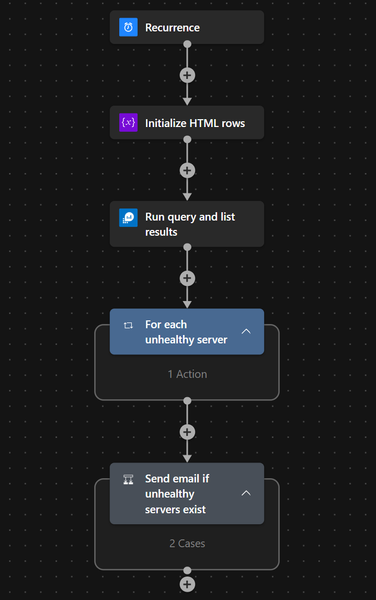
Hybrid blind spots rarely announce themselves. They appear when an Azure Arc-enabled server drops out, health signals go stale, and the SOC loses confidence in monitoring coverage. This playbook uses Microsoft Sentinel and Logic Apps to turn that noise into one clear daily signal the team can act on. The problem: too much noise, not enough assurance One unhealthy server, one alert, one more email—at scale, that does not help the SOC. What leaders need is assurance: where visibility is weakening, which systems matter, and when action is needed. The use case: daily assurance for hybrid monitoring coverage The use case is simple: identify Arc-enabled servers that stay unhealthy beyond a set threshold, such as 30 minutes, and send one consolidated summary each day. For a CISO, this improves assurance. For a SOC Manager, it cuts noise and helps teams prioritize faster. Solution overview: simple automation, stronger operational signal The workflow runs on a schedule, queries Log Analytics, filters Arc health issues, formats the results into a clean HTML report, and sends a single email through Office 365 Outlook. The outcome is not more telemetry—it is a better operational signal. Prerequisites One or more Azure Arc-enabled servers connected to Azure. Azure Monitor Agent installed and sending heartbeat data to a Log Analytics workspace. Microsoft Sentinel enabled on the target workspace if the playbook is being used as part of SOC operations. A Logic App with permissions to run the query and send email through Office 365 Outlook. A reviewed threshold, recipient list, and notification cadence aligned to your operating model. How the workflow creates decision-ready visibility In practice, this becomes a daily control: check Arc health, isolate persistent issues, and route one concise summary to the right teams. That gives the SOC a cleaner way to review monitoring gaps before they become bigger operational problems. Why this matters to a CISO and SOC Manager For security leadership, this is about confidence. If Arc health degrades on systems tied to monitoring, policy, or data collection, the risk is not just technical—it is a visibility gap. This playbook helps surface that gap early and in a form teams can act on quickly. Three practical scenarios where this playbook delivers value Reduce SOC noise.Replace scattered alerts with one daily summary. Strengthen executive assurance.Highlight persistent blind spots before they turn into escalations. Improve team coordination.Give security and infrastructure teams one shared view of the issue. Sample KQL to identify persistent Arc monitoring gaps This sample query uses the Heartbeat table to identify Azure Arc-connected machines whose latest heartbeat is older than the defined threshold. It is a practical starting point and can be tuned further based on the environment and data collection design. let ThresholdTime = 30; AzureActivity | where TimeGenerated > ago(1d) | where CategoryValue == "ResourceHealth" | where parse_json(Properties).currentHealthStatus == "Unavailable" | where ActivityStatusValue == "Active" | extend ResourceType = Properties_d.resourceProviderValue | where ResourceType == "MICROSOFT.HYBRIDCOMPUTE" | extend StartTime = TimeGenerated | extend ServerName = Properties_d.resource | join kind=leftouter ( AzureActivity | where ActivityStatusValue == "Resolved" | extend ResourceType = Properties_d.resourceProviderValue | where ResourceType == "MICROSOFT.HYBRIDCOMPUTE" | extend EndTime = TimeGenerated ) on CorrelationId | extend Minutes_OfflineTillResolve = datetime_diff('minute', EndTime, StartTime) | project ServerName, StartTime, EndTime, CorrelationId, Minutes_OfflineTillResolve, Level, ActivityStatusValue1, ResourceGroup, OperationNameValue, SubscriptionId, ResourceProvider, Type, CategoryValue, ActivityStatusValue | extend TotalMinutes_Offline = datetime_diff('minute', now(), StartTime) | where TotalMinutes_Offline >= ThresholdTime and ActivityStatusValue1 !has "Resolved" | order by TotalMinutes_Offline desc Operational flow ARM Template: microsoft-security-operations-toolkit/Microsoft Sentinel/Automation/Playbooks/AzureArcServerMonitoring.playbook.json at 1e3aeff329e0d9b1d7caf2e4bfbc8476dfdb2ff2 · Abhishek-Sharan/microsoft-security-operations-toolkit Customization Ideas: Adjust the heartbeat threshold based on server criticality or business hours. Route summaries to different teams based on subscription, resource group, or server tags. Send notifications to Microsoft Teams in addition to, or instead of, email. Enrich the output with owner, business service, or environment metadata. Trigger incident creation only for high-priority or repeated visibility gaps. Closing perspective The best SOC automations do not just collect signals—they create clarity. This playbook helps security teams spot Arc-related monitoring gaps early, reduce noise, and act with more confidence.Bulk enable Azure Arc Connected Machine Agent Automatic Upgrade (Tag Scoped) with Azure Cloud Shell
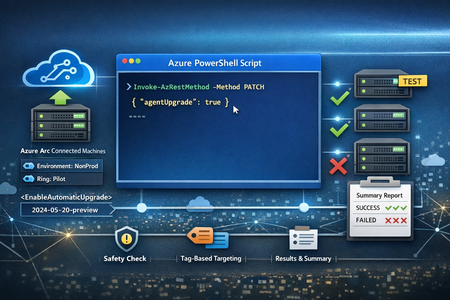
Overview Keeping the Azure Arc Connected Machine agent current is a foundational hygiene task for any hybrid server estate, especially when you’re operating at scale and onboarding hundreds (or thousands) of machines into Arc. The good news: Azure Arc supports an automatic agent upgrade (preview) capability that can be enabled per Arc machine by setting the agentUpgrade.enableAutomaticUpgrade property via Azure Resource Manager (ARM). Microsoft’s public guidance shows enabling this using a PATCH call (via Invoke-AzRestMethod) against the Arc machine resource with the 2024-05-20-preview API version. Manage and maintain the Azure Connected Machine agent - Azure Arc | Microsoft Learn In real environments, you rarely want to enable this across every Arc-enabled server in one shot. Instead, you typically: start with a pilot ring (e.g., Dev/Test or low‑risk servers), validate results, and then expand coverage gradually. The Script: Abhishek-Sharan/ExtensionManagement: Install & Manage Extensions The script implements exactly that approach by: prompting an explicit disclaimer acknowledgement (safety gate), selecting Arc machines by tag (a controlled blast-radius technique), enabling automatic upgrade using ARM PATCH through Invoke-AzRestMethod, producing a final summary report of success/failure per machine. This post walks through what the script does, why each section exists, and what to consider before using it in production. Why Tag‑Scoped Enablement? In many enterprise deployments, tags are the simplest way to define a “ring” of servers: Ring=Pilot Environment=NonProd Workload=LowRisk This script discovers resources of type Microsoft.HybridCompute machines in a given resource group and filters them by a tag/value pair. That makes it easy to: onboard machines first, apply tags as part of provisioning, then flip on agent auto-upgrade only for the right cohort. Script Details (Walkthrough) 1) Safety Gate: Disclaimer + Explicit User Consent This script prints a disclaimer block and requires the operator to type Y to proceed. If the user types anything else, the script exits. Why it matters: It prevents accidental execution (especially in shared shells or jump boxes). It reinforces that this is a potentially impactful change across multiple machines. 2) Configuration: Subscription, Resource Group, and Tag Scope The script sets the active Azure context: Set-AzContext -Subscription "YOUR SUBSCRIPTION" Then defines: $resourceGroup $tagName, $tagValue 3) Discovery: Find Azure Arc Machines with a Target Tag Discovery uses: Get-AzResource -ResourceType "Microsoft.HybridCompute/machines" filters by tag match on the returned resource object. This ensures you are only targeting Arc-enabled servers represented as Microsoft.HybridCompute machines resources. If no machines are found, the script exits cleanly, which avoids the “silent no-op” problem and helps operators quickly validate that scope selection is correct. 4) Update: Enable Automatic Upgrade via ARM PATCH For each machine, the script uses Invoke-AzRestMethod with: ResourceProviderName = "Microsoft.HybridCompute" ResourceType = "Machines" ApiVersion = "2024-05-20-preview" Method = "PATCH" payload: {"properties":{"agentUpgrade":{"enableAutomaticUpgrade":true}}} 5) Output: Per‑Machine Result + Final Summary Table The script records results into an array of PSCustomObject entries with: MachineName EnableAutomaticUpgrade Result (Success/Failed) Then prints a formatted table. This is useful for: quick operator confirmation, change records, attaching output to internal work items / change tickets. Conclusion This script is a solid operational accelerant for teams managing Arc-enabled servers at scale. It combines: safety (explicit disclaimer + opt-in), control (tag-based targeting), automation (bulk enabling via ARM PATCH), observability (clear per-server results and a final summary). If you’re trying to standardize operational hygiene across hundreds of Arc machines, tag-scoped enablement like this is one of the cleanest ways to start small, learn safely, and then scale.
Run a SQL Query with Azure Arc
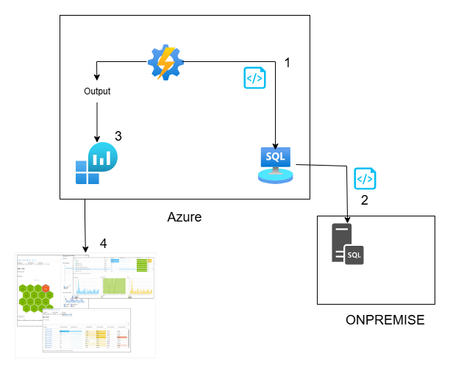
Hi All, In this article, you can find a way to retrieve database permission from all your onboarded databases through Azure Arc. This idea is born from a customer request around maintaining a standard permission set, in a very wide environment (about 1000 SQL Server). This solution is based on Azure Arc, so first you need to onboard your SQL Server to Azure Arc and enable the SQL Server extension. If you want to test Azure Arc in a test environment, you can use the Azure Jumpstart, in this repo you will find ready-to-deploy arm templates the deploy demos environments. The other solution components are an automation account, log analytics and a Data collection rule \ endpoint. Here you can find a little recap of the purpose of each component: Automation account: with this resource you can run and schedule a PowerShell script, and you can also store the credentials securely Log Analytics workspace: here you will create a custom table and store all the data that comes from the script Data collection Endpoint / Data Collection Rule: enable you to open a public endpoint to allow you to ingest collected data on Log analytics workspace In this section you will discover how I composed the six phases of the script: Obtain the bearer token and authenticate on the portal: First of all you need to authenticate on the azure portal to get all the SQL instance and to have to token to send your assessment data to log analytics $tenantId = "XXXXXXXXXXXXXXXXXXXXXXXXXXX" $cred = Get-AutomationPSCredential -Name 'appreg' Connect-AzAccount -ServicePrincipal -Tenant $tenantId -Credential $cred $appId = $cred.UserName $appSecret = $cred.GetNetworkCredential().Password $endpoint_uri = "https://sampleazuremonitorworkspace-weu-a5x6.westeurope-1.ingest.monitor.azure.com" #Logs ingestion URI for the DCR $dcrImmutableId = "dcr-sample2b9f0b27caf54b73bdbd8fa15908238799" #the immutableId property of the DCR object $streamName = "Custom-MyTable" $scope= [System.Web.HttpUtility]::UrlEncode("https://monitor.azure.com//.default") $body = "client_id=$appId&scope=$scope&client_secret=$appSecret&grant_type=client_credentials"; $headers = @{"Content-Type"="application/x-www-form-urlencoded"}; $uri = "https://login.microsoftonline.com/$tenantId/oauth2/v2.0/token" $bearerToken = (Invoke-RestMethod -Uri $uri -Method "Post" -Body $body -Headers $headers).access_token Get all the SQL instances: in my example I took all the instances, you can also use a tag to filter some resources, for example if a want to assess only the production environment you can use the tag as a filter $servers = Get-AzResource -ResourceType "Microsoft.AzureArcData/SQLServerInstances" When you have all the SQL instance you can run your t-query to obtain all the permission , remember now we are looking for the permission, but you can use for any query you want or in other situation where you need to run a command on a generic server $SQLCmd = @' Invoke-SQLcmd -ServerInstance . -Query "USE master; BEGIN IF LEFT(CAST(Serverproperty('ProductVersion') AS VARCHAR(1)),1) = '8' begin IF EXISTS (SELECT TOP 1 * FROM tempdb.dbo.sysobjects (nolock) WHERE name LIKE '#TUser%') begin DROP TABLE #TUser end end ELSE begin IF EXISTS (SELECT TOP 1 * FROM tempdb.sys.objects (nolock) WHERE name LIKE '#TUser%') begin DROP TABLE #TUser end end CREATE TABLE #TUser (DBName SYSNAME,[Name] SYSNAME,GroupName SYSNAME NULL,LoginName SYSNAME NULL,default_database_name SYSNAME NULL,default_schema_name VARCHAR(256) NULL,Principal_id INT); IF LEFT(CAST(Serverproperty('ProductVersion') AS VARCHAR(1)),1) = '8' INSERT INTO #TUser EXEC sp_MSForEachdb ' SELECT ''?'' as DBName, u.name As UserName, CASE WHEN (r.uid IS NULL) THEN ''public'' ELSE r.name END AS GroupName, l.name AS LoginName, NULL AS Default_db_Name, NULL as default_Schema_name, u.uid FROM [?].dbo.sysUsers u LEFT JOIN ([?].dbo.sysMembers m JOIN [?].dbo.sysUsers r ON m.groupuid = r.uid) ON m.memberuid = u.uid LEFT JOIN dbo.sysLogins l ON u.sid = l.sid WHERE (u.islogin = 1 OR u.isntname = 1 OR u.isntgroup = 1) and u.name not in (''public'',''dbo'',''guest'') ORDER BY u.name ' ELSE INSERT INTO #TUser EXEC sp_MSforeachdb ' SELECT ''?'', u.name, CASE WHEN (r.principal_id IS NULL) THEN ''public'' ELSE r.name END GroupName, l.name LoginName, l.default_database_name, u.default_schema_name, u.principal_id FROM [?].sys.database_principals u LEFT JOIN ([?].sys.database_role_members m JOIN [?].sys.database_principals r ON m.role_principal_id = r.principal_id) ON m.member_principal_id = u.principal_id LEFT JOIN [?].sys.server_principals l ON u.sid = l.sid WHERE u.TYPE <> ''R'' and u.TYPE <> ''S'' and u.name not in (''public'',''dbo'',''guest'') order by u.name '; SELECT DBName, Name, GroupName,LoginName FROM #TUser where Name not in ('information_schema') and GroupName not in ('public') ORDER BY DBName,[Name],GroupName; DROP TABLE #TUser; END" '@ $command = New-AzConnectedMachineRunCommand -ResourceGroupName "test_query" -MachineName $server1 -Location "westeurope" -RunCommandName "RunCommandName" -SourceScript $SQLCmd In a second, you will receive the output of the command, and you must send it to the log analytics workspace (aka LAW). In this phase, you can also review the output before sending it to LAW, for example, removing some text or filtering some results. In my case, I’m adding the information about the server where the script runs to each record. $array = ($command.InstanceViewOutput -split "r?n" | Where-Object { $.Trim() }) | ForEach-Object { $line = $ -replace '\', '\\' ù$array = $array | Where-Object { $_ -notmatch "DBName,Name,GroupName,LoginName" } | Where-Object {$_ -notmatch "------"} The last phase is designed to send the output to the log analytics workspace using the dce \ dcr. $staticData = @" [{ "TimeGenerated": "$currentTime", "RawData": "$raw", }]"@; $body = $staticData; $headers = @{"Authorization"="Bearer $bearerToken";"Content-Type"="application/json"}; $uri = "$endpoint_uri/dataCollectionRules/$dcrImmutableId/streams/$($streamName)?api-version=2023-01-01" $rest = Invoke-RestMethod -Uri $uri -Method "Post" -Body $body -Headers $headers When the data arrives in log analytics workspace, you can query this data, and you can create a dashboard or why not an alert. Now you will see how you can implement this solution. For the log analytics, dce and dcr, you can follow the official docs: Tutorial: Send data to Azure Monitor Logs with Logs ingestion API (Resource Manager templates) - Azure Monitor | Microsoft Learn After you create the dcr and the log analytics workspace with its custom table. You can proceed with the Automation account. Create an automation account using the creating wizard You can proceed with the default parameter. When the Automation Account creation is completed, you can create a credential in the Automation Account. This allows you to avoid the exposition of the credential used to connect to Azure You can insert here the enterprise application and the key. Now you are ready to create the runbook (basically the script that we will schedule) You can give the name you want and click create. Now go in the automation account than Runbooks and Edit in Portal, you can copy your script or the script in this link. Remember to replace your tenant ID, you will find in Entra ID section and the Enterprise application You can test it using the Test Pane function and when you are ready you can Publish and link a schedule, for example daily at 5am. Remember, today we talked about database permissions, but the scenarios are endless: checking a requirement, deploying a small fix, or removing/adding a configuration — at scale. At the end, as you see, Azure Arc is not only another agent, is a chance to empower every environment (and every other cloud provider 😉) with Azure technology. See you in the next techie adventure. **Disclaimer** The sample scripts are not supported under any Microsoft standard support program or service. The sample scripts are provided AS IS without warranty of any kind. Microsoft further disclaims all implied warranties including, without limitation, any implied warranties of merchantability or of fitness for a particular purpose. The entire risk arising out of the use or performance of the sample scripts and documentation remains with you. In no event shall Microsoft, its authors, or anyone else involved in the creation, production, or delivery of the scripts be liable for any damages whatsoever (including, without limitation, damages for loss of business profits, business interruption, loss of business information, or other pecuniary loss) arising out of the use of or inability to use the sample scripts or documentation, even if Microsoft has been advised of the possibility of such damages.