azurearc
9 TopicsWhen Arc Goes Silent: Turning Visibility Gaps into SOC Action
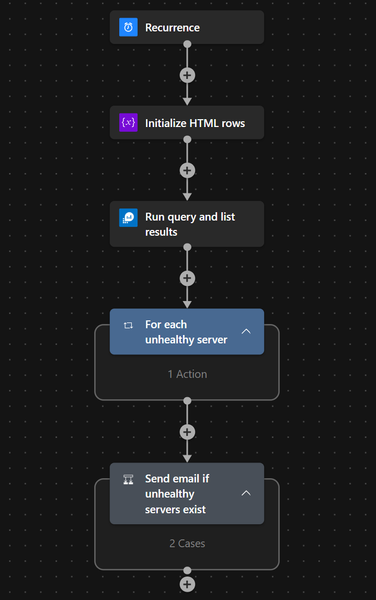
Hybrid blind spots rarely announce themselves. They appear when an Azure Arc-enabled server drops out, health signals go stale, and the SOC loses confidence in monitoring coverage. This playbook uses Microsoft Sentinel and Logic Apps to turn that noise into one clear daily signal the team can act on. The problem: too much noise, not enough assurance One unhealthy server, one alert, one more email—at scale, that does not help the SOC. What leaders need is assurance: where visibility is weakening, which systems matter, and when action is needed. The use case: daily assurance for hybrid monitoring coverage The use case is simple: identify Arc-enabled servers that stay unhealthy beyond a set threshold, such as 30 minutes, and send one consolidated summary each day. For a CISO, this improves assurance. For a SOC Manager, it cuts noise and helps teams prioritize faster. Solution overview: simple automation, stronger operational signal The workflow runs on a schedule, queries Log Analytics, filters Arc health issues, formats the results into a clean HTML report, and sends a single email through Office 365 Outlook. The outcome is not more telemetry—it is a better operational signal. Prerequisites One or more Azure Arc-enabled servers connected to Azure. Azure Monitor Agent installed and sending heartbeat data to a Log Analytics workspace. Microsoft Sentinel enabled on the target workspace if the playbook is being used as part of SOC operations. A Logic App with permissions to run the query and send email through Office 365 Outlook. A reviewed threshold, recipient list, and notification cadence aligned to your operating model. How the workflow creates decision-ready visibility In practice, this becomes a daily control: check Arc health, isolate persistent issues, and route one concise summary to the right teams. That gives the SOC a cleaner way to review monitoring gaps before they become bigger operational problems. Why this matters to a CISO and SOC Manager For security leadership, this is about confidence. If Arc health degrades on systems tied to monitoring, policy, or data collection, the risk is not just technical—it is a visibility gap. This playbook helps surface that gap early and in a form teams can act on quickly. Three practical scenarios where this playbook delivers value Reduce SOC noise.Replace scattered alerts with one daily summary. Strengthen executive assurance.Highlight persistent blind spots before they turn into escalations. Improve team coordination.Give security and infrastructure teams one shared view of the issue. Sample KQL to identify persistent Arc monitoring gaps This sample query uses the Heartbeat table to identify Azure Arc-connected machines whose latest heartbeat is older than the defined threshold. It is a practical starting point and can be tuned further based on the environment and data collection design. let ThresholdTime = 30; AzureActivity | where TimeGenerated > ago(1d) | where CategoryValue == "ResourceHealth" | where parse_json(Properties).currentHealthStatus == "Unavailable" | where ActivityStatusValue == "Active" | extend ResourceType = Properties_d.resourceProviderValue | where ResourceType == "MICROSOFT.HYBRIDCOMPUTE" | extend StartTime = TimeGenerated | extend ServerName = Properties_d.resource | join kind=leftouter ( AzureActivity | where ActivityStatusValue == "Resolved" | extend ResourceType = Properties_d.resourceProviderValue | where ResourceType == "MICROSOFT.HYBRIDCOMPUTE" | extend EndTime = TimeGenerated ) on CorrelationId | extend Minutes_OfflineTillResolve = datetime_diff('minute', EndTime, StartTime) | project ServerName, StartTime, EndTime, CorrelationId, Minutes_OfflineTillResolve, Level, ActivityStatusValue1, ResourceGroup, OperationNameValue, SubscriptionId, ResourceProvider, Type, CategoryValue, ActivityStatusValue | extend TotalMinutes_Offline = datetime_diff('minute', now(), StartTime) | where TotalMinutes_Offline >= ThresholdTime and ActivityStatusValue1 !has "Resolved" | order by TotalMinutes_Offline desc Operational flow ARM Template: microsoft-security-operations-toolkit/Microsoft Sentinel/Automation/Playbooks/AzureArcServerMonitoring.playbook.json at 1e3aeff329e0d9b1d7caf2e4bfbc8476dfdb2ff2 · Abhishek-Sharan/microsoft-security-operations-toolkit Customization Ideas: Adjust the heartbeat threshold based on server criticality or business hours. Route summaries to different teams based on subscription, resource group, or server tags. Send notifications to Microsoft Teams in addition to, or instead of, email. Enrich the output with owner, business service, or environment metadata. Trigger incident creation only for high-priority or repeated visibility gaps. Closing perspective The best SOC automations do not just collect signals—they create clarity. This playbook helps security teams spot Arc-related monitoring gaps early, reduce noise, and act with more confidence.Bulk enable Azure Arc Connected Machine Agent Automatic Upgrade (Tag Scoped) with Azure Cloud Shell
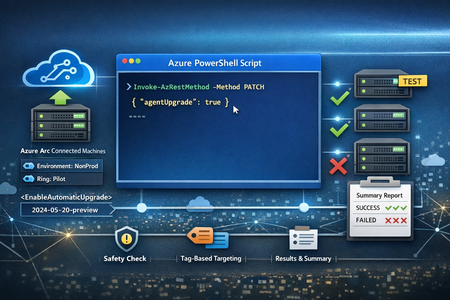
Overview Keeping the Azure Arc Connected Machine agent current is a foundational hygiene task for any hybrid server estate, especially when you’re operating at scale and onboarding hundreds (or thousands) of machines into Arc. The good news: Azure Arc supports an automatic agent upgrade (preview) capability that can be enabled per Arc machine by setting the agentUpgrade.enableAutomaticUpgrade property via Azure Resource Manager (ARM). Microsoft’s public guidance shows enabling this using a PATCH call (via Invoke-AzRestMethod) against the Arc machine resource with the 2024-05-20-preview API version. Manage and maintain the Azure Connected Machine agent - Azure Arc | Microsoft Learn In real environments, you rarely want to enable this across every Arc-enabled server in one shot. Instead, you typically: start with a pilot ring (e.g., Dev/Test or low‑risk servers), validate results, and then expand coverage gradually. The Script: Abhishek-Sharan/ExtensionManagement: Install & Manage Extensions The script implements exactly that approach by: prompting an explicit disclaimer acknowledgement (safety gate), selecting Arc machines by tag (a controlled blast-radius technique), enabling automatic upgrade using ARM PATCH through Invoke-AzRestMethod, producing a final summary report of success/failure per machine. This post walks through what the script does, why each section exists, and what to consider before using it in production. Why Tag‑Scoped Enablement? In many enterprise deployments, tags are the simplest way to define a “ring” of servers: Ring=Pilot Environment=NonProd Workload=LowRisk This script discovers resources of type Microsoft.HybridCompute machines in a given resource group and filters them by a tag/value pair. That makes it easy to: onboard machines first, apply tags as part of provisioning, then flip on agent auto-upgrade only for the right cohort. Script Details (Walkthrough) 1) Safety Gate: Disclaimer + Explicit User Consent This script prints a disclaimer block and requires the operator to type Y to proceed. If the user types anything else, the script exits. Why it matters: It prevents accidental execution (especially in shared shells or jump boxes). It reinforces that this is a potentially impactful change across multiple machines. 2) Configuration: Subscription, Resource Group, and Tag Scope The script sets the active Azure context: Set-AzContext -Subscription "YOUR SUBSCRIPTION" Then defines: $resourceGroup $tagName, $tagValue 3) Discovery: Find Azure Arc Machines with a Target Tag Discovery uses: Get-AzResource -ResourceType "Microsoft.HybridCompute/machines" filters by tag match on the returned resource object. This ensures you are only targeting Arc-enabled servers represented as Microsoft.HybridCompute machines resources. If no machines are found, the script exits cleanly, which avoids the “silent no-op” problem and helps operators quickly validate that scope selection is correct. 4) Update: Enable Automatic Upgrade via ARM PATCH For each machine, the script uses Invoke-AzRestMethod with: ResourceProviderName = "Microsoft.HybridCompute" ResourceType = "Machines" ApiVersion = "2024-05-20-preview" Method = "PATCH" payload: {"properties":{"agentUpgrade":{"enableAutomaticUpgrade":true}}} 5) Output: Per‑Machine Result + Final Summary Table The script records results into an array of PSCustomObject entries with: MachineName EnableAutomaticUpgrade Result (Success/Failed) Then prints a formatted table. This is useful for: quick operator confirmation, change records, attaching output to internal work items / change tickets. Conclusion This script is a solid operational accelerant for teams managing Arc-enabled servers at scale. It combines: safety (explicit disclaimer + opt-in), control (tag-based targeting), automation (bulk enabling via ARM PATCH), observability (clear per-server results and a final summary). If you’re trying to standardize operational hygiene across hundreds of Arc machines, tag-scoped enablement like this is one of the cleanest ways to start small, learn safely, and then scale.
Run a SQL Query with Azure Arc
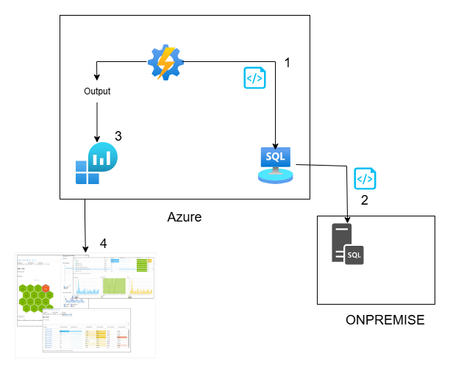
Hi All, In this article, you can find a way to retrieve database permission from all your onboarded databases through Azure Arc. This idea is born from a customer request around maintaining a standard permission set, in a very wide environment (about 1000 SQL Server). This solution is based on Azure Arc, so first you need to onboard your SQL Server to Azure Arc and enable the SQL Server extension. If you want to test Azure Arc in a test environment, you can use the Azure Jumpstart, in this repo you will find ready-to-deploy arm templates the deploy demos environments. The other solution components are an automation account, log analytics and a Data collection rule \ endpoint. Here you can find a little recap of the purpose of each component: Automation account: with this resource you can run and schedule a PowerShell script, and you can also store the credentials securely Log Analytics workspace: here you will create a custom table and store all the data that comes from the script Data collection Endpoint / Data Collection Rule: enable you to open a public endpoint to allow you to ingest collected data on Log analytics workspace In this section you will discover how I composed the six phases of the script: Obtain the bearer token and authenticate on the portal: First of all you need to authenticate on the azure portal to get all the SQL instance and to have to token to send your assessment data to log analytics $tenantId = "XXXXXXXXXXXXXXXXXXXXXXXXXXX" $cred = Get-AutomationPSCredential -Name 'appreg' Connect-AzAccount -ServicePrincipal -Tenant $tenantId -Credential $cred $appId = $cred.UserName $appSecret = $cred.GetNetworkCredential().Password $endpoint_uri = "https://sampleazuremonitorworkspace-weu-a5x6.westeurope-1.ingest.monitor.azure.com" #Logs ingestion URI for the DCR $dcrImmutableId = "dcr-sample2b9f0b27caf54b73bdbd8fa15908238799" #the immutableId property of the DCR object $streamName = "Custom-MyTable" $scope= [System.Web.HttpUtility]::UrlEncode("https://monitor.azure.com//.default") $body = "client_id=$appId&scope=$scope&client_secret=$appSecret&grant_type=client_credentials"; $headers = @{"Content-Type"="application/x-www-form-urlencoded"}; $uri = "https://login.microsoftonline.com/$tenantId/oauth2/v2.0/token" $bearerToken = (Invoke-RestMethod -Uri $uri -Method "Post" -Body $body -Headers $headers).access_token Get all the SQL instances: in my example I took all the instances, you can also use a tag to filter some resources, for example if a want to assess only the production environment you can use the tag as a filter $servers = Get-AzResource -ResourceType "Microsoft.AzureArcData/SQLServerInstances" When you have all the SQL instance you can run your t-query to obtain all the permission , remember now we are looking for the permission, but you can use for any query you want or in other situation where you need to run a command on a generic server $SQLCmd = @' Invoke-SQLcmd -ServerInstance . -Query "USE master; BEGIN IF LEFT(CAST(Serverproperty('ProductVersion') AS VARCHAR(1)),1) = '8' begin IF EXISTS (SELECT TOP 1 * FROM tempdb.dbo.sysobjects (nolock) WHERE name LIKE '#TUser%') begin DROP TABLE #TUser end end ELSE begin IF EXISTS (SELECT TOP 1 * FROM tempdb.sys.objects (nolock) WHERE name LIKE '#TUser%') begin DROP TABLE #TUser end end CREATE TABLE #TUser (DBName SYSNAME,[Name] SYSNAME,GroupName SYSNAME NULL,LoginName SYSNAME NULL,default_database_name SYSNAME NULL,default_schema_name VARCHAR(256) NULL,Principal_id INT); IF LEFT(CAST(Serverproperty('ProductVersion') AS VARCHAR(1)),1) = '8' INSERT INTO #TUser EXEC sp_MSForEachdb ' SELECT ''?'' as DBName, u.name As UserName, CASE WHEN (r.uid IS NULL) THEN ''public'' ELSE r.name END AS GroupName, l.name AS LoginName, NULL AS Default_db_Name, NULL as default_Schema_name, u.uid FROM [?].dbo.sysUsers u LEFT JOIN ([?].dbo.sysMembers m JOIN [?].dbo.sysUsers r ON m.groupuid = r.uid) ON m.memberuid = u.uid LEFT JOIN dbo.sysLogins l ON u.sid = l.sid WHERE (u.islogin = 1 OR u.isntname = 1 OR u.isntgroup = 1) and u.name not in (''public'',''dbo'',''guest'') ORDER BY u.name ' ELSE INSERT INTO #TUser EXEC sp_MSforeachdb ' SELECT ''?'', u.name, CASE WHEN (r.principal_id IS NULL) THEN ''public'' ELSE r.name END GroupName, l.name LoginName, l.default_database_name, u.default_schema_name, u.principal_id FROM [?].sys.database_principals u LEFT JOIN ([?].sys.database_role_members m JOIN [?].sys.database_principals r ON m.role_principal_id = r.principal_id) ON m.member_principal_id = u.principal_id LEFT JOIN [?].sys.server_principals l ON u.sid = l.sid WHERE u.TYPE <> ''R'' and u.TYPE <> ''S'' and u.name not in (''public'',''dbo'',''guest'') order by u.name '; SELECT DBName, Name, GroupName,LoginName FROM #TUser where Name not in ('information_schema') and GroupName not in ('public') ORDER BY DBName,[Name],GroupName; DROP TABLE #TUser; END" '@ $command = New-AzConnectedMachineRunCommand -ResourceGroupName "test_query" -MachineName $server1 -Location "westeurope" -RunCommandName "RunCommandName" -SourceScript $SQLCmd In a second, you will receive the output of the command, and you must send it to the log analytics workspace (aka LAW). In this phase, you can also review the output before sending it to LAW, for example, removing some text or filtering some results. In my case, I’m adding the information about the server where the script runs to each record. $array = ($command.InstanceViewOutput -split "r?n" | Where-Object { $.Trim() }) | ForEach-Object { $line = $ -replace '\', '\\' ù$array = $array | Where-Object { $_ -notmatch "DBName,Name,GroupName,LoginName" } | Where-Object {$_ -notmatch "------"} The last phase is designed to send the output to the log analytics workspace using the dce \ dcr. $staticData = @" [{ "TimeGenerated": "$currentTime", "RawData": "$raw", }]"@; $body = $staticData; $headers = @{"Authorization"="Bearer $bearerToken";"Content-Type"="application/json"}; $uri = "$endpoint_uri/dataCollectionRules/$dcrImmutableId/streams/$($streamName)?api-version=2023-01-01" $rest = Invoke-RestMethod -Uri $uri -Method "Post" -Body $body -Headers $headers When the data arrives in log analytics workspace, you can query this data, and you can create a dashboard or why not an alert. Now you will see how you can implement this solution. For the log analytics, dce and dcr, you can follow the official docs: Tutorial: Send data to Azure Monitor Logs with Logs ingestion API (Resource Manager templates) - Azure Monitor | Microsoft Learn After you create the dcr and the log analytics workspace with its custom table. You can proceed with the Automation account. Create an automation account using the creating wizard You can proceed with the default parameter. When the Automation Account creation is completed, you can create a credential in the Automation Account. This allows you to avoid the exposition of the credential used to connect to Azure You can insert here the enterprise application and the key. Now you are ready to create the runbook (basically the script that we will schedule) You can give the name you want and click create. Now go in the automation account than Runbooks and Edit in Portal, you can copy your script or the script in this link. Remember to replace your tenant ID, you will find in Entra ID section and the Enterprise application You can test it using the Test Pane function and when you are ready you can Publish and link a schedule, for example daily at 5am. Remember, today we talked about database permissions, but the scenarios are endless: checking a requirement, deploying a small fix, or removing/adding a configuration — at scale. At the end, as you see, Azure Arc is not only another agent, is a chance to empower every environment (and every other cloud provider 😉) with Azure technology. See you in the next techie adventure. **Disclaimer** The sample scripts are not supported under any Microsoft standard support program or service. The sample scripts are provided AS IS without warranty of any kind. Microsoft further disclaims all implied warranties including, without limitation, any implied warranties of merchantability or of fitness for a particular purpose. The entire risk arising out of the use or performance of the sample scripts and documentation remains with you. In no event shall Microsoft, its authors, or anyone else involved in the creation, production, or delivery of the scripts be liable for any damages whatsoever (including, without limitation, damages for loss of business profits, business interruption, loss of business information, or other pecuniary loss) arising out of the use of or inability to use the sample scripts or documentation, even if Microsoft has been advised of the possibility of such damages.Azure File Sync with ARC... Better together.
Hello Folks! Managing file servers across on-premises datacenters and cloud environments can be challenging for IT professionals. Azure File Sync (AFS) has been a game-changer by centralizing file shares in Azure while keeping your on-premises Windows servers in play. With AFS, a lightweight agent on a Windows file server keeps its files synced to an Azure file share, effectively turning the server into a cache for the cloud copy. This enables classic file server performance and compatibility, cloud tiering of cold data to save local storage costs, and capabilities like multi-site file access, backups, and disaster recovery using Azure’s infrastructure. Now, with the introduction of Azure Arc integration for Azure File Sync, it gets even better. Azure Arc, which allows you to project on-prem and multi-cloud servers into Azure for unified management, now offers an Azure File Sync agent extension that dramatically simplifies deployment and management of AFS on your hybrid servers. In this post, I’ll explain how this new integration works and how you can leverage it to streamline hybrid file server management, enable cloud tiering, and improve performance and cost efficiency. You can see the E2E 10-Minute Drill - Azure File sync with ARC, better together episode on YouTube below. Azure File Sync + Azure Arc: Better Together Azure File Sync has already enabled a hybrid cloud file system for many organizations. You install the AFS agent on a Windows Server (2016 or later) and register it with an Azure Storage Sync Service. From that point, the server’s designated folders continuously sync to an Azure file share. AFS’s hallmark feature is cloud tiering, older, infrequently used files can be transparently offloaded to Azure storage, while your active files stay on the local server cache. Users and applications continue to see all files in their usual paths; if someone opens a file that’s tiered, Azure File Sync pulls it down on-demand. This means IT pros can drastically reduce expensive on-premises storage usage without limiting users’ access to files. You also get multi-site synchronization (multiple servers in different locations can sync to the same Azure share), which is great for branch offices sharing data, and cloud backup/DR by virtue of having the data in Azure. In short, Azure File Sync transforms your traditional file server into a cloud-connected cache that combines the performance of local storage with the scalability and durability of Azure. Azure Arc comes into play to solve the management side of hybrid IT. Arc lets you project non-Azure machines (whether on-prem or even in other Clouds) into Azure and manage them alongside Azure VMs. An Arc-enabled server appears in the Azure portal and can have Extensions installed, which are components or agents that Azure can remotely deploy to the machine. Prior to now, installing or updating the Azure File Sync agent on a bunch of file servers meant handling each machine individually (via Remote Desktop, scripting, or System Center). This is where the Azure File Sync Agent Extension for Windows changes the game. Using the new Arc extension, deploying Azure File Sync is as easy as a few clicks. In the Azure Portal, if your Windows server is Arc-connected (i.e. the Azure Arc agent is installed and the server is registered in Azure), you can navigate to that server resource and simply Add the “Azure File Sync Agent for Windows” extension. The extension will automatically download and install the latest Azure File Sync agent (MSI) on the server. In other words, Azure Arc acts like a central deployment tool: you no longer need to manually log on or run separate install scripts on each server to set up or update AFS. If you have 10, 50, or 100 Arc-connected file servers, you can push Azure File Sync to all of them in a standardized way from Azure – a huge time saver for large environments. The extension also supports configuration options (like proxy settings or automatic update preferences) that you can set during deployment, ensuring the agent is installed with the right settings for your environment Note: The Azure File Sync Arc extension is currently Windows-only. Azure Arc supports Linux servers too, but the AFS agent (and thus this extension) works only on Windows Server 2016 or newer. So, you’ll need a Windows file server to take advantage of this feature (which is usually the case, since AFS relies on NTFS/Windows currently). Once the extension installs the agent, the remaining steps to fully enable sync are the same as a traditional Azure File Sync deployment: you register the server with your Storage Sync Service (if not done automatically) and then create a sync group linking a local folder (server endpoint) to an Azure file share (cloud endpoint). This can be done through the Azure portal, PowerShell, or CLI. The key point is that Azure Arc now handles the heavy lifting of agent deployment, and in the future, we may see even tighter integration where more of the configuration can be done centrally. For now, IT pros get a much simpler installation process – and once configured, all the hybrid benefits of Azure File Sync are in effect for your Arc-managed servers. Key Benefits for IT Pros: Azure File Sync + Azure Arc Centralized Management Azure Arc provides a single control plane in Azure to manage file services across multiple servers and locations. You can deploy updates or new agents at scale and monitor status from the cloud—reducing overhead and ensuring consistency. Simplified Deployment No manual installs. Azure Arc automates Azure File Sync setup by fetching and installing the agent remotely. Ideal for distributed environments, and easily integrated with automation tools like Azure CLI or PowerShell. Cost Optimization with Cloud Tiering Offload rarely accessed files to Azure storage to free local disk space and extend hardware life. Cache only hot data (10–20%) locally while leveraging Azure’s storage tiers for lower TCO. Improved Performance Cloud tiering keeps frequently used files local for LAN-speed access, reducing WAN latency. Active data stays on-site; inactive data moves to the cloud—delivering a smoother experience for distributed teams. Built-In Backup & DR Azure Files offers redundancy and point-in-time recovery via Azure Backup. If a server fails, you can quickly restore from Azure. Multi-site sync ensures continued access, supporting business continuity and cloud migration strategies. Getting Started with Azure File Sync via Arc Prepare Azure Arc and Servers Connect Windows file servers (Windows Server 2016+) to Azure Arc by installing the Connected Machine agent and onboarding them. Refer to Azure Arc documentation for setup. Deploy Azure File Sync Agent Extension Install the Azure File Sync agent extension on Arc-enabled servers using the Azure portal, PowerShell, or CLI. Verify the Azure Storage Sync Agent is installed on the server. See Microsoft Learn for detailed steps. Complete Azure File Sync Setup In the Azure portal, create or open a Storage Sync Service. Register the server and create a Sync Group to link a local folder (Server Endpoint) with an Azure File Share (Cloud Endpoint). Configure cloud tiering and free space settings as needed. Test and Monitor Allow time for initial sync. Test file access (including tiered files) and monitor sync status in the Azure portal. Use Azure Monitor for health alerts. Explore Advanced Features Enable options like cloud change enumeration, NTFS ACL sync, and Azure Backup for file shares to enhance functionality. Resources and Next Steps For more info and step-by-step guidance, check out these resources: Microsoft Learn – Azure File Sync Agent Extension on Azure Arc: Official documentation on installing and managing the AFS agent via Azure Arc. Azure File Sync Documentation: Comprehensive docs for Azure File Sync, including deployment guides, best practices, and troubleshooting. Azure Arc Documentation: Learn how to connect servers to Azure Arc and manage extensions. This is useful if you’re new to Arc or need to meet prerequisites for using the AFS extension. You, as an IT Pro, can provide your organization with the benefits of cloud storage – scalability, reliability, pay-as-you-go economics – while retaining the performance and control of on-premises file servers. All of this can be achieved with minimal overhead, thanks to the new Arc-delivered agent deployment and the powerful features of Azure File Sync. Check it out if you have not done so before. I highly recommend exploring this integration to modernize your file services. Cheers! Pierre Roman804Views1like0Comments
Acessar o Azure ARC com Private Endpoint e Azure Firewall Explicit Proxy - Parte 1
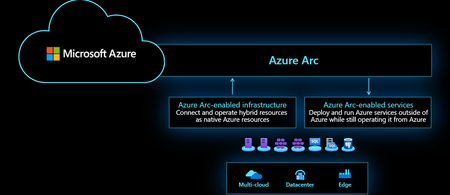
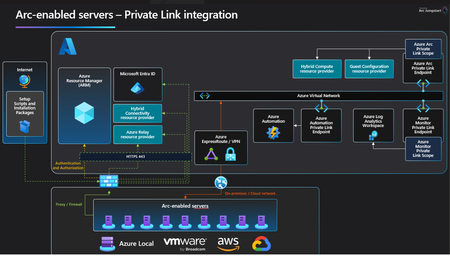
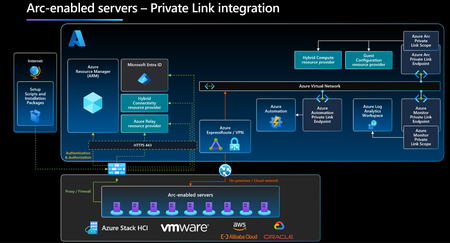
Benefícios de Usar o Azure ARC O Azure ARC permite gerenciar recursos de TI, independentemente de onde eles estejam hospedados, seja no Azure, em outras nuvens ou em infraestruturas locais (on-premises). Fonte: Azure Arc overview - Azure Arc | Microsoft Learn Entre os principais benefícios de usar o Azure ARC podemos citar os seguintes. Gestão Centralizada: Permite o gerenciamento de recursos multi-cloud e on-premises Consistência de Ferramentas: Com o Azure ARC, é possível usar as mesmas ferramentas e processos que você já utiliza no Azure para gerenciar recursos em qualquer infraestrutura, proporcionando uma experiência consistente. Segurança e Conformidade: A tecnologia permite aplicar políticas de segurança e conformidade de maneira uniforme em todos os ambientes, garantindo que os padrões corporativos sejam mantidos em qualquer lugar. Escalabilidade: O Azure ARC facilita a escala de operações de TI de acordo com as necessidades do negócio, sem as limitações típicas das infraestruturas locais. Automatização: A automatização de processos de gerenciamento através de scripts e ferramentas Azure Resource Manager (ARM) pode ser estendida a recursos fora do Azure, melhorando a eficiência operacional. Monitoramento e Insights: O Azure ARC integra-se com ferramentas de monitoramento do Azure, permitindo visibilidade centralizada e insights detalhados sobre o desempenho e a integridade de todos os recursos. Ao utilizar o Azure ARC, as organizações podem maximizar os investimentos existentes em infraestrutura, melhorar a governança e aprimorar a flexibilidade e a agilidade operacionais, tudo isso enquanto mantêm uma gestão centralizada e consistente. Benefício de usar Private Endpoints Utilizando o Azure ARC com private endpoints, o tráfego de rede entre os recursos gerenciados e o Azure permanece dentro da rede privada, aumentando a segurança, proteção dos dados e o desempenho. Essa configuração reduz a exposição a ameaças externas e cumpre exigências regulatórias ao assegurar que os dados sensíveis não transitem pela internet pública. Desafios no Acesso ao Azure Arc com Azure Firewall, Explicit Proxy e Private Endpoint Conectar um recurso local ao Azure por meio do Azure Arc e utilizar extensões habilitadas para Arc requer comunicação com um conjunto de serviços do Azure, cada um com seus próprios endpoints de destino. Para clientes que utilizam proxies corporativos, é necessário permitir o acesso a todos esses endpoints. Atualmente, o gateway do Arc reduz o número de url's que precisam ser permitidos por meio de um proxy corporativo, mas exige que o tráfego seja roteado para o Azure pela Internet pública. No entanto, alguns clientes precisam que todo o tráfego alcance o Azure por meio do seu circuito de ExpressRoute ou através da VPN Site a Site. Embora parte dos endpoints necessários podem ser roteados pelo Microsoft Peering ou Private Peering do ExpressRoute, nem todos os endpoints são compatíveis com essas opções. Firewall do Azure como um proxy sobre ER ou VPN site a site Os clientes que precisam que todo o tráfego alcance o Azure por meio do ExpressRoute ou VPN Site-to-Site pode hospedar um proxy de encaminhamento em sua rede virtual do Azure. O agente Arc pode então se comunicar com esse proxy de encaminhamento por meio de um IP privado, seja por meio do ExpressRoute ou VPN Site-to-Site. O Firewall do Azure com o recurso Proxy Explícito (Visualização Pública) pode ser aproveitado como esse proxy de encaminhamento. Disclaimer: O Azure Firewall com Explicit Proxy é um recurso atualmente em preview. Isso significa que ele está sujeito a alterações e pode não estar disponível em todas as regiões ou com todas as funcionalidades de produção. Para mais informações, consulte os termos de uso para preview. O diagrama abaixo representa essa arquitetura Etapas para o uso do Azure Firewall com explicit proxy Passo 1: Precisamos habilitar o uso do Azure Firewall com a feature de Explicit Proxy conforme a documentação de referência aqui Passo 2: Em seguida realizado o onboard dos servidores para o Azure ARC. Observe que o IP privado do Firewall do Azure como o proxy de encaminhamento nas configurações. No Portal do Azure Usando a CLI de comando Servidores ARC azcmagent config set proxy.url <Azure Firewall Private IP:Port> azcmagent config CLI reference - Azure Arc | Microsoft Learn Passo 3: Crie uma regra de aplicativo para permitir os endpoints necessários do Azure ARC para seu cenário de acesso através do Firewall No próximo artigo, vamos montar um laboratório passo a passo, detalhando as configurações e os requisitos necessários para utilizar o private endpoint e o explicit proxy do Azure Firewall, conforme ilustrado no diagrama abaixo Referências: Azure Arc overview - Azure Arc overview - Azure Arc | Microsoft Learn Informações gerais e preço - Azure Arc – Hybrid and Multi-Cloud Management and Solution (microsoft.com) Azure Firewall Explicit Proxy - Azure Firewall Explicit proxy (preview) | Microsoft Learn369Views2likes0CommentsConfigurando Azure ARC com Private Link.
Azure Arc Private Links é uma solução que facilita e segura a conexão entre seus recursos do Azure Arc e o Azure. Com o Azure Arc Private Links, você pode criar pontos de extremidade privados para seus recursos do Azure Arc dentro de uma rede virtual do Azure e acessá-los usando endereços IP privados.1.8KViews2likes0Comments
WAC Azure Extension vs Local Installation - Feature Set checklist
Hi All Is there any article that has a comprehensive side by side of the features that are available via the WAC Extension in Azure (Arc specifically) vs downloading and installing WAC locally I was trying to follow Thomas Mauer's guide to deploy an AKS cluster locally. I wanted to achieve this from Azure, but the AKS blade/option is not present via this extension. Is there a method to connect to the local WAC from Azure, similar to the way the extension is presented? I am aware that I could deploy WAC locally, configure AKS on it, then join that on its own to Azure. My use-case on this is that I have a bunch of bare-metal that has a lot of compute power that would make for excellent local clusters or dev environments.467Views0likes0Comments