azure virtual machines
23 TopicsAnnouncing Cobalt 200: Azure’s next cloud-native CPU
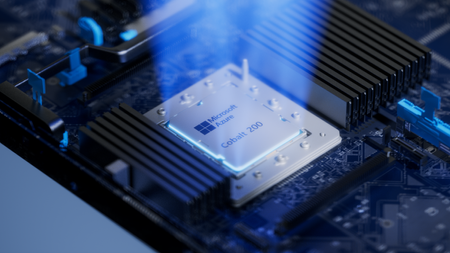
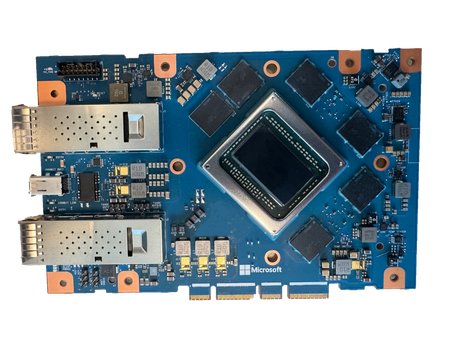
By Selim Bilgin, Corporate Vice President, Silicon Engineering, and Pat Stemen, Vice President, Azure Cobalt Today, we’re thrilled to announce Azure Cobalt 200, our next-generation Arm-based CPU designed for cloud-native workloads. Cobalt 200 is a milestone in our continued approach to optimize every layer of the cloud stack from silicon to software. Our design goals were to deliver full compatibility for workloads using our existing Azure Cobalt CPUs, deliver up to 50% performance improvement over Cobalt 100, and integrate with the latest Microsoft security, networking and storage technologies. Like its predecessor, Cobalt 200 is optimized for common customer workloads and delivers unique capabilities for our own Microsoft cloud products. Our first production Cobalt 200 servers are now live in our datacenters, with wider rollout and customer availability coming in 2026. Azure Cobalt 200 SoC and platform Building on Cobalt 100: Leading Price-Performance Our Azure Cobalt journey began with Cobalt 100, our first custom-built processor for cloud-native workloads. Cobalt 100 VMs have been Generally Available (GA) since October of 2024 and availability has expanded rapidly to 32 Azure datacenter regions around the world. In just one year, we have been blown away with the pace that customers have adopted the new platform, and migrated their most critical workloads to Cobalt 100 for the performance, efficiency, and price-performance benefits. Cloud analytics leaders like Databricks and Snowflake are adopting Cobalt 100 to optimize their cloud footprint. The compute performance and energy-efficiency balance of Cobalt 100-based virtual machines and containers has proven ideal for large-scale data processing workloads. Microsoft’s own cloud services have also rapidly adopted Azure Cobalt for similar benefits. Microsoft Teams achieved up to 45% better performance using Cobalt 100 than their previous compute platform. This increased performance means less servers needed for the same task, for instance Microsoft Teams media processing uses 35% fewer compute cores with Cobalt 100. Designing Compute Infrastructure for Real Workloads With this solid foundation, we set out to design a worthy successor – Cobalt 200. We faced a key challenge: traditional compute benchmarks do not represent the diversity of our customer workloads. Our telemetry from the wide range of workloads running in Azure (small microservices to globally available SaaS products) did not match common hardware performance benchmarks. Existing benchmarks tend to skew toward CPU core-focused compute patterns, leaving gaps in how real-world cloud applications behave at scale when using network and storage resources. Optimizing Azure Cobalt for customer workloads requires us to expand beyond these CPU core benchmarks to truly understand and model the diversity of customer workloads in Azure. As a result, we created a portfolio of benchmarks drawn directly from the usage patterns we see in Azure, including databases, web servers, storage caches, network transactions, and data analytics. Each of our benchmark workloads includes multiple variants for performance evaluation based on the ways our customers may use the underlying database, storage, or web serving technology. In total, we built and refined over 140 individual benchmark variants as part of our internal evaluation suite. With the help of our software teams, we created a complete digital twin simulation from the silicon up: beginning with the CPU core microarchitecture, fabric, and memory IP blocks in Cobalt 200, all the way through the server design and rack topology. Then, we used AI, statistical modelling and the power of Azure to model the performance and power consumption of the 140 benchmarks against 2,800 combinations of SoC and system design parameters: core count, cache size, memory speed, server topology, SoC power, and rack configuration. This resulted in the evaluation of over 350,000 configuration candidates of the Cobalt 200 system as part of our design process. This extensive modelling and simulation helped us to quickly iterate to find the optimal design point for Cobalt 200, delivering over 50% increased performance compared to Cobalt 100, all while continuing to deliver our most power-efficient platform in Azure. Cobalt 200: Delivering Performance and Efficiency At the heart of every Cobalt 200 server is the most advanced compute silicon in Azure: the Cobalt 200 System-on-Chip (SoC). The Cobalt 200 SoC is built around the Arm Neoverse Compute Subsystems V3 (CSS V3), the latest performance-optimized core and fabric from Arm. Each Cobalt 200 SoC includes 132 active cores with 3MB of L2 cache per-core and 192MB of L3 system cache to deliver exceptional performance for customer workloads. Power efficiency is just as important as raw performance. Energy consumption represents a significant portion of the lifetime operating cost of a cloud server. One of the unique innovations in our Azure Cobalt CPUs is individual per-core Dynamic Voltage and Frequency Scaling (DVFS). In Cobalt 200 this allows each of the 132 cores to run at a different performance level, delivering optimal power consumption no matter the workload. We are also taking advantage of the latest TSMC 3nm process, further improving power efficiency. Security is top-of-mind for all of our customers and a key part of the unique innovation in Cobalt 200. We designed and built a custom memory controller for Cobalt 200, so that memory encryption is on by default with negligible performance impact. Cobalt 200 also implements Arm’s Confidential Compute Architecture (CCA), which supports hardware-based isolation of VM memory from the hypervisor and host OS. When designing Cobalt 200, our benchmark workloads and design simulations revealed an interesting trend: several universal compute patterns emerged – compression, decompression, and encryption. Over 30% of cloud workloads had significant use of one of these common operations. Optimizing for these common operations required a different approach than just cache sizing and CPU core selection. We designed custom compression and cryptography accelerators – dedicated blocks of silicon on each Cobalt 200 SoC – solely for the purpose of accelerating these operations without sacrificing CPU cycles. These accelerators help reduce workload CPU consumption and overall costs. For example, by offloading compression and encryption tasks to the Cobalt 200 accelerator, Azure SQL is able to reduce use of critical compute resources, prioritizing them for customer workloads. Leading Infrastructure Innovation with Cobalt 200 Azure Cobalt is more than just an SoC, and we are constantly optimizing and accelerating every layer in the infrastructure. The latest Azure Boost capabilities are built into the new Cobalt 200 system, which significantly improves networking and remote storage performance. Azure Boost delivers increased network bandwidth and offloads remote storage and networking tasks to custom hardware, improving overall workload performance and reducing latency. Cobalt 200 systems also embed the Azure Integrated HSM (Hardware Security Module), providing customers with top-tier cryptographic key protection within Azure’s infrastructure, ensuring sensitive data stays secure. The Azure Integrated HSM works with Azure Key Vault for simplified management of encryption keys, offering high availability and scalability as well as meeting FIPS 140-3 Level 3 compliance. An Azure Cobalt 200 server in a validation lab Looking Forward to 2026 We are excited about the innovation and advanced technology in Cobalt 200 and look forward to seeing how our customers create breakthrough products and services. We’re busy racking and stacking Cobalt 200 servers around the world and look forward to sharing more as we get closer to wider availability next year. Check out Microsoft Ignite opening keynote Read more on what's new in Azure at Ignite Learn more about Microsoft's global infrastructure25KViews11likes0Comments
Migrating On-prem Windows & Linux VMs to Azure Confidential Virtual Machines via Azure Migrate
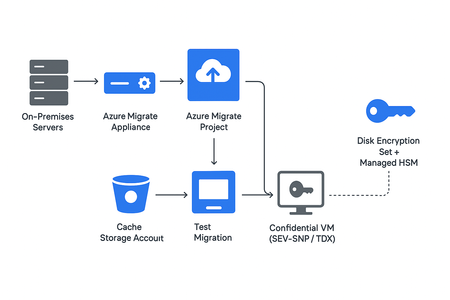
1. Executive Summary Enterprise cloud adoption increasingly prioritizes trust boundaries that extend beyond traditional infrastructure isolation. While encryption at rest and in transit are foundational, modern organizations must also ensure that data in use (data actively processed in CPU or system memory) remains protected. Azure Confidential Computing (ACC) mitigates emerging threats by enabling hardware-backed Trusted Execution Environments (TEEs). These environments isolate VM memory, CPU state, and I/O paths from Azure’s hypervisor, host operating system, and even privileged Azure administrators. Azure Confidential Virtual Machines (CVMs) bring ACC to general-purpose workloads without requiring application modification, providing: Memory encryption (per-VM keys) Isolation from the hypervisor and cloud fabric Secure VM boot with platform attestation Cryptographically enforced key release from Azure Managed HSM Lift-and-shift compatibility using Azure Migrate This whitepaper offers a complete lifecycle framework for secure migration, including governance models, deep technical implementation guidance, and operational readiness. 2. Business Drivers & Compliance Alignment 2.1 Risk & Threat Landscape Threat Category Scenario Traditional VM Protection CVM Protection Hypervisor compromise Host OS breach ❌ ✔ Isolated TEE Privileged insider Cloud admin access to guest memory ❌ ✔ SEV-SNP/TDX isolation DMA attacks PCIe-level memory scraping ❌ ✔ Memory encrypted in hardware Supply-chain compromise Pre-boot firmware tampering ⚠️ ✔ Attestation-gated boot Side-channel attacks Spectre-like memory leakage ⚠️ ✔ Strong hardware isolation 2.2 Business Outcomes Strongest possible protection for mission-critical workloads Accelerates regulated workload migration Supports Zero Trust goals: assume breach, verify explicitly Reduces privileged-access risk and insider threat profiles 3. Solution Architecture Overview 3.1 End-to-End Architecture Diagram The diagram represents an End-to-End Architecture for migrating workloads from an on-premises environment to Azure using Azure Migrate, with a strong focus on security and confidentiality. Here’s a detailed explanation of each section: On-Premises Environment: Components: Windows Servers Linux Servers These are your existing workloads that need to be migrated. Azure Migrate Appliance: Acts as a bridge between on-premises servers and Azure. Uses a private connection for secure data transfer. Azure Landing Zone: This is the target environment in Azure where migrated workloads will reside. It includes: Private Endpoints Azure Migrate – For migration orchestration. Cache Storage Account (Blob) – Temporary storage for replication data. Managed HSM (Hardware Security Module) – For cryptographic key management. Private DNS Zones privatelink.blob.core.windows.net privatelink.managedhsm.azure.net These ensure name resolution for private endpoints without exposing them publicly. Migration Workflow: Azure Migrate Project: Discover on-premises servers. Replicate workloads to Azure. Cached Replication Data → Private Blob Storage: Replication data is stored securely in a private blob before cutover. Test Migration: Performed in an isolated VNet to validate functionality before production cutover. Production Cutover: Migrated workloads run as Confidential VMs in Azure. Security Enhancements: SEV-SNP or TDX TEE: Hardware-based Trusted Execution Environments for isolation. Confidential OS + Data Disk via DES HSM Key: Ensures encryption and integrity. Attestation-Gated Boot via Managed HSM: Verifies VM integrity before booting. 4. Azure Components Category Component Purpose Migration Azure Migrate Appliance Discovery, replication, orchestration Compute Confidential VM (SEV-SNP/TDX) Secure execution environment Security Managed HSM CMK storage & attestation-gated key release Storage Cache Storage Account Replication staging via private endpoint Encryption Disk Encryption Sets CMK-bound OS/data disk encryption Networking Private Endpoints & Private DNS Fully private transport Identity Confidential VM Orchestrator Validates attestation to enable boot 5. Confidential VM Requirements 5.1 Hardware Requirements AMD SEV-SNP (DCasv6, ECasv6) Memory encryption with per-VM keys Nested page table protection RMP validation preventing host tampering Guest attestation report with measurement register integrity Intel TDX (DCesv6, ECesv6) Encryption + integrity-protected guest memory Hardware-isolated module to validate TEE launch Boot measurement and module verification 5.2 VM Configuration Requirements Generation 2 (Gen2) virtual machine UEFI + Secure Boot vTPM enabled Confidential VM security type enabled via Azure Migrate or ARM templates 5.3 Disk Requirements OS will be Confidential Disk Data disks encrypted via Disk Encryption Set (DES) DES bound to RSA-HSM keys Managed HSM with purge protection Key Release Policy requiring attestation Disk should always be Premium for all Confidential VMs, required for performance and compatibility with confidential disk encryption 6. End-to-End Migration Framework A nine-phase sequential model aligned with CAF, Azure architecture best practices, and enterprise migration standards. Phase 1: Azure Migrate - Connectivity, Private Endpoints & DNS Azure Migrate Requirements & Setup Prerequisites: Azure subscription with contributor/owner access Resource Group for Azure Migrate project and resources Replication Appliance pre-requisites Deploy Windows server 2022 as the replication appliance. Component Requirement CPU cores 16 RAM 32 GB Number of disks 2, including the OS disk - 80 GB and a data disk - 620 GB Setup Steps: Deploy Azure Migrate appliance on-premises Register appliance with Azure Migrate project Discover on-premises VMs (Windows/Linux) Click Discover → Choose a discovery method: Agent-based: Install the Azure Migrate agent on the source VMs. Agentless (vSphere/Hyper-V): Use credentials to discover VMs. Ensure all VMs to be migrated are discovered. Click Assess → Configure assessment: Target VM size: Choose Confidential VM-compatible sizes for CVMs. Target Azure region. Disk recommendations: Premium SSD or Premium SSD v2 for CVMs. Validate connectivity to private endpoints, including: Cache storage accounts Managed HSM Cache Storage Account: Cache storage accounts can use ZRS for redundancy. If ASR replication is required, use a separate LRS cache storage account. All storage must be private endpoint-enabled and encrypted with CMKs from Azure Managed HSM. Verify VMs appear in Azure Migrate project are ready for replication Required Private Endpoints: Service Endpoint Requirement Azure Migrate Yes Cache Storage Account Yes (Blob PE only) Managed HSM Yes Private DNS Zones: privatelink.blob.core.windows.net privatelink.managedhsm.azure.net privatelink.azurewebsites.net Connectivity Requirements: ExpressRoute or Site-to-Site VPN No public endpoints allowed Azure Migrate Appliance must resolve all private FQDNs Phase 2: OS Readiness Assessment Windows Workloads MBR to GPT Validation: C:\Windows\System32>MBR2GPT.exe /validate /allowFullOS Requirements: No dynamic disks VSS and WinRM operational Drivers must support Gen2 migration OS disk ≤128GB Validation Commands: Get-Volume Get-PhysicalDisk Get-WindowsOptionalFeature -Online -FeatureName SecureBoot Linux Workloads Requirements: UUIDs used in /etc/fstab Avoid multi-PV LVM expansion across disks Ensure kernel supports SEV-SNP or TDX Ensure UEFI bootloader integrity Validation Commands: lsblk blkid cat /etc/fstab dmesg | grep -i sev Phase 3: Network Security & Firewall Matrix Source Destination Port(s) Direction Purpose On-prem Servers Migrate Appliance 443, 9443 Outbound Discovery & agentless replication Appliance Windows VMs 5985 Outbound WinRM Appliance Linux VMs 22 Outbound SSH Appliance Cache Storage 443 Outbound Replication writes Appliance Azure Migrate 443 Outbound Control-plane operations All connections route via private endpoints. Phase 4: CMK Encryption & Managed HSM Governance Managed HSM Creation: Enable purge protection Configure RBAC-only access Disable all public access Key Creation: az keyvault key create --exportable true --hsm-name <HSM> --kty RSA-HSM --name cvmKey --policy "./public_SKR_policy.json" Disk Encryption Set (DES) Creation: az disk-encryption-set create --name <DES> --resource-group <RG> --key-url <HSM Key URL> --identity-type SystemAssigned Role Assignment to DES: Managed HSM Crypto Service Encryption User Key Release Policy requiring attestation Phase 5: Confidential VM Orchestrator (CVO) The Confidential VM Orchestrator is a built-in Azure service principal used by Azure Compute to securely manage disk encryption keys for Confidential VMs (CVMs). During boot, it validates the VM’s attestation evidence (SEV-SNP or TDX) and requests the Managed HSM to release the disk encryption key only to a verified CVM. It requires only Managed HSM Crypto Service Encryption User permissions. This ensures that customer-managed keys (CMKs) are released exclusively to attested CVMs and never to the hypervisor or platform operators. Responsibilities: Validate the Trusted Execution Environment (TEE) measurement. Approve or deny key release based on attestation. Enforce cryptographic linkage between the VM and HSM key, ensuring keys are only accessible to legitimate CVMs. Identity Setup: New-MgServicePrincipal -AppId bf7b6499-ff71-4aa2-97a4-f372087be7f0 Role Assignment: az keyvault role assignment create --hsm-name <HSM> --assignee <CVO ID> --role "Managed HSM Crypto Service Release User" --scope /keys Phase 6: Replication Enablement (Credential-Less) Configuration Steps: Go to the Azure portal → Search for Azure Migrate. Select your Azure Migrate project Navigate to Replicate. Select Credential-less replication. Choose the target subscription and resource group. Select Confidential VM-compatible size for the VMs. Assign Disk Encryption Sets (DES) for each disk. Validate private endpoint connectivity to ensure replication can access the target subnet securely. Begin Initial Sync + Delta Replication: All OS/data disks for CVMs must be Premium SSD or Premium SSD v2. Phase 7: Test Migration (Isolated Validation) Validation Checklist: VM boots successfully without intervention CVM security type = Confidential CMK encryption applied on all disks Attestation logs verified on first boot Applications tested and functional No unexpected public endpoints NIC, routing, NSGs, UDRs verified Phase 8: Production Cutover Cutover Sequence: Announce downtime Freeze transactions Run Planned Failover Validate immediately: Boot integrity Disk encryption Guest Attestation Extension security type is Confidential Switch application traffic Decommission source systems Phase 9: Post-Migration Hardening & Governance Azure Policy Enforcement: Allowed VM SKUs → CVM only Enforce CMK-only disk encryption Deny public IP creation Require private endpoints Restrict Managed HSM access Logging & Monitoring: Managed HSM logs Attestation logs Azure Monitor Defender for Cloud (CVM coverage) Microsoft Sentinel (optional) Operational Governance: HSM key rotation schedule Quarterly attestation validation DES lifecycle management Zero-trust identity auditing “Break glass” procedure definition 7. Confidential VM Limitations & Workarounds OS Disk Size Limit: Confidential disk encryption is only supported for OS disks at this stage. No support for Data Disks. Confidential disk encryption with CMK is not supported for disks larger than 128 GB. Workaround: Perform migration using SSE (Server-Side Encryption) with Platform-Managed Keys (PMK). Stop and deallocate the VM post-migration. Update encryption settings of OS disk to use SSE Disk Encryption Set (DES) using CMK for encryption. Operating System Support: Windows 2019 and later supported RHEL 9.4 and later supported Ubuntu 22.04+ supported (depending on SKU) For full list, check the CVM OS Support Matrix For additional details on limitations, please refer CVM Limitations 8. Conclusion Azure Confidential Virtual Machines represent a generational shift in cloud security providing encryption, isolation, and attestation at the hardware boundary. Combined with Azure Migrate, DES/CMK encryption, Managed HSM, private networking, and robust governance, enterprises can securely modernize mission-critical workloads without application rewrites.791Views5likes1Comment(Part-1) Leverage Bicep: Standard model to Automate Azure IaaS deployment
Subjects. Those deeply interested in IaC using Azure. Those who understand the basics of Azure Resource Manager Templates and want to work deeply with Bicep. Those who understand the names of services and functions used in Azure IaaS and have experience in building automation. Agenda. How about Bicep Difference between ARM templates and Bicep Basic functionality Bicep Development Environment Sample Code and Explanation Traps and Avoidance Notes. Azure services are evolving every day. This content is based on what we have confirmed as of April 2023.8.8KViews4likes0CommentsDemystifying On-Demand Capacity Reservations
About On-Demand Capacity Reservations Introducing the “parking garage” metaphor There are dozens of VM types available in Azure which span multiple generations of CPU across vendors and architectures. Within each Azure region are datacenters hosting pools of hardware which runs Azure services, such as virtual machines, of those types. As VMs are started and stopped by customers there is a constant ebb and flow of available capacity to run each type of VM within the region. Available capacity is driven by the rhythms of the business day, which creates variations in utilization on an hour-to-hour and even minute-to-minute basis. Longer cycles of demand such as holiday seasons, school calendars and other real-world events are also a factor. When you command an Azure Virtual Machine (VM) to start, the Azure Resource Manager (ARM) – the “engine” that manages resources in the Microsoft cloud -- needs to do a few things to make it happen. The most important of these is that it needs to identify hardware within the target region with sufficient capacity to bring the desired type and size of VM online at that moment in time. If ARM finds space for the desired VM size, the VM starts normally. However, if there is no room to start the desired VM, you will see an error similar to this one: This process of finding a place to start up an Azure VM has a lot of similarities to finding a place to park a vehicle. Parking facilities are built to handle typical demand for their location. If something is going on nearby, such as a large sporting event, which causes the need for parking to be much higher than normal then you might be out of luck when you try to find a spot because the garage is simply full. During periods of high demand in Azure this can result in VMs failing to start simply because there is nowhere to run them at that particular moment. If this happens to a VM which needed to be stopped for a configuration change or other reasons this can cause impact to your environment which you certainly want to avoid. On-Demand Capacity Reservations Azure has a resource called an On-Demand Capacity Reservation, or ODCR, which allows you to reserve a spot for a VM in the appropriate hardware within a region for a specific VM size. This is similar to “owning" a parking space: It’s a reserved place exclusively for the use of a specific VM. At a high level, the way this works is that you create an ODCR which matches the Azure region, availability zone and specific VM type, such as for a VM of type D16s_v6 in availability zone 2 of the Canada Central Azure region. Once the reservation is created, an Azure VM that matches that configuration can be associated to it so the VM now “owns” that “parking space”. This gives that VM priority over others of the same type when it needs to start because it already has a “parking space” assigned to it that can't be used by another one. More detail about VM startup Before we get further into what ODCRs are and how they work, it’s important to know a few more things about starting up a VM. Azure does not provide an explicit SLA for VM startup for virtual machines without an ODCR. The process of finding a hypervisor slot to boot up a VM is purely a “best effort” action on Azure’s part. Having quota headroom does not help with VM startup. Quota in Azure is your "credit limit" for creating VMs. Quota grants permission to create up to a certain number of cores’ worth of Virtual Machines from a particular family (like Ds_v6) but has no effect on whether you can actually start the machine once it’s created. Similarly, having a Reserved Instance purchase or a Savings Plan for a particular number of cores of a given VM family does not have any impact on the ability to start a VM either. These mechanisms are a discount mechanism only where the customer pre-pays for a certain amount of VM cores to be running 24x7 at a discounted rate. Assigning an ODCR to a virtual machine applies a formal SLA on startup for it. VMs with ODCRs get priority over ones that don’t so the likelihood of a successful startup is much higher for VMs that have one compared to those that do not, especially during times when Azure is experiencing a period of high demand for that particular VM type. The actual language of the ODCR SLA can be found in Microsoft's Service Level Agreements for Online Services document which can be downloaded from the linked site. Cost Implications of ODCRs These are the key points that you need to know about how billing works for ODCRs: The compute cost for the parking space capacity reservation for a VM is exactly the same as a running VM of the same size. There is no “double billing” for a VM to have an ODCR associated with it. Billing for the ODCR starts immediately if the quantity of reserved "parking spaces" is greater than zero. Stopping a VM that has an ODCR associated with it does not impact cost. This is because the ODCR is holding the reserved hypervisor slot even if the VM is not running. Having a Reserved Instance purchase or Savings Plan which covers the same scope as the ODCR means that the VM will be billed at the discounted rate. Are there any cases where using ODCRs results in paying more for a VM? There are two cases that I’ve identified where you pay for two ODCRs for the same VM. First, if you are using Azure Site Recovery to protect a VM in Azure by replicating it to another location, you have the option to associate the remote replica of the VM with a capacity reservation. This helps ensure that the replica will start when it’s called upon because it has a pre-allocated spot reserved for it. In this situation, if the original VM also is associated with an ODCR you are paying for both the original (running) VM and also for the reservation being held for its replica. Second, and similarly, when setting up replication for a VM that is preparing for migration into Azure via Azure Migrate, you can associate a capacity reservation with the replica for similar reasons to the above ASR example -- to ensure that the VM will start when its migrated replica is activated. If the source machine is also in Azure then you are again paying twice for the same machine. When should I use them? Capacity Reservations are an important element when designing for resiliency. They help ensure that VMs will be online when needed, even if they have to be shut down for some reason. For example, there was an incident where a customer had to shut down a VM that was serving as a firewall appliance to make an adjustment to its configuration and it failed to start up afterwards because of a capacity-related failure. This resulted in significant impact due to the loss of connectivity for systems dependent on the firewall for connectivity until they were able to bring it back online. Based on field experience and resiliency assessments, applying ODCRs to VMs that must be available 24x7 is strongly recommended. Examples of this include key functions like AD domain controllers, application servers and database servers. Also, any VM-based appliances that may be running as firewalls, load balancers or other infrastructure-support services should be considered as well. Microsoft offers assessments which review a workload for gaps that impact resiliency in many dimensions including outages in Azure. These assessments include checks for the presence of capacity reservations and will report any VM’s that do not have them as a high-risk finding. Not all VM stops in Azure are voluntary Even if you are careful to never stop a VM yourself it can sometimes happen. Not every shutdown of a VM in Azure is user-initiated. Involuntary shutdowns are rare but they can occur due to predictive hardware failures or other events which ARM will respond to by stopping the VM in order to move it out of harm's way. Creating On-Demand Capacity Reservations This section covers the components of an ODCR, the process of creating them and why creating them can fail. Components of an ODCR: An ODCR has two components to it. The first part is a Capacity Reservation Group (CRG) which is simply a "bucket" for any number of capacity reservations. To create a CRG you only need to provide its name, the region that it will be used for and which availability zones within that region it will have access to. The second -- and more important -- component is the actual Capacity Reservation which is created within a CRG. The capacity reservation requires: The name of the reservation. Including the VM size and other details in the name is useful to reduce ambiguity. An example could be “Zone1_D16s_v5” The specific VM size the reservation is for, such as “D16s_v5” The availability zone of the reservation. You can also create a regional reservation, where the VM is “zoneless”, as well. The number of parking spaces instances that the reservation holds. ODCRs can be created via the Azure portal, from the command line using PowerShell or the Azure CLI or deployed through IaC tools such as Bicep or Terraform. CRGs also can also be shared across subscriptions, which allows a CRG created and managed in one subscription to be utilized by VMs in a different subscription. When the ODCR is created, if the number of instances it contains is higher than zero then ARM will attempt to allocate the desired number of instances of the specified VM type in the target region/zone. If there is capacity available for this then the creation succeeds and you can move on to associating machines with it to give them the protection of the ODCR. If creating the ODCR is unsuccessful, the cause can be a variety of things, including: No open hypervisor slots for the desired VM in the target location – the “parking lot” was full at the moment the request was submitted. This can result from outages within Azure that reduce capacity as well as demand pressure. There is insufficient quota in the subscription to claim the necessary number of VM cores for the reservation in the region. The VM type is simply not available in the target region or AZ. Since not all Azure regions are provisioned with identical hardware this can be the cause, especially for VM types other than the popular D, E and F series machines. A restriction is applied to the subscription, zone or region that blocks creation of the reservation for some reason. What you can do if creating an ODCR fails Some things that may help if creating a capacity reservation fails and you know that quota or other restrictions are not a factor are below. Not coincidentally, these are the same recommendations that you should try when a VM fails to start because the same ARM action – finding and allocating hardware with free capacity to start the VM – is taking place. IN GENERAL, creating an ODCR outside of business hours has a higher probability of success. Demand for Azure services typically drops off at the end of the business day where the region is located. Consider using a different VM type, availability zone or a different Azure region. A script or other automation that retries at intervals until the reservation succeeds in claiming the desired number of spots can help, though it can take an unknown amount of time before this works. It may need to run for days or even weeks before it succeeds. Submitting a support ticket will create visibility to your situation from Microsoft. If the root cause is something other than capacity, support can identify that cause and provide guidance on how to resolve it. If the issue truly is a capacity squeeze, the ability of support to help get the reservation created is extremely limited because the support folks, while helpful, are not able to create capacity where none exists. In this case the support teams will usually refer you to the three options above. Protecting a VM with an ODCR Once you have the ODCR created, applying it to a VM is straightforward. To do this from the portal, open the configuration tab on the VM’s screen. Then scroll to the bottom of the panel that appears to find the “Capacity reservations” section. Select “Capacity reservation group” from the list. The list of capacity reservation groups that match the VM will appear in a drop-down menu below. Select the CRG that the VM should use and click “Apply”. If you are using an Infrastructure-as-Code approach such as Bicep or Terraform, an Azure VM is linked to a CRG by specifying the resource ID of the CRG in the appropriate property on the VM definition. Impact of associating a virtual machine with an ODCR: If the VM is not running then the change takes effect immediately. If the VM is running and has no zone assignment (a “regional” VM) then it must be stopped and restarted for the protection of the ODCR to apply. If the VM is running and has a zone assignment then the change is immediate and there is no disruption to the VM. Important note for Terraform users: There appears to be a critical behavior difference between how the AzureRM provider and the Azapi provider handle this change. If you use the AzureRM provider, Terraform will always perform an immediate stop/deallocate of the VM, apply the change and then start the VM up again. The Azapi provider works as documented above. I believe this a result of how Hashicorp coded the AzureRM provider to manage Azure resources. Where an ODCR is not the right answer ODCRs are most effective when they are used to protect VMs that need to always be running because they are providing essential services. Examples include AD domain controllers, firewall or load balancer appliances, database servers, integration servers that support workflows and the like. The primary thing to keep in mind is the cost impact of the ODCRs and whether they are necessary for the service to be functioning. Environments where machines come and go frequently, such as scale in/out setups used to minimize cost, are not ideal for ODCRs. For example, if you have a pool of app servers configured for scale-out, using ODCRs to cover the entire size of the pool means you would be paying for all machines, whether they are actually online or not. A possible approach in a scale-out environment is to determine the minimum number of VMs necessary for the service to be available -- even in a degraded state -- and use an ODCR to protect that number of instances. This way you can have confidence that at least that number of machines in the pool will always be running even if an attempt to scale out fails. Working with On-Demand Capacity Reservations (and three interesting behaviors that you should know about) This section discusses some ins and outs of working with ODCRs in your environment, especially if you need to apply them to existing machines. This is a common scenario when you are attempting to improve the resiliency of a set of VMs against impacts from maintenance, outages or other situations that may cause VMs to restart. “Associated” vs “Allocated” A capacity reservation group will always have ownership of some number of "parking spots" within a region. The number that it holds is referred to as the reservation's capacity which is expressed as a number of allocated instances. When you link a VM to a CRG, the VM becomes associated with the CRG and can take advantage of the protection that it offers from matching reservations that it contains. It is possible to associate more VMs to a CRG than it has allocated capacity for. This is called overallocation. When a CRG is overallocated, the VMs associated with it are protected on a first-come-first-served basis based on when they were started. If, for example, there are four VMs associated with a CRG but the CRG only has an allocated capacity of two, the first two associated machines which were started will receive protection but the others will not. “Interesting” On-Demand Capacity Reservation behavior #1: Here is the first of three interesting behaviors that you can use to your advantage when working with ODCRs. You can add a running VM to a capacity reservation group. As mentioned previously, if the VM is zonal then the change is immediate and nondisruptive. If the VM is regional then the VM must be stopped and restarted for the change to take effect. This is conceptually different from other Azure mechanisms used for resiliency such as Availability Sets. You can only add a VM to an availability set at the time the VM is created but you can add or remove a VM from a Capacity Reservation Group at any time whether the VM is running or not. “Interesting” On-Demand Capacity Reservation behavior #2 Interesting behavior #2 is deceptively simple. When creating a reservation, you can specify a capacity (number of allocated instances) of zero. This should always succeed because Azure needs to take no action to fulfill it -- this is just a metadata adjustment for the reservation within the CRG. This seems to not be terribly useful at first glance but keep reading. “Interesting” On-Demand Capacity Reservation behavior #3 If the number of associated VMs is higher than the allocated capacity of the reservation, you can increase the capacity of the reservation to cover the running VMs. Why does this work? Because running VMs, by definition, have a parking spot hypervisor allocation already so Azure doesn’t need to find one for it -- Azure can simply link the capacity reservation to the hypervisor slot that the running VM is using. The payoff! Or, using these three behaviors to your advantage Because ODCRs are relatively new and have not yet been adopted widely, a common finding to emerge from field resiliency assessments of running workloads is that the VMs that support the workload need to have ODCRs applied to them. In large environments there may be dozens or even hundreds of VMs that need to be protected. The process for doing this can seem daunting to a technical team that is not familiar with ODCRs. Thankfully, these three behaviors make it possible to easily protect any number of running machines with a very high probability of success -- and zero disruption if they are zonal VMs -- by proceeding in this order: Create a CRG with a reservation for the region, AZ and VM type for the machine(s) that need to be covered with a quantity of zero. (Interesting behavior #2) Associate the VMs to the capacity reservation group. At this point the CRG is overallocated so the machines are not yet protected. Remember that if the VMs are regional, a restart is required to finalize the ODCR assignment. (Interesting behavior #1) Update the reservation within the CRG to increase the number of allocated instances to match the number of running VMs. (Interesting behavior #3) When the number of instances on the reservation is equal to or higher than the number of VMs associated with it, all of the associated VMs are protected and you’re done! Final thoughts This leads to a final piece of advice about working with ODCRs, especially when you know that capacity is a challenge in the target region: As a field CSA, I recommend that you bring VMs online first, then apply a capacity reservation to them. Why? If you already have a set of running VMs that need to be protected then following what seems like the obvious process: Creating a CRG, creating reservations within it for the correct number of instances and then associating the VMs with the reservation – has a risk of failure at the step of creating the ODCR because Azure needs to find and allocate additional hypervisor slots for the reservation to own. This can be challenging when there is a lot of demand for the VM type. As the example in the previous section showed, it’s much easier to protect VMs that are already online by associating them with an existing capacity reservation, even if it doesn’t have enough instances allocated to it, and then increasing the capacity of the ODCR to cover the running machines. References: On-Demand Capacity Reservations Overview Monitor the list of restrictions on VM eligibility because it changes frequently SLA Details for On-Demand Capacity Reservations Legal fine print is in the consolidated SLA for Online Services (.docx) Some details about Overallocating capacity reservations Information on creating a Capacity Reservation Group via Bicep, Terraform or ARM template.1.7KViews3likes0Comments
Azure VNet Flow Logs with Terraform: The Complete Migration and Traffic Analytics Guide
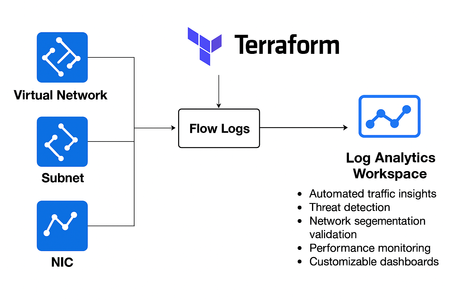
Migrating from NSG Flow Logs to VNet Flow Logs in Azure: Implementation with Terraform Author: Ibrahim Baig (Consultant) Executive Summary Microsoft is retiring Network Security Group (NSG) flow logs and recommends migrating to Virtual Network (VNet) flow logs. After June 30, 2025, new NSG flow logs cannot be created, and all NSG flow logs will be retired by September 30, 2027. Migrating to VNet flow logs ensures continued support and provides broader, simpler network visibility. What Changed & Key Dates - June 30, 2025: Creation of new NSG flow logs is blocked. - September 30, 2027: NSG flow logs are retired (resources deleted; historical blobs remain per retention policy). - Microsoft provides migration scripts and policy guidance for NSG→VNet flow logs. Why Migrate? (Benefits) Operational Simplicity & Coverage - Enable logging at the VNet, subnet, or NIC scope—no dependency on NSG. - Broader visibility across all workloads inside a VNet, not just NSG-governed traffic. Security & Analytics - Native integration with Traffic Analytics for enriched insights. - Monitor Azure Virtual Network Manager (AVNM) security admin rules. Continuity & Cost Parity - VNet flow logs are priced the same as NSG flow logs (with 5 GB/month free). What’s New in VNet Flow Logs - Scopes: Enable at VNet, subnet, or NIC level. - Storage: JSON logs to Azure Storage. - At-scale enablement: Built-in Azure Policy for auditing and auto-deployment. - Analytics: Traffic Analytics add-on for deep insights. - AVNM awareness: Observe centrally managed security admin rules. Traffic Analytics: Capabilities & Value Traffic Analytics (TA) is a powerful add-on for VNet flow logs, providing: - Automated Traffic Insights: Visualize traffic flows, identify top talkers, and detect anomalous patterns. - Threat Detection: Surface suspicious flows, lateral movement, and communication with malicious IPs. - Network Segmentation Validation: Confirm that segmentation policies are effective and spot unintended access. - Performance Monitoring: Analyze bandwidth usage, latency, and flow volumes for troubleshooting. - Customizable Dashboards: Drill down by subnet, region, or workload for targeted investigations. - Integration: Seamless with Azure Monitor and Log Analytics for alerting and automation. For practical recipes and advanced use cases, see https://blog.cloudtrooper.net/2024/05/08/vnet-flow-logs-recipes/. GAP: The Terraform Registry page for azurerm_network_watcher_flow_log does not yet provide an explicit VNet flow logs example. In practice, you use the same resource and set target_resource_id to the ID of the VNet (or Subnet/NIC). Registry page (latest): https://registry.terraform.io/providers/hashicorp/azurerm/latest/docs/resources/network_watcher_flow_log Important notes: - Same resource block: azurerm_network_watcher_flow_log - Use target_resource_id = <resource ID of VNet/Subnet/NIC> (instead of legacy network_security_group_id) - As of 30 July 2025, creating new NSG flow logs is no longer possible (provider notes); migrate to VNet/Subnet/NIC targets. - Keep your azurerm provider up-to-date, earlier builds had validation gaps for subnet/NIC IDs; these were tracked and addressed in provider issues. Implementation Guide Option A — Terraform (Recommended for IaC) Note: Use a dedicated Storage account for flow logs, as lifecycle rules may be overwritten. terraform { required_version = ">= 1.5" required_providers { azurerm = { source = "hashicorp/azurerm" version = ">= 3.110.0" # or latest } } } provider "azurerm" { features {} } data "azurerm_network_watcher" "this" { name = "NetworkWatcher_${var.region}" resource_group_name = "NetworkWatcherRG" } resource "azurerm_network_watcher_flow_log" "vnet_flow_log" { name = "${var.vnet_name}-flowlog" network_watcher_name = data.azurerm_network_watcher.this.name resource_group_name = data.azurerm_network_watcher.this.resource_group_name target_resource_id = azurerm_virtual_network.vnet.id storage_account_id = azurerm_storage_account.flowlogs_sa.id enabled = true retention_policy { enabled = true days = 30 } traffic_analytics { enabled = true workspace_id = azurerm_log_analytics_workspace.law.workspace_id workspace_region = azurerm_log_analytics_workspace.law.location workspace_resource_id = azurerm_log_analytics_workspace.law.id interval_in_minutes = 60 } tags = { owner = "network-platform" environment = var.env } } Option B — Azure CLI az network watcher flow-log create \ --location westus \ --resource-group MyResourceGroup \ --name myVNetFlowLog \ --vnet MyVNetName \ --storage-account mystorageaccount \ --workspace "/subscriptions/<subId>/resourceGroups/<rg>/providers/Microsoft.OperationalInsights/workspaces/<LAWName>" \ --traffic-analytics true \ --interval 60 Option C — Azure Portal - Go to Network Watcher → Flow logs → + Create. - Choose Flow log type = Virtual network; select VNet/Subnet/NIC, Storage account, and optionally enable Traffic Analytics. Option D — At Scale via Azure Policy - Use built-in policies to audit and auto-deploy VNet flow logs (DeployIfNotExists). Migration Approach (NSG → VNet Flow Logs) Inventory existing NSG flow logs. Choose migration method: Microsoft script or Azure Policy. Run both in parallel temporarily to validate. Disable NSG flow logs before retirement. Challenges & Mitigations - Permissions: Ensure required roles on Log Analytics workspace. - Terraform lifecycle: Use a dedicated Storage account. - Tooling compatibility: Verify SIEM/NDR support. - Provider/API maturity: Use current azurerm provider. Validation Checklist - Storage: New blobs appear in the configured Storage account. - Traffic Analytics: Data visible in Log Analytics workspace. - AVNM: Confirm traffic allowed/denied states appear in logs. Cost Considerations - VNet flow logs ingestion: $0.50/GB after 5 GB free/month. - Traffic Analytics processing: $2.30/GB (60-min) or $3.50/GB (10-min). Traffic Analytics Deep Dive: VNet Flow Logs are stored in Azure Blob Storage. Optionally, you can enable Traffic Analytics, which will do two things: it will enrich the flow logs with additional information, and will send everything to a Log Analytics Workspace for easy querying. This “enrich and forward to Log Analytics” operation will happen in intervals, either every 10 minutes or every hour. Table Structure: NTAIPDetails This table will contain some enrichment data about public IP addresses, including whether they belong to Azure services and their region, and geolocation information for other public IPs. Here you can see a sample of what that table looks like: NTAIpDetails | distinct FlowType, PublicIpDetails, Location Table Structure: NTATopologyDetails This table contains information about different elements of your topology, including VNets, subnets, route tables, routes, NSGs, Application Gateways and much more. Here you cans see what it looks like: Table Structure: NTANetAnalytics Alright, now we are coming to more interesting things: this table is the one containing the flows we are looking for. Records in this table will contain the usual attributes you would expect such as source and destination IP, protocol, and destination port. Additionally, data will be enriched with information such as: Source and destination VM Source and destination NIC Source and destination subnet Source and destination load balancer Flow encryption (yes/no) Whether the flow is going over ExpressRoute And many more Further below you can read some scenarios with detailed queries that will show you some examples of ways you can extract information from VNet Flow Logs and Traffic Analytics. Of course, these are just some of the scenarios that came to mind on my topology, the idea is that you can get inspiration from these queries to support your individual use case. Example Scenario: Imagine you want to see with which IP addresses a given virtual machine has been talking to in the last few days: NTANetAnalytics | where TimeGenerated > ago(10d) | where SrcIp == "10.10.1.4" and strlen(DestIp)>0 | summarize TotalBytes=sum(BytesDestToSrc+BytesSrcToDest) by SrcIp, DestIp Similarly, you can play around with such KQL queries in the workspace to deep dive into the Flow Logs. References & Further Reading https://learn.microsoft.com/en-us/azure/network-watcher/nsg-flow-logs-overview https://learn.microsoft.com/en-us/azure/network-watcher/nsg-flow-logs-migrate https://learn.microsoft.com/en-us/azure/network-watcher/vnet-flow-logs-overview https://learn.microsoft.com/en-us/azure/network-watcher/vnet-flow-logs-manage https://learn.microsoft.com/en-us/cli/azure/network/watcher/flow-log?view=azure-cli-latest https://learn.microsoft.com/en-us/azure/network-watcher/vnet-flow-logs-policy https://azure.microsoft.com/en-us/pricing/details/network-watcher/ https://registry.terraform.io/providers/hashicorp/azurerm/latest/docs/resources/network_watcher_flow_log https://blog.cloudtrooper.net/2024/05/08/vnet-flow-logs-recipes/1.8KViews2likes0CommentsDeploying a GitLab Runner on Azure: A Step-by-Step Guide
This guide walks you through the entire process — from VM setup to running your first successful job. Step 1: Create an Azure VM Log in to the Azure Portal. Create a new VM with the following settings: Image: Ubuntu 20.04 LTS (recommended) Authentication: SSH Public Key (generate a .pem file for secure access) Once created, note the public IP address. Connect to the VM From your terminal: ssh -i "/path/to/your/key.pem" admin_name@<YOUR_VM_PUBLIC_IP> Note: Make sure to replace the above command with path to .pem file and admin name which you would have given during VM deployment. Step 2: Install Docker on the Azure VM Run the following commands to install Docker: sudo apt update && sudo apt upgrade -y sudo apt install -y docker.io sudo systemctl start docker sudo systemctl enable docker #Enable Docker to start automatically on boot sudo usermod -aG docker $USER Test Docker with: docker run hello-world A success message should appear. If you see permission denied, run: newgrp docker Note: Log out and log back in (or restart the VM) for group changes to apply. Step 3: Install GitLab Runner Download the GitLab Runner binary: Assign execution permissions: Install and start the runner as a service: #Step1 sudo chmod +x /usr/local/bin/gitlab-runner #Step2 sudo curl -L --output /usr/local/bin/gitlab-runner \ https://gitlab-runner-downloads.s3.amazonaws.com/latest/binaries/gitlab-runner-linux-amd64 #Step3 sudo gitlab-runner install --user=azureuser sudo gitlab-runner start sudo systemctl enable gitlab-runner #Enable GitLab Runner to start automatically on boot Step 4: Register the GitLab Runner Navigate to runner section on your Gitlab to generate registration token (Gitlab -> Settings -> CI/CD -> Runners -> New Project Runner) On your Azure VM, run: sudo gitlab-runner register \ --url https://gitlab.com/ \ --registration-token <YOUR_TOKEN> \ --executor docker \ --docker-image Ubuntu:22.04 \ --description "Azure VM Runner" \ --tag-list "gitlab-runner-vm" \ --non-interactive Note: Replace the registration toke, description, tag-list as required After registration, restart the runner: sudo gitlab-runner restart Verify the runner’s status with: sudo gitlab-runner list Your runner should appear in the list. If runner does not appear, make sure to follow step 4 as described. Step 5: Add Runner Tags to Your Pipeline In .gitlab-ci.yml default: tags: - gitlab-runner-vm Step 6: Verify Pipeline Execution Create a simple job to test the runner: test-runner: tags: - gitlab-runner-vm script: - echo "Runner is working!" Troubleshooting Common Issues Permission Denied (Docker Error) Error: docker: permission denied while trying to connect to the Docker daemon socket Solution: Run newgrp docker If unresolved, restart Docker: sudo systemctl restart docker No Active Runners Online Error: This job is stuck because there are no active runners online. Solution: Check runner status: sudo gitlab-runner status If inactive, restart the runner: sudo gitlab-runner restart Ensure your runner tag in the pipelines matches the one you provided while creating runner for project Final Tips Always restart the runner after making configuration changes: sudo gitlab-runner restart Remember to periodically check the runner’s status and update its configuration as needed to keep it running smoothly. Happy coding and enjoy the enhanced capabilities of your new GitLab Runner setup!3.7KViews2likes2Comments