azure sql troubleshooting
3 TopicsUnderstanding Azure SQL Long-Term Retention Immutability Configuration with Terraform and AzAPI
Executive Summary Organizations using Azure SQL Database Long-Term Retention (LTR) backup policies may encounter failures when attempting to disable backup immutability while also specifying an immutability mode in the same request. In the investigated scenario, the customer observed that the operation succeeded when performed through ARM templates but failed when executed through Terraform using AzAPI-based resources. The investigation determined that the Azure SQL resource provider enforces validation rules that prevent TimeBasedImmutabilityMode from being specified when TimeBasedImmutability is set to Disabled. The issue was not caused by the Azure SQL service itself, but rather by how configuration values were being submitted through Terraform and AzAPI resource updates. The recommended mitigation is to ensure that immutability mode is omitted or explicitly set to null when disabling time-based immutability. This allows the request to comply with the resource provider's validation requirements. Introduction Azure SQL Database supports immutable Long-Term Retention (LTR) backups to help organizations meet compliance, governance, and data protection requirements. These policies allow administrators to control whether retained backups can be modified or deleted. During an investigation involving Terraform and AzAPI deployments, a customer reported inconsistent behavior when attempting to disable backup immutability. While equivalent ARM template operations completed successfully, Terraform-based deployments generated validation errors. This article explains the observed behavior, the investigation findings, the confirmed root cause, and the recommended mitigation. Issue Description Reported Symptoms The customer reported the following behavior: Enabling and managing Long-Term Retention backup immutability worked successfully. Configurations involving immutability mode settings could be applied successfully under certain conditions. Attempts to disable immutability through Terraform resulted in failures. Similar operations appeared to succeed when performed using ARM templates. Technical Environment The discussion confirmed the following components: Azure SQL Database Long-Term Retention (LTR) backup policies Backup immutability configuration Terraform deployments AzAPI resources and AzAPI resource updates ARM template deployments Azure SQL Resource Provider validation logic Expected Behavior When administrators disable backup immutability, the configuration update should be accepted and the policy should transition to a disabled state. Actual Behavior Requests submitted through Terraform/AzAPI included both: TimeBasedImmutability = Disabled TimeBasedImmutabilityMode = Unlocked The Azure SQL resource provider rejected this configuration, returning an error indicating that an immutability policy mode cannot be specified when backup immutability is not enabled. Investigation and Troubleshooting 1. Initial Customer Question The customer sought clarification on whether enabling, disabling, locking, and unlocking backup immutability should all be possible through AzAPI resources and whether a product issue existed. 2. Review of Azure SQL Resource Provider Behavior The support team reviewed requests submitted to the Azure SQL resource provider and compared successful and unsuccessful operations. The investigation focused on configuration differences between ARM template deployments and Terraform-driven updates. Confirmed Finding When ARM templates disabled immutability, the request contained: TimeBasedImmutability = Disabled and did not include an immutability mode parameter. Confirmed Finding When Terraform attempted to disable immutability, the request included both: TimeBasedImmutability = Disabled TimeBasedImmutabilityMode = Unlocked This resulted in a validation failure from the Azure SQL resource provider. 3. Validation of Error Behavior The team verified that the error was generated by the Azure SQL resource provider and was reproducible outside Terraform, including equivalent testing through ARM deployments when the conflicting parameter combination was supplied. Confirmed Error The resource provider returned an error equivalent to: Cannot set immutability policy mode when backup immutability is not enabled. 4. Assessment of Terraform and AzAPI Behavior The investigation identified an important behavioral difference. Terraform itself did not yet expose dedicated Time-Based Immutability parameters in its SQL modules. As a result, the customer was using AzAPI resources to perform direct REST-based operations. The team discovered that: azapi_resource behaved as expected. azapi_resource_update could retrieve and reuse an existing property value when no value was explicitly provided. This behavior caused the immutability mode value to persist unexpectedly during updates. 5. Reproduction and Verification The engineering discussion included review and validation of the reported behavior. Testing confirmed that requests containing immutability mode while immutability was disabled were expected to fail due to platform validation. Root Cause Confirmed Root Cause The failure occurred because the update request attempted to disable backup immutability while simultaneously providing a value for TimeBasedImmutabilityMode. Azure SQL validation rules require immutability mode to be associated only with an enabled immutability configuration. When immutability is disabled, an immutability mode must not be supplied. An additional contributing factor was the behavior of azapi_resource_update, which could retain a previously configured immutability mode value when no new value was explicitly provided. Consequently, requests unintentionally included an immutability mode even though the intent was to disable immutability entirely. The available evidence supports this conclusion through: Comparison of successful ARM template requests and failing Terraform requests. Reproduction of the same validation behavior by the Azure SQL resource provider. Validation of the AzAPI update behavior involving retained values. Mitigation and Resolution Recommended Mitigation When disabling backup immutability: Set TimeBasedImmutability to Disabled. Do not provide TimeBasedImmutabilityMode. Terraform/AzAPI Workaround The investigation determined that explicitly setting: TimeBasedImmutabilityMode = null prevents the previous value from being reused and allows the request to be processed correctly. Configuration Matrix Discussed The support team identified the following expected behavior: Operation Immutability Mode Requirement Locking backups Mode should be set to Locked Unlocking while remaining enabled Mode may be supplied and is recommended for clarity Disabling immutability Mode should not be supplied This guidance was explicitly discussed during the investigation. Validation After applying the mitigation: The disable operation should complete without the immutability mode conflict. Requests should no longer trigger the Azure SQL validation error related to immutability mode usage. Recommendations and Best Practices Recommendations Supported by the Investigation Ensure that immutability mode is not included when disabling backup immutability. Review Terraform templates for dynamically generated properties that may continue to emit previously populated values. When using AzAPI update resources, explicitly manage nullable properties where supported to avoid unintended value persistence. Important Considerations Behavior may vary depending on: Azure SQL API version Terraform provider version AzAPI provider implementation details Existing Long-Term Retention backup state Whether previously locked backups exist Always validate deployment behavior in a non-production environment before applying configuration changes broadly. Conclusion This investigation demonstrated that the inability to disable Azure SQL Long-Term Retention backup immutability was not caused by a platform defect in Azure SQL. Instead, the failure occurred because requests attempted to specify an immutability mode while immutability itself was being disabled. The issue was further influenced by AzAPI update behavior that could preserve previously configured values unless explicitly cleared. Setting the immutability mode to null, or removing it entirely when disabling immutability, resolved the problem. The key technical takeaway is that TimeBasedImmutabilityMode and TimeBasedImmutability must be configured consistently with Azure SQL resource provider validation rules, particularly during infrastructure-as-code deployments. Public Documentation Azure SQL Database Long-Term Retention documentation Azure SQL Backup Immutability documentation ARM/Bicep resource documentation for backup Long-Term Retention policies Terraform provider documentation for Azure SQL Database302Views0likes0CommentsAzure SQL Scaling Stuck? Investigating CDC and Transaction Log Pressure
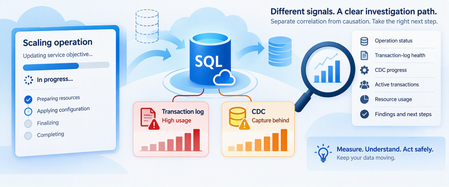
Azure SQL Database makes scaling compute straightforward. But troubleshooting becomes more complicated when several things happen simultaneously: A scale operation remains IN_PROGRESS. A cancellation remains CANCEL_IN_PROGRESS. Transaction-log usage is growing. Change Data Capture (CDC) is enabled. Log truncation reports REPLICATION. Long-running transactions are present. The temptation is to connect all these observations immediately: "CDC is preventing Azure SQL from scaling." That's a hypothesis, not yet a diagnosis. CDC reads changes from the transaction log, and CDC capture latency can delay log truncation under certain conditions. Microsoft specifically documents scenarios where CDC combined with long-running transactions can contribute to continued transaction-log growth. However, that doesn't establish a universal rule that: CDC causes scale operations to become stuck. REPLICATION as a log reuse wait means scaling is blocked. Disabling CDC will resolve a scale operation. A CDC problem and a long-running scale operation necessarily share the same root cause. The safest investigation separates the evidence into layers. 1. Start With the Scale Operation A scale operation changes the resources available to Azure SQL Database. Depending on the type of scaling operation, Azure SQL might need to: Create a compute instance with the requested configuration. Move or copy data when necessary. Redirect connections to the new environment. Terminate existing connections during the final switch. Microsoft documents that Azure SQL Database normally remains online during much of this process, although the final connection switch can cause a short interruption. Long-running transactions can increase the time required for recovery when connections are terminated. So, begin with the operation itself. 2. Check the Operation State Azure SQL Database exposes database-operation status using: sys.dm_operation_status This DMV reports operations such as ALTER and their state. Run the query from the logical server's master database: SELECT session_activity_id, major_resource_id AS database_name, operation, state_desc, percent_complete, start_time, last_modify_time, error_code, error_desc FROM sys.dm_operation_status ORDER BY start_time DESC; Possible states include: PENDING IN_PROGRESS COMPLETED FAILED CANCEL_IN_PROGRESS CANCELLED An important detail is that percent_complete shouldn't automatically be interpreted like a traditional progress bar. For many active operations: 50 = operation in progress and: 100 = operation complete Restore operations have more granular progress values. So: An ALTER operation remaining at 50% doesn't necessarily mean exactly half of the work is complete. 3. Build an Operation Timeline Capture: Scale request time. Requested service objective. Operation start time. Current state. last_modify_time. Cancellation request time, when applicable. Subsequent scale requests. Application impact. Database availability. Workload running during the operation. For example: Time Observation T0 Scale requested T1 Operation enters IN_PROGRESS T2 Transaction-log utilization rises T3 log_reuse_wait_desc reports REPLICATION T4 Cancellation requested T5 Operation still CANCEL_IN_PROGRESS This timeline establishes correlation. It doesn't yet establish causation. 4. Don't Keep Submitting Scale Requests When a scale or cancellation appears slow, avoid repeatedly submitting new modifications without understanding the state of the existing operation. Instead: Preserve the current operation ID. Record the operation state. Record timestamps. Capture current database workload. Investigate the transaction log. Investigate CDC independently. Escalate if the operation remains persistently unable to reach a terminal state. The goal is to reduce variables rather than introduce new ones. 5. Measure Transaction-Log Utilization Now move to the database being investigated. sys.dm_db_log_space_usage is supported in Azure SQL Database and reports how much transaction-log space is currently occupied. SELECT total_log_size_in_bytes / 1024.0 / 1024.0 AS total_log_size_mb, used_log_space_in_bytes / 1024.0 / 1024.0 AS used_log_space_mb, used_log_space_in_percent FROM sys.dm_db_log_space_usage; Capture this repeatedly. You're looking for a trend such as: T1 25% T2 41% T3 58% T4 73% T5 88% versus: T1 60% T2 63% T3 56% T4 61% T5 58% The first pattern suggests sustained net log growth. The second shows that log space is being reused. One snapshot can't tell you which behavior is occurring. 6. Ask Why the Log Can't Be Reused One of the most useful checks is: SELECT name, log_reuse_wait_desc FROM sys.databases WHERE database_id = DB_ID(); The value describes the current condition preventing transaction-log reuse. Microsoft also exposes the same concept through sys.dm_db_log_stats() as log_truncation_holdup_reason. A more complete diagnostic query is: SELECT database_id, total_log_size_mb, active_log_size_mb, total_vlf_count, active_vlf_count, log_truncation_holdup_reason, log_since_last_checkpoint_mb FROM sys.dm_db_log_stats(DB_ID()); sys.dm_db_log_stats() is documented as applicable to Azure SQL Database and returns summary-level information for diagnosing transaction-log health. 7. What Does REPLICATION Mean When CDC Is Enabled? This point requires careful interpretation. CDC uses the transaction log as the source for captured changes. Inserts, updates, and deletes are recorded in the transaction log before CDC processes those changes. Microsoft documents an important interaction: CDC is enabled. Transactions produce log records. CDC must capture relevant log information. Capture latency can hold back log truncation. log_reuse_wait_desc can consequently report REPLICATION. Therefore, if you see: REPLICATION in a CDC-enabled Azure SQL Database, CDC-related log processing is a legitimate investigation path. But don't jump from: "log_reuse_wait_desc = REPLICATION" to: "CDC caused the scaling operation to become stuck." That's a different claim requiring separate evidence. 8. Confirm Whether CDC Is Enabled Azure SQL Database exposes CDC status through sys.databases. SELECT name, is_cdc_enabled FROM sys.databases WHERE database_id = DB_ID(); If: is_cdc_enabled = 1 CDC is enabled for the database. Microsoft documents CDC support in Azure SQL Database and notes that the database must first be CDC-enabled before individual source tables can be tracked. 9. Inventory CDC Capture Instances Rather than using SQL Server Agent job queries, inspect Azure SQL Database CDC metadata. SELECT ct.capture_instance, OBJECT_SCHEMA_NAME(ct.source_object_id) AS source_schema, OBJECT_NAME(ct.source_object_id) AS source_table, ct.start_lsn, ct.create_date FROM cdc.change_tables AS ct ORDER BY source_schema, source_table; This helps answer: Which tables are tracked? How many capture instances exist? When were they created? Has the CDC scope changed recently? An important Azure SQL-specific detail is: Azure SQL Database doesn't depend on SQL Server Agent CDC capture and cleanup jobs. Instead, Azure SQL Database uses a built-in CDC scheduler that automatically runs capture and cleanup within the database. That distinction is critical when adapting SQL Server CDC troubleshooting procedures to Azure SQL Database. 10. Check Whether CDC Is Advancing A simple high-level check is: SELECT sys.fn_cdc_get_min_lsn( ct.capture_instance ) AS minimum_lsn, sys.fn_cdc_get_max_lsn() AS maximum_lsn, ct.capture_instance, OBJECT_SCHEMA_NAME(ct.source_object_id) AS source_schema, OBJECT_NAME(ct.source_object_id) AS source_table FROM cdc.change_tables AS ct; Take repeated samples. The objective isn't to derive a universal threshold. The objective is to determine whether the observable CDC boundary is: Advancing. Intermittently advancing. Apparently static over a meaningful period. Again: Trend matters more than a single snapshot. 11. Investigate Long-Running Transactions This is particularly important when CDC and log growth appear together. Microsoft specifically documents transaction-log growth scenarios involving CDC and long-running transactions. Start by examining database transactions: SELECT dt.transaction_id, dt.database_transaction_begin_time, dt.database_transaction_type, dt.database_transaction_state, dt.database_transaction_log_record_count, CAST ( dt.database_transaction_log_bytes_used / 1024.0 / 1024.0 AS decimal(18,2) ) AS log_mb_used, CAST ( dt.database_transaction_log_bytes_reserved / 1024.0 / 1024.0 AS decimal(18,2) ) AS log_mb_reserved FROM sys.dm_tran_database_transactions AS dt WHERE dt.database_id = DB_ID() ORDER BY dt.database_transaction_log_bytes_used DESC; sys.dm_tran_database_transactions is supported in Azure SQL Database and provides transaction-level database information, including transaction start time and log bytes consumed. 12. Connect Transactions Back to Sessions A transaction ID is useful, but identifying the application session makes it actionable. SELECT st.session_id, at.transaction_id, at.transaction_begin_time, at.transaction_type, at.transaction_state, dt.database_transaction_begin_time, CAST ( dt.database_transaction_log_bytes_used / 1024.0 / 1024.0 AS decimal(18,2) ) AS log_mb_used, s.login_name, s.host_name, s.program_name, r.status, r.command, r.wait_type, r.blocking_session_id FROM sys.dm_tran_session_transactions AS st JOIN sys.dm_tran_active_transactions AS at ON st.transaction_id = at.transaction_id JOIN sys.dm_tran_database_transactions AS dt ON st.transaction_id = dt.transaction_id LEFT JOIN sys.dm_exec_sessions AS s ON st.session_id = s.session_id LEFT JOIN sys.dm_exec_requests AS r ON st.session_id = r.session_id WHERE dt.database_id = DB_ID() ORDER BY at.transaction_begin_time; sys.dm_tran_active_transactions and sys.dm_tran_database_transactions are documented for Azure SQL Database. Look for: Very old transactions. Transactions consuming large amounts of log. Sleeping sessions with open transactions. Blocking. Large write activity. Don't terminate transactions merely because they're old. First determine: Which application owns them. Whether rollback would cause more impact. Whether they're expected. Whether they're actually contributing to the observed log condition. 13. Correlate With Log-Write Pressure Azure SQL Database also exposes recent transaction-log write utilization through: sys.dm_db_resource_stats It provides roughly one hour of resource history with approximately 15-second samples. SELECT TOP (240) end_time, avg_cpu_percent, avg_data_io_percent, avg_log_write_percent, avg_memory_usage_percent FROM sys.dm_db_resource_stats ORDER BY end_time DESC; Now correlate: Scale-operation start time. Log-space growth. log_reuse_wait_desc. CDC progression. Long-running transactions. avg_log_write_percent. This can reveal two very different scenarios. Scenario A Log is large. Log-write rate is currently modest. CDC continues advancing. No unusually long transaction is present. This weakens the hypothesis that current transaction-log pressure is the primary explanation for the ongoing scale behavior. Scenario B Log usage continually rises. REPLICATION remains the reuse wait. CDC progression appears delayed. Large transactions remain active. Log-write pressure is high. This strengthens the case for investigating the log/CDC workload further. It still doesn't prove CDC is blocking scaling. 14. Test Correlation Without Inventing Causation Build a timeline like this: Time Scale state Log used Reuse wait CDC progress Long transaction T1 IN_PROGRESS 45% NOTHING Advancing No T2 IN_PROGRESS 62% REPLICATION Slower Yes T3 IN_PROGRESS 78% REPLICATION Limited Yes T4 IN_PROGRESS 66% NOTHING Advancing No Then ask: Evidence supporting a relationship Problem begins at the same time. Log pressure remains sustained. CDC progression is materially delayed. Long transactions contribute substantial log activity. Reducing unnecessary write pressure produces measurable improvement. Evidence weakening the relationship CDC progresses normally. Log space is actively reused. Scale remains IN_PROGRESS despite normal log behavior. Scale problems occur independently of CDC pressure. Log pressure clears but operation state doesn't change. This distinction protects the investigation from a common mistake: Correlation is an investigation path, not proof of root cause. 15. Don't Disable CDC as a First Step Disabling CDC is a substantial configuration change. It can affect: ETL pipelines. Integration platforms. Analytics workloads. Incremental processing. Downstream synchronization. CDC history. Azure SQL Database provides documented procedures for enabling and disabling CDC, but those procedures should be used because changing CDC is an intentional design decision, not simply because a scale operation is taking longer than expected. Even if disabling CDC changes the symptom, that fact alone doesn't prove: CDC was the root cause. Other conditions may have changed simultaneously. 16. Use a Safe Mitigation Order When a scale operation, CDC, and transaction-log pressure overlap, consider this sequence. Step 1: Stop introducing new variables Avoid repeatedly submitting duplicate or conflicting scale operations. Step 2: Preserve operation evidence Capture: Operation ID. Start time. State. Last modification time. Errors. Step 3: Measure log health Capture: Log size. Used log percentage. Truncation holdup reason. Trend over time. Step 4: Validate CDC Confirm: CDC enabled. Tracked tables. CDC progression. Recent CDC configuration changes. Step 5: Investigate long-running transactions Determine: Age. Session. Application owner. Log consumption. Business impact of intervention. Step 6: Reduce avoidable write pressure When operationally safe, reduce nonessential: Bulk updates. Large batches. ETL writes. Maintenance jobs. Excessive write concurrency. Step 7: Treat CDC changes as controlled interventions Only disable CDC when: Downstream impact is understood. The change is justified. The recovery/reinitialization path is understood. Evidence supports testing it. 17. Validate Recovery Don't stop when the scale operation finally completes. Confirm all layers. Scale operation Verify that the operation reached: COMPLETED FAILED CANCELLED rather than remaining indefinitely in an intermediate state. Transaction log Verify: Log usage stabilizes. Log reuse resumes. log_truncation_holdup_reason changes appropriately. CDC Verify: Change capture continues. Expected tracked tables remain enabled. Downstream consumers remain healthy. Application Verify: Connections recover. Workload resumes normally. No unexpected backlog remains. 18. Know When to Escalate Escalation becomes appropriate when you've established that: The scale or cancellation operation remains persistently nonterminal. No meaningful state changes are occurring. Database workload evidence has been captured. Log health is understood. CDC status is documented. Long transactions have been investigated. Business impact continues. Microsoft provides sys.dm_operation_status specifically for monitoring operations performed on Azure SQL databases, including pending, in-progress, failed, cancellation-in-progress, and canceled states. A useful escalation package includes: Sanitized operation history. Service objective before and after the requested scale. sys.dm_operation_status evidence. Log-space trend. log_truncation_holdup_reason. CDC state. CDC progress observations. Long-running transaction evidence. Resource metrics. Mitigations attempted and their results. Remaining application/business impact. 19. Practical Decision Tree When an Azure SQL scale operation appears stuck: Is the operation still nonterminal? No Validate workload, CDC, and log health. Continue monitoring. Yes Record its state and timeline. Is the transaction log under sustained pressure? No Don't make CDC the primary hypothesis solely because it's enabled. Yes Continue. What is preventing log reuse? ACTIVE_TRANSACTION Investigate long-running transactions. REPLICATION with CDC enabled Investigate CDC progress and transaction activity. Another value Investigate that truncation holdup independently. Is CDC demonstrating progress? Yes A completely stalled CDC process becomes a weaker hypothesis. Continue investigating log generation and the scale operation separately. No, or inconclusive Gather repeated samples. Check transactions and workload pressure. Did log pressure resolve while scaling remained stuck? Yes The evidence weakens the hypothesis that log/CDC pressure alone explains the operation. No Continue correlation and consider escalation. Final Takeaway When Azure SQL scaling, CDC, and transaction-log pressure happen together, don't begin with: "CDC blocked the scale operation." Begin with four independent questions: What is the actual state of the scale operation? Is the transaction log genuinely under sustained pressure? Why is log reuse being delayed? Is CDC demonstrating forward progress? Azure SQL Database provides documented tools for each layer: sys.dm_operation_status for operation state. sys.dm_db_log_space_usage for log-space utilization. sys.dm_db_log_stats() for transaction-log health and truncation holdup. sys.dm_tran_database_transactions for transaction/log consumption. sys.dm_db_resource_stats for recent CPU, I/O, and log-write pressure. Azure SQL Database's built-in CDC scheduler and CDC metadata for capture investigation. Most importantly: Don't disable CDC just because two symptoms occurred together. Preserve evidence, reduce unnecessary workload pressure, address demonstrated transaction problems, and escalate persistent nonterminal scaling operations with a clear timeline. Because: The safest diagnosis separates correlation from causation before changing the workload. Further reading Change Data Capture (CDC) with Azure SQL Database Scale single database resources in Azure SQL Database sys.dm_operation_status sys.dm_db_log_space_usage sys.dm_db_log_stats Transaction log growth with long-running transactions and CDCWhen Change Tracking Cleanup Falls Behind: A Safe Playbook for Azure SQL
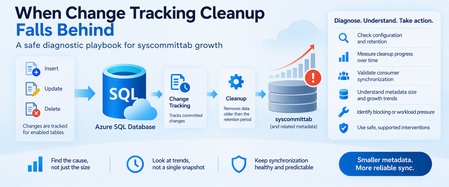
A growing Change Tracking table is a symptom. The useful question is whether cleanup is slow, blocked, or behaving as configured. Change Tracking is a lightweight mechanism for applications that need to determine which rows have changed without building a custom tracking framework. Azure SQL Database supports Change Tracking, including its built-in background cleanup mechanism. Track Data Changes But in long-running or high-change-rate environments, you may eventually encounter a different question: Why does Change Tracking metadata continue to grow? Possible explanations include: The observed growth is still within the configured retention window. Cleanup is progressing, but slower than new changes are arriving. Cleanup isn't making meaningful progress. The workload has changed substantially. A synchronization consumer has fallen behind. A long-running workload requires further investigation. The situation requires Azure support investigation. The important lesson is simple: Don't start by deleting Change Tracking metadata. Start by measuring it. 1. Understand the Change Tracking Contract Change Tracking records committed inserts, updates, and deletes for enabled tables. Applications typically maintain a synchronization version and later ask Azure SQL Database which rows changed after that version. Change Tracking Functions Three concepts are particularly important. Current version SELECT CHANGE_TRACKING_CURRENT_VERSION() AS current_version; CHANGE_TRACKING_CURRENT_VERSION() returns a version associated with the last committed transaction. An application can preserve this version and subsequently use it when enumerating changes. Change Tracking Functions Minimum valid version For individual tracked tables: SELECT s.name AS schema_name, t.name AS table_name, CHANGE_TRACKING_MIN_VALID_VERSION(t.object_id) AS min_valid_version FROM sys.tables AS t JOIN sys.schemas AS s ON t.schema_id = s.schema_id JOIN sys.change_tracking_tables AS ct ON t.object_id = ct.object_id ORDER BY s.name, t.name; The minimum valid version defines how far back a consumer can safely request changes. If the consumer's saved version falls below the minimum valid version, a subsequent CHANGETABLE result might no longer contain the complete change history the consumer expects. CHANGE_TRACKING_MIN_VALID_VERSION Retention The database's retention setting defines how long Change Tracking information should be retained before becoming eligible for cleanup. That's important because: Retention is not the same thing as a synchronization schedule. A consumer must synchronize frequently enough that its saved version doesn't fall behind the minimum valid version. 2. Start With the Configuration Before investigating cleanup, verify that Change Tracking is configured the way you think it is. SELECT DB_NAME(database_id) AS database_name, is_auto_cleanup_on, retention_period, retention_period_units_desc FROM sys.change_tracking_databases WHERE database_id = DB_ID(); Check: Is Change Tracking enabled? Is automatic cleanup enabled? What is the retention period? Does the retention period match the application's synchronization expectations? Microsoft documents sys.change_tracking_databases as one of the catalog views used to determine databases where Change Tracking is enabled. Manage Change Tracking If cleanup was intentionally disabled, metadata growth has a very different explanation than an environment where automatic cleanup is enabled. 3. Inventory Every Change-Tracked Table Next, understand the scope. SELECT s.name AS schema_name, t.name AS table_name, ct.is_track_columns_updated_on, ct.begin_version, ct.cleanup_version, ct.min_valid_version FROM sys.change_tracking_tables AS ct JOIN sys.tables AS t ON ct.object_id = t.object_id JOIN sys.schemas AS s ON t.schema_id = s.schema_id ORDER BY s.name, t.name; sys.change_tracking_tables returns one row for each Change Tracking-enabled table in the current database and exposes several useful diagnostic columns. sys.change_tracking_tables In particular: begin_version Represents the database version associated with the beginning of Change Tracking for the table. cleanup_version Represents the version up to which cleanup might have removed Change Tracking information. min_valid_version Represents the minimum Change Tracking version that's still valid for synchronization. sys.change_tracking_tables This immediately establishes: How many tables are tracked. Which tables started tracking at different points. Whether cleanup-related metadata differs significantly across tables. Whether your investigation affects one table or the entire database. 4. Capture Current and Minimum Valid Versions Together For a concise health snapshot: SELECT s.name AS schema_name, t.name AS table_name, CHANGE_TRACKING_CURRENT_VERSION() AS current_version, ct.begin_version, ct.cleanup_version, CHANGE_TRACKING_MIN_VALID_VERSION(t.object_id) AS min_valid_version FROM sys.change_tracking_tables AS ct JOIN sys.tables AS t ON ct.object_id = t.object_id JOIN sys.schemas AS s ON t.schema_id = s.schema_id ORDER BY s.name, t.name; This isn't a complete cleanup-health metric by itself. Instead, use it to understand how the Change Tracking version boundaries evolve over time. The key is: One snapshot isn't enough. A single sample can make healthy cleanup appear stuck, and a temporary movement can make an unhealthy trend look normal. 5. Measure Progress Over Time A better investigation takes repeated observations. For example: Sample Current Version Minimum Valid Version Cleanup Version T1 850000 710000 709900 T2 870000 728000 727900 T3 892000 746000 745900 These are synthetic values, but they demonstrate the important question. Ask: Are the boundaries moving forward over time? If yes: Cleanup is demonstrating progress. The next question is whether that progress is sufficient relative to the workload and retention expectations. If no: Extend the observation window. Validate configuration. Check workload conditions. Determine whether the lack of progress is persistent. Do not diagnose cleanup failure from a single observation. 6. Monitor Change Tracking Storage Safely Microsoft documents that Change Tracking creates internal tables, and sys.internal_tables can be used to identify those objects. Manage Change Tracking For investigation, you can inventory Change Tracking internal objects without modifying them: SELECT it.object_id, it.name AS internal_table_name, it.internal_type_desc, OBJECT_SCHEMA_NAME(it.parent_object_id) AS parent_schema_name, OBJECT_NAME(it.parent_object_id) AS parent_table_name FROM sys.internal_tables AS it WHERE it.internal_type_desc LIKE '%CHANGE_TRACKING%' ORDER BY parent_schema_name, parent_table_name; This is a diagnostic inventory. Do not: Delete rows directly from internal tables. Modify internal-table schema. Create unsupported indexes on internal objects. Treat internal Change Tracking tables like customer-owned tables. Microsoft explicitly documents that sys.internal_tables lists the internal objects created when Change Tracking is enabled. Manage Change Tracking 7. Estimate the Storage Footprint If you need to understand whether Change Tracking storage is increasing, combine the documented internal-table catalog metadata with partition statistics for measurement. SELECT it.name AS internal_table_name, OBJECT_SCHEMA_NAME(it.parent_object_id) AS parent_schema_name, OBJECT_NAME(it.parent_object_id) AS parent_table_name, SUM(ps.row_count) AS approximate_rows, CAST ( SUM(ps.reserved_page_count) * 8.0 / 1024 AS decimal(18,2) ) AS reserved_mb, CAST ( SUM(ps.used_page_count) * 8.0 / 1024 AS decimal(18,2) ) AS used_mb FROM sys.internal_tables AS it JOIN sys.dm_db_partition_stats AS ps ON it.object_id = ps.object_id WHERE it.internal_type_desc LIKE '%CHANGE_TRACKING%' GROUP BY it.name, it.parent_object_id ORDER BY reserved_mb DESC; Use this as a measurement query only. The most useful information isn't usually the absolute number. It's the trend: T1 → 800 MB T2 → 900 MB T3 → 1,050 MB T4 → 1,220 MB versus: T1 → 800 MB T2 → 820 MB T3 → 790 MB T4 → 810 MB The first pattern suggests sustained net growth. The second could simply reflect normal accumulation and cleanup behavior. 8. Validate the Synchronization Consumer Cleanup health is only half of the story. You must also protect the consumer's synchronization contract. Imagine an application stores its last synchronized Change Tracking version: DECLARE @last_sync_version bigint = 700000; DECLARE @table_id int = OBJECT_ID(N'dbo.SampleTable'); DECLARE Min_valid_version bigint = CHANGE_TRACKING_MIN_VALID_VERSION(@table_id); SELECT @last_sync_version AS last_sync_version, Min_valid_version AS min_valid_version, CASE WHEN Min_valid_version IS NULL THEN N'Unable to validate' WHEN @last_sync_version < Min_valid_version THEN N'Reinitialization required' ELSE N'Incremental synchronization valid' END AS sync_status; Microsoft specifically recommends validating a saved synchronization version against CHANGE_TRACKING_MIN_VALID_VERSION(). If last_sync_version is lower than the minimum valid version, subsequent CHANGETABLE results might not be valid for the intended synchronization. CHANGE_TRACKING_MIN_VALID_VERSION That's why simply shortening retention to reduce storage isn't necessarily harmless. You may create a different problem: Consumers can fall outside the valid synchronization window. 9. Use the Safe Change Enumeration Pattern Once the consumer's saved version is known to be valid, it can request subsequent changes. For example: DECLARE @last_sync_version bigint = 700000; SELECT CT.SampleID, CT.SYS_CHANGE_VERSION, CT.SYS_CHANGE_CREATION_VERSION, CT.SYS_CHANGE_OPERATION FROM CHANGETABLE ( CHANGES dbo.SampleTable, @last_sync_version ) AS CT; CHANGETABLE(CHANGES...) returns Change Tracking information for changes that occurred since the supplied version. Change Tracking Functions But validate first: DECLARE @last_sync_version bigint = 700000; DECLARE Min_valid_version bigint = CHANGE_TRACKING_MIN_VALID_VERSION ( OBJECT_ID(N'dbo.SampleTable') ); IF Min_valid_version IS NULL BEGIN THROW 50001, 'Unable to validate the Change Tracking version.', 1; END; IF @last_sync_version < Min_valid_version BEGIN THROW 50002, 'Saved synchronization version is no longer valid. Reinitialization is required.', 1; END; SELECT CT.SampleID, CT.SYS_CHANGE_VERSION, CT.SYS_CHANGE_CREATION_VERSION, CT.SYS_CHANGE_OPERATION FROM CHANGETABLE ( CHANGES dbo.SampleTable, @last_sync_version ) AS CT; This is much safer than assuming a consumer can request changes indefinitely. 10. Don't Confuse Consumer Lag With Cleanup Failure Suppose: Auto-cleanup is enabled. Cleanup versions are moving forward. Internal-table size fluctuates. A synchronization consumer hasn't run for longer than the retention window. Then the consumer's failure doesn't automatically mean cleanup malfunctioned. Cleanup may have behaved exactly as configured. The real issue may be: The consumer failed to synchronize within the retention contract. This distinction is important because increasing cleanup aggression wouldn't solve that problem. Instead, investigate: Synchronization frequency. Retention configuration. Consumer outages. Failed synchronization jobs. Whether the retention period reasonably accommodates normal recovery time. 11. Slow Cleanup and Blocked Cleanup Aren't the Same Consider three possible behaviors. Pattern A: Progressing normally You observe: Auto-cleanup enabled. Minimum valid versions advancing. Cleanup versions advancing. Storage fluctuating around a range. Consumers healthy. Interpretation: No evidence of a persistent cleanup failure. Pattern B: Progressing but falling behind You observe: Cleanup versions advance. Minimum valid versions advance. Change Tracking storage nonetheless grows over repeated observations. Interpretation: Cleanup appears to be making progress. Net Change Tracking generation may be exceeding cleanup throughput during the observation period. More investigation is warranted. Pattern C: Persistently no observable progress You observe over an appropriate period: Auto-cleanup enabled. Significant stale metadata is expected based on retention. Cleanup version doesn't materially advance. Storage continues growing. The behavior persists. Interpretation: A sustained cleanup backlog becomes a stronger hypothesis. Gather evidence before intervention. Escalation may be appropriate. 12. Check the Workload Before Blaming Cleanup Change Tracking operates alongside your application workload. Consider whether anything changed recently: More tracked tables? Higher DML rates? Larger transaction volumes? More databases using Change Tracking? New bulk workloads? Changes to synchronization frequency? Change Tracking enabled on high-churn tables? Increased contention or long-running operations? Change Tracking adds synchronous work to DML and uses a background cleanup mechanism for stale tracking information. Track Data Changes Therefore, a meaningful diagnosis should correlate metadata growth with: Change rate. Database workload. Cleanup progress. Retention. Consumer behavior. 13. Be Careful With Long-Running Transactions Change Tracking records changes on the basis of committed transactions. Microsoft specifically notes that its ordering is based on transaction commit time, allowing reliable behavior when transactions overlap or run for extended periods. Track Data Changes If you're investigating unusual cleanup timing, long-running workload activity deserves consideration. For currently active database transactions: SELECT s.session_id, r.status, r.command, r.start_time, r.total_elapsed_time, r.cpu_time, r.wait_type, r.wait_time, r.blocking_session_id FROM sys.dm_exec_sessions AS s JOIN sys.dm_exec_requests AS r ON s.session_id = r.session_id WHERE s.is_user_process = 1 AND r.database_id = DB_ID() ORDER BY r.total_elapsed_time DESC; Don't automatically conclude that a long-running request blocks Change Tracking cleanup. Instead, treat the workload evidence as another variable to correlate with cleanup behavior. 14. Use a Safe Intervention Hierarchy When metadata growth becomes concerning, resist the temptation to modify system objects. Use this order instead. Step 1: Confirm configuration Check: Change Tracking enabled. Retention. Auto-cleanup. Enabled tables. Step 2: Validate consumers Check: Last synchronization version. Minimum valid version. Synchronization frequency. Failed synchronization jobs. Step 3: Establish a trend Record over time: Current version. Minimum valid version. Cleanup version. Internal storage estimate. Step 4: Check workload changes Correlate: DML volume. Concurrent workload. Long-running operations. Newly tracked tables. Step 5: Reduce avoidable pressure If the workload itself changed, investigate it before assuming an engine defect. Step 6: Use only documented management mechanisms Avoid direct manipulation of Change Tracking internal objects. Step 7: Escalate when evidence shows a persistent backlog Provide: Configuration. Trend measurements. Tracked-table inventory. Version progression. Storage trend. Relevant workload timeline. Consumer status. That creates a much stronger support package than: "syscommittab is large." 15. Validate Recovery Suppose configuration or workload changes are made. Don't validate recovery with one query. Observe an appropriate workload cycle and compare: Metadata size trend. cleanup_version. Minimum valid version. Current version. Consumer synchronization success. Change Tracking-related errors. Workload rate. The desired outcome isn't necessarily: Change Tracking storage becomes tiny. The useful outcome is: Cleanup demonstrates sustainable progress, metadata growth stabilizes relative to workload, and consumers remain inside their valid synchronization window. 16. Prevent the Problem From Returning A healthy Change Tracking deployment needs operational monitoring. Consider tracking: Configuration health Is automatic cleanup enabled? Did retention change? Were new tables added? Cleanup trend Are cleanup versions advancing? Are minimum valid versions advancing? Is metadata storage continuously growing? Consumer health When did each consumer last synchronize? How close is its saved version to the minimum valid version? Are synchronization jobs failing? Workload health Has the write rate changed? Have new bulk workloads appeared? Has database scale changed substantially? The most useful alerts often focus on trend and synchronization safety, not simply: "syscommittab exceeded X GB." Absolute size tells you very little without workload and cleanup context. 17. A Practical Diagnostic Decision Table Observation Interpretation Next step Auto-cleanup disabled Configuration explains lack of automatic cleanup Confirm whether intentional Consumer version below minimum valid version Consumer fell outside valid window Reinitialize according to application design Cleanup versions advancing Cleanup demonstrating progress Continue trend analysis Versions advancing but storage growing Creation may exceed cleanup during observation Correlate workload and change rate No version movement in one snapshot Inconclusive Collect repeated samples Persistent lack of progress + sustained growth Cleanup backlog becomes plausible Gather escalation evidence Storage fluctuates but remains broadly stable Could represent normal operation Continue monitoring Consumer repeatedly approaches minimum valid version Retention/sync schedule may be misaligned Review synchronization design Final Takeaway When Change Tracking metadata grows, don't start with: "How do I delete syscommittab?" Start with: "Is cleanup progressing, is the workload outpacing it, or is the system behaving exactly as configured?" Azure SQL Database provides documented interfaces that let you answer much of that safely: sys.change_tracking_databases sys.change_tracking_tables CHANGE_TRACKING_CURRENT_VERSION() CHANGE_TRACKING_MIN_VALID_VERSION() CHANGETABLE sys.internal_tables for inventory and diagnostic observation Microsoft documents Change Tracking as having a built-in automatic cleanup mechanism and exposes catalog views and functions for managing and consuming its metadata. Track Data Changes Manage Change Tracking The most reliable investigation follows a simple sequence: Confirm configuration. Inventory tracked tables. Validate synchronization consumers. Measure version progression over time. Measure storage as a trend. Correlate growth with workload. Avoid direct system-object manipulation. Escalate with evidence when progress persistently stalls. Most importantly: Don't modify Change Tracking internal tables directly. Those objects are implementation details owned by the database engine. Observe them when documented metadata makes that appropriate, but manage Change Tracking through supported, documented interfaces. Because with Change Tracking cleanup: One snapshot tells you the size. A trend tells you the story. Further reading Track Data Changes About Change Tracking Manage Change Tracking sys.change_tracking_tables CHANGE_TRACKING_MIN_VALID_VERSION Change Tracking Functions