azure sql data sync
3 TopicsAzure SQL Data Sync After a Database Restore: Troubleshooting Leftover Sync Metadata
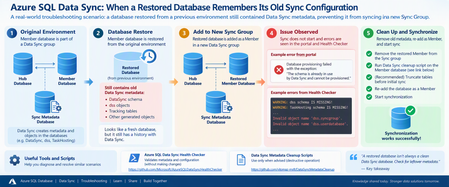
Recently, I worked on an interesting Azure SQL Data Sync issue that I thought was worth sharing with the community. The scenario looked straightforward at first: a database had been restored from another environment and was being configured as a Member database in a new Data Sync group. However, synchronization wasn't working as expected. The interesting part was not the new Sync Group itself. It was what the restored database had brought with it from its previous Data Sync configuration. The scenario The Member database was a restored copy of a database that had previously participated in another Azure SQL Data Sync group. After the restored database was configured as a Member in the new environment, synchronization wasn't working as expected. During troubleshooting, another important clue emerged. The restored database still had a history with Azure SQL Data Sync, so we needed to determine whether metadata and generated objects from its previous configuration were still present. This became one of the key areas of the investigation. Understand the Data Sync architecture first Before jumping into scripts, it's important to clearly distinguish the three database roles involved in Azure SQL Data Sync: Hub Database: The central database containing the application data being synchronized. Member Database: A database that synchronizes with the Hub. Sync Metadata Database: A separate Azure SQL Database containing Data Sync metadata and logs. Microsoft's documentation explains that Data Sync follows a hub-and-spoke topology and that the Sync Metadata Database contains Data Sync metadata and logs. This distinction became particularly important during this investigation because the initial diagnostic configuration wasn't pointing to the expected Sync Metadata Database. Troubleshooting approach Here is the troubleshooting flow we followed. Step 1: Run the Azure SQL Data Sync Health Checker One of the first tools I recommend for this type of investigation is the public Azure SQL Data Sync Health Checker: Azure SQL Data Sync Health Checker on GitHub [github.com] The tool validates whether metadata associated with the Hub and Member is in place and compares the scopes against information in the Sync Metadata Database. Importantly, the Health Checker repository states that it performs validation without changing Data Sync or user objects. The tool requires the relevant connection details for: Sync Metadata Database Hub Database Member Database The GitHub repository contains the current script and execution instructions. What we observed In our investigation, the initial Health Checker output included messages similar to: WARNING: dss schema IS MISSING! WARNING: TaskHosting schema IS MISSING! Invalid object name 'dss.syncgroup'. Invalid object name 'dss.userdatabase'. Those errors were important clues, but they needed to be interpreted together with the database roles. Microsoft's documentation states that the DataSync schema is used for system-created objects in Hub and Member databases, while the dss and TaskHosting schemas are used for system-created objects in the Sync Metadata Database. That distinction helped us recognize that we first needed to validate which database was actually being supplied to the Health Checker as the Sync Metadata Database. Lesson learned Before treating a missing dss or TaskHosting schema as corruption, first make sure you're actually connected to the Sync Metadata Database. That simple validation can save a lot of investigation time. Step 2: Check the Member database for Data Sync artifacts Once we had clarified the topology, the investigation moved to the restored Member database. Because this database had previously participated in Data Sync, we wanted to understand what Data Sync objects were still present. One of the queries used during troubleshooting was: SELECT name FROM sys.tables WHERE SCHEMA_NAME(schema_id) = 'DataSync' AND name NOT LIKE '%_tracking%'; We also inspected: SELECT * FROM DataSync.schema_info_dss; And, when checking the Member database's Data Sync scope information: SELECT * FROM DataSync.scope_info_dss; These checks helped us understand the Data Sync metadata state of the restored Member database and whether it still contained artifacts associated with its previous configuration. Why this matters Microsoft's current Data Sync best-practices documentation confirms that the DataSync schema is used for system-created objects in Hub and Member databases. So, when investigating a database restored from an environment where it previously participated in Data Sync, the DataSync schema is an important part of the investigation. Step 3: Consider the history of the restored database This was really the turning point in the investigation. Instead of treating the database simply as a "new Member", we started looking at it as: A restored database that had previously been provisioned for another Data Sync configuration. That's an important difference. When troubleshooting a restored database, ask early: Was this database previously part of another Azure SQL Data Sync group? If the answer is yes, the database's previous Data Sync state should be considered during the investigation. Step 4: Remove the Member before cleanup In our scenario, the remediation sequence was essentially: Remove the restored database from the current Sync Group. Clean up the previous Data Sync metadata from the restored Member database. Re-add the database as a Member. Trigger synchronization again. For the cleanup portion, we used the following publicly available repository: SQL Data Sync Cleanup Scripts on GitHub [github.com] The repository contains several scripts for different purposes, including: Data Sync complete cleanup.sql Data Sync cleanup hub or member.sql cleanup data sync object V2.sql The specific complete-cleanup script is available here: Data Sync complete cleanup.sql Important warning about the cleanup script Please do not treat this as a general-purpose Data Sync troubleshooting script. The script itself contains a very clear warning. It immediately cleans Data Sync-related objects associated with the database and says it should be used only for the scenarios specified in the script, including when advised by the support team during a support request. The repository also explains the different purposes of its cleanup scripts. For example, the complete-cleanup script has more restrictive usage guidance, while the Hub/Member cleanup and object cleanup scripts target different scenarios. My recommendation: use the Health Checker and read-only diagnostic queries first. Do not jump directly to metadata cleanup without understanding the database topology and existing Data Sync configuration. Step 5: Validate with one table After cleaning up the previous Data Sync artifacts, we didn't immediately assume that everything was resolved. Instead, we validated with a controlled test. A test table on the Member side was truncated, the synchronization was started again, and the table began synchronizing successfully. That provided the confirmation we needed that the previous Data Sync state of the restored Member was an important part of the issue. Root cause The troubleshooting pointed to the fact that the restored Member database had previously participated in another Data Sync configuration and retained Data Sync-related metadata/artifacts from that previous state. After cleaning up the old Data Sync state and reprovisioning the restored database as a Member, synchronization was successfully validated again. The important lesson for me wasn't simply the cleanup itself. It was recognizing that restoring a database does not necessarily mean you're starting with a clean Data Sync state. A practical troubleshooting flow For similar scenarios, I would approach the investigation in this order: Confirm the architecture Identify the: Hub Database Member Database Sync Metadata Database Run the Health Checker Use: Microsoft Azure SQL Data Sync Health Checker [github.com] Review its output before making changes. Inspect the restored Member Check whether Data Sync-related objects exist: SELECT name FROM sys.tables WHERE SCHEMA_NAME(schema_id) = 'DataSync' AND name NOT LIKE '%_tracking%'; Then, where applicable to the database's current state, inspect: SELECT * FROM DataSync.schema_info_dss; and: SELECT * FROM DataSync.scope_info_dss; Ask about the database history Was the database: restored from another environment? previously a Data Sync Member? previously associated with another Sync Group? That historical context can completely change the direction of the investigation. Consider cleanup only after understanding the environment The public cleanup scripts are available here: SQL Data Sync Cleanup Scripts [github.com] These scripts make changes to Data Sync objects and should not be the first troubleshooting step. Validate using a controlled test Once the environment has been correctly cleaned/reconfigured, validate synchronization on a controlled scope before assuming the entire configuration is healthy. My key takeaways This troubleshooting experience reinforced a few lessons for me. A restored database isn't necessarily a clean Data Sync database Restoring the application data doesn't mean you should ignore the database's previous synchronization configuration. Always distinguish Hub, Member, and Sync Metadata databases This is especially important when interpreting Health Checker output. The DataSync schema is associated with system-created objects in Hub and Member databases, while dss and TaskHosting are associated with system-created objects in the Sync Metadata Database. Use diagnostics before cleanup The Azure SQL Data Sync Health Checker is designed to validate Data Sync metadata and objects without making changes. That makes it a much better starting point than immediately removing objects. Database history matters One of my favorite questions after this investigation is now: "Was this database ever part of another Data Sync Group?" It's a simple question, but in restore or copy scenarios it can reveal an important part of the troubleshooting story. Be very careful with metadata cleanup The public cleanup repository itself provides specific guidance about when each script should be used, and the complete-cleanup script includes an explicit warning before execution. Always understand the environment and protect your data before performing destructive operations. One more important consideration: SQL Data Sync retirement There is also an important longer-term architecture consideration. Microsoft currently documents that SQL Data Sync retires on September 30, 2027. Existing Sync Groups can continue operating until the retirement date, but Microsoft recommends migrating to alternative data replication and synchronization solutions before then. So, while troubleshooting existing Data Sync environments remains necessary, organizations using the service should also begin considering their migration strategy. References and useful tools Microsoft documentation Best practices for Azure SQL Data Sync [learn.microsoft.com] Troubleshooting tools Azure SQL Data Sync Health Checker [github.com] SQL Data Sync Metadata Cleanup repository [github.com] Data Sync complete cleanup.sqlTroubleshooting Azure SQL Data Sync Failures Caused by Large Change Tracking Backlogs
Introduction Azure SQL Data Sync is a popular solution for synchronizing data across multiple Azure SQL Database instances. It uses Change Tracking to identify and propagate data modifications between participating databases. While Data Sync can operate reliably for extended periods, environments with highly active tables may occasionally encounter synchronization failures that become increasingly difficult to recover from. In this article, we examine a real-world troubleshooting scenario in which Azure SQL Data Sync repeatedly failed while attempting to synchronize changes for a specific table. The investigation revealed that excessive synchronization metadata growth and a large change backlog were causing change enumeration operations to exceed Azure SQL Database resource governance thresholds, resulting in repeated synchronization failures. This post explains the symptoms, investigation process, troubleshooting scripts, root cause, mitigation strategy, and preventive measures that administrators can apply in their own Azure SQL Data Sync environments. Symptoms The issue manifested as repeated Azure SQL Data Sync failures for a single synchronized table while the sync group remained unhealthy. Administrators may encounter errors similar to: Cannot enumerate changes at the RelationalSyncProvider. SqlError Number: 40197 The service has encountered an error processing your request. Please try again. Error code 40549 These errors can occur when Data Sync attempts to enumerate pending changes through Change Tracking and synchronization metadata, but the operation becomes excessively resource intensive. Additional Warning Signs Synchronization runs taking significantly longer than usual Repeated synchronization retries Increasing synchronization latency Large Data Sync metadata growth Sync groups reporting warning or failed states Understanding How Azure SQL Data Sync Uses Change Tracking Azure SQL Data Sync relies on SQL Change Tracking to identify modifications occurring within synchronized tables. The synchronization architecture generally consists of: Hub Database The central synchronization endpoint responsible for orchestrating synchronization. Member Databases Databases that participate in synchronization and exchange data with the hub. Change Tracking Tracks data modifications and provides an efficient mechanism to identify rows that have changed since the last synchronization cycle. Synchronization Metadata Data Sync maintains internal metadata used to track synchronization state and determine which changes must be applied. Change Enumeration During synchronization, Azure SQL Data Sync enumerates tracked changes and applies them across participating databases. As synchronization backlog grows, the complexity and duration of enumeration operations increase accordingly. Investigation Process The troubleshooting effort focused on identifying where synchronization was failing and determining whether the underlying issue was related to Change Tracking, synchronization metadata, or Azure SQL resource limitations. Step 1 – Identify the Failing Object Review synchronization logs to determine which table repeatedly generates failures. Step 2 – Determine Where the Failure Occurs Determine whether the issue originates from: Hub Database Member Database Synchronization Infrastructure Step 3 – Evaluate Synchronization Backlog Assess the volume of pending changes and synchronization metadata growth. Step 4 – Assess Resource Governance Impact Evaluate whether Azure SQL Database resource governance may be terminating synchronization-related operations. Useful T-SQL Scripts for Azure SQL Data Sync Troubleshooting During the investigation, several T-SQL queries were used to validate Change Tracking configuration, evaluate synchronization backlog size, identify governance-related interruptions, and assess the overall health of the Azure SQL environment. All scripts below have been sanitized and generalized for public use. Note: Replace dbo.SyncTable with the affected synchronized table in your environment. 1. Verify Whether Change Tracking Is Enabled Azure SQL Data Sync requires Change Tracking to function correctly. Check Database-Level Change Tracking -- Run to Master DB SELECT DB_NAME(database_id) AS DatabaseName, is_auto_cleanup_on, retention_period, retention_period_units_desc FROM sys.change_tracking_databases WHERE database_id = DB_ID(); Check Table-Level Change Tracking -- Run to UserDB SELECT OBJECT_SCHEMA_NAME(object_id) AS SchemaName, OBJECT_NAME(object_id) AS TableName, begin_version, cleanup_version, min_valid_version FROM sys.change_tracking_tables WHERE object_id = OBJECT_ID('dbo.SyncTable'); Why This Matters If Change Tracking is disabled, Azure SQL Data Sync cannot enumerate changes successfully. 2. Estimate Synchronization Backlog Size One of the most useful troubleshooting indicators is the volume of pending changes. --Run to UserDb SELECT COUNT(*) AS PendingChanges FROM CHANGETABLE(CHANGES dbo.SyncTable, 0) AS CT; Why This Matters A very large backlog may indicate: Synchronization delays Metadata accumulation Enumeration pressure Increased risk of governance-related failures 3. Review Change Tracking Metadata --Run to UserDB SELECT OBJECT_NAME(object_id) AS TableName, begin_version, min_valid_version, cleanup_version FROM sys.change_tracking_tables WHERE object_id = OBJECT_ID('dbo.SyncTable'); Why This Matters This information helps determine whether Change Tracking metadata is growing faster than cleanup processes can manage. 4. Validate Database Service Tier -- Run to UserDB SELECT database_id, edition, service_objective, elastic_pool_name FROM sys.database_service_objectives; Why This Matters Resource limitations associated with a database service tier may contribute to synchronization instability under heavy workloads. 5. Check for Resource Governance Events Run the following query from the master database of the Azure SQL logical server. SELECT TOP 20 end_time, event_type, event_subtype_desc, description FROM sys.event_log WHERE event_type = 'connection' AND event_subtype_desc = 'killed_by_governance' AND end_time > DATEADD(hour, -24, GETUTCDATE()) ORDER BY end_time DESC; Why This Matters This query can reveal whether Azure SQL Database terminated operations because they exceeded governance thresholds. Examples include: Long-running synchronization queries Excessive CPU consumption Excessive IO workload Large Change Tracking enumeration operations Note: sys.event_log is available only from the master database. 6. Identify Large Tables SELECT t.name AS TableName, SUM(p.rows) AS RowCounts FROM sys.tables t INNER JOIN sys.partitions p ON t.object_id = p.object_id WHERE p.index_id IN (0,1) GROUP BY t.name ORDER BY RowCounts DESC; Why This Matters Large high-churn tables often generate substantial amounts of synchronization metadata and are frequently associated with Data Sync performance issues. 7. Review Change Tracking Across All Tables SELECT OBJECT_SCHEMA_NAME(object_id) AS SchemaName, OBJECT_NAME(object_id) AS TableName, begin_version, cleanup_version, min_valid_version FROM sys.change_tracking_tables ORDER BY TableName; Why This Matters This query helps identify whether metadata growth is isolated to a single synchronized table or occurring across multiple tables. Troubleshooting Checklist When troubleshooting Azure SQL Data Sync failures: Confirm Change Tracking is enabled. Identify the failing synchronized table. Measure synchronization backlog size. Review Change Tracking metadata. Check database service-tier configuration. Check Azure SQL governance events. Review table size and update patterns. Monitor resource utilization. Validate synchronization health following remediation. Root Cause Analysis The investigation ultimately revealed several contributing factors: A large synchronization backlog accumulated over time. Change Tracking metadata continued to grow. Synchronization enumeration operations became increasingly resource intensive. Azure SQL Database resource governance began terminating long-running synchronization operations. Data Sync repeatedly retried synchronization and encountered the same failures. As a result, synchronization was unable to progress beyond the accumulated backlog and remained stuck in a failure cycle. Resolution The mitigation focused on reducing synchronization pressure and rebuilding synchronization state. Recovery Approach Remove the affected table from the Sync Group. Save synchronization configuration changes. Preserve business data through backups or archival. Reset or recreate the synchronized table when appropriate. Allow synchronization metadata cleanup. Re-add the table to the Sync Group. Trigger synchronization. Validate successful synchronization completion. Following this approach, synchronization resumed successfully without further failures. Why the Resolution Works This process addresses the underlying metadata problem rather than repeatedly retrying synchronization. Benefits include: Cleanup of excessive synchronization metadata Elimination of accumulated backlog Reset of synchronization state Fresh synchronization initialization Reduced enumeration workload Technical Recommendations Monitor synchronization health regularly. Track synchronization latency. Observe Data Sync metadata growth. Investigate synchronization failures early. Monitor DTU or vCore utilization. Review high-volume synchronized tables. Validate Change Tracking health periodically. Monitor retries and failed sync operations. Establish proactive alerting. Review synchronization design for large-scale workloads. Common Error Messages Error 40197 The service has encountered an error processing your request. Please try again. Potential Causes Transient platform interruption Resource-governance intervention Long-running synchronization operations Error 40549 Error code 40549 Potential Causes Excessive resource consumption Long-running transactions Synchronization enumeration pressure Cannot Enumerate Changes at the RelationalSyncProvider Cannot enumerate changes at the RelationalSyncProvider. Potential Causes Change Tracking backlog growth Excessive synchronization metadata Resource-governance intervention Lessons Learned Monitor Data Sync metadata growth proactively. Investigate synchronization delays before backlog accumulates. High-volume transactional tables require closer monitoring. Resource governance can significantly impact synchronization workloads. Reinitializing synchronization state may be necessary when metadata growth becomes excessive. Key Takeaways Azure SQL Data Sync depends heavily on Change Tracking metadata. Large synchronization backlogs can cause expensive enumeration operations. Errors 40197 and 40549 may indicate resource-governance interruptions. Large metadata accumulation can trigger synchronization failures. Monitoring synchronization health is essential. High-volume tables require ongoing review. Resetting synchronization state can be an effective recovery mechanism. Conclusion Azure SQL Data Sync remains a powerful solution for synchronizing data across Azure SQL Database environments. However, synchronization metadata and Change Tracking backlog growth can gradually evolve into serious operational challenges when left unchecked. In this troubleshooting scenario, synchronization failures were ultimately traced to a combination of excessive Change Tracking backlog growth and Azure SQL Database resource-governance limits. By identifying the affected table, measuring backlog pressure using targeted T-SQL queries, evaluating governance events, and reinitializing synchronization state, synchronization was successfully restored and stabilized. The key lesson is simple: proactive monitoring of Change Tracking metadata, synchronization backlog size, and Azure SQL workload health can prevent many Data Sync outages before they become business-impacting incidents.192Views0likes0Comments