azure redis
23 Topics
SSL/TLS connection issue troubleshooting guide
You may experience exceptions or errors when establishing TLS connections with Azure services. Exceptions are vary dramatically depending on the client and server types. A typical ones such as "Could not create SSL/TLS secure channel." "SSL Handshake Failed", etc. In this article we will discuss common causes of TLS related issue and troubleshooting steps.41KViews9likes1Comment- 11KViews5likes0Comments

Troubleshooting Azure Redis Connectivity Issues
Scenario: You want to test the connectivity of REDIS endpoint from your machine using the non-SSL port 6379 or SSL port 6380 as per requirement. Actions: There are different options available to test the connectivity of your Azure Redis cache endpoint from your machine. Let’s check on few of them. 1. Test the connectivity using REDIS CLI and STUNNEL You can test the connectivity for REDIS for your machine on non-SSL port 6379 and SSL port 6380 using REDIS CLI tool. To test the connectivity to non-SSL port, kindly use the below syntax: redis-cli.exe -h <YOUR CACHE ENDPOINT> -p 6379 -a <ACCESS KEY> To test the connectivity on SSL port 6380, you need to make use of STUNNEL and make an entry in the configuration file as depicted below. Please reload the configurations after making the entry. In case the entry is missing or the configuration isn’t loaded correctly, you may receive errors like “No connection could be made because the target machine actively refused it”, “Connection Reset by Peer” or “Unknown Error” etc. Once configuration has been loaded successfully, try connecting to REDIS using the below syntax: redis-cli.exe -p 6380 -a <ACCESS KEY> In both the above tests, we made of simple PING command and received a PONG back. 2. Test the connectivity using PSPING You can test whether you are getting response from the REDIS end point on the desired port or not by making use of PSPING. The tool can be downloaded from the below link: https://docs.microsoft.com/en-us/sysinternals/downloads/psping Please try the below syntax to test the connectivity and check on the number of packets being sent and received as part of testing. psping -q <YOUR CACHE ENDPOINT>:<Port Number> If the number of sent packets are not equal to the received packets, it points to drop in connectivity. 3. Test the connectivity using Port Query tool You can also make use of the Port Query tool in order to test the connectivity and the tool can be downloaded from the below link: https://www.microsoft.com/en-in/download/details.aspx?id=24009. You need to mention the REDIS endpoint in the destination section and provide the port for which the connectivity needs to be tested. If the port is open, you will be getting the status as ‘LISTENING’ as shown below and if the port is blocked, the status will be shown as ‘FILTERED’. The below 2 screenshots depicts how the status will get reflecting depending upon the port status. If you are not getting successful response from any of the above methods, please try checking on the below parameters to isolate the issue further. 4. Checking the Firewall Rule Check if there is any firewall rule configured over the REDIS. This can be checked from the Azure Portal under the Settings blade. Below is the screenshot for the same: If there is/are any rule configured, the connection to REDIS will only be allowed from the mentioned IP or the IP ranges. In case you try to connect from an IP outside the firewall rule mentioned, you will get an error. Below is an example of a connectivity test using REDIS CLI from an IP outside the firewall rule. 5. Checking the VNET configurations and NSG rules In case you are using a Premium cache which has a VNET configuration assigned to it, the most common test can be done from the REDIS console. Incase there are any missing configurations, you will get and error like below : In this case, you can try validating the below pointers: The client application/source and the REDIS are under same regions. The below example shows to check the location/region configuration of a VM and a Azure REDIS instance The client application/source and the REDIS are under same VNET. The below example shows to check the Virtual Network configuration of a VM and a Azure REDIS instance. You can check if a VNET is assigned to your cache or not from the “Virtual Network” section under the Settings blade from the Azure Portal . In case the client application/source are under different VNET’s, both the VNET’s should have VNET peering enabled within the same Azure region. Global peering is not supported yet. All the Inbound and Outbound rules are in place as per the requirement. From isolation standpoint, the above mentioned one is a sample rule that can added be to both inbound & outbound configurations in order to allow all the ports/protocols/sources and destination and test the connectivity. Please note that the rule precedence or “Priority” should be higher for rule to get implemented. 6. Check REDIS endpoint being whitelisted Last but not the least, in case you are using a firewall or proxy in your network, please ensure that the REDIS endpoint is whitelisted with the port number i.e. *.redis.cache.windows.net should be whitelisted for the port 6379 and port 6380 as per requirement. Hope this helps!29KViews5likes0Comments
Connect to Azure Cache for Redis using SSL Port 6380 from Linux VM
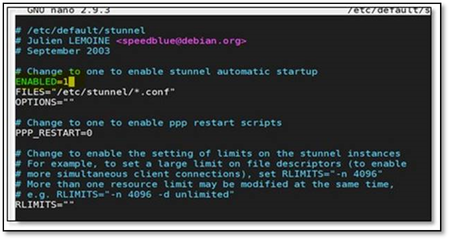
Scenario: You are using a Linux VM and you want to connect to Azure Cache for Redis using SSL Port 6380. Action: You can connect to Azure Cache for Redis using SSL Port with the help of Stunnel and Redis-cli. The steps are as follows: Step 1: Install the Redis-cli tool in your Linux machine. The command is as below: sudo apt-get update sudo apt-get install redis-tools Note: redis-tools package has redis-cli tool as well among other tools. Step 2: Since the redis-cli doesn’t support SSL port (6380), we can make use of stunnel to connect to Azure Cache for Redis using SSL port. We have version 4 of the utility, called stunnel4 which can be installed using the below command: sudo apt-get install stunnel4 Note: If you want to run the Redis using non SSL port 6379, in that case you do not need stunnel and you can directly access using the below command provided non-ssl port is open in Azure Cache for Redis: redis-cli -p 6379 -a <Your Access Key for Azure Cache for Redis> -h < yourcachename.redis.cache.windows.net> Step 3: To configure the service to start at booting, you must modify the /etc/default/stunnel4 file using the below command: sudo nano /etc/default/stunnel4 This opens a file where you have a variable ‘ENABLED’ which must be set to 1 to enable the service to start as shown below: You can save the changes with CTL+X and then pressing ENTER. Step 4: We need to configure the Azure Cache for Redis for redis-cli which must be mentioned in Redis configuration file of stunnel. Execute the below command: sudo nano /etc/stunnel/redis.conf This creates a new file where add the following entry and insert the actual name of your Azure Cache for Redis in place of yourcachename. [redis-cli] client = yes accept = 127.0.0.1:6380 connect = yourcachename.redis.cache.windows.net:6380 Save the file. Step 5: Now, we have configured the stunnel and hence need to restart the service which can be done with the help of below command: sudo systemctl restart stunnel4.service Step 6: If you check the services listening for connections on your Redis, you should see stunnel listening on port 6380 as below: sudo netstat -plunt Step 7: Now you can connect to Azure Cache for Redis using SSL port with the help of Redis-cli. Below is the command: redis-cli -p 6380 -a <Your Access Key for Azure Cache for Redis> You can see that Redis gets connected successfully and you will be able to perform operations on Azure Cache for Redis: Hope this helps!31KViews5likes3CommentsCommon causes of SSL/TLS connection issues and solutions
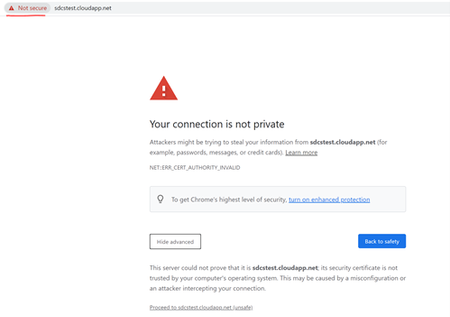
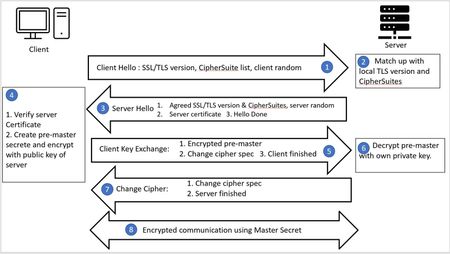
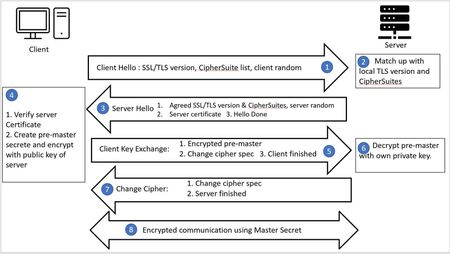
In the TLS connection common causes and troubleshooting guide (microsoft.com) and TLS connection common causes and troubleshooting guide (microsoft.com), the mechanism of establishing SSL/TLS and tools to troubleshoot SSL/TLS connection were introduced. In this article, I would like to introduce 3 common issues that may occur when establishing SSL/TLS connection and corresponding solutions for windows, Linux, .NET and Java. TLS version mismatch Cipher suite mismatch TLS certificate is not trusted TLS version mismatch Before we jump into solutions, let me introduce how TLS version is determined. As the dataflow introduced in the first session(https://techcommunity.microsoft.com/t5/azure-paas-blog/ssl-tls-connection-issue-troubleshooting-guide/ba-p/2108065), TLS connection is always started from client end, so it is client proposes a TLS version and server only finds out if server itself supports the client's TLS version. If the server supports the TLS version, then they can continue the conversation, if server does not support, the conversation is ended. Detection You may test with the tools introduced in this blog(TLS connection common causes and troubleshooting guide (microsoft.com)) to verify if TLS connection issue was caused by TLS version mismatch. If capturing network packet, you can also view TLS version specified in Client Hello. If connection terminated without Server Hello, it could be either TLS version mismatch or Ciphersuite mismatch. Solution Different types of clients have their own mechanism to determine TLS version. For example, Web browsers - IE, Edge, Chrome, Firefox have their own set of TLS versions. Applications have their own library to define TLS version. Operating system level like windows also supports to define TLS version. Web browser In the latest Edge and Chrome, TLS 1.0 and TLS 1.1 are deprecated. TLS 1.2 is the default TLS version for these 2 browsers. Below are the steps of setting TLS version in Internet Explorer and Firefox and are working in Window 10. Internet Explorer Search Internet Options Find the setting in the Advanced tab. Firefox Open Firefox, type about:config in the address bar. Type tls in the search bar, find the setting of security.tls.version.min and security.tls.version.max. The value is the range of supported tls version. 1 is for tls 1.0, 2 is for tls 1.1, 3 is for tls 1.2, 4 is for tls 1.3. Windows System Different windows OS versions have different default TLS versions. The default TLS version can be override by adding/editing DWORD registry values ‘Enabled’ and ‘DisabledByDefault’. These registry values are configured separately for the protocol client and server roles under the registry subkeys named using the following format: <SSL/TLS/DTLS> <major version number>.<minor version number><Client\Server> For example, below is the registry paths with version-specific subkeys: Computer\HKEY_LOCAL_MACHINE\SYSTEM\CurrentControlSet\Control\SecurityProviders\SCHANNEL\Protocols\TLS 1.2\Client For the details, please refer to Transport Layer Security (TLS) registry settings | Microsoft Learn. Application that running with .NET framework The application uses OS level configuration by default. For a quick test for http requests, you can add the below line to specify the TLS version in your application before TLS connection is established. To be on a safer end, you may define it in the beginning of the project. ServicePointManager.SecurityProtocol = SecurityProtocolType.Tls12 Above can be used as a quick test to verify the problem, it is always recommended to follow below document for best practices. https://docs.microsoft.com/en-us/dotnet/framework/network-programming/tls Java Application For the Java application which uses Apache HttpClient to communicate with HTTP server, you may check link How to Set TLS Version in Apache HttpClient | Baeldung about how to set TLS version in code. Cipher suite mismatch Like TLS version mismatch, CipherSuite mismatch can also be tested with the tools that introduced in previous article. Detection In the network packet, the connection is terminated after Client Hello, so if you do not see a Server Hello packet, that indicates either TLS version mismatch or ciphersuite mismatch. If server is supported public access, you can also test using SSLLab(https://www.ssllabs.com/ssltest/analyze.html) to detect all supported CipherSuite. Solution From the process of establishing SSL/TLS connections, the server has final decision of choosing which CipherSuite in the communication. Different Windows OS versions support different TLS CipherSuite and priority order. For the supported CipherSuite, please refer to Cipher Suites in TLS/SSL (Schannel SSP) - Win32 apps | Microsoft Learn for details. If a service is hosted in Windows OS. the default order could be override by below group policy to affect the logic of choosing CipherSuite to communicate. The steps are working in the Windows Server 2019. Edit group policy -> Computer Configuration > Administrative Templates > Network > SSL Configuration Settings -> SSL Cipher Suite Order. Enable the configured with the priority list for all cipher suites you want. The CipherSuites can be manipulated by command as well. Please refer to TLS Module | Microsoft Learn for details. TLS certificate is not trusted Detection Access the url from web browser. It does not matter if the page can be loaded or not. Before loading anything from the remote server, web browser tries to establish TLS connection. If you see the error below returned, it means certificate is not trusted on current machine. Solution To resolve this issue, we need to add the CA certificate into client trusted root store. The CA certificate can be got from web browser. Click warning icon -> the warning of ‘isn’t secure’ in the browser. Click ‘show certificate’ button. Export the certificate. Import the exported crt file into client system. Windows Manage computer certificates. Trusted Root Certification Authorities -> Certificates -> All Tasks -> Import. Select the exported crt file with other default setting. Ubuntu Below command is used to check current trust CA information in the system. awk -v cmd='openssl x509 -noout -subject' ' /BEGIN/{close(cmd)};{print | cmd}' < /etc/ssl/certs/ca-certificates.crt If you did not see desired CA in the result, the commands below are used to add new CA certificates. $ sudo cp <exported crt file> /usr/local/share/ca-certificates $ sudo update-ca-certificates RedHat/CentOS Below command is used to check current trust CA information in the system. awk -v cmd='openssl x509 -noout -subject' ' /BEGIN/{close(cmd)};{print | cmd}' < /etc/pki/ca-trust/extracted/pem/tls-ca-bundle.pem If you did not see desired CA in the result, the commands below are used to add new CA certificates. sudo cp <exported crt file> /etc/pki/ca-trust/source/anchors/ sudo update-ca-trust Java The JVM uses a trust store which contains certificates of well-known certification authorities. The trust store on the machine may not contain the new certificates that we recently started using. If this is the case, then the Java application would receive SSL failures when trying to access the storage endpoint. The errors would look like the following: Exception in thread "main" java.lang.RuntimeException: javax.net.ssl.SSLHandshakeException: PKIX path building failed: sun.security.provider.certpath.SunCertPathBuilderException: unable to find valid certification path to requested target at org.example.App.main(App.java:54) Caused by: javax.net.ssl.SSLHandshakeException: PKIX path building failed: sun.security.provider.certpath.SunCertPathBuilderException: unable to find valid certification path to requested target at java.base/sun.security.ssl.Alert.createSSLException(Alert.java:130) at java.base/sun.security.ssl.TransportContext.fatal(TransportContext.java:371) at java.base/sun.security.ssl.TransportContext.fatal(TransportContext.java:314) at java.base/sun.security.ssl.TransportContext.fatal(TransportContext.java:309) Run the below command to import the crt file to JVM cert store. The command is working in the JDK 19.0.2. keytool -importcert -alias <alias> -keystore "<JAVA_HOME>/lib/security/cacerts" -storepass changeit -file <crt_file> Below command is used to export current certificates information in the JVM cert store. keytool -keystore " <JAVA_HOME>\lib\security\cacerts" -list -storepass changeit > cert.txt The certificate will be displayed in the cert.txt file if it was imported successfully.57KViews4likes0Comments- 7.5KViews3likes0Comments
- 17KViews3likes0Comments
Redis Keys Statistics
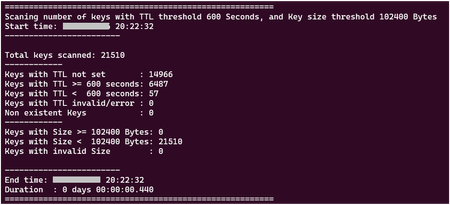
Redis Keys statistics including Key Time-to-Live (TTL) statistics and Key sizes are useful for troubleshooting cache usage and performance, from client side. This article have two sections: First one, using a script to get statistics from Keys on Redis ( 1 Bash script + 1 LUA script - getKeyStats.sh + getKeyStats.lua ) Second one, using a script to filter and list key names ( 1 Bash script that includes a LUA script - listKeys.sh ) Key Time-to-Live (TTL): TTL may have impact on memory usage and memory available on Redis services. Data Loss on Redis services may happened unexpectedly due to some issue on backend, but may also happen due to Memory eviction policy, or Time-to-Live (TTL) expired. Memory eviction policy may remove some keys from Redis service, but only when used capacity (the space used by Redis keys) reach 100% on memory available. Not having any unexpected issue on Redis backend side or not reaching the maximum memory available, the only reason for having some keys removed from cache is due to TTL value. TTL may not be defined at all, and in that case the key remains in the cache forever (persistent) TTL can be set while setting a new key TTL can be set / re-set later after key creation TTL is defined in seconds or milliseconds, or with a negative value: -1, the key exists but has no expiration (it’s persistent); this happens when the TTL was not defined or it was removed using PERSIST command -2, if the key does not exist. any other value Related commands: SET key1 value1 EX 60 - defines TTL as 60 seconds SET key1 value1 PX 60000 - defines TTL as 60000 milliseconds (60 seconds) EXPIRE key1 60 - Set a timeout of 60 seconds on key1 TTL key1 - returns the current TTL value, in seconds PTTL key1 - returns the current TTL value, in milliseconds PERSIST key1 removes TTL from that key and make the key persistent Notes: TTL counts down in real time, but Redis expiration is lazy + active, so exact timing isn’t guaranteed to the millisecond. A TTL of 0 is basically a race condition, that usually are not seen, it because the key expires immediately. EXPIRE key 0 deletes the key right away. There is no guarantee the deletion happens exactly at expiration time. Redis lazy + active expiration means the key is checked only when someone touches it (lazy), but to avoid memory filling up with expired junk, Redis also runs a background job to periodically scan a subset of keys and delete the expired ones (active). So, some expired keys may survive a bit longer, not accessible anymore but still im memory. Example Redis lazy: at 11:59:00 SET key1 value1 EX 60 - 60 seconds expiration time key1 expires at 12:00:00 no one accesses it until 12:00:05 - when someone try to access key1 at 12:00:05, Redis identify the key1 expired and delete it. Example Redis active: for the same key1, after 12:00:00. if during the periodically background job Redis scan the subset of keys containing key1, that key1 will be actively deleted. For that reason, we may see some higher memory usage than the real memory used by active keys in the cache. For more information about Redis commands, check Redis Inc - Commands Key Sizes: Large key value sizes in the cache, may have high impact on Redis performance. Redis service is designed to 1KB response size, and Microsoft recommends to use up to 100KB on Azure Redis services, to get a better performance. Redis response size may not be exactly the same as key size, as Response size is the sum of the response from each operation sent to Redis. While the response size can be the size of only one key requested (like GET), we can see very often response size being a sum of more than one key, as result of multikey operations (like MGET and others). The scope of this article is the focus on each key size; so, we will not discuss on this article the implications of multikey commands. By design Redis service is a single thread system per shard, and this is not a Microsoft/Azure limitation but a Redis design feature. To be very quick on processing requests, Redis is optimized to work and process small keys, and for that is more efficient using a single thread instead of the need of context switching. In a multi threaded system, context switching happens when the processor stops executing one thread and starts executing another. When that happens, the OS saves the current thread’s state (registers, program counter, stack pointer, etc.) and restores the state of the next thread. To save time on that process, Redis service is designed to run in a single thread system. Due to the single thread nature, all operations sent to Redis service, are waiting in a queue to be processed. To minimize latency, all keys must remain small so they can be processed efficiently and responses can be transmitted to the client quickly over the network. For that reason, it's important to understand the key sizes we have on our Redis service, and maintain all keys as small as possible. Scripts Provided To help on identifying some specific TTL values and Keys sizes in a Redis cache, two solutions are provided below: 1. Get Key statistics - that scans all cache and return the amount of Redis keys with: Number of keys with TTL no set Number of keys with TTL higher or equal to a user defined TTL threshold Number of keys with TTL lower than a user defined TTL threshold Number of keys with value size higher or equal than a user defined Size threshold Number of keys with value size lower than a user defined Size threshold Total number of keys in the cache. It also includes start and end time, and the total time spent on the keys scan. 2. List Key Names - this script returns a list of Redis Keys names, based on parameters provided: No TTL set, or TTL higher or equal to a user defined TTL threshold, or TTL lower than to a user defined TTL threshold Key value size higher or equal than a user defined Size threshold, or Key value size lower than a user defined Size threshold Total number of keys in the cache It also includes start and end time, and the total time spent on the keys scan. WARNING: Due to the need to read all keys in the cache, both solutions can cause high workload on Redis side, specially for high datasets on the cache, with high number of keys. Both solutions are using LUA script that runs on Redis side, and depending on the amount of keys in the cache, may block all other commands to be processed, while the script is running. The duration time on the output from each script run, may help to identify the impact of the scripts to run. Run it carefully and do some tests first on your developing environment, before using in a production. YOU CAN RUN THE BELOW SCRIPTS AT YOUR OWN RISK. WE DON'T ASSUME ANY RESPONSABILITY FOR UNEXPECTED RESULTS. 1- Get Key statistics To get Redis key statistics, we use Linux Bash shell and Redis-cli tool to run LUA script on Redis side, to get TTL values and sizes from each key. This solution is very fast, but needs to scan all keys in the cache during the LUA script run. Despite very quick, the time depends of the amount of keys to scan. This may block Redis to process other requests, due to the single-thread nature of Redis service. The below script scans all cache and return only the amount of Redis keys with: Number of keys with TTL no set Number of keys with TTL higher or equal to a user defined TTL threshold Number of keys with TTL lower than a user defined TTL threshold Number of keys with value size higher or equal than a user defined Size threshold Number of keys with value size lower than a user defined Size threshold Total number of keys in the cache. It also includes start and end time, and the total time spent on the keys scan. Calling getKeyStats.sh return statistics from the existing keys in the cache, based on the two threshold values (optional), that can be passed on script command line parameters. This script can clarify questions like: “Do I have any key in the cache without TTL set?”, or “Why my keys are not expiring?” (any threshold values used will clarify this) “Do I have large keys in my cache, larger than 1KB (any TTL threshold can be used, with key size threshold 1024) “How many keys I have that will expire on next 1 hour?” (threshold 3600, with any key size threshold) Output: How to run: create the below getKeyStats.sh and getKeyStats.lua files on same folder, on your Linux environment (Ubuntu 20.04.6 LTS used) give permissions to run Shell script, with command chmod 700 getKeyStats.sh Call the script using the syntax: ./getKeyStats.sh host password [port] [ttl_threshold] [size_threshold] Script parameters: host (mandatory) : the URI for the cache password (mandatory) : the Redis access key from the cache port (optional - default 10000) : TCP port used to access the cache ttl_threshold (optional - default 600 - 10 minutes) : Key TTL threshold (in seconds) to be used on the results (use -1 to 1 to get Keys with no TTL set) size_threshold (optional - default 102400 - 100KB) : Key Size threshold to be used on the results If not provided, the default values will be used: Redis Port: 10000, ttl_threshold: 600 Seconds, size_threshold: 102400 Bytes (100KB). Tested with: Ubuntu 20.04.6 LTS redis-cli -v redis-cli 7.4.2 Redis services: Azure Managed Redis Balanced B0 OSSMode Azure Cache for Redis Standard C1 getKeyStats.sh #!/usr/bin/env bash #============================== LUA script version ================= # Linux Bash Script to get statistics from Redis Keys TTL values and Key value sizes # It returns the Number of: # - keys with TTL no set # - keys with TTL higher or equal to TTL_treshold # - keys with TTL lower TTL_threshold # - keys with value size higher or equal than Size_threshold # - keys with value size lower than Size_threshold # - total number of keys in the cache. #------------------------------------------------------- # WARNING: # It uses LUA script to run on Redis server side. # Use it carefully, during low Redis workoads. # Do your tests first on a Dev environment, before use it on production. #------------------------------------------------------- # It requires : # redis-cli v7 or above #-------------------------------------------------------- # Usage: # getRedisTTL.sh <cacheuri> <cacheaccesskey> [<accessport>(10000)] [<ttl_treashold>(600)] [<size_threshold>(102400)] #======================================================== #------------------------------------------------------ # To use non-ssl port requites to remove --tls parameter from Redis-cli command below #------------------------------------------------------ # Parameters REDIS_HOST="${1:?Usage: $0 <host> <password> [port] [ttl_threshold] [Size_Threshold]}" REDISCLI_AUTH="${2:?Usage: $0 <host> <password> [port] [ttl_threshold] [Size_Threshold]}" REDIS_PORT="${3:-10000}" # 10000 / 6380 / 6379 REDIS_TTL_THRESHOLD="${4:-600}" # 10 minutes REDIS_SIZE_THRESHOLD="${5:-102400}" # 100KB # Port number must be numeric if ! [[ "$REDIS_PORT" =~ ^[0-9]+$ ]]; then echo "ERROR: Redis Port must be numeric" exit 1 fi # TTL threshold must be numeric if ! [[ "$REDIS_TTL_THRESHOLD" =~ ^[0-9]+$ ]]; then echo "ERROR: TTL threshold must be numeric" exit 1 fi # Size threshold must be numeric if ! [[ "$REDIS_SIZE_THRESHOLD" =~ ^[0-9]+$ ]]; then echo "ERROR: Size threshold must be numeric" exit 1 fi echo "" echo "========================================================" echo "Scaning number of keys with TTL threshold $REDIS_TTL_THRESHOLD Seconds, and Key size threshold $REDIS_SIZE_THRESHOLD Bytes" # Start time start_ts=$(date +%s.%3N) echo "Start time: $(date "+%d-%m-%Y %H:%M:%S")" echo "------------------------" echo "" # Procesing result=$(redis-cli \ -h "$REDIS_HOST" \ -a "$REDISCLI_AUTH" \ -p "$REDIS_PORT" \ --tls \ --no-auth-warning \ --raw \ --eval getKeyStats.lua , "$REDIS_TTL_THRESHOLD" "$REDIS_SIZE_THRESHOLD" \ | tr '\n' ' ') read no_ttl nonexist ttl_high ttl_low ttl_invalid size_high size_low size_nil total <<< "$result" if [[ $result == ERR* ]]; then echo "Redis Lua error:" echo "$result" else echo "Total keys scanned: $total" echo "------------" echo "Keys with TTL not set : $no_ttl" echo "Keys with TTL >= $REDIS_TTL_THRESHOLD seconds: $ttl_high" echo "Keys with TTL < $REDIS_TTL_THRESHOLD seconds: $ttl_low" echo "Keys with TTL invalid/error : $ttl_invalid" echo "Non existent Keys : $nonexist" echo "------------" echo "Keys with Size >= $REDIS_SIZE_THRESHOLD Bytes: $size_high" echo "Keys with Size < $REDIS_SIZE_THRESHOLD Bytes: $size_low" echo "Keys with invalid Size : $size_nil" fi echo "" echo "------------------------" end_ts=$(date +%s.%3N) echo "End time: $(date "+%d-%m-%Y %H:%M:%S")" # Duration - Extract days, hours, minutes, seconds, milliseconds duration=$(awk "BEGIN {print $end_ts - $start_ts}") days=$(awk "BEGIN {print int($duration/86400)}") hours=$(awk "BEGIN {print int(($duration%86400)/3600)}") minutes=$(awk "BEGIN {print int(($duration%3600)/60)}") seconds=$(awk "BEGIN {print int($duration%60)}") milliseconds=$(awk "BEGIN {printf \"%03d\", ($duration - int($duration))*1000}") echo "Duration : ${days} days $(printf "%02d" "$hours"):$(printf "%02d" "$minutes"):$(printf "%02d" "$seconds").$milliseconds" echo "========================================================" getKeyStats.lua local ttl_threshold = tonumber(ARGV[1]) local size_threshold = tonumber(ARGV[2]) local cursor = "0" -- Counters local no_ttl = 0 local nonexist = 0 local ttl_high = 0 local ttl_low = 0 local ttl_invalid = 0 local size_high = 0 local size_low = 0 local size_nil = 0 local total = 0 repeat local scan = redis.call("SCAN", cursor, "COUNT", 1000) cursor = scan[1] local keys = scan[2] for _, key in ipairs(keys) do local ttl = redis.call("TTL", key) local size = redis.call("MEMORY","USAGE", key) total = total + 1 if ttl == -1 then no_ttl = no_ttl + 1 elseif ttl == -2 then nonexist = nonexist + 1 elseif type(ttl) ~= "number" then ttl_invalid = ttl_invalid + 1 elseif ttl >= ttl_threshold then ttl_high = ttl_high + 1 else ttl_low = ttl_low + 1 end if size == nil then size_nil = size_nil + 1 elseif size >= size_threshold then size_high = size_high + 1 else size_low = size_low + 1 end end until cursor == "0" return { no_ttl, nonexist, ttl_high, ttl_low, ttl_invalid, size_high, size_low, size_nil, total } Performance: Redis service used: Azure Managed Redis - Balanced B0 - OSSMode Scanning number of keys with TTL threshold 600 Seconds, and Key size threshold 102400 Bytes Total keys scanned: 46161 TTL not set : 0 TTL >= 600 seconds: 46105 TTL < 600 seconds: 56 TTL invalid/error : 0 Non existent key : 0 Keys with Size >= 102400 Bytes: 0 Keys with Size < 102400 Bytes: 46161 Keys with invalid Size : 0 Duration : 0 days 00:00:00.602 # ------------------ Redis service used: Azure Cache for Redis - Standard - C1 Scanning number of keys with TTL threshold 100 Seconds, and Key size threshold 500 Bytes Total keys scanned: 1227 TTL not set : 2 TTL >= 100 seconds: 1225 TTL < 100 seconds: 0 TTL invalid/error : 0 Non existent key : 0 Keys with Size >= 500 Bytes: 1225 Keys with Size < 500 Bytes: 2 Keys with invalid Size : 0 Duration : 0 days 00:00:00.630 # ------------------ WARNING: The above scripts uses LUA script, that runs on Redis side, and may block you normal workload. Use it carefully when have a large number of keys in the cache, and during low workload times. 2 - List Key Names Once we identify some amount of keys in the cache with some specific threshold, we may want to list that key names. The below script can help on that, and returns a list of Redis Keys names with: No TTL set TTL higher or equal to a user defined TTL threshold TTL lower than to a user defined TTL threshold Key value size higher or equal than a user defined Size threshold Key value size lower than a user defined Size threshold Total number of keys in the cache It also includes start and end time, and the total time spent on the keys scan. Calling getKeyStats.sh return just key names and respective TTL values and key sizes. The result depends of the threshold values used, that can be passed on script command line parameters or using the default ones. On this script, we can use a sign on both threshold values: “-“, if we want to return keys lower than that threshold; “+” or no sign, if we want to return keys higher than that threshold. This script can clarify questions like: “What are the keys I have in the cache without TTL?” (Threshold values: -1 0) “What are the keys I have in the cache with TTL, and size higher than 1KB”? (Threshold values: 0 1024) “What are the keys I have in the cache with TTL, and size smaller than 1KB ?” (Threshold values: 0 -1024) “What are the keys I have in the cache with that will expire on next 1 hour?” (Threshold values: -3600 0) “What are the keys I have in the cache with that will expire after 1 hour?” (Threshold values: +3600 0) “What are the keys I have in the cache with No TTL set and size larger than 200K?” (Threshold values: -1 204800) Output: How to run: create the below listKeys.sh file under some folder, on your Linux environment (Ubuntu 20.04.6 LTS used) give permissions to run Shell script, with command chmod 700 listKeys.sh Call the script using the syntax: ./listKeys.sh host password [port] [+/-][ttl_threshold] [+/-][size_threshold] Script parameters: host (mandatory) : the URI for the cache password (mandatory) : the Redis access key from the cache port (optional - default 10000) : TCP port used to access the cache [+/-] (optional) before ttl_threshold: indicates if we want return keys with lower "-", or higher TTL "+" than ttl_threshold ttl_threshold (optional - default 600 - 10 minutes) : Key TTL threshold (in seconds) to be used on the results (use -1 to get Keys with no TTL set) [+/-] (optional) before size_threshold: indicates if we want return keys with small size "-", or large size "+" than size_threshold size_threshold (optional - default 102400 - 100KB) : Key Size threshold to be used on the results If not provided, the default values that will be used: No TTL set (-1), and Key size threshold 102400 Bytes (100KB). Tips: use ttl_threshold = -1 to return key names with no TTL (ex: /listKeys.sh [port] -1 [+/-][size_Threshold]) use ttl_threshold = -500 to return key names with TTL below 500 seconds (ex: /listKeys.sh [port] -500 [+/-][size_Threshold]) use ttl_threshold = 500 to return key names with TTL above or equal to 500 seconds (ex: /listKeys.sh [port] 500 [+/-][size_Threshold]) use size_threshold = 0 to return key names with any size in the cache (ex: /listKeys.sh [port] [+/-][ttl_threshold] 0) use size_threshold = -1000 to return key names with size below 1000 Bytes (ex: /listKeys.sh [port] [+/-][ttl_threshold] -1000) use size_threshold = 1000 to return key names with size above or equal to 1000 Bytes (ex: /listKeys.sh [port] [+/-][ttl_threshold] 1000) use ttl_threshold = 0 AND size_threshold = 0 to return all key names with any TTL and any size in the cache (ex: /listKeys.sh [port] 0 0) use ttl_threshold = -1 AND size_threshold = 0 to return all key names with no TTL and any size in the cache (ex: /listKeys.sh [port] -1 0) Tested with: Ubuntu 20.04.6 LTS redis-cli -v redis-cli 7.4.2 Redis services: Azure Managed Redis Balanced B0 OSSMode Azure Cache for Redis Standard C1 listKeys.sh #!/usr/bin/env bash set -euo pipefail #============================== LUA script version ================= # Linux Bash Script to list Redis Keys names # It returns key names with: # - No TTL set # - with TTL higher or equal to TTL_treshold # - with TTL lower TTL_threshold # - with value size higher or equal than Size_threshold # - with value size lower than Size_threshold # - total number of keys in the cache. #------------------------------------------------------- # WARNING: # It uses LUA script (included on Bash code) to run on Redis server side. # Use it carefully, during low Redis workoads. # Do your tests first on a Dev environment, before use it on production. #------------------------------------------------------- # It requires : # redis-cli v7 or above #-------------------------------------------------------- # Usage: # listKeys.sh <cacheuri> <cacheaccesskey> [<accessport>(10000)] [+/-][<ttl_treashold>(-1)] [+/-][<size_treashold>(102400)] #======================================================== #------------------------------------------------------ # Using non-ssl port requires to remove --tls parameter on Redis-cli command below #------------------------------------------------------ sintax="<redis_host> <password> [redis_port] [+/-][ttl_threshold] [+/-][size_threshold]" REDIS_HOST="${1:?Usage: $0 $sintax}" REDISCLI_AUTH="${2:?Usage: $0 $sintax}" REDIS_PORT="${3:-10000}" # Redis port (10000, 6380, 6379) KEYTTL_THRESHOLD=${4:-"-1"} # -1, +TTL_threshold, TTL_threashold, -TTL_threshold KEYSIZE_THRESHOLD="${5:-102400}" # +Size_threshold, Size_threashold, -Size_threshold # Port number must be numeric if ! [[ "$REDIS_PORT" =~ ^[0-9]+$ ]]; then echo "ERROR: Redis Port must be numeric" exit 1 fi # Check if KEYTTL_THRESHOLD is a valid integer if ! [[ "$KEYTTL_THRESHOLD" =~ ^[-+]?[0-9]+$ ]]; then echo "Error: ttl_threshold $KEYTTL_THRESHOLD is not an integer" exit 1 fi # Check if KEYSIZE_THRESHOLD is a valid integer if ! [[ "$KEYSIZE_THRESHOLD" =~ ^[-+]?[0-9]+$ ]]; then echo "Error: Size_threshold $KEYSIZE_THRESHOLD is not an integer" exit 1 fi # Check if TTL Threasold is positive (or zero), or negative if [ "$KEYTTL_THRESHOLD" -ge 0 ]; then TTLSIGN="+" else TTLSIGN="-" fi # Check if Size Threshold is positive (or zero), or negative if [ "$KEYSIZE_THRESHOLD" -ge 0 ]; then SIZESIGN="+" size_text="larger than" else SIZESIGN="-" size_text="smaler than" fi # specific with no TTL set if [ "$KEYTTL_THRESHOLD" -eq -1 ]; then ttl_text="No TTL set" fi if [ "$KEYTTL_THRESHOLD" -ge 0 ]; then ttl_text="TTL above $KEYTTL_THRESHOLD Seconds" fi if [ "$KEYTTL_THRESHOLD" -lt -1 ]; then ttl_text="TTL below ${KEYTTL_THRESHOLD#[-+]} Seconds" fi # remove any sign KEYTTL_THRESHOLD="${KEYTTL_THRESHOLD#[-+]}" KEYSIZE_THRESHOLD="${KEYSIZE_THRESHOLD#[-+]}" echo "========================================================" echo "List all key names with $ttl_text, and Key size $size_text $KEYSIZE_THRESHOLD Bytes" # Start time start_ts=$(date +%s.%3N) echo "Start time: $(date "+%d-%m-%Y %H:%M:%S")" echo "------------------------" echo "" # Procesing redis-cli -h "$REDIS_HOST" -p "$REDIS_PORT" -a "$REDISCLI_AUTH" --tls --no-auth-warning EVAL " local cursor = '0' local ttl_threshold = tonumber(ARGV[1]) -- KEYTTL_THRESHOLD local ttl_sign = ARGV[2] -- TTLSIGN local size_threshold = tonumber(ARGV[3]) -- KEYSIZE_THRESHOLD local size_sign = ARGV[4] -- SIZESIGN local output = {} local count = 0 local totalKeys = 0 local strKeyTTL = '' local strKeySize = '' -- Scanning keys in the cache table.insert(output, '--------------------------------------') repeat local res = redis.call('SCAN', cursor, 'COUNT', 100) cursor = res[1] for _, k in ipairs(res[2]) do local ttl = redis.call('TTL', k) local size = redis.call('MEMORY','USAGE', k) totalKeys = totalKeys + 1 if (size_sign == '+' and size >= size_threshold) or (size_sign == '-' and size < size_threshold) then -- TTL == -1 → no expiration if ttl_sign == '-' and ttl_threshold == 1 then if ttl == -1 then table.insert(output, k .. ': TTL: -1, Size: ' .. size .. ' Bytes') count = count + 1 end -- TTL comparisons (exclude -1 and -2) else if ttl >= 0 then if ttl_sign == '-' and ttl < ttl_threshold then table.insert(output, k .. ': TTL: ' .. ttl .. ' seconds, Size: ' .. size .. ' Bytes') count = count + 1 elseif ttl_sign == '+' and ttl >= ttl_threshold then table.insert(output, k .. ': TTL: ' .. ttl .. ' seconds, Size: ' .. size .. ' Bytes') count = count + 1 end end end end end until cursor == '0' -- Adding summary to output table.insert(output, '--------------------------------------') if (size_sign == '+') then strKeySize = 'larger' else strKeySize = 'smaler' end strKeySize = 'size ' .. strKeySize .. ' than ' .. size_threshold .. ' Bytes' if ttl_sign == '-' and ttl_threshold == 1 then strKeyTTL = 'No TTL' elseif ttl_sign == '-' then strKeyTTL = 'TTL < ' .. ttl_threshold .. ' seconds' elseif ttl_sign == '+' then strKeyTTL = 'TTL >= ' .. ttl_threshold .. ' seconds' end strKeyTTL = ' keys found with ' .. strKeyTTL table.insert(output, 'Scan completed.') table.insert(output, 'Total of ' .. totalKeys .. ' keys scanned.') table.insert(output, count .. strKeyTTL .. ', and ' .. strKeySize) table.insert(output, '--------------------------------------') return output " 0 "$KEYTTL_THRESHOLD" "$TTLSIGN" "$KEYSIZE_THRESHOLD" "$SIZESIGN" echo " " end_ts=$(date +%s.%3N) echo "End time: $(date "+%d-%m-%Y %H:%M:%S")" # Duration - Extract days, hours, minutes, seconds, milliseconds duration=$(awk "BEGIN {print $end_ts - $start_ts}") days=$(awk "BEGIN {print int($duration/86400)}") hours=$(awk "BEGIN {print int(($duration%86400)/3600)}") minutes=$(awk "BEGIN {print int(($duration%3600)/60)}") seconds=$(awk "BEGIN {print int($duration%60)}") milliseconds=$(awk "BEGIN {printf \"%03d\", ($duration - int($duration))*1000}") echo "Duration : ${days} days $(printf "%02d" "$hours"):$(printf "%02d" "$minutes"):$(printf "%02d" "$seconds").$milliseconds" echo "========================================================" Performance: Redis service used: Azure Managed Redis Balanced B0 OSSMode # ------------------ Scan completed. Total keys listed: 46005 Duration : 0 days 00:00:01.437 # ------------------ Redis service used: Azure Cache for Redis - Standard - C1 Scan completed. Total keys listed: 1225 Duration : 0 days 00:00:00.545 # ------------------ WARNING: The above script uses LUA script, that runs on Redis side, and may block you normal workload. Use it carefully when have a large number of keys in the cache, and during low workload times. YOU CAN RUN THE BELOW SCRIPTS AT YOUR OWN RISK. WE DON'T ASSUME ANY RESPONSABILITY FOR UNEXPECTED RESULTS. References Azure Managed Redis Azure Best Practice for Development Redis Inc - Commands Redis LUA - Lua API reference Redis Inc - How Redis expires keys Redis CLI Bash Script xargs man page awk man page I hope this can be useful !!!886Views2likes2Comments