azure private link
24 Topics
Announcing Public Preview - Azure Private Link over IPv6
1. Overview Private Link over IPv6 (PL IPv6) enables customers to securely access Azure PaaS services over IPv6-based connectivity. This capability is critical for: IPv6 based PE connectivity to PaaS resources Enabling IPv6 in On-prem environments This document is intended to serve as guide to setup and test the On-prem connectivity from IPv6 customer address to Azure PaaS resources over Express Route via Private link. (IPv6 PE connectivity) Note: This feature is currently in public preview and is not recommended for production workloads. 2. Supported Scenarios Scenario A: Native Azure (Azure VM → PaaS via IPv6 Private Endpoint) IPv6 client VM in VNet → IPv6 Private Endpoint → Azure PaaS Scenario B: OnPrem Access via ExpressRoute On-prem IPv6 client → ExpressRoute → VNet Routing Appliance (VNRA) à IPv6 Private Endpoint → PaaS Supported via ER Circuits 3. Prerequisites 3.1 Supported Regions (Preview Scope) Limited preview regions West Central US East Asia UK South US Central North Europe 3.2 Supported Services (Preview) Azure Storage Azure SQL Azure Key Vault Azure Data Explorer 3.3. Subscription registration An Azure account with an active subscription. Create an account for free. Your subscription must be registered for the Private Link over IPv6 preview. Registration is mandatory before you configure any resources. You can self-register the subscription by running the following commands: az feature register --namespace Microsoft.Network --name SupportIPv6PrivateEndpoint --subscription <subscription-id> az provider register --namespace Microsoft.Network 4. Configurations 4.1 Azure VNET level configurations Please note that you will need to create: Dual-stack IPv6-enabled Vnet with a VM that is assigned both IPv4 and IPv6 address. For on-prem connectivity, this is the same Vnet where ER Gateway is created. Refer: Create an Azure virtual machine with a dual-stack network - Azure Virtual Network | Microsoft Learn PL scale enabled on VNET via configuration flags (refer config flags mentioned further in this section and bolded flags in the code snippet) Dual Stack (IPv4+ IPv6) Subnet Private Endpoints with IPv6 Refer these flags for enabling VNET with PL scale: Vnet level : "privateEndpointVNetPolicies": "Basic", Subnet level: “privateEndpointNetworkPolicies": "RouteTableEnabled" Refer Azure documentation for VNET creation: Quickstart: Create an Azure Virtual Network | Microsoft Learn 4.3 Private endpoint configuration: With the Private Link IPv6 support, we have introduced a new parameter in PE creation API/CLI, ‘ip VersionType’. Please ensure that this is set to ‘IPv6’ for enabling PL IPv6 traffic. Refer Azure documentation for PE creation: Quickstart: Create a private endpoint - Azure portal - Azure Private Link | Microsoft Learn Reference CLI: az network private-endpoint create \ --name <private-endpoint-name> \ --resource-group <resource-group-name> \ --vnet-name <vnet-name> \ --subnet <subnet-name> \ --private-connection-resource-id <resource-id-of-target-service> \ --group-id <group-id> \ --connection-name <connection-name> \ --location <region> \ --ip-version-type <Ipv4|Ipv6 > 4.4 DNS Configuration Ensure these points for DNS configurations: Create Private DNS Zone for each Service type Attach the respective DNS zone to the Private Endpoints. Ensure to check that after above steps completed PaaS FQDN resolves to PEIPv6 address. Refer Azure documentation for On-prem access via Private Link: Azure Private Endpoint DNS Integration Scenarios | Microsoft Learn Native Azure Connectivity (Azure VM → PaaS via IPv6) Validation: Ensure the Storage Account FQDN resolves to the IPv6 Private Endpoint address. Access the Storage Account using the standard service FQDN. From the dual-stack VM: nslookup <storageaccount>.blob.core.windows.net Expected Result: <storageaccount>.privatelink.blob.core.windows.net AAAA: <Private Endpoint IPv6 Address> Connectivity validation: curl https://<storageaccount>.blob.core.windows.net Test-NetConnection <storageaccount>.blob.core.windows.net -Port 443 Configurations specific to On-prem connectivity via ER circuit and Virtual Network Routing Appliance On-premises IPv6 clients access IPv6 private endpoints over ExpressRoute through a Virtual Network Routing Appliance (VNRA). ExpressRoute forwards traffic from on-premises IPv6 clients to the VNRA, which then routes the traffic to the target IPv6 private endpoint that's hosted by the Azure PaaS service. This connectivity requires the following components: An ExpressRoute circuit with the appropriate gateway SKU for your connectivity type (FastPath or standard). For more information, see Create and modify an ExpressRoute circuit. 4.5 Virtual Network Routing Appliance (VNRA) configurations To know more about VNRA, refer: Overview of Routing Appliances - Azure Virtual Network | Microsoft Learn We are leveraging VNRA to facilitate PL IPv6 ER traffic forwarding. User would be required to create a VNRA in the VNet. To facilitate the forwarding of PL IPv6 traffic via VNRA, a UDR would be required to be added in the gateway subnet with next hop as VNRA IPv6 address. Below are the guided steps to achieve all of this. Step 1: Create a VNRA in the VNet Create a VNRA in your resource group via Azure Preview portal. Search for Azure Virtual Network routing appliance on the Azure portal search Click on create: In the above creation page, choose your subscription and resource group, enter name, region, capacity (10-200 Gbps) & the VNet. Review and Create the VNRA. Step 2: Create User Defined Route (UDR) to VNRA The UDR will ensure ER PLIPv6 traffic is forwarded to VNRA which will further process & forward the traffic to the IPv6 Private Endpoint. 1.Create a new route table on Azure portal: 2. Choose the subscription, resource group and set ‘Gateway propagation’ as default (true) 3. Add a route in this route table to forward the on-prem PLIPv6 traffic to VNRA (for this please add route as shown in reference below) as per below details: Enter ‘Destination type’ as ‘IP Address’ Enter ‘Destination IP addresses/CIDR Ranges’ as Private Endpoint IPv6 subnet range - This is the subnet on which your Private Endpoint resides to which the traffic would be sent Enter ‘Next hop’ as “Virtual Appliance”, Give the ‘Next hop address’ as the IPv6 address of VNRA 4.Attach this route table to the Gateway subnet This completes the VNRA setup. 5. Validate Connectivity After establishing configuration and deploying your setup, you can run following validations: From OnPrem VM: Perform DNS lookup on PaaS FQDN → confirm IPv6 PE resolution Connect using PaaS FQDN Validation Checks VM → PE connectivity over IPv6 Data plane traffic successful 6. Preview Considerations Limited regional availability (Check preview regions above) Destination PaaS resource must be in the same region as the Private Endppint. Cross region connectivity is not supported in this release. Limited PaaS onboarding (Azure Storage, Azure SQL, Azure Key Vault, Azure Data Explorer) Current on-premises connectivity support is limited to ExpressRoute-based scenarios and does not currently include VPN, Virtual WAN (vWAN), or Network Virtual Appliances (NVAs). In Private Link IPv6 scenarios, the original client IPv6 address is not preserved in downstream service logs. Due to implicit NAT translation, logs will display the VNet-side translated source IP address instead. Link to Azure documentation: Configure Azure Private Link over IPv6 (Preview) - Azure Private Link | Microsoft Learn542Views0likes0CommentsAzure Virtual Network routing appliance is now generally available
Modern cloud networks are evolving faster than ever. Organizations are building larger AI platforms, connecting more services through private connectivity, adopting IPv6, and expanding applications across regions and business units. As these environments grow, the network becomes a critical foundation for delivering performance, resiliency, and operational simplicity. Today, we're excited to announce the general availability of Azure Virtual Network routing appliance, a managed, platform-native routing service designed to provide high-performance connectivity across Azure virtual networks at cloud scale. Virtual Network routing appliance brings together Azure-native operations, specialized networking infrastructure, built-in resiliency, and high-bandwidth forwarding to help organizations build the next generation of cloud network architectures. Built for the era of AI infrastructure AI is changing the scale at which networks operate. Training clusters, inference services, analytics platforms, data processing pipelines, and distributed application environments generate unprecedented volumes of east-west traffic. These workloads require high-performance connectivity between services, networks, and regions while maintaining operational simplicity. Virtual Network routing appliance provides a managed routing foundation for these environments, enabling organizations to scale network connectivity alongside their AI investments. Instead of building and operating custom routing infrastructure, teams can focus on accelerating innovation, deploying new services, and delivering business outcomes. Scale hub-and-spoke architectures Hub-and-spoke remains one of the most widely adopted network architectures in Azure because it provides centralized governance, simplified operations, and efficient connectivity. As organizations expand, however, these architectures often grow from a handful of virtual networks into hundreds or even thousands of connected environments. Virtual Network routing appliance enables customers to scale these architectures while maintaining a consistent operational model. By providing a dedicated routing layer within the hub, Virtual Network routing appliance simplifies connectivity between applications, shared services, and business units while supporting the scale required by modern enterprise environments. The result is a network architecture that remains manageable even as organizational growth accelerates. Unlock large-scale private connectivity Private connectivity has become the default connectivity model for modern cloud deployments. Applications, databases, platforms, shared services, and partner solutions increasingly depend on private communication patterns across Azure environments. Virtual Network routing appliance provides a centralized routing foundation that helps customers build and scale these architectures while maintaining a consistent private networking experience across their environments. Virtual Network routing appliance can also help scale Private Endpoint connectivity beyond the current 20,000-endpoint HSPE boundary. Looking ahead, it establishes a foundation for further accelerating private connectivity to on-premises environments, without introducing additional architectural specifics. As organizations continue consolidating services onto private connectivity models, Virtual Network routing appliance provides the performance and scale needed to support long-term growth. Accelerate your IPv6 journey IPv6 adoption continues to grow across enterprise, telecommunications, and cloud environments. Organizations increasingly need network architectures capable of supporting IPv4, IPv6, and dual-stack deployments while maintaining operational consistency. Virtual Network routing appliance supports IPv4, IPv6, and dual-stack virtual networks, enabling customers to modernize network architectures and expand address space without introducing new operational complexity. Whether organizations are beginning their IPv6 transition or building IPv6-first architectures, Virtual Network routing appliance provides a consistent routing foundation across both address families. Simplify multi-region architectures Modern applications rarely live within a single region. Organizations increasingly deploy workloads globally to improve performance, resiliency, business continuity, and regulatory compliance. These architectures require a networking foundation capable of supporting connectivity across regions while remaining simple to operate and govern. Virtual Network routing appliance helps customers build scalable multi-region network architectures by providing a centralized, high-performance routing layer that integrates naturally into Azure networking designs. This allows teams to focus on application architecture and customer experience rather than operational management of routing infrastructure. Built for enterprise scale As organizations continue to grow, networking teams face a common challenge: supporting increasing scale without increasing operational complexity. Virtual Network routing appliance was designed to meet this challenge by combining: High-performance routing using specialized Azure networking infrastructure Built-in resiliency and availability zone support Native Azure management and governance integration Support for IPv4, IPv6, and dual-stack deployments Integrated monitoring and observability through Azure Monitor metrics available Configurable bandwidth tiers for production workloads Future support for scaling Private Endpoints beyond 20,000 These capabilities allow customers to build large-scale networking architectures while maintaining a familiar Azure-native operational experience. Learn more Azure Virtual Network routing appliance is more than a new networking resource. It is a foundational building block for the next generation of Azure networking. Organizations are continuing to build larger AI platforms, expand private connectivity, increase multi-region deployments, and modernize network architectures. These transformations require a routing foundation that can scale alongside them. Virtual Network routing appliance provides that foundation, delivering the performance, scale, resiliency, and operational simplicity required for modern cloud networks. Whether you're building an AI platform, expanding a hub-and-spoke architecture, scaling private connectivity, enabling IPv6, or designing a global application footprint, Azure Virtual Network routing appliance helps simplify networking so you can focus on what matters most: delivering innovation faster. Overview of Routing Appliances - Azure Virtual Network | Microsoft Learn4.7KViews1like0Comments
Cross-Tenant Connectivity between Databricks and Storage account using Private Link
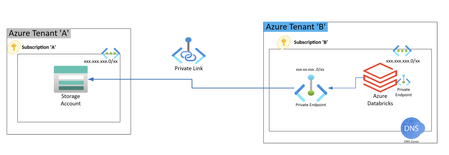
High Level Architecture Cross-Tenant Architecture Overview The setup involves two separate Azure tenants: Tenant A: Hosts the Storage Account. Tenant B: Hosts Azure Databricks. Databricks in Tenant B accesses the Hierarchical Namespace (HNS) enabled Storage Account in Tenant A using a Private Endpoint. The Storage Account in Tenant A is HNS enabled (i.e., suitable for Azure Data Lake Storage Gen2). A Private DNS Zone must be configured to resolve the NIC of the private endpoint created for the storage account. A multi-tenant Service Principal (SPN) is required to: Allow secure, managed access for Databricks in Tenant B to the storage account in Tenant A. Provide role-based access control (RBAC) access to the storage account. Steps to Configure Cross-Tenant Private Endpoint Create an HNS-enabled Storage Account in Tenant A. Capture the Resource ID and Subresource name (blob). In Tenant B, create a Private Endpoint: Use the Resource ID and Subresource name of the storage account from Tenant A. After creating the Private Endpoint: An approval request will be triggered in Tenant A. Approval is found under: Storage Account > Networking > Private endpoint connections In Tenant A, approve the private endpoint request: Minimum roles required: Private Link Service Owner OR Network Contributor Update the DNS configuration: Ensure the Private DNS Zone resolves the NIC of the private endpoint to allow successful name resolution for the storage account from Tenant B. Multi-Tenant SPN Configuration and Access In Tenant B, create a Multi-Tenant App Registration (SPN). In Tenant A, grant admin consent using the following URL: https://login.microsoftonline.com/{organization}/adminconsent?client_id={client-id} Replace: {organization} = Tenant A's Directory (Tenant) ID {client-id} = Application (Client) ID of the SPN Minimum Entra ID Role required to approve admin consent: Application Administrator After consent is granted, assign RBAC to the SPN in Tenant A: Role: Storage Blob Data Contributor Scope: On the target Storage Account Azure documentation references Multi-Tenant SPNs: https://learn.microsoft.com/en-us/entra/identity-platform/howto-convert-app-to-be-multi-tenant Tenant wide Admin Consent: Grant tenant-wide admin consent to an application - Microsoft Entra ID | Microsoft Learn3.4KViews1like1CommentNetwork security perimeter for Azure Service Bus & also now available in Azure Gov. Regions
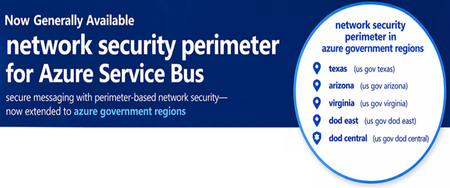
TL; DR Network security perimeter support for Azure Service Bus is now Generally Available. With this, you can now place your Service Bus namespace inside a central security boundary and apply perimeter-based governance for inbound/outbound network access—while keeping key PaaS-to-PaaS scenarios secure and auditable. Introduction We’re excited to announce that network security perimeter support for Azure Service Bus is now Generally Available (GA). This milestone brings one of Azure’s most widely used messaging services into the network security perimeter ecosystem, enabling customers to define a centralized security boundary across messaging and data services. Alongside this, we are also expanding network security perimeter’s reach — network security perimeter is now available in Azure Government regions, including: Texas Arizona Virginia DoD East DoD Central This ensures that customers operating in regulated, sovereign, and mission-critical environments can adopt network security perimeter while meeting their compliance and regional requirements. Why this matters? Modern applications rely heavily on messaging layers like Service Bus. These systems often connect microservices, data platforms, key management systems and external integrations. As architectures scale, managing network access individually becomes complex and error prone. Network security perimeter changes this by introducing a perimeter-based access model, where: Communication is restricted by default Access must be explicitly allowed Governance is applied consistently across services With Service Bus now onboarded and network security perimeter extending into Azure Gov regions, customers can apply this model across both commercial and sovereign environments. What you can do with Service Bus + network security perimeter Confine communication within a security boundary Service Bus namespaces communicate only with resources inside the perimeter by default—blocking unintended access. Secure PaaS-to-PaaS communication Enable secure interactions between Service Bus, Azure Key Vault (for CMK scenarios) and other network security perimeter-enabled services (What is a network security perimeter? - Azure Private Link | Microsoft Learn) Define explicit access controls Inbound rules → IP ranges and subscriptions Outbound rules → FQDN-based filtering Enable audit and compliance visibility Diagnostic logs capture all access attempts, supporting compliance and investigation workflows. Use Private Link seamlessly Private endpoint traffic continues to work without additional configuration inside the perimeter. Azure Government Availability With this update, network security perimeter is now available in key Azure Government regions (Texas Arizona Virginia DoD East DoD Central), enabling: Consistent security across clouds Apply the same network security perimeter model across public Azure regions and Azure Government environments. Support for regulated workloads Customers in federal, defence, and highly regulated industries can now: Enforce perimeter-based governance Reduce exposure risks Meet compliance requirements Enable secure cross-service patterns in Gov clouds Azure Government boundaries now support scenarios like: CMK with Key Vault Service-to-service messaging Controlled external access More details of onboarded PaaS services are detailed in What is a network security perimeter? - Azure Private Link | Microsoft Learn What’s next Service Bus GA further strengthens network security perimeter’s growing coverage across Azure PaaS services. We will continue to: Expand PaaS service onboarding Improve access rule capabilities (e.g. Service tag-based access, identity-based access)395Views0likes0CommentsEnabling fallback to internet for Azure Private DNS Zones in hybrid architectures
Introduction Azure Private Endpoint enables secure connectivity to Azure PaaS services such as: Azure SQL Managed Instance Azure Container Registry Azure Key Vault Azure Storage Account through private IP addresses within a virtual network. When Private Endpoint is enabled for a service, Azure DNS automatically changes the name resolution path using CNAME Redirection Example: myserver.database.windows.net ↓ myserver.privatelink.database.windows.net ↓ Private IP Azure Private DNS Zones are then used to resolve this Private Endpoint FQDN within the VNet. However, this introduces a critical DNS limitation in: Hybrid cloud architectures (AWS → Azure SQL MI) Multiregion deployments (DR region access) Crosstenant / Crosssubscription access MultiVNet isolated networks If the Private DNS zone does not contain a corresponding record, Azure DNS returns: NXDOMAIN (NonExistent Domain) When a DNS resolver receives a negative response (NXDOMAIN), it sends no DNS response to the DNS client and the query fails. This results in: ❌ Application connectivity failure ❌ Database connection timeout ❌ AKS pod DNS resolution errors ❌ DR failover application outage Problem statement In traditional Private Endpoint DNS resolution: DNS query is sent from the application. Azure DNS checks linked Private DNS Zone. If no matching record exists: NXDOMAIN returned DNS queries for Azure Private Link and network isolation scenarios across different tenants and resource groups have unique name resolution paths which can affect the ability to reach Private Linkenabled resources outside a tenant's control. Azure does not retry resolution using public DNS by default. Therefore: Public Endpoint resolution never occurs DNS query fails permanently Application cannot connect Microsoft native solution Fallback to internet (NxDomainRedirect) Azure introduced a DNS resolution policy: resolutionPolicy = NxDomainRedirect This property enables public recursion via Azure’s recursive resolver fleet when an authoritative NXDOMAIN response is received for a Private Link zone. When enabled: ✅ Azure DNS retries the query ✅ Public endpoint resolution occurs ✅ Application connectivity continues ✅ No custom DNS forwarder required Fallback policy is configured at: Private DNS Zone → virtualnetwork link Resolution policy is enabled at the virtual network link level with the NxDomainRedirect setting. In the Azure portal this appears as: Enable fallback to internet How it works Without fallback: Application → Azure DNS → Private DNS Zone → Record missing → NXDOMAIN returned → Connection failure With fallback enabled: Application → Azure DNS → Private DNS Zone → Record missing → NXDOMAIN returned → Azure recursive resolver → Public DNS resolution → Public endpoint IP returned → Connection successful Azure recursive resolver retries the query using the public endpoint QNAME each time NXDOMAIN is received from the private zone scope Real world use case AWS Application Connecting to Azure SQL Managed Instance You are running: SQL MI in Azure Private Endpoint enabled Private DNS Zone: privatelink.database.windows.net AWS application tries to connect: my-mi.database.windows.net If DR region DNS record is not available: Without fallback: DNS query → NXDOMAIN → App failure With fallback enabled: DNS query → Retry public DNS → Connection success Step-by-step configuration Method 1 – Azure portal Go to: Private DNS Zones Select your Private Link DNS Zone: Example: privatelink.database.windows.net Select: Virtual network links Open your linked VNet Enable: ✅ Enable fallback to internet Click: Save Method 2 – Azure CLI You can configure fallback policy using: az network private-dns link vnet update \ --resource-group RG-Network \ --zone-name privatelink.database.windows.net \ --name VNET-Link \ --resolution-policy NxDomainRedirect Validation steps Run from Azure VM: nslookup my-mi.database.windows.net Expected: ✔ Private IP (if available) ✔ Public IP (if fallback triggered) Security considerations Fallback to internet: ✅ Does NOT expose data ✅ Only impacts DNS resolution ✅ Network traffic still governed by: NSG Azure Firewall UDR Service Endpoint Policies DNS resolution fallback only triggers on NXDOMAIN and does not change networklevel firewall controls. When should you enable this? Recommended in: Hybrid AWS → Azure connectivity Multiregion DR deployments AKS accessing Private Endpoint services CrossTenant connectivity Private Link + VPN / ExpressRoute scenarios Conclusion Fallback to Internet using NxDomainRedirect provides: Seamless hybrid connectivity Reduced DNS complexity No custom forwarders Improved application resilience and simplifies DNS resolution for modern Private Endpointenabled architectures.1.1KViews0likes0Comments
Can only remote into azure vm from DC
Hi all, I have set up a site to site connection from on prem to azure and I can remote in via the main dc on prem but not any other server or ping from any other server to the azure. Why can I only remote into the azure VM from the server that has Routing and remote access? Any ideas on how I can fix this?1.1KViews0likes2Comments
Azure traffic to storage account
Hello, I’ve set up a storage account in Tenant A, located in the AUEast region, with public access. I also created a VM in Tenant B, in the same region (AUEast). I’m able to use IP whitelisting on the storage account in Tenant A to allow traffic only from the VM in Tenant B. However, in the App Insights logs, the traffic appears as 10.X.X.X, likely because the VM is in the same region. I'm unsure why the public IP isn't reflected in the logs. Moreover, I am not sure about this part https://learn.microsoft.com/en-us/azure/storage/common/storage-network-security-limitations#:~:text=You%20can%27t%20use%20IP%20network%20rules%20to%20restrict%20access%20to%20clients%20in%20the%20same%20Azure%20region%20as%20the%20storage%20account.%20IP%20network%20rules%20have%20no%20effect%20on%20requests%20that%20originate%20from%20the%20same%20Azure%20region%20as%20the%20storage%20account.%20Use%20Virtual%20network%20rules%20to%20allow%20same%2Dregion%20requests. This seems contradictory, as IP whitelisting is working on the storage account. I assume the explanation above applies only when the client is hosted in the same tenant and region as the storage account, and not when the client is in a different tenant, even if it's in the same region. I’d appreciate it if someone could shed some light on this. Thanks, Mohsen358Views0likes3Comments
Not able to setup azure private endpoint url as webservice/backend for Azure API Management service
Hi all, I have integrated Private endpoint connected to private link service. Private link service is created by azure standard load balancer created by kubernetes load balancer service using below annotations . annotations: service.beta.kubernetes.io/azure-load-balancer-internal: "true" service.beta.kubernetes.io/azure-pls-create: "true" service.beta.kubernetes.io/azure-pls-name: myPLS service.beta.kubernetes.io/azure-pls-ip-configuration-subnet: YOUR SUBNET service.beta.kubernetes.io/azure-pls-ip-configuration-ip-address-count: "1" service.beta.kubernetes.io/azure-pls-ip-configuration-ip-address: SUBNET_IP service.beta.kubernetes.io/azure-pls-proxy-protocol: "false" service.beta.kubernetes.io/azure-pls-visibility: "*" # does not apply here because we will use Front Door later service.beta.kubernetes.io/azure-pls-auto-approval: "YOUR SUBSCRIPTION ID" i am getting expected response i.e response from kubernetes service from Private endpoint ip which confirms that private link and private endpoint integration is working fine. we now want to integrate above private endpoint service with azure api management service so we tried adding private endpoint url as web service url for api management service but api management service is returning 500 error { "statusCode": 500, "message": "Internal server error", "activityId": "76261291-7121-4814-b0e4-66b52284d76c" } I also tried api management service Troubleshoot & analysis page for exact error its showing below error: BackendConnectionFailure An attempt was made to access a socket in a way forbidden by its access permissions <private_endpoint_url>:80 Please help me what i am doing wrong in this implementation Our requirement is to have kubernetes private load balancer and integrate it with azure api management service. so user can access api only through api management service and only api management service should be able to access load balancer service. Thanks in advance915Views0likes1Comment
Azure ExpressRoute Direct: A Comprehensive Overview
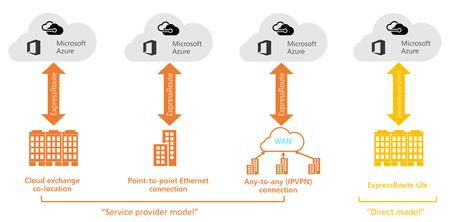
What is Express Route Azure ExpressRoute allows you to extend your on-premises network into the Microsoft cloud over a private connection made possible through a connectivity provider. With ExpressRoute, you can establish connections to Microsoft cloud services, such as Microsoft Azure, and Microsoft 365. ExpressRoute allows you to create a connection between your on-premises network and the Microsoft cloud in four different ways, CloudExchange Colocation, Point-to-point Ethernet Connection, Any-to-any (IPVPN) Connection, and ExpressRoute Direct. ExpressRoute Direct gives you the ability to connect directly into the Microsoft global network at peering locations strategically distributed around the world. ExpressRoute Direct provides dual 100-Gbps or 10-Gbps connectivity that supports active-active connectivity at scale. Why ExpressRoute Direct Is Becoming the Preferred Choice for Customers ExpressRoute Direct with ExpressRoute Local – Free Egress: ExpressRoute Direct includes ExpressRoute Local, which allows private connectivity to Azure services within the same metro or peering location. This setup is particularly cost-effective because egress (outbound) data transfer is free, regardless of whether you're on a metered or unlimited data plan. By avoiding Microsoft's global backbone, ExpressRoute Local offers high-speed, low-latency connections for regionally co-located workloads without incurring additional data transfer charges. Dual Port Architecture Both ExpressRoute Direct and the service provider model feature a dual-port architecture, with two physical fiber pairs connected to separate Microsoft router ports and configured in an active/active BGP setup that distributes traffic across both links simultaneously for redundancy and improved throughput. What sets Microsoft apart is making this level of resiliency standard, not optional. Forward-thinking customers in regions like Sydney take it even further by deploying ExpressRoute Direct across multiple colocation facilities for example, placing one port pair in Equinix SY2 and another in NextDC S1 creating four connections across two geographically separate sites. This design protects against facility-level outages from power failures, natural disasters, or accidental infrastructure damage, ensuring business continuity for organizations where downtime is simply not an option. When Geography Limits Your Options: Not every region offers facility diversity, example New Zealand has only one ExpressRoute peering location, businesses needing geographic redundancy must connect to Sydney incurring Auckland to Sydney link costs but gaining critical diversity to mitigate outages. While ExpressRoute’s dual ports provide active/active redundancy, both are on the same Microsoft edge, so true disaster recovery requires using Sydney’s edge. ExpressRoute Direct scales from basic dual-port setups to multi-facility deployments and offers another advantage: free data transfer within the same geopolitical region. Once traffic enters Microsoft’s network, New Zealand customers can move data between Azure services across the trans-Tasman link without per-GB fees, with Microsoft absorbing those costs. Premium SKU: Global Reach: Azure ExpressRoute Direct with the Premium SKU enables Global Reach, allowing private connectivity between your on-premises networks across different geographic regions through Microsoft's global backbone. This means you can link ExpressRoute circuits in different countries or continents, facilitating secure and high-performance data exchange between global offices or data centers. The Premium SKU extends the capabilities of ExpressRoute Direct by supporting cross-region connectivity, increased route limits, and access to more Azure regions, making it ideal for multinational enterprises with distributed infrastructure. MACsec: Defense in Depth and Enterprise Security ExpressRoute Direct uniquely supports MACsec (IEEE 802.1AE) encryption at the data-link layer, allowing your router and Microsoft's router to establish encrypted communication even within the colocation facility. This optional feature provides additional security for compliance-sensitive workloads in banking or government environments. High-Performance Data Transfer for the Enterprise: Azure ExpressRoute Direct enables ultra-fast and secure data transfer between on-premises infrastructure and Azure by offering dedicated bandwidth of 10 to 100 Gbps. This high-speed connectivity is ideal for large-scale data movement scenarios such as AI workloads, backup, and disaster recovery. It ensures consistent performance, low latency, and enhanced reliability, making it well-suited for hybrid and multicloud environments that require frequent or time-sensitive data synchronization. FastPath Support: Azure ExpressRoute Direct now supports FastPath for Private Endpoints and Private Link, enabling low-latency, high-throughput connections by bypassing the virtual network gateway. This feature is available only with ExpressRoute Direct circuits (10 Gbps or 100 Gbps) and is in limited general availability. While a gateway is still needed for route exchange, traffic flows directly once FastPath is enabled. Supported gateway ExpressRoute Direct Setup Workflow Before provisioning ExpressRoute Direct resources, proper planning is essential. Key considerations for connectivity include understanding the two connectivity patterns available for ExpressRoute Direct from the customer edge to Microsoft Enterprise Edge (MSEE). Option 1: Colocation of Customer Equipment: This is a common pattern where the customer racks their network device (edge router) in the same third-party data center facility that houses Microsoft's networking gear (e.g., Equinix or NextDC). They install their router or firewall there and then order a short cross-connect from their cage to Microsoft's cage in that facility. The cross-connect is simply a fiber cable run through the facility's patch panel connecting the two parties. This direct colocation approach has the advantage of a single, highly efficient physical link (no intermediate hops) between the customer and Microsoft, completing the layer-1 connectivity in one step. Option 2: Using a Carrier/Exchange Provider: If the customer prefers not to move hardware into a new facility (due to cost or complexity), they can leverage a provider that already has presence in the relevant colocation. In this case, the customer connects from their data center to the provider's network, and the provider extends connectivity into the Microsoft peering location. For instance, the customer could contract with Megaport or a local telco to carry traffic from their on-premises location into Megaport's equipment, and Megaport in turn handles the cross-connection to Microsoft in the target facility. The conversation cited that the customer had already set up connections to Megaport in their data center. Using an exchange can simplify logistics since the provider arranges the cross-connect and often provides an LOA on the customer's behalf. It may also be more cost-effective where the customer's location is far from any Microsoft peering site. Many enterprises find that placing equipment in a well-connected colocation facility works best for their needs. Banks and large organizations have successfully taken this approach, such as placing routers in Equinix Sydney or NextDC Sydney to establish a direct fiber link to Azure. However, we understand that not every organization wants the capital expense or complexity of managing physical equipment in a new location. For those situations, using a cloud exchange like Megaport offers a practical alternative that still delivers the dedicated connectivity you're looking for, while letting someone else handle the infrastructure management. Once the decision on the connectivity pattern is made, the next step is to provision ExpressRoute Direct ports and establish the physical link: Step1: Provisioning Express Route Direct Ports Through the Azure portal (or CLI), the customer creates an ExpressRoute Direct resource. Customer must select an appropriate peering location, which corresponds to the colocation facility housing Azure's routers. For example, the customer would select the specific facility (such as "Vocus Auckland" or "Equinix Sydney SY2") where they intend to connect. Customer also choose the port bandwidth (either 10 Gbps or 100 Gbps) and the encapsulation type (Dot1Q or QinQ) during this setup. Azure then allocates two ports on two separate Microsoft devices in that location – essentially giving the customer a primary and secondary interface for redundancy, to remove a single point of failure affecting their connectivity. ****Critical considerations we need to keep in mind during this step**** Encapsulation: When configuring ExpressRoute Direct ports, the customer must choose an encapsulation method. Dot1Q (802.1Q) uses a single VLAN tag for the circuit, whereas Q-in-Q (802.1ad) uses stacked VLAN tags (an Outer S-Tag and Inner C-Tag). Q-in-Q allows multiple circuits on one physical port with overlapping customer VLAN IDs because Azure assigns a unique outer tag per circuit (making it ideal if the customer needs several ExpressRoute circuits on the same port). Dot1Q, by contrast, requires each VLAN ID to be unique across all circuits on the port, and is often used if the equipment doesn’t support Q-in-Q. (Most modern deployments prefer Q-in-Q for flexibility.) Capacity Planning: This offering allows customers to overprovision and utilize 20Gbps of capacity. Design for 10 Gbps with redundancy, not 20 Gbps total capacity. During Microsoft's monthly maintenance windows, one port may go offline, and your network must handle this seamlessly. Step 2: Generate Letter of Authorization After the ExpressRoute Direct resource is created, Microsoft generates a Letter of Authorization. The LOA is a document (often a PDF) that authorizes the data center operator to connect a specific Microsoft port to the designated port. It includes details like the facility name, patch panel identifier, and port numbers on Microsoft's side. If co-locating your own gear, you will also obtain a corresponding LOA from the facility for your port (or simply indicate your port details on the cross-connect order form). If a provider like Megaport is involved, that provider will generate an LOA for their port as well. Two LOAs are typically needed – one for Microsoft's ports and one for the other party's ports which are then submitted to the facility to execute the cross-connect. Step 3: Complete Cross Connect with data center provider Using the LOAs, the data center’s technicians will perform the cross-connection in the meet-me room. At this point, the physical fiber link is established between the Microsoft router and the customer (or provider) equipment. The link goes through a patch panel in the MMR – Meet me room rather than a direct cable between cages, for security and manageability. After patching, the circuit is in place but typically kept “administratively down” until ready. *****Critical considerations we need to keep in mind during this step. ***** When port allocation conflicts occur, engage Microsoft Support rather than recreating resources. They coordinate with colocation providers to resolve conflicts or issue new LOAs. Step 4: Change Admin Status of each link Once the cross-connect is physically completed, you can head into Azure's portal and flip the Admin State of each ExpressRoute Direct link to "Enabled." This action lights up the optical interface on Microsoft's side and starts your billing meter running, so you'll want to make sure everything is working properly first. The great thing is that Azure gives you visibility into the health of your fiber connection through optical power metrics. You can check the receive light levels right in the portal , a healthy connection should show power readings somewhere between -1 dBm and -9 dBm, which indicates a strong fiber signal. If you're seeing readings outside this range, or worse, no light at all, that's a red flag pointing to a potential issue like a mis-patch or faulty fiber connector. There was a real case where someone had a bad fiber connector that was caught because the light levels were too low, and the facility had to come back and re-patch the connection. So, this optical power check is really your first line of defence , once you see good light levels within the acceptable range, you know your physical layer is solid and you're ready to move on to the next steps. ****Critical considerations we need to keep in mind during this step. **** Proactive Monitoring: Set up alerts for BGP session failures and optical power thresholds. Link failures might not immediately impact users but require quick restoration to maintain full redundancy. At this stage, you've successfully navigated the physical infrastructure challenge, ExpressRoute Direct port pair is provisioned, fiber cross-connects are in place, and those critical optical power levels are showing healthy readings. Essentially, private physical highway directly connecting your network edge to Microsoft's backbone infrastructure has been built Step 5: Create Express Route Circuits ExpressRoute circuits represent the logical layer that transforms your physical ExpressRoute Direct ports into functional network connections. Through the Azure portal, organizations create circuit resources linked to their ExpressRoute Direct infrastructure, specifying bandwidth requirements and selecting the appropriate SKU (Local, Standard, or Premium) based on connectivity needs. A key advantage is the ability to provision multiple circuits on the same physical port pair, provided aggregate bandwidth stays within physical limits. For example, an organization with 10 Gbps ExpressRoute Direct might run a 1 Gbps non-production circuit alongside a 5 Gbps production circuit on the same infrastructure. Azure handles the technical complexity through automatic VLAN management: Step 6: Establish Peering Once your ExpressRoute circuit is created and VLAN connectivity is established, the next crucial step involves setting up BGP (Border Gateway Protocol) sessions between your network and Microsoft's infrastructure. ExpressRoute supports two primary BGP peering types: Private Peering for accessing Azure Virtual Networks and Microsoft Peering for reaching Microsoft SaaS services like Office 365 and Azure PaaS offerings. For most enterprise scenarios connecting data centers to Azure workloads, Private Peering becomes the focal point. Azure provides specific BGP IP addresses for your circuit configuration, defining /30 subnets for both primary and secondary link peering, which you'll configure on your edge router to exchange routing information. The typical flow involves your organization advertising on-premises network prefixes while Azure advertises VNet prefixes through these BGP sessions, creating dynamic route discovery between your environments. Importantly, both primary and secondary links maintain active BGP sessions, ensuring that if one connection fails, the secondary BGP session seamlessly maintains connectivity and keeps your network resilient against single points of failure. Step 7: Routing and Testing Once BGP sessions are established, your ExpressRoute circuit becomes fully operational, seamlessly extending your on-premises network into Azure virtual networks. Connectivity testing with ping, traceroute, and application traffic confirms that your on-premises servers can now communicate directly with Azure VMs through the private ExpressRoute path, bypassing the public internet entirely. The traffic remains completely isolated to your circuit via VLAN tags, ensuring no intermingling with other tenants while delivering the low latency and predictable performance that only dedicated connectivity can provide. At the end of this stage, the customer’s data center is linked to Azure at layer-3 via a private, resilient connection. They can access Azure resources as if they were on the same LAN extension, with low latency and high throughput. All that remains is to connect this circuit to relevant Azure virtual networks (via an ExpressRoute Gateway) and verify end-to-end application traffic. Step by step instructions are available as below Configure Azure ExpressRoute Direct using the Azure portal | Microsoft Learn Azure ExpressRoute: Configure ExpressRoute Direct | Microsoft Learn Azure ExpressRoute: Configure ExpressRoute Direct: CLI | Microsoft Learn3.3KViews3likes3Comments
WordPress App how to restrict access to specific pages on the site
Hello all, I have a WordPress App hosted on Azure and I am struggling with how I can secure specific pages from public access. For example: http://www.mysite.com/wp-admin http://www.mysite.com/info.php I'd like it so that only specific IP addresses or Microsoft user accounts can access some, such as admin pages and for some pages I'd like no access at all, to where it just blocks any sort of visit. I've viewed the documentation for Front Door and some networking restrictions but that seems to be just IP addresses and I'm confused about how I can set those rule for specific pages within the App. I know WordPress offer plugins which have this sort of functionality but I'd like to take advantage of Azure's security features rather than plugins from WordPress. Any help is very appreciated. Thank you692Views0likes1Comment