azure netapp files
23 Topics
Discover and assess on-premises Network Attached Storage (NAS) shares using Azure Migrate
Network-attached storage (NAS) holds much of an enterprise’s data; home directories, project shares, media libraries, application data, and analytics datasets, often spanning tens or hundreds of terabytes across protocols and administrative boundaries. Moving this estate to Azure starts not with copying data, but with understanding what you have, where each share should go, and what it will cost. Building on the file share assessment capability we announced in May, today we’re announcing the public preview of NAS share discovery and assessment in Azure Migrate. It connects directly to Dell PowerScale/Isilon and NetApp ONTAP clusters, inventories every SMB, NFS, and S3 share, and assesses each against Azure Files, Azure Blob Storage, and Azure NetApp Files—providing readiness, right-sized configurations, cost estimates, and migration tooling guidance. Your NAS assets now join servers, applications, and databases in the same Azure Migrate project, inventory, and business case. Why does this matter NAS planning has historically been done with spreadsheets, vendor-specific tools, and a lot of manual reconciliation. Storage ends up being assessed separately from the servers and applications that depend on it, which makes it hard to sequence a migration or defend a budget. This capability is designed to help you: Replace manual inventory with automated discoveries across Dell and NetApp platforms, so you can go from "we think we have a few thousand shares" to a verified, per-share inventory. Effectively plan your NAS shares alongside everything else. NAS clusters and their shares appear in the same Azure Migrate inventory as your VMware, Hyper-V, and physical servers, databases, and web apps. Make your informed decision before you migrate. Each share gets a readiness verdict, a recommended Azure service and SKU, and a monthly cost estimate. What's available in public preview Add Dell or NetApp NAS clusters: Discover Dell PowerScale / Isilon (OneFS) and NetApp ONTAP AFF / FAS clusters, and inventory every SMB, NFS, and S3 shares they host — including shares exposed through more than one protocol. Explore and review on-prem shares and workloads: Review cluster and share details in the portal: model, nodes, total and used capacity, protocol versions, volume, and estimated size. Group and filter shares by tag — by business unit, cost center, or application — so related workloads can be planned together. Suitable Azure storage targets: Assess each share against Azure Files, Azure Blob Storage, and Azure NetApp Files, with control over target region, sizing criteria, comfort factor, redundancy, media type, access frequency, and workload type. Alternative migration paths: Compare various migration paths side by side — a recommended mixed path that sends each share to its best-fit service, alongside single-service alternatives — with readiness, monthly cost, and estimated emissions for each. Business case: Build a business case for a NAS-only estate or for a mixed estate of VMs and NAS, comparing a modernization approach against lift-and-shift. End-to-end experience The experience follows the same guided workflow you already know from Azure Migrate. 1. Enable the feature Install the latest Azure Migrate appliance or turn on auto-update, so your existing appliance picks up the new capability. Unlike file shares hosted on Windows and Linux servers, NAS clusters need to be added explicitly: in the appliance configuration manager, add a credential of source type NAS Server, then add a discovery source of type NAS Server with your cluster's FQDN and port. The account needs read-only permission at cluster level — Azure Migrate only reads metadata and never writes to your storage. 2. Discover your NAS estate Create an Azure Migrate project, deploy the appliance on VMware, Hyper-V, or a physical server, and point it at your clusters. The appliance connects to each cluster's management endpoint and collects system and share metadata, vendor, product and model, operating system version, cluster nodes, total and used capacity, share and bucket paths, protocols and protocol versions; followed by performance signals such as IOPS and throughput. Discovered clusters and their shares appear as first-class inventory objects, listed alongside the Windows and Linux file servers the appliance already finds. Filter by type, search, tag, and export the inventory at whatever scale your estate demands. Discovery runs a daily cycle and updates existing items as new metadata arrives, so the picture improves over time rather than being a one-shot snapshot. 3. Create an assessment Select the shares you care about — individually, by tag, or a whole cluster at a time — and create an assessment. The share is the unit of assessment, so every SMB, NFS, or S3 share receives its own verdict rather than inheriting one from its host. Assessment settings let you shape the recommendation to your environment: choose the target Azure region, pick as-is or performance-based sizing, set a comfort factor for headroom, and configure redundancy, Azure Files media preferences, and Azure Blob access frequency. A workload type setting from general purpose file shares through to AI/ML and mission-critical, helps Azure Migrate recommend an appropriate performance level. Azure NetApp Files is added to the evaluation automatically when the source share is detected on NetApp NAS. Settings can be changed, and the assessment recalculated at any time. 4. Review results and build the business case Results are organized as migration paths. The recommended path routes each share to its best-fit Azure service and is shown next to single-service alternatives, so you can compare readiness and cost on the same basis. Key insights include: Readiness for every share — Ready, Ready with conditions, or Not ready — with the warnings that need attention before you move. A recommended Azure configuration per share. For example, a multi-protocol NetApp volume is recommended for Azure NetApp Files, while a general-purpose SMB share is recommended for Azure Files with a specific media type and redundancy. Provisioned size, IOPS, and throughput behind the recommendation, plus the reasoning Azure Migrate used to select the SKU and access tier. Monthly cost estimates per share and per path, an on-premises versus Azure TCO comparison, and estimated carbon savings. Next, you can generate a wave plan to sequence the migration or build a business case that helps you with cost modernizing Azure storage services. Assessment results showing the recommended path, source-to-target mappings, estimated Azure TCO, and carbon savings. Note: All screenshots in this post are from a sample environment. Cluster and share names, capacity values, readiness distributions, cost and TCO estimates, and emissions figures are illustrative and shown for reference and indicative purposes only. They are not a price quote. Your own results depend on your discovered environment, the assessment settings you choose, your target Azure region, and the pricing and offers that apply to your subscription. Prepare for migration with the right tool Assessment tells you where each share should go; Azure Migrate then points you at the tool to get it there. Azure Storage Mover is the recommended path for moving shares to Azure Files and Azure Blob Storage. For ONTAP volumes heading to Azure NetApp Files, the Azure NetApp Files migration assistant is recommended, and Azure File Sync remains the option for active sync and hybrid scenarios with Windows file servers. To learn more about our recommendations for unstructured data migration, visit https://aka.ms/migratemydata. Get started Update your Azure Migrate appliance, add your first NAS cluster, and let a discovery cycle run. Within a few hours you'll start to see a per-share picture of your NAS estate; you can then create an assessment to view the right target service to migrate to Azure. Learn more in our documentation. Connect and discover your NAS appliance Review discovered NAS resources Create a fileshare assessment of NAS shares Review NAS File share assessment recommendations Write to us at azurestoragemigrations@microsoft.com with questions or feedback, or to suggest additional NAS systems you’d like this capability to support. We look forward to hearing from you!217Views0likes0CommentsMore EDA Job Sets per Volume: Azure NetApp Files Raises the Performance Bar
Azure NetApp Files raises the performance ceiling for cloud-based electronic design automation (EDA) with a new independently published SPECstorage® Solution 2020 EDA_BLENDED result for a single large volume in breakthrough mode: 5,340 job sets, 2.4 million operations per second, 38,776 MB/s peak throughput, and 0.54 ms overall response time. Delivering 1.85 times the job sets, operations, and throughput of the previous single-volume result while preserving sub-millisecond latency through most load points, the result enables more concurrent simulations, shorter regression cycles, and better utilization of compute and tool licenses without dataset sharding. Combined with proven linear scale-out and generally available Azure NetApp Files cache volumes that provide on-demand access to on-premises data, it gives EDA teams a practical foundation for high-performance cloud deployment and bursting.333Views0likes0CommentsBoost performance with NFS nconnect on Azure NetApp Files datastores for Azure VMware Solution
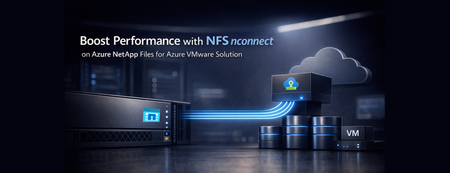
Azure VMware Solution now supports nconnect=4 with Azure NetApp Files datastores each ESXi host opens up to four parallel TCP connections to a single NFS datastore, raising throughput and lowering latency under load. Supported on both Gen 1 and Gen 2 private clouds, it makes Azure VMware Solution with Azure NetApp Files an even stronger home for databases and other storage‑intensive workloads.555Views0likes0CommentsBringing Enterprise File Data to Users with Azure NetApp Files, Microsoft Foundry, and M365 Copilot
This is Part 3 of a 3-part series on extending AI to enterprise file data, showing how the knowledge pipeline is surfaced through enterprise AI agents and user experiences including Microsoft 365 Copilot.687Views0likes0CommentsFrom Enterprise File Storage to an AI-Ready Data Foundation using Azure NetApp Files and OneLake
This 3-part series shows how to extend AI to enterprise file data – without migration – by combining Azure NetApp Files, OneLake, and a RAG-based architecture that surfaces grounded insights through enterprise AI agents. This is Part 1 of a 3-part series covering the data foundation, knowledge pipeline, and user experience layers.690Views0likes0CommentsFrom File Data to AI‑Powered Knowledge Pipelines using Azure NetApp Files object REST API
This is Part 2 of a 3-part series on extending AI to enterprise file data hosted on Azure NetApp Files, building on the data foundation to create a knowledge pipeline that makes enterprise file data usable by AI systems.576Views0likes0CommentsFrom Scale to Breakthrough: Azure NetApp Files Sets a New Cloud Benchmark for EDA Performance
This article spotlights the newest leap in Azure NetApp Files: large volume breakthrough mode performance – independently validated by SPECstorage® Solution 2020 benchmarks. Azure NetApp Files is setting a new record for enterprise-scale Electronic Design Automation (EDA) workloads in the cloud. Backed by benchmark results at enterprise scale, it further reduces the traditional tradeoff between massive scale and uncompromising storage performance. For EDA teams, this means storage can keep pace with design cycles – enabling faster iteration, supporting cloud-first workflows, and reducing time spent waiting on infrastructure.578Views0likes0CommentsAHEAD helps us launch the Strategic Azure Storage Services Partner Program
AHEAD becomes the first Azure Storage Strategic Channel Partner by demonstrating their expertise in helping customers select the ideal Azure Storage, or Azure Storage ISV, Service to offer the ideal price / performance solution for their application and helping customers to migrate to Azure quickly and safely.871Views0likes0CommentsHybrid File Tiering Addresses Top CIO Priorities of Risk Control and Cost Optimization
Hybrid File Tiering addresses top CIO priorities of risk control and cost optimization This article describes how you can leverage Komprise Intelligent Tiering for Azure with any on-premises file storage platform and Azure Blob Storage to reduce your cost by 70% and shrink your ransomware attack surface. Note: This article has been co-authored by Komprise and Microsoft. Unstructured data plays a big role in today's IT budgets and risk factors Unstructured data, which is any data that does not fit neatly into a database or tabular format, has been growing exponentially and is now projected by analysts to be over 80% of business information. Unstructured data is commonly referred to as file data, which is the terminology used for the rest of this article. File data has caught some IT leaders by surprise because it is now consuming a significant portion of IT budgets with no sign of slowing down. File data is expensive to manage and retain because it is typically stored and protected by replication to an identical storage platform which can be very expensive at scale. We will now review how you can easily identify hot and cold data and transparently tier cold files to Azure to cut costs and shrink ransomware exposure with Komprise. Why file data is factoring into CIO priorities CIOs are prioritizing cost optimization, risk management and revenue improvement as key priorities for their data. 56% chose cost optimization as their top priority according to the 2024 Komprise State of Unstructured Data Management survey. This is because file data is often retained for decades, its growth rate is in double-digits, and it can easily be petabytes of data. Keeping a primary copy, a backup copy and a DR copy means three or more copies of the large volume of file data which becomes prohibitively expensive. On the other hand, file data has largely been untapped in terms of value, but businesses are now realizing the importance of file data to train and fine tune AI models. Smart solutions are required to balance these competing requirements. Why file data is vulnerable to ransomware attacks File data is arguably the most difficult data to protect against ransomware attacks because it is open to many different users, groups and applications. This increases risk because a single user's or group's mistake can lead to a ransomware infection. If the file is shared and accessed again, the infection can quickly spread across the network undetected. As ransomware lurks, the risk increases. For these reasons, you cannot ignore file data when creating a ransomware defense strategy. How to leverage Azure to cut the cost and inherent risk of file data retention You can cut costs and shrink the ransomware attack surface of file data using Azure even when you still require on-premises access to your files. The key is reducing the amount of file data that is actively accessed and thus exposed to ransomware attacks. Since 80% of file data is typically cold and has not been accessed in months (see Demand for cold data storage heats up | TechTarget), transparently offloading these files to immutable storage through hybrid tiering cuts both costs and risks. Hybrid tiering offloads entire files from the data storage, snapshot, backup and DR footprints while your users continue to see and access the tiered files without any change to your application processes or user behavior. Unlike storage tiering which is typically offered by the storage vendor and causes blocks of files to be controlled by the storage filesystem to be placed in Azure, hybrid tiering operates at the file level and transparently offloads the entire file to Azure while leaving behind a link that looks and behaves like the file itself. Hybrid tiering offloads cold files to Azure to cut costs and shrink the ransomware attack surface: Cut 70%+ costs: By offloading cold files and not blocks, hybrid tiering can shrink the amount of data you are storing and backing up by 80%, which cuts costs proportionately. As shown in the example below, you can cut 70% of file storage and backup costs by using hybrid tiering. Assumptions Amount of Data on NAS (TB) 1024 % Cold Data 80% Annual Data Growth Rate 30% On-Prem NAS Cost/GB/Mo $0.07 Backup Cost/GB/Mo $0.04 Azure Blob Cool Cost/GB/Mo $0.01 Komprise Intelligent Tiering for Azure/GB/Mo $0.008 On-Prem NAS On-prem NAS + Azure Intelligent Tiering Data in On-Premises NAS 1024 205 Snapshots 30% 30% Cost of On-Prem NAS Primary Site $1,064,960 $212,992 Cost of On-Prem NAS DR Site $1,064,960 $212,992 Backup Cost $460,800 $42,598 Data on Azure Blob Cool $0 819 Cost of Azure Blob Cool $0 $201,327 Cost of Komprise $100,000 Total Cost for 1PB per Year $2,590,720 $769,909 SAVINGS/PB/Yr $1,820,811 70% Shrink ransomware attack surface by 80%: Offloading cold files to immutable Azure Blob removes cold files from the active attack surface thus eliminating 80% of the storage, DR and backup costs while also providing a potential recovery path if the cold files get infected. By having Komprise tier to immutable Azure Blob with versioning, even if someone tried to infect a cold file, it would be saved as a new version – enabling recovery using an older version. Learn more about Azure Immutable Blob storage here. In addition to cost savings and improved ransomware defense, the benefits of Hybrid Cloud Tiering using Komprise and Azure are: Leverage Existing Storage Investment: You can continue to use your existing NAS storage and Komprise to tier cold files to Azure. Users and applications continue to see and access the files as if they were still on-premises. Leverage Azure Data Services: Komprise maintains file-object duality with its patented Transparent Move Technology (TMT), which means the tiered files can be viewed and accessed in Azure as objects, allowing you to use Azure Data Services natively. This enables you to leverage the full power of Azure with your enterprise file data. Works Across Heterogeneous Vendor Storage: Komprise works across all your file and object storage to analyze and transparently tier data to Azure file and object tiers. Ongoing Lifecycle Management in Azure: Komprise continues to manage data lifecycle in Azure, so as data gets colder, it can move from Azure Blob Cool to Cold to Archive tier based on policies you control. Azure and Komprise customers are already using hybrid tiering to improve their ransomware posture while reducing costs – a great example is Katten. Global law firm saves $900,000 per year and achieves resilient ransomware defense with Komprise and Azure Katten Muchin Rosenman LLP (Katten) is a full-service law firm delivering legal services across more than a dozen practice areas and sectors, including Aviation, Construction, Energy, Education, Entertainment, Healthcare and Real Estate. Like many other large law firms, Katten has been seeing an average 20% annual growth in storage for file related data, resulting in the need to add on-premises storage capacity every 12-18 months. With a focus on managing data storage costs in an environment where data is growing exponentially annually but cannot be deleted, Katten needed a solution that could provide deep data insights and the ability to move file data as it ages to immutable object storage in the cloud for greater cost savings and ransomware protection. Katten Law implemented hybrid tiering using Komprise Intelligent Tiering to Azure and leveraged Immutable Blob storage to not only save $900,000 annually but also improved their ransomware defense posture. Read how Katten Law does hybrid tiering to Azure using Komprise. Summary: Hybrid Tiering helps CIOs to optimize file costs and cut ransomware risks Cost optimization and Risk management are top CIO priorities. File data is a major contributor to both costs and ransomware risks. Organizations are leveraging Komprise to tier cold files to Azure while continuing to use their on-premises file storage NAS. This provides a low risk approach with no disruption to users and apps while cutting 70% costs and shrinking the ransomware attack surface by 80%. Next steps To learn more and get a customized assessment of your savings, visit the Azure Marketplace listing or contact azure@komprise.com.976Views3likes1CommentHow to Save 70% on File Data Costs
In the final entry in our series on lowering file storage costs, DarrenKomprise shares how Komprise can help lower on-premises and Azure-based file storage costs. Komprise and Azure offer you a means to optimize unstructured data costs now and in the future!15KViews1like1Comment