azure ml
33 Topics
Introduction to Azure DevOps for Machine Learning
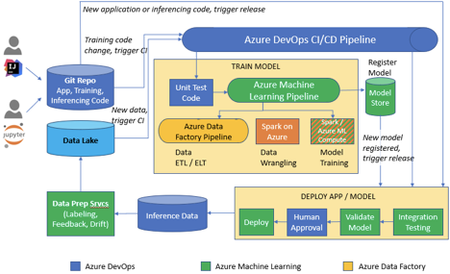
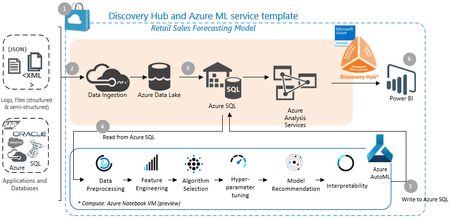
One of the biggest challenges with integrating AI into an application is getting the model deployed into a production environment and keeping it operational/supportable. DevOps for Machine Learning can be streamlined with visibility into training, experiment metrics, and model versions. Azure Machine Learning service allows you to seamlessly integrate with Azure services to provide end-to-end capabilities for the entire Machine Learning lifecycle, making it simpler and faster than ever.7.7KViews5likes3Comments
Operationalize your Prompt Engineering Skills with Azure Prompt Flow
In today’s AI-driven world, prompt engineering is a game-changing skill for developers and professionals alike. With Azure Prompt Flow, you can harness the power of open-source LLMs to solve real-world operational challenges! This article guides you through using Azure’s robust tools to build, deploy, and refine your own LLM apps—from chatbots to data extraction tools and beyond. Whether you're just starting or looking to sharpen your AI expertise, this guide has everything you need to unlock new possibilities with prompt engineering. Dive in and take your tech journey to the next level!1.7KViews5likes3CommentsDeploying a Large Language Model (GPT-2) on Azure Using Power Automate: Step-by-Step Guide
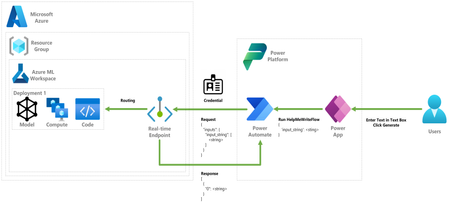
Step-by-step guide on deploying a large language model (GPT-2) to the Azure platform and consuming it using Power Platform (Power Automate, Power Apps) to generate text and give you creative writing ideas.24KViews5likes0CommentsBuilding a digital guide dog for railway passengers with impaired vision
Catching your train on time can be challenging under the best of circumstances. Trains typically only stop for a few minutes, leaving little room for mistakes. For example, at Munich Main station around 240 express trains and 510 regional trains leave from 28 platforms per day. Some trains can also be quite long, up to 346 meters (1,135 ft) for express ICE trains. It is extremely important to quickly find the correct platform and platform section, and then the door closest to a reserved seat needs to be located. This already challenging adventure becomes even more so, if a vision impairment forces a customer to rely exclusively on auditory or tactile feedback. When traveling autonomously, without assistance, it is common practice to walk along the outside of a train, continuously tapping it with a white cane, to discover opened and closed doors (figure 1). While this works in principle, this practice has limitations, both in terms of speed and reliability. We therefore partnered with DB Systel GmbH, the digital partner for all Deutsche Bahn Group companies, to build the Digital Guide Dog. This is a feasibility study based on an AI-powered smartphone application that uses computer vision, auditory and haptic feedback to guide customers to the correct platform section and train car door. In this blog post, we are sharing some of the details and unique challenges that we experienced while the AI model behind this application.7.2KViews5likes2CommentsPower Up Your Open WebUI with Azure AI Speech: Quick STT & TTS Integration
Introduction Ever found yourself wishing your web interface could really talk and listen back to you? With a few clicks (and a bit of code), you can turn your plain Open WebUI into a full-on voice assistant. In this post, you’ll see how to spin up an Azure Speech resource, hook it into your frontend, and watch as user speech transforms into text and your app’s responses leap off the screen in a human-like voice. By the end of this guide, you’ll have a voice-enabled web UI that actually converses with users, opening the door to hands-free controls, better accessibility, and a genuinely richer user experience. Ready to make your web app speak? Let’s dive in. Why Azure AI Speech? We use Azure AI Speech service in Open Web UI to enable voice interactions directly within web applications. This allows users to: Speak commands or input instead of typing, making the interface more accessible and user-friendly. Hear responses or information read aloud, which improves usability for people with visual impairments or those who prefer audio. Provide a more natural and hands-free experience especially on devices like smartphones or tablets. In short, integrating Azure AI Speech service into Open Web UI helps make web apps smarter, more interactive, and easier to use by adding speech recognition and voice output features. If you haven’t hosted Open WebUI already, follow my other step-by-step guide to host Ollama WebUI on Azure. Proceed to the next step if you have Open WebUI deployed already. Learn More about OpenWeb UI here. Deploy Azure AI Speech service in Azure. Navigate to the Azure Portal and search for Azure AI Speech on the Azure portal search bar. Create a new Speech Service by filling up the fields in the resource creation page. Click on “Create” to finalize the setup. After the resource has been deployed, click on “View resource” button and you should be redirected to the Azure AI Speech service page. The page should display the API Keys and Endpoints for Azure AI Speech services, which you can use in Open Web UI. Settings things up in Open Web UI Speech to Text settings (STT) Head to the Open Web UI Admin page > Settings > Audio. Paste the API Key obtained from the Azure AI Speech service page into the API key field below. Unless you use different Azure Region, or want to change the default configurations for the STT settings, leave all settings to blank. Text to Speech settings (TTS) Now, let's proceed with configuring the TTS Settings on OpenWeb UI by toggling the TTS Engine to Azure AI Speech option. Again, paste the API Key obtained from Azure AI Speech service page and leave all settings to blank. You can change the TTS Voice from the dropdown selection in the TTS settings as depicted in the image below: Click Save to reflect the change. Expected Result Now, let’s test if everything works well. Open a new chat / temporary chat on Open Web UI and click on the Call / Record button. The STT Engine (Azure AI Speech) should identify your voice and provide a response based on the voice input. To test the TTS feature, click on the Read Aloud (Speaker Icon) under any response from Open Web UI. The TTS Engine should reflect Azure AI Speech service! Conclusion And that’s a wrap! You’ve just given your Open WebUI the gift of capturing user speech, turning it into text, and then talking right back with Azure’s neural voices. Along the way you saw how easy it is to spin up a Speech resource in the Azure portal, wire up real-time transcription in the browser, and pipe responses through the TTS engine. From here, it’s all about experimentation. Try swapping in different neural voices or dialing in new languages. Tweak how you start and stop listening, play with silence detection, or add custom pronunciation tweaks for those tricky product names. Before you know it, your interface will feel less like a web page and more like a conversation partner.2.6KViews3likes2CommentsUnderstanding the Difference in Using Different Large Language Models: Step-by-Step Guide
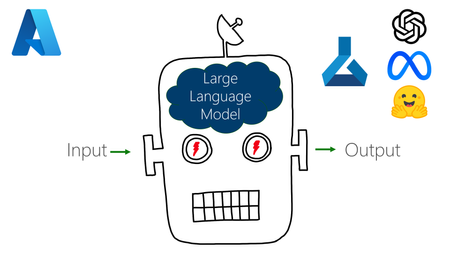
Unlock the secrets of deploying Large Language Models on Azure with our comprehensive guide! Learn step-by-step integration techniques for models like GPT-2, Llama 2, and Dolly v1 in your Web Applications or Power Apps. Explore detailed instructions, ready-made code, and expert tips. Join us for a live session on November 2nd, 2023, to harness the power of AI and Microsoft tools. Become an entrepreneur with Microsoft Founders Hub, offering up to $2,500 OpenAI credits and $1,000 Azure credits. Dive into the world of tech solutions and creative writing ideas today!14KViews3likes1Comment