azure ml
33 TopicsPower Up Your Open WebUI with Azure AI Speech: Quick STT & TTS Integration
Introduction Ever found yourself wishing your web interface could really talk and listen back to you? With a few clicks (and a bit of code), you can turn your plain Open WebUI into a full-on voice assistant. In this post, you’ll see how to spin up an Azure Speech resource, hook it into your frontend, and watch as user speech transforms into text and your app’s responses leap off the screen in a human-like voice. By the end of this guide, you’ll have a voice-enabled web UI that actually converses with users, opening the door to hands-free controls, better accessibility, and a genuinely richer user experience. Ready to make your web app speak? Let’s dive in. Why Azure AI Speech? We use Azure AI Speech service in Open Web UI to enable voice interactions directly within web applications. This allows users to: Speak commands or input instead of typing, making the interface more accessible and user-friendly. Hear responses or information read aloud, which improves usability for people with visual impairments or those who prefer audio. Provide a more natural and hands-free experience especially on devices like smartphones or tablets. In short, integrating Azure AI Speech service into Open Web UI helps make web apps smarter, more interactive, and easier to use by adding speech recognition and voice output features. If you haven’t hosted Open WebUI already, follow my other step-by-step guide to host Ollama WebUI on Azure. Proceed to the next step if you have Open WebUI deployed already. Learn More about OpenWeb UI here. Deploy Azure AI Speech service in Azure. Navigate to the Azure Portal and search for Azure AI Speech on the Azure portal search bar. Create a new Speech Service by filling up the fields in the resource creation page. Click on “Create” to finalize the setup. After the resource has been deployed, click on “View resource” button and you should be redirected to the Azure AI Speech service page. The page should display the API Keys and Endpoints for Azure AI Speech services, which you can use in Open Web UI. Settings things up in Open Web UI Speech to Text settings (STT) Head to the Open Web UI Admin page > Settings > Audio. Paste the API Key obtained from the Azure AI Speech service page into the API key field below. Unless you use different Azure Region, or want to change the default configurations for the STT settings, leave all settings to blank. Text to Speech settings (TTS) Now, let's proceed with configuring the TTS Settings on OpenWeb UI by toggling the TTS Engine to Azure AI Speech option. Again, paste the API Key obtained from Azure AI Speech service page and leave all settings to blank. You can change the TTS Voice from the dropdown selection in the TTS settings as depicted in the image below: Click Save to reflect the change. Expected Result Now, let’s test if everything works well. Open a new chat / temporary chat on Open Web UI and click on the Call / Record button. The STT Engine (Azure AI Speech) should identify your voice and provide a response based on the voice input. To test the TTS feature, click on the Read Aloud (Speaker Icon) under any response from Open Web UI. The TTS Engine should reflect Azure AI Speech service! Conclusion And that’s a wrap! You’ve just given your Open WebUI the gift of capturing user speech, turning it into text, and then talking right back with Azure’s neural voices. Along the way you saw how easy it is to spin up a Speech resource in the Azure portal, wire up real-time transcription in the browser, and pipe responses through the TTS engine. From here, it’s all about experimentation. Try swapping in different neural voices or dialing in new languages. Tweak how you start and stop listening, play with silence detection, or add custom pronunciation tweaks for those tricky product names. Before you know it, your interface will feel less like a web page and more like a conversation partner.2.6KViews3likes2CommentsHow to Set Up Claude Code with Microsoft Foundry Models on macOS
Introduction Building with AI isn't just about picking a smart model. It is about where that model lives. I chose to route my Claude Code setup through Microsoft Foundry because I needed more than just a raw API. I wanted the reliability, compliance, and structured management that comes with Microsoft's ecosystem. When you are moving from a prototype to something real, having that level of infrastructure backing your calls makes a significant difference. The challenge is that Foundry is designed for enterprise cloud environments, while my daily development work happens locally on a MacBook. Getting the two to communicate seamlessly involved navigating a maze of shell configurations and environment variables that weren't immediately obvious. I wrote this guide to document the exact steps for bridging that gap. Here is how you can set up Claude Code to run locally on macOS while leveraging the stability of models deployed on Microsoft Foundry. Requirements Before we open the terminal, let's make sure you have the necessary accounts and environments ready. Since we are bridging a local CLI with an enterprise cloud setup, having these credentials handy now will save you time later. Azure Subscription with Microsoft Foundry Setup - This is the most critical piece. You need an active Azure subscription where the Microsoft Foundry environment is initialized. Ensure that you have deployed the Claude model you intend to use and that the deployment status is active. You will need the specific endpoint URL and the associated API keys from this deployment to configure the connection. An Anthropic User Account - Even though the compute is happening on Azure, the interface requires an Anthropic account. You will need this to authenticate your session and manage your user profile settings within the Claude Code ecosystem. Claude Code Client on macOS - We will be running the commands locally, so you need the Claude Code CLI installed on your MacBook. Step 1: Install Claude Code on macOS The recommended installation method is via Homebrew or Curl, which sets it up for terminal access ("OS level"). Option A: Homebrew (Recommended) brew install --cask claude-code Option B: Curl curl -fsSL https://claude.ai/install.sh | bash Verify Installation: Run claude --version. Step 2: Set Up Microsoft Foundry to deploy Claude model Navigate to your Microsoft Foundry portal, and find the Claude model catalog, and deploy the selected Claude model. [Microsoft Foundry > My Assets > Models + endpoints > + Deploy Model > Deploy Base model > Search for "Claude"] In your Model Deployment dashboard, go to the deployed Claude Models and get the "Endpoints and keys". Store it somewhere safe, because we will need them to configure Claude Code later on. Configure Environment Variables in MacOS terminal: Now we need to tell your local Claude Code client to route requests through Microsoft Foundry instead of the default Anthropic endpoints. This is handled by setting specific environment variables that act as a bridge between your local machine and your Azure resources. You could run these commands manually every time you open a terminal, but it is much more efficient to save them permanently in your shell profile. For most modern macOS users, this file is .zshrc. Open your terminal and add the following lines to your profile, making sure to replace the placeholder text with your actual Azure credentials: export CLAUDE_CODE_USE_FOUNDRY=1 export ANTHROPIC_FOUNDRY_API_KEY="your-azure-api-key" export ANTHROPIC_FOUNDRY_RESOURCE="your-resource-name" # Specify the deployment name for Opus export CLAUDE_CODE_MODEL="your-opus-deployment-name" Once you have added these variables, you need to reload your shell configuration for the changes to take effect. Run the source command below to update your current session, and then verify the setup by launching Claude: source ~/.zshrc claude If everything is configured correctly, the Claude CLI will initialize using your Microsoft Foundry deployment as the backend. Once you execute the claude command, the CLI will prompt you to choose an authentication method. Select Option 2 (Antrophic Console account) to proceed. This action triggers your default web browser and redirects you to the Claude Console. Simply sign in using your standard Anthropic account credentials. After you have successfully signed in, you will be presented with a permissions screen. Click the Authorize button to link your web session back to your local terminal. Return to your terminal window, and you should see a notification confirming that the login process is complete. Press Enter to finalize the setup. You are now fully connected. You can start using Claude Code locally, powered entirely by the model deployment running in your Microsoft Foundry environment. Conclusion Setting up this environment might seem like a heavy lift just to run a CLI tool, but the payoff is significant. You now have a workflow that combines the immediate feedback of local development with the security and infrastructure benefits of Microsoft Foundry. One of the most practical upgrades is the removal of standard usage caps. You are no longer limited to the 5-hour API call limits, which gives you the freedom to iterate, test, and debug for as long as your project requires without hitting a wall. By bridging your local macOS terminal to Azure, you are no longer just hitting an API endpoint. You are leveraging a managed, compliance-ready environment that scales with your needs. The best part is that now the configuration is locked in, you don't need to think about the plumbing again. You can focus entirely on coding, knowing that the reliability of an enterprise platform is running quietly in the background supporting every command.1.4KViews1like0CommentsBuilding with Azure OpenAI Sora: A Complete Guide to AI Video Generation
In this comprehensive guide, we'll explore how to integrate both Sora 1 and Sora 2 models from Azure OpenAI Service into a production web application. We'll cover API integration, request body parameters, cost analysis, limitations, and the key differences between using Azure AI Foundry endpoints versus OpenAI's native API. Table of Contents Introduction to Sora Models Azure AI Foundry vs. OpenAI API Structure API Integration: Request Body Parameters Video Generation Modes Cost Analysis per Generation Technical Limitations & Constraints Resolution & Duration Support Implementation Best Practices Introduction to Sora Models Sora is OpenAI's groundbreaking text-to-video model that generates realistic videos from natural language descriptions. Azure AI Foundry provides access to two versions: Sora 1: The original model focused primarily on text-to-video generation with extensive resolution options (480p to 1080p) and flexible duration (1-20 seconds) Sora 2: The enhanced version with native audio generation, multiple generation modes (text-to-video, image-to-video, video-to-video remix), but more constrained resolution options (720p only in public preview) Azure AI Foundry vs. OpenAI API Structure Key Architectural Differences Sora 1 uses Azure's traditional deployment-based API structure: Endpoint Pattern: https://{resource-name}.openai.azure.com/openai/deployments/{deployment-name}/... Parameters: Uses Azure-specific naming like n_seconds, n_variants, separate width/height fields Job Management: Uses /jobs/{id} for status polling Content Download: Uses /video/generations/{generation_id}/content/video Sora 2 adapts OpenAI's v1 API format while still being hosted on Azure: Endpoint Pattern: https://{resource-name}.openai.azure.com/openai/deployments/{deployment-name}/videos Parameters: Uses OpenAI-style naming like seconds (string), size (combined dimension string like "1280x720") Job Management: Uses /videos/{video_id} for status polling Content Download: Uses /videos/{video_id}/content Why This Matters? This architectural difference requires conditional request formatting in your code: const isSora2 = deployment.toLowerCase().includes('sora-2'); if (isSora2) { requestBody = { model: deployment, prompt, size: `${width}x${height}`, // Combined format seconds: duration.toString(), // String type }; } else { requestBody = { model: deployment, prompt, height, // Separate dimensions width, n_seconds: duration.toString(), // Azure naming n_variants: variants, }; } API Integration: Request Body Parameters Sora 1 API Parameters Standard Text-to-Video Request: { "model": "sora-1", "prompt": "Wide shot of a child flying a red kite in a grassy park, golden hour sunlight, camera slowly pans upward.", "height": "720", "width": "1280", "n_seconds": "12", "n_variants": "2" } Parameter Details: model (String, Required): Your Azure deployment name prompt (String, Required): Natural language description of the video (max 32000 chars) height (String, Required): Video height in pixels width (String, Required): Video width in pixels n_seconds (String, Required): Duration (1-20 seconds) n_variants (String, Optional): Number of variations to generate (1-4, constrained by resolution) Sora 2 API Parameters Text-to-Video Request: { "model": "sora-2", "prompt": "A serene mountain landscape with cascading waterfalls, cinematic drone shot", "size": "1280x720", "seconds": "12" } Image-to-Video Request (uses FormData): const formData = new FormData(); formData.append('model', 'sora-2'); formData.append('prompt', 'Animate this image with gentle wind movement'); formData.append('size', '1280x720'); formData.append('seconds', '8'); formData.append('input_reference', imageFile); // JPEG/PNG/WebP Video-to-Video Remix Request: Endpoint: POST .../videos/{video_id}/remix Body: Only { "prompt": "your new description" } The original video's structure, motion, and framing are reused while applying the new prompt Parameter Details: model (String, Optional): Your deployment name prompt (String, Required): Video description size (String, Optional): Either "720x1280" or "1280x720" (defaults to "720x1280") seconds (String, Optional): "4", "8", or "12" (defaults to "4") input_reference (File, Optional): Reference image for image-to-video mode remix_video_id (String, URL parameter): ID of video to remix Video Generation Modes 1. Text-to-Video (Both Models) The foundational mode where you provide a text prompt describing the desired video. Implementation: const response = await fetch(endpoint, { method: 'POST', headers: { 'Content-Type': 'application/json', 'api-key': apiKey, }, body: JSON.stringify({ model: deployment, prompt: "A train journey through mountains with dramatic lighting", size: "1280x720", seconds: "12", }), }); Best Practices: Include shot type (wide, close-up, aerial) Describe subject, action, and environment Specify lighting conditions (golden hour, dramatic, soft) Add camera movement if desired (pans, tilts, tracking shots) 2. Image-to-Video (Sora 2 Only) Generate a video anchored to or starting from a reference image. Key Requirements: Supported formats: JPEG, PNG, WebP Image dimensions must exactly match the selected video resolution Our implementation automatically resizes uploaded images to match Implementation Detail: // Resize image to match video dimensions const targetWidth = parseInt(width); const targetHeight = parseInt(height); const resizedImage = await resizeImage(inputReference, targetWidth, targetHeight); // Send as multipart/form-data formData.append('input_reference', resizedImage); 3. Video-to-Video Remix (Sora 2 Only) Create variations of existing videos while preserving their structure and motion. Use Cases: Change weather conditions in the same scene Modify time of day while keeping camera movement Swap subjects while maintaining composition Adjust artistic style or color grading Endpoint Structure: POST {base_url}/videos/{original_video_id}/remix?api-version=2024-08-01-preview Implementation: let requestEndpoint = endpoint; if (isSora2 && remixVideoId) { const [baseUrl, queryParams] = endpoint.split('?'); const root = baseUrl.replace(/\/videos$/, ''); requestEndpoint = `${root}/videos/${remixVideoId}/remix${queryParams ? '?' + queryParams : ''}`; } Cost Analysis per Generation Sora 1 Pricing Model Base Rate: ~$0.05 per second per variant at 720p Resolution Scaling: Cost scales linearly with pixel count Formula: const basePrice = 0.05; const basePixels = 1280 * 720; // Reference resolution const currentPixels = width * height; const resolutionMultiplier = currentPixels / basePixels; const totalCost = basePrice * duration * variants * resolutionMultiplier; Examples: 720p (1280×720), 12 seconds, 1 variant: $0.60 1080p (1920×1080), 12 seconds, 1 variant: $1.35 720p, 12 seconds, 2 variants: $1.20 Sora 2 Pricing Model Flat Rate: $0.10 per second per variant (no resolution scaling in public preview) Formula: const totalCost = 0.10 * duration * variants; Examples: 720p (1280×720), 4 seconds: $0.40 720p (1280×720), 12 seconds: $1.20 720p (720×1280), 8 seconds: $0.80 Note: Since Sora 2 currently only supports 720p in public preview, resolution doesn't affect cost, only duration matters. Cost Comparison Scenario Sora 1 (720p) Sora 2 (720p) Winner 4s video $0.20 $0.40 Sora 1 12s video $0.60 $1.20 Sora 1 12s + audio N/A (no audio) $1.20 Sora 2 (unique) Image-to-video N/A $0.40-$1.20 Sora 2 (unique) Recommendation: Use Sora 1 for cost-effective silent videos at various resolutions. Use Sora 2 when you need audio, image/video inputs, or remix capabilities. Technical Limitations & Constraints Sora 1 Limitations Resolution Options: 9 supported resolutions from 480×480 to 1920×1080 Includes square, portrait, and landscape formats Full list: 480×480, 480×854, 854×480, 720×720, 720×1280, 1280×720, 1080×1080, 1080×1920, 1920×1080 Duration: Flexible: 1 to 20 seconds Any integer value within range Variants: Depends on resolution: 1080p: Variants disabled (n_variants must be 1) 720p: Max 2 variants Other resolutions: Max 4 variants Concurrent Jobs: Maximum 2 jobs running simultaneously Job Expiration: Videos expire 24 hours after generation Audio: No audio generation (silent videos only) Sora 2 Limitations Resolution Options (Public Preview): Only 2 options: 720×1280 (portrait) or 1280×720 (landscape) No square formats No 1080p support in current preview Duration: Fixed options only: 4, 8, or 12 seconds No custom durations Defaults to 4 seconds if not specified Variants: Not prominently supported in current API documentation Focus is on single high-quality generations with audio Concurrent Jobs: Maximum 2 jobs (same as Sora 1) Job Expiration: 24 hours (same as Sora 1) Audio: Native audio generation included (dialogue, sound effects, ambience) Shared Constraints Concurrent Processing: Both models enforce a limit of 2 concurrent video jobs per Azure resource. You must wait for one job to complete before starting a third. Job Lifecycle: queued → preprocessing → processing/running → completed Download Window: Videos are available for 24 hours after completion. After expiration, you must regenerate the video. Generation Time: Typical: 1-5 minutes depending on resolution, duration, and API load Can occasionally take longer during high demand Resolution & Duration Support Matrix Sora 1 Support Matrix Resolution Aspect Ratio Max Variants Duration Range Use Case 480×480 Square 4 1-20s Social thumbnails 480×854 Portrait 4 1-20s Mobile stories 854×480 Landscape 4 1-20s Quick previews 720×720 Square 4 1-20s Instagram posts 720×1280 Portrait 2 1-20s TikTok/Reels 1280×720 Landscape 2 1-20s YouTube shorts 1080×1080 Square 1 1-20s Premium social 1080×1920 Portrait 1 1-20s Premium vertical 1920×1080 Landscape 1 1-20s Full HD content Sora 2 Support Matrix Resolution Aspect Ratio Duration Options Audio Generation Modes 720×1280 Portrait 4s, 8s, 12s ✅ Yes Text, Image, Video Remix 1280×720 Landscape 4s, 8s, 12s ✅ Yes Text, Image, Video Remix Note: Sora 2's limited resolution options in public preview are expected to expand in future releases. Implementation Best Practices 1. Job Status Polling Strategy Implement adaptive backoff to avoid overwhelming the API: const maxAttempts = 180; // 15 minutes max let attempts = 0; const baseDelayMs = 3000; // Start with 3 seconds while (attempts < maxAttempts) { const response = await fetch(statusUrl, { headers: { 'api-key': apiKey }, }); if (response.status === 404) { // Job not ready yet, wait longer const delayMs = Math.min(15000, baseDelayMs + attempts * 1000); await new Promise(r => setTimeout(r, delayMs)); attempts++; continue; } const job = await response.json(); // Check completion (different status values for Sora 1 vs 2) const isCompleted = isSora2 ? job.status === 'completed' : job.status === 'succeeded'; if (isCompleted) break; // Adaptive backoff const delayMs = Math.min(15000, baseDelayMs + attempts * 1000); await new Promise(r => setTimeout(r, delayMs)); attempts++; } 2. Handling Different Response Structures Sora 1 Video Download: const generations = Array.isArray(job.generations) ? job.generations : []; const genId = generations[0]?.id; const videoUrl = `${root}/${genId}/content/video`; Sora 2 Video Download: const videoUrl = `${root}/videos/${jobId}/content`; 3. Error Handling try { const response = await fetch(endpoint, fetchOptions); if (!response.ok) { const error = await response.text(); throw new Error(`Video generation failed: ${error}`); } // ... handle successful response } catch (error) { console.error('[VideoGen] Error:', error); // Implement retry logic or user notification } 4. Image Preprocessing for Image-to-Video Always resize images to match the target video resolution: async function resizeImage(file: File, targetWidth: number, targetHeight: number): Promise<File> { return new Promise((resolve, reject) => { const img = new Image(); const canvas = document.createElement('canvas'); const ctx = canvas.getContext('2d'); img.onload = () => { canvas.width = targetWidth; canvas.height = targetHeight; ctx.drawImage(img, 0, 0, targetWidth, targetHeight); canvas.toBlob((blob) => { if (blob) { const resizedFile = new File([blob], file.name, { type: file.type }); resolve(resizedFile); } else { reject(new Error('Failed to create resized image blob')); } }, file.type); }; img.onerror = () => reject(new Error('Failed to load image')); img.src = URL.createObjectURL(file); }); } 5. Cost Tracking Implement cost estimation before generation and tracking after: // Pre-generation estimate const estimatedCost = calculateCost(width, height, duration, variants, soraVersion); // Save generation record await saveGenerationRecord({ prompt, soraModel: soraVersion, duration: parseInt(duration), resolution: `${width}x${height}`, variants: parseInt(variants), generationMode: mode, estimatedCost, status: 'queued', jobId: job.id, }); // Update after completion await updateGenerationStatus(jobId, 'completed', { videoId: finalVideoId }); 6. Progressive User Feedback Provide detailed status updates during the generation process: const statusMessages: Record<string, string> = { 'preprocessing': 'Preprocessing your request...', 'running': 'Generating video...', 'processing': 'Processing video...', 'queued': 'Job queued...', 'in_progress': 'Generating video...', }; onProgress?.(statusMessages[job.status] || `Status: ${job.status}`); Conclusion Building with Azure OpenAI's Sora models requires understanding the nuanced differences between Sora 1 and Sora 2, both in API structure and capabilities. Key takeaways: Choose the right model: Sora 1 for resolution flexibility and cost-effectiveness; Sora 2 for audio, image inputs, and remix capabilities Handle API differences: Implement conditional logic for parameter formatting and status polling based on model version Respect limitations: Plan around concurrent job limits, resolution constraints, and 24-hour expiration windows Optimize costs: Calculate estimates upfront and track actual usage for better budget management Provide great UX: Implement adaptive polling, progressive status updates, and clear error messages The future of AI video generation is exciting, and Azure AI Foundry provides production-ready access to these powerful models. As Sora 2 matures and limitations are lifted (especially resolution options), we'll see even more creative applications emerge. Resources: Azure AI Foundry Sora Documentation OpenAI Sora API Reference Azure OpenAI Service Pricing This blog post is based on real-world implementation experience building LemonGrab, my AI video generation platform that integrates both Sora 1 and Sora 2 through Azure AI Foundry. The code examples are extracted from production usage.1.3KViews0likes0CommentsWhy should One learn AI ?
One should learn because, Microsoft is deep in the AI race right now — investing heavily, pushing into new product categories, expanding infrastructure, and building tools for both developers and end-users. Here’s a detailed snapshot of where Microsoft is on AI in late-2025, highlighting what they’ve achieved, what they’re working on, what challenges they face, and what it means for users/organizations 1.AI is Now the Core of Microsoft’s Strategy Microsoft isn’t treating AI as an add-on — it’s embedded into everything: Windows Copilot: AI built directly into the OS. Microsoft 365 Copilot: Automates Office apps like Word, Excel, Outlook, and Teams. Azure AI Services: Enterprise-grade infrastructure to build, deploy, and scale AI securely. GitHub Copilot & Azure DevOps: AI-driven development and deployment. Learning AI in Microsoft’s stack means you’re aligning with their long-term direction — it’s where every Microsoft product is headed. 2.Unified Ecosystem for Building & Deploying AI When you learn Microsoft AI, you get exposure to a connected environment that simplifies the AI lifecycle: Stage Microsoft Tools/Platforms Data Ingestion Azure Data Factory, Synapse, Fabric Model Training Azure Machine Learning, Custom Models, Azure AI Foundry Orchestration Azure AI Studio, Logic Apps, Power Automate Deployment Azure Kubernetes Service (AKS), Azure Functions Integration Power Platform, Copilot Studio, Microsoft Graph API You can move from “idea -prototype - enterprise-scale app” without leaving the Microsoft ecosystem. 3.Enterprise-Grade Security & Compliance Microsoft has the most trusted AI compliance posture among hyperscalers: 1000+ security and compliance certifications Responsible AI framework (human oversight, privacy, transparency) Seamless Azure AD / Entra ID integration for secure access If you work with enterprise or gov customers, this is critical — they already rely on Microsoft’s compliance backbone. 4.Massive Career & Business Demand According to recent LinkedIn and IDC reports: 80% of Fortune 500 companies use Azure AI services. “AI + Microsoft Cloud” roles (like AI Engineer, M365 Copilot Admin, Azure AI Specialist) are growing 3x faster than traditional cloud roles. Microsoft certifications (e.g., AI-102, DP-100, AI-900) are among the top-requested by employers. Learning Microsoft AI directly translates to employability and consulting value. 5.Democratized AI — Even for Non-Coders Not everyone needs to be a data scientist: Copilot Studio (Power Platform) → Build custom copilots using natural language. Azure AI Foundry → Build intelligent agents visually. Fabric AI Integration → Analyze data and auto-generate insights in Power BI. Microsoft’s goal is to make AI “as easy as Excel” — so business users can innovate too. 6.Future-Proof Skillset Microsoft is working closely with OpenAI and others to lead in: Agentic AI (autonomous reasoning agents) Multimodal AI (text, image, voice) Edge + Cloud AI (Windows + Azure hybrid AI) Responsible AI governance tools By learning Microsoft AI now, you’re future-proofing yourself for this next generation of AI-native applications.91Views1like1CommentFrom Space to Subsurface: Using Azure AI to Predict Gold Rich Zones
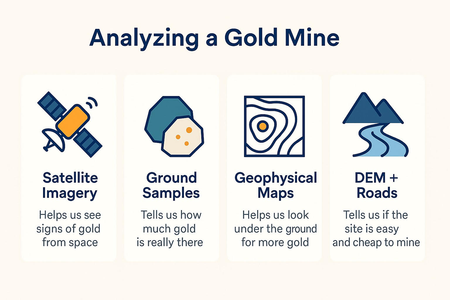
In traditional mineral exploration, identifying gold bearing zones can take months of fieldwork and high cost drilling often with limited success. In our latest project, we flipped the process on its head by using Azure AI and Satellite data to guide geologists before they break ground. Using Azure AI and Azure Machine Learning, we built an intelligent, automated pipeline that identified high potential zones from geospatial data saving time, cost, and uncertainty. Here’s a behind the scenes look at how we did it.👇 📡 Step 1: Translating Satellite Imagery into Features We began with Sentinel-2 imagery covering our Area of Interest (AOI) and derived alteration indices commonly used in mineral exploration, including: 🟤 Clay Index – proxies for hydrothermal alteration 🟥 Fe (Iron Oxide) Index 🌫️ Silica Ratio 💧 NDMI (Normalized Difference Moisture Index) Using Azure Notebooks and Python, we processed and cleaned the imagery, transforming raw reflectance bands into meaningful geochemical features. 🔍 Step 2: Discovering Patterns with Unsupervised Learning (KMeans) With feature rich geospatial data prepared, we used unsupervised clustering (KMeans) in Azure Machine Learning Studio to identify natural groupings across the region. This gave us a first look at the terrain’s underlying geochemical structure one cluster in particular stood out as a strong candidate for gold rich zones. No geology degree needed: AI finds patterns humans can't see :) 🧠 Step 3: Scaling with Azure AutoML We then trained a classification model using Azure AutoML to predict these clusters over a dense prediction grid: ✅ 7,200+ data points generated ✅ ~50m resolution grid ✅ 14 km² area of interest This was executed as a short, early stopping run to minimize cost and optimize training time. Models were trained, validated, and registered using: Azure Machine Learning Compute Instance + Compute Cluster Azure Storage for dataset access 🔬 Step 4: Validation with Field Samples To ground our predictions, we validated against lab assayed (gold concentration) from field sampling points. The results? 🔥 The geospatial cluster labeled 'Class 0' by the model showed strong correlation with lab validated gold concentrations, supporting the model's predictive validity. This gave geologists AI augmented evidence to prioritize areas for further sampling and drilling. ⚖️ Traditional vs AI-based Workflow 🚀 Why Azure? ✅ Azure Machine Learning Studio for AutoML and experiment tracking ✅ Azure Storage for seamless access to geospatial data ✅ Azure OpenAI Service for advanced language understanding, report generation, and enhanced human AI interaction ✅ Azure Notebooks for scripting, preprocessing, and validation ✅ Azure Compute Cluster for scalable, cost effective model training ✅ Model Registry for versioning and deployment 🌍 Key Takeaways AI turns mineral exploration from reactive guesswork into proactive intelligence. In our workflow, AI plays a critical role by: ✅ Extracting key geochemical features from satellite imagery 🧠 Identifying patterns using unsupervised learning 🎯 Predicting high potential zones through automated classification 🌍 Delivering full spatial coverage at scale With Azure AIand Azure ML tools, we’ve built a complete pipeline that supports: End to end automation; from data prep to model deployment Faster, more accurate exploration with lower costs A reusable, scalable solution for global teams This isn’t just a proof of concept, it’s a production ready framework that empowers geologists with AI driven insights before the first drill hits the ground. 🔗 If you're working in Mining industry, geoscience, AI for Earth, or exploration tech, let’s connect! We’re on a mission to bring AI deeper into every industry through strategic partnerships and collaborative innovation.270Views2likes0CommentsIntroducing AzureImageSDK — A Unified .NET SDK for Azure Image Generation And Captioning
Hello 👋 I'm excited to share something I've been working on — AzureImageSDK — a modern, open-source .NET SDK that brings together Azure AI Foundry's image models (like Stable Image Ultra, Stable Image Core), along with Azure Vision and content moderation APIs and Image Utilities, all in one clean, extensible library. While working with Azure’s image services, I kept hitting the same wall: Each model had its own input structure, parameters, and output format — and there was no unified, async-friendly SDK to handle image generation, visual analysis, and moderation under one roof. So... I built one. AzureImageSDK wraps Azure's powerful image capabilities into a single, async-first C# interface that makes it dead simple to: 🎨 Inferencing Image Models 🧠 Analyze visual content (Image to text) 🚦 Image Utilities — with just a few lines of code. It's fully open-source, designed for extensibility, and ready to support new models the moment they launch. 🔗 GitHub Repo: https://github.com/DrHazemAli/AzureImageSDK Also, I've posted the release announcement on the Azure AI Foundry's GitHub Discussions 👉🏻 feel free to join the conversation there too. The SDK is available on NuGet too. Would love to hear your thoughts, use cases, or feedback!219Views1like0CommentsBuilding an AI-Powered ESG Consultant Using Azure AI Services: A Case Study
In today's corporate landscape, Environmental, Social, and Governance (ESG) compliance has become increasingly important for stakeholders. To address the challenges of analyzing vast amounts of ESG data efficiently, a comprehensive AI-powered solution called ESGai has been developed. This blog explores how Azure AI services were leveraged to create a sophisticated ESG consultant for publicly listed companies. https://youtu.be/5-oBdge6Q78?si=Vb9aHx79xk3VGYAh The Challenge: Making Sense of Complex ESG Data Organizations face significant challenges when analyzing ESG compliance data. Manual analysis is time-consuming, prone to errors, and difficult to scale. ESGai was designed to address these pain points by creating an AI-powered virtual consultant that provides detailed insights based on publicly available ESG data. Solution Architecture: The Three-Agent System ESGai implements a sophisticated three-agent architecture, all powered by Azure's AI capabilities: Manager Agent: Breaks down complex user queries into manageable sub-questions containing specific keywords that facilitate vector search retrieval. The system prompt includes generalized document headers from the vector database for context. Worker Agent: Processes the sub-questions generated by the Manager, connects to the vector database to retrieve relevant text chunks, and provides answers to the sub-questions. Results are stored in Cosmos DB for later use. Director Agent: Consolidates the answers from the Worker agent into a comprehensive final response tailored specifically to the user's original query. It's important to note that while conceptually there are three agents, the Worker is actually a single agent that gets called multiple times - once for each sub-question generated by the Manager. Current Implementation State The current MVP implementation has several limitations that are planned for expansion: Limited Company Coverage: The vector database currently stores data for only 2 companies, with 3 documents per company (Sustainability Report, XBRL, and BRSR). Single Model Deployment: Only one GPT-4o model is currently deployed to handle all agent functions. Basic Storage Structure: The Blob container has a simple structure with a single directory. While Azure Blob storage doesn't natively support hierarchical folders, the team plans to implement virtual folders in the future. Free Tier Limitations: Due to funding constraints, the AI Search service is using the free tier, which limits vector data storage to 50MB. Simplified Vector Database: The current index stores all 6 files (3 documents × 2 companies) in a single vector database without filtering capabilities or schema definition. Azure Services Powering ESGai The implementation of ESGai leverages multiple Azure services for a robust and scalable architecture: Azure AI Services: Provides pre-built APIs, SDKs, and services that incorporate AI capabilities without requiring extensive machine learning expertise. This includes access to 62 pre-trained models for chat completions through the AI Foundry portal. Azure OpenAI: Hosts the GPT-4o model for generating responses and the Ada embedding model for vectorization. The service combines OpenAI's advanced language models with Azure's security and enterprise features. Azure AI Foundry: Serves as an integrated platform for developing, deploying, and governing generative AI applications. It offers a centralized management centre that consolidates subscription information, connected resources, access privileges, and usage quotas. Azure AI Search (formerly Cognitive Search): Provides both full-text and vector search capabilities using the OpenAI ada-002 embedding model for vectorization. It's configured with hybrid search algorithms (BM25 RRF) for optimal chunk ranking. Azure Storage Services: Utilizes Blob Storage for storing PDFs, Business Responsibility Sustainability Reports (BRSRs), and other essential documents. It integrates seamlessly with AI Search using indexers to track database changes. Cosmos DB: Employs MongoDB APIs within Cosmos DB as a NoSQL database for storing chat history between agents and users. Azure App Services: Hosts the web application using a B3-tier plan optimized for cost efficiency, with GitHub Actions integrated for continuous deployment. Project Evolution: From Concept to Deployment The development of ESGai followed a structured approach through several phases: Phase 1: Data Cleaning Extracted specific KPIs from XML/XBRL datasets and BRSR reports containing ESG data for 1,000 listed companies Cleaned and standardized data to ensure consistency and accuracy Phase 2: RAG Framework Development Implemented Retrieval-Augmented Generation (RAG) to enhance responses by dynamically fetching relevant information Created a workflow that includes query processing, data retrieval, and response generation Phase 3: Initial Deployment Deployed models locally using Docker and n8n automation tools for testing Identified the need for more scalable web services Phase 4: Transition to Azure Services Migrated automation workflows from n8n to Azure AI Foundry services Leveraged Azure's comprehensive suite of AI services, storage solutions, and app hosting capabilities Technical Implementation Details Model Configurations: The GPT model is configured with: Model version: 2024-11-20 Temperature: 0.7 Max Response Token: 800 Past Messages: 10 Top-p: 0.95 Frequency/Presence Penalties: 0 The embedding model uses OpenAI-text-embedding-Ada-002 with 1536 dimensions and hybrid semantic search (BM25 RRF) algorithms. Cost Analysis and Efficiency A detailed cost breakdown per user query reveals: App Server: $390-400 AI Search: $5 per query RAG Query Processing: $4.76 per query Agent-specific costs: Manager: $0.05 (30 input tokens, 210 output tokens) Worker: $3.71 (1500 input tokens, 1500 output tokens) Director: $1.00 (600 input tokens, 600 output tokens) Challenges and Solutions The team faced several challenges during implementation: Quota Limitations: Initial deployments encountered token quota restrictions, which were resolved through Azure support requests (typically granted within 24 hours). Cost Optimization: High costs associated with vectorization required careful monitoring. The team addressed this by shutting down unused services and deploying on services with free tiers. Integration Issues: GitHub Actions raised errors during deployment, which were resolved using GitHub's App Service Build Service. Azure UI Complexity: The team noted that Azure AI service naming conventions were sometimes confusing, as the same name is used for both parent and child resources. Free Tier Constraints: The AI Search service's free tier limitation of 50MB for vector data storage restricts the amount of company information that can be included in the current implementation. Future Roadmap The current implementation is an MVP with several areas for expansion: Expand the database to include more publicly available sustainability reports beyond the current two companies Optimize token usage by refining query handling processes Research alternative embedding models to reduce costs while maintaining accuracy Implement a more structured storage system with virtual folders in Blob storage Upgrade from the free tier of AI Search to support larger data volumes Develop a proper schema for the vector database to enable filtering and more targeted searches Scale to multiple GPT model deployments for improved performance and redundancy Conclusion ESGai demonstrates how advanced AI techniques like Retrieval-Augmented Generation can transform data-intensive domains such as ESG consulting. By leveraging Azure's comprehensive suite of AI services alongside a robust agent-based architecture, this solution provides users with actionable insights while maintaining scalability and cost efficiency. https://youtu.be/5-oBdge6Q78?si=Vb9aHx79xk3VGYAh336Views0likes0Comments
Operationalize your Prompt Engineering Skills with Azure Prompt Flow
In today’s AI-driven world, prompt engineering is a game-changing skill for developers and professionals alike. With Azure Prompt Flow, you can harness the power of open-source LLMs to solve real-world operational challenges! This article guides you through using Azure’s robust tools to build, deploy, and refine your own LLM apps—from chatbots to data extraction tools and beyond. Whether you're just starting or looking to sharpen your AI expertise, this guide has everything you need to unlock new possibilities with prompt engineering. Dive in and take your tech journey to the next level!1.8KViews5likes3CommentsUnderstanding the Difference in Using Different Large Language Models: Step-by-Step Guide
Unlock the secrets of deploying Large Language Models on Azure with our comprehensive guide! Learn step-by-step integration techniques for models like GPT-2, Llama 2, and Dolly v1 in your Web Applications or Power Apps. Explore detailed instructions, ready-made code, and expert tips. Join us for a live session on November 2nd, 2023, to harness the power of AI and Microsoft tools. Become an entrepreneur with Microsoft Founders Hub, offering up to $2,500 OpenAI credits and $1,000 Azure credits. Dive into the world of tech solutions and creative writing ideas today!14KViews3likes1CommentDeploying a Large Language Model (GPT-2) on Azure Using Power Automate: Step-by-Step Guide
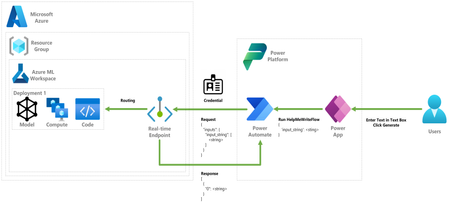
Step-by-step guide on deploying a large language model (GPT-2) to the Azure platform and consuming it using Power Platform (Power Automate, Power Apps) to generate text and give you creative writing ideas.24KViews5likes0Comments