azure load testing
78 Topics
Performance Tuning and Scaling Optimization for Large-Scale Azure Workloads
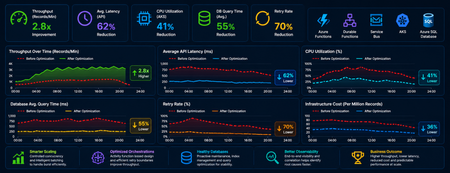
Summary As cloud-native systems scale, performance challenges rarely stem from a single bottleneck. Instead, they emerge from the interaction between compute, orchestration, and data layers under load. This article captures a practical optimization journey of a high-volume Azure-based workload and highlights how controlled scaling, improved orchestration design, and proactive database maintenance can significantly outperform brute-force scaling. Introduction Distributed systems are often designed with the assumption that scaling out will solve performance issues. However, for orchestration-heavy and database-intensive workloads, this approach can introduce more problems than it solves. In this scenario, the system processed millions of transactional records through Azure Functions, Durable Functions, messaging pipelines, APIs, and SQL databases. As the workload grew, the platform began experiencing: CPU and memory spikes Slower SQL queries Service Bus throttling Increased retries and execution delays What stood out was that these issues were not due to insufficient resources, but due to inefficient execution patterns at scale. The optimization effort therefore focused on controlling how the system scaled and executed, rather than simply increasing capacity. Understanding Workload Behavior A critical early step was identifying the nature of the workload—specifically, whether it was CPU-heavy or data-heavy. Rethinking Scaling: More Is Not Always Better One of the most important lessons was that scaling out aggressively can degrade performance. As more function instances processed messages in parallel: Database calls increased sharply API traffic surged Lock contention intensified Retry rates increased This created a cascading effect where retries amplified load, further slowing down the system. To address this, scaling was intentionally controlled using: Concurrency limits on function execution Batch-based processing instead of full parallel fan-out Small delays to smooth traffic spikes Chunking of large datasets into manageable units This shift from maximum parallelism to controlled throughput significantly improved system stability. Compute Optimization: CPU and Memory After stabilizing scaling behavior, the next step was optimizing compute usage. CPU Optimization CPU spikes were largely caused by excessive parallel execution and orchestration overhead. Improvements included: Breaking large workloads into smaller units Reducing unnecessary fan-outs of processes Limiting concurrent executions This resulted in more predictable CPU usage and improved execution consistency. Memory Optimization Memory pressure was primarily driven by large payloads and batch processing. Optimizations focused on: Processing data in smaller chunks Avoiding large in-memory payloads and memory leaks Reducing orchestration state size These changes improved system reliability and reduced execution failures under load. Scaling Approaches: Practical Trade-Offs Both vertical and horizontal scaling were used, but with careful consideration. Scale Up (Vertical Scaling) Quick to implement No architectural changes required Useful for immediate stabilization However, it had cost and scalability limits. Scale Out (Horizontal Scaling) Better suited for long-term scalability Enables workload distribution But without control, it can: Increase database contention Amplify retries Introduce instability Key Insight The most effective approach was not choosing one over the other but combining both with strict control over concurrency and execution patterns. Durable Functions: Orchestration Optimization Durable Functions were central to the system, making orchestration design a key factor in performance. Challenges Observed The initial design relied heavily on nested sub-orchestrators, which introduced: High orchestration overhead Increased replay and persistence operations Slower execution at scale Key Improvements Refactoring unnecessary sub-orchestrators into Activity Functions simplified execution and improved throughput. The benefits included: Reduced orchestration latency Faster execution cycles Lower infrastructure cost Note: However, sub-orchestrators remain the right choice when the design requires composing multiple dependent steps, managing scoped retry/error logic, or isolating orchestration history. The decision should be driven by the complexity and reuse requirements of each workflow segment and not applied as a blanket rule. Improved Retry Strategy Retry behavior was also optimized by redefining execution boundaries. Previously: One activity processed multiple records A single failure triggered a retry of the entire batch After optimization: One activity handled one logical unit of work This enabled: Granular retries Better failure isolation Reduced duplicate processing Database Hygiene: A Critical Foundation The database emerged as a major bottleneck due to fragmentation and stale statistics caused by continuous high-volume operations. Issues Identified Fragmented indexes Inefficient query plans Increased query execution time Optimization Approach A proactive maintenance strategy was implemented using scheduled jobs to: Update statistics regularly Rebuild indexes Maintain query performance consistency Controlled Database Load For heavy long-running workloads in multi-tenant architecture, execution of DB intensive process was intentionally run in singleton fashion at a tenant level to reduce contention. This approach: Prevented concurrent heavy operations Improved overall system stability Delivered more predictable throughput Observability: Finding the Real Problem A major challenge during optimization was distinguishing between symptoms and root causes. For example: Slow APIs were often caused by database contention High retries were triggered by upstream throttling Orchestration delays originated from downstream dependencies To address this, end-to-end observability was established using: Application-level tracing Load testing correlations Cross-service telemetry analysis This enabled accurate root cause identification and prevented misdirected optimization efforts. Key Takeaways Some key principles emerged from this optimization journey: Scaling more does not always mean performing better Controlled parallelism is more effective than unrestricted concurrency Orchestration design directly impacts system performance Database maintenance must be proactive Retry strategies should align with logical units of work Observability is essential for correct diagnosis Conclusion Performance tuning in distributed systems is less about adding resources and more about using them efficiently. By focusing on controlled scaling, simplifying orchestration, maintaining database health, and improving observability, the system achieved higher throughput, lower cost, and significantly improved stability. These lessons are broadly applicable to any Azure-based system handling large-scale, orchestration-heavy workloads and can help teams design more predictable and resilient architectures.825Views5likes0CommentsAzure Load Testing Celebrates Two Years with Two Exciting Announcements!
[Update on March 18, 2025: AI-powered load test generation, referred to in the third section below, is in preview now!] Azure Load Testing (ALT) has been an essential tool for performance testing, enabling customers across industries to run thousands of tests every month. We are thrilled to celebrate its second anniversary with two major announcements. In this blog post, we will delve into the remarkable capabilities of ALT and reveal the exciting developments that will redefine load testing for you. Why do customers love ALT? ALT is a powerful service designed to ensure that your applications can handle high traffic and perform optimally under peak load. Here are some key features of ALT: Large-scale tests: Simulate over 100,000 concurrent users. Long-duration tests: Run tests for up to 24 hours. Multi-region tests: Simultaneously simulate users from any of the 20 supported regions. Continuous tests: Catch performance regression early by integrating with Azure Pipelines, GitHub Actions, or other CI/CD systems. Comprehensive test results: Correlate server-side metrics with client-side metrics for end-to-end insights. Analytics and insights: Quickly and easily identify performance bottlenecks with detailed analytics. Pricing Changes: Listening to You We have heard your feedback and are excited to announce significant pricing changes, effective March 1, 2025: No monthly resource fee: We have eliminated the $10 monthly resource fee to help you save on overall costs. 20% price reduction: The cost per Virtual User Hour (VUH) for >10,000 VUH is reduced from 7.5 cents to 6 cents. Additionally, we are introducing a feature to set a consumption limit per resource. This will enable central teams, such as the Performance Center of Excellence, to effectively manage and control the costs incurred by each team. These changes reflect our commitment to making ALT more accessible and cost-effective, ensuring that you can optimize your applications without worrying about budget constraints. Locust-Based Tests: Offering You a Choice In another exciting development, we are delighted to announce the availability of Locust-based tests. This addition allows you to leverage the power, flexibility, and developer-friendly nature of the Python-based Locust load testing framework, in addition to already supported Apache JMeter load testing framework. We are also working on making it easy for you to generate tests by leveraging AI. With our integration with GitHub Copilot, you will be able to simply start with a Postman Collection or an HTTP file and leverage the copilot to generate Locust-based tests. Stay tuned! This update opens new possibilities for you, providing a choice of load testing frameworks and making it easy to generate tests. In Summary As we celebrate the second anniversary, we are committed to continually improving and evolving the service to meet your needs. With the introduction of half a dozen features (1. consumption limits, 2. Locust-based tests, 3. support for multiple test files, 4. scheduling, 5. notifications, 6. support for managed identity) apart from pricing changes, we are confident that ALT will continue to be an indispensable tool for your performance testing arsenal. We are excited about all the 50+ updates over two years and look forward to seeing how they enhance your testing processes. Thank you for being a part of our journey, and we can't wait to see what you achieve with ALT. If you would like to share how you were able to leverage ALT for an interesting scenario, email me at shon dot shah at microsoft dot com or post your feedback at https://aka.ms/malt-feedback. Happy load testing!1.6KViews5likes2CommentsConfigure JMeter script to optimize utilization of test engines in Azure Load Testing
Load testing your application can uncover critical performance and scale issues before your customers do. However, one important factor that can be overlooked is that the test system itself needs to be running smoothly - otherwise the accuracy of your test results will be compromised!170KViews5likes4CommentsAI-Powered Performance Testing
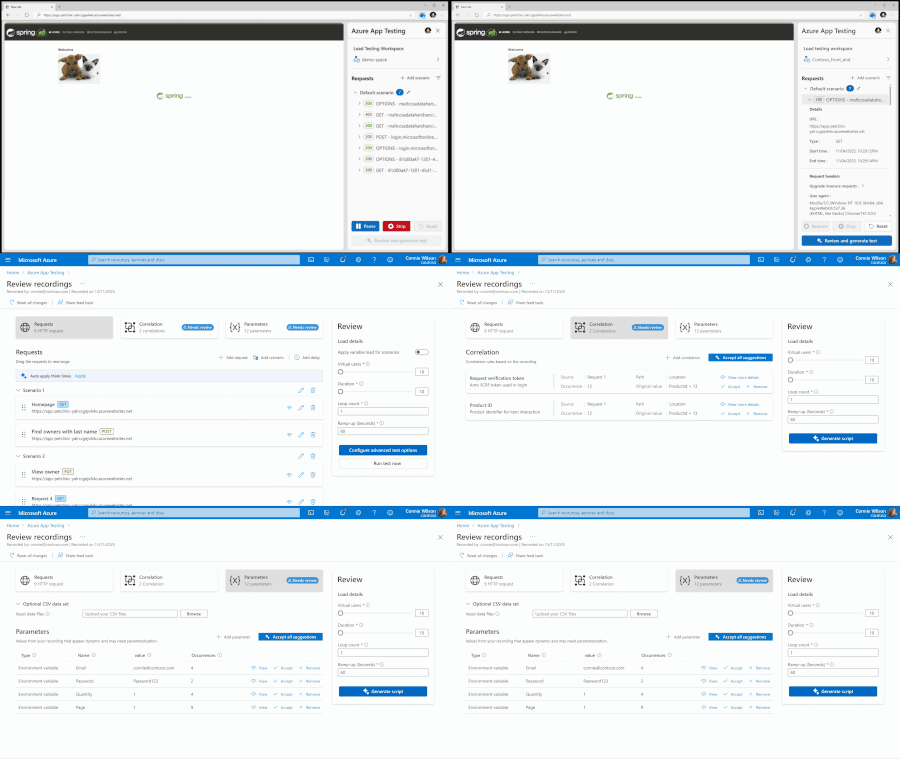
Performance testing is critical for delivering reliable, scalable applications. We have been working on AI-driven innovations in Azure Load Testing that will change how you author and analyze load tests. AI-Assisted Authoring of JMeter Scripts Writing high-quality load test scripts has traditionally required deep expertise. From setting correlations and think times to properly parameterizing inputs, it requires significant time and effort. This manual effort slows teams down, especially when they must recreate real-world scenarios under tight deadlines. With our new AI-assisted authoring, that changes. Now you can simply record your application journey, and Azure Load Testing will do the heavy lifting: Record your scenarios using the browser extension AI automatically suggests correlations to handle dynamic values Intelligent parameterization for more realistic test data Smart request labelling to help you organize flows cleanly Recommended think times to match actual user behavior Once refined, a production-ready JMeter script is generated automatically. You can run this script immediately on Azure Load Testing with the scale and reliability you expect. You can create complex, realistic performance tests created in a fraction of the time, even if you’re not a JMeter expert. AI-Powered Actionable Insights Performance tests don’t stop at execution. Real value comes from understanding what happened and knowing what to do next. We have supercharged our insights experience with AI. Insights for Failed Test Runs: When a test fails, the first question is always: why? Now, Azure Load Testing uses AI to automatically analyze test run logs, detect the root cause, and provide clear guidance on what went wrong and how to fix it. Baseline Comparison Insights: Compare any test run against your defined baseline to immediately see what degraded, what improved, and which requests diverged from expected performance. It also helps understand the root cause for performance degradation. Focused Recommendations for Failed Test Criteria: If any of your pass/fail criteria fail, AI surfaces targeted recommendations so you can take corrective action quickly. You get meaningful insights, even when things don’t go as planned. No more staring at graphs trying to figure out what to do next. The Future of Load Testing Is Intelligent With AI assisting script creation and analyzing test outcomes end-to-end, Azure Load Testing now helps teams: Run real world performance tests faster Troubleshoot with confidence Reduce manual debugging The authoring capability will be available in the next couple of weeks. Meanwhile, you can try out AI-powered insights for your load test run to quickly analyze your results. Please share your feedback here. Happy Load Testing!1.3KViews4likes1Comment
Introducing AI-Powered Actionable Insights in Azure Load Testing
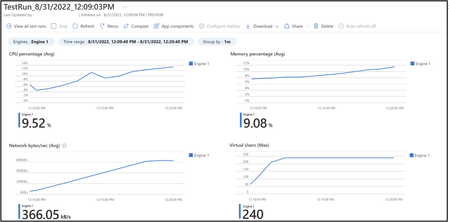
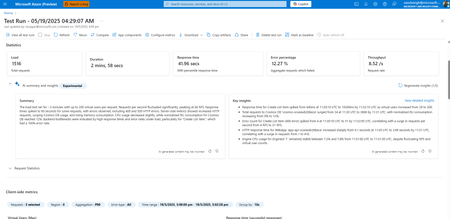
We’re excited to announce the preview of AI powered Actionable Insights in Azure Load Testing—a new capability that helps teams quickly identify performance issues and understand test results through AI-driven analysis. Performance testing is an essential part of ensuring application reliability and responsiveness, but interpreting the results can often be challenging. It typically involves manually correlating client-side load test telemetry with backend service metrics, which can be both time-consuming and error-prone. Actionable Insights simplifies this process by automatically analyzing test data, surfacing key issues, and offering clear, actionable recommendations—so teams can focus on fixing what matters, not sifting through raw data. AI-powered diagnostics Actionable Insights uses AI to detect performance issues such as latency spikes, failed requests, throughput anomalies, and resource bottlenecks. It presents insights clearly, highlighting patterns and root causes so teams can quickly understand what went wrong and how to fix it. Insights leverage telemetry from both client-side metrics and server-side metrics which is collected via Azure Monitor. When server-side monitoring is enabled, Azure Load Testing correlates frontend traffic patterns with backend system behavior. For example, if an increase in virtual users coincides with latency spikes in Azure Cosmos DB, the insight will highlight this relationship and suggest corrective actions—giving teams a comprehensive view of system behavior under load. You can learn how to enable server-side metrics here. Rich, integrated experience for faster issue resolution Actionable Insights provides a unified, intuitive experience within your test results, clearly illustrating the context of detected performance issues. By consolidating metrics, conditions, and recommendations into a single view, your team can diagnose and resolve issues faster, without switching tools or piecing data together manually. Get Started Actionable Insights is now available in preview. To try it out, trigger a new test run in Azure Load Testing. For best results, enable server-side metrics when configuring your test. Once the run completes, AI-powered insights will be available in the test results view—no additional setup required. This is just the beginning. We are actively working on improving the quality of these insights and adding more capabilities to it. Your feedback is essential. Let us know what’s working well and where we can improve by using the thumbs-up or thumbs-down option on each generated insight in the Azure Load Testing portal. You can also share your feedback on our community. Learn more about Actionable Insights1.8KViews4likes0CommentsRun Locust-based Tests in Azure Load Testing
We are excited to announce support for Locust, a Python-based open-source performance testing framework, in Azure Load Testing. As a cloud-based and fully managed service for performance testing, Azure Load Testing helps you easily achieve high scale loads and quickly identify performance bottlenecks. We now support two load testing frameworks – Apache JMeter and Locust. You can use your existing Locust scripts and seamlessly leverage all the capabilities of Azure Load Testing. Locust is a developer friendly framework that lets you write code to create load test scripts as opposed to using GUI based test creation. You can check-in the scripts into your repos, seek peer feedback, and better maintain the scripts as they evolve – just like you would do for your product code. As for extensibility, whether it is sending metrics to a database, simulating realistic user behavior, or using custom load patterns, you can just write Python code and achieve your objective. You can also use Azure Load Testing to integrate locust based load tests in to your CI/CD workflows. Very soon, you will be able to get started from Visual Studio Code (VS Code) and leverage the power of AI to get a Locust script generated. You can then run it at scale using Azure Load Testing and get the benefits of a managed service, all from within the VS Code experience. User feedback in action During the preview phase, many of you tried out Locust in Azure Load Testing and provided us invaluable feedback. We have put that into action and improved the offering to further enhance your experience. We have ensured that your experience of getting a Locust script working with Azure Load Testing is frictionless with zero to minimal modifications needed in your test scripts. This ensures that you can seamlessly run the same scripts in your local environment with lower load and on Azure Load Testing with high-scale load. You can now install the dependencies required for your test script by specifying them in a ‘requirements.txt’ file and uploading it along with your test script. If your test requires any supporting Python modules in addition to your test script, you can now upload multiple python files and specify the main test script from which the execution should begin. If you use a Locust configuration file to define load or any other configuration for your load test, you can just upload your .conf file along with your test script. The precedence order followed by Locust to override the values is honored. Locust plugins are already available on the Azure Load Testing test engines. You can use them without having to separately upload or configure the plugins. You have multiple options to integrate Locust load tests into your automation flows. You can use CI/CD integration, Azure CLI, or REST APIs. Very soon, you’d also be able to use Azure SDKs. Using Locust scripts with Azure Load Testing All the capabilities of Azure Load Testing that help you configure your tests, generate high scale load, troubleshoot your tests, and analyze test results are supported for Locust-based tests. Let’s see this in action using a simple example of a user browsing multiple pages in a web application. You can create a Locust script for this scenario by writing a few lines of Python code. Once you run the script in your local environment and ensure that it is working as expected, you can run the same on Azure Load Testing. To create a Locust-based test in Azure Load Testing, On the ‘Test plan’ tab, select ‘Locust’ as the load testing framework and upload your test script. You can also upload any supporting artifacts here. Figure 2: Test framework selection On the ‘Load’ tab, configure the load that you want to generate. You can specify the overall number of users required and the spawn rate in load configuration. Azure Load Testing automatically populates the number of test engines required. You can update the count, if required. You can also define the overall load required and the load pattern in your Locust script, or in a Locust configuration file. In that case, you can select the engine instances required to generate the target load. You also have the options to parameterize your test script, monitor app components and define test criteria. Once you create the test and run it, you can see a rich test results dashboard that shows the performance metrics for the overall user journey as well as for specific pages. You can slice and dice the metrics to better understand performance and identify any anomalies. You can also correlate the client-side metrics with the server-side metrics from your app components to easily identify performance bottlenecks. Get started Get started with Locust on Azure Load Testing today and let us know how it enhanced your performance testing journey. Stay tuned for more exciting updates! You can learn more about using Locust with Azure Load Testing here. Have questions or feedback? Drop a comment below or share your feedback with us in the Azure Load Testing community!3.1KViews4likes0Comments
Introducing Support for Multiple JMeter Files and Fragments in Azure Load Testing
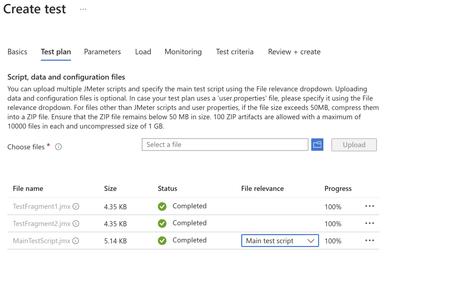
We are excited to announce a significant update to Azure Load Testing that allows you to use multiple JMeter files and fragments in your test configurations. This feature empowers users to design more modular, flexible, and scalable performance tests, ensuring comprehensive testing for complex applications. What’s New? Previously, Azure Load Testing supported a single JMeter file for defining test scenarios. With the new update, you can now: Include multiple JMeter test files in a single load test configuration. Use JMeter fragments to define reusable components, such as authentication workflows or common request sequences. Seamlessly manage test modularity, enabling easier collaboration and maintenance. This approach improves test execution and maintenance, especially for large-scale and complex applications. Why Use Multiple JMeter Files and Fragments? Modern applications are often complex, with multiple APIs, microservices, and diverse user workflows. A single, monolithic JMeter script can become difficult to manage, scale, or reuse across projects. Here’s how the new capability addresses these challenges: 1. Modularity for Large Workflows Using multiple JMeter files allows you to break down test scenarios into smaller, manageable units. For instance, separate files can be created for: User login workflows API testing for specific microservices Database queries This approach enhances clarity and reduces errors, especially in large-scale applications. 2. Reusability with JMeter Fragments JMeter fragments are reusable components of test plans. By creating fragments for common functionalities (like token generation or error handling), teams can: Avoid duplicating efforts across different test scenarios. Quickly adapt test plans to changing requirements. 3. Collaboration Across Teams With modular scripts, different team members can work on specific JMeter files or fragments simultaneously, improving collaboration and accelerating test development. 4. Easier Debugging and Maintenance Debugging a modular test setup is more straightforward, as you can isolate and troubleshoot specific files or fragments without affecting the entire test plan. How to Create a Test with Multiple JMeter Files Follow these steps to create a performance test using multiple JMeter files in Azure Load Testing: 1. Prepare Your JMeter Files Organize your test logic into multiple JMeter .jmx files. For shared functionality, such as authentication, create reusable JMeter fragments. 2. Upload Files to Azure Load Testing Navigate to the Azure Load Testing portal. Create a new test or update an existing one. In the Test Plan section, upload all JMeter files and fragments as part of the configuration. Under the file relevance section, designate the main test script from which execution should begin. Child test scripts or fragments are treated as configuration files and can be included within a zipped folder for better organization. However, the main script file must be uploaded separately, outside of the zip. 3. Set Up Parameters and Certificates Ensure test parameters and any required certificates (managed via Azure Key Vault) are properly configured. 4. Execute and Monitor the Test Run your load test and monitor metrics through the Azure Load Testing dashboard. You can analyze throughput, response times, and resource utilization to identify performance bottlenecks. Get Started Today This update opens up new possibilities for performance testing with Azure Load Testing. Whether you’re working on a microservices architecture, testing complex workflows, or fostering team collaboration, the support for multiple JMeter files and fragments is here to streamline your testing process.786Views4likes0Comments