azure function app
5 Topics
Ingesting Logs through Azure Private Link
Hi, We are currently using Azure Private Link within our environment and we are attempting to ingest logs into Log Analytics. When I reached out to Microsoft Support, it appears that the CCF connectors will not work using Private Link and the Azure Functions connectors are becoming depricated. Has anyone else run into this issue and what is the solution for getting logs into Sentinel through the Private Link, specifically API log sources? Did this require a custom app for each of these log sources or some sort of custom script that lives on an AMA host within the Private Link to ingest the logs? Any advice here would be greatly appeciated. Thank you,463Views0likes4Comments
Detecting ACI IP Drift and Auto-Updating Private DNS (A + PTR) with Event Grid + Azure Functions
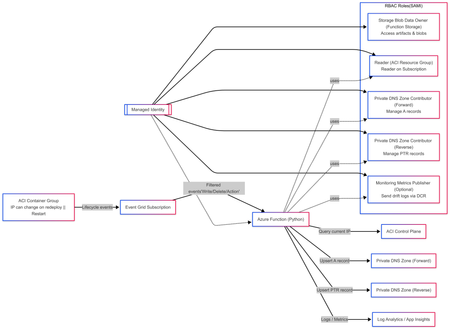
Solution Author Aditya_AzureNinja , Chiragsharma30 Solution Version v1.0 TL;DR Azure Container Instances (ACI) container groups can be recreated/updated over time and may receive new private IPs, which can cause DNS mismatches if forward and reverse records aren’t updated. This post shares an event-driven pattern that detects ACI IP drift and automatically reconciles Private DNS A (forward) and PTR (reverse) records using Event Grid + Azure Functions. Key requirement: Event delivery is at-least-once, so the solution must be idempotent. Problem statement In hub-and-spoke environments using per-spoke Private DNS zones for isolation, ACI workloads created/updated/deleted over time can receive new private IPs. We need to ensure: Forward lookup: aci-name.<spoke-zone> (A record) → current ACI private IP Reverse lookup: IP → aci-name.<spoke-zone> (PTR record) Two constraints drive this design: Azure Private DNS auto-registration is VM-only and does not create PTR records, so ACI needs explicit A/PTR record management. Reverse DNS is scoped to the VNet (reverse zone must be linked to the querying VNet, otherwise reverse lookup returns NXDOMAIN). Design principle: This solution was designed with the following non‑negotiable engineering goals: Event‑driven DNS updates must be triggered directly from resource lifecycle events, not polling or scheduled jobs. Container creation, restart, and deletion are the only reliable sources of truth for IP changes in ACI. Idempotent Azure Event Grid delivers events with at‑least‑once semantics. The system must safely process duplicate events without creating conflicting DNS records or failing on retries. Stateless The automation must not rely on in‑memory or persisted state to determine correctness. DNS itself is treated as the baseline state, allowing functions to scale, restart, and replay events without drift or dependency on prior executions. Clear failure modes DNS reconciliation failures must be explicit and observable. If DNS updates fail, the function invocation must fail loudly so the issue is visible, alertable, and actionable—never silently ignored. Components Event Grid subscriptions (filtered to ACI container group lifecycle events) Azure Function App (Python) with System Assigned Managed Identity Private DNS forward zone (A records) Private DNS reverse zone (PTR records) Supporting infra (typical): Storage account (function artifacts / operational needs) Application Insights + Log Analytics (observability) Event-driven flow ACI container group is created/updated/deleted. Event Grid emits a lifecycle event (delivery can be repeated). Function is triggered and reads the current ACI private IP. Function reconciles DNS: Upsert A record to current IP Upsert PTR record to FQDN Remove stale PTR(s) for hostname/IP as needed Function logs reconciliation outcome (updated vs no-op). Architecture overview (INFRA) This follows the“Event-driven registration” approach: Event Grid → Azure Function that reconciles DNS on ACI lifecycle events. RBAC at a glance (Managed Identity) Role Scope Purpose Storage Blob Data Owner Function App deployment storage account Access function artifacts and operational blobs (required because shared key access is disabled). Reader Each ACI workload resource group Read container group state and determine the current private IP. Private DNS Zone Contributor Private DNS forward zone(s) Create, update, and delete A records for ACI hostnames. Private DNS Zone Contributor Private DNS reverse zone(s) Create, update, and clean up PTR records for ACI IPs. Monitoring Metrics Publisher (optional) Data Collection Rule (DCR) Upload structured IP‑drift events to Log Analytics via the ingestion API. --- --- Architecture overview (APP) Event‑Driven DNS Reconciliation for Azure Container Instances 1. Event contract: what the function receives Azure Event Grid delivers events using a consistent envelope (Event Grid schema). Each event includes, at a minimum: topic subject id eventType eventTime data dataVersion metadataVersion In Azure Functions, the Event Grid trigger binding is the recommended way to receive these events directly. Why the subject field matters The subject field typically contains the ARM resource ID path of the affected resource. This solution relies on subject to: verify that the event is for an ACI container group (Microsoft.ContainerInstance/containerGroups) extract: subscription ID resource group name container group name Using subject avoids dependence on publisher‑specific payload fields and keeps parsing fast, deterministic, and resilient. 2. Subscription design: filter hard, process little The solution follows a strict runbook pattern: subscribe only to ARM lifecycle events filter aggressively so only ACI container groups are included trigger reconciliation only on meaningful state transitions Recommended Event Grid event types Microsoft.Resources.ResourceWriteSuccess (create / update / stop state changes) Microsoft.Resources.ResourceDeleteSuccess (container group deletion) Microsoft.Resources.ResourceActionSuccess (optional) (restart / start / stop actions, environment‑dependent) This keeps the Function App simple, predictable, and low‑noise. 3. Application design: two functions, one contract The application is intentionally split into authoritative mutation and read‑only validation. Component A — DNS Reconciler (authoritative writer) A thin Python v2 model wrapper: receives the Event Grid event validates this is an ACI container group event parses identifiers from the ARM subject resolves DNS configuration from a JSON mapping (environment variable) delegates DNS mutation to a deterministic worker script DNS changes are not implemented inline in Python. Instead, the function: constructs a controlled set of environment variables invokes a worker script (/bin/bash) via subprocess streams stdout/stderr into function logs treats non‑zero exit codes as hard failures This thin wrapper + deterministic worker pattern isolates DNS correctness logic while keeping the event handler stable and testable. Component B — IP Drift Tracker (stateless observer) The drift tracker is a read‑only, stateless validator designed for correctness monitoring. It: parses identifiers from the event subject exits early on delete events (nothing to validate) reads the live ACI private IP using the Azure SDK reads the current DNS A record baseline compares live vs DNS state and emits drift telemetry Core comparison logic No DNS record exists → emit first_seen DNS record matches live IP → emit no_change DNS record differs from live IP → emit drift_detected (old/new IP) Optionally, drift events can be shipped to Log Analytics using DCR‑based ingestion. 4. DNS Reconciler: execution flow Step 1 — Early filtering Reject any event whose subject does not contain: Microsoft.ContainerInstance/containerGroups. This avoids unnecessary processing and ensures strict contract enforcement. Step 2 — ARM subject parsing The function splits the subject path and extracts: resource group container group name This approach is fast, robust, and avoids publisher‑specific schema dependencies. Step 3 — Zone configuration resolution DNS configuration is resolved from a JSON map stored in an environment variable. If no matching configuration exists for the resource group: the function logs the condition exits without error Why this matters This keeps the solution multi‑environment without duplicating deployments. Only configuration changes — not code — are required. Step 4 — Delegation to worker logic The function constructs a deterministic runtime context and invokes the worker: forward zone name reverse zone name(s) container group name current private IP TTL and execution flags The worker performs reconciliation and exits with explicit success or failure. 5. What “reconciliation” actually means Reconciliation follows clear, idempotent semantics. Create / Update events Upsert A record if record exists and matches current IP → no‑op else → create or overwrite with new IP Upsert PTR record compute PTR name using IP octets and reverse zone alignment create or overwrite PTR to hostname.<forward-zone> Delete events delete the A record for the hostname scan PTR record sets: remove targets matching the hostname delete record set if empty All operations are safe to repeat. 6. Why IP drift tracking is separate DNS reconciliation enforces correctness at event time, but drift can still occur due to: manual DNS edits partial failures delete / recreate race conditions unexpected redeployments or restarts The drift tracker exists as a continuous correctness validator, not as a repair mechanism. This separation keeps responsibilities clear: Reconciler → fixes state Drift tracker → observes and reports state 7. Observability: correctness vs runtime health There is an important distinction: Runtime health container crashes image pull failures restarts platform events (visible in standard ACI / Container logs) DNS correctness A record != live IP missing PTR records stale reverse mappings The IP Drift Tracker provides this correctness layer, which complements — not replaces — runtime monitoring. 8. Engineering constraints that shape the design At‑least‑once delivery → idempotency Event Grid delivery must be treated as at‑least‑once. Every reconciliation action is safe to execute multiple times. Explicit failure behavior If the worker script returns a non‑zero exit code: the function invocation fails the failure is visible and alertable incorrect DNS does not silently persist438Views2likes0CommentsBuilding with Azure OpenAI Sora: A Complete Guide to AI Video Generation
In this comprehensive guide, we'll explore how to integrate both Sora 1 and Sora 2 models from Azure OpenAI Service into a production web application. We'll cover API integration, request body parameters, cost analysis, limitations, and the key differences between using Azure AI Foundry endpoints versus OpenAI's native API. Table of Contents Introduction to Sora Models Azure AI Foundry vs. OpenAI API Structure API Integration: Request Body Parameters Video Generation Modes Cost Analysis per Generation Technical Limitations & Constraints Resolution & Duration Support Implementation Best Practices Introduction to Sora Models Sora is OpenAI's groundbreaking text-to-video model that generates realistic videos from natural language descriptions. Azure AI Foundry provides access to two versions: Sora 1: The original model focused primarily on text-to-video generation with extensive resolution options (480p to 1080p) and flexible duration (1-20 seconds) Sora 2: The enhanced version with native audio generation, multiple generation modes (text-to-video, image-to-video, video-to-video remix), but more constrained resolution options (720p only in public preview) Azure AI Foundry vs. OpenAI API Structure Key Architectural Differences Sora 1 uses Azure's traditional deployment-based API structure: Endpoint Pattern: https://{resource-name}.openai.azure.com/openai/deployments/{deployment-name}/... Parameters: Uses Azure-specific naming like n_seconds, n_variants, separate width/height fields Job Management: Uses /jobs/{id} for status polling Content Download: Uses /video/generations/{generation_id}/content/video Sora 2 adapts OpenAI's v1 API format while still being hosted on Azure: Endpoint Pattern: https://{resource-name}.openai.azure.com/openai/deployments/{deployment-name}/videos Parameters: Uses OpenAI-style naming like seconds (string), size (combined dimension string like "1280x720") Job Management: Uses /videos/{video_id} for status polling Content Download: Uses /videos/{video_id}/content Why This Matters? This architectural difference requires conditional request formatting in your code: const isSora2 = deployment.toLowerCase().includes('sora-2'); if (isSora2) { requestBody = { model: deployment, prompt, size: `${width}x${height}`, // Combined format seconds: duration.toString(), // String type }; } else { requestBody = { model: deployment, prompt, height, // Separate dimensions width, n_seconds: duration.toString(), // Azure naming n_variants: variants, }; } API Integration: Request Body Parameters Sora 1 API Parameters Standard Text-to-Video Request: { "model": "sora-1", "prompt": "Wide shot of a child flying a red kite in a grassy park, golden hour sunlight, camera slowly pans upward.", "height": "720", "width": "1280", "n_seconds": "12", "n_variants": "2" } Parameter Details: model (String, Required): Your Azure deployment name prompt (String, Required): Natural language description of the video (max 32000 chars) height (String, Required): Video height in pixels width (String, Required): Video width in pixels n_seconds (String, Required): Duration (1-20 seconds) n_variants (String, Optional): Number of variations to generate (1-4, constrained by resolution) Sora 2 API Parameters Text-to-Video Request: { "model": "sora-2", "prompt": "A serene mountain landscape with cascading waterfalls, cinematic drone shot", "size": "1280x720", "seconds": "12" } Image-to-Video Request (uses FormData): const formData = new FormData(); formData.append('model', 'sora-2'); formData.append('prompt', 'Animate this image with gentle wind movement'); formData.append('size', '1280x720'); formData.append('seconds', '8'); formData.append('input_reference', imageFile); // JPEG/PNG/WebP Video-to-Video Remix Request: Endpoint: POST .../videos/{video_id}/remix Body: Only { "prompt": "your new description" } The original video's structure, motion, and framing are reused while applying the new prompt Parameter Details: model (String, Optional): Your deployment name prompt (String, Required): Video description size (String, Optional): Either "720x1280" or "1280x720" (defaults to "720x1280") seconds (String, Optional): "4", "8", or "12" (defaults to "4") input_reference (File, Optional): Reference image for image-to-video mode remix_video_id (String, URL parameter): ID of video to remix Video Generation Modes 1. Text-to-Video (Both Models) The foundational mode where you provide a text prompt describing the desired video. Implementation: const response = await fetch(endpoint, { method: 'POST', headers: { 'Content-Type': 'application/json', 'api-key': apiKey, }, body: JSON.stringify({ model: deployment, prompt: "A train journey through mountains with dramatic lighting", size: "1280x720", seconds: "12", }), }); Best Practices: Include shot type (wide, close-up, aerial) Describe subject, action, and environment Specify lighting conditions (golden hour, dramatic, soft) Add camera movement if desired (pans, tilts, tracking shots) 2. Image-to-Video (Sora 2 Only) Generate a video anchored to or starting from a reference image. Key Requirements: Supported formats: JPEG, PNG, WebP Image dimensions must exactly match the selected video resolution Our implementation automatically resizes uploaded images to match Implementation Detail: // Resize image to match video dimensions const targetWidth = parseInt(width); const targetHeight = parseInt(height); const resizedImage = await resizeImage(inputReference, targetWidth, targetHeight); // Send as multipart/form-data formData.append('input_reference', resizedImage); 3. Video-to-Video Remix (Sora 2 Only) Create variations of existing videos while preserving their structure and motion. Use Cases: Change weather conditions in the same scene Modify time of day while keeping camera movement Swap subjects while maintaining composition Adjust artistic style or color grading Endpoint Structure: POST {base_url}/videos/{original_video_id}/remix?api-version=2024-08-01-preview Implementation: let requestEndpoint = endpoint; if (isSora2 && remixVideoId) { const [baseUrl, queryParams] = endpoint.split('?'); const root = baseUrl.replace(/\/videos$/, ''); requestEndpoint = `${root}/videos/${remixVideoId}/remix${queryParams ? '?' + queryParams : ''}`; } Cost Analysis per Generation Sora 1 Pricing Model Base Rate: ~$0.05 per second per variant at 720p Resolution Scaling: Cost scales linearly with pixel count Formula: const basePrice = 0.05; const basePixels = 1280 * 720; // Reference resolution const currentPixels = width * height; const resolutionMultiplier = currentPixels / basePixels; const totalCost = basePrice * duration * variants * resolutionMultiplier; Examples: 720p (1280×720), 12 seconds, 1 variant: $0.60 1080p (1920×1080), 12 seconds, 1 variant: $1.35 720p, 12 seconds, 2 variants: $1.20 Sora 2 Pricing Model Flat Rate: $0.10 per second per variant (no resolution scaling in public preview) Formula: const totalCost = 0.10 * duration * variants; Examples: 720p (1280×720), 4 seconds: $0.40 720p (1280×720), 12 seconds: $1.20 720p (720×1280), 8 seconds: $0.80 Note: Since Sora 2 currently only supports 720p in public preview, resolution doesn't affect cost, only duration matters. Cost Comparison Scenario Sora 1 (720p) Sora 2 (720p) Winner 4s video $0.20 $0.40 Sora 1 12s video $0.60 $1.20 Sora 1 12s + audio N/A (no audio) $1.20 Sora 2 (unique) Image-to-video N/A $0.40-$1.20 Sora 2 (unique) Recommendation: Use Sora 1 for cost-effective silent videos at various resolutions. Use Sora 2 when you need audio, image/video inputs, or remix capabilities. Technical Limitations & Constraints Sora 1 Limitations Resolution Options: 9 supported resolutions from 480×480 to 1920×1080 Includes square, portrait, and landscape formats Full list: 480×480, 480×854, 854×480, 720×720, 720×1280, 1280×720, 1080×1080, 1080×1920, 1920×1080 Duration: Flexible: 1 to 20 seconds Any integer value within range Variants: Depends on resolution: 1080p: Variants disabled (n_variants must be 1) 720p: Max 2 variants Other resolutions: Max 4 variants Concurrent Jobs: Maximum 2 jobs running simultaneously Job Expiration: Videos expire 24 hours after generation Audio: No audio generation (silent videos only) Sora 2 Limitations Resolution Options (Public Preview): Only 2 options: 720×1280 (portrait) or 1280×720 (landscape) No square formats No 1080p support in current preview Duration: Fixed options only: 4, 8, or 12 seconds No custom durations Defaults to 4 seconds if not specified Variants: Not prominently supported in current API documentation Focus is on single high-quality generations with audio Concurrent Jobs: Maximum 2 jobs (same as Sora 1) Job Expiration: 24 hours (same as Sora 1) Audio: Native audio generation included (dialogue, sound effects, ambience) Shared Constraints Concurrent Processing: Both models enforce a limit of 2 concurrent video jobs per Azure resource. You must wait for one job to complete before starting a third. Job Lifecycle: queued → preprocessing → processing/running → completed Download Window: Videos are available for 24 hours after completion. After expiration, you must regenerate the video. Generation Time: Typical: 1-5 minutes depending on resolution, duration, and API load Can occasionally take longer during high demand Resolution & Duration Support Matrix Sora 1 Support Matrix Resolution Aspect Ratio Max Variants Duration Range Use Case 480×480 Square 4 1-20s Social thumbnails 480×854 Portrait 4 1-20s Mobile stories 854×480 Landscape 4 1-20s Quick previews 720×720 Square 4 1-20s Instagram posts 720×1280 Portrait 2 1-20s TikTok/Reels 1280×720 Landscape 2 1-20s YouTube shorts 1080×1080 Square 1 1-20s Premium social 1080×1920 Portrait 1 1-20s Premium vertical 1920×1080 Landscape 1 1-20s Full HD content Sora 2 Support Matrix Resolution Aspect Ratio Duration Options Audio Generation Modes 720×1280 Portrait 4s, 8s, 12s ✅ Yes Text, Image, Video Remix 1280×720 Landscape 4s, 8s, 12s ✅ Yes Text, Image, Video Remix Note: Sora 2's limited resolution options in public preview are expected to expand in future releases. Implementation Best Practices 1. Job Status Polling Strategy Implement adaptive backoff to avoid overwhelming the API: const maxAttempts = 180; // 15 minutes max let attempts = 0; const baseDelayMs = 3000; // Start with 3 seconds while (attempts < maxAttempts) { const response = await fetch(statusUrl, { headers: { 'api-key': apiKey }, }); if (response.status === 404) { // Job not ready yet, wait longer const delayMs = Math.min(15000, baseDelayMs + attempts * 1000); await new Promise(r => setTimeout(r, delayMs)); attempts++; continue; } const job = await response.json(); // Check completion (different status values for Sora 1 vs 2) const isCompleted = isSora2 ? job.status === 'completed' : job.status === 'succeeded'; if (isCompleted) break; // Adaptive backoff const delayMs = Math.min(15000, baseDelayMs + attempts * 1000); await new Promise(r => setTimeout(r, delayMs)); attempts++; } 2. Handling Different Response Structures Sora 1 Video Download: const generations = Array.isArray(job.generations) ? job.generations : []; const genId = generations[0]?.id; const videoUrl = `${root}/${genId}/content/video`; Sora 2 Video Download: const videoUrl = `${root}/videos/${jobId}/content`; 3. Error Handling try { const response = await fetch(endpoint, fetchOptions); if (!response.ok) { const error = await response.text(); throw new Error(`Video generation failed: ${error}`); } // ... handle successful response } catch (error) { console.error('[VideoGen] Error:', error); // Implement retry logic or user notification } 4. Image Preprocessing for Image-to-Video Always resize images to match the target video resolution: async function resizeImage(file: File, targetWidth: number, targetHeight: number): Promise<File> { return new Promise((resolve, reject) => { const img = new Image(); const canvas = document.createElement('canvas'); const ctx = canvas.getContext('2d'); img.onload = () => { canvas.width = targetWidth; canvas.height = targetHeight; ctx.drawImage(img, 0, 0, targetWidth, targetHeight); canvas.toBlob((blob) => { if (blob) { const resizedFile = new File([blob], file.name, { type: file.type }); resolve(resizedFile); } else { reject(new Error('Failed to create resized image blob')); } }, file.type); }; img.onerror = () => reject(new Error('Failed to load image')); img.src = URL.createObjectURL(file); }); } 5. Cost Tracking Implement cost estimation before generation and tracking after: // Pre-generation estimate const estimatedCost = calculateCost(width, height, duration, variants, soraVersion); // Save generation record await saveGenerationRecord({ prompt, soraModel: soraVersion, duration: parseInt(duration), resolution: `${width}x${height}`, variants: parseInt(variants), generationMode: mode, estimatedCost, status: 'queued', jobId: job.id, }); // Update after completion await updateGenerationStatus(jobId, 'completed', { videoId: finalVideoId }); 6. Progressive User Feedback Provide detailed status updates during the generation process: const statusMessages: Record<string, string> = { 'preprocessing': 'Preprocessing your request...', 'running': 'Generating video...', 'processing': 'Processing video...', 'queued': 'Job queued...', 'in_progress': 'Generating video...', }; onProgress?.(statusMessages[job.status] || `Status: ${job.status}`); Conclusion Building with Azure OpenAI's Sora models requires understanding the nuanced differences between Sora 1 and Sora 2, both in API structure and capabilities. Key takeaways: Choose the right model: Sora 1 for resolution flexibility and cost-effectiveness; Sora 2 for audio, image inputs, and remix capabilities Handle API differences: Implement conditional logic for parameter formatting and status polling based on model version Respect limitations: Plan around concurrent job limits, resolution constraints, and 24-hour expiration windows Optimize costs: Calculate estimates upfront and track actual usage for better budget management Provide great UX: Implement adaptive polling, progressive status updates, and clear error messages The future of AI video generation is exciting, and Azure AI Foundry provides production-ready access to these powerful models. As Sora 2 matures and limitations are lifted (especially resolution options), we'll see even more creative applications emerge. Resources: Azure AI Foundry Sora Documentation OpenAI Sora API Reference Azure OpenAI Service Pricing This blog post is based on real-world implementation experience building LemonGrab, my AI video generation platform that integrates both Sora 1 and Sora 2 through Azure AI Foundry. The code examples are extracted from production usage.1.4KViews0likes0CommentsAzure Database for MySQL bindings for Azure Functions (General Availability)
We’re thrilled to announce the general availability (GA) of Azure Database for MySQL Input and Output bindings for Azure Functions—a powerful way to build event-driven, serverless applications that seamlessly integrate with your MySQL databases. Key Capabilities With this GA release, your applications can use: Input bindings that allow your function to retrieve data from a MySQL database without writing any connection or query logic. Output bindings that allow your function to insert or update data in a MySQL table without writing explicit SQL commands. In addition you can use both the input and output bindings in the same function to read-modify-write data patterns. For example, retrieve a record, update a field, and write it back—all without managing connections or writing SQL. These bindings are fully supported for both in-process and isolated worker models, giving you flexibility in how you build and deploy your Azure Functions. How It Works Azure Functions bindings abstract away the boilerplate code required to connect to external services. With the MySQL Input and Output bindings, you can now declaratively connect your serverless functions to your Azure Database for MySQL database with minimal configuration. You can configure these bindings using attributes in C#, decorators in Python, or annotations in JavaScript/Java. The bindings use the MySql.Data.MySqlClient library under the hood and support Azure Database for MySQL Flexible Server. Getting Started To use the bindings, install the appropriate NuGet or npm package: # For isolated worker model (C#) dotnet add package Microsoft.Azure.Functions.Worker.Extensions.MySql # For in-process model (C#) dotnet add package Microsoft.Azure.WebJobs.Extensions.MySql Then, configure your function with a connection string and binding metadata. Full samples for all the supported programming frameworks are available in our github repository. Here is a sample C# in-process function example where you want to retrieve a user by ID, increment their login count, and save the updated record back to the MySQL database for lightweight data transformations, modifying status fields or updating counters and timestamps. public class User { public int Id { get; set; } public string Name { get; set; } public int LoginCount { get; set; } } public static class UpdateLoginCountFunction { [FunctionName("UpdateLoginCount")] public static async Task<IActionResult> Run( [HttpTrigger(AuthorizationLevel.Function, "post", Route = "user/{id}/login")] HttpRequest req, [MySql("SELECT * FROM users WHERE id = @id", CommandType = System.Data.CommandType.Text, Parameters = "@id={id}", ConnectionStringSetting = "MySqlConnectionString")] User user, [MySql("users", ConnectionStringSetting = "MySqlConnectionString")] IAsyncCollector<User> userCollector, ILogger log) { if (user == null) { return new NotFoundObjectResult("User not found."); } // Modify the user object user.LoginCount += 1; // Write the updated user back to the database await userCollector.AddAsync(user); return new OkObjectResult($"Login count updated to {user.LoginCount} for user {user. Name}."); } } Learn More Azure Functions MySQL Bindings Azure Functions Conclusion With input and output bindings for Azure Database for MySQL now generally available, building serverless apps on Azure with MySQL has never been simpler or more efficient. By eliminating the need for manual connection management and boilerplate code, these bindings empower you to focus on what matters most: building scalable, event-driven applications with clean, maintainable code. Whether you're building real-time dashboards, automating workflows, or syncing data across systems, these bindings unlock new levels of productivity and performance. We can’t wait to see what you’ll build with them. If you have any feedback or questions about the information provided above, please leave a comment below or email us at AskAzureDBforMySQL@service.microsoft.com. Thank you!
Push Blob Storage events to Azure Storage Table using Azure Function App
Scenario: In this blog, we will cover the steps to trigger an Azure Function App based on any of the Azure Blob Storage events and log the events to the Azure table storage. Below is the step by step approach to accomplish this requirement: Pre-Requisites: Azure Storage GPV2 account Function App Event Grid Step 1: Create an Azure Function APP To create function app we will leverage this article. Once the function app is created, you should see all its resource dependencies like below: Click on the Azure Function app which you just created and then you will be able to see the blade as shown below. Click on Plus (+) Sign to add Function, select Event Grid trigger and function name: On your local computer, create a file named “function.proj” and paste the below content in it: <Project Sdk="Microsoft.NET.Sdk"> <PropertyGroup> <TargetFramework>netstandard2.0</TargetFramework> </PropertyGroup> <ItemGroup> <PackageReference Include="WindowsAzure.Storage" Version="9.3.3" /> </ItemGroup> </Project> Click on the +Add file and Upload the “function.proj” to the Function app. Make sure you update the correct package version from Nuget https://www.nuget.org/packages/WindowsAzure.Storage/ Double click on “csx” file to edit the content and paste the below code snippet to push the event to Azure Table Storage. #r "Microsoft.Azure.EventGrid" using Microsoft.Azure.EventGrid.Models; using Microsoft.WindowsAzure.Storage; using Microsoft.WindowsAzure.Storage.Table; using System.Threading.Tasks; public static void Run(EventGridEvent eventGridEvent, ILogger log) { CloudStorageAccount storageAccount = new CloudStorageAccount( new Microsoft.WindowsAzure.Storage.Auth.StorageCredentials("MyStorage", "yvQCeS8/ok************************** "), true); CloudTableClient tableClient = storageAccount.CreateCloudTableClient(); CloudTable test = tableClient.GetTableReference("EventsData"); TableData data = new TableData(eventGridEvent.Data.ToString()); data.data = eventGridEvent.Data.ToString(); // Create the TableOperation that inserts the customer entity. TableOperation insertOperation = TableOperation.Insert(data); // Execute the insert operation. test.ExecuteAsync(insertOperation); log.LogInformation(eventGridEvent.Data.ToString()); } public class TableData : TableEntity { public TableData(string data) { this.PartitionKey = Guid.NewGuid().ToString(); this.RowKey = Guid.NewGuid().ToString(); } public TableData() { } public string data { get; set; } } You can test if the newly created Function app is running without any issues, as per the below screenshot: Once the function app is created and tested successfully. You need to click on the Integrate setting in the function app blade to integrate with the Event Grid. You need to copy the Event Grid subscription URL as this will be used as a webhook subscriber endpoint in Azure Event Grid. Enable Blob events The steps to create storage account and configure event grid is discusssed here. Follow the below steps to configure the event grid to react to the storage events: Once you have created a GPv2 storage account, go to your storage account and click the Events settings in the middle blade and click on the Event Subscription button: Here you need to add the webhook endpoint which you had copied in Step 8 mentioned above. You can test the functionality using storage explorer by uploading a blob to your storage account. You should be able to see the blob events in the Azure Table storage. Attached: proj csx4.6KViews2likes1Comment