azure files
75 Topics
Enhanced data protection for Azure Files
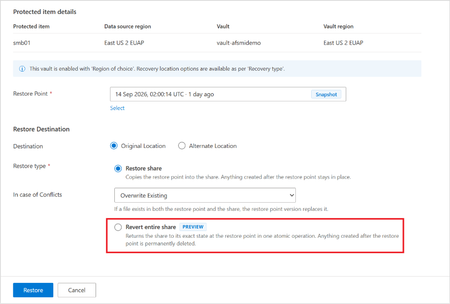
Organizations rely on Azure Files for business-critical workloads such as VDI, SAP, and general-purpose file shares that hold their enterprise data. For these workloads, backup and disaster recovery are day-one requirements. Customers need a simple, scalable way to recover from an accidental change to production data, a regional disruption or a ransomware attack, both within a region and across regions. Today, we’re announcing new capabilities, in Public Preview, that expand business continuity and disaster recovery (BCDR) capabilities for Azure Files. They help customers recover from operational issues, strengthen regional resilience and protect critical file data from cyber threats: Vaulted backup for NFS shares: Protect NFS file shares with isolated recovery points through Azure Backup for protected, trusted recovery from cyber incidents. Revert snapshot: Roll an existing file share back to a known-good point in time, in place, without changing the endpoint or mount path for fast. This gives you fast recovery from operational issues. Azure Files-to-Azure Files copy and sync with Storage Mover: Use Azure Storage Mover to maintain a secondary copy of your SMB file share data in the Azure region of your choice, with scheduled incremental transfers to keep it current for disaster recovery. Together, these capabilities let customers build Azure Files resiliency in layers: roll back quickly, maintain secondary copies and recover from protected backups. Vaulted backup for Azure Files NFS shares Cyber recovery introduces another dimension to resiliency: When ransomware or another security incident compromises the production environment, organizations need protected recovery points and may need to validate recovered data before reconnecting it to production. Azure Files already supports vaulted backup for SMB shares. With this preview, that protection extends to NFS shares. Vaulted backup for Azure Files NFS shares adds an additional protection layer through Azure Backup. Recovery points are maintained separately from the production file share and managed through backup policies designed to support long-term retention, immutability, and cyber recovery objectives. Vaulted backup helps customers protect critical file data when: Recovery points need protection separate from production: Maintain protected recovery points separately from the production file share, adding another layer of protection for critical file data. Backup strategies require immutability: Support immutable backup strategies as part of the broader approach to protecting recovery points and meeting cyber recovery objectives. Data must be retained long term: Manage recovery points through backup policies designed to support long-term retention and meet the organization’s retention requirements. Ransomware resilience is a priority: Strengthen resilience with protected recovery points for recovery when ransomware or another security incident compromises the production environment. To participate in the Vaulted backup for NFS shares preview, sign up here. Roll back quickly with Revert snapshot Operational mistakes are among the most common reasons applications need data recovery. A deployment can modify the wrong files, a configuration rollout can affect an entire namespace, or an administrator can accidentally overwrite critical content. Azure Files Revert Snapshot initially provides in-place recovery for data and applications hosted on SMB file shares, with NFS support coming next. Customers can select a point-in-time snapshot and restore the existing file share to that state while applications continue using the same file share, endpoint, and mount path. Common scenarios include: Failed application deployments: Roll back after a deployment modifies the wrong files. Incorrect configuration changes: Restore the share after a configuration rollout affects the namespace. Accidental mass modifications: Return to a point-in-time snapshot after unintended changes or overwrites. Development and test environment resets: Reset the file share to a selected snapshot. Azure Backup offers an integrated experience in the Azure portal restore blade to revert snapshots it manages. To participate in the Revert Snapshot preview, sign up here. Azure Files-to-Azure Files copy and sync with Storage Mover From disaster readiness and regional expansion to workload relocation and storage consolidation, customers need a simple, scalable way to copy and sync file data across storage accounts and Azure regions. Common use cases include Virtual Desktop Infrastructure (VDI) users maintaining secondary copies of FSLogix profiles and user data to support regional continuity, SAP and enterprise applications moving application data during regional expansion, organizations consolidating distributed content to simplify administration, and AI workflows placing datasets closer to AI and analytics compute to support distributed development and processing. Azure Files-to-Azure Files copy and synchronization with Azure Storage Mover gives customers a fully managed Azure service to copy data between SMB file shares across storage accounts, regions, and subscriptions (within the same tenant). They can also schedule incremental transfers to keep destination shares up to date. Customers can: Maintain secondary copies for business-critical workloads to an Azure region of choice. Schedule incremental synchronization of application data, user profiles, and shared content to another Azure region, helping organizations strengthen business-continuity and recovery planning. Copy or migrate file share data between regions: Copy data for regional expansion, datacenter transitions, or workload relocation. Consolidate file shares: Bring data together across storage accounts and regions to simplify management. Operate at scale with less overhead: Centrally schedule, monitor, and audit transfers instead of maintaining scripts or copy infrastructure. Azure Storage Mover reduces operational overhead with centralized scheduling, monitoring, auditing, metadata preservation, and orchestration for recurring file transfers. Figure: Storage Mover (West Central US) copies File share 1 in East US to File share 2 in West Central US. Preview support for Azure Files to Azure Files data copy is now available for SMB shares, with NFS support coming soon. To participate in the preview program, sign up here. Together, these capabilities help customers protect critical file data, recover quickly from operational issues and strengthen continuity across regions. Vaulted backup for NFS shares, Revert Snapshot and Azure Files copy and synchronization with Storage Mover provide complementary layers for a more resilient BCDR strategy. Learn more About Azure Files backup - Azure Backup | Microsoft Learn Use Azure Files Share Snapshots | Microsoft Learn Get started with Azure Files-to-Azure Files data copy in Azure Storage Mover (preview) | Microsoft Learn For questions or feedback, please reach out to the team at azurefiles@microsoft.com.301Views1like1Comment
Discover and assess on-premises Network Attached Storage (NAS) shares using Azure Migrate
Network-attached storage (NAS) holds much of an enterprise’s data; home directories, project shares, media libraries, application data, and analytics datasets, often spanning tens or hundreds of terabytes across protocols and administrative boundaries. Moving this estate to Azure starts not with copying data, but with understanding what you have, where each share should go, and what it will cost. Building on the file share assessment capability we announced in May, today we’re announcing the public preview of NAS share discovery and assessment in Azure Migrate. It connects directly to Dell PowerScale/Isilon and NetApp ONTAP clusters, inventories every SMB, NFS, and S3 share, and assesses each against Azure Files, Azure Blob Storage, and Azure NetApp Files—providing readiness, right-sized configurations, cost estimates, and migration tooling guidance. Your NAS assets now join servers, applications, and databases in the same Azure Migrate project, inventory, and business case. Why does this matter NAS planning has historically been done with spreadsheets, vendor-specific tools, and a lot of manual reconciliation. Storage ends up being assessed separately from the servers and applications that depend on it, which makes it hard to sequence a migration or defend a budget. This capability is designed to help you: Replace manual inventory with automated discoveries across Dell and NetApp platforms, so you can go from "we think we have a few thousand shares" to a verified, per-share inventory. Effectively plan your NAS shares alongside everything else. NAS clusters and their shares appear in the same Azure Migrate inventory as your VMware, Hyper-V, and physical servers, databases, and web apps. Make your informed decision before you migrate. Each share gets a readiness verdict, a recommended Azure service and SKU, and a monthly cost estimate. What's available in public preview Add Dell or NetApp NAS clusters: Discover Dell PowerScale / Isilon (OneFS) and NetApp ONTAP AFF / FAS clusters, and inventory every SMB, NFS, and S3 shares they host — including shares exposed through more than one protocol. Explore and review on-prem shares and workloads: Review cluster and share details in the portal: model, nodes, total and used capacity, protocol versions, volume, and estimated size. Group and filter shares by tag — by business unit, cost center, or application — so related workloads can be planned together. Suitable Azure storage targets: Assess each share against Azure Files, Azure Blob Storage, and Azure NetApp Files, with control over target region, sizing criteria, comfort factor, redundancy, media type, access frequency, and workload type. Alternative migration paths: Compare various migration paths side by side — a recommended mixed path that sends each share to its best-fit service, alongside single-service alternatives — with readiness, monthly cost, and estimated emissions for each. Business case: Build a business case for a NAS-only estate or for a mixed estate of VMs and NAS, comparing a modernization approach against lift-and-shift. End-to-end experience The experience follows the same guided workflow you already know from Azure Migrate. 1. Enable the feature Install the latest Azure Migrate appliance or turn on auto-update, so your existing appliance picks up the new capability. Unlike file shares hosted on Windows and Linux servers, NAS clusters need to be added explicitly: in the appliance configuration manager, add a credential of source type NAS Server, then add a discovery source of type NAS Server with your cluster's FQDN and port. The account needs read-only permission at cluster level — Azure Migrate only reads metadata and never writes to your storage. 2. Discover your NAS estate Create an Azure Migrate project, deploy the appliance on VMware, Hyper-V, or a physical server, and point it at your clusters. The appliance connects to each cluster's management endpoint and collects system and share metadata, vendor, product and model, operating system version, cluster nodes, total and used capacity, share and bucket paths, protocols and protocol versions; followed by performance signals such as IOPS and throughput. Discovered clusters and their shares appear as first-class inventory objects, listed alongside the Windows and Linux file servers the appliance already finds. Filter by type, search, tag, and export the inventory at whatever scale your estate demands. Discovery runs a daily cycle and updates existing items as new metadata arrives, so the picture improves over time rather than being a one-shot snapshot. 3. Create an assessment Select the shares you care about — individually, by tag, or a whole cluster at a time — and create an assessment. The share is the unit of assessment, so every SMB, NFS, or S3 share receives its own verdict rather than inheriting one from its host. Assessment settings let you shape the recommendation to your environment: choose the target Azure region, pick as-is or performance-based sizing, set a comfort factor for headroom, and configure redundancy, Azure Files media preferences, and Azure Blob access frequency. A workload type setting from general purpose file shares through to AI/ML and mission-critical, helps Azure Migrate recommend an appropriate performance level. Azure NetApp Files is added to the evaluation automatically when the source share is detected on NetApp NAS. Settings can be changed, and the assessment recalculated at any time. 4. Review results and build the business case Results are organized as migration paths. The recommended path routes each share to its best-fit Azure service and is shown next to single-service alternatives, so you can compare readiness and cost on the same basis. Key insights include: Readiness for every share — Ready, Ready with conditions, or Not ready — with the warnings that need attention before you move. A recommended Azure configuration per share. For example, a multi-protocol NetApp volume is recommended for Azure NetApp Files, while a general-purpose SMB share is recommended for Azure Files with a specific media type and redundancy. Provisioned size, IOPS, and throughput behind the recommendation, plus the reasoning Azure Migrate used to select the SKU and access tier. Monthly cost estimates per share and per path, an on-premises versus Azure TCO comparison, and estimated carbon savings. Next, you can generate a wave plan to sequence the migration or build a business case that helps you with cost modernizing Azure storage services. Assessment results showing the recommended path, source-to-target mappings, estimated Azure TCO, and carbon savings. Note: All screenshots in this post are from a sample environment. Cluster and share names, capacity values, readiness distributions, cost and TCO estimates, and emissions figures are illustrative and shown for reference and indicative purposes only. They are not a price quote. Your own results depend on your discovered environment, the assessment settings you choose, your target Azure region, and the pricing and offers that apply to your subscription. Prepare for migration with the right tool Assessment tells you where each share should go; Azure Migrate then points you at the tool to get it there. Azure Storage Mover is the recommended path for moving shares to Azure Files and Azure Blob Storage. For ONTAP volumes heading to Azure NetApp Files, the Azure NetApp Files migration assistant is recommended, and Azure File Sync remains the option for active sync and hybrid scenarios with Windows file servers. To learn more about our recommendations for unstructured data migration, visit https://aka.ms/migratemydata. Get started Update your Azure Migrate appliance, add your first NAS cluster, and let a discovery cycle run. Within a few hours you'll start to see a per-share picture of your NAS estate; you can then create an assessment to view the right target service to migrate to Azure. Learn more in our documentation. Connect and discover your NAS appliance Review discovered NAS resources Create a fileshare assessment of NAS shares Review NAS File share assessment recommendations Write to us at azurestoragemigrations@microsoft.com with questions or feedback, or to suggest additional NAS systems you’d like this capability to support. We look forward to hearing from you!275Views1like1Comment
Generally Available: Restrict usage of user delegation SAS to an Entra ID identity
Shared access signatures (SAS) grant time-bound, scoped access to Azure Storage resources without sharing account keys. Over time, Azure Storage has continued to strengthen SAS security, moving from account keys to user delegation (UD) SAS secured by Microsoft Entra ID. Today, we’re taking the next step forward by announcing general availability for user-bound user delegation SAS, an extension of UD SAS that ensures a SAS token can only be used by a specific Entra ID identity. This new capability helps customers significantly reduce the risk of unintended access while preserving the flexibility of SAS. UD SAS is an existing feature which utilizes Entra ID and Azure role-based access control (RBAC). Users retrieve a user delegation key tied to their Entra ID account and then use it to create SAS tokens granting a subset of their own access rights. The resulting token can be traced to the delegator and can only be valid for up to 7 days. User-bound UD SAS is an extension of user delegation (UD) SAS which allows users to create a more secure SAS token by restricting the usage of the SAS token to an end user identity. The delegator specifies the Entra identity (security principal) of the end user in the SAS token and the end user needs to authenticate to Entra ID to use the token. The end user can either be in the same tenant or a different tenant as the delegator. Pricing and availability There is no additional cost for user-bound user delegation SAS. Pricing is based on the standard read/write transaction costs for your storage account type. To learn more, please see Azure Storage Pricing. User-bound user delegation SAS is available in all public regions. It is available via REST APIs, SDKs, PowerShell, CLI, and Portal. Getting started Getting started is simple: User-bound user delegation SAS is available on all GPv2 storage accounts in public regions. If the end user of the SAS token is in a different tenant, the allowCrossTenantDelegationSas setting must be enabled on the storage account. If you are not planning on using this feature cross-tenant, the account setting can remain disabled. Perform the following steps in the create a user delegation SAS documentation to generate and use a user-bound UD SAS token: Ensure you have the correct RBAC roles assigned to the delegator to create a user delegation key. These roles will include the Storage <Service> Data Contributor and Storage <Service> Delegator (replace Service with the respective service you are using). Here are all of the applicable roles for each service: Azure Blob Azure Files Azure Tables Azure Queues Storage Blob Data Contributor Storage Files Data Contributor Storage Table Data Contributor Storage Queue Data Contributor Storage Blob Delegator Storage Files Delegator Storage Table Delegator Storage Queue Delegator Get a user delegation key (instructions here) Get the OAuth object ID and tenant ID from your end user. They will have to get these IDs (instructions here) and provide them to you. Create the user-bound user delegation SAS token (instructions here. Note that the steps are the same as for a normal UD SAS token; you will just have to specify the end user and tenant if applicable). Share the SAS token to the application/user intended to access Azure Storage. Tokens should be passed within applications automatically or shared via key vault for best practice. Feedback If you need help, create a support request.726Views2likes0CommentsSimpler, scalable file share management in Azure - now generally available
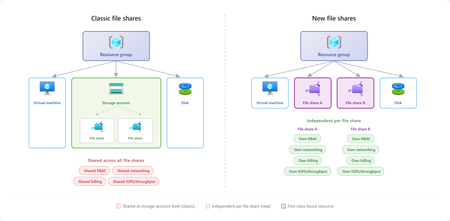
Linux workloads in Azure are scaling faster than ever, powering everything from container platforms, analytics pipelines, SAP environments to line-of-business applications. As these workloads grow, infrastructure teams commonly run into challenges with scale, cost management, complexity and compliance. IT organizations need more granular control over management and isolation boundaries for file shares independent of storage accounts, to prevent multiple application teams sharing the same capacity pools, limits, and configuration surface across different storage services. Infrastructure administrators seek operational simplicity with managing access control, policy and networking isolation for file shares, so application teams can focus on business logic and development agility. We are announcing the general availability of a new service management experience for premium SSD file shares (NFS) which allows each file share to be created, secured, scaled, and billed independently, without being tied to a storage account. Key benefits include: Familiar and intuitive file share management: Aligns user experience with on-premises NAS and file server paradigms, improving usability compared to the classic model. Infrastructure-as-Code: Define naming, capacity, IOPS, networking, tags, and security in Bicep or ARM templates for simplified automation with your favorite DevOps tools. Scale to match the workload: Support for up to 10,000 file shares per subscription per region, with 2.5x faster file share provisioning experience. Share-level security and networking: Network restrictions, snapshots, and encryption scoped to the individual share, making isolation boundaries match workload boundaries. Per-share cost visibility: Billing meters emit under the file share resource, teams can crossbill accurately, track per-workload costs, and improve chargeback without workarounds. Independent performance, security, and billing per share Combined with the provisioned v2 model, each file share is independently provisioned with its own storage, IOPS, and throughput. This allows organizations to align file shares directly to application or tenant boundaries, rather than grouping them under shared infrastructure constructs. For multi-tenant SaaS platforms, this enables a natural one-to-one mapping between tenants and file shares. Each tenant operates within its own performance envelope, allowing steady workloads and bursty workloads to scale independently without contention. This reduces the need for capacity planning tradeoffs or overprovisioning to accommodate peak usage across tenants. This isolation extends beyond performance; each file share carries its own encryption in transit settings, RBAC, policy, and network boundaries. For example, production tenants can be isolated with dedicated private endpoints, while development environments can operate under more flexible configurations. These boundaries align directly with application design, making systems easier to reason about and manage at scale. Finally, treating each file share as its own resource simplifies cost management. Teams can tag and track usage at the workload or tenant level, enabling more accurate chargeback and better visibility into resource consumption. This makes it easier to understand how individual workloads contribute to overall spending without introducing additional tracking mechanisms. Start easy, scale big Cloud-native Linux applications often scale dynamically, so the underlying storage platform must provide resources quickly and support higher scale limits to keep pace with workload demand and enable teams to quickly provision infrastructure and keep pace of development. The new file share experience supports up to 10,000 file shares per subscription per region, making it practical to use a dedicated share for each application, environment, or tenant without running into platform limits. It also provides faster provisioning, with time to first share 2.5x times faster than classic file shares, so teams can spend less time waiting on infrastructure and more time building, testing, and shipping. “Provisioning is fast and integrates seamlessly with Linux environments through NFS.” - Siam Commercial Bank Data protection with snapshots Linux workloads using shared file storage require robust data protection. With the new service management experience, customers can continue to leverage point-in-time incremental snapshots with up to 200 snapshots per share. You can also now edit metadata on individual snapshots, making it easier to organize and identify recovery points. Whether you need short term restore points or need to retain data for compliance requirements, snapshots provide an easy and cost-effective recovery mechanism. Get started today The new file share experience is available for NFS 4.1 file shares on SSD storage, using the provisioned v2 billing model with LRS and ZRS options. Whether the deployment model is ARM templates, Bicep, MCP server, or custom CI/CD pipelines, file shares are scriptable, repeatable, and automatable through the same tooling used for the rest of Azure infrastructure. Explore our documentation for step-by-step guidance. We're continuously enhancing the new file share experience with the goal of achieving full feature parity while delivering improved scale and performance limits. We would love to hear your feedback, please fill out the survey to share your thoughts. Learn more Planning for an Azure Files deployment How to create a file share Scalability & performance targets For questions or feedback, contact us at azurefiles@microsoft.com.1.8KViews3likes0CommentsSecure, Modern Access to Azure Files on macOS with MS Entra ID
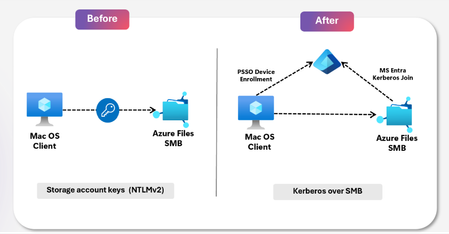
Enterprises, large and small, rely on Azure Files for secure, scalable, and cost-efficient file storage. Modern workflows today span devices, platforms, and geographies; seamless, and secure access to shared data across every endpoint is critical to keeping teams productive and collaborative. With the growing demand for access across every device, Azure Files now extends secure access to macOS with Entra ID authentication, supporting design, creative, and AI teams where they work. Today, we are announcing the Public Preview of MS Entra ID based authentication for Azure Files on macOS. Whether you are running creative production pipelines, design workflows, or AI workloads, macOS users can now access Azure file shares securely, meeting Microsoft Entra ID enterprise governance standards automatically and seamlessly, with no credential prompts, no storage account keys, and no complexity. Key benefits Enhanced Security posture: MacOS users can now sign in to their device and open shared files in Finder with no credential prompts and no storage account keys. Microsoft Entra ID governs access, conditional access policies, MFA requirements, and MS Entra ID governance applies automatically with AES-256 encryption. Reduced operational overhead: IT admins no longer need to manage storage account key distribution/rotation. Provisioning and deprovisioning access is handled through standard Entra ID group membership. No dependency on Active Directory: Organizations moving away from on-premises infrastructure, including Active Directory, can now give MacOS users full access to Azure file shares using cloud-based identities in MS Entra ID, with no domain controller required. MacOS users get full parity with the traditional Windows SMB share experience. Identity Based Access model: User authentication is enforced with Kerberos and share-level access is enforced through Azure RBAC. File and folder permissions are controlled through NTFS ACLs, giving organizations precise, layered control. Enabling AI-Driven Workloads: SMB shares on macOS enables AI teams to seamlessly access and share large datasets, fueling faster experimentation and streamlining developer and AI-generated workflows. Partnership with Apple Azure Files support for macOS is built in close collaboration with Apple macOS SMB engineering team. The integration works with Apple’s Platform SSO and the Microsoft Enterprise SSO plug-in, via MDM platforms such as Microsoft Intune. This allows macOS devices to authenticate through Microsoft Entra ID with single sign-in. We are committed to continuing this partnership to ensure Mac users in enterprise environments have a first-class experience accessing cloud services. Powering Diverse Workloads across Design, Developer and Education Enterprises Secure SMB access for creative workloads Creative workflows on macOS have historically required workarounds to reach centralized cloud storage, often meaning local copies, consumer file sharing tools, or storage account keys distributed to individuals. Azure Files gives creative teams direct access to shared project libraries and production files from Finder, with no syncing or local copies needed. For IT, setup is simple: assign the right RBAC role on the share, add users to an Entra group, and access is ready. No keys to distribute and no deep storage expertise required. "Secure access for our macOS users is a gamechanger for our creative teams. The ability to mount directly and access shared files securely — without keys, without workarounds — changes how we work. It’s how modern enterprise file access should feel." -Peter Day, Senior Engineer, The Marketing Store SMB shares streamline developer and AI-generated build workflows MacOS developers rely on local tools like Visual Studio Code, GitHub copilot, or fast iteration, but build artifacts, logs, and AI-generated outputs often end up fragmented across machines and pipelines. With Azure Files, teams can use SMB shares as a centralized workspace for build outputs and shared assets. Mac build systems can write directly to a mounted share, making artifacts immediately accessible across developers, pipelines, and AI agents. DevOps teams gain a secure, identity-based storage layer using RBAC and Microsoft Entra, without managing keys or custom storage solutions. Enable collaboration across mixed platform environments Mac users should not be a special case. Azure Files gives MacOS users the same governed, identity-based access to shared storage that Windows users have always had. Access is provisioned through Entra ID, enforced through RBAC, and managed without a separate workflow, separate keys, or separate infrastructure. For large organizations running mixed-OS environments, this means a single, consistent access model tied to the user and not a device – the user can seamlessly access the SMB share across their Windows and Mac devices. “By supporting Kerberos authentication for Azure Files on Mac devices, Microsoft delivers secure, consistent access for organizations operating mixed-OS environments. It addresses a long-standing enterprise gap by extending centrally governed identity controls to all users, regardless of device—helping organizations simplify access management and maintain trust at scale.” -Preetham G.K., CDL, Accenture Modernize Infrastructure and secure access for Educational Institutions Institutions standardizing on macOS have faced a hard tradeoff: maintain costly on-premises infrastructure at every site or accept that MacOS users fall back on personal drives and consumer file sharing. Neither is acceptable at scale. Azure Files removes the tradeoff. Students, faculty, and staff access shared repositories and course materials directly from an SMB share over Finder using their Entra ID credentials. Access management can be controlled through group membership, with no per-site infrastructure and no manual credential management. Get started with Azure Files Entra Kerberos authentication for macOS Start leveraging secure, identity-based file access on macOS today at no added cost. Explore our documentation for step-by-step guidance. Whether you are onboarding new Mac users or modernizing an existing deployment, this feature gives your organization a simple path to identity management for Azure Files on macOS. Make your Mac workloads ready for the future! For any questions, please reach out to the team at azurefiles@microsoft.com.1.2KViews0likes0CommentsAction required: Kerberos RC4 hardening may affect Azure Files Active Directory Domain Services
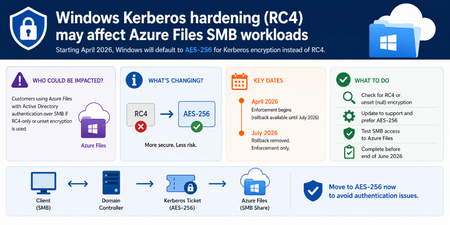
A Windows security hardening change beginning in April 2026 updates default Kerberos encryption behavior and may impact customers using Azure Files with Active Directory Domain Services (AD DS) authentication over SMB. If you created Azure Files shares prior to 2023, or chose RC4 encryption for your file shares, you will need to reconfigure to use AES-256 to avoid disruption to file share access. This is in accordance with the updated security posture and recommendation from Windows CVE-2026-20833. Background Azure Files uses Kerberos authentication for identity-based access when integrated with on-premises Active Directory Domain Services (AD DS). AES-256 Kerberos encryption has been supported since AzFilesHybrid module v0.2.2, and it has been the default since v0.2.5. Historically, RC4 was the only supported option until AES-256 support was added. This is a Windows platform security hardening change; Azure Files service behavior is not being modified. You may be impacted if: You use Kerberos-based SMB access to Azure Files with AD DS authentication, and Kerberos encryption settings are RC4-only or unset (null) for relevant AD objects, service accounts, or computer accounts associated with Azure Files authentication. When will this happen: April 2026 – July 2026: Install the Windows security update and validate access. Domain controllers will default to issuing AES-256 tickets when msDS-SupportedEncryptionTypes is not explicitly set. After July 2026: Manual rollback is removed. If you have not migrated to AES-256 by then, Kerberos-based SMB access to your Azure Files shares may fail. What you should do now: Find out if you are impacted, run the following PowerShell command on a domain-joined machine, with read access to AD. This identifies storage accounts that use Azure Files with AD DS authentication but have not been upgraded to AES-256 or follow the detection steps in aka.ms/rc4azurefiles: Get-ADObject ` -LDAPFilter "(&(servicePrincipalName=*.file.core.windows.net)(!(msDS-SupportedEncryptionTypes=*)))" -Properties servicePrincipalName, msDS-SupportedEncryptionTypes | Select-Object Name, ObjectClass, servicePrincipalName, msDS-SupportedEncryptionTypes Update configurations to support and prefer AES256-based Kerberos ticket encryption. Validate end-to-end SMB authentication and application access to Azure Files shares. Run klist purge from an elevated command prompt to clear any cached Kerberos tickets that still use RC4. Remount the Azure file share. For any questions, please reach out to the team at azurefiles@microsoft.com Resources: Azure Files documentation on this change Read the full Windows hardening guidance: How to manage Kerberos KDC usage of RC4 for service account ticket issuance changes related to CVE-2026-20833. Learn about RC4 usage in Windows and its risks: Detect and remediate RC4 usage in Kerberos. Learn more about the related vulnerability: CVE-2026-20833. Windows Server Blog: Beyond RC4 for Windows authentication5KViews0likes0Comments
Modernizing Azure Virtual Desktop with Nerdio and Azure Files
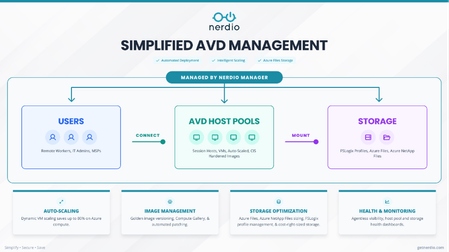
Coauthored with Nerdio Organizations adopting Azure Virtual Desktop (AVD) typically begin with small pilot deployments that perform well under limited load. As these environments scale to hundreds or thousands of users, a consistent set of challenges emerges. At the center of that shift is the user profile layer. FSLogix profile containers—stored on file shares—sit directly on the critical path of the user experience. During peak periods such as login storms, profile attach latency becomes a primary determinant of sign-in performance. At the same time, identity dependencies, storage configuration complexity, and cost management introduce variability across environments. What worked in a pilot often becomes more difficult to manage consistently at scale. Common challenges include: Performance variability during peak concurrency Complex identity configurations for SMB access Configuration drift across environments Cost inefficiencies from peak-based provisioning At enterprise scale, these issues converge at the storage and identity layers—making them central to both user experience and operational efficiency. Nerdio: simplifying how AVD is deployed and operated Nerdio Manager (available as Nerdio Manager for Enterprise and Nerdio Manager for MSP) is a deployment, management, and auto-scaling platform for Azure Virtual Desktop (AVD) with capabilities such as desktop image management, performance monitoring, and user session control to eliminate the need for complex scripting and speed up responses to end-users. Nerdio Manager helps organizations deploy and operate AVD environments in a more consistent, repeatable way. Rather than treating compute, storage, and identity as separate workflows, Nerdio integrates these components into a single operational model. Storage provisioning, permissions, and FSLogix configuration are handled as part of host pool deployment and scaling. This reduces coordination overhead, minimizes configuration drift, and keeps storage aligned with how environments grow. This view shows how Nerdio brings users, host pools, and storage into a single control plane—ensuring storage is configured as part of deployment, not after. Azure Files: enabling performance and identity at scale Azure Files provides the foundational storage layer for FSLogix profile containers in many AVD environments. Because profiles attach at sign-in, storage performance directly impacts user experience. Provisioned v2: performance without over-provisioning Azure Files Provisioned v2 decouples performance (IOPS and throughput) from capacity. Previously, higher performance required over-provisioning storage. With Provisioned v2, organizations can align performance directly to workload needs. This is especially important for FSLogix, where login storms create short bursts of high IOPS demand even when data volumes are modest. The result: better cost efficiency and more predictable performance. “We’ve been early adopters of Nerdio and consistently see meaningful Azure cost optimization… With Azure Files Provisioned v2, the decoupling of quota and IOPS… gives us precise control over performance and cost.” — David Wasserman, Chief Value Officer, FlexibleIT.com Entra ID authentication: simplifying identity architecture Azure Files supports Microsoft Entra ID authentication for SMB, enabling a cloud-native identity model. This eliminates the need for domain infrastructure used only for storage access, resulting in: Reduced infrastructure overhead Simpler networking Lower operational burden Alignment with Zero Trust These capabilities are already in use in Nerdio Manager for MSP environments managing multi-tenant deployments, and are being extended to Nerdio Manager for Enterprise in Q3 CY26 to enable the same cloud-native model within enterprise environments This highlights how provisioning, monitoring, scaling, and identity are handled as part of a unified system instead of fragmented tasks. Operationalizing storage at scale, why this matters for enterprises Enterprise AVD environments operate under fundamentally different constraints. User populations are larger and more concentrated, compliance requirements are stricter, and tolerance for performance variability is significantly lower. In practice, these pressures converge at the storage layer. For enterprise customers, the goal is not automation itself—it is better user experience, lower cost, and predictable operations. Faster, more consistent deployments. Storage is configured alongside compute, reducing dependency on separate teams and minimizing drift. Lower cost without sacrificing peak performance. Capacity and performance align with actual demand instead of peak assumptions. More predictable sign-ins during login storms. Standardized configuration reduces bottlenecks during high concurrency. Audit-ready governance by default. RBAC, snapshots, backup, and data protection policies are applied consistently across environments. Get started At scale, Azure Virtual Desktop is as much about storage and identity as it is about compute. Azure Files plays a central role in determining sign-in performance, user experience, and cost efficiency. With Provisioned v2 and Entra ID authentication, organizations can move toward a more predictable and cloud-native model. Nerdio builds on this foundation by integrating storage and identity into a unified AVD deployment and operations workflow. Get started with Nerdio today.876Views1like0CommentsAHEAD helps us launch the Strategic Azure Storage Services Partner Program
AHEAD becomes the first Azure Storage Strategic Channel Partner by demonstrating their expertise in helping customers select the ideal Azure Storage, or Azure Storage ISV, Service to offer the ideal price / performance solution for their application and helping customers to migrate to Azure quickly and safely.882Views0likes0CommentsSecure, Keyless Application Access with Managed Identities - Now GA in Azure Files SMB
As enterprises modernize applications and strengthen their security posture, identity is central to how applications access shared storage. Traditional identity models relying on account keys, stored credentials, or domain‑joined infrastructure add operational overhead and introduce security risks such as credential leakage, lack of identity attribution, and excessive privilege if shared keys are compromised. Today, we are excited to announce the General Availability (GA) of Managed Identity support for Azure Files over SMB, enabling applications and virtual machines to securely access Azure Files without secrets, passwords, or key distribution. Managed Identity support enables customers to meet modern enterprise security standards without reliance on storage account keys, streamlining how organizations securely enable file‑based application access and reducing the operational overhead of filing internal exceptions. New storage accounts can support secure, identity‑based SMB access out of the box, while existing deployments can get secure by enabling Managed Identity authentication. From web application workloads such as WordPress, to databases on Azure Kubernetes Service (AKS), to CI/CD pipelines, applications require secure access. In a world where security is foundational, continued reliance on key-based access conflicts with Zero Trust principles and least privilege access. What’s New In GA AKS Workload Identity Support AKS Workload Identity (preview) extends the traditional managed identity model for Kubernetes by shifting the identity from the node to pods. Instead of inheriting the identity of the underlying cluster, each Kubernetes pod can use its own federated identity, mapped directly to a Microsoft Entra ID principal. This feature enables: Pod-level identity isolation, rather than cluster-level Least-privilege access with secure RBAC Seamless scaling and redeployment, without identity reconfiguration No secrets, no key rotation, no credential injection When combined with Azure Files over SMB, Workload Identity allows AKS workloads to access shared file storage securely and natively per pod, using the same identity-driven model as cluster level managed identities. Now available with AKS 1.35, for customers specifically in the financial services industries, AKS Workload Identity enables per‑application, least‑privilege access to Azure Files without credentials, improving isolation and auditability. This allows regulated, stateful workloads to run securely on AKS while meeting strict compliance and regulatory requirements. Co-existence of Application Identities and end-user identity access Azure Files now enables both Managed Identity and end‑user access on the same storage account, with users and applications independently authenticated via Entra ID and authorized through a shared permissions model. This unified access model eliminates the need for duplicate storage or credentials, enabling secure collaboration, troubleshooting, and automation on shared data without compromising governance or compliance. This supports scenarios such as: Developers accessing the same file share as an application for debugging Admins managing content used by automated workflows Hybrid environments with user-driven and app-driven access Simplified Storage Account enablement via the Azure portal We have now added a dedicated Managed Identity property that makes enabling identity‑based SMB access simple and transparent via the Azure portal for new as well as existing storage accounts. With a single configuration at the storage account level, customers can allow applications to authenticate to Azure Files using Managed Identities. This portal experience supports incremental adoption, making it easy to modernize authentication while maintaining compatibility with existing user access and governance models. Get Started with Managed Identities with SMB Azure Files Start using Managed Identities with Azure Files today at no additional cost. This feature is supported on HDD and SSD SMB shares across all billing models. Refer to our documentation for complete set-up guidance. Whether provisioning new storage or enhancing existing deployments, this capability provides secure, enterprise‑grade access with a streamlined configuration experience. For any questions, reach out to the team at azurefiles@microsoft.com.1.2KViews0likes0CommentsSimplify On-prem File share Migration to Azure: Discover & assess suitability using Azure Migrate
UPDATE as of 20th May 2026: We are happy to announce that this capability is now GA worldwide. Migrating on‑premises file servers to the cloud is a complex infrastructure transformation—not just a data move. Many organizations lack the visibility needed to decide whether to rehost or modernize file shares spread across Windows and Linux servers. Azure Migrate now extends its discovery and assessment capabilities to SMB and NFS file shares, enabling a data‑driven approach to modernizing on‑premises file workloads with Azure Files, or alternatively rehosting to deployment within an Azure VM. We are pleased to introduce the public preview of Azure Migrate’s new comprehensive discovery and assessment of on-premises SMB and NFS file shares for migration to Azure Files. This enhancement simplifies the migration process by integrating discovery and evaluation tools for SMB and NFS shares across both Windows and Linux platforms. Users can efficiently identify file shares, analyze their compatibility, and compare cost benefits for transitioning to Azure Files, all within an intuitive and streamlined interface. Why does this matter File shares remain a foundational service for most workloads - supporting applications, analytics, user home directories, and shared content. Planning such a vast amount of data for migration can be slow, manual, and fragmented. This new Azure Migrate capability is designed to help with: Reduce migration planning from months to weeks through automated discovery and assessment of SMB and NFS file shares. Perform holistic migration planning of your data and storage alongside servers, applications and data bases from within Azure Migrate experience. Modernize confidently to Azure Files with tailored SKU recommendations, readiness assessments, and comprehensive cost insights, enabling you to build a clear business case by comparing ongoing on-premises and Azure Files costs. What’s available in public preview Discover and view details of all on-premises SMB, NFS shares hosted on Windows and Linux servers Group, tag, filter shares by Production, non-production, project, business group for better planning. Create and review assessment for each share, its target Azure Files SKU based on region, redundancy, pricing options and media type. Generate a business case for selected group of shares running on Azure Files against on-premises cost. How do you get this feature? Install the latest Azure Migrate appliance, or enable the auto update feature for the appliance will receive this new capability. All existing SMB, NFS file shares will be reported in the Azure Migrate portal along with their Windows and Linux hosts. You do not need to perform any additional steps to discover the shares. End-to-end experience The experience is fully integrated into Azure Migrate and follows a familiar, guided workflow as below. 1. Discover on‑premises file servers and file shares You can start by creating an Azure Migrate project in the Azure portal and enabling discovery using the Azure Migrate appliance. The appliance can be deployed in connected or disconnected mode and runs on VMware, Hyper‑V, or physical servers. Once deployed, the appliance automatically discovers file servers and the file shares they host, including: Operating system (Windows or Linux) File share protocol (SMB or NFS) Associated volumes Estimated capacity Basic performance metrics such as IOPS and throughput (when performance collection is enabled) Discovered file shares appear directly in Azure Migrate inventory views, where they are surfaced as inventory items under respective Windows or Linux systems. This makes it easy to filter, tag, and review all shares at scale. 2. Build a business case The next step is to create a business case. This offers a clear comparison of on-premises costs versus Azure, highlights long-term savings and operational benefits, and justifies modernizing to Azure Files rather than rehosting file servers on virtual machines. This allows IT leaders to make data-driven decisions confidently. 3. Create and review an Azure Files assessment Once you have finalised your business case and decided to move to Azure Files, you can initiate an Azure Files assessment right from the Azure Migrate platform. The assessments are adaptable, allowing you to focus solely on file shares, include their parent servers, or even expand to scenarios that cover VMs, databases, and file shares—reflecting real-world planning needs. Each assessment reviews readiness and provides recommendations based on inventory and performance metrics gathered. Furthermore, you can tailor assessment settings, including selecting a target Azure region, pricing and savings preferences, media type, redundancy options, and choosing either performance-based or as-is sizing. The assessment offers a detailed overview of migration readiness and economic factors, supporting well-informed decisions for subsequent actions. Key insights include: Readiness states for each file share (Ready, Ready with conditions, or Not ready) Recommended Azure Files SKU based on performance and suitability. For example, Azure Files provisioned v2 premium SSD for a NFS 4.1 share as target. Monthly cost estimates for the recommended SKU. On‑premises vs Azure TCO comparison, helping customers understand long‑term cost implications Azure Migrate also identifies potential warnings and provides necessary remediation guidance. For example, when a redundancy type is not available in an Azure region, it is flagged as ready with conditions and recommend choosing an alternative redundancy type and fallback to next available option. Prepare for migration with appropriate tools Once you are ready to migrate, Azure Migrate also highlights recommended migration tools as part of the assessment. Azure Storage Mover is the default recommended path for file share migrations—providing a first party, managed service to move data efficiently to Azure Files. To learn more about Microsoft’s recommendations to unstructured data migration using other tools, please visit: https://aka.ms/migratemydata. Learn more about creation of assessment and review assessment to get started with understanding your on-premises file shares estate today. Write to us at migratemydata@microsoft.com for any questions or feedback - we look forward to hearing from you!1.1KViews2likes5Comments