azure dns
31 Topics
Consistent DNS resolution in a hybrid hub spoke network topology
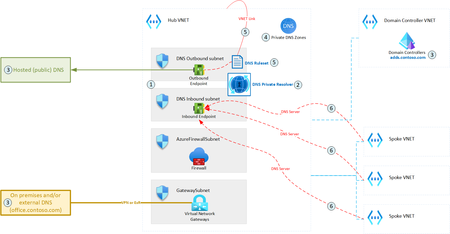
DNS is one of the most essential networking services, next to IP routing. A modern hybrid cloud network may have various sources of DNS: Azure Private DNS Zones, public DNS, domain controllers, etc. Some organizations may also prefer to route their public Internet DNS queries through a specific DNS provider. Therefore, it is crucial to ensure consistent DNS resolution across the whole (hybrid) network. This article describes how DNS Private Resolver can be leveraged to build such architecture.19KViews6likes5CommentsFaking DDNS with Azure Services
I want to access my “on-prem lab” environment from anywhere but my ISP cycles my IP address regularly. I could always use a service like noip.com or dyndns but I already have a DNS zone managed in Azure DNS and I thought it would be fun to figure out how to use it for my needs. You can leverage multiple Azure services and configuration to address on-prem issues efficiently.8.2KViews1like3CommentsLesson Learned #110 Azure SQL Managed Instance and Azure DNS
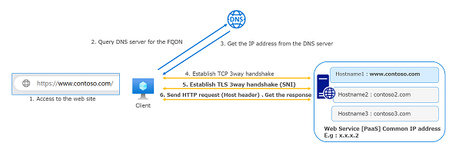
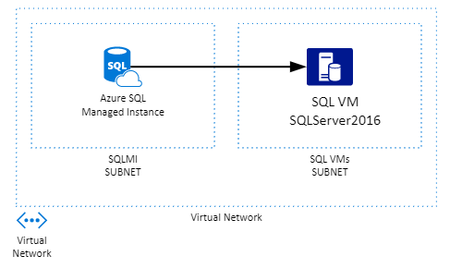
I got this recent case where customer wanted to create a transaction replication from Azure SQL Managed instance to another SQL Server inside the same virtual network, but in a different subnet, but all inside Azure. All communications that happens on Azure Network if not set a custom DNS will use Azure DNS to resolve name of resources inside the network. However there is something very important in the documentation https://docs.microsoft.com/en-us/azure/virtual-network/virtual-networks-name-resolution-for-vms-and-role-instances#azure-provided-name-resolution "Azure-provided name resolution Along with resolution of public DNS names, Azure provides internal name resolution for VMs and role instances that reside within the same virtual network or cloud service. VMs and instances in a cloud service share the same DNS suffix, so the host name alone is sufficient. But in virtual networks deployed using the classic deployment model, different cloud services have different DNS suffixes. In this situation, you need the FQDN to resolve names between different cloud services. In virtual networks deployed using the Azure Resource Manager deployment model, the DNS suffix is consistent across the virtual network, so the FQDN is not needed. DNS names can be assigned to both VMs and network interfaces. Although Azure-provided name resolution does not require any configuration, it is not the appropriate choice for all deployment scenarios, as detailed in the previous table." Consider a Azure Resource Manager deployment it would not be necessary to use FQDN, however the way that the deployment of Azure SQL Managed Instance happens it will not share the same DNS sufix and we can see connectivity errors There are some workarounds: use the private IP or the FQDN of the SQL VM. The default DNS sufix is documented in same article above ( https://docs.microsoft.com/en-us/azure/virtual-network/virtual-networks-name-resolution-for-vms-and-role-instances#name-resolution-that-uses-your-own-dns-server ) "When you are using Azure-provided name resolution, Azure Dynamic Host Configuration Protocol (DHCP) provides an internal DNS suffix (.internal.cloudapp.net) to each VM. This suffix enables host name resolution because the host name records are in the internal.cloudapp.net zone. When you are using your own name resolution solution, this suffix is not supplied to VMs because it interferes with other DNS architectures (like domain-joined scenarios). Instead, Azure provides a non-functioning placeholder (reddog.microsoft.com)." For this test I will create a linked server from SQL MI to SQL VM and we can see that I was able to connect with success to IP and VM.internal.cloudapp.net, but failing to simple VM name This behavior is also documented at https://docs.microsoft.com/en-us/azure/sql-database/sql-database-managed-instance-custom-dns "An Azure SQL Database Managed Instance must be deployed within an Azure virtual network (VNet). There are a few scenarios (for example, db mail, linked servers to other SQL instances in your cloud or hybrid environment) that require private host names to be resolved from the Managed Instance. In this case, you need to configure a custom DNS inside Azure. Since Managed Instance uses the same DNS for its inner workings, you need to configure the custom DNS server so that it can resolve public domain names. Important Always use fully-qualified domain names (FQDN) for the mail servers, SQL Servers, and other services even if they are within your private DNS zone. For example use smtp.contoso.com for mail server because simple smtp will not be properly resolved."6.4KViews2likes0CommentsResolving private-link resource internal ip from VPN
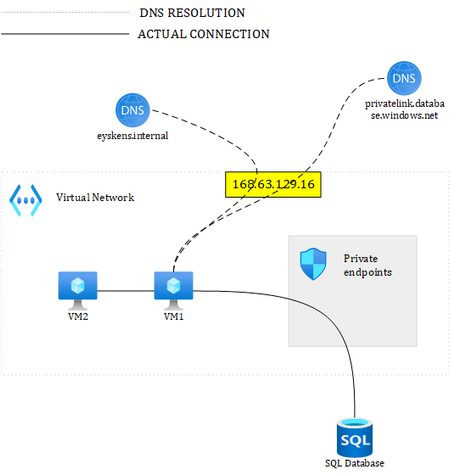
Using a Point-To-Site VPN to connect my PC to an Azure VNET (e.g. 10.99.0.0/16), and then Private Link to publish my PaaS services as end-points into a subnet in this VNET (e.g. 10.99.2.0/24), I'm trying to understand how I resolve the internal IP of the PaaS resource from my PC. My configuration: VNET: 10.99.0.0/24 subnetVM: 10.99.1.0/24 subnetPaaS: 10.99.2.0/24 SubnetVPN: 10.99.99.0/24 VPN client adress pool: 172.20.20.0/24 If I create a VM in this VNET (e.g. 10.99.1.4), I get 168.63.129.16 as the DNS server and using: nslookup paasServicePublicDns or: nslookup paasServicePublicDns 168.63.129.16 will correctly give me the internal IP for the PaaS service (i.e. 10.99.2.4) But from my PC (connected via VPN to 10.99.99.0/24), using: nslookup paasServicePublicDns 168.63.129.16 will only give me the external/public IP for the PaaS service ok, the 168.63.129.16 adress might not be routed to the VPN VNET, so I also added this route to my PC: route add 168.63.129.16 MASK 255.255.255.255 172.20.20.4 (172.20.20.4 is my VPN endpoint on my PC) route print -4 | FIND "172.20.20.4": ---> Active Routes: Network Destination Netmask Gateway Interface Metric 10.99.0.0 255.255.0.0 On-link 172.20.20.4 43 10.99.255.255 255.255.255.255 On-link 172.20.20.4 281 168.63.129.16 255.255.255.255 On-link 172.20.20.4 26 172.20.20.0 255.255.255.0 On-link 172.20.20.4 43 172.20.20.4 255.255.255.255 On-link 172.20.20.4 281 172.20.20.255 255.255.255.255 On-link 172.20.20.4 281 224.0.0.0 240.0.0.0 On-link 172.20.20.4 281 255.255.255.255 255.255.255.255 On-link 172.20.20.4 281 <--- And to make sure the VPN connection has a DNS server defined I also added 168.63.129.16 as the DNS server for the VPN connection: ---> PPP adapter VNET-VPN: Connection-specific DNS Suffix . : Description . . . . . . . . . . . : VNET-VPN Physical Address. . . . . . . . . : DHCP Enabled. . . . . . . . . . . : No Autoconfiguration Enabled . . . . : Yes IPv4 Address. . . . . . . . . . . : 172.20.20.4(Preferred) Subnet Mask . . . . . . . . . . . : 255.255.255.255 Default Gateway . . . . . . . . . : DNS Servers . . . . . . . . . . . : 168.63.129.16 NetBIOS over Tcpip. . . . . . . . : Enabled <--- But still I can't get and IP adress resolved. Any ideas why this is not working?6KViews0likes1CommentDeploy Open Web UI on Azure VM via Docker: A Step-by-Step Guide with Custom Domain Setup.
Introductions Open Web UI (often referred to as "Ollama Web UI" in the context of LLM frameworks like Ollama) is an open-source, self-hostable interface designed to simplify interactions with large language models (LLMs) such as GPT-4, Llama 3, Mistral, and others. It provides a user-friendly, browser-based environment for deploying, managing, and experimenting with AI models, making advanced language model capabilities accessible to developers, researchers, and enthusiasts without requiring deep technical expertise. This article will delve into the step-by-step configurations on hosting OpenWeb UI on Azure. Requirements: Azure Portal Account - For students you can claim $USD100 Azure Cloud credits from this URL. Azure Virtual Machine - with a Linux of any distributions installed. Domain Name and Domain Host Caddy Open WebUI Image Step One: Deploy a Linux – Ubuntu VM from Azure Portal Search and Click on “Virtual Machine” on the Azure portal search bar and create a new VM by clicking on the “+ Create” button > “Azure Virtual Machine”. Fill out the form and select any Linux Distribution image – In this demo, we will deploy Open WebUI on Ubuntu Pro 24.04. Click “Review + Create” > “Create” to create the Virtual Machine. Tips: If you plan to locally download and host open source AI models via Open on your VM, you could save time by increasing the size of the OS disk / attach a large disk to the VM. You may also need a higher performance VM specification since large resources are needed to run the Large Language Model (LLM) locally. Once the VM has been successfully created, click on the “Go to resource” button. You will be redirected to the VM’s overview page. Jot down the public IP Address and access the VM using the ssh credentials you have setup just now. Step Two: Deploy the Open WebUI on the VM via Docker Once you are logged into the VM via SSH, run the Docker Command below: docker run -d --name open-webui --network=host --add-host=host.docker.internal:host-gateway -e PORT=8080 -v open-webui:/app/backend/data --restart always ghcr.io/open-webui/open-webui:dev This Docker command will download the Open WebUI Image into the VM and will listen for Open Web UI traffic on port 8080. Wait for a few minutes and the Web UI should be up and running. If you had setup an inbound Network Security Group on Azure to allow port 8080 on your VM from the public Internet, you can access them by typing into the browser: [PUBLIC_IP_ADDRESS]:8080 Step Three: Setup custom domain using Caddy Now, we can setup a reverse proxy to map a custom domain to [PUBLIC_IP_ADDRESS]:8080 using Caddy. The reason why Caddy is useful here is because they provide automated HTTPS solutions – you don’t have to worry about expiring SSL certificate anymore, and it’s free! You must download all Caddy’s dependencies and set up the requirements to install it using this command: sudo apt install -y debian-keyring debian-archive-keyring apt-transport-https curl -1sLf 'https://dl.cloudsmith.io/public/caddy/stable/gpg.key' | sudo gpg --dearmor -o /usr/share/keyrings/caddy-stable-archive-keyring.gpg curl -1sLf 'https://dl.cloudsmith.io/public/caddy/stable/debian.deb.txt' | sudo tee /etc/apt/sources.list.d/caddy-stable.list sudo apt update && sudo apt install caddy Once Caddy is installed, edit Caddy’s configuration file at: /etc/caddy/Caddyfile , delete everything else in the file and add the following lines: yourdomainname.com { reverse_proxy localhost:8080 } Restart Caddy using this command: sudo systemctl restart caddy Next, create an A record on your DNS Host and point them to the public IP of the server. Step Four: Update the Network Security Group (NSG) To allow public access into the VM via HTTPS, you need to ensure the NSG/Firewall of the VM allow for port 80 and 443. Let’s add these rules into Azure by heading to the VM resources page you created for Open WebUI. Under the “Networking” Section > “Network Settings” > “+ Create port rule” > “Inbound port rule” On the “Destination port ranges” field, type in 443 and Click “Add”. Repeat these steps with port 80. Additionally, to enhance security, you should avoid external users from directly interacting with Open Web UI’s port - port 8080. You should add an inbound deny rule to that port. With that, you should be able to access the Open Web UI from the domain name you setup earlier. Conclusion And just like that, you’ve turned a blank Azure VM into a sleek, secure home for your Open Web UI, no magic required! By combining Docker’s simplicity with Caddy’s “set it and forget it” HTTPS magic, you’ve not only made your app accessible via a custom domain but also locked down security by closing off risky ports and keeping traffic encrypted. Azure’s cloud muscle handles the heavy lifting, while you get to enjoy the perks of a pro setup without the headache. If you are interested in using AI models deployed on Azure AI Foundry on OpenWeb UI via API, kindly read my other article: Step-by-step: Integrate Ollama Web UI to use Azure Open AI API with LiteLLM Proxy4.9KViews2likes1Comment