azure databricks
59 TopicsAzure Databricks at Databricks Data + AI Summit 2026: updates and new announcements
Databricks Data + AI Summit brings together the global data and AI community in San Francisco to share product news, technical breakthroughs, and customer stories. This year, as usual, we have a lot of Azure Databricks announcements, a strong presence across the event, and a continued focus on helping customers put their data to work across analytics, AI, and enable business productivity. Find us at Data and AI Summit As a Legend Sponsor and Databricks’ long-standing strategic partner, Microsoft is joining Databricks Data + AI Summit during the keynote, multiple breakout sessions, and at the Expo booth. We're also engaging with customers 1:1 to hear from you. Satya Nadella will join Ali Ghodsi, CEO Databricks, in a pre-recorded keynote conversation on the importance of data in AI implementation and the deep integrations we co-engineer. We encourage you to visit us at the Microsoft Booth (Booth # 103) on the Expo floor to chat with the Azure Databricks team, see demos, and learn more about the recent announcements. Azure Databricks Breakout Sessions Unlocking the Microsoft Data & AI Ecosystem with Azure Databricks: From Insight to Impact Wednesday, June 17 | 1:50 PM – 2:30 PM PDT | Speaker: Anavi Nahar, Head of Product, Azure Data Lake Storage & Azure Databricks, Microsoft In today’s data-driven landscape, organizations need more than analytics—they need a unified platform that turns raw data into actionable intelligence across the Microsoft ecosystem. This session explores how Azure Databricks serves as the backbone of modern data architecture, integrating with core Microsoft cloud services and platforms to accelerate innovation. Learn how to use Azure Databricks for scalable data engineering, advanced analytics, and AI-driven solutions while enabling real-time collaboration and governance. Through practical examples and architectural patterns, we’ll show how to eliminate data silos, optimize performance, and empower teams to deliver insights faster. Zero-Copy Federated Energy Analytics: ADME + Databricks in Action Wednesday, June 17 | 12:40 PM - 1:20 PM PDT | Speaker: Andy Corran, Principal Product Manager, Azure Databricks, Microsoft Oil and gas companies have standardized on Azure Data Manager for Energy (ADME) as their subsurface system of record, but running analytics and AI on that data has meant copying massive datasets into downstream platforms, breaking governance and slowing every workflow that follows. In this jointly developed Microsoft and Databricks session, we introduce a new zero‑copy, federated path that brings Databricks compute directly to data, with native governance and serverless scale. We walk through the architecture, show the solution in action against live ADME, and share how operators across the industry are accelerating subsurface analytics while keeping ADME as the single source of truth. Unity Catalog External Locations: Extending Governance to OneLake and Beyond Wednesday, Jun 17 | 5:20 PM - 5:40 PM PDT | Speaker: Ljubica Vujovic Boskovic, Senior Product Manager, Databricks In this session, we'll show how External Locations provide a consistent, extensible pattern for connecting Databricks to any storage platform — and walk through what it takes to create External Location for Microsoft OneLake. You'll see the architecture, the setup end-to-end, and a demo reading and writing UC-governed assets directly into OneLake storage without needing to setup any ETL pipelines. Latest announcements We recently announced new ways to build AI apps and agents with Azure Databricks, Copilot Studio, and GitHub Copilot, including authoring Copilot Studio agents that reason over an entire Azure Databricks workspace through one MCP connection. At Microsoft Build, PepsiCo also shared its blueprint for agentic AI, illustrating how Azure Databricks can provide the data foundation for agentic apps. This week’s announcements make it easier to use Azure Databricks with the Microsoft tools your teams rely on every day, including Microsoft Teams, M365 Copilot, Excel, SharePoint, Power BI, and OneLake: Genie for Microsoft Teams and M365 Copilot (Beta): You can tag Genie in a Teams thread and get a context-aware answer from your Azure Databricks lakehouse without leaving the conversation. Responses are governed by Unity Catalog, so each answer is scoped to what the user is permitted to see. It’s part of the broader Genie One experience for report generation, reusable agents, low-code apps, and natural-language pipeline design. See it in action in the Databricks + Microsoft co-authored training in AI Skills Navigator Genie in Copilot Cowork (Beta): Available today, Databricks Genie works seamlessly with M365 Copilot Cowork. This integration will allow teams to anchor Cowork’s tasks with the Genie Ontology, bringing trusted data intelligence straight into their workflows Azure Databricks Excel Add-in (Public Preview): This brings governed lakehouse data into Excel without SQL or per-user ODBC setup. Unity Catalog metric views let business logic be defined once and stay consistent across tools, and the add-in supports write-back, so permitted users can push updates from Excel into Databricks. Learn how to set it up. SharePoint Connector (Beta) via Lakeflow Connect. A fully managed connector for point-and-click ingestion pipelines that bring SharePoint content — structured sheets and unstructured PDFs, Word docs, and PowerPoints — into Delta tables, keeping downstream analytics, Genie spaces, and Excel workbooks supplied with current data. Read the documentation here. Azure Databricks OneLake Catalog Federation (Generally Available): The ability to query OneLake data directly from Azure Databricks without pipelines, duplication, or data movement is generally available. This announcement coupled with the Azure Databricks Mirrored Catalog item enable bidirectional READ from Azure Databricks and OneLake. Learn more here Storing Unity Catalog Managed Tables in OneLake (Beta): You can now customers can use OneLake as a storage location option for Unity Catalog tables in addition to Azure Data Lake Storage (ADLS). Read more on how to do this here. CustomerLake: a customer data platform inside the lakehouse Introducing CustomerLake, a Customer Data Platform (CDP) built directly within the lakehouse rather than as a separate application. CustomerLake is now available in Azure Databricks. Two kinds of agents do much of the work: Profile Agents help assemble business-ready Customer 360 profiles from fragmented sources, reducing the manual effort of stitching customer data together. Campaign Agents give marketing teams a workspace to segment audiences, recommend next-best actions, activate across channels, and continuously optimize personalized experiences. Because CustomerLake runs inside your governed storage boundary, customer data, AI models, and governance stay together — avoiding much of the data movement and duplication that come with connecting separate marketing tools. For Azure customers, that means building customer engagement on the same governed lakehouse foundation they already use for analytics and AI, rather than maintaining a parallel stack. “What excites us most about the CustomerLake and the new CDP capability is the ability to bring customer data together in a way that is actionable, timely, and scalable. By creating a more complete view of each customer, we can better understand behaviors, preferences, and needs across channels, which will help us deliver more personalized experiences and more relevant offers. Ultimately, we see this as a powerful step toward stronger engagement, deeper loyalty, and better outcomes for both our business and our customers.” Jay Malepati Global Director of Data Science, Circle K All of these announcements benefit from built in Governance with Azure Databricks Unity Catalog. By connecting governed lakehouse data to the Microsoft tools your teams already use — Teams, M365 Copilot, Excel, SharePoint, OneLake, and Power BI — these updates make it easier to put trusted AI to work on Azure. To learn more, explore the Azure Databricks documentation and try these capabilities in your own workspace.2KViews1like0CommentsIntroducing Lakeflow Connect Free Tier, now available on Azure Databricks
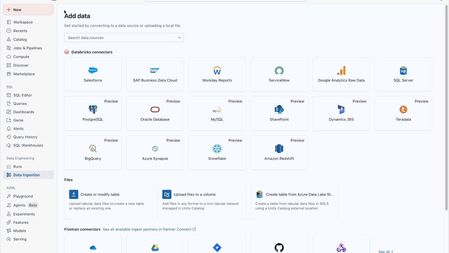
We're excited to introduce the Lakeflow Connect Free Tier on Azure Databricks, so you can easily bring your enterprise data into your lakehouse to build analytics and AI applications faster. Modern applications require reliable access to operational data, especially for training analytics and AI agents, but connecting and gathering data across silos can be challenging. With this new release, you can seamlessly ingest all of your enterprise data from SaaS and database sources to unlock data intelligence for your AI agents. Ingest millions of records per day, per workspace for free This new Lakeflow Connect Free Tier provides 100 DBUs per day, per workspace, which allows you to ingest approximately 100 million records* from many popular data sources**, including SaaS applications and databases. Unlock your enterprise data for free with Lakeflow Connect This new offering provides all the benefits of Lakeflow Connect, eliminating the heavy lifting so your teams can focus on unlocking data insights instead of managing infrastructure. In the past year, Databricks has continued rolling out several fully managed connectors, supporting popular data sources. The free tier supports popular SaaS applications (Salesforce, ServiceNow, Google Analytics, Workday, Microsoft Dynamics 365), and top-used databases (SQL Server, Oracle, Teradata, PostgreSQL, MySQL, Snowflake, Redshift, Synapse, and BigQuery). Lakeflow Connect benefits include: Simple UI: Avoid complex setups and architectural overhead, these fully managed connectors provide a simple UI and API to democratize data access. Automated features also help simplify pipeline maintenance with minimal overhead. Efficient ingestion: Increase efficiency and accelerate time to value. Optimized incremental reads and writes and data transformation help improve the performance and reliability of your pipelines, reduce bottlenecks, and reduce impact to the source data for scalability. Unified with the Databricks Platform: Create ingestion pipelines with governance from Unity Catalog, observability from Lakehouse Monitoring, and seamless orchestration with Lakeflow Jobs for analytics, AI and BI. Availability The Lakeflow Connect Free Tier is available starting today on Azure Databricks. If you are at FabCon in Atlanta, Accelerating Data and AI with Azure Databricks on Thursday, March 19th, 8:00–9:00 AM, room C302 to see how these capabilities come together to accelerate performance, simplify architecture, and maximize value on Azure Getting Started Resources To learn more about the Lakeflow Connect Free Tier and Lakeflow Connect, review our pricing page, and documentation. Get started ingesting your data today for free, signup with an Azure free account. Get started with Azure Databricks for free Product tour: Databricks Lakeflow Connect for Salesforce: Powering Smarter Selling with AI and Analytics Product tour: Effortless ServiceNow Data Ingestion with Databricks Lakeflow Connect Product tour: Simplify Data Ingestion with Lakeflow Connect: From Google Analytics to AI On-demand video: Use Lakeflow Connect for Salesforce to predict customer churn On-demand video: Databricks Lakeflow Connect for Workday Reports: Connect, Ingest, and Analyze Workday Data Without Complexity On-demand video: Data Ingestion With Lakeflow Connect —-- * Your actual ingestion capacity will vary based on specific workload characteristics, record sizes, and source types. ** Excludes Zerobus Ingest, Auto Loader and other self-managed connectors. Customer will continue to incur charges for underlying infrastructure consumption from the cloud vendor.4.9KViews0likes0CommentsNear–Real-Time CDC to Delta Lake for BI and ML with Lakeflow on Azure Databricks
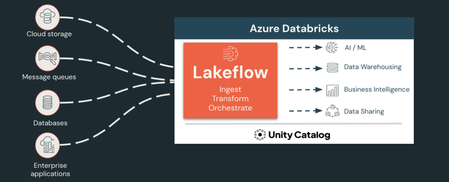
The Challenge: Too Many Tools, Not Enough Clarity Modern data teams on Azure often stitch together separate orchestrators, custom streaming consumers, hand-rolled transformation notebooks, and third-party connectors — each with its own monitoring UI, credential system, and failure modes. The result is observability gaps, weeks of work per new data source, disconnected lineage, and governance bolted on as an afterthought. Lakeflow, Databricks’ unified data engineering solution, solves this by consolidating ingestion, transformation, and orchestration natively inside Azure Databricks — governed end-to-end by Unity Catalog. Component What It Does Lakeflow Connect Point-and-click connectors for databases (using CDC), SaaS apps, files, streaming, and Zerobus for direct telemetry Lakeflow Spark Declarative Pipelines Declarative ETL with AutoCDC, data quality enforcement, and automatic incremental processing Lakeflow Jobs Managed orchestration with 99.95% uptime, a visual task DAG, and repair-and-rerun Architecture Step 1: Stream Application Telemetry with Zerobus Ingest Zerobus Ingest, part of Lakeflow Connect, lets your application push events directly to a Delta table over gRPC — no message bus, no Structured Streaming job. Sub-5-second latency, up to 100 MB/sec per connection, immediately queryable in Unity Catalog. Prerequisites Azure Databricks workspace with Unity Catalog enabled and serverless compute on A service principal with write access to the target table Setup First, create the target table in a SQL notebook: CREATE CATALOG IF NOT EXISTS prod; CREATE SCHEMA IF NOT EXISTS prod.bronze; CREATE TABLE IF NOT EXISTS prod.bronze.telemetry_events ( event_id STRING, user_id STRING, event_type STRING, session_id STRING, ts BIGINT, page STRING, duration_ms INT ); 1. Go to Settings → Identity and Access → Service Principals → Add service principal 2. Open the service principal → Secrets tab → Generate secret. Save the Client ID and secret. 3. In a SQL notebook, grant access: GRANT USE CATALOG ON CATALOG prod TO `<client-id>`; GRANT USE SCHEMA ON SCHEMA prod.bronze TO `<client-id>`; GRANT MODIFY, SELECT ON TABLE prod.bronze.telemetry_events TO `<client-id>`; 4. Derive your Zerobus endpoint from your workspace URL: <workspace-id>.zerobus.<region>.azuredatabricks.net (The workspace ID is the number in your workspace URL, e.g. adb-**1234567890**.12.azuredatabricks.net) 5. Install the SDK: pip install databricks-zerobus-ingest-sdk 6. In your application, open a stream and push records: from zerobus.sdk.sync import ZerobusSdk from zerobus.sdk.shared import RecordType, StreamConfigurationOptions, TableProperties sdk = ZerobusSdk("<workspace-id>.zerobus.<region>.azuredatabricks.net", "https://<workspace-url>") stream = sdk.create_stream( "<client-id>", "<client-secret>", TableProperties("prod.bronze.telemetry_events"), StreamConfigurationOptions(record_type=RecordType.JSON) ) stream.ingest_record({"event_id": "e1", "user_id": "u42", "event_type": "page_view", "ts": 1700000000000}) stream.close() 7. Verify in Catalog → prod → bronze → telemetry_events → Sample Data Step 2: Ingest from On-Premises SQL Server via CDC Lakeflow Connect reads SQL Server's transaction log incrementally — no full table scans, no custom extraction software. Connectivity to your on-prem server is over Azure ExpressRoute. Prerequisites SQL Server reachable from Databricks over ExpressRoute (TCP port 1433) CDC enabled on the source database and tables (see setup below) A SQL login with CDC read permissions on the source database Databricks: CREATE CONNECTION privilege on the metastore; USE CATALOG, CREATE TABLE on the destination catalog Setup Enable CDC on SQL Server: USE YourDatabase; EXEC sys.sp_cdc_enable_db; EXEC sys.sp_cdc_enable_table @source_schema = N'dbo', @source_name = N'orders', @role_name = NULL; EXEC sys.sp_cdc_enable_table @source_schema = N'dbo', @source_name = N'customers', @role_name = NULL; Configure the connector in Databricks: Click Data Ingestion in the sidebar (or + New → Add Data) Select SQL Server from the connector list Ingestion Gateway page — enter a gateway name, select staging catalog/schema, click Next Ingestion Pipeline page — name the pipeline, click Create connection: Host: your on-prem IP (e.g. 10.0.1.50) · Port: 1433 · Database: YourDatabase Enter credentials, click Create, then Create pipeline and continue Source page — expand the database tree, check dbo.orders and dbo.customers; optionally enable History tracking (SCD Type 2) per table. Set Destination table name to orders_raw and customers_raw respectively. Destination page — set catalog: prod, schema: bronze, click Save and continue Settings page — set a sync schedule (e.g. every 5 minutes), click Save and run pipeline Step 3: Transform with Spark Declarative Pipelines The Lakeflow Pipelines Editor is an IDE built for developing pipelines in Lakeflow Spark Declarative Pipelines (SDP), and lets you define Bronze → Silver → Gold in SQL. SDP then handles incremental execution, schema evolution, and lineage automatically. Prerequisites Bronze tables populated (from Steps 1 and 2) CREATE TABLE and USE SCHEMA privileges on prod.silver and prod.gold Setup 1. In the sidebar, click Jobs & Pipelines → ETL pipeline → Start with an empty file → SQL 2. Rename the pipeline (click the name at top) to lakeflow-demo-pipeline 3. Paste the following SQL: -- Silver: latest order state (SCD Type 1) CREATE OR REFRESH STREAMING TABLE prod.silver.orders; APPLY CHANGES INTO prod.silver.orders FROM STREAM(prod.bronze.orders_raw) KEYS (order_id) SEQUENCE BY updated_at STORED AS SCD TYPE 1; -- Silver: full customer history (SCD Type 2) CREATE OR REFRESH STREAMING TABLE prod.silver.customers; APPLY CHANGES INTO prod.silver.customers FROM STREAM(prod.bronze.customers_raw) KEYS (customer_id) SEQUENCE BY updated_at STORED AS SCD TYPE 2; -- Silver: telemetry with data quality check CREATE OR REFRESH STREAMING TABLE prod.silver.telemetry_events ( CONSTRAINT valid_event_type EXPECT (event_type IN ('page_view', 'add_to_cart', 'purchase')) ON VIOLATION DROP ROW ) AS SELECT * FROM STREAM(prod.bronze.telemetry_events); -- Gold: materialized view joining all three Silver tables CREATE OR REFRESH MATERIALIZED VIEW prod.gold.customer_activity AS SELECT o.order_id, o.customer_id, c.customer_name, c.email, o.order_amount, o.order_status, COUNT(e.event_id) AS total_events, SUM(CASE WHEN e.event_type = 'purchase' THEN 1 ELSE 0 END) AS purchase_events FROM prod.silver.orders o LEFT JOIN prod.silver.customers c ON o.customer_id = c.customer_id LEFT JOIN prod.silver.telemetry_events e ON CAST(o.customer_id AS STRING) = e.user_id -- user_id in telemetry is string GROUP BY o.order_id, o.customer_id, c.customer_name, c.email, o.order_amount, o.order_status; 4. Click Settings (gear icon) → set Pipeline mode: Continuous → Target catalog: prod → Save 5. Click Start — the editor switches to the live Graph view Step 4: Govern with Unity Catalog All tables from Steps 1–3 are automatically registered in Unity Catalog, Databricks’ built-in governance and security offering, with full lineage. No manual registration needed. View lineage Go to Catalog → prod → gold → customer_activity Click the Lineage tab → See Lineage Graph Click the expand icon on each upstream node to reveal the full chain: Bronze sources → Silver → Gold Set Permissions -- Grant analysts read access to the Gold layer only GRANT SELECT ON TABLE prod.gold.customer_activity TO `analysts@contoso.com`; -- Mask PII for non-privileged users CREATE FUNCTION prod.security.mask_email(email STRING) RETURNS STRING RETURN CASE WHEN is_account_group_member('data-engineers') THEN email ELSE CONCAT(LEFT(email, 2), '***@***.com') END; ALTER TABLE prod.silver.customers ALTER COLUMN email SET MASK prod.security.mask_email; Step 5: Orchestrate and Monitor with Lakeflow Jobs Wire the Connect pipeline and SDP pipeline into a single job with dependencies, scheduling, and alerting, all from the UI with Lakeflow Jobs. Prerequisites Pipelines from Steps 2 and 3 saved in the workspace Setup Go to Jobs & Pipelines → Create → Job Task 1: click the Pipeline tile → name it ingest_sql_server_cdc → select your Lakeflow Connect pipeline → Create task Task 2: click + Add task → Pipeline → name it transform_bronze_to_gold → select lakeflow-demo-pipeline → set Depends on: ingest_sql_server_cdc → Create task In the Job details panel on the right: click Add schedule → set frequency → add email notification on failure → Save Click Run now to trigger a run, then click the run ID to open the Run detail view For health monitoring across all jobs, query system tables in any notebook or SQL warehouse: SELECT job_name, result_state, DATEDIFF(second, start_time, end_time) AS duration_sec FROM system.lakeflow.job_run_timeline WHERE start_time >= CURRENT_TIMESTAMP - INTERVAL 24 HOURS ORDER BY start_time DESC; Step 6: Visualize with AI/BI Dashboards and Genie AI/BI Dashboard helps you create AI-powered, low-code dashboards. Click + New → Dashboard Click Add a visualization, connect to prod.gold.customer_activity, and build charts Click Publish — viewers see data under their own Unity Catalog permissions automatically Genie allows you to interact with their data using natural language 1. In the sidebar, click Genie → New 2. On Choose data sources, select prod.gold.customer_activity → Create 3. Add context in the Instructions box (e.g., table relationships, business definitions) 4. Switch to the Chat tab and ask a question: "Which customers have the highest total events and what were their order amounts?" 5. Genie generates and executes SQL, returning a result table. Click View SQL to inspect the query. Everything in One Platform Capability Lakeflow Previously Required Telemetry ingestion Zerobus Ingest Message bus + custom consumer Database CDC Lakeflow Connect Custom scripts or 3rd-party tools Transformation + AutoCDC Spark Declarative Pipelines Hand-rolled MERGE logic Data quality SDP Expectations Separate validation tooling Orchestration Lakeflow Jobs External schedulers (Airflow, etc.) Governance Unity Catalog Disconnected ACLs and lineage Monitoring Job UI + System Tables Separate APM tools BI + NL Query AI/BI Dashboards + Genie External BI tools Customers seeing results on Azure Databricks: Ahold Delhaize — 4.5x faster deployment and 50% cost reduction running 1,000+ ingestion jobs daily Porsche Holding — 85% faster ingestion pipeline development vs. a custom-built solution Next Steps Lakeflow product page Lakeflow Connect documentation Live demos on Demo Center Get started with Azure Databricks806Views0likes0CommentsAzure Databricks Lakebase is now generally available
Modern applications are built on real-time, intelligent, and increasingly powered by AI agents that need fast, reliable access to operational data—without sacrificing governance, scale, or simplicity. To solve for this, Azure Databricks Lakebase introduces a serverless, Postgres database architecture that separates compute from storage and integrates natively with the Databricks Data Intelligence Platform on Azure. Lakebase is now generally available in Azure Databricks enabling you and your team to start building and validating real-time and AI-driven applications directly on your lakehouse foundation. Why Azure Databricks Lakebase? Lakebase was created for modern workloads and reduce silos. By decoupling compute from storage, Lakebase treats infrastructure as an on-demand service—scaling automatically with workload needs and scaling to zero when idle. Key capabilities include: Serverless Postgres for Production Workloads: Lakebase delivers a managed Postgres experience with predictable performance and built-in reliability features suitable for production applications, while abstracting away infrastructure management. Instant Branching and Point-in-Time Recovery: Teams can create zero-copy branches of production data in seconds for testing, debugging, or experimentation, and restore databases to precise points in time to recover from errors or incidents. Unified Governance with Unity Catalog: Operational data in Lakebase can be governed using the same Unity Catalog policies that secure analytics and AI workloads, enabling consistent access control, auditing, and compliance across the platform. Built for AI and Real-Time Applications: Lakebase is designed to support AI-native patterns such as real-time feature serving, agent memory, and low-latency application state—while keeping data directly connected to the lakehouse for analytics and learning workflows. Lakebase allows applications to operate directly on governed, lake-backed data—reducing complexity with pipeline synchronization or duplicating storage On Azure Databricks, this unlocks new scenarios such as: Real-time applications built on lakehouse data AI agents with persistent, governed memory Faster release cycles with safe, isolated database branches Simplified architectures with fewer moving parts All while using familiar Postgres interfaces and tools. Get Started with Azure Databricks Lakebase Lakebase is integrated into the Azure Databricks experience and can be provisioned directly within Azure Databricks workspaces. For Azure Databricks customers building intelligent, real-time applications, it offers a new foundation—one designed for the pace and complexity of modern data-driven systems. We’re excited to see what you build, get started today!1.6KViews0likes0CommentsServerless Workspaces are generally available in Azure Databricks
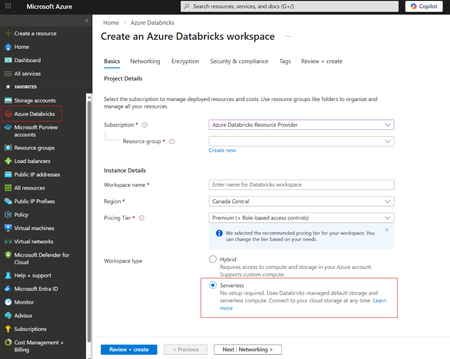
Recently, we announced that Serverless Workspaces in public preview. Today, we are excited to share that Serverless Workspaces are generally available in Azure Databricks. Azure Databricks now offers two workspace models: Serverless and Classic. With Serverless, Azure Databricks operates and maintains the entire environment on your behalf. You still configure governance elements like Unity Catalog, identity federation, and workspace-level policies, but the heavy lifting of infrastructure setup disappears. As a result, teams can start building immediately instead of waiting on networking or compute provisioning. Classic workspaces take the opposite approach. When creating a Classic workspace, you must design and deploy the full networking layout, determine how compute should be managed, establish storage patterns, and configure all inbound and outbound connectivity. These decisions are critical and have benefits in heavily regulated or secure industries, but they may create overhead for teams who simply want to start working with data. A Serverless Workspace eliminates that overhead entirely. Once created, it’s ready for use—no virtual network design, no storage configuration, and no cluster management. Serverless workspaces use serverless compute and default storage. Unity Catalog is automatically provisioned so that the same governance model applies. Key capabilities and consideration of Serverless workspaces Storage: Each Serverless workspace includes fully managed object storage called default storage. You can build managed catalogs, volumes, and tables without supplying your own storage accounts or credentials. Features like multi-key projection and restricted object-store access ensure that only authorized users can work with the data. Classic compute cannot interact with data assets in default storage. If you already have an Azure Blob Storage account (likely with hierarchical namespace enabled) or if your organization requires using your own storage due to security or compliance requirements, you can also create a connection between your storage account and Serverless Workspace. Compute: Workloads run on automatically provisioned serverless compute—no need to build or maintain clusters. Azure Databricks handles scaling and resource optimization so users can focus purely on data and analytics. Network: There’s no requirement to deploy NAT gateways, firewalls, or Private Link endpoints. Instead, you define serverless egress rules and serverless Private Link controls that apply uniformly to all workloads in the workspace. Unity Catalog access: Governed data remains accessible from the new workspace with existing permissions intact. Your data estate stays consistent and secure. Choosing between Serverless and Classic Azure Databricks supports both workspace types so organizations can select what best matches their needs. Use Serverless when rapid workspace creation, minimal configuration, and reduced operational overhead are priorities. It’s the fastest path to a fully governed environment. Use Classic when you require a custom VNet design, specific network topologies, finer grain security controls, or features that are not yet available in the serverless model. Some organizations also simply prefer to manage Azure resources directly, making Classic workspaces a suitable option. Note that Azure Databricks serverless workspaces are only available in regions that support serverless compute. To learn get started create your Serverless workspace today!993Views0likes0CommentsAzure Databricks Genie integration with Copilot Studio and Microsoft Foundry is now live!
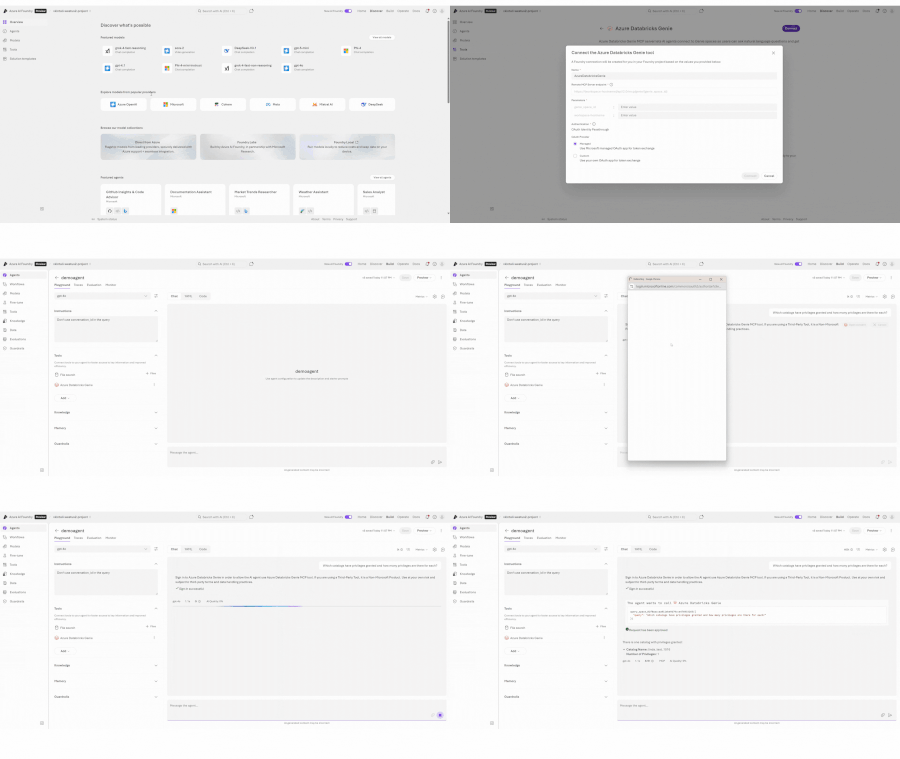
This blog was co-authored by Toussaint Webb, Databricks We’re excited to announce the Public Preview availability of AI/BI Genie in Microsoft Copilot Studio and Microsoft Foundry via MCP. This makes it easier than ever for organizations to unlock and scale the power of their Genie spaces across the Microsoft ecosystem (e.g., Teams), ultimately democratizing trusted data and insights to business users. AI/BI Genie opens the power of conversational analytics to everyone in the organization. A user can ask a question such as “What is my revenue growth this month?” and Genie interprets the intent, generates the appropriate query, and returns the data insight. Users can also review the underlying logic for transparency. By supporting iterative questioning, Genie enables users to investigate their data directly and build confidence in their understanding without requiring code or specialist intervention. The Challenge Before: Complex setup via Custom Code Previously, connecting Genie to the Microsoft ecosystem was challenging. Organizations had to develop custom connections to manage API flows, which added architectural overhead. This complexity limited organizations’ ability to distribute Genie’s trusted insights efficiently across Microsoft platforms. What’s Now Possible: Unlock the value of Microsoft Ecosystem The new integrations between Genie and Copilot Studio, as well as Genie and Microsoft Foundry, solve these challenges by providing easy and secure ways to connect each platform. Additionally, by leveraging MCP, updates to the underlying Genie APIs are seamlessly managed for users, eliminating the need to modify your integration. Genie + Copilot Studio Connect a Genie space to a Copilot Studio Agent as a tool (over MCP) Instantly make Genie’s trusted insights available in Teams or M365 Copilot by publishing Genie enabled Copilot Studio agents Genie’s complete context of a customer’s data estate will enable Copilot Studio agents to deliver richer, more accurate responses Genie + Microsoft Foundry Connect a Genie space to Foundry as a tool (over MCP) Instantly make Genie’s trusted insights available to developers building agents using Foundry How It Works: Genie + Copilot Studio Create a connection to your Azure Databricks workspace in Power Apps, using OAuth or a Microsoft Entra ID Service Principal Open Copilot Studio Select an existing Copilot Studio agent or create a new one Open ‘Tools’, click ‘+Add a tool’, and search for “Azure Databricks Genie” or find it within the Model Context Protocol section Select the Genie space to connect and configure the connection Note: It’s important to give your Genie space a clear title and description so the Copilot Studio agent can effectively orchestrate requests. After completing the steps above, you are ready to go and can publish the agent to channels, such as Microsoft Teams, to easily distribute the value of Genie to your organization. How It Works: Genie + Microsoft Foundry Portal Open Microsoft Foundry Go to the tool catalog within the Discover tab Select ‘Azure Databricks Genie’ Configure the connection your Azure Databricks Genie space and click ‘Connect’ Click ‘Use in an agent’ and select the desired agent to connect your Genie space to Once completed, Genie is available for use in your Foundry agent! Try It Out: Get started with Genie in Copilot Studio and Microsoft Foundry To get started with Genie + Copilot Studio, check out our technical documentation To get started with Genie + Microsoft Foundry, check out the documentation To learn more about the Generally Available Azure Databricks Power Platform connector explore this blog11KViews0likes0CommentsSAP Business Data Cloud Connect with Azure Databricks is now generally available
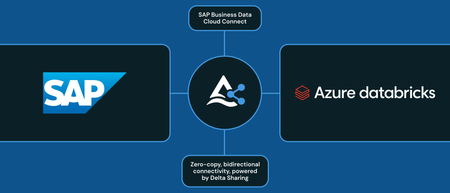
We are excited to share that SAP Business Data Cloud (SAP BDC) Connect for Azure Databricks is generally available. With this announcement, Azure Databricks customers like you, can connect your SAP BDC environment to your existing Azure Databricks instance – without copying the data – to enable bi-directional, live data sharing. Connecting SAP data with other enterprise data prevents governance risk, compliance gaps, and data silos. In addition, maintenance costs are also reduced and manual building of semantics is no longer needed. SAP data products can now be shared directly via Delta Sharing into your existing Azure Databricks instances ensuring complete context for your business. You can now unify your data estate across Azure Databricks and SAP BDC This makes it easier for you to: Enforce governance Power analytics, data warehousing, BI and AI Connecting SAP BDC to Azure Databricks is simple, secure, and fast. The connection is trusted and requires approval from both platforms to enable bi-directional sharing of data products. Once approved, data products in SAP BDC can be directly mounted into Azure Databricks Unity Catalog and are treated like other assets shared using Delta sharing. As a result, your teams can query, analyze, and gather insights on SAP data in addition to your existing business data in one unified way. Instead of spending time gathering the data in once place, your teams can instead focus on unlocking insights from this unified data quickly and securely. This launch complements SAP Databricks in SAP BDC running on Azure that enables AI, ML, data engineering, and data warehousing capabilities directly inside your SAP environment. We have expanded the list of supported regions for SAP Databricks on SAP BDC running on Azure. To learn more with SAP BDC Connect with Azure Databricks review documentation and get started today.2.3KViews3likes0CommentsGeneral Availability: Automatic Identity Management (AIM) for Entra ID on Azure Databricks
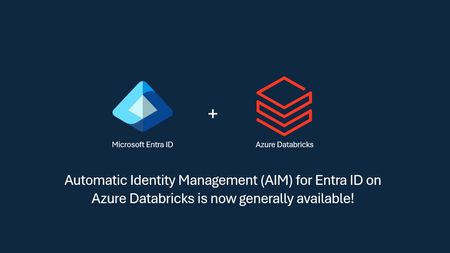
In February, we announced that Automatic Identity Management in public preview and loved to hear your overwhelmingly positive feedback. Prior to public preview, you either had to set up an Entra Enterprise Application or involve an Azure Databricks account admin to import the appropriate groups. This required manual steps whether it was adding or removing users with organizational changes, maintaining scripts, or requiring additional Entra or SCIM configuration. Identity management was thus cumbersome and required management overhead. Today, we are excited to announce that Automatic Identity management (AIM) for Entra ID on Azure Databricks is generally available. This means no manual user setup is needed and you can instantly add users to your workspace(s). Users, groups, and service principals from Microsoft Entra ID are automatically available within Azure Databricks, including support for nested groups and dashboards. This native integration is one of the many reasons Databricks runs best on Azure. Here are some addition ways AIM could benefit you and your organization: Seamlessly share dashboards You can share AI/BI dashboards with any user, service principal, or group in Microsoft Entra ID immediately as these users are automatically added to the Azure Databricks account upon login. Members of Microsoft Entra ID who do not have access to the workspace are granted access to a view-only copy of a dashboard published with embedded credentials. This enables you to share dashboards with users outside your organization, too. To learn more, see share a dashboard. Updated defaults for new accounts All new Azure Databricks accounts have AIM enabled – no opt in or additional configuration required. For existing accounts, you can enable AIM with a single click in the Account Admin Console. Soon, we will also make this the default for existing accounts. Automation at scale enabled via APIs You can also register users, groups, or service principles in Microsoft Entra ID via APIs. Being able to do this programmatically enables the enterprise scale most of our customers need. You can also enable automation via scripts leveraging these APIs. Read the Databricks blog here and get started via documentation today!2.4KViews1like0CommentsPart 2: Performance Configurations for Connecting PBI to a Private Link ADB Workspace
This blog was written in conjunction with Leo Furlong, Lead Solutions Architect at Databricks. In Part 1, we discussed networking options for connecting Power BI to an Azure Databricks workspace with a Public Endpoint protected with a workspace IP Access List. In Part 2, we continue our discussion and elaborate on private networking options for an Azure Databricks Private Link workspace. When using Azure Databricks Private Link with Allow Public Network Access setting set to Disabled, all connections to the workspace must go through Private Endpoints. For one of the private networking options, we’ll also discuss how to configure your On-Premise Data Gateway VM to get good performance. Connecting Power BI to a Private Link Azure Databricks Workspaces As covered in Part 1, Power BI offers two primary methods for secure connections to data sources with private networking: 1. On-premises data gateway: An application that gets installed on a Virtual Machine that has a direct networking connection to a data source. It allows Power BI to connect to data sources that don’t allow public connections. The general flow of this setup entails: a. Create or leverage a set of Private Endpoints to the Azure Databricks workspace - both sub-resources for databricks_ui_api and browser_authentication are required b. Create or leverage a Private DNS Zone for privatelink.azuredatabricks.net c. Deploy an Azure VM into a VNet/subnet d. The VM’s VNet/subnet should have access to the Private Endpoints (PEs) via either them being in the same VNet or being peered with another VNet where they reside e. Install and configure the on-premise data gateway software on the VM f. Create a connection in the Power BI Service via Settings -> Manage Connections and Gateways UIs g. Configure the Semantic Model to use the connection under the Semantic Model’s settings and gateway and cloud connections sub-section 2. Virtual Network Data Gateway: A fully managed data gateway that gets created and managed by the Power BI service. Connections work by allowing Power BI to delegate into a VNet for secure connectivity to the data source. The general flow of this setup entails: a. Create or leverage a set of Private Endpoints (PEs) to the Azure Databricks workspace - both sub-resources for databricks_ui_api and browser_authentication are required b. Create or leverage a Private DNS Zone for privatelink.azuredatabricks.net c. Create a subnet in a VNet that has access to the Private Endpoints (PEs) via either them being in the same VNet or being peered with another VNet where they reside. Delegate the Subnet to Microsoft.PowerPlatform/vnetaccesslinks d. Create a virtual network data gateway in the Power BI Service via Settings -> Manage Connections and Gateways UIs e. Configure the the Semantic Model to use the connection under the Semantic Model’s settings and gateway and cloud connections sub-section The documentation for both options is fairly extensive, and this blog post will not focus on breaking down the configurations further. Instead, this post is about configuring your private connections to get the best Import performance. On-Premise Data Gateway Performance Testing In order to provide configuration guidance, a series of Power BI Import tests were performed using various configurations and a testing dataset. Testing Data The testing dataset used was a TPC-DS scale factor 10 dataset (you can create your own using this Repo). A scale factor of 10 in TPC-DS generates about 10 gigabytes (GB) of data. The TPC-DS dataset was loaded into Unity Catalog and the primary and foreign keys were created between the tables. A model was then created in the Power BI Service using the Publish to Power BI capabilities in Unity Catalog; the primary and foreign keys were used to automatically create relationships between the tables in the Power BI semantic model. Here’s an overview of the tables used in this dataset: Fabric Capacity An F64 Fabric Capacity was used in the West US region. The F64 was the smallest size available (in terms of RAM) for refreshing the model without getting capacity errors - the compressed Semantic Model size is 5,244 MB. Azure Databricks SQL Warehouse An Azure Databricks workspace using Unity Catalog was deployed in the East US 2 and West US regions for the performance tests. A Medium Databricks SQL Warehouse was used. For Imports, generally speaking, the size of the SQL Warehouse isn’t very important. Using an aggressive Auto Stop configuration of 5 minutes is ideal to minimize compute charges (1 minute can be used if the SQL Warehouse is deployed via an API). Testing Architecture The following diagram summarizes a simplified Azure networking architecture for the performance tests. A Power BI Semantic Model is connected to a Power BI On-Premise Data Gateway Connection The On-Premise Data Gateway Connection connects to the Azure Databricks workspace using Private Endpoints. Azure Databricks provisions up a Serverless SQL Warehouse in ~5 seconds within the Serverless Data Plane within Azure. SQL queries are executed on the Serverless SQL Warehouse. Unity Catalog gives the Serverless SQL Warehouse a read-only, down-scoped, and pre-signed URL to ADLS. Data is fetched from ADLS and placed on the Azure Databricks workspace’s managed storage account via a capability called Cloud Fetch. Arrow Files are pulled from Cloud Fetch and delivered to the Power BI Service through the Data Gateway. Data in the Semanic Model is compressed and stored in Vertipaq In-Memory storage. Testing Results The following grid outlines the scenarios tested and the results for each test. We’ll review the different configurations tested below in specific sections. Scenario Gateway Scenario Avg Refresh Duration Minutes A East US 2, Public Endpoint 17:01 B West US, Public Endpoint 12:21 C West US, Public Endpoint via IP Access List 15:19 D West US, E VM Gateway Base 12:14 E West US, E VM StreamBeforeRequestCompletes 07:46 F West US, E VM StreamBeforeRequestCompletes + Logical Partitions 07:31 G West US, E VM Spooler (D) 12:57 H West US, E VM Spooler (E) 13:32 I West US, D VM Gateway Base 16:47 J West US, D VM StreamBeforeRequestCompletes 12:19 K West US, PBI Managed Vnet 27:04 Scenario VM Configuration D Standard E8bds v5 (8 vcpus, 64 GiB memory) [NVMe, Accelerated Networking], C Drive default (Premium SSD LRS 127 GiB) E Standard E8bds v5 (8 vcpus, 64 GiB memory) [NVMe, Accelerated Networking], C Drive default (Premium SSD LRS 127 GiB) F Standard E8bds v5 (8 vcpus, 64 GiB memory) [NVMe, Accelerated Networking], C Drive default (Premium SSD LRS 127 GiB) G Standard E8bds v5 (8 vcpus, 64 GiB memory) [NVMe, Accelerated Networking], D drive H Standard E8bds v5 (8 vcpus, 64 GiB memory) [NVMe, Accelerated Networking], E Drive (Premium SSD LRS 600 GiB) I Standard D8s v3 (8 vcpus, 32 GiB memory), C Drive default (Premium SSD LRS 127 GiB) J Standard D8s v3 (8 vcpus, 32 GiB memory), C Drive default (Premium SSD LRS 127 GiB) Performance Configurations 1. Regional Alignment Aligning your Power BI Premium/Fabric Capacity to the same region as your Azure Databricks deployment and your On-Premise Data Gateway VM helps reduce the overall network latency and data transfer duration. It should also eliminate cross-region networking charges. In scenario A, the Azure Databricks deployment was in East US 2 while the Fabric Capacity and On-Premise Data Gateway VM were in West US. The Import processing time when using the public endpoint between the regions was 17:01 minutes. In scenario B, while still using the public endpoint, there is complete regional alignment in the West US region and the Import times averaged 12:21 minutes which is a 27.4% decrease 2. Configure a Gateway Cluster A Power BI Data Gateway Cluster configuration is highly recommended for Prouduction deployments but this configuration was not performance tested during this experiment. Data Gateway clusters can help with data refresh redundancy and for overall volume / throughput of data transfer. This configuration is highly recommended for Production Power BI environments. 3. VM Family Selection The Power BI documentation recommends a VM with 8 cores, 8 GB of RAM, and an SSD for the VM used for the On-Premise Data Gateway. Through testing, it can be proven that using a VM with good performance characteristics can provide immense value in the Import times. In scenario D, data gateway tests were run using a Standard E8bds v5 with 8 cores and 64 GB RAM that also included NVMe, and Accelerated Networking, and a C drive using a Premium SSD. The import times for this scenario averaged 12:14 minutes which was slightly faster than the regionally aligned public endpoint test in scenario B. In scenario I, data gateway tests were run using a Standard D8s v3 with 8 cores and 32 GB RAM and a C drive using a Premium SSD. The import times for this scenario averaged 16:47 minutes which was noticeably slower than using the regionally aligned public endpoint in cenario B which was a 35.96% performance degradation. More tests could certainly be done to determine which VM characteristics help the most with Import performance, but it is clear certain features can be helpful like: Premium SSDs Accelerated Networking NVMe controller Memory optimized instances And while the better E8bds v5 Azure VM costs ~$820 per month in West US at list and the D8s v3 costs ~$610 per month at list (25% more expensive), this feels like a scenario where you pay the premium to get better performance and optimize through Azure VM reservations. 4. StreamBeforeRequestCompletes By default, the on-premise data gateway spools data to disk before sending it to Power BI. Enabling the StreamBeforeRequestCompletes setting to True can significantly improve gateway refresh performance as it allows data to be streamed directly to the Power BI Service without first being spooled to disk. In scenario E, when StreamBeforeRequestCompletes is set to True and restarted, you can see that the average Import times significantly improved to 07:46 minutes which is a 54% improvement compared to scenario A and a 36% improvement over the base VM configuration in scenario D. 5. Spooler Location As discussed above, when using the default setting for StreamBeforeRequestCompletes as False, Power BI spools the data to the data gateway spool directory before sending it to the Power BI Service. In scenarios D, G, and H, StreamBeforeRequestCompletes is False and the Spooler directory has been mapped to the C drive, D drive, and E drives respectively which all correspond to an SSD (of varying configuration) on the Azure VMs. In all scenarios, you can see the times are similar between 12:14, 12:57, and 13:32 minutes, respectively. In all three scenarios the tests were performed with SSDs on the E series VM configured with NVMe. Using this configuration mix, it doesn’t appear that the Spooler directory location provides significant performance improvements. Since the C drive configuration gave the best performance it seems prudent to keep the C drive default configuration. However, it is possible that that the Spooler directory setting might provide more value on a different VM configurations. 6. Logical Partitioning As outlined in the QuickStart samples guide, logical partitioning can often help with Power BI Import performance as multiple logical partitions in the Semantic Model can be processed at the same time. In scenario F, logical partitions were created for the inventory and store_sales table to have 5 partitions each. When combined with the StreamBeforeRequestCompletes setting, the benefit from adding Logical Partitions was negligible (15 second improvement) even though the parallelization settings were increased to 30 (Max Parallelism Per Refresh and Data Source Default Max Connections). While logical partitions are usually a very valuable strategy, combining them with StreamBeforeRequestCompletes, the E series VM configurations, and a Fabric F64 capacity yielded diminishing returns. It is probably worth more testing at some point in the future. Virtual Network Data Gateway Performance Testing The configuration and performance of a Virtual Network Data Gateway was briefly tested. A Power BI subnet was created in the same VNet as the Azure Databricks workspace and delegated to the Power BI Service. A virtual network data gateway was created in the UI with 2 gateways (12 queries can run in parallel) and assigned to the Semantic Model. In scenario K, an Import test was performed through the Virtual Network Data Gateway that took 27:04 minutes. More time was not spent trying to tune the Virtual Network Data Gateway as it was not the primary focus of this blog post. The Best Configuration The Best Configuration: Region Alignment + Good VM + StreamBeforeRequestsCompletes While the Import testing performed for this blog post isn’t definitive, it does provide good directional value in forming an opinion on how you can configure your Power BI On-Premise Data Gateway on an Azure Virtual Machine to get good performance. When looking at the tests performed for this blog, an Azure Virtual Machine, in the same region as the Azure Databricks Workspace and the Fabric Capacity, with Accelerated networking, an SSD, NVMe, and memory optimized compute provided performance that was faster than just using the public endpoint of the Azure Databricks Workspace alone. Using this configuration, we improved our Import performance from 17:01 to 07:46 minutes which is a 54% performance improvement.4.2KViews1like1Comment