azure database for postgresql flexible server
5 TopicsGeneric Best Practices for HikariCP with Azure Database for PostgreSQL
Author: Mohamed Baioumy Technology: Azure Database for PostgreSQL (Flexible Server & Single Server) Category: Connectivity | Performance | Application Design Introduction Connection pooling is a critical component of application performance when connecting to Azure Database for PostgreSQL. Creating a new PostgreSQL connection is an expensive operation that consumes CPU, memory, and networking resources. Reusing existing connections through a connection pool significantly reduces connection latency, improves throughput, and helps applications scale more efficiently. Many Java applications use HikariCP, one of the most popular high-performance JDBC connection pools. While HikariCP provides excellent performance out of the box, improperly configured connection pool settings can lead to issues such as: Connection pool exhaustion Stale or invalid connections Increased connection acquisition latency Excessive connection creation and destruction Database resource contention Application timeouts This article summarizes generic guidance and best practices for configuring HikariCP when working with Azure Database for PostgreSQL Flexible Server and Azure Database for PostgreSQL Single Server. Understanding Key HikariCP Parameters 1. Maximum Lifetime (maxLifetime) The maxLifetime property controls how long a connection can remain in the pool before HikariCP retires it and creates a new one. Why It Matters Connections can become stale over time due to: Network interruptions Infrastructure updates Connection state changes TCP idle behavior Recycling connections periodically helps prevent applications from using long-lived connections that may no longer be healthy. Recommended Practice Avoid configuring the value too low. When maxLifetime is set aggressively, HikariCP continuously destroys and recreates connections, resulting in: Additional authentication overhead Increased connection establishment latency Higher CPU utilization Reduced application throughput A reasonable starting point is: spring.datasource.hikari.maxLifetime=1800000 30 minutes (1,800,000 ms) is commonly used and aligns well with many production workloads. Depending on workload characteristics, values between 30 minutes and 1 hour are generally suitable Avoid maxLifetime=300000 (5 minutes) This often causes unnecessary connection churn without providing additional benefits. 2. Minimum Idle Connections (minimumIdle) The minimumIdle setting defines how many idle connections HikariCP should keep ready for immediate use. Why It Matters A pool with available idle connections can serve application requests immediately without waiting for new connections to be established. However, maintaining too many idle connections consumes unnecessary database resources. Recommended Practice For most workloads: minimumIdle = maximumPoolSize Or minimumIdle slightly lower than maximumPoolSize This ensures sufficient connections are already available during traffic spikes while avoiding excessive connection creation delays. Example maximumPoolSize=20 minimumIdle=15 Avoid maximumPoolSize=20 minimumIdle=20 only when the application experiences long periods of inactivity and conserving resources is more important than immediate responsiveness. 3. Idle Timeout (idleTimeout) The idleTimeout property determines how long an unused connection remains in the pool before being removed. Why It Matters Connections that sit idle for extended periods consume resources on both: The application server Azure Database for PostgreSQL However, removing idle connections too quickly causes the application to repeatedly establish new connections. Recommended Practice Keep the default value unless there is a specific requirement. spring.datasource.hikari.idleTimeout=600000 which equals: 10 minutes (600,000 ms) This setting provides a good balance between resource utilization and responsiveness. [Re: EXT: R...0040002947 | Outlook] The timeout should also be comfortably longer than any expected short application idle periods. Avoid idleTimeout=10000 (10 seconds) Such aggressive settings often result in unnecessary connection creation cycles. 4. Maximum Pool Size (maximumPoolSize) This parameter determines the maximum number of concurrent database connections the application can maintain. Why It Matters This is often the most important HikariCP setting. If the Pool Is Too Small Applications may experience: Connection is not available, request timed out because all available connections are already in use. Similar scenarios have been observed during customer investigations involving Hikari pool exhaustion. If the Pool Is Too Large Applications can overwhelm the database server with excessive concurrent sessions, resulting in: Connection contention Increased context switching Higher memory consumption Reduced overall performance Recommended Practice Pool size should be based on: Database compute configuration CPU core count Query execution duration Application concurrency requirements Workload characteristics There is no universal value that fits every workload. Start conservatively: maximumPoolSize=10 or maximumPoolSize=20 maximumPoolSize=20 and increase only after load testing demonstrates a need for additional concurrency. Fixed-Size Pool Recommendation For many production workloads, a fixed-size pool provides the simplest and most predictable behavior. Configure: maximumPoolSize=20 minimumIdle=20 or omit minimumIdle entirely so it defaults to maximumPoolSize. HikariCP commonly recommends maintaining a fixed-size pool for responsiveness during demand spikes. Benefits Faster connection acquisition Predictable performance Reduced connection creation latency Better handling of traffic spikes When using a small fixed-size pool, there is often little need to aggressively tune: minimumIdle idleTimeout Instead, simply recycle connections using: maxLifetime maxLifetime Additional Recommendations Enable TCP Keepalive One common cause of stale connections is network devices silently dropping inactive TCP sessions. For PostgreSQL applications, consider enabling TCP keepalive: tcpKeepAlive=true tcpKeepAlive=true The HikariCP project specifically recommends enabling TCP keepalive to prevent rare situations where pools can lose valid connections. Monitor Connection Usage Track: Active connections Idle connections Connection acquisition time Pool exhaustion events Database connection counts These metrics help identify whether pool sizing is appropriate. Investigate Long-Running Queries Connection pool problems are often symptoms rather than root causes. A frequent scenario is: A query becomes slow. Connections remain occupied longer. The pool becomes exhausted. Applications start timing out. When analyzing HikariCP issues, always review: Query performance Blocking situations Database resource utilization Application connection handling logic Sample Production Configuration spring.datasource.hikari.maximumPoolSize=20 spring.datasource.hikari.minimumIdle=15 spring.datasource.hikari.maxLifetime=1800000 spring.datasource.hikari.idleTimeout=600000 spring.datasource.hikari.connectionTimeout=30000 spring.datasource.hikari.keepaliveTime=60000 spring.datasource.hikari.maximumPoolSize=20 spring.datasource.hikari.minimumIdle=15 spring.datasource.hikari.maxLifetime=1800000 spring.datasource.hikari.idleTimeout=600000 spring.datasource.hikari.connectionTimeout=30000 spring.datasource.hikari.keepaliveTime=60000 This configuration provides a solid starting point for many Azure Database for PostgreSQL workloads and can be adjusted based on application-specific requirements. a { text-decoration: none; color: #464feb; } tr th, tr td { border: 1px solid #e6e6e6; } tr th { background-color: #f5f5f5; } Conclusion HikariCP is extremely efficient when configured appropriately. The goal is not to maximize the number of connections, but rather to maintain a healthy balance between application responsiveness and database resource consumption. As a general rule: Use a reasonable maxLifetime (30–60 minutes) Keep enough idle connections available for traffic spikes Avoid aggressive idleTimeout values Size the pool based on workload characteristics, not guesses Consider fixed-size pools for predictable performance Monitor connection usage and query performance regularly By following these practices, applications connecting to Azure Database for PostgreSQL can achieve improved scalability, lower latency, and more reliable connectivity. References Connection pooling best practices - Azure Database for PostgreSQL Performance best practices for using Azure Database for PostgreSQL – Connection Pooling HikariCP Documentation and Pool Sizing GuidanceAzure PostgreSQL Lesson Learned #10: Why PITR Networking Rules Matter
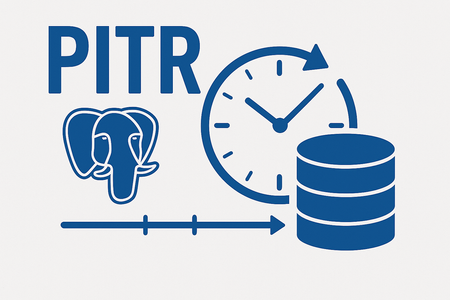
Co‑authored with angesalsaa Symptoms Customer attempted to restore a server configured with public access into a private virtual network. Restore operation failed with an error indicating unsupported configuration. Root Cause Azure enforces strict networking rules during PITR to maintain security and consistency: Public access servers can only be restored to public access. Private access servers can be restored to the same virtual network or a different virtual network, but not to public access. Why This Happens Networking mode is tied to the original server configuration. Mixing public and private access during restore could expose sensitive data or break connectivity assumptions. Contributing Factors Customer assumed PITR could switch networking modes. No prior review of Azure documentation on restore limitations. Specific Conditions We Observed Source server: Private access with VNet integration. Target restore: Attempted to switch to public access. Operational Checks Before initiating PITR: Confirm the source server’s networking mode (Public vs Private). Review restore options in the Azure portal → Restore. Mitigation Goal: Align restore strategy with networking rules. If source is Public: Restore only to Public access. If source is Private: Restore to same or different VNet (within the same region). Post-Resolution Customer successfully restored to a different VNet after adjusting expectations. Prevention & Best Practices Document networking mode for all PostgreSQL servers. Train teams on PITR limitations before disaster recovery drills. Avoid assumptions always check official guidance. Why This Matters Ignoring these rules can delay recovery during critical incidents. Knowing the constraints upfront ensures faster restores and compliance with security policies. Key Takeaways Issue: PITR does not allow switching between Public and Private access. Fix: Restore within the same networking category as the source server. References Backup and Restore in Azure Database for PostgreSQL Flexible Server208Views0likes0CommentsAzure PostgreSQL Lesson Learned #3: Fix FATAL: sorry, too many clients already
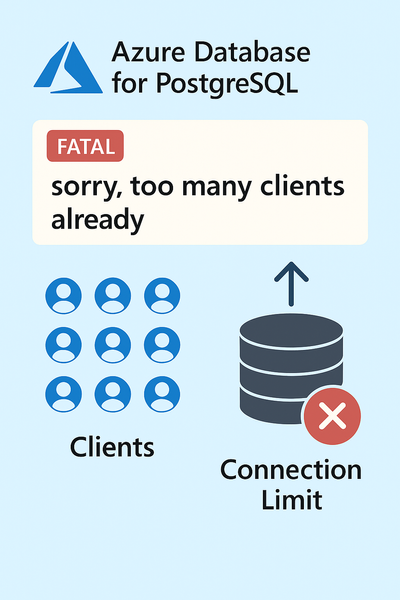
We encountered a support case involving Azure Database for PostgreSQL Flexible Server where the application started failing with connection errors. This blog explains the root cause, resolution steps, and best practices to prevent similar issues.599Views4likes0Comments
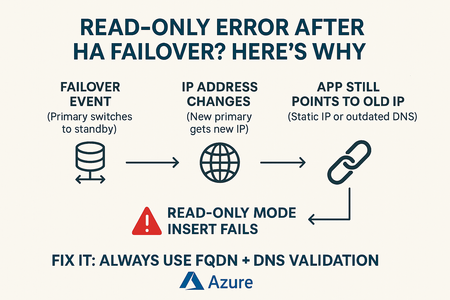
Azure PostgreSQL Lesson Learned#1:Fix Cannot Execute in a Read-Only Transaction After HA Failover
We encountered a support case involving Azure Database for PostgreSQL Flexible Server where the database returned a read-only error after a High Availability (HA) failover. This blog explains the root cause, resolution steps, and best practices to prevent similar issues. The issue occurred when the application attempted write operations immediately after an HA failover. The failover caused the primary role to switch, but the client continued connecting to the old primary (now standby), which is in read-only mode.631Views2likes0CommentsAzure PostgreSQL Lesson Learned #2: Fixing Read Only Mode Storage Threshold Explained
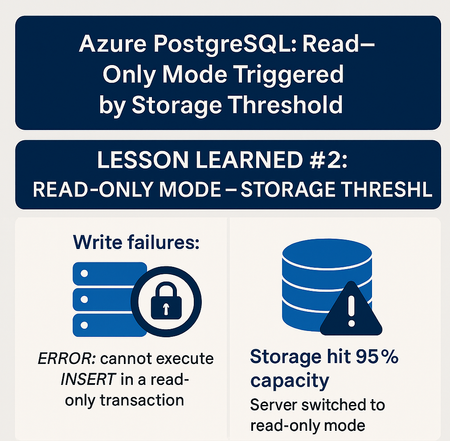
Co-authored with angesalsaa The issue occurred when the server’s storage usage reached approximately 95% of the allocated capacity. Automatic storage scaling was disabled. Symptoms included: Server switching to read-only mode Application errors indicating write failures No prior alerts or warnings received by the customer Example error: ERROR: cannot execute %s in a read-only transaction Root Cause The root cause was the server hitting the configured storage usage threshold (95%), which triggered an automatic transition to read-only mode to prevent data corruption or loss. Storage options - Azure Database for PostgreSQL | Microsoft Learn If your Storage Usage is below 95% but you're still seeing the same error, please refer to this article for more information > Azure PostgreSQL Lesson Learned#1:Fix Cannot Execute in a Read-Only Transaction After HA Failover Contributing factors: Automatic storage scaling was disabled Lack of proactive monitoring on storage usage High data ingestion rate during peak hours Specific conditions: Customer had a custom workload with large batch inserts No alerts configured for storage usage thresholds Mitigation To resolve the issue: Increased the allocated storage manually via Azure Portal No restart is needed after you scale up the storage because it is an online operation but make sure If you grow the disk from any size between 32 GiB and 4 TiB, to any other size in the same range, the operation is performed without causing any server downtime. It's also the case if you grow the disk from any size between 8 TiB and 32 TiB. In all those cases, the operation is performed while the server is online. However, if you increase the size of disk from any value lower or equal to 4096 GiB, to any size higher than 4096 GiB, a server restart is required. In that case, you're required to confirm that you understand the consequences of performing the operation. Scale storage size - Azure Database for PostgreSQL | Microsoft Learn Verified server returned to read-write mode Steps: Navigate to Azure Portal > PostgreSQL Flexible Server > Compute & Storage Increase storage size (e.g., from 100 GB to 150 GB) Post-resolution: Server resumed normal operations Write operations were successful Prevention & Best Practices Enable automatic storage scaling to prevent hitting usage limits > Configure Storage Autogrow - Azure Database for PostgreSQL | Microsoft Learn Set up alerts for storage usage thresholds (e.g., 80%, 90%) Monitor storage metrics regularly using Azure Monitor or custom dashboards Why This Matters Failing to monitor storage and configure scaling can lead to: Application downtime Read-only errors impacting business-critical transactions By following these practices, customers can ensure seamless operations and avoid unexpected read-only transitions. Key Takeaways Symptom: Server switched to read-only mode, causing write failures (ERROR: cannot execute INSERT in a read-only transaction). Root Cause: Storage usage hit 95% threshold, triggering read-only mode to prevent corruption. Contributing Factors: Automatic storage scaling disabled. No alerts for storage thresholds. High ingestion during peak hours with large batch inserts. Mitigation: Increased storage manually via Azure Portal (online operation unless crossing 4 TiB → restart required). Server returned to read-write mode. Prevention & Best Practices: Enable automatic storage scaling. Configure alerts for storage usage (e.g., 80%, 90%). Monitor storage metrics regularly using Azure Monitor or dashboards.964Views0likes0Comments