azure data factory
11 Topics
Engineering an Azure Data Layer for Odoo Analytics Without Changing the ERP
One thing I have learned from working on ERP-driven data projects is that the ERP is rarely the place where you want to solve every analytics problem. We saw this firsthand in a manufacturing engagement where Odoo was being used across finance, inventory, procurement, and manufacturing, but reporting still involved substantial manual extraction and Excel-based consolidation. The interesting engineering question wasn't “How do we replace the ERP?” It was: “How do we build a reliable analytical layer around it without changing the transactional system?” That shaped the architecture. We used Odoo APIs and Azure Data Factory for ingestion, landing the data in Azure Data Lake Storage Gen2. From there, the data was organized into Bronze, Silver, and Gold layers: Bronze: Source-aligned Odoo data was retained with minimal transformation. Silver: Data was cleansed, standardized, and prepared across finance, inventory, procurement, and manufacturing domains. Gold: Analytics-ready data was prepared for downstream reporting and consumption. Azure Databricks with Spark handled transformation and KPI standardization, while Synapse/SQL layers provided structured analytical models for reporting. Power BI datasets consumed the prepared data, with Row-Level Security applied for role-based access. Why did this separation matter for the project? The important architectural boundary was: Odoo → transactional operations Azure data platform → ingestion, storage, transformation, standardization Power BI → analytical consumption That separation meant the reporting layer did not have to repeatedly extract and reshape data directly from the ERP. It also gave us a dedicated place to handle historical data and standardize information across business domains before it reached the reporting layer. What changed? The implementation automated 15+ Odoo-based reports and provided governed Power BI dashboards to 60+ business users. More importantly, teams moved away from repeated ERP extraction and spreadsheet consolidation toward a reusable analytical data layer. For our team, the bigger takeaway was that ERP modernization does not necessarily mean modifying the ERP. For teams building Azure data platforms around ERP systems, how are you drawing the boundary between API ingestion, historical storage, transformation, and analytical modeling?87Views0likes0Comments
[Design Pattern] Handling race conditions and state in serverless data pipelines
Hello community, I recently faced a tricky data engineering challenge involving a lot of Parquet files (about 2 million records) that needed to be ingested, transformed, and split into different entities. The hard part wasn't the volume, but the logic. We needed to generate globally unique, sequential IDs for specific columns while keeping the execution time under two hours. We were restricted to using only Azure Functions, ADF, and Storage. This created a conflict: we needed parallel processing to meet the time limit, but parallel processing usually breaks sequential ID generation due to race conditions on the counters. I documented the three architecture patterns we tested to solve this: Sequential processing with ADF (Safe, but failed the 2-hour time limit). 2. Parallel processing with external locking/e-tags on Table Storage (Too complex and we still hit issues with inserts). 3. A "Fan-Out/Fan-In" pattern using Azure Durable Functions and Durable Entities. We ended up going with Durable Entities. Since they act as stateful actors, they allowed us to handle the ID counter state sequentially in memory while the heavy lifting (transformation) ran in parallel. It solved the race condition issue without killing performance. I wrote a detailed breakdown of the logic and trade-offs here if anyone is interested in the implementation details: https://medium.com/@yahiachames/data-ingestion-pipeline-a-data-engineers-dilemma-and-azure-solutions-7c4b36f11351 I am curious if others have used Durable Entities for this kind of ETL work, or if you usually rely on an external database sequence to handle ID generation in serverless setups? Thanks, Chameseddine480Views0likes1Comment
BYOPI - Design your own custom private AI Search indexer with no code ADF (SQLServer on private VM)
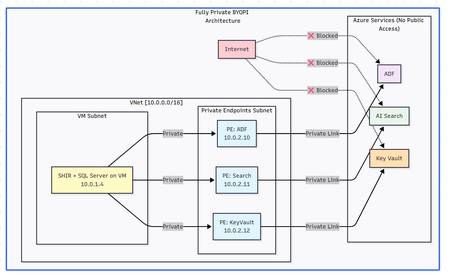
Executive Summary Building a fully private search indexing solution using Azure Data Factory (ADF) to sync SQL Server data from private VM to Azure AI Search is achievable but comes with notable complexities and limitations. This blog shares my journey, discoveries, and honest assessment of the BYOPI (Build Your Own Private Indexer) architecture. Architectural flow: Table of Contents Overall Setup How ADF works in this approach with Azure AI Search Challenges - discovered Pros and Cons: An Honest Assessment Conclusion and Recommendations 1. Overall Setup: Phase 1: Resource Group & Network Setup : create resource group and vNET (virtual network) in any region of your choice Phase 2: Deploy SQL Server VM: Phase 3: Create Azure Services - ADF (Azure Data Factory), Azure AI Search and AKV (Azure Key Vault) service from portal or from your choice of deployment. Phase 4: Create Private Endpoints for all the services in their dedicated subnets: Phase 5: Configure SQL Server on VM : connect to VM via bastion and setup database, tables & SP: Sample metadata used as below: CREATE DATABASE BYOPI_DB; GO USE BYOPI_DB; GO CREATE TABLE Products ( ProductId INT IDENTITY(1,1) PRIMARY KEY, ProductName NVARCHAR(200) NOT NULL, Description NVARCHAR(MAX), Category NVARCHAR(100), Price DECIMAL(10,2), InStock BIT DEFAULT 1, Tags NVARCHAR(500), IsDeleted BIT DEFAULT 0, CreatedDate DATETIME DEFAULT GETDATE(), ModifiedDate DATETIME DEFAULT GETDATE() ); CREATE TABLE WatermarkTable ( TableName NVARCHAR(100) PRIMARY KEY, WatermarkValue DATETIME ); INSERT INTO WatermarkTable VALUES ('Products', '2024-01-01'); CREATE PROCEDURE sp_update_watermark @TableName NVARCHAR(100), @NewWatermark DATETIME AS BEGIN UPDATE WatermarkTable SET WatermarkValue = @NewWatermark WHERE TableName = @TableName; END; INSERT INTO Products (ProductName, Description, Category, Price, Tags) VALUES ('Laptop Pro', 'High-end laptop', 'Electronics', 1299.99, 'laptop,computer'), ('Office Desk', 'Adjustable desk', 'Furniture', 599.99, 'desk,office'), ('Wireless Mouse', 'Bluetooth mouse', 'Electronics', 29.99, 'mouse,wireless'); Phase 6: Install Self-Hosted Integration Runtime Create SHIR in ADF: Go to ADF resource in Azure Portal Click "Open Azure Data Factory Studio" Note: You need to access from a VM in the same VNet or via VPN since ADF is private In ADF Studio, click Manage (toolbox icon) Select Integration runtimes → "+ New" Select "Azure, Self-Hosted" → "Self-Hosted" Name: SHIR-BYOPI or of your choice Click "Create" Copy Key1 (save it) Install SHIR on VM In the VM (via Bastion): Open browser, go to: https://www.microsoft.com/download/details.aspx?id=39717 Download and install Integration Runtime During setup: Launch Configuration Manager Paste the Key1 from Step 14 Click "Register" Wait for "Connected" status Phase 7: Create Search Index through below powershell script and saving it as search_index.ps1 $searchService = "search-byopi" $apiKey = "YOUR-ADMIN-KEY" $headers = @{ 'api-key' = $apiKey 'Content-Type' = 'application/json' } $index = @{ name = "products-index" fields = @( @{name="id"; type="Edm.String"; key=$true} @{name="productName"; type="Edm.String"; searchable=$true} @{name="description"; type="Edm.String"; searchable=$true} @{name="category"; type="Edm.String"; filterable=$true; facetable=$true} @{name="price"; type="Edm.Double"; filterable=$true} @{name="inStock"; type="Edm.Boolean"; filterable=$true} @{name="tags"; type="Collection(Edm.String)"; searchable=$true} ) } | ConvertTo-Json -Depth 10 Invoke-RestMethod ` -Uri "https://$searchService.search.windows.net/indexes/products-index?api-version=2020-06-30" ` -Method PUT ` -Headers $headers ` -Body $index Phase 8: Configure AKV & ADF Components - Link AKV and ADF for secrets Create Key Vault Secrets Navigate to kv-byopi (created AKV resource) in Portal Go to "Access policies" Click "+ Create" Select permissions: Get, List for secrets Select principal: adf-byopi-private Create Go to "Secrets" → "+ Generate/Import": Name: sql-password, Value: <> Name: search-api-key, Value: Your search key Create Linked Services in ADF Access ADF Studio from the VM (since it's private): Key Vault Linked Service: Manage → Linked services → "+ New" Search "Azure Key Vault" Configure: Name: LS_KeyVault Azure Key Vault: kv-byopi Integration runtime: AutoResolveIntegrationRuntime Test connection → Create SQL Server Linked Service: "+ New" → "SQL Server" Configure: Name: LS_SqlServer Connect via: SHIR-BYOPI Server name: localhost Database: BYOPI_DB Authentication: SQL Authentication User: sqladmin Password: Select from Key Vault → LS_KeyVault → sql-password Test → Create Azure Search Linked Service: "+ New" → "Azure Search" Configure: Name: LS_AzureSearch URL: https://search-byopi.search.windows.net Connect via: SHIR-BYOPI - Important - use SHIR API Key: From Key Vault → LS_KeyVault → search-api-key Test → Create Phase 9: Create ADF Datasets and PipelineCreate Datasets SQL Products Dataset: Author → Datasets → "+" → "New dataset" Select "SQL Server" → Continue Select "Table" → Continue Properties: Name: DS_SQL_Products Linked service: LS_SqlServer Table: Select Products click OK Watermark Dataset: Repeat with: Name: DS_SQL_Watermark Table: WatermarkTable Search Dataset: "+" → "Azure Search" Properties: Name: DS_Search_Index Linked service: LS_AzureSearch Index name: products-index Create Pipeline Author → Pipelines → "+" → "Pipeline" Name: PL_BYOPI_Private From Activities → General, drag "Lookup" activity Configure Lookup 1: Name: LookupOldWatermark Settings: Source dataset: DS_SQL_Watermark Query: below sql SELECT WatermarkValue FROM WatermarkTable WHERE TableName='Products' - **First row only**: ✓ Add another Lookup: Name: LookupNewWatermark Query: below sql SELECT MAX(ModifiedDate) as NewWatermark FROM Products Add Copy Data activity: Name: CopyToSearchIndex Source: Dataset: DS_SQL_Products Query: sql SELECT CAST(ProductId AS NVARCHAR(50)) as id, ProductName as productName, Description as description, Category as category, Price as price, InStock as inStock, Tags as tags, CASE WHEN IsDeleted = 1 THEN 'delete' ELSE 'upload' END as [@search.action] FROM Products WHERE ModifiedDate > '@{activity('LookupOldWatermark').output.firstRow.WatermarkValue}' AND ModifiedDate <= '@{activity('LookupNewWatermark').output.firstRow.NewWatermark}' Sink: Dataset: DS_Search_Index Write behavior: Merge Batch size: 1000 Add Stored Procedure activity: Name: UpdateWatermark SQL Account: LS_SqlServer Stored procedure: sp_update_watermark Parameters: TableName: Products NewWatermark: @{activity('LookupNewWatermark').output.firstRow.NewWatermark} Connect activities with success conditions Phase 10: Test and Schedule Test Pipeline Click "Debug" in pipeline Monitor in Output panel Check for green checkmarks Create Trigger In pipeline, click "Add trigger" → "New/Edit" Click "+ New" Configure: Name: TR_Hourly Type: Schedule Recurrence: Every 1 Hour OK → Publish All Monitor Go to Monitor tab View Pipeline runs Check Trigger runs Your pipeline should look like this: Phase 11: Validation & Testing Verify Private Connectivity From the VM, run PowerShell: # Test DNS resolution (should return private IPs) nslookup adf-byopi-private.datafactory.azure.net # Should show private IP like : 10.0.2.x nslookup search-byopi.search.windows.net # Should show private IP like : 10.0.2.x nslookup kv-byopi.vault.azure.net # Should show private IP like : 10.0.2.x # Test Search $headers = @{ 'api-key' = 'YOUR-KEY' } Invoke-RestMethod -Uri "https://search-byopi.search.windows.net/indexes/products-index/docs?`$count=true&api-version=2020-06-30" -Headers $headers Test Data Sync (adding few records) and verify in search index: -- Add test record INSERT INTO Products (ProductName, Description, Category, Price, Tags) VALUES ('Test Product Private', 'Testing private pipeline', 'Test', 199.99, 'test,private'); -- Trigger pipeline manually or wait for schedule -- Then verify in Search index 2. How ADF works in this approach with Azure AI search: Azure AI Search uses a REST API for indexing or called as uploading. When ADF sink uploads data to AI Search, it's actually making HTTP POST requests: for example - POST https://search-byopi.search.windows.net/indexes/products-index/docs/index?api-version=2020-06-30 Content-Type: application/json api-key: YOUR-ADMIN-KEY { "value": [ { "@search.action": "upload", "id": "1", "productName": "Laptop", "price": 999.99 }, { "@search.action": "delete", "id": "2" } ] } Delete action used here is soft delete and not hard delete. pipeline query: SELECT CAST(ProductId AS NVARCHAR(50)) as id, -- Renamed to match index field ProductName as productName, -- Renamed to match index field Description as description, Category as category, Price as price, InStock as inStock, Tags as tags, CASE WHEN IsDeleted = 1 THEN 'delete' ELSE 'upload' END as [@search.action] -- Special field with @ prefix FROM Products WHERE ModifiedDate > '2024-01-01' ``` Returns this resultset: ``` id | productName | description | category | price | inStock | tags | @search.action ----|----------------|------------------|-------------|--------|---------|----------------|--------------- 1 | Laptop Pro | High-end laptop | Electronics | 1299 | 1 | laptop,computer| upload 2 | Office Chair | Ergonomic chair | Furniture | 399 | 1 | chair,office | upload 3 | Deleted Item | Old product | Archive | 0 | 0 | old | delete The @search.action Field - The Magic Control This special field tells Azure AI Search what to do with each document: @search.action What It Does When to Use What Happens If Document... upload Insert OR Update Most common - upsert operation Exists: Updates it<br>Doesn't exist: Creates it merge Update only When you know it exists Exists: Updates specified fields<br>Doesn't exist: ERROR mergeOrUpload Update OR Insert Safe update Exists: Updates fields<br>Doesn't exist: Creates it delete Remove from index To remove documents Exists: Deletes it<br>Doesn't exist: Ignores (no error) ADF automatically converts SQL results to JSON format required by Azure Search: { "value": [ { "@search.action": "upload", "id": "1", "productName": "Laptop Pro", "description": "High-end laptop", "category": "Electronics", "price": 1299.00, "inStock": true, "tags": "laptop,computer" }, { "@search.action": "upload", "id": "2", "productName": "Office Chair", "description": "Ergonomic chair", "category": "Furniture", "price": 399.00, "inStock": true, "tags": "chair,office" }, { "@search.action": "delete", "id": "3" // For delete, only ID is needed } ] } ADF doesn't send all records at once. It batches them based on writeBatchSize and each batch is a separate HTTP POST to Azure Search How ADF will detect new changes and run batches: Watermark will be updated after each successful ADF run to detect new changes as below: Handling different scenarios: Scenario 1: No Changes Between Runs: Run at 10:00 AM: - Old Watermark: 09:45:00 - New Watermark: 10:00:00 - Query: WHERE ModifiedDate > '09:45' AND <= '10:00' - Result: 0 rows - Action: Still update watermark to 10:00 - Why: Prevents reprocessing if changes come later Scenario 2: Bulk Insert Happens: Someone inserts 5000 records at 10:05 AM Run at 10:15 AM: - Old Watermark: 10:00:00 - New Watermark: 10:15:00 - Query: WHERE ModifiedDate > '10:00' AND <= '10:15' - Result: 5000 rows - Action: Process all 5000, update watermark to 10:15 Scenario 3: Pipeline Fails Run at 10:30 AM: - Old Watermark: 10:15:00 (unchanged from last success) - Pipeline fails during Copy activity - Watermark NOT updated (still 10:15:00) Next Run at 10:45 AM: - Old Watermark: 10:15:00 (still the last successful) - New Watermark: 10:45:00 - Query: WHERE ModifiedDate > '10:15' AND <= '10:45' - Result: Gets ALL changes from 10:15 to 10:45 (30 minutes of data) - No data loss! Note: There is still room for improvement by refining this logic to handle more advanced scenarios. However, I have not examined the logic in depth, as the goal here is to review how the overall setup functions, identify its limitations, and compare it with the indexing solutions available in AI Search. 3. Challenges - disovered: When I tried to set out to build a private search indexer for SQL Server data residing on an Azure VM with no public IP, the solution seemed straightforward: use Azure Data Factory to orchestrate the data movement to Azure AI Search. The materials made it sound simple. The reality? It's possible, but the devil is in the details. What We Needed: ✅ SQL Server on private VM (no public IP) ✅ Azure AI Search with private endpoint ✅ No data over public internet ✅ Support for full CRUD operations ✅ Near real-time synchronization ✅ No-code/low-code solution Reality Check: ⚠️ DELETE operations not natively supported in ADF sink ⚠️ Complex networking requirements ⚠️ Higher costs than expected ⚠️ Significant setup complexity ✅ But it IS possible with workarounds Components Required Azure VM: ~$150/month (D4s_v3) Self-Hosted Integration Runtime: Free (runs on VM) Private Endpoints: ~$30/month (approx 3 endpoints) Azure Data Factory: ~$15-60/month (depends on frequency) Azure AI Search: ~$75/month (Basic tier) Total: ~$270-315/month** The DELETE Challenge: Despite Azure AI Search REST API fully supporting delete operations via @search.action, ADF's native Azure Search sink does NOT support delete operations. -- This SQL query with delete action SELECT ProductId as id, CASE WHEN IsDeleted = 1 THEN 'delete' ELSE 'upload' END as [@search.action] FROM Products -- Will NOT delete documents in Azure Search when using Copy activity -- The @search.action = 'delete' is ignored by ADF sink! Nevertheless, there is a workaround using the Web Activity approach or by calling the REST API from the ADF side to perform the delete operation. { "name": "DeleteViaREST", "type": "Web", "typeProperties": { "url": "https://search.windows.net/indexes/index/docs/index", "method": "POST", "body": { "value": [ {"@search.action": "delete", "id": "123"} ] } } } Development Challenges No Direct Portal Access: With ADF private, you need: Jump box in the same VNet VPN connection Bastion for access Testing Complexity: Can't use Postman from local machine Need to test from within VNet Debugging requires multiple tools 4. Pros and Cons: An Honest Assessment: Pros: Security: Complete network isolation Compliance: Meets strict requirements No-Code: Mostly configuration-based Scalability: Can handle large datasets Monitoring: Built-in ADF monitoring Managed Service: Microsoft handles updates Cons: DELETE Complexity: Not natively supported Cost: Higher than expected Setup Complexity: Many moving parts Debugging: Difficult with private endpoints Hidden Gotchas: - SHIR requires Windows VM (Linux in preview) - Private endpoint DNS propagation delays - ADF Studio timeout with private endpoints - SHIR auto-update can break pipelines 5. Conclusion and Recommendations: When to Use BYOPI: ✅ Good Fit: Strict security requirements Needs indexing from an un-supported scenarios for example SQL server residing on private VM Budget > $500/month Team familiar with Azure networking Read-heavy workloads ❌ Poor Fit: Simple search requirements Budget conscious Need real-time updates Heavy DELETE operations Small team without Azure expertise BYOPI works, but it's more complex and expensive than initially expected. The lack of native DELETE support in ADF sink is a significant limitation that requires workarounds. Key Takeaways It works but requires significant effort DELETE (hard) operations need workarounds Costs will be higher than expected Complexity is substantial for a "no-code" solution Alternative solutions might be better for many scenarios Disclaimer: The sample scripts provided in this article are provided AS IS without warranty of any kind. The author is not responsible for any issues, damages, or problems that may arise from using these scripts. Users should thoroughly test any implementation in their environment before deploying to production. Azure services and APIs may change over time, which could affect the functionality of the provided scripts. Always refer to the latest Azure documentation for the most up-to-date information. Thanks for reading this blog! I hope you've found this approach of creating own private indexing solution for Azure AI Search (BYOPI) useful 😀333Views1like0Comments
Watermark column in Metadata driven pipeline in ingest tool
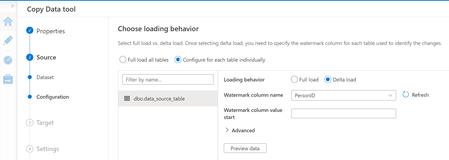
Hey, There are few questions related to metadata driven pipeline of ingest data tool in ADF: 1. Can we choose any other column as watermark column instead of created/last_updated/modified date column? 2. Can we choose primary key as a watermark column, if yes, then what should be the watermark value?997Views0likes0CommentsData encryption
Hi Team, I saw there is an option to encrypt data in transit and rest for Azure Service Bus. Is it possible to used two different certificates /keys ( my certificate, not Azure) to encrypt data at rest and transit? I mean one certificate for encrypting Data at rest and another certificate for encrypting data in transit for following services? Azure Service Bus Azure Logic Apps Azure API Management Azure Data factory885Views0likes0CommentsBuild Mapping Data Flows using Managed Identity (formerly MSI) for Azure SQL DB and Azure Synapse
Hi All, I thought you might like to read my new article: Build Mapping Data Flows using Managed Identity (formerly MSI) for Azure SQL Database and Azure Synapse Analytics (formerly SQL DW) https://www.linkedin.com/pulse/build-mapping-data-flows-using-managed-identity-formerly-angane Mark Kromer Based on your Tech Community blog I have created this article. Happy Learning!1.1KViews0likes0Comments
Manual Backup Cosmos DB
Hi, Tried to export data in CosmosDB but it was not successful. According to https://docs.microsoft.com/en-us/azure/cosmos-db/storage-explorer, by using this tool I can export the data inside the cosmosdb, but no option to export. Tried to do the instructions here https://azure.microsoft.com/en-us/updates/documentdb-data-migration-tool/ and https://docs.microsoft.com/en-us/azure/cosmos-db/import-data#JSON, but error is being encountered. Can you help me how to do this in Data Factory or any steps just to manual backup cosmos DB? Thank you.2.5KViews0likes0CommentsAzure Data Factory - HANA ( Table Browse Issue )
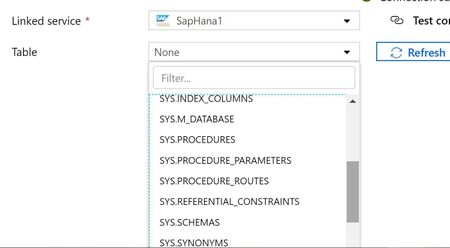
Let me know if it ring any bells for the below issue – Azure & HANA connectivity. I have setup a Integration Runtime (along with HANA client ) in my Desktop in order to form the connection between HANA and Azure ( ADF ). The connection validates all fine. However when I browse the tables from the Azure ADF connection if only gives me handful of tables under “SYS” schema from HANA. Can you guess a reason ?. ( user has no privilege issues )Solved1KViews0likes1CommentHow to use values from Data Source as parameter to other Data Source
I have two linked services: 1. A SQL database 2. A Rest API. I'm retrieving data from SQL to my Staging area incrementally. This is no problem. However, for retrieving information from the Rest API I need values from the records I just moved to the staging area. So let's say I get product data from SQL and the Rest API gives me additional info for these products from an external system. So I need to call the Rest API multiple times with as parameter each of the product ID's I've just imported. What is the most efficient way to this in ADF?. So in the way ADF was intended to be used. Thanks for any tips.693Views0likes0CommentsAzure Data Factory - Complex Java based ETL to Codeless Pipeline
Azure Data factory (ADF) is a fully managed data integration tool that helps to build, manage and orchestrate complex jobs. The brand new UX experience in ADF V2 is so intuitive & effortless in creating ADF’s pipelines, activities and other constructs. Anyone can easily pick up this tool and be fully productive in few days. From a feature set perspective, it has built-in connectors to 65+ data stores, works very well in a hybrid environment and has control flow elements to design even most complex ETL workflows. More information about ADF can be found in the link. I wanted to call out the journey one of the customers had gone through with ADF adoption and how it modernized their ETL workflow and the best part- without writing a single line of code! Their legacy data integration job was coded in Java, spanning more than 1000+ lines and scheduled as batch job in ETL virtual machine. Java code had many modules (like RestAPI calls, storing data to a Database, looping/lookup on, retry mechanism & some basic level of logging. Team wanted to have a faster deployment with minimalistic code changes to their codebase. Even then I was confident ADF can easily find its own way to glory once tried. With almost no prior experience, customer was able to use Copy Data wizard to call RestAPI, transform data & and store to database. This was equivalent to hundreds of lines of code in java. And thereafter, customer was really impressed with the richness ADF provides in user experience and its powerful integration features. In the end, entire Java code was effortlessly translated to a single ADF pipeline with zero coding and triggers on a pre-defined schedule & on new blob creation event. As an added advantage, ETL server hosting Java code were discarded, helping customer to reduce the cost. And special credits to Abhishek Narain – Program Manager for Azure Data Factory, who pitched in every time whenever we had small issues with ADF’s activities (there is no better place than Microsoft when it comes to collaborative effort ).There were some good learnings & tricks that we learned, which might be helpful for other folks such as: 1) Mapping Event Trigger variables to Copy activity: For those who do not know, Event driven architecture (EDA) is a common data integration pattern that involves production, detection, consumption and reaction to events. I had a little difficulty while trying to connect all pieces together for mapping event trigger variables for blob creation. Abhishek had explained what needs to be done and we thought it will be helpful for others also to know these steps. Below is a snippet of ADF pipeline that gets triggered whenever a blob is uploaded to the container which is continuously polled by ADF. At first, let us start with creating a few parameters for the Pipeline itself. For a simple analogy, I would compare these to “global variables” in your programing code, which have global scope, i.e. available to all functions inside it. And functions can be considered to be ADF’s activities. In the above parameters, most important ones are “pipeline_SourceFolderName” and “pipeline_SourceFileName” , which will be populated by ADF’s event triggers ( which is explained below). Now let's go define input data set. In my use-cases, json file uploaded into a container is defined as input dataset. Trigger will be polling above container for new blob creation and subsequently triggers the ADF pipeline. Under your input data set, you need to define 2 more parameters. These are only in the scope of this dataset and are not visible outside the scope. These are not the same as pipeline parameters which were defined above ( I have named it differently to avoid confusion). The above 2 dataset parameters are then used to mention the File path in the connection tab of the dataset as shown below. These expressions can be picked by using a dynamic content pop-up. Now let's go to the Pipeline Canvas and drag a Copy Activity. In this example I have named it “CopyDataToSQLDWH” since blobs (json file) are parsed and ingested into SQL DWH. Configuration of source & sink are covered well in Copy Wizard tutorial, so I am not repeating it.However, the key piece here is to link input dataset’s parameters with pipeline’s parameters under the Source tab as show below Just to recap, what has been mapped: Pipeline parameter for Source Folder Name and File Name (basically the container name & blob name) Defined Input Dataset’s parameter and mapped file path in its connection tab In Pipeline Canvas, in Copy Activity’s Source tab, mapped input dataset’s parameters with pipeline’s parameters At this stage, you have mapped parameters between pipeline & activities. And as the final stage, we will have to map pipeline parameters to trigger variables. Click on the ‘Trigger’ button to create an Event Trigger and specify the blob name & folder path to poll for new blob creation. And in the next window, the final step is to map Pipeline’s parameters to dynamic value generated by trigger which are @triggerBody().folderPath : Returns the container path on which trigger is polling for new files @triggerBody().fileName : Returns the file name of the blob which is picked for processing. And that’s it. After successfully publishing ADF, whenever a .json file (I have given .json as file ending path) is uploaded , ADF is triggered automatically. It copies the JSON files to SQL DWH and if the copy activity is successful, then sends email by posting to a REST API; else sends error message. 2) Power of Parameter & Expression: Expressions can appear anywhere in a JSON string value and always result in another JSON value. If a JSON value is an expression, the body of the expression is extracted by removing the at-sign (@). It gives so much freedom to make ADF pipeline modularized. It helps you to build dynamic content, minimize repetitions, minimal changes in code deployment, conditional execution and the list goes on. I have put some examples below: Creating dynamic message content with runtime details { "message": "@{activity('CopyDataToSQLDWH').output.dataWritten}", "dataFactoryName": "@{concat(pipeline().DataFactory,'- Success')}", "pipelineName": "@{pipeline().Pipeline}", "pipelineRunId": "@{pipeline().RunId}", "receiver": "@pipeline().parameters.receiver" } { "message": "@{activity('CopyDataToSQLDWH').error.message}", "dataFactoryName": "@{concat(pipeline().DataFactory,'- Error')}", "pipelineName": "@{pipeline().Pipeline}", "pipelineRunId": "@{pipeline().RunId}", "receiver": "@pipeline().parameters.receiver" } Parameterizing Key Vault to a Blob LinkedService { "name": "ArchiveBlob", "properties": { "linkedServiceName": { "referenceName": "AzureBlobStorage", "type": "LinkedServiceReference", "parameters":{ "key_vault_for_archive_blob": { "value": "@dataset().key_vault_for_archive_blob", "type" : "Expression" }}},}} Deducing new blob filename by concatenating Pipeline Runtime Id to blob name @concat(pipeline().parameters.pipeline_SourceFileName,'-',pipeline().RunId)6.1KViews0likes0Comments