azure container apps
252 TopicsWhat’s new in Azure Container Apps at Build’24
Azure Container Apps is a fully managed serverless container service that enables you to build and deploy modern, cloud-native applications and microservices at scale. It offers a simplified developer experience while providing the flexibility and portability of containers. Azure Container Apps supports a variety of languages and frameworks, making it a versatile platform for developers. The features we're announcing at Build'24 for intelligent apps, Java and .NET Aspire will further deepen this commitment.62KViews2likes0Comments
Downloading Files from Azure Container App to your Local Machine via Azure Blob Storage
Azure Container Apps is a powerful tool for running containerized applications in the cloud. However, if you need to transfer files (custom log files, network captures, etc.) from your container app to another destination such as your local machine or Azure Blob Storage, you might find that the process is not as straightforward as you'd like. In this post, we'll walk you through the steps to transfer files from your Azure Container App to Azure Blob Storage using the `curl` command. Once the file is present on your Blob Storage, you can easily download it to your local machine from the Azure Portal itself in case you need to analyze the logs or network traces with a local tool. Step 1: Accessing the Azure Container App Console To access the Azure Container App Console, navigate to your container app in the Azure Portal. Once you've selected your container app, click on the "Console" option under the "Monitoring" blade. This will open up a terminal window in your browser that you can use to connect to your container. Step 2: Installing `curl` Before you can transfer files using curl, you'll need to install it within your container. To install `curl`, simply enter the following command in the terminal window: apt-get update && apt-get install -y curl Step 3: Creating the `curl` Command To transfer a file from your Azure Container App to Azure Blob Storage, you'll need to create a `curl` command that specifies the location of the file you want to transfer and the destination container and blob in Azure Blob Storage. The curl syntax to upload a file to a Container within an Azure Blob Storage would look like this curl -X PUT -T [file_path] -H "x-ms-blob-type: BlockBlob" "https://[storage_account_name].blob.core.windows.net/[container_name]/[blob_name]?[sas_token]" Make sure to replace the placeholders with the appropriate values: [file_path] is the local file path of the file you want to upload. [storage_account_name] is the name of your Azure Storage account. [container_name] is the name of the container you want to upload the file to. [blob_name] is the name of the blob you want to create or overwrite. [sas_token] is a Shared Access Signature (SAS) token that provides permission to upload the file to the container. You can generate a SAS token with the appropriate permissions using the Azure portal or Azure CLI. Here's an example command to upload a file named "example.txt" to a container named "mycontainer" into a storage account named "mystorageaccount" with a SAS token: curl -X PUT -T example.txt -H "x-ms-blob-type: BlockBlob" "https://mystorageaccount.blob.core.windows.net/mycontainer/example.txt?[sas_token]" Step 4: Executing the curl Command Once you've created your `curl` command, you can execute it in the Azure Container App Console by pasting it into the terminal window and hitting enter. This will initiate the file transfer process and upload the specified file to Azure Blob Storage. Step 5: Downloading the file from Azure Storage to your Local Machine Once you've confirmed the file is in your Azure Blob Storage, you can simply browse to the Container within the Storage Account and download the file. Note:- This post assumes you are not mounting a file share to your Container App, in case you are, you can simply 'mv' or 'cp' the file from whichever directory it is into the directory where you mounted the file share volume.30KViews1like1Comment
Use Nginx as a reverse proxy in Azure Container App
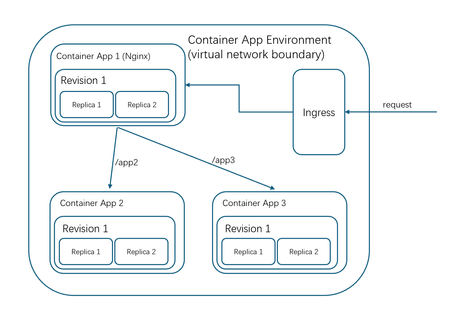
A recent requirement from a customer was to host multiple container apps on Azure Container Apps within the same environment to optimize resource usage. To limit the traffic within the container app environment, an Nginx container was utilized as a reverse proxy server and public endpoint to direct all inbound internet traffic to the appropriate container app based on the URL. The traffic flow for this architecture is as follows:22KViews2likes8CommentsDelete Passwords: Passwordless Connections for Java Apps to Azure Services
Using username/password credentials to access one application from another presents a huge security risk for many reasons. Today, we are announcing the preview of passwordless connections for Java applications to Azure database and eventing services, letting you finally shift away from using passwords.20KViews1like0CommentsGo Cloud Native with Azure Container Apps
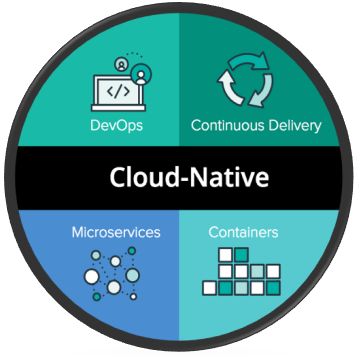
In this article, we discuss how Azure Container Apps is purpose-built to support cloud native applications. This post is part of the Zero To Hero series for #ServerlessSeptember, a month-long initiative to learn, use, and celebrate, all things Serverless On Azure. Check out the main site at https://aka.ms/serverless-september to read other posts, participate in a Cloud Skills Challenge, explore a Serverless Hack and participate in live Q&A with product teams on #AskTheExper18KViews8likes3CommentsIntroducing Azure Container Apps Express!
Three years ago, a 15-second cold start was industry-leading. Today, developers and AI agents expect sub-second. The speed bar has moved, and the tooling needs to move with it. After running Azure Container Apps for years, we've learned something important: for most developers, the ACA environment is an unnecessary construct. It adds provisioning time, configuration surface, and cognitive overhead — when all you really want is to run your app with scaling, networking, and operations handled for you. At the same time, a new class of workloads has emerged. Agent-first platforms — systems where AI agents deploy endpoints on demand, spin up tool-use APIs, and tear them down when work is done — demand an even more radical focus on speed and simplicity. Every second of provisioning delay is wasted agent productivity. Today, we're launching Azure Container Apps Express in Public Preview — the fastest, simplest way to go from a container image to an internet-reachable app on Azure, ready for many production-style workloads. What Is ACA Express? ACA Express removes the infrastructure decisions. There's no environment to provision, no networking to configure, no scaling rules to write. You bring a container image, Express handles everything else. Behind the scenes, Express runs your container on pre-provisioned capacity with sensible defaults baked in — so you skip environment setup without giving up ACA's serverless model. There's more coming in this space soon — keep watching. Here's what that means in practice: Instant provisioning — your app is running in seconds, not minutes Sub-second cold starts — fast enough for interactive UIs and on-demand agent endpoints Scale to and from zero — automatic, no configuration required (full scaling controls coming soon) Per-second billing — pay only for what you use Production-ready defaults — ingress, secrets, environment variables, and observability are built in Express is purpose-built for two audiences: developers who want to ship fast (SaaS apps, APIs, web dashboards, prototypes) and agents that deploy on demand (MCP servers, tool-use endpoints, multi-step workflow APIs, human-in-the-loop UIs). If you've ever waited for an ACA environment to provision, only to realize you didn't need half of the configuration options it asked you for — Express is your answer. What You Can Do Today Note: West Central US is currently the only available region. We will expand to new regions through the coming days. Express is in Public Preview starting today. It's a deliberate early ship — there's a meaningful feature gap compared to the existing Azure Container Apps offering, and we're filling it fast. New capabilities are landing on a rapid cadence throughout the preview, and by Microsoft Build in June, Express should be close to feature-complete. For the current list of supported features, known gaps, and what's on the way, see the Express documentation. We'd rather put valuable technology in your hands early and iterate with you than wait behind closed doors for perfection. Who Is Express For? Scenario Why Express SaaS apps and APIs Deploy and scale without infrastructure planning AI app frontends Chat UIs and copilot frontends that scale with usage spikes MCP servers Expose API endpoints for AI agents in seconds Agent workflows Spin up endpoints on demand, tear down when done Prototypes and startups Go from idea to production in minutes Web dashboards Internal tools with instant availability Get Started Express is available now in Public Preview. Try it: Azure Container Apps Express overview — concepts, capabilities, and the current feature support matrix Deploy your first app with the Azure CLI — step-by-step quickstart New Azure Container Apps Portal — create and manage Express apps alongside your existing Container Apps resources Have questions? Check the Azure Container Apps Express FAQ for answers to common questions about pricing, limits, regions, and the road to GA. We're building Express in the open and we want to hear from you. Tell us what features matter most, what works, and what doesn't — reach out on the Azure Container Apps GitHub or in the comments below.17KViews7likes6Comments