azure ai search
164 Topics
Building Permission-Aware Hosted Agents for SharePoint in Foundry Agent Service
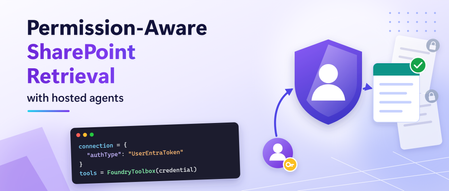
Organizations increasingly publish agents to Microsoft Teams and Microsoft 365 Copilot that answer questions using internal knowledge sources. SharePoint is a very common source for this information; where many times access is different for every user. A finance employee, HR employee, and project manager may all ask the same question but have access to different documents. When an agent is hosted in Foundry Agent Service, the agent itself runs under its own identity. This creates an important challenge: how can retrieval respect the permissions of the person asking the question rather than the permissions of the agent? This post shows how to do that with built-in capabilities: a Foundry IQ knowledge base with a remote SharePoint knowledge source, connected to the agent through the Foundry toolbox. Foundry IQ is the knowledge layer for agents, built on Azure AI Search. A knowledge base is its top-level resource: it orchestrates retrieval across one or more knowledge sources, which are connections to indexed or remote content. In this solution the only knowledge source is SharePoint, queried live as the signed-in user through the On-Behalf-Of (OBO) pattern, and the agent reaches the knowledge base through a toolbox. Why agent identity is not enough Hosted agents run as their own agent identity. When Foundry Agent Service runs your Microsoft Agent Framework agent as a hosted agent, it authenticates as the agent, not as the person chatting with it. SharePoint permissions belong to users. Two people asking the same question may be allowed to see different documents. So grounded answers (RAG) need per-user retrieval. If retrieval runs as the agent, SharePoint can't check the asking user's access. Results are either empty or not filtered for that user. Therefore the user's token has to reach the retrieval step. Changing the model or the prompt can't fix this. The architecture has to carry the user's identity all the way to SharePoint. This is the key architectural principle behind this solution. The hosted agent keeps using its own identity for model inference, while retrieval runs with the signed-in user's identity. What you'll build A hosted agent, published to Microsoft Teams, that answers from one or more SharePoint sites. Answers limited to what each user can open in SharePoint, using On-Behalf-Of (identity passthrough) retrieval. Clickable citations back to the source documents. Built on out-of-the-box Foundry IQ and Foundry toolbox capabilities: no custom server to host, and no client secrets in the retrieval path. The complete sample is on GitHub: SharePoint knowledge base sample The sample repository contains the setup scripts and agent code used in this walkthrough. Before we run them, let’s trace how the user’s identity flows through the architecture and why it matters for permission trimming. Note: Remote SharePoint knowledge sources in Foundry IQ were in preview at the time this article was written. How it works The agent runs as itself. Retrieval runs as the user. Three pieces carry the user's identity end to end: FoundryToolbox in the agent sends the per-request call ID with each tool call, so Foundry knows which user the call belongs to. A UserEntraToken connection passes that user's Microsoft Entra ID token to the Foundry IQ knowledge base on Azure AI Search. This is identity passthrough (On-Behalf-Of): every request downstream runs as the signed-in user. A remote SharePoint knowledge source queries SharePoint live through the Microsoft 365 Copilot Retrieval API as that user, scoped to the site paths you choose. Nothing is copied into an index. Why not Work IQ? Work IQ is a good choice when an agent should reason over a user’s broader Microsoft 365 work context. This pattern is intended for scenarios where the agent should answer from specific SharePoint sites, treating those sites as a defined knowledge boundary. Use Work IQ when broad Microsoft 365 context is appropriate. Use this pattern when retrieval should be limited to selected SharePoint content. The right choice depends on the scope and behavior your scenario requires. Before building the sample, let’s check the services and permissions the setup requires. Before you start You need a Foundry project with a model deployment, an Azure AI Search service and a SharePoint site containing the content you want the agent to use.The Search service must be in a region that supports agentic retrieval, in the same Microsoft Entra tenant as Microsoft 365. Make sure the following permissions are in place: Role Required permissions Setup user Search Service Contributor on the Azure AI Search service, and rights to create connections and toolboxes in the Foundry project End users Search Index Data Reader on the Search service, Foundry Agent Consumer on the agent, a Microsoft 365 Copilot licence, and access to the documents in SharePoint With the concepts established, let's build the end-to-end solution. Build it in four steps Clone the sample repository before running the setup scripts. The commands below assume you are running them from the repository root: git clone https://github.com/Heenanl/hosted-agent-sharepoint-knowledge-base.git Set-Location hosted-agent-sharepoint-knowledge-base python -m pip install -r setup/requirements.txt Copy-Item setup/.env.example setup/.env Fill in setup/.env with your Foundry project, Azure AI Search, and SharePoint knowledge source values. The repository README contains the complete configuration and deployment instructions. The steps below highlight the key settings and decisions. 1. Create the knowledge base Run setup/create_knowledge_base.py . It creates a remote SharePoint knowledge source and a knowledge base. The setting that limits retrieval to your site is: "filterExpression": "Path:\"https://<TENANT>.sharepoint.com/sites/<SITE>/\"" 2. Connect it to Foundry with the user's identity Run setup/create_connection.py . It registers the knowledge base's MCP endpoint as a Foundry connection. The setting that matters most in the whole architecture is: "authType": "UserEntraToken" With UserEntraToken , Foundry forwards the signed-in user's token instead of a shared identity, so SharePoint can apply that user's permissions. Then run setup/create_toolbox.py . It wraps the connection in a toolbox that exposes only knowledge_base_retrieve . 3. Build the agent The agent itself is small. The key line is tools=FoundryToolbox(credential) : agent = Agent( client=FoundryChatClient(project_endpoint=endpoint, model=model, credential=credential), instructions=INSTRUCTIONS, tools=FoundryToolbox(credential), ) Two instructions in the agent's prompt made a visible difference in Teams: Cite every source as a markdown link, using the Title and uri fields the tool returns. If the tool returns nothing relevant, say that the available sources do not contain the answer. Do not guess. The first gives users clickable citations. The second stops the model from filling gaps when a user can't see a document. 4. Deploy and publish to Teams Follow the sample README to initialize the agent with azd ai agent init , set the required environment values, and deploy it with azd up . After deployment, publish the agent to Microsoft Teams and Microsoft 365 Copilot. The repository includes a publishing script, including support for Foundry projects on a private network. Users do not need a separate, tool-specific consent flow. Prove the permission trimming A good answer doesn't prove the right permissions were used. Test with two users and one document that only one of them can open: User SharePoint access Result in Teams A Can open the document Answer from the document, with a citation link B Cannot open the document "The available sources do not contain the answer." In our testing, both users' requests reached the knowledge base, but only user A got content from the document, because the Microsoft 365 Copilot Retrieval API ran as each user. Run the test in separate conversations, and repeat it after any permission change. Common pitfalls Using a managed identity for the connection The retrieval runs as the agent's managed identity, so SharePoint has no user to check permissions against. In our testing, a ProjectManagedIdentity connection failed with x-ms-query-source-authorization is invalid . Use UserEntraToken . Forgetting Search Index Data Reader Because each user's own token reaches Azure AI Search, every user needs this role, not just you. Otherwise the user can reach the agent, but retrieval fails for them. Assign the role to a security group once, replacing SEARCH_SERVICE , RESOURCE_GROUP and $GROUP_ID with your own values: $SEARCH_ID = az search service show -n SEARCH_SERVICE -g RESOURCE_GROUP --query id -o tsv az role assignment create --assignee $GROUP_ID --role 'Search Index Data Reader' --scope $SEARCH_ID Using a custom MCP client instead of FoundryToolbox A hand-built MCP client that attaches only the agent's credential drops the per-request call ID, which links a tool call to its user. In our testing with another OAuth tool, every user ended up running as whoever had consented first. FoundryToolbox fixed it. Building a custom MCP proxy A custom On-Behalf-Of (OBO) proxy can work, but you then own its hosting, secrets, token checks and patching. The knowledge base gives the same per-user retrieval with built-in components. Once the setup and permission checks are complete, use the sample repository to try the full flow in your own environment. The links below provide more detail on the Foundry IQ and toolbox building blocks. Get started Try it: clone the sample and follow the README end to end. Learn the building blocks: Create a remote SharePoint knowledge source Connect a Foundry IQ knowledge base to Foundry Agent Service Toolbox authentication What is a Foundry toolbox? Use a toolbox with a hosted agent Validate before rollout: use the two-user isolation checklist. Share your scenario: open an issue on the repo. Acknowledgements Thanks to Mahya Gheini and Linda Li from the Microsoft Foundry product team for their guidance on toolboxes and knowledge bases.454Views1like2CommentsWhen the Answer Isn’t in the Document: Metadata-Aware Agentic RAG with Foundry IQ
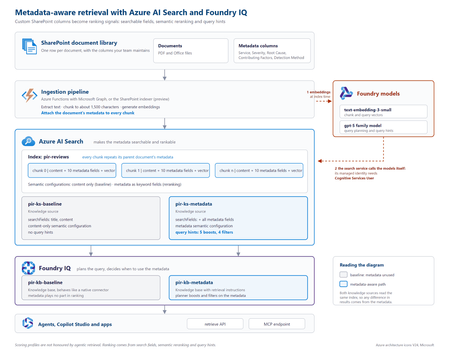
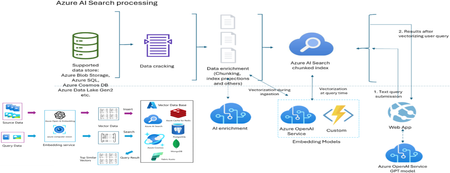
The problem SharePoint libraries often contain years of carefully curated metadata, including root cause, severity, business unit, document type, owner and classification. If that metadata never reaches the retrieval pipeline, however, a RAG system cannot use it. This creates a common blind spot: the information that explains what a document is about may exist in its metadata rather than its text. Consider an incident review containing this statement: “Investigation found that a DNS record was repointed during a migration while the old target was still serving writes.” The associated Root Cause Category is Configuration change, but those words do not appear in the document. Another review might mention that a configuration change was suspected and ruled out. Text-only retrieval can therefore favour the wrong document. In the sample dataset used for this project, none of the 19 reviews classified as configuration-change incidents contained the word “configuration”, while six reviews with other root causes did. Metadata does not improve every search. It helps when the information that determines what a document is lives outside the document text. Why tuning alone cannot fix it With a native SharePoint knowledge source, document text is extracted, chunked and embedded, while standard properties are retained. Custom SharePoint columns are not part of that ingestion path. Fields such as Root Cause Category, Contributing Factors, Detection Method and Severity therefore never become structured fields available to retrieval. If the metadata is absent from the index, search tuning cannot make it count. Flattening all metadata into a single text string is also problematic: Notification Service | Sev2 | Configuration change | Missing runbook This preserves the words but loses their meaning. A root cause, severity and contributing factor represent different concepts and should remain separate fields. Bring a custom Azure AI Search index The approach is to create and control a custom Azure AI Search index, then expose it to Foundry IQ as a searchIndex knowledge source. This combines metadata control with agentic query planning and a governed retrieval surface. Approach Metadata control Agentic planning Native SharePoint knowledge source No Yes Custom index queried directly Yes No Custom index as a knowledge source Yes Yes Architecture The key design principle is simple: every chunk carries its parent document's metadata. Figure 1. Metadata-aware retrieval architecture with Azure AI Search and Foundry IQ. The ingestion pipeline extracts a document, creates chunks, attaches document-level metadata to every chunk, generates embeddings and writes the records to Azure AI Search. Foundry IQ then uses the index as a knowledge source. Azure AI Search holds the metadata. Foundry IQ decides when to use it. Figure 2. Detailed implementation view, including the baseline and metadata-aware retrieval paths. At query time, the search service calls the configured models for vectorisation and query planning. Where key authentication is disabled, the search service's managed identity needs the required access. In the tested implementation, the Cognitive Services User role resolved HTTP 401 responses from retrieve requests. Put metadata on every chunk A chunk can only be retrieved and ranked using information available on that chunk. Each metadata property should therefore remain in its own field: { "id": "doc1035-000", "parentId": "doc1035", "title": "Notification Service: failed sign-ins", "content": "<extracted review text>", "rootCauseCategory": "Configuration change", "contributingFactors": "Missing runbook; Change outside window", "detectionMethod": "Customer report", "severity": "Sev2" } A separate metadata index does not solve the same problem because a match against metadata in one index cannot raise the ranking of a content chunk in another. What influences retrieval Four areas matter in this design: Search fields: searchFields determine which fields generated subqueries search. Semantic configuration: prioritised fields give the semantic reranker access to important metadata. Query hints: hints help the planner connect natural-language requests to known metadata values. Filters: a baseFilter or request-level filterAddOn can enforce constraints. Boost hints influence ranking without excluding documents. Filter hints can narrow the result set when the planner determines that a filter is appropriate. "queryHints": { "boosts": [{ "kind": "fieldValue", "field": "rootCauseCategory", "fieldValues": ["Configuration change", "Capacity", "Software defect", "Dependency failure", "Certificate expiry"], "boost": 3.0, "boostInstructions": "Boost when the user describes what caused an incident." }] } Hints are best effort. Hard requirements should use a base filter or document-level access control rather than relying on the planner to select a hint. The tested configuration used the 2026-08-01-preview API. Current documentation should be checked for supported models, limits and behaviour before implementation. Measuring the impact Two knowledge bases were created over the same Azure AI Search index. The baseline searched title and content. The metadata-aware configuration used the same content plus structured metadata, semantic configuration and query hints. Ten questions were run through both configurations. Correctness was determined directly from the metadata attached to returned reviews, rather than by asking an LLM whether a result appeared relevant. For the question “What can be learned from outages caused by configuration changes?”, the planner generated: rootCauseCategory eq 'Configuration change' Matching reports in top 5 Score Baseline 0 Metadata-aware 3 Best possible 5 Across ten questions and four runs using gpt-5.4-mini for query planning, the baseline returned 26 matching reviews in the top five. The metadata-aware configuration returned 39 to 41, against a best possible score of 50. The gains appeared where metadata carried the missing meaning: Configuration changes: 0 → 3 Configuration changes reported by customers: 0 → 3 Capacity in production: 1 → 5 Alert fatigue: 3 → 5 Queries whose important terms already appeared in the document text scored 5/5 in both configurations. The result is therefore more specific than “metadata improves search”: metadata closes a retrieval gap when document text does not fully describe what the document represents. A failure mode worth handling Because query planning uses an LLM, the planner can occasionally generate a filter that the search index rejects. Two invalid examples observed during testing were: severity eq Sev1 changeRelated eq true The first omitted quotes around a string. The second treated an Edm.String field containing Yes and No as a Boolean. The latter caused the retrieve request to fail with HTTP 502. The fix was to make the schema and allowed values explicit: This is a text field, not a Boolean. The only valid values are 'Yes' and 'No'. Never compare the field with true or false. Application code should also handle retrieval failures rather than assuming every generated filter will be valid. Production considerations A custom index provides control, but the solution now owns ingestion. Options include the SharePoint indexer with custom columns, an Azure Function using Microsoft Graph, or an existing pipeline built with Logic Apps, Azure Data Factory or Microsoft Fabric. A custom Azure AI Search index does not automatically inherit the SharePoint permissions model. Where users have different document permissions, ACLs must be carried into ingestion and retrieval. Query hints should also be regenerated when taxonomy values change. Key takeaways Confirm that the required metadata reaches the index. Keep metadata structured rather than flattening it into one text field. Attach parent-document metadata to every chunk. Use search fields, semantic configuration, query hints and filters deliberately. Describe field types and valid values clearly in filter instructions. Evaluate against a baseline using objective correctness rules. Metadata-aware retrieval is not about making every search better. It gives the retrieval system access to context that does not exist in the document text. Try the proof of concept The complete proof of concept, synthetic dataset, index scripts, knowledge-base configurations and A/B evaluation harness are available in the GitHub - shikha-msft/foundryiq-metadata-agentic-rag. References Create a search index knowledge source Create a knowledge base Query a knowledge base via API or MCP What is Foundry IQ?338Views0likes0Comments
Your Agents Need More Than a Place to Run
In architecture reviews with enterprise teams moving their first agentic applications toward production, I often hear the same plan: the team has containerized their agent and intends to run it on the managed Kubernetes cluster the organization already trusts. The reasoning is sensible, since the platform team knows the tooling and security has approved the network model, and for the first use case or two it is often the right call. Having watched this unfold in my years leading AgenticAI customer engineers and forward deployed engineers, and now helping customers reach production on Azure, I want to describe what happens next, before leaders commit rather than after. One thing to note is Azure supports multiple ways to build and operate agents. Foundry Agent Service provides an integrated managed runtime around your agent code. Azure Kubernetes Service supports teams that need Kubernetes-level control or want to extend an established platform, while Azure Container Apps provides managed container hosting. These services can work together. The decision is which capabilities and responsibilities best fit the workload. Where the cluster is the right answer A stateless retrieval application, a document extraction pipeline, or a classification job is a web service that happens to call a model, and a container platform runs web services well. A large retail customer of mine ran an invoice extraction agent on containers for over a year with almost no issues, and I never suggested they move it. The cluster remains the right home for several other situations as well. LLM invocations embedded inside existing microservices, event driven, or batch pipelines fit container platforms naturally. Genuine constraints such as air-gapped or sovereign environment, regions where a managed service is not yet offered are a good reason to run your own stack, and strong engineering team that already operates at that level can be a real asset. Even when the agents themselves move to a managed runtime, the tool servers, business APIs, and data services those agents call, often stay on your cluster, so they are complementary far more often than they are competitors. The problem is that these early wins can make agents seem like just another workload. Where the wheels come off The first failure is the state. A research agent that plans, searches, and synthesizes for ninety minutes is a long-running stateful process, while a Kubernetes pod is a disposable container the scheduler may restart at any time. A financial services team I worked with lost costly research run to a routine node upgrade, and responded as capable engineers do by building checkpointing, a durable store, and a resume mechanism. It worked, but they now owned a piece of infrastructure they had to keep correct as their agent's framework changed beneath it. A managed agent runtime absorbs this. Hosted agents in Foundry Agent Service, as one example, give every session a VM-isolated sandbox with a persistent file system, a durable state store that survives crashes and restarts and can hold checkpoints for frameworks such as LangGraph or Microsoft Agent Framework, and a resilient execution mode that recovers long-running work after a process interruption. The second is the human-in-the-loop. A commercial insurance customer’s claims agent needed sign-off from an adjuster and sometimes a second reviewer, with days between steps. Stopping an agent cleanly at the moment it needs a decision, holding its full session for four days without paying to keep it running, and resuming it correctly when the approval arrives is not something a container orchestrator gives out the box. The team built agent session suspend and resume, a queue, a durable state store, notifications, and an approval interface, and ended up with a small workflow engine nobody had planned to own. In hosted agents, an idle session is deprovisioned with its state persisted and restored onto fresh compute when the same session ID returns, so an agent waiting on an approval cost nothing while it waits, and sessions are retained for up to thirty days of inactivity. The approval experience remains yours to design, which is where your engineers' time should go. The third is multi-turn conversation, which quietly pushes teams into building their own context management system. The first version appends each turn to history, and within few turns the history outgrows the context window while cost and latency climb. So, the team adds truncation, then summarization, then retrieval of earlier turns, then per-user and per-tenant scoping, then expiry and deletion rules for privacy. An industrial customer's safety compliance assistant, with conversations stretching across days, followed exactly this path and ended up with a bespoke thread store and summarization pipeline nobody had budgeted for. Its first serious incident came when a summary silently dropped a compliance-relevant instruction. With the Responses protocol in hosted agents in Foundry, conversation history is a durable, platform-managed record keyed by a conversation ID and reachable from any channel, so the thread store is no longer yours to build, although deciding what to summarize or retrieve remains a design choice for your agent. The fourth is identity. On a cluster, the path of least resistance is a shared service account, and in one review a security architect asked which actions had been taken on behalf of which user, only to learn that the logs could not say. Hosted agents create a dedicated Microsoft Entra agent identity for each agent at deploy time, use on-behalf-of flows to act with the user's delegated permissions in interactive scenarios and the agent's own identity in autonomous ones, and keep the agent identifiable for audit in both cases. The fifth is per-user session isolation, which is the difference between an agent that serves many people and an agent that mixes them up. Agents read files, run code, and hold working data, and on a shared pod the default is that many users share a process, a file system, and often a cache. Giving every user session its own sandboxed environment and storage, so that one person's documents and intermediate results can never surface in another's, means engineering hard isolation boundaries and proving them to your security team. Hosted agents make a VM-isolated sandbox per session the default, and their durable state store can partition items per end user, so one store is safe to share across the users of a multitenant agent. And lastly, Evaluation and optimization are where the gap widens. The largest difference between teams that scale and those that stall is evaluation. Because agents are probabilistic and multi-step, staging tests often miss failures such as a wrong tool choice or a policy violation deep in a task. One customer’s agent passed every offline check but degraded unnoticed for weeks after a model update because evaluation stopped at release. Mature teams continuously evaluate production traces, combine automated judges with sampled human review, and red-team regularly.Once quality is measurable, teams can deliberately balance prompts, models, tools, latency, and cost. One team cut per-task cost by routing simple steps to smaller models after evaluation confirmed quality held. Self-built stacks require teams to assemble and maintain tracing, datasets, judges, and release gates. Hosted agents instead combines default OpenTelemetry traces with continuous evaluation, adversarial testing, and datasets generated from agent instructions. Staged closed-loop optimization uses those traces to improve instructions, tool descriptions, and model selection without extra plumbing. The real cost is the velocity gap Leaders usually expect me to quantify the initial build, and that is the smaller number. A team of four building the first agent often becomes ten or twelve within a year, and a growing share of them are maintaining a runtime for agents rather than building agents that serve the business. The enterprise has quietly created an internal agent infrastructure company in a field where the patterns for memory, tools, evaluation, and safety are rewritten every few months, while hyperscalers put hundreds of engineers on exactly this problem and ship at a cadence no single platform group can match. Foundry Agent Service, for instance, bundle content safety guardrails into the runtime and route outbound traffic through a customer virtual network, capabilities that platform teams otherwise assemble one integration at a time. This plumbing does not differentiate your organization, so the question is whether your scarcest engineers should spend years on it or on the workflows, data, and judgment only your company has. This is also why the technology companies held up as examples are a poor template. Many built their own runtimes because managed options did not yet exist and had large platform organizations to carry the load. Even they tend to invest in a custom runtime for the first handful of use cases and then migrate as managed services mature, because the maintenance burden compounds while the strategic value of owning the plumbing does not. What I would do as the leader I am not arguing against Kubernetes or for moving everything tomorrow. Comparable managed runtimes exist across the hyperscalers, and I use hosted agents as the running example only because it is the one I know best from the inside. Managed agent services are still maturing, some workloads have real data residency or customization needs, and abstraction always constrains something. What I am arguing for is a deliberate choice for each use case, guided by three questions: whether the agent must outlive a single request by running long, waiting on humans, or remembering across sessions whether it must act with its own identity, auditable delegation, and policy enforcement whether your team would be building anything a managed service already provides, and who will still maintain it in two years. Key takeaways Match the runtime to the workload. Containers on your existing cluster suit stateless, short-lived agents, while long-running, human-in-the-loop, and memory-dependent agents need capabilities your platform team was never hired to build. Count the hidden team. The real cost of self-hosting is the growing group of engineers maintaining state, identity, memory, guardrails, and tracing instead of solving business problems. Make evaluation continuous and connected to production traces. Pre-release testing alone will miss the drift and trajectory failures that hurt you, and optimization of quality, cost, and latency depends on that evaluation data. Follow the pattern of the leaders, not their early architecture. Companies that built custom runtimes did so before managed options matured, and most of them move toward managed services as those options improve. A practical place to begin is your roadmap for the next twelve months. Sort each use case into stateless and short-lived or long-running and human-dependent, and for every agent in the second group put a price on the engineers who would maintain the runtime rather than the business logic. I would like to hear how you have drawn this line, and where a managed service was not yet ready for something you needed.798Views2likes0CommentsGrounding Copilot Studio Agents with Azure AI Search and Foundry IQ
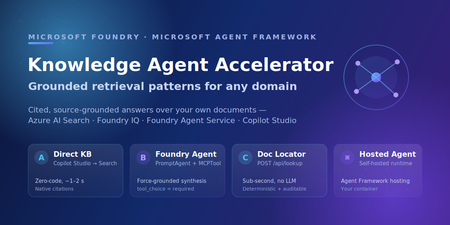
An employee opens the HR agent and asks, "How much PTO do I accrue each month?" A few minutes later, someone else asks, "Where is the official code of ethics policy?" Those sound like the same problem. They are not. The first person needs a grounded answer they can understand. The second person needs a link to the right document quickly, without interpretation. If you design for one experience, the other one feels broken. That is usually where knowledge-agent projects start to get messy. “Grounding” can sound like one switch you turn on, but in practice it is a spectrum: from zero-code classic search, to agentic retrieval over a knowledge base, to a forced-grounding agent that synthesizes answers when synthesis is required. The easier way to think about it is this: who is doing the retrieval work, and what does the user need back? This post walks through five working retrieval patterns for an “Ask HR” agent built on Copilot Studio, Azure AI Search, and Foundry IQ. Each one is running code in the companion sample repo: foundry-copilot-hr-policy-knowledge. Each has a clear “use this when,” and the five patterns share the same reusable knowledge base so you can layer them on without re-indexing. By the end, you should have a decision tree you can reuse for your own knowledge source, whether that is HR policy, product docs, or support runbooks. Scope: companion sample for learning and experimentation, not production-ready deployment. Review the Azure Well-Architected Framework for reliability, security, cost, and operational hardening before you ship. The scenario: one index, many front doors Here is the setup. The sample answers employee questions from a small corpus of internal HR policy documents: PTO accrual, hiring rules, code of ethics, blood-borne pathogen procedures, and dozens more. Underneath every pattern is one foundation: an Azure AI Search index named hr-policy-index, populated by an indexer and skillset that chunk and vectorize the documents. Patterns A, C, and the Hosted Agent query that index directly. Patterns A2 and B add a Foundry IQ knowledge base named hr-knowledge-base on top of the same index for agentic retrieval. That layering is the part to pay attention to. The retrieval assets stay separate from the orchestration layer, so you can start with the simplest pattern, prove value quickly, and move to a more capable one later without re-indexing. Two questions that decide everything Before we get into the patterns, it helps to define the two retrieval terms I use throughout the rest of the post: Classic search, index-first retrieval: one hybrid (keyword + vector) query against an Azure AI Search index, ranked and returned. Fast and predictable. Agentic retrieval, the knowledge base plans multiple sub-queries from the user's question, runs them in parallel, re-ranks, and merges the results before the agent composes an answer. Higher quality on complex, multi-part questions. If you want the fuller picture of how these two approaches map to retrieval-augmented generation, the Azure AI Search team's RAG and generative AI overview walks through the trade-offs and uses a similar HR/PTO example. Once those terms are clear, the decision tree comes down to three practical questions: Q1: Do users need an answer or are they really trying to find the right document? If they just need the document, stay on the locator path. If they need the policy explained or summarized, move into the answer-synthesis path. QL: Is the content in a citation-friendly knowledge base? For example, SharePoint content or Azure AI Search content with a reliable blob_url. If yes, Copilot Studio can usually handle this with native citation cards in Pattern A. If not, use Pattern C with the dual tool /api/lookup path so the agent can return the exact document link. Q2: Do you actually need an LLM agent in the middle? If the answer is no, keep it simple: use classic search or agentic retrieval over the knowledge base. If the answer is yes, move into the agent path. QK: For that non-agent path, is classic index search enough, or do you need agentic KB retrieval? Classic search points to Pattern A. Agentic retrieval over the knowledge base points to Pattern A2. Q3: If you need an agent, do you want Foundry to run the request loop, or do you need to self-host it? If Foundry can manage the runtime, use Pattern B. If you need the request loop in your own container, use the Hosted Agent. That is the decision tree in plain terms: Q1 decides whether this is a document-locator experience or an answer-synthesis experience. Q2 decides whether you need an LLM agent at all. Q3 is only about where the agent runs, either Foundry or your container. It does not change the front door; Copilot Studio can still be the user-facing experience. How the sample repo is organized The repo follows the same flow as the post. Start with docs/DataPipelineAndTesting.md to understand how the HR policy corpus is indexed, tested, and validated. Use docs/RetrievalPatterns.md as the decision model for choosing between classic search, agentic retrieval, forced grounding, and hosted runtime options. Then use the pattern-specific docs when you are ready to wire each path. For Copilot Studio patterns, docs/CopilotStudioIntegration.md maps to Pattern A, while docs/CopilotStudioHybridExample.md maps to Pattern C and the dual-tool locator flow. For the more advanced agent paths, docs/FoundryAgentArchitecture.md covers Pattern B and the hosted agent architecture. docs/Distribution-M365-Teams.md shows how the agent can be distributed through Microsoft 365 and Teams once the retrieval pattern is working. The rest of the post is that tree, one branch at a time. Pattern A: Direct index (classic search, zero agent code) Start here. Copilot Studio queries hr-policy-index directly through its built-in Knowledge action. No custom agent code runs in the answer path. The sample only owns the index, skillset, and indexing pipeline. Populate the index (server-side indexer + skillset handles chunking and vectorization): uv run python scripts/index_knowledge_base_integrated_vectorization.py # Builds hr-policy-index; a client-side alternative exists for dev/test What you get: very low latency in the sample, roughly 1-2 seconds, no LLM cost in the retrieval path, and native citation cards. When the source documents carry a blob_url or metadata_storage_path, Copilot Studio can render a click-through card straight to the document. For many "where is the policy?" questions, that may be enough. The honest limitation: Pattern A is still classic search. It does not force synthesis. If Copilot Studio generates an answer from retrieved snippets, it may paraphrase a policy in a way that is close, but not precise enough. For HR policy, that matters. If exact wording matters, that is your sign to step up to Pattern B. Pattern A2: Copilot Studio meets Foundry IQ (agentic retrieval, no prompt agent) This is the pattern I would look at when you want better retrieval quality without taking on the overhead of a full prompt agent. In the Copilot Studio new agent experience preview, an agent connects directly to a Foundry IQ knowledge base through Microsoft IQ, with no Foundry prompt agent in between. You reuse the same hr-knowledge-base on top of the same hr-policy-index (one command: python -m src.agents.create_foundry_agent), but retrieval is now agentic: the knowledge base plans sub-queries, retrieves in parallel, reranks, and hands merged results to the agent. Wiring it takes a few clicks in Copilot Studio (step-by-step on Microsoft Learn): Build → Microsoft IQ → Foundry IQ → Create new connection Choose Microsoft Entra ID Integrated authentication Select hr-knowledge-base Add to agent A2 is worth the upgrade from A for two reasons. First, you get agentic-retrieval quality without having to build, deploy, or maintain a prompt agent. The knowledge base becomes the reusable asset you improve in Microsoft Foundry, not something you keep reworking inside each Copilot Studio agent. Second, when configured with Microsoft Entra ID Integrated authentication, retrieval can return ACL-trimmed results per user. Each person sees content based on their access. Foundry IQ knowledge bases can also inherit enterprise-readiness controls such as customer-managed keys, network isolation, and Entra ID. A single knowledge base can also federate across multiple knowledge sources in parallel. Use A2 when you want stronger hybrid retrieval quality without taking on the overhead of operating a full agent. Pattern B: Foundry Agent Service with forced grounding When answers need to be synthesized and grounded, publish a prompt agent to Microsoft Foundry with Foundry Agent Service. In the sample, the agent uses an MCPTool pointing at the knowledge-base endpoint, with tool_choice="required" so the model retrieves policy chunks before answering. # src/agents/hr_policy_agent.py (excerpt) agent = PromptAgentDefinition( model=model_deployment_name, # e.g. gpt-5-mini instructions=HR_POLICY_INSTRUCTIONS, tools=[mcp_tool], # KB MCP endpoint tool_choice="required", # require retrieval before answering ) Invoke it through the OpenAI client the project hands you: client = project.get_openai_client() response = client.responses.create( input="How does PTO accrue for a new hire?", extra_body={"agent_reference": {"name": agent_name}}, ) What you get: synthesized answers with grounding and inline [Policy XXXX - Title] citations, all from a single SDK call on a managed runtime. The trade-off: synthesis takes longer. In the sample, answers take roughly 10-14 seconds versus 1-2 seconds for classic search. For policy explanations, that extra time can be worth it because the user gets a composed, grounded answer instead of a list of snippets. Pattern C: Dual-tool routing for deterministic document locators Some questions do not need an essay; they just need the right URL, fast. Pattern C lets Copilot Studio route per turn: "Where is the PTO policy?" → POST /api/lookup, a deterministic endpoint with no LLM, roughly 1-2 seconds, returning the document URL verbatim in the answer body. "How many PTO hours do I accrue?" → hand off to Pattern A or B for a synthesized answer. POST /api/lookup { "query": "PTO policy" } → 200 OK { "policy_id": "12345", "title": "Types of Leave: Paid Time Off (PTO)", "blob_url": "https://.../12345-pto.pdf" } Reach for Pattern C when native citations are not enough. For example, use it when you need fast locator responses, the URL printed directly in the answer body, deterministic and auditable output, or support for a source that is not citation-friendly. The endpoint lives at src/backend/main.py:/api/lookup, with its contract in copilot/openapi-lookup-v2.json. Hosted Agent: the same agent on your own runtime If you need to own the request loop, custom authentication, side-car services, or infrastructure that stays inside your boundary, run the agent yourself. The Hosted Agent is the self-hosted version of the same idea: a container built on Microsoft Agent Framework with FoundryChatClient. It supports both classic and agentic retrieval through one environment variable: RETRIEVAL_MODE Strategy Retrieval type tool (default) Custom @tool search_hr_policies (hybrid + semantic) Classic search context-semantic Built-in AzureAISearchContextProvider before each turn Classic search context-agentic AzureAISearchContextProvider over hr-knowledge-base Agentic retrieval The context-* modes use Agent Framework’s out-of-the-box RAG context provider. Retrieval runs automatically before each model call with standardized context and citation prompts, so the agent does not have to call a search tool explicitly. That gives the self-hosted path parity with the managed Foundry path across both retrieval types. Copilot Studio can still be the front door. Q3 in the decision tree is really about where the request loop runs, not who greets the user. Choosing a pattern Pattern Orchestrator Retrieval Latency (sample) Best for A Copilot Studio Classic ~1-2 s Start here, native citations, no agent code A2 Copilot Studio → Foundry IQ Agentic ~2-4 s Agentic quality, no agent to maintain B Foundry Agent Service Classic/agentic via MCP ~10-14 s Forced-grounding synthesis in Foundry C Copilot Studio (router) None for lookup ~1-2 s Deterministic, verbatim document locators Hosted Agent Framework container Classic + agentic ~10-14 s Self-hosted runtime, custom auth A simple way to read the table: start at A, move to A2 when you want agentic retrieval without operating an agent, choose B when each answer needs to be synthesized and grounded in Foundry, add C for high-volume locator traffic, and pick the Hosted Agent when you need the runtime on your own infrastructure. These are not mutually exclusive. A mature agent often routes locator queries to C and content questions to A2 or B. What's next? Try it: clone the sample and follow Steps 1-3 of the walkthrough to stand up Pattern A, provision hr-knowledge-base, connect Copilot Studio, and ask a question in minutes. Go agentic: wire the same knowledge base into the Copilot Studio new agent experience via Foundry IQ (Pattern A2) and compare answer quality side by side. Learn more: explore agentic retrieval in Azure AI Search, Foundry IQ, and Microsoft Agent Framework. Adapt it: swap the HR policy corpus for your own product docs, support runbooks, or internal knowledge source, then compare Pattern A, A2, and B against the same user questions. Use the repo-doc map: start with docs/RetrievalPatterns.md for the decision model, docs/CopilotStudioIntegration.md for Pattern A, docs/CopilotStudioHybridExample.md for Pattern C, docs/FoundryAgentArchitecture.md for Pattern B and Hosted Agent, and docs/DataPipelineAndTesting.md for ingestion and validation. My recommendation: start simple, prove the index works, and move up the stack only when the use case needs it. Some questions need a trusted link. Others need a grounded explanation. A strong architecture supports both without forcing every request through the same path. References Copilot Studio + Foundry IQ Connect to Foundry IQ from an agent Foundry IQ FAQ Foundry IQ / knowledge layer What is Foundry IQ? Connect a Foundry IQ knowledge base to Foundry Agent Service Azure AI Search, retrieval Agentic retrieval overview RAG and generative AI in Azure AI Search Classic vs agentic search Create a knowledge base Create a knowledge source Hybrid search Semantic ranking Quickstart: agentic retrieval Tutorial: end-to-end agentic retrieval solution Microsoft Foundry Agent Service (Pattern B) Foundry Agent Service overview Microsoft Agent Framework (Hosted Agent) Microsoft Agent Framework overview Hosted MCP tools Governance Azure Well-Architected Framework Related Microsoft Foundry blog posts Foundry IQ is now in Copilot Studio Answers You Can Trust: Grounding Enterprise Agents with Foundry IQ Foundry IQ: Unlocking ubiquitous knowledge for agents1.2KViews2likes0CommentsFoundry IQ: Improve recall by up to 54% with knowledge bases
Foundry IQ: Improve recall by up to 54% with knowledge bases. Foundry IQ (Azure AI Search) has improved its agentic retrieval engine resulting in better answer quality and improved token cost savings. We compared standalone retrieval tools to knowledge bases using the challenging BrowseComp-Plus benchmark and found: Replacing single-shot RAG with a knowledge base improves evidence recall by up to 46%. Combining a smaller agent model with agentic retrieval improves evidence recall by up to 54% while controlling costs and increasing agent responsiveness. In both cases, the amount of retrieval tool calls your agent makes is reduced, resulting in 34% token cost savings.4KViews4likes1CommentAnnouncing the Azure AI RAG Vercel Next.JS Template
We’re excited to introduce the Azure AI RAG Vercel Next.JS Template, now available in the Vercel Templates Marketplace. This new template empowers developers to easily deploy retrieval-augmented generation (RAG) applications using Azure AI Search and Azure OpenAI—all with just a few clicks. What’s Included? One-Click RAG Integration: Quickly stand up a RAG application that incorporates battle-tested retrieval from Azure AI Search, and advanced modes like Hybrid Search and Semantic Ranking. This lets you ground Azure OpenAI model responses in relevant, up-to-date data with the top-quality candidates. Fully-Managed AI Stack: Leverage Vercel’s global hosting platform and the Vercel AI SDK’s Azure provider to run inference and embedding generation on Azure OpenAI. Modern Web App Foundation: Built with Next.js and integrate with the useChat hook for real-time streaming responses, this template ensures a smooth user experience. It also includes pre-configuration for Tailwind CSS, and a vector embedding retrieval workflow backed by Azure AI Search. Why It Matters By combining Vercel’s performance-optimized hosting with Azure AI’s robust retrieval and OpenAI model integrations, this template slashes setup time for a RAG solution. Instead of spending days configuring vector databases, embedding pipelines, and streaming endpoints, you can start delivering answers and insights in minutes with a powerful web framework in Next.JS. It’s a powerful jumpstart for any project that wants to harness the powers of Generative AI. Learn More & Get Started Today Template: Azure AI RAG Chatbot GitHub Repo: Azure-Samples/azure-ai-vercel-rag-starter: Sample retrieval-augmented generation (RAG) app template using Azure AI Search, Azure OpenAI, and Vercel AI SDK Learn more about Azure AI Search: Azure AI Search Learn more about Azure OpenAI: Azure OpenAI2KViews1like1CommentImproved data processing features in Foundry IQ: Richer content extraction and data enrichment
Foundry IQ (Azure AI Search) introduces new capabilities in preview focused on improving enterprise data pipelines for RAG and agentic retrieval scenarios. The release expands SharePoint indexing support to include ASPX pages, SharePoint Lists, recursive subsite discovery, and source traceability, enabling broader access to enterprise knowledge across intranet content, operational lists, and document libraries. New integrations with Content Understanding in Foundry Tools improve document extraction, semantic chunking, structure preservation, and AI-generated image descriptions for complex documents such as PDFs. These capabilities help preserve layout, reading order, tables, and visual context during ingestion, improving grounding quality and retrieval accuracy in enterprise AI applications.1.1KViews1like0CommentsFoundry IQ: New governance and enterprise AI security capabilities
Enterprise AI isn’t just about better retrieval—it’s about secure access to business‑critical content. Discover how Foundry IQ (Azure AI Search) enables governance, compliance, and private connectivity across agentic retrieval workflows. We are introducing the following features: - Incremental SharePoint permissions sync for indexed document content, SharePoint Lists and ASPX pages. - Purview sensitivity labels in Foundry IQ knowledge bases - Purview auditing for elevated admin queries - Private connectivity support between for Foundry IQ and Foundry resources via NSP1.1KViews1like0Comments
Vector Drift in Azure AI Search: Three Hidden Reasons Your RAG Accuracy Degrades After Deployment
What Is Vector Drift? Vector drift occurs when embeddings stored in a vector index no longer accurately represent the semantic intent of incoming queries. Because vector similarity search depends on relative semantic positioning, even small changes in models, data distribution, or preprocessing logic can significantly affect retrieval quality over time. Unlike schema drift or data corruption, vector drift is subtle: The system continues to function Queries return results But relevance steadily declines Cause 1: Embedding Model Version Mismatch What Happens Documents are indexed using one embedding model, while query embeddings are generated using another. This typically happens due to: Model upgrades Shared Azure OpenAI resources across teams Inconsistent configuration between environments Why This Matters Embeddings generated by different models: Exist in different vector spaces Are not mathematically comparable Produce misleading similarity scores As a result, documents that were previously relevant may no longer rank correctly. Recommended Practice A single vector index should be bound to one embedding model and one dimension size for its entire lifecycle. If the embedding model changes, the index must be fully re-embedded and rebuilt. Cause 2: Incremental Content Updates Without Re-Embedding What Happens New documents are continuously added to the index, while existing embeddings remain unchanged. Over time, new content introduces: Updated terminology Policy changes New product or domain concepts Because semantic meaning is relative, the vector space shifts—but older vectors do not. Observable Impact Recently indexed documents dominate retrieval results Older but still valid content becomes harder to retrieve Recall degrades without obvious system errors Practical Guidance Treat embeddings as living assets, not static artifacts: Schedule periodic re-embedding for stable corpora Re-embed high-impact or frequently accessed documents Trigger re-embedding when domain vocabulary changes meaningfully Declining similarity scores or reduced citation coverage are often early signals of drift. Cause 3: Inconsistent Chunking Strategies What Happens Chunk size, overlap, or parsing logic is adjusted over time, but previously indexed content is not updated. The index ends up containing chunks created using different strategies. Why This Causes Drift Different chunking strategies produce: Different semantic density Different contextual boundaries Different retrieval behavior This inconsistency reduces ranking stability and makes retrieval outcomes unpredictable. Governance Recommendation Chunking strategy should be treated as part of the index contract: Use one chunking strategy per index Store chunk metadata (for example, chunk_version) Rebuild the index when chunking logic changes Design Principles Versioned embedding deployments Scheduled or event-driven re-embedding pipelines Standardized chunking strategy Retrieval quality observability Prompt and response evaluation Key Takeaways Vector drift is an architectural concern, not a service defect It emerges from model changes, evolving data, and preprocessing inconsistencies Long-lived RAG systems require embedding lifecycle management Azure AI Search provides the controls needed to mitigate drift effectively Conclusion Vector drift is an expected characteristic of production RAG systems. Teams that proactively manage embedding models, chunking strategies, and retrieval observability can maintain reliable relevance as their data and usage evolve. Recognizing and addressing vector drift is essential to building and operating robust AI solutions on Azure. Further Reading The following Microsoft resources provide additional guidance on vector search, embeddings, and production-grade RAG architectures on Azure. Azure AI Search – Vector Search Overview - https://learn.microsoft.com/azure/search/vector-search-overview Azure OpenAI – Embeddings Concepts - https://learn.microsoft.com/en-us/azure/ai-foundry/openai/how-to/embeddings?view=foundry-classic&tabs=csharp Retrieval-Augmented Generation (RAG) Pattern on Azure - https://learn.microsoft.com/en-us/azure/search/retrieval-augmented-generation-overview?tabs=videos Azure Monitor – Observability Overview - https://learn.microsoft.com/azure/azure-monitor/overview1.2KViews3likes2Comments