azure ai foundry
233 TopicsIntroducing Phi-4: Microsoft’s Newest Small Language Model Specializing in Complex Reasoning
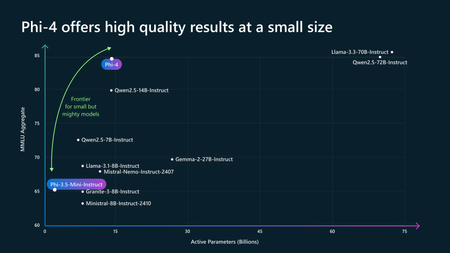
Today we are introducing Phi-4, our 14B parameter state-of-the-art small language model (SLM) that excels at complex reasoning in areas such as math, in addition to conventional language processing. Phi-4 is the latest member of our Phi family of small language models and demonstrates what’s possible as we continue to probe the boundaries of SLMs. Phi-4 is available on Azure AI Foundry and on Hugging Face. Phi-4 Benchmarks Phi-4 outperforms comparable and larger models on math related reasoning due to advancements throughout the processes, including the use of high-quality synthetic datasets, curation of high-quality organic data, and post-training innovations. Phi-4 continues to push the frontier of size vs quality. Phi-4 is particularly good at math problems, for example here are the benchmarks for Phi-4 on math competition problems: Phi-4 performance on math competition problems To see more benchmarks read the newest technical paper released on arxiv. Enabling AI innovation safely and responsibly Building AI solutions responsibly is at the core of AI development at Microsoft. We have made our robust responsible AI capabilities available to customers building with Phi models, including Phi-3.5-mini optimized for Windows Copilot+ PCs. Azure AI Foundry provides users with a robust set of capabilities to help organizations measure, mitigate, and manage AI risks across the AI development lifecycle for traditional machine learning and generative AI applications. Azure AI evaluations in AI Foundry enable developers to iteratively assess the quality and safety of models and applications using built-in and custom metrics to inform mitigations. Additionally, Phi users can use Azure AI Content Safety features such as prompt shields, protected material detection, and groundedness detection. These capabilities can be leveraged as content filters with any language model included in our model catalog and developers can integrate these capabilities into their application easily through a single API. Once in production, developers can monitor their application for quality and safety, adversarial prompt attacks, and data integrity, making timely interventions with the help of real-time alerts. Phi-4 in action One example of the mathematical reasoning Phi-4 is capable of is demonstrated in this problem. Start Exploring Phi-4 is currently available on Azure AI Foundry and Hugging Face, take a look today.259KViews20likes22CommentsFoundry IQ: Unlocking ubiquitous knowledge for agents
Introducing Foundry IQ by Azure AI Search in Microsoft Foundry. Foundry IQ is a centralized knowledge layer that connects agents to data with the next generation of retrieval-augmented generation (RAG). Foundry IQ includes the following features: Knowledge bases: Available directly in the new Foundry portal, knowledge bases are reusable, topic-centric collections that ground multiple agents and applications through a single API. Automated indexed and federated knowledge sources – Expand what data an agent can reach by connecting to both indexed and remote knowledge sources. For indexed sources, Foundry IQ delivers automatic indexing, vectorization, and enrichment for text, images, and complex documents. Agentic retrieval engine in knowledge bases – A self-reflective query engine that uses AI to plan, select sources, search, rank and synthesize answers across sources with configurable “retrieval reasoning effort.” Enterprise-grade security and governance – Support for document-level access control, alignment with existing permissions models, and options for both indexed and remote data. Foundry IQ is available in public preview through the new Foundry portal and Azure portal with Azure AI Search. Foundry IQ is part of Microsoft's intelligence layer with Fabric IQ and Work IQ.44KViews6likes4CommentsIntroducing Microsoft Agent Factory
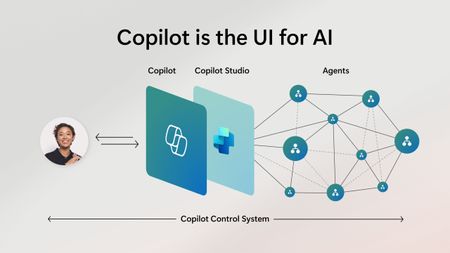
Microsoft Agent Factory is a new program designed for organizations that want to move from experimentation to execution faster. With a single plan, organizations can build agents with Work IQ, Fabric IQ, and Foundry IQ using Microsoft Foundry and Copilot Studio. They can also deploy their agents anywhere, including Microsoft 365 Copilot, with no upfront licensing and provisioning required. Eligible organizations can also tap into hands-on engagement from top AI Forward Deployed Engineers (FDEs) and access tailored role-based training to boost AI fluency across teams.35KViews13likes0CommentsIntegrate Custom Azure AI Agents with Copilot Studio and M365 Copilot
Integrating Custom Agents with Copilot Studio and M365 Copilot In today's fast-paced digital world, integrating custom agents with Copilot Studio and M365 Copilot can significantly enhance your company's digital presence and extend your CoPilot platform to your enterprise applications and data. This blog will guide you through the integration steps of bringing your custom Azure AI Agent Service within an Azure Function App, into a Copilot Studio solution and publishing it to M365 and Teams Applications. When Might This Be Necessary: Integrating custom agents with Copilot Studio and M365 Copilot is necessary when you want to extend customization to automate tasks, streamline processes, and provide better user experience for your end-users. This integration is particularly useful for organizations looking to streamline their AI Platform, extend out-of-the-box functionality, and leverage existing enterprise data and applications to optimize their operations. Custom agents built on Azure allow you to achieve greater customization and flexibility than using Copilot Studio agents alone. What You Will Need: To get started, you will need the following: Azure AI Foundry Azure OpenAI Service Copilot Studio Developer License Microsoft Teams Enterprise License M365 Copilot License Steps to Integrate Custom Agents: Create a Project in Azure AI Foundry: Navigate to Azure AI Foundry and create a project. Select 'Agents' from the 'Build and Customize' menu pane on the left side of the screen and click the blue button to create a new agent. Customize Your Agent: Your agent will automatically be assigned an Agent ID. Give your agent a name and assign the model your agent will use. Customize your agent with instructions: Add your knowledge source: You can connect to Azure AI Search, load files directly to your agent, link to Microsoft Fabric, or connect to third-party sources like Tripadvisor. In our example, we are only testing the CoPilot integration steps of the AI Agent, so we did not build out additional options of providing grounding knowledge or function calling here. Test Your Agent: Once you have created your agent, test it in the playground. If you are happy with it, you are ready to call the agent in an Azure Function. Create and Publish an Azure Function: Use the sample function code from the GitHub repository to call the Azure AI Project and Agent. Publish your Azure Function to make it available for integration. azure-ai-foundry-agent/function_app.py at main · azure-data-ai-hub/azure-ai-foundry-agent Connect your AI Agent to your Function: update the "AIProjectConnString" value to include your Project connection string from the project overview page of in the AI Foundry. Role Based Access Controls: We have to add a role for the function app on OpenAI service. Role-based access control for Azure OpenAI - Azure AI services | Microsoft Learn Enable Managed Identity on the Function App Grant "Cognitive Services OpenAI Contributor" role to the System-assigned managed identity to the Function App in the Azure OpenAI resource Grant "Azure AI Developer" role to the System-assigned managed identity for your Function App in the Azure AI Project resource from the AI Foundry Build a Flow in Power Platform: Before you begin, make sure you are working in the same environment you will use to create your Copilot Studio agent. To get started, navigate to the Power Platform (https://make.powerapps.com) to build out a flow that connects your Copilot Studio solution to your Azure Function App. When creating a new flow, select 'Build an instant cloud flow' and trigger the flow using 'Run a flow from Copilot'. Add an HTTP action to call the Function using the URL and pass the message prompt from the end user with your URL. The output of your function is plain text, so you can pass the response from your Azure AI Agent directly to your Copilot Studio solution. Create Your Copilot Studio Agent: Navigate to Microsoft Copilot Studio and select 'Agents', then 'New Agent'. Make sure you are in the same environment you used to create your cloud flow. Now select ‘Create’ button at the top of the screen From the top menu, navigate to ‘Topics’ and ‘System’. We will open up the ‘Conversation boosting’ topic. When you first open the Conversation boosting topic, you will see a template of connected nodes. Delete all but the initial ‘Trigger’ node. Now we will rebuild the conversation boosting agent to call the Flow you built in the previous step. Select 'Add an Action' and then select the option for existing Power Automate flow. Pass the response from your Custom Agent to the end user and end the current topic. My existing Cloud Flow: Add action to connect to existing Cloud Flow: When this menu pops up, you should see the option to Run the flow you created. Here, mine does not have a very unique name, but you see my flow 'Run a flow from Copilot' as a Basic action menu item. If you do not see your cloud flow here add the flow to the default solution in the environment. Go to Solutions > select the All pill > Default Solution > then add the Cloud Flow you created to the solution. Then go back to Copilot Studio, refresh and the flow will be listed there. Now complete building out the conversation boosting topic: Make Agent Available in M365 Copilot: Navigate to the 'Channels' menu and select 'Teams + Microsoft 365'. Be sure to select the box to 'Make agent available in M365 Copilot'. Save and re-publish your Copilot Agent. It may take up to 24 hours for the Copilot Agent to appear in M365 Teams agents list. Once it has loaded, select the 'Get Agents' option from the side menu of Copilot and pin your Copilot Studio Agent to your featured agent list Now, you can chat with your custom Azure AI Agent, directly from M365 Copilot! Conclusion: By following these steps, you can successfully integrate custom Azure AI Agents with Copilot Studio and M365 Copilot, enhancing you’re the utility of your existing platform and improving operational efficiency. This integration allows you to automate tasks, streamline processes, and provide better user experience for your end-users. Give it a try! Curious of how to bring custom models from your AI Foundry to your Copilot Studio solutions? Check out this blog23KViews3likes11CommentsUnlocking Document Intelligence: Mistral OCR Now Available in Azure AI Foundry
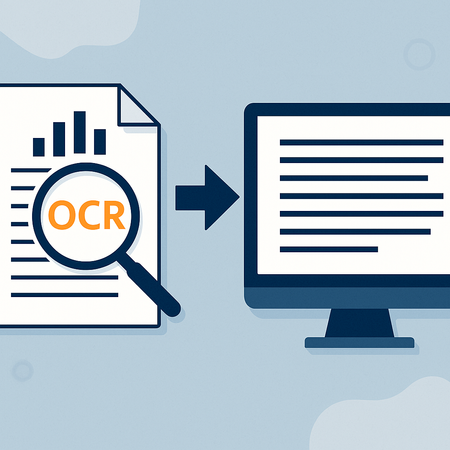
Every organization has a treasure trove of information—buried not in databases, but in documents. From scanned contracts and handwritten forms to research papers and regulatory filings, this knowledge often sits locked in static formats, invisible to modern AI systems. Imagine if we could teach machines not just to read, but to truly understand the structure and nuance of these documents. What if equations, images, tables, and multilingual text could be seamlessly extracted, indexed, and acted upon—at scale? That future is here. Today we are announcing the launch of Mistral OCR in the Azure AI Foundry model catalog—a state-of-the-art Optical Character Recognition (OCR) model that brings intelligent document understanding to a whole new level. Designed for speed, precision, and multilingual versatility, Mistral OCR unlocks the potential of unstructured content with unmatched performance. From Patient Charts to Investment Reports—Built for Every Industry Mistral OCR’s ability to extract structure from complex documents makes it transformative across a range of verticals: Healthcare Hospitals and health systems can digitize clinical notes, lab results, and patient intake forms, transforming scanned content into structured data for downstream AI applications—improving care coordination, automation, and insights. Finance & Insurance From loan applications and KYC documents to claims forms and regulatory disclosures, Mistral OCR helps financial institutions process sensitive documents faster, more accurately, and with multilingual support—ensuring compliance and improving operational efficiency. Education & Research Academic institutions and research teams can turn PDFs of scientific papers, course materials, and diagrams into AI-readable formats. Mistral OCR’s support for equations, charts, and LaTeX-style formatting makes it ideal for scientific knowledge extraction. Legal & Government With its multilingual and high-fidelity OCR capabilities, legal teams and public agencies can digitize contracts, historical records, and filings—accelerating review workflows, preserving archival materials, and enabling transparent governance. Key Highlights of Mistral OCR According to Mistral their OCR model stands apart due to the following: State-of-the-Art Document Understanding Mistral OCR excels in parsing complex, multimodal documents—extracting tables, math, and figures with markdown-style clarity. It goes beyond recognition to deliver understanding. benchmark testing. Whether you’re working in Hindi, Arabic, French, or Chinese—this model adapts seamlessly. State-of-the-Art Document Understanding Mistral OCR excels in parsing complex, multimodal documents—extracting tables, math, and figures with markdown-style clarity. It goes beyond recognition to deliver understanding. Multilingual by Design With support for dozens of languages and scripts, Mistral OCR achieves 99%+ fuzzy match scores in benchmark testing. Whether you’re working in Hindi, Arabic, French, or Chinese—this model adapts seamlessly. Fastest in Its Class Process up to 2,000 pages per minute on a single node. This speed makes it ideal for enterprise document pipelines and real-time applications. Doc-as-Prompt + Structured Output Turn documents into intelligent prompts—then extract structured, JSON-formatted output for downstream use in agents, workflows, or analytics engines. Why use Mistral OCR on Azure AI Foundry? Mistral OCR is now available as serverless APIs through Models as a Service (MaaS) in Azure AI Foundry. This enables enterprise-scale workloads with ease. Network Isolation for Inferencing: Protect your data from public network access. Expanded Regional Availability: Access from multiple regions. Data Privacy and Security: Robust measures to ensure data protection. Quick Endpoint Provisioning: Set up an OCR endpoint in Azure AI Foundry in seconds. Azure AI ensures seamless integration, enhanced security, and rapid deployment for your AI needs. How to deploy Mistral OCR model in Azure AI Foundry? Prerequisites: If you don’t have an Azure subscription, get one here: https://azure.microsoft.com/en-us/pricing/purchase-options/pay-as-you-go Familiarize yourself with Azure AI Model Catalog Create an Azure AI Foundry hub and project. Make sure you pick East US, West US3, South Central US, West US, North Central US, East US 2 or Sweden Central as the Azure region for the hub. Create a deployment to obtain the inference API and key: Open the model card in the model catalog on Azure AI Foundry. Click on Deploy and select the Pay-as-you-go option. Subscribe to the Marketplace offer and deploy. You can also review the API pricing at this step. You should land on the deployment page that shows you the API and key in less than a minute. These steps are outlined in detail in the product documentation. From Documents to Decisions The ability to extract meaning from documents—accurately, at scale, and across languages—is no longer a bottleneck. With Mistral OCR now available in Azure AI Foundry, organizations can move beyond basic text extraction to unlock true document intelligence. This isn’t just about reading documents. It’s about transforming how we interact with the knowledge they contain. Try it. Build with it. And see what becomes possible when documents speak your language.19KViews2likes8CommentsStep-by-Step Tutorial: Building an AI Agent Using Azure AI Foundry
This blog post provides a comprehensive tutorial on building an AI agent using Azure AI Agent service and the Azure AI Foundry portal. AI agents represent a powerful new paradigm in application development, offering a more intuitive and dynamic way to interact with software. They can understand natural language, reason about user requests, and take actions to fulfill those requests. This tutorial will guide you through the process of creating and deploying an intelligent agent on Azure. We'll cover setting up an Azure AI Foundry hub, crafting effective instructions to define the agent's behavior, including recognizing user intent, processing requests, and generating helpful responses. We'll also discuss testing the agent's conversational abilities and provide additional resources for expanding your knowledge of AI agents and the Azure AI ecosystem. This hands-on guide is perfect for anyone looking to explore the practical application of Azure's conversational AI capabilities and build intelligent virtual assistants. Join us as we dive into the exciting world of AI agents.18KViews2likes2CommentsBuilding a Multi-Agent On-Call Copilot with Microsoft Agent Framework
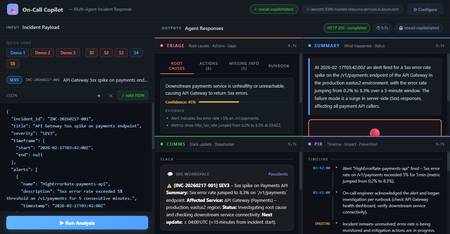
Four AI agents, one incident payload, structured triage in under 60 seconds powered by Microsoft Agent Framework and Foundry Hosted Agents. Multi-Agent Microsoft Agent Framework Foundry Hosted Agents Python SRE / Incident Response When an incident fires at 3 AM, every second the on-call engineer spends piecing together alerts, logs, and metrics is a second not spent fixing the problem. What if an AI system could ingest the raw incident signals and hand you a structured triage, a Slack update, a stakeholder brief, and a draft post-incident report, all in under 10 seconds? That’s exactly what On-Call Copilot does. In this post, we’ll walk through how we built it using the Microsoft Agent Framework, deployed it as a Foundry Hosted Agent, and discuss the key design decisions that make multi-agent orchestration practical for production workloads. The full source code is open-source on GitHub. You can deploy your own instance with a single azd up . Why Multi-Agent? The Problem with Single-Prompt Triage Early AI incident assistants used a single large prompt: “Here is the incident. Give me root causes, actions, a Slack message, and a post-incident report.” This approach has two fundamental problems: Context overload. A real incident may have 800 lines of logs, 10 alert lines, and dense metrics. Asking one model to process everything and produce four distinct output formats in a single turn pushes token limits and degrades quality. Conflicting concerns. Triage reasoning and communication drafting are cognitively different tasks. A model optimised for structured JSON analysis often produces stilted Slack messages—and vice versa. The fix is specialisation: decompose the task into focused agents, give each agent a narrow instruction set, and run them in parallel. This is the core pattern that the Microsoft Agent Framework makes easy. Architecture: Four Agents Running Concurrently On-Call Copilot is deployed as a Foundry Hosted Agent—a containerised Python service running on Microsoft Foundry’s managed infrastructure. The core orchestrator uses ConcurrentBuilder from the Microsoft Agent Framework SDK to run four specialist agents in parallel via asyncio.gather() . All four panels populated simultaneously: Triage (red), Summary (blue), Comms (green), PIR (purple). Architecture: The orchestrator runs four specialist agents concurrently via asyncio.gather(), then merges their JSON fragments into a single response. All four agents The solution share a single Azure OpenAI Model Router deployment. Rather than hardcoding gpt-4o or gpt-4o-mini , Model Router analyses request complexity and routes automatically. A simple triage prompt costs less; a long post-incident synthesis uses a more capable model. One deployment name, zero model-selection code. Meet the Four Agents 🔍 Triage Agent Root cause analysis, immediate actions, missing data identification, and runbook alignment. suspected_root_causes · immediate_actions · missing_information · runbook_alignment 📋 Summary Agent Concise incident narrative: what happened and current status (ONGOING / MITIGATED / RESOLVED). summary.what_happened · summary.current_status 📢 Comms Agent Audience-appropriate communications: Slack channel update with emoji conventions, plus a non-technical stakeholder brief. comms.slack_update · comms.stakeholder_update 📝 PIR Agent Post-incident report: chronological timeline, quantified customer impact, and specific prevention actions. post_incident_report.timeline · .customer_impact · .prevention_actions The Code: Building the Orchestrator The entry point is remarkably concise. ConcurrentBuilder handles all the async wiring—you just declare the agents and let the framework handle parallelism, error propagation, and response merging. main.py — Orchestrator from agent_framework import ConcurrentBuilder from agent_framework.azure import AzureOpenAIChatClient from azure.ai.agentserver.agentframework import from_agent_framework from azure.identity import DefaultAzureCredential, get_bearer_token_provider from app.agents.triage import TRIAGE_INSTRUCTIONS from app.agents.comms import COMMS_INSTRUCTIONS from app.agents.pir import PIR_INSTRUCTIONS from app.agents.summary import SUMMARY_INSTRUCTIONS _credential = DefaultAzureCredential() _token_provider = get_bearer_token_provider( _credential, "https://cognitiveservices.azure.com/.default" ) def create_workflow_builder(): """Create 4 specialist agents and wire them into a ConcurrentBuilder.""" triage = AzureOpenAIChatClient(ad_token_provider=_token_provider).create_agent( instructions=TRIAGE_INSTRUCTIONS, name="triage-agent", ) summary = AzureOpenAIChatClient(ad_token_provider=_token_provider).create_agent( instructions=SUMMARY_INSTRUCTIONS, name="summary-agent", ) comms = AzureOpenAIChatClient(ad_token_provider=_token_provider).create_agent( instructions=COMMS_INSTRUCTIONS, name="comms-agent", ) pir = AzureOpenAIChatClient(ad_token_provider=_token_provider).create_agent( instructions=PIR_INSTRUCTIONS, name="pir-agent", ) return ConcurrentBuilder().participants([triage, summary, comms, pir]) def main(): builder = create_workflow_builder() from_agent_framework(builder.build).run() # starts on port 8088 if __name__ == "__main__": main() Key insight: DefaultAzureCredential means there are no API keys anywhere in the codebase. The container uses managed identity in production; local development uses your az login session. The same code runs in both environments without modification. Agent Instructions: Prompts as Configuration Each agent receives a tightly scoped system prompt that defines its output schema and guardrails. Here’s the Triage Agent—the most complex of the four: app/agents/triage.py TRIAGE_INSTRUCTIONS = """\ You are the **Triage Agent**, an expert Site Reliability Engineer specialising in root cause analysis and incident response. ## Task Analyse the incident data and return a single JSON object with ONLY these keys: { "suspected_root_causes": [ { "hypothesis": "string – concise root cause hypothesis", "evidence": ["string – supporting evidence from the input"], "confidence": 0.0 // 0-1, how confident you are } ], "immediate_actions": [ { "step": "string – concrete action with runnable command if applicable", "owner_role": "oncall-eng | dba | infra-eng | platform-eng", "priority": "P0 | P1 | P2 | P3" } ], "missing_information": [ { "question": "string – what data is missing", "why_it_matters": "string – why this data would help" } ], "runbook_alignment": { "matched_steps": ["string – runbook steps that match the situation"], "gaps": ["string – gaps or missing runbook coverage"] } } ## Guardrails 1. **No secrets** – redact any credential-like material as [REDACTED]. 2. **No hallucination** – if data is insufficient, set confidence to 0 and add entries to missing_information. 3. **Diagnostic suggestions** – when data is sparse, include diagnostic steps in immediate_actions. 4. **Structured output only** – return ONLY valid JSON, no prose. """ The Comms Agent follows the same pattern but targets a different audience: app/agents/comms.py COMMS_INSTRUCTIONS = """\ You are the **Comms Agent**, an expert incident communications writer. ## Task Return a single JSON object with ONLY this key: { "comms": { "slack_update": "Slack-formatted message with emoji, severity, status, impact, next steps, and ETA", "stakeholder_update": "Non-technical summary for executives. Focus on business impact and resolution." } } ## Guidelines - Slack: Use :rotating_light: for active SEV1/2, :warning: for degraded, :white_check_mark: for resolved. - Stakeholder: No jargon. Translate to business impact. - Tone: Calm, factual, action-oriented. Never blame individuals. - Structured output only – return ONLY valid JSON, no prose. """ Instructions as config, not code. Agent behaviour is defined entirely by instruction text strings. A non-developer can refine agent behaviour by editing the prompt and redeploying no Python changes needed. The Incident Envelope: What Goes In The agent accepts a single JSON envelope. It can come from a monitoring alert webhook, a PagerDuty payload, or a manual CLI invocation: Incident Input (JSON) { "incident_id": "INC-20260217-002", "title": "DB connection pool exhausted — checkout-api degraded", "severity": "SEV1", "timeframe": { "start": "2026-02-17T14:02:00Z", "end": null }, "alerts": [ { "name": "DatabaseConnectionPoolNearLimit", "description": "Connection pool at 99.7% on orders-db-primary", "timestamp": "2026-02-17T14:03:00Z" } ], "logs": [ { "source": "order-worker", "lines": [ "ERROR: connection timeout after 30s (attempt 3/3)", "WARN: pool exhausted, queueing request (queue_depth=847)" ] } ], "metrics": [ { "name": "db_connection_pool_utilization_pct", "window": "5m", "values_summary": "Jumped from 22% to 99.7% at 14:03Z" } ], "runbook_excerpt": "Step 1: Check DB connection dashboard...", "constraints": { "max_time_minutes": 15, "environment": "production", "region": "swedencentral" } } Declaring the Hosted Agent The agent is registered with Microsoft Foundry via a declarative agent.yaml file. This tells Foundry how to discover and route requests to the container: agent.yaml kind: hosted name: oncall-copilot description: | Multi-agent hosted agent that ingests incident signals and runs 4 specialist agents concurrently via Microsoft Agent Framework ConcurrentBuilder. metadata: tags: - Azure AI AgentServer - Microsoft Agent Framework - Multi-Agent - Model Router protocols: - protocol: responses environment_variables: - name: AZURE_OPENAI_ENDPOINT value: ${AZURE_OPENAI_ENDPOINT} - name: AZURE_OPENAI_CHAT_DEPLOYMENT_NAME value: model-router The protocols: [responses] declaration exposes the agent via the Foundry Responses API on port 8088. Clients can invoke it with a standard HTTP POST no custom API needed. Invoking the Agent Once deployed, you can invoke the agent with the project’s built-in scripts or directly via curl : CLI / curl # Using the included invoke script python scripts/invoke.py --demo 2 # multi-signal SEV1 demo python scripts/invoke.py --scenario 1 # Redis cluster outage # Or with curl directly TOKEN=$(az account get-access-token \ --resource https://ai.azure.com --query accessToken -o tsv) curl -X POST \ "$AZURE_AI_PROJECT_ENDPOINT/openai/responses?api-version=2025-05-15-preview" \ -H "Authorization: Bearer $TOKEN" \ -H "Content-Type: application/json" \ -d '{ "input": [ {"role": "user", "content": "<incident JSON here>"} ], "agent": { "type": "agent_reference", "name": "oncall-copilot" } }' The Browser UI The project includes a zero-dependency browser UI built with plain HTML, CSS, and vanilla JavaScript—no React, no bundler. A Python http.server backend proxies requests to the Foundry endpoint. The empty state. Quick-load buttons pre-populate the JSON editor with demo incidents or scenario files. Demo 1 loaded: API Gateway 5xx spike, SEV3. The JSON is fully editable before submitting. Agent Output Panels Triage: Root causes ranked by confidence. Evidence is collapsed under each hypothesis. Triage: Immediate actions with P0/P1/P2 priority badges and owner roles. Comms: Slack card with emoji substitution and a stakeholder executive summary. PIR: Chronological timeline with an ONGOING marker, customer impact in a red-bordered box. Performance: Parallel Execution Matters Incident Type Complexity Parallel Latency Sequential (est.) Single alert, minimal context (SEV4) Low 4–6 s ~16 s Multi-signal, logs + metrics (SEV2) Medium 7–10 s ~28 s Full SEV1 with long log lines High 10–15 s ~40 s Post-incident synthesis (resolved) High 10–14 s ~38 s asyncio.gather() running four independent agents cuts total latency by 3–4× compared to sequential execution. For a SEV1 at 3 AM, that’s the difference between a 10-second AI-powered head start and a 40-second wait. Five Key Design Decisions Parallel over sequential Each agent is independent and processes the full incident payload in isolation. ConcurrentBuilder with asyncio.gather() is the right primitive—no inter-agent dependencies, no shared state. JSON-only agent instructions Every agent returns only valid JSON with a defined schema. The orchestrator merges fragments with merged.update(agent_output) . No parsing, no extraction, no post-processing. No hardcoded model names AZURE_OPENAI_CHAT_DEPLOYMENT_NAME=model-router is the only model reference. Model Router selects the best model at runtime based on prompt complexity. When new models ship, the agent gets better for free. DefaultAzureCredential everywhere No API keys. No token management code. Managed identity in production, az login in development. Same code, both environments. Instructions as configuration Each agent’s system prompt is a plain Python string. Behaviour changes are text edits, not code logic. A non-developer can refine prompts and redeploy. Guardrails: Built into the Prompts The agent instructions include explicit guardrails that don’t require external filtering: No hallucination: When data is insufficient, the agent sets confidence: 0 and populates missing_information rather than inventing facts. Secret redaction: Each agent is instructed to redact credential-like patterns as [REDACTED] in its output. Mark unknowns: Undeterminable fields use the literal string "UNKNOWN" rather than plausible-sounding guesses. Diagnostic suggestions: When signal is sparse, immediate_actions includes diagnostic steps that gather missing information before prescribing a fix. Model Router: Automatic Model Selection One of the most powerful aspects of this architecture is Model Router. Instead of choosing between gpt-4o , gpt-4o-mini , or o3-mini per agent, you deploy a single model-router endpoint. Model Router analyses each request’s complexity and routes it to the most cost-effective model that can handle it. Model Router insights: models selected per request with associated costs. Model Router telemetry from Microsoft Foundry: request distribution and cost analysis. This means you get optimal cost-performance without writing any model-selection logic. A simple Summary Agent prompt may route to gpt-4o-mini , while a complex Triage Agent prompt with 800 lines of logs routes to gpt-4o all automatically. Deployment: One Command The repo includes both azure.yaml and agent.yaml , so deployment is a single command: Deploy to Foundry # Deploy everything: infra + container + Model Router + Hosted Agent azd up This provisions the Foundry project resources, builds the Docker image, pushes to Azure Container Registry, deploys a Model Router instance, and creates the Hosted Agent. For more control, you can use the SDK deploy script: Manual Docker + SDK deploy # Build and push (must be linux/amd64) docker build --platform linux/amd64 -t oncall-copilot:v1 . docker tag oncall-copilot:v1 $ACR_IMAGE docker push $ACR_IMAGE # Create the hosted agent python scripts/deploy_sdk.py Getting Started Quickstart # Clone git clone https://github.com/microsoft-foundry/oncall-copilot cd oncall-copilot # Install python -m venv .venv source .venv/bin/activate # .venv\Scripts\activate on Windows pip install -r requirements.txt # Set environment variables export AZURE_OPENAI_ENDPOINT="https://<account>.openai.azure.com/" export AZURE_OPENAI_CHAT_DEPLOYMENT_NAME="model-router" export AZURE_AI_PROJECT_ENDPOINT="https://<account>.services.ai.azure.com/api/projects/<project>" # Validate schemas locally (no Azure needed) MOCK_MODE=true python scripts/validate.py # Deploy to Foundry azd up # Invoke the deployed agent python scripts/invoke.py --demo 1 # Start the browser UI python ui/server.py # → http://localhost:7860 Extending: Add Your Own Agent Adding a fifth agent is straightforward. Follow this pattern: Create app/agents/<name>.py with a *_INSTRUCTIONS constant following the existing pattern. Add the agent’s output keys to app/schemas.py . Register it in main.py : main.py — Adding a 5th agent from app.agents.my_new_agent import NEW_INSTRUCTIONS new_agent = AzureOpenAIChatClient( ad_token_provider=_token_provider ).create_agent( instructions=NEW_INSTRUCTIONS, name="new-agent", ) workflow = ConcurrentBuilder().participants( [triage, summary, comms, pir, new_agent] ) Ideas for extensions: a ticket auto-creation agent that creates Jira or Azure DevOps items from the PIR output, a webhook adapter agent that normalises PagerDuty or Datadog payloads, or a human-in-the-loop agent that surfaces missing_information as an interactive form. Key Takeaways for AI Engineers The multi-agent pattern isn’t just for chatbots. Any task that can be decomposed into independent subtasks with distinct output schemas is a candidate. Incident response, document processing, code review, data pipeline validation—the pattern transfers. Microsoft Agent Framework gives you ConcurrentBuilder for parallel execution and AzureOpenAIChatClient for Azure-native auth—you write the prompts, the framework handles the plumbing. Foundry Hosted Agents let you deploy containerised agents with managed infrastructure, automatic scaling, and built-in telemetry. No Kubernetes, no custom API gateway. Model Router eliminates the model selection problem. One deployment name handles all scenarios with optimal cost-performance tradeoffs. Prompt-as-config means your agents are iterable by anyone who can edit text. The feedback loop from “this output could be better” to “deployed improvement” is minutes, not sprints. Resources Microsoft Agent Framework SDK powering the multi-agent orchestration Model Router Automatic model selection based on prompt complexity Foundry Hosted Agents Deploy containerised agents on managed infrastructure ConcurrentBuilder Samples Official agents-in-workflow sample this project follows DefaultAzureCredential Zero-config auth chain used throughout Hosted Agents Concepts Architecture overview of Foundry Hosted Agents The On-Call Copilot sample is open source under the MIT licence. Contributions, scenario files, and agent instruction improvements are welcome via pull request.The Future of AI: Computer Use Agents Have Arrived
Discover the groundbreaking advancements in AI with Computer Use Agents (CUAs). In this blog, Marco Casalaina shares how to use the Responses API from Azure OpenAI Service, showcasing how CUAs can launch apps, navigate websites, and reason through tasks. Learn how CUAs utilize multimodal models for computer vision and AI frameworks to enhance automation. Explore the differences between CUAs and traditional Robotic Process Automation (RPA), and understand how CUAs can complement RPA systems. Dive into the future of automation and see how CUAs are set to revolutionize the way we interact with technology.15KViews6likes0Comments
The Future of Agentic AI: Inside Microsoft Agent Framework 1.0
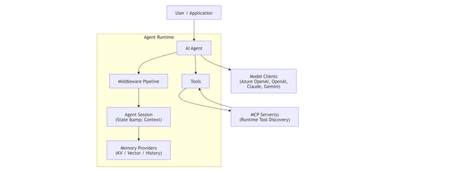
Agentic AI is rapidly moving beyond demos and chatbots toward long‑running, autonomous systems that reason, call tools, collaborate with other agents, and operate reliably in production. On April 3, 2026, Microsoft marked a major milestone with the General Availability (GA) release of Microsoft Agent Framework 1.0, a production‑ready, open‑source framework for building agents and multi‑agent workflows in.NET and Python. [techcommun...rosoft.com] In this post, we’ll deep‑dive into: What Microsoft Agent Framework actually is Its core architecture and design principles What’s new in version 1.0 How it differs from other agent frameworks When and how to use it—with real code examples What Is Microsoft Agent Framework? According to the official announcement, Microsoft Agent Framework is an open‑source SDK and runtime for building AI agents and multi‑agent workflows with strong enterprise foundations. Agent Framework provides two primary capability categories: 1. Agents Agents are long‑lived runtime components that: Use LLMs to interpret inputs Call tools and MCP servers Maintain session state Generate responses They are not just prompt wrappers, but stateful execution units. 2. Workflows Workflows are graph‑based orchestration engines that: Connect agents and functions Enforce execution order Support checkpointing and human‑in‑the‑loop scenarios This leads to a clean separation of responsibilities: Concern Handled By Reasoning & interpretation Agent Execution policy & control flow Workflow This separation is a foundational design decision. High‑Level Architecture From the official overview, Agent Framework is composed of several core building blocks: Model clients (chat completions & responses) Agent sessions (state & conversation management) Context providers (memory and retrieval) Middleware pipeline (interception, filtering, telemetry) MCP clients (tool discovery and invocation) Workflow engine (graph‑based orchestration) Conceptual Flow 🌟 What’s New in Version 1.0 Version 1.0 marks the transition from "Release Candidate" to "General Availability" (GA). Production-Ready Stability: Unlike the earlier experimental packages, 1.0 offers stable APIs, versioned releases, and a commitment to long-term support (LTS). A2A Protocol (Agent-to-Agent): A new structured messaging protocol that allows agents to communicate across different runtimes. For example, an agent built in Python can seamlessly coordinate with an agent running in a .NET environment. MCP (Model Context Protocol) Support: Full integration with the Model Context Protocol, enabling agents to dynamically discover and invoke external tools and data sources without manual integration code. Multi-Agent Orchestration Patterns: Stable implementations of complex patterns, including: Sequential: Linear handoffs between specialized agents. Group Chat: Collaborative reasoning where agents discuss and solve problems. Magentic-One: A sophisticated pattern for task-oriented reasoning and planning. Middleware Pipeline: The new middleware architecture lets you inject logic into the agent's execution loop without modifying the core prompts. This is essential for Responsible AI (RAI), allowing you to add content safety filters, logging, and compliance checks globally. DevUI Debugger: A browser-based local debugger that provides a real-time visual representation of agent message flows, tool calls, and state changes. Code Examples Creating a Simple Agent (C#) From Microsoft Learn : using Azure.AI.Projects; using Azure.Identity; using Microsoft.Agents.AI; AIAgent agent = new AIProjectClient( new Uri("https://your-foundry-service.services.ai.azure.com/api/projects/your-project"), new AzureCliCredential()) .AsAIAgent( model: "gpt-5.4-mini", instructions: "You are a friendly assistant. Keep your answers brief."); Console.WriteLine(await agent.RunAsync("What is the largest city in France?")); This shows: Provider‑agnostic model access Session‑aware agent execution Minimal setup for production agents Creating a Simple Agent (Python) from agent_framework.foundry import FoundryChatClient from azure.identity import AzureCliCredential client = FoundryChatClient( project_endpoint="https://your-foundry-service.services.ai.azure.com/api/projects/your-project", model="gpt-5.4-mini", credential=AzureCliCredential(), ) agent = client.as_agent( name="HelloAgent", instructions="You are a friendly assistant. Keep your answers brief.", ) result = await agent.run("What is the largest city in France?") print(result) The same agent abstraction applies across languages. When to Use Agents vs Workflows Microsoft provides clear guidance: Use an Agent when… Use a Workflow when… Task is open‑ended Steps are well‑defined Autonomous tool use is needed Execution order matters Single decision point Multiple agents/functions collaborate Key principle: If you can solve the task with deterministic code, do that instead of using an AI agent. 🔄 How It Differs from Other Frameworks Microsoft Agent Framework 1.0 distinguishes itself by focusing on "Enterprise Readiness" and "Interoperability." Feature Microsoft Agent Framework 1.0 Semantic Kernel / AutoGen LangChain / CrewAI Philosophy Unified, production-ready SDK. Research-focused or tool-specific. High-level, developer-friendly abstractions. Integration Deeply integrated with Microsoft Foundry and Azure. Varied; often requires more glue code. Generally cloud-agnostic. Interoperability Native A2A and MCP for cross-framework tasks. Limited to internal ecosystem. Uses proprietary connectors. Runtime Identical API parity for .NET and Python. Primarily Python-first (SK has C#). Primarily Python. Control Graph-based deterministic workflows. More non-deterministic/experimental. Mixture of role-based and agentic. 🛠️ Key Technical Components Agent Harness: The execution layer that provides agents with controlled access to the shell, file system, and messaging loops. Agent Skills: A portable, file-based or code-defined format for packaging domain expertise. Implementation Tip: If you are coming from Semantic Kernel, Microsoft provides migration assistants that analyze your existing code and generate step-by-step plans to upgrade to the new Agent Framework 1.0 standards. Microsoft Agent Framework Version 1.0 | Microsoft Agent Framework Agent Framework documentation 🎯 Summary Microsoft Agent Framework 1.0 is the "grown-up" version of AI orchestration. By standardizing the way agents talk to each other (A2A), discover tools (MCP), and process information (Middleware), Microsoft has provided a clear path for taking AI experiments into production. For more detailed guides, check out the official Microsoft Agent Framework DocumentationMicrosoft Agent Framework - .NET AI Community StandupDeepening our Partnership with Mistral AI on Azure AI Foundry
We’re excited to mark a new chapter in our collaboration with Mistral AI, a leading European AI innovator, with the launch of Mistral Document AI in Azure AI Foundry Models. This marks the first in a series of Mistral models coming to Azure as a serverless API, giving customers seamless access to Mistral’s cutting-edge capabilities, fully hosted, managed, and integrated into the Foundry ecosystem. This launch also deepens our support for sovereign cloud customers —especially in Europe. At Microsoft, we believe Sovereign AI is essential for enabling organizations and regulated industries to harness the full potential of AI while maintaining control over their security, data, and governance. As Satya Nadella has said, “We want every country, every organization, to build AI in a way that respects their sovereignty—of data, of applications, and of infrastructure.” By combining Mistral’s state-of-the-art models with Azure’s enterprise-grade reliability and scale we’re enabling customers to confidently deploy AI that meets strict regulatory and data sovereignty requirements. Mistral Document AI By the Mistral AI Team “Enterprises today are overwhelmed with documents—contracts, forms, research papers, invoices—holding critical information that’s often trapped in scanned images and PDFs. With nearly 90% of enterprise data stored in unstructured formats, traditional OCR simply can’t keep up. Mistral Document AI is built with a multimodal approach that combines vision and language understanding, it interprets documents with contextual intelligence and delivers structured outputs that reflect the original layout—tables remain tables, headings remain headings, and images are preserved alongside the text.” Key Capabilities Document Parsing: Mistral Document AI interprets complex layouts and extracts rich structures such as tables, charts, and LaTeX-formatted equations with markdown-style clarity. Multilingual & Multimodal: The model supports dozens of languages and understands both text and visual elements, making it well-suited for global, diverse datasets. Structured Output & Doc-as-Prompt: Mistral Document AI delivers results in structured formats like JSON, enabling easy downstream integration with databases or AI agents. This supports use cases like Retrieval-Augmented Generation (RAG), where document content becomes a prompt for subsequent queries. Use Cases Document Digitization: Process archives of scanned PDFs or handwritten forms into structured digital records. Knowledge Extraction: Transform research papers, technical manuals, or customer guides into machine-readable formats. RAG pipelines and Intelligent Agents: Integrate structured output into pipelines that feed AI systems for Q&A, summarization, and more. Mistral Document AI on Azure AI Foundry You can now access Mistral Document AI’s capabilities through Azure AI Foundry as a serverless Azure model, sold directly from Microsoft. One-Click Deployment (Serverless) – With a few clicks, you can deploy the model as a serverless REST API, without needing to provision any GPU machines or container hosts. This makes it easy to get started. Enterprise-Grade Security & Privacy – Because the model runs within your Azure environment, you get network isolation and data security out of the box. All inferencing happens in Azure’s cloud under your account, so your documents aren’t sent to a third-party server. Azure AI Foundry ensures your data stays private (no data leaves the Azure region you choose) and offers compliance with enterprise security standards. This is critical for sensitive use cases like banking or healthcare documents. Integrated Responsible AI Capabilities – With Mistral Doc AI running in Azure AI Foundry, you can apply Azure’s built-in Responsible AI tools—such as content filtering, safety system monitoring, and evaluation frameworks—to ensure your deployments align with your organization’s ethical and compliance standards. Observability & Monitoring – Foundry’s monitoring features give you full visibility into model usage, performance, and cost. You can track API calls, latency, and error rates, enabling proactive troubleshooting and optimization. Agent Services Enablement – You can connect Mistral Document AI to Azure AI Agent Service, enabling intelligent agents to process, reason over, and act on extracted document data—unlocking new automation and decision-making scenarios. Azure Ecosystem Integration – Once deployed, the Mistral Document AI endpoint can easily plug into your existing Azure workflows. And because it’s part of Foundry, you can manage it alongside other models in a unified way. This interoperability accelerates the development of intelligent applications. Getting Started: Deploying and Using Mistral Document AI on Azure Setting up Mistral Document AI on Azure AI Foundry is straightforward. Here’s a quick guide to get you up and running: Create an Azure AI Foundry workspace – Ensure you have an Azure subscription (pay-as-you-go, not a free trial) and create an AI Foundry hub and project in the Azure portal Deploy the Mistral Document AI model – In the Azure AI Foundry Model Catalog, search for “mistral-document-ai-2505”. Then click the Deploy button. You’ll be prompted to select a pricing plan – choose deploy. Call the Mistral Document AI API – Once deployed, using the model is as easy as calling a REST API. You can do this from any programming language or even a command-line tool like cURL. Integrate and iterate – With the OCR results in hand, you can integrate Mistral Document AI into your workflows. Conclusion Mistral Document AI joins Azure AI Foundry as one of the several tools available to help organizations unlock insights from unstructured documents. This launch reflects our continued commitment to bringing the latest, most capable models into Foundry, giving developers and enterprises more choice than ever. Whether you’re digitizing records, building knowledge bases, or enhancing your AI workflows, Azure AI Foundry offers powerful and accessible solutions. Pricing Model Name Pricing /1K pages mistral-document-ai-2505 Global $3 mistral-document-ai-2505 DataZone $3.3 Mistral OCR Global $1 Resources Explore Mistral Document AI MS Learn Github Code Samples14KViews3likes3Comments