azure ai agents
14 TopicsUnleashing the Power of Model Context Protocol (MCP): A Game-Changer in AI Integration
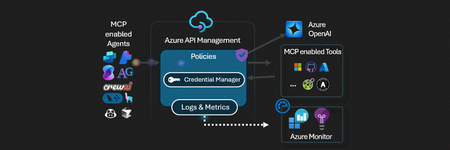
Artificial Intelligence is evolving rapidly, and one of the most pressing challenges is enabling AI models to interact effectively with external tools, data sources, and APIs. The Model Context Protocol (MCP) solves this problem by acting as a bridge between AI models and external services, creating a standardized communication framework that enhances tool integration, accessibility, and AI reasoning capabilities. What is Model Context Protocol (MCP)? MCP is a protocol designed to enable AI models, such as Azure OpenAI models, to interact seamlessly with external tools and services. Think of MCP as a universal USB-C connector for AI, allowing language models to fetch information, interact with APIs, and execute tasks beyond their built-in knowledge. Key Features of MCP Standardized Communication – MCP provides a structured way for AI models to interact with various tools. Tool Access & Expansion – AI assistants can now utilize external tools for real-time insights. Secure & Scalable – Enables safe and scalable integration with enterprise applications. Multi-Modal Integration – Supports STDIO, SSE (Server-Sent Events), and WebSocket communication methods. MCP Architecture & How It Works MCP follows a client-server architecture that allows AI models to interact with external tools efficiently. Here’s how it works: Components of MCP MCP Host – The AI model (e.g., Azure OpenAI GPT) requesting data or actions. MCP Client – An intermediary service that forwards the AI model's requests to MCP servers. MCP Server – Lightweight applications that expose specific capabilities (APIs, databases, files, etc.). Data Sources – Various backend systems, including local storage, cloud databases, and external APIs. Data Flow in MCP The AI model sends a request (e.g., "fetch user profile data"). The MCP client forwards the request to the appropriate MCP server. The MCP server retrieves the required data from a database or API. The response is sent back to the AI model via the MCP client. Integrating MCP with Azure OpenAI Services Microsoft has integrated MCP with Azure OpenAI Services, allowing GPT models to interact with external services and fetch live data. This means AI models are no longer limited to static knowledge but can access real-time information. Benefits of Azure OpenAI Services + MCP Integration ✔ Real-time Data Fetching – AI assistants can retrieve fresh information from APIs, databases, and internal systems. ✔ Contextual AI Responses – Enhances AI responses by providing accurate, up-to-date information. ✔ Enterprise-Ready – Secure and scalable for business applications, including finance, healthcare, and retail. Hands-On Tools for MCP Implementation To implement MCP effectively, Microsoft provides two powerful tools: Semantic Workbench and AI Gateway. Microsoft Semantic Workbench A development environment for prototyping AI-powered assistants and integrating MCP-based functionalities. Features: Build and test multi-agent AI assistants. Configure settings and interactions between AI models and external tools. Supports GitHub Codespaces for cloud-based development. Explore Semantic Workbench Workbench interface examples Microsoft AI Gateway A plug-and-play interface that allows developers to experiment with MCP using Azure API Management. Features: Credential Manager – Securely handle API credentials. Live Experimentation – Test AI model interactions with external tools. Pre-built Labs – Hands-on learning for developers. Explore AI Gateway Setting Up MCP with Azure OpenAI Services Step 1: Create a Virtual Environment First, create a virtual environment using Python: python -m venv .venv Activate the environment: # Windows venv\Scripts\activate # MacOS/Linux source .venv/bin/activate Step 2: Install Required Libraries Create a requirements.txt file and add the following dependencies: langchain-mcp-adapters langgraph langchain-openai Then, install the required libraries: pip install -r requirements.txt Step 3: Set Up OpenAI API Key Ensure you have your OpenAI API key set up: # Windows setx OPENAI_API_KEY "<your_api_key> # MacOS/Linux export OPENAI_API_KEY=<your_api_key> Building an MCP Server This server performs basic mathematical operations like addition and multiplication. Create the Server File First, create a new Python file: touch math_server.py Then, implement the server: from mcp.server.fastmcp import FastMCP # Initialize the server mcp = FastMCP("Math") MCP.tool() def add(a: int, b: int) -> int: return a + b MCP.tool() def multiply(a: int, b: int) -> int: return a * b if __name__ == "__main__": mcp.run(transport="stdio") Your MCP server is now ready to run. Building an MCP Client This client connects to the MCP server and interacts with it. Create the Client File First, create a new file: touch client.py Then, implement the client: import asyncio from mcp import ClientSession, StdioServerParameters from langchain_openai import ChatOpenAI from mcp.client.stdio import stdio_client # Define server parameters server_params = StdioServerParameters( command="python", args=["math_server.py"], ) # Define the model model = ChatOpenAI(model="gpt-4o") async def run_agent(): async with stdio_client(server_params) as (read, write): async with ClientSession(read, write) as session: await session.initialize() tools = await load_mcp_tools(session) agent = create_react_agent(model, tools) agent_response = await agent.ainvoke({"messages": "what's (4 + 6) x 14?"}) return agent_response["messages"][3].content if __name__ == "__main__": result = asyncio.run(run_agent()) print(result) Your client is now set up and ready to interact with the MCP server. Running the MCP Server and Client Step 1: Start the MCP Server Open a terminal and run: python math_server.py This starts the MCP server, making it available for client connections. Step 2: Run the MCP Client In another terminal, run: python client.py Expected Output 140 This means the AI agent correctly computed (4 + 6) x 14 using both the MCP server and GPT-4o. Conclusion Integrating MCP with Azure OpenAI Services enables AI applications to securely interact with external tools, enhancing functionality beyond text-based responses. With standardized communication and improved AI capabilities, developers can build smarter and more interactive AI-powered solutions. By following this guide, you can set up an MCP server and client, unlocking the full potential of AI with structured external interactions. Next Steps: Explore more MCP tools and integrations. Extend your MCP setup to work with additional APIs. Deploy your solution in a cloud environment for broader accessibility. For further details, visit the GitHub repository for MCP integration examples and best practices. MCP GitHub Repository MCP Documentation Semantic Workbench AI Gateway MCP Video Walkthrough MCP Blog MCP Github End to End Demo64KViews11likes6CommentsHow to Build AI Agents in 10 Lessons
Microsoft has released an excellent learning resource for anyone looking to dive into the world of AI agents: "AI Agents for Beginners". This comprehensive course is available free on GitHub. It is designed to teach the fundamentals of building AI agents, even if you are just starting out. What You'll Learn The course is structured into 10 lessons, covering a wide range of essential topics including: Agentic Frameworks: Understand the core structures and components used to build AI agents. Design Patterns: Learn proven approaches for designing effective and efficient AI agents. Retrieval Augmented Generation (RAG): Enhance AI agents by incorporating external knowledge. Building Trustworthy AI Agents: Discover techniques for creating AI agents that are reliable and safe. AI Agents in Production: Get insights into deploying and managing AI agents in real-world applications. Hands-On Experience The course includes practical code examples that utilize: Azure AI Foundry GitHub Models These examples help you learn how to interact with Language Models and use AI Agent frameworks and services from Microsoft, such as: Azure AI Agent Service Semantic Kernel Agent Framework AutoGen - A framework for building AI agents and applications Getting Started To get started, make sure you have the proper set-up. Here are the 10 lessons Intro to AI Agents and Agent Use Cases Exploring AI Agent Frameworks Understanding AI Agentic Design Principles Tool Use Design Pattern Agentic RAG Building Trustworthy AI Agents Planning Design Multi-Agent Design Patterns Metacognition in AI Agents AI Agents in Production Multi-Language Support To make learning accessible to a global audience, the course offers multi-language support. Get Started Today! If you are eager to learn about AI agents, this course is an excellent starting point. You can find the complete course materials on GitHub at AI Agents for Beginners.2.9KViews6likes3CommentsUnlocking the Power of AI Agents: An Introductory Guide - Part 1
This blog post introduces Microsoft's "AI Agents for Beginners" course and its accompanying GitHub repository, offering a valuable resource for anyone interested in learning about agentic AI. The course covers fundamental concepts, different types of agents, design patterns, and practical frameworks for building intelligent agents. Whether you're a beginner, intermediate learner, or advanced developer, this free resource provides a comprehensive learning experience, empowering you to create AI systems that can reason, plan, and act autonomously. The post also highlights additional resources, including links to Azure AI Agent Service, Semantic Kernel, AutoGen, and the Azure AI Discord community. Embark on your agentic AI journey today and discover the future of intelligent applications.5.1KViews5likes0CommentsPower Up Your Open WebUI with Azure AI Speech: Quick STT & TTS Integration
Introduction Ever found yourself wishing your web interface could really talk and listen back to you? With a few clicks (and a bit of code), you can turn your plain Open WebUI into a full-on voice assistant. In this post, you’ll see how to spin up an Azure Speech resource, hook it into your frontend, and watch as user speech transforms into text and your app’s responses leap off the screen in a human-like voice. By the end of this guide, you’ll have a voice-enabled web UI that actually converses with users, opening the door to hands-free controls, better accessibility, and a genuinely richer user experience. Ready to make your web app speak? Let’s dive in. Why Azure AI Speech? We use Azure AI Speech service in Open Web UI to enable voice interactions directly within web applications. This allows users to: Speak commands or input instead of typing, making the interface more accessible and user-friendly. Hear responses or information read aloud, which improves usability for people with visual impairments or those who prefer audio. Provide a more natural and hands-free experience especially on devices like smartphones or tablets. In short, integrating Azure AI Speech service into Open Web UI helps make web apps smarter, more interactive, and easier to use by adding speech recognition and voice output features. If you haven’t hosted Open WebUI already, follow my other step-by-step guide to host Ollama WebUI on Azure. Proceed to the next step if you have Open WebUI deployed already. Learn More about OpenWeb UI here. Deploy Azure AI Speech service in Azure. Navigate to the Azure Portal and search for Azure AI Speech on the Azure portal search bar. Create a new Speech Service by filling up the fields in the resource creation page. Click on “Create” to finalize the setup. After the resource has been deployed, click on “View resource” button and you should be redirected to the Azure AI Speech service page. The page should display the API Keys and Endpoints for Azure AI Speech services, which you can use in Open Web UI. Settings things up in Open Web UI Speech to Text settings (STT) Head to the Open Web UI Admin page > Settings > Audio. Paste the API Key obtained from the Azure AI Speech service page into the API key field below. Unless you use different Azure Region, or want to change the default configurations for the STT settings, leave all settings to blank. Text to Speech settings (TTS) Now, let's proceed with configuring the TTS Settings on OpenWeb UI by toggling the TTS Engine to Azure AI Speech option. Again, paste the API Key obtained from Azure AI Speech service page and leave all settings to blank. You can change the TTS Voice from the dropdown selection in the TTS settings as depicted in the image below: Click Save to reflect the change. Expected Result Now, let’s test if everything works well. Open a new chat / temporary chat on Open Web UI and click on the Call / Record button. The STT Engine (Azure AI Speech) should identify your voice and provide a response based on the voice input. To test the TTS feature, click on the Read Aloud (Speaker Icon) under any response from Open Web UI. The TTS Engine should reflect Azure AI Speech service! Conclusion And that’s a wrap! You’ve just given your Open WebUI the gift of capturing user speech, turning it into text, and then talking right back with Azure’s neural voices. Along the way you saw how easy it is to spin up a Speech resource in the Azure portal, wire up real-time transcription in the browser, and pipe responses through the TTS engine. From here, it’s all about experimentation. Try swapping in different neural voices or dialing in new languages. Tweak how you start and stop listening, play with silence detection, or add custom pronunciation tweaks for those tricky product names. Before you know it, your interface will feel less like a web page and more like a conversation partner.2.6KViews3likes2CommentsIntegrating Microsoft Foundry with OpenClaw: Step by Step Model Configuration
Step 1: Deploying Models on Microsoft Foundry Let us kick things off in the Azure portal. To get our OpenClaw agent thinking like a genius, we need to deploy our models in Microsoft Foundry. For this guide, we are going to focus on deploying gpt-5.2-codex on Microsoft Foundry with OpenClaw. Navigate to your AI Hub, head over to the model catalog, choose the model you wish to use with OpenClaw and hit deploy. Once your deployment is successful, head to the endpoints section. Important: Grab your Endpoint URL and your API Keys right now and save them in a secure note. We will need these exact values to connect OpenClaw in a few minutes. Step 2: Installing and Initializing OpenClaw Next up, we need to get OpenClaw running on your machine. Open up your terminal and run the official installation script: curl -fsSL https://openclaw.ai/install.sh | bash The wizard will walk you through a few prompts. Here is exactly how to answer them to link up with our Azure setup: First Page (Model Selection): Choose "Skip for now". Second Page (Provider): Select azure-openai-responses. Model Selection: Select gpt-5.2-codex , For now only the models listed (hosted on Microsoft Foundry) in the picture below are available to be used with OpenClaw. Follow the rest of the standard prompts to finish the initial setup. Step 3: Editing the OpenClaw Configuration File Now for the fun part. We need to manually configure OpenClaw to talk to Microsoft Foundry. Open your configuration file located at ~/.openclaw/openclaw.json in your favorite text editor. Replace the contents of the models and agents sections with the following code block: { "models": { "providers": { "azure-openai-responses": { "baseUrl": "https://<YOUR_RESOURCE_NAME>.openai.azure.com/openai/v1", "apiKey": "<YOUR_AZURE_OPENAI_API_KEY>", "api": "openai-responses", "authHeader": false, "headers": { "api-key": "<YOUR_AZURE_OPENAI_API_KEY>" }, "models": [ { "id": "gpt-5.2-codex", "name": "GPT-5.2-Codex (Azure)", "reasoning": true, "input": ["text", "image"], "cost": { "input": 0, "output": 0, "cacheRead": 0, "cacheWrite": 0 }, "contextWindow": 400000, "maxTokens": 16384, "compat": { "supportsStore": false } }, { "id": "gpt-5.2", "name": "GPT-5.2 (Azure)", "reasoning": false, "input": ["text", "image"], "cost": { "input": 0, "output": 0, "cacheRead": 0, "cacheWrite": 0 }, "contextWindow": 272000, "maxTokens": 16384, "compat": { "supportsStore": false } } ] } } }, "agents": { "defaults": { "model": { "primary": "azure-openai-responses/gpt-5.2-codex" }, "models": { "azure-openai-responses/gpt-5.2-codex": {} }, "workspace": "/home/<USERNAME>/.openclaw/workspace", "compaction": { "mode": "safeguard" }, "maxConcurrent": 4, "subagents": { "maxConcurrent": 8 } } } } You will notice a few placeholders in that JSON. Here is exactly what you need to swap out: Placeholder Variable What It Is Where to Find It <YOUR_RESOURCE_NAME> The unique name of your Azure OpenAI resource. Found in your Azure Portal under the Azure OpenAI resource overview. <YOUR_AZURE_OPENAI_API_KEY> The secret key required to authenticate your requests. Found in Microsoft Foundry under your project endpoints or Azure Portal keys section. <USERNAME> Your local computer's user profile name. Open your terminal and type whoami to find this. Step 4: Restart the Gateway After saving the configuration file, you must restart the OpenClaw gateway for the new Foundry settings to take effect. Run this simple command: openclaw gateway restart Configuration Notes & Deep Dive If you are curious about why we configured the JSON that way, here is a quick breakdown of the technical details. Authentication Differences Azure OpenAI uses the api-key HTTP header for authentication. This is entirely different from the standard OpenAI Authorization: Bearer header. Our configuration file addresses this in two ways: Setting "authHeader": false completely disables the default Bearer header. Adding "headers": { "api-key": "<key>" } forces OpenClaw to send the API key via Azure's native header format. Important Note: Your API key must appear in both the apiKey field AND the headers.api-key field within the JSON for this to work correctly. The Base URL Azure OpenAI's v1-compatible endpoint follows this specific format: https://<your_resource_name>.openai.azure.com/openai/v1 The beautiful thing about this v1 endpoint is that it is largely compatible with the standard OpenAI API and does not require you to manually pass an api-version query parameter. Model Compatibility Settings "compat": { "supportsStore": false } disables the store parameter since Azure OpenAI does not currently support it. "reasoning": true enables the thinking mode for GPT-5.2-Codex. This supports low, medium, high, and xhigh levels. "reasoning": false is set for GPT-5.2 because it is a standard, non-reasoning model. Model Specifications & Cost Tracking If you want OpenClaw to accurately track your token usage costs, you can update the cost fields from 0 to the current Azure pricing. Here are the specs and costs for the models we just deployed: Model Specifications Model Context Window Max Output Tokens Image Input Reasoning gpt-5.2-codex 400,000 tokens 16,384 tokens Yes Yes gpt-5.2 272,000 tokens 16,384 tokens Yes No Current Cost (Adjust in JSON) Model Input (per 1M tokens) Output (per 1M tokens) Cached Input (per 1M tokens) gpt-5.2-codex $1.75 $14.00 $0.175 gpt-5.2 $2.00 $8.00 $0.50 Conclusion: And there you have it! You have successfully bridged the gap between the enterprise-grade infrastructure of Microsoft Foundry and the local autonomy of OpenClaw. By following these steps, you are not just running a chatbot; you are running a sophisticated agent capable of reasoning, coding, and executing tasks with the full power of GPT-5.2-codex behind it. The combination of Azure's reliability and OpenClaw's flexibility opens up a world of possibilities. Whether you are building an automated devops assistant, a research agent, or just exploring the bleeding edge of AI, you now have a robust foundation to build upon. Now it is time to let your agent loose on some real tasks. Go forth, experiment with different system prompts, and see what you can build. If you run into any interesting edge cases or come up with a unique configuration, let me know in the comments below. Happy coding!12KViews2likes2CommentsStep-by-Step Tutorial: Building an AI Agent Using Azure AI Foundry
This blog post provides a comprehensive tutorial on building an AI agent using Azure AI Agent service and the Azure AI Foundry portal. AI agents represent a powerful new paradigm in application development, offering a more intuitive and dynamic way to interact with software. They can understand natural language, reason about user requests, and take actions to fulfill those requests. This tutorial will guide you through the process of creating and deploying an intelligent agent on Azure. We'll cover setting up an Azure AI Foundry hub, crafting effective instructions to define the agent's behavior, including recognizing user intent, processing requests, and generating helpful responses. We'll also discuss testing the agent's conversational abilities and provide additional resources for expanding your knowledge of AI agents and the Azure AI ecosystem. This hands-on guide is perfect for anyone looking to explore the practical application of Azure's conversational AI capabilities and build intelligent virtual assistants. Join us as we dive into the exciting world of AI agents.18KViews2likes2CommentsUnleashing the Power of AI Agents: Transforming Business Operations
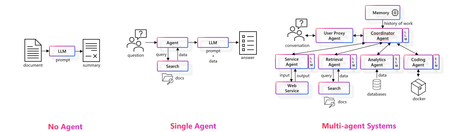
Let "Get Started with AI Agents," in this short blog I want explore the evolution, capabilities, and applications of AI agents, highlighting their potential to enhance productivity and efficiency. We take a peak into the challenges of developing AI agents and introduce powerful tools like Azure AI Foundry and Azure AI Agent Service that empower developers to build, deploy, and scale AI agents securely and efficiently. In today's rapidly evolving technological landscape, the integration of AI agents into business processes is becoming increasingly essential. Lets delve into the transformative potential of AI agents and how they can revolutionize various aspects of our operations. We begin by exploring the evolution of LLM-based solutions, tracing the journey from no agents to sophisticated multi-agent systems. This progression highlights the growing complexity and capabilities of AI agents, which are now poised to handle wide-scope, complex use cases requiring diverse skills. Lets now look at agentic AI capabilities. AI agents can significantly enhance employee productivity and process efficiency, making our operations faster and more effective. Lets examine the key applications of AI agents across industries, such as travel booking and expense management, employee onboarding, personalized customer support, and data analytics and reporting. However, developing AI agents is not without its challenges. Some of the primary considerations, including tool integration, interoperability, scalability, real-time processing, maintenance, flexibility, error handling, and security. These challenges underscore the need for robust platforms that enable rapid development and secure deployment of AI agents. To this end, we introduce Azure AI Foundry and Azure AI Agent Service. These tools empower developers to build, deploy, and scale AI agents securely and efficiently. Azure AI Foundry offers a comprehensive suite of tools, including model catalogs, content safety features, and machine learning capabilities. The Azure AI Agent Service, currently in public preview, provides flexible model selection, extensive data connections, enterprise-grade security, and rapid development and automation capabilities. When building multi agent or agentic based systems there is a huge importance of multi-agent orchestration. Tools like AutoGen and Semantic Kernel facilitate the orchestration of multi-agent systems, enabling seamless integration and collaboration between different AI agents. In conclusion, the transformative potential of AI agents in driving productivity, efficiency, and innovation. By leveraging the capabilities of Azure AI Foundry and Azure AI Agent Service, we can overcome the challenges of AI agent development and unlock new opportunities for growth and success. Resources Azure AI Discord - https://aka.ms/AzureAI/Discord Global AI community - https://globalai.community Generative AI for beginners – https://aka.ms/genai-beginners AI Agents for beginners - https://aka.ms/ai-agents-beginners Attend one of the Global AI Bootcamp near you - https://globalai.community/bootcamp/ Build AI Tour open content - https://aka.ms/aitour/repos Build your first Agent with Azure AI Agent Service - Slide deck and code - https://github.com/microsoft/aitour-build-your-first-agent-with-azure-ai-agent-service1.5KViews2likes0CommentsHow to Set Up Claude Code with Microsoft Foundry Models on macOS
Introduction Building with AI isn't just about picking a smart model. It is about where that model lives. I chose to route my Claude Code setup through Microsoft Foundry because I needed more than just a raw API. I wanted the reliability, compliance, and structured management that comes with Microsoft's ecosystem. When you are moving from a prototype to something real, having that level of infrastructure backing your calls makes a significant difference. The challenge is that Foundry is designed for enterprise cloud environments, while my daily development work happens locally on a MacBook. Getting the two to communicate seamlessly involved navigating a maze of shell configurations and environment variables that weren't immediately obvious. I wrote this guide to document the exact steps for bridging that gap. Here is how you can set up Claude Code to run locally on macOS while leveraging the stability of models deployed on Microsoft Foundry. Requirements Before we open the terminal, let's make sure you have the necessary accounts and environments ready. Since we are bridging a local CLI with an enterprise cloud setup, having these credentials handy now will save you time later. Azure Subscription with Microsoft Foundry Setup - This is the most critical piece. You need an active Azure subscription where the Microsoft Foundry environment is initialized. Ensure that you have deployed the Claude model you intend to use and that the deployment status is active. You will need the specific endpoint URL and the associated API keys from this deployment to configure the connection. An Anthropic User Account - Even though the compute is happening on Azure, the interface requires an Anthropic account. You will need this to authenticate your session and manage your user profile settings within the Claude Code ecosystem. Claude Code Client on macOS - We will be running the commands locally, so you need the Claude Code CLI installed on your MacBook. Step 1: Install Claude Code on macOS The recommended installation method is via Homebrew or Curl, which sets it up for terminal access ("OS level"). Option A: Homebrew (Recommended) brew install --cask claude-code Option B: Curl curl -fsSL https://claude.ai/install.sh | bash Verify Installation: Run claude --version. Step 2: Set Up Microsoft Foundry to deploy Claude model Navigate to your Microsoft Foundry portal, and find the Claude model catalog, and deploy the selected Claude model. [Microsoft Foundry > My Assets > Models + endpoints > + Deploy Model > Deploy Base model > Search for "Claude"] In your Model Deployment dashboard, go to the deployed Claude Models and get the "Endpoints and keys". Store it somewhere safe, because we will need them to configure Claude Code later on. Configure Environment Variables in MacOS terminal: Now we need to tell your local Claude Code client to route requests through Microsoft Foundry instead of the default Anthropic endpoints. This is handled by setting specific environment variables that act as a bridge between your local machine and your Azure resources. You could run these commands manually every time you open a terminal, but it is much more efficient to save them permanently in your shell profile. For most modern macOS users, this file is .zshrc. Open your terminal and add the following lines to your profile, making sure to replace the placeholder text with your actual Azure credentials: export CLAUDE_CODE_USE_FOUNDRY=1 export ANTHROPIC_FOUNDRY_API_KEY="your-azure-api-key" export ANTHROPIC_FOUNDRY_RESOURCE="your-resource-name" # Specify the deployment name for Opus export CLAUDE_CODE_MODEL="your-opus-deployment-name" Once you have added these variables, you need to reload your shell configuration for the changes to take effect. Run the source command below to update your current session, and then verify the setup by launching Claude: source ~/.zshrc claude If everything is configured correctly, the Claude CLI will initialize using your Microsoft Foundry deployment as the backend. Once you execute the claude command, the CLI will prompt you to choose an authentication method. Select Option 2 (Antrophic Console account) to proceed. This action triggers your default web browser and redirects you to the Claude Console. Simply sign in using your standard Anthropic account credentials. After you have successfully signed in, you will be presented with a permissions screen. Click the Authorize button to link your web session back to your local terminal. Return to your terminal window, and you should see a notification confirming that the login process is complete. Press Enter to finalize the setup. You are now fully connected. You can start using Claude Code locally, powered entirely by the model deployment running in your Microsoft Foundry environment. Conclusion Setting up this environment might seem like a heavy lift just to run a CLI tool, but the payoff is significant. You now have a workflow that combines the immediate feedback of local development with the security and infrastructure benefits of Microsoft Foundry. One of the most practical upgrades is the removal of standard usage caps. You are no longer limited to the 5-hour API call limits, which gives you the freedom to iterate, test, and debug for as long as your project requires without hitting a wall. By bridging your local macOS terminal to Azure, you are no longer just hitting an API endpoint. You are leveraging a managed, compliance-ready environment that scales with your needs. The best part is that now the configuration is locked in, you don't need to think about the plumbing again. You can focus entirely on coding, knowing that the reliability of an enterprise platform is running quietly in the background supporting every command.1.4KViews1like0CommentsIntroducing Azure AI Models: The Practical, Hands-On Course for Real Azure AI Skills
Hello everyone, Today, I’m excited to share something close to my heart. After watching so many developers, including myself—get lost in a maze of scattered docs and endless tutorials, I knew there had to be a better way to learn Azure AI. So, I decided to build a guide from scratch, with a goal to break things down step by step—making it easy for beginners to get started with Azure, My aim was to remove the guesswork and create a resource where anyone could jump in, follow along, and actually see results without feeling overwhelmed. Introducing Azure AI Models Guide. This is a brand new, solo-built, open-source repo aimed at making Azure AI accessible for everyone—whether you’re just getting started or want to build real, production-ready apps using Microsoft’s latest AI tools. The idea is simple: bring all the essentials into one place. You’ll find clear lessons, hands-on projects, and sample code in Python, JavaScript, C#, and REST—all structured so you can learn step by step, at your own pace. I wanted this to be the resource I wish I’d had when I started: straightforward, practical, and friendly to beginners and pros alike. It’s early days for the project, but I’m excited to see it grow. If you’re curious.. Check out the repo at https://github.com/DrHazemAli/Azure-AI-Models Your feedback—and maybe even your contributions—will help shape where it goes next!Solved1.1KViews1like5CommentsBuild AI Agents with Azure Database for PostgreSQL and Azure AI Agent Service
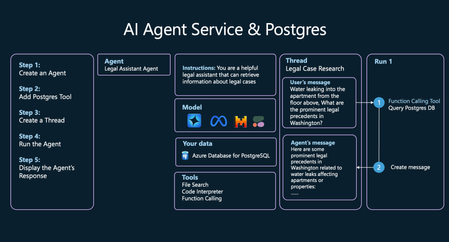
Introduction AI agents are revolutionizing how applications interact with data by combining large language models (LLMs) with external tools and databases. This blog will show you how to combine Azure Database for PostgreSQL with Azure AI Agent Service to create intelligent AI agents that can search and analyze your data. We'll use a legal research assistant as our example and walk through setup, implementation, and testing. With just a few hours of work, you can build an AI solution that would have taken weeks of traditional development. Why AI Agents Matter AI agents can improve productivity by handling repetitive, time-consuming tasks. AI agents can transform how businesses interact with their data by automating complex workflows, providing more accurate information retrieval, and enabling natural language interfaces to databases. What are AI agents? AI agents go beyond simple chatbots by combining large language models (LLMs) with external tools and databases. Unlike standalone LLMs or standard RAG systems, AI agents can: Plan: Break down complex tasks into smaller, sequential steps. Use Tools: Leverage APIs, code execution, search systems to gather information or perform actions. Perceive: Understand and process inputs from various data sources. Remember: Store and recall previous interactions for better decision-making. By connecting AI agents to databases like Azure Database for PostgreSQL, agents can deliver more accurate, context-aware responses based on your data. AI agents extend beyond basic human conversation to carry out tasks based on natural language. These tasks traditionally required coded logic; however, agents can plan the tasks needed to execute based on user-provided context. Agents can be implemented using various GenAI frameworks including LangChain, LangGraph, LlamaIndex and Semantic Kernel. All these frameworks support using Azure Database for PostgreSQL as a tool. This uses the Azure AI Agents Service for agent planning, tool usage, and perception, while using Azure Database for PostgreSQL as a tool for vector database and semantic search capabilities. Real-World Use Case: Legal Research Assistant In this tutorial, we'll build an AI agent that helps legal teams research relevant cases to support their clients in Washington state. Our agent will: Accept natural language queries about legal situations. Use vector search in Azure Database for PostgreSQL to find relevant case precedents. Analyze and summarize the findings in a format useful for legal professionals. Prerequisites Azure Resources An active Azure account. Azure Database for PostgreSQL Flexible Server instance running PG 14 or higher. With pg_vector and azure_ai extensions enabled Azure AI Foundry Project Deployed Azure GPT-4o-mini endpoint. Deployed Azure text-embedding-small endpoint. Local Setup Install Visual Studio Code. Install the Python extension. Install Python 3.11.x. Install Azure CLI.(latest version) Project Implementation All the code and sample datasets are available in this GitHub repository. Step 1: Set Up Vector Search in Azure Database for PostgreSQL First, we'll prepare our database to store and search legal case data using vector embeddings: Environment Setup: If using macOS / bash: python -m venv .pg-azure-ai source .pg-azure-ai/bin/activate pip install -r requirements.txt Windows / PowerShell python -m venv .pg-azure-ai .pg-azure-ai \Scripts\Activate.ps1 pip install -r requirements.txt Windows / cmd.exe: python -m venv .pg-azure-ai .pg-azure-ai \Scripts\activate.bat pip install -r requirements.txt Configure Environment Variables: Create a .env file with your credentials: AZURE_OPENAI_API_KEY="" AZURE_OPENAI_ENDPOINT="" EMBEDDING_MODEL_NAME="" AZURE_PG_CONNECTION="" Load documents and vectors The Python file load_data/main.py serves as the central entry point for loading data into Azure Database for PostgreSQL. This code processes sample cases data, including information about cases in Washington. High level details of main.py: Database setup and Table Creation: Creates necessary extensions, sets up OpenAI API settings, and manages database tables by dropping existing ones and creating new ones for storing case data. Data Ingestion: Reads data from a CSV file and inserts it into a temporary table, then processes and transfers this data into the main cases table. Embedding Generation: Adds a new column for embeddings in the cases table and generates embeddings for case opinions using OpenAI's API, storing them in the new column. The embedding process will take ~3-5 minutes To start the data loading process, run the following command from the load_data directory: python main.py Here's the output of main.py: Extensions created successfully OpenAI connection established successfully Cases table created successfully Temp cases table created successfully Data loaded into temp_cases_data table successfully Data loaded into cases table successfully Adding Embeddings, this will take a while around 3-5 mins... Embeddings added successfully All Data loaded successfully! Step 2: Create Postgres tool for the Agent In this step we will be configuring AI agent tools to retrieve data from Postgres and then using the Azure AI Agent Service SDK to connect your AI agent to the Postgres database. Define a function for your agent to call Start by defining a function for your agent to call by describing its structure and any required parameters in a docstring. Include all your function definitions in a single file, legal_agent_tools.py which you can then import into your main script. def vector_search_cases(vector_search_query: str, start_date: datetime ="1911-01-01", end_date: datetime ="2025-12-31", limit: int = 10) -> str: """ Fetches the cases information in Washington State for the specified query. :param query(str): The query to fetch cases for specifically in Washington. :type query: str :param start_date: The start date for the search, defaults to "1911-01-01" :type start_date: datetime, optional :param end_date: The end date for the search, defaults to "2025-12-31" :type end_date: datetime, optional :param limit: The maximum number of cases to fetch, defaults to 10 :type limit: int, optional :return: Cases information as a JSON string. :rtype: str """ db = create_engine(CONN_STR) query = """ SELECT id, name, opinion, opinions_vector <=> azure_openai.create_embeddings( 'text-embedding-3-small', %s)::vector as similarity FROM cases WHERE decision_date BETWEEN %s AND %s ORDER BY similarity LIMIT %s; """ # Fetch cases information from the database df = pd.read_sql(query, db, params=(vector_search_query,datetime.strptime(start_date, "%Y-%m-%d"), datetime.strptime(end_date, "%Y-%m-%d"),limit)) cases_json = json.dumps(df.to_json(orient="records")) return cases_json Step 3: Create and Configure the AI Agent with Postgres Now we'll set up the AI agent and integrate it with our PostgreSQL tool. The Python file src/simple_postgres_and_ai_agent.py serves as the central entry point for creating and using your agent. High level details of simple_postgres_and_ai_agent.py: Create an Agent: Initializes the agent in your Azure AI Project with a specific model. Add Postgres tool: During the agent initialization, the Postgres tool to do vector search on your Postgres DB is added. Create a Thread: Sets up a communication thread. This will be used to send messages to the agent to process Run the Agent and Call Postgres tool: Processes the user's query using the agent and tools. The agent can plan with tools to use to get the correct answer. In this use case the agent will call the Postgres tool based on the function signature and docstring to do vector search and retrieve the relevant data to answer the question. Display the Agent’s Response: Outputs the agent's response to the user's query. Find the Project Connection String in Azure AI Foundry: In your Azure AI Foundry project you will find you Project Connection String from the Overview page of the project we will use this string to connect the project to the AI agent SDK. We will be adding this string to the .env file. Connection Setup: Add these variables to your .env file in the root directory: PROJECT_CONNECTION_STRING=" " MODEL_DEPLOYMENT_NAME="gpt-4o-mini" AZURE_TRACING_GEN_AI_CONTENT_RECORDING_ENABLED="true" Create the Agent with Tool Access We will create the agent in the AI Foundry project and add the Postgres tools needed to query to Database. The code snippet below is an excerpt from the file simple_postgres_and_ai_agent.py. # Create an Azure AI Client project_client = AIProjectClient.from_connection_string( credential=DefaultAzureCredential(), conn_str=os.environ["PROJECT_CONNECTION_STRING"], ) # Initialize agent toolset with user functions functions = FunctionTool(user_functions) toolset = ToolSet() toolset.add(functions) agent = project_client.agents.create_agent( model= os.environ["MODEL_DEPLOYMENT_NAME"], name="legal-cases-agent", instructions= "You are a helpful legal assistant that can retrieve information about legal cases.", toolset=toolset ) Create Communication Thread: This code snippet, shows how to create a thread and message for the agent. The thread and message will be what the agent processes in a run. # Create thread for communication thread = project_client.agents.create_thread() # Create message to thread message = project_client.agents.create_message( thread_id=thread.id, role="user", content="Water leaking into the apartment from the floor above, What are the prominent legal precedents in Washington on this problem in the last 10 years?" ) Process the Request: This code snippet creates a run for the agent to process the message and use the appropriate tools to provide the best result. Using the tool, the agent will be able to call your Postgres and the vector search on the query “Water leaking into the apartment from the floor above”, to retrieve the data it will need to answer the question best. from pprint import pprint # Create and process agent run in thread with tools run = project_client.agents.create_and_process_run( thread_id=thread.id, agent_id=agent.id ) # Fetch and log all messages messages = project_client.agents.list_messages(thread_id=thread.id) pprint(messages['data'][0]['content'][0]['text']['value']) Run the Agent: To run the agent, run the following command from the src directory: python simple_postgres_and_ai_agent.py The agent will produce a similar result as below using the Azure Database for PostgreSQL tool to access case data saved in the Postgres Database. Snippet of output from agent: 1. Pham v. Corbett Citation: Pham v. Corbett, No. 4237124 Summary: This case involved tenants who counterclaimed against their landlord for relocation assistance and breach of the implied warranty of habitability due to severe maintenance issues, including water and sewage leaks. The trial court held that the landlord had breached the implied warranty and awarded damages to the tenants. 2. Hoover v. Warner Citation: Hoover v. Warner, No. 6779281 Summary: The Warners appealed a ruling finding them liable for negligence and nuisance after their road grading project caused water drainage issues affecting Hoover's property. The trial court found substantial evidence supporting the claim that the Warners' actions impeded the natural flow of water and damaged Hoover's property. Step 4: Testing and Debugging with Azure AI Foundry Playground After running your agent with Azure AI Agent SDK, the agent will be stored in your project, and you can experiment with the agent in the Agent playground. Using the Agent Playground: Navigate to the Agents section in Azure AI Foundry Find your agent in the list and click to open Use the playground interface to test various legal queries Test the query “Water leaking into the apartment from the floor above, What are the prominent legal precedents in Washington?”. The agent will pick the right tool to use and ask for the expected output for that query. Use sample_vector_search_cases_output.json as the sample output. Step 5: Debugging with Azure AI Foundry Tracing When developing the agent by using the Azure AI Foundry SDK, you can also debug the agent with Tracing. You will be able to debug the calls to tools like Postgres as well as seeing how to agent orchestrated each task. Debugging with Tracing: Click Tracing in the Azure AI Foundry menu Create a new Application Insights resource or connect an existing one View detailed traces of your agent's operations Learn more about how to set up tracing with the AI agent and Postgres in the advanced_postgres_and_ai_agent_with_tracing.py file on Github. Get Started Today By combining Azure Database for PostgreSQL with Azure AI Agent Service, developers can create intelligent agents that automate data retrieval, improve decision-making, and unlock powerful insights. Whether you're working on legal research, customer support, or data analytics, this setup provides a scalable and efficient solution to enhance your AI applications. Ready to build your own AI agent? Try building your own legal agent with Azure AI agent service and Postgres. 1. Setup Azure AI Foundry and Azure Database for PostgreSQL Flexible Server Setup up an AI Foundry Project and deploy models Deploy the “gpt-4o-mini” model and “text-embedding-small” models Setup Azure Database for PostgreSQL Flexible Server and pg_vector extension Allow the azure_ai extension 2. Run our end-to-end sample AI Agent using Azure Database for PostgreSQL tool 3. Customize for your use case: Replace legal data with your domain-specific information Adjust agent instructions for your specific needs Add additional tools as required Learn More Read more able Azure Database for PostgreSQL and the Azure AI Agent service. Learn more about Vector Search in Azure Database for PostgreSQL Learn more about Azure AI Agent Service4.9KViews1like0Comments