autopilot
1 TopicIntroducing Autopilot, your personal and proactive agent
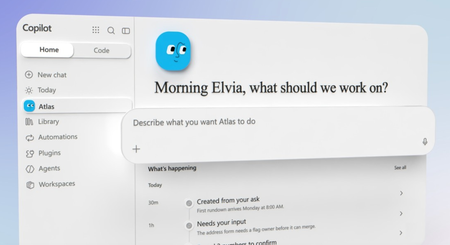
Autopilot in Microsoft Copilot, a persistent, proactive and personal agent that runs in the cloud, keeps working after you power off your laptop. Describe your goals in plain language, and your Autopilot watches for updates in your channels, tracks commitments, follows up on conversations, runs recurring tasks and drives projects that span weeks across Outlook, Teams, OneDrive and business web apps, pulling you in only for the decisions that need you. @mention it in a Teams thread to draft decision docs and book meetings with your group. Command rollout from the Microsoft 365 admin center with built-in reporting and configuration controls: set who gets access, choose cloud-only or managed-device agent sessions, decide on auto-approval, and track adoption, usage and spend. Adam Sheppard, Principal Product Manager, Autopilot, shares how to stand up your own Autopilot in minutes and manage it like any member of your team. Receipts in your inbox, line items in your expense app — submitted. Autopilot drives the browser form-fill on a Remote Computer and checks with you before it hits submit. Watch the demo. One mention in Teams. A decision doc drafted, a call booked, the whole team aligned. Autopilot joins your conversations as a working member of the group. Check it out. Full visibility. Full control. Admins track Autopilot adoption, spend, and top tools, then set access, cloud or local agent sessions, and auto-approval in the Microsoft 365 admin center. See how. 👥 Who it’s for: Microsoft 365 admins and IT pros planning an Autopilot rollout, plus team leads and knowledge workers who want an always-on agent handling follow-ups, recurring tasks and multi-step workflows. ⏱️ Chapters: 00:00 Autopilot, your 24/7 AI teammate 00:51 Act on flagged approvals and deadlines 01:32 Direct Autopilot with goals, routines and Work IQ 02:04 Expand Autopilot with plugins and skills 02:39 Automate expense reports on a Remote Computer 03:43 Coordinate a product launch in Teams 04:57 Set up your own Autopilot in minutes 06:31 How it runs: Agent 365 and cloud compute 07:40 Track adoption, usage and spend as admin 08:43 Control access, agent sessions and auto-approval 09:11 Build your Autopilot from the Copilot app What is Autopilot in Microsoft Copilot? Autopilot is an AI agent that works for you around the clock. Each Autopilot runs as an agent with its own identity in Agent 365, dedicated cloud compute to run assigned tasks 24/7, and access to Microsoft 365 apps like Teams, Outlook and OneDrive. Plugins connect it to Work IQ, other agents, and Microsoft and non-Microsoft business services, and skills let it create Word documents, Excel workbooks, Figma designs and more. How do you put Autopilot to work? Set goals and routines in plain language, like keeping a procurement process on track, staying ahead of commitments, or sending a daily launch status email. Autopilot flags what needs your input, such as a delivery approval or a supplier purchase order with a decision deadline, and lays out the actions you can take. It completes multi-step tasks like building an expense report from receipts in your inbox and entering line items in a web app on a Remote Computer, checking with you before it submits. How do you set one up? Select Create your Autopilot in Microsoft Copilot, pick its look, name it, and choose from suggested goals. Autopilot maps your work commitments, collaborators and work patterns, proposes a plan, and starts once you approve. How do admins control Autopilot? In the Microsoft 365 admin center under Copilot, the Autopilot page handles setup (usage-based billing required), onboarding and pending access requests. Autopilot Insights and Usage show adoption, spend, session trends, top tools, the most active groups and top AI models. Copilot settings control who can access Autopilot, whether agent sessions run in the cloud only or also on managed devices, and whether agent actions auto-approve. Autopilot runs within your tenant security boundary and respects the permissions and guardrails your organization sets. 🔗 Related links: Check out https://aka.ms/YourAutopilot Unfamiliar with Microsoft Mechanics? Microsoft’s Official Video Series for IT — Subscribe https://www.youtube.com/c/MicrosoftMechanicsSeries — Microsoft Tech Community: https://techcommunity.microsoft.com/t5/microsoft-mechanics-blog/bg-p/MicrosoftMechanicsBlog — Podcast: https://microsoftmechanics.libsyn.com/podcast Join us on social: — https://twitter.com/MSFTMechanics — https://www.linkedin.com/company/microsoft-mechanics/ — https://www.instagram.com/msftmechanics/ — https://www.tiktok.com/@msftmechanics Video Transcript: -Now you can have AI work for you like a digital teammate, helping with daily tasks even when you’re not online. Autopilot is a persistent, proactive, and personal agent that works for you. Your Autopilot can watch for updates in the channels you’re in, follow up on conversations, run recurring tasks, and even work on projects that span weeks without you needing to prompt it. Today, I’ll show you how to set an Autopilot up in minutes, how you can put it to work just by describing what you want, and interact with it like any member on your team. Then, if you’re a Microsoft 365 admin, I’ll also show you the reporting and configuration controls for Autopilot. Your Autopilot runs in the cloud, so it keeps working even if you power off your laptop. And you don’t need to constantly monitor it. -Let me start by showing you an Autopilot that’s already up and running. I’m in Microsoft Copilot and you’ll find Autopilot on the left. And if you’ve already set one up, its name will appear here. I named my Autopilot Evo. It’s set up to discover, work on, and follow up on my commitments so that my team and I hit our milestones and goals on time without things falling through the cracks. You can see that Evo is flagging tasks that need my attention and input, like this delivery approval, where it’s provided a summary of what I need to do along with actions I can take. The second item that needs my attention is this supplier purchase order. It’s broken down key terms and highlighted a clear deadline to make a decision. All of these tasks were run based on the routines that I set up for my Autopilot. -In fact, if I open the right rail and head over to Routines, you can see the active areas that I’ve tasked my Autopilot with. This includes keeping the launch procurement process on track, staying ahead of work commitments, our Project Aurora launch, and a couple of finance and security team goals below. The goals that I’ve set for my Autopilot use knowledge from Work IQ and other connected systems to give it the information and skills it needs. -Using Plugins, you can expand what an Autopilot can do by giving it access to other agents, skills, and connections to the services you use for work. My Autopilot has 10 plugins across Microsoft and non-Microsoft services, along with skills for documents, spreadsheets, design files, and more. These are all approved by my IT team and I can discover more below if I want to expand my Autopilot even further. And on the expanded right rail, in the Overview, you can see the files that Evo has been working on, I can easily return to my recent chats with Evo. In fact, if I click into this one for Seattle offsite expense report, you can see that I’ve asked Evo to create my expense report by finding the receipts in my inbox. This saves me a ton of time. To submit expense reports, our business uses a web app that requires manual form fill entry and receipt uploads. And my Autopilot can do that. -In fact, we can drill in, see the steps it took to submit the expense line items, and here we can see it looks like it just needs my input for a mini bar charge. I’m going to keep that one on the expense report and continue. That will let Evo make the entry in the browser in the remote computer. Then it asks whether to submit the expense, and I’ll do that now as well. I’ll close out of the remote computer view, and on the expanded right rail, you can see all of the interactions with it in Microsoft Teams channels as well as our recent shared email threads. -Moving over to activity, I can find everything that Evo has flagged that needs my input along with all of its recent activities it’s been working on below. In fact, Autopilots can also work like members of your team. In this case, I need to catch up on the status of an upcoming product that we’re launching. In Evo’s goals, I’ve asked it to email me daily with status for the upcoming launch, and this is the status mail. Evo is flagging me of an issue where a shipment might miss the receiving cutoff time and arrive too late. -So I’ll follow this link to Teams, and here in the Launch Readiness conversation, everyone on the team is working with my Autopilot. Evo flags the shipping issues as well as the PO approval from before with the 2:00 PM deadline. You can see that my team and I are messaging Evo in this thread. I’ll reply by @ mentioning Evo, then I’ll type, “Can you pull this into a document and set up a call with the group this afternoon so we can discuss this?” It responds telling me that 3:30 PM works for the group and asks whether it can book the meeting. I’ll say, “Book it,” and Evo sends the meeting invite and shares a link to the decision document, where it’s outlined all the delivery and receiving details along with the supplier PO considerations. After that meeting, I’ll go back and approve the PO to expedite the delivery before the deadline. -Now let’s go back to the beginning and see how to get an Autopilot up and running. The good news is setup is easy. You don’t need coding skills or technical expertise. Just describe what you want it to do as you would to a normal team member, and it’s ready in moments. This time I’m signed in as Elvia, who does not have an Autopilot yet. I’ll select Create your Autopilot. And as Autopilots are customizable, you can edit its appearance with your preferred design and even select the shape as well as its color. This will stand out now as you work with it later. I like the default, so I’ll keep it. -Next, you can give it a name. I’ll type in Atlas. On the right, you can see Atlas has its own unique identity and reports to Elvia in the org chart. Next, you just need to tell the Autopilot what you want it to do. And you’ll see that Atlas is suggesting a few goals it can help with. I’ll keep all three options. And from there, Atlas has already started to create an understanding of my work commitments, who I work with and my work patterns. This looks good, so I’ll let Atlas know. And immediately Atlas finds a few areas where it’s noticed that it can step in to help. So I’ll choose to move the one-on-ones and clean up my calendar. Atlas informs me of its plan and will notify me of any changes or steps that need my approval. -So I’ll approve and Atlas gets to work. So now the Autopilot is set up and running in the background so that Elvia in this case can focus on other things. You might be wondering how this all works and why it still runs even if I close my laptop lid. When you create an Autopilot, it’s created as an agent with its own unique identity in Agent 365, along with dedicated compute to run assigned tasks 24/7 and access to Microsoft 365 apps and services like Teams, Outlook, and OneDrive. Connections to knowledge using plugins, including Work IQ and other business apps and services, along with the skills required to create files and artifacts like Word documents, Excel workbooks, Figma designs and others. - The instructions you give it translate into your Autopilot’s objectives and goals, as well as the actions it needs to take and when, the outputs you expect and more. It only works on what you’ve asked it to do and runs within your tenant security boundary, and respects the access permissions and guardrails that you and your organization have set. It will keep working and doing what you tell it to, and by adding or changing any tasks that it works on, you can continually define and refine its goals. -So it’s a powerful digital teammate that can work autonomously within the rules you’ve set. And if you’re a Microsoft 365 admin, you have full visibility and control over how Autopilot is used within your organization. In the Admin Center under Copilot, there is a new page for Autopilot where you can get everything set up to use it and see what to expect. You’ll need usage-based billing enabled. Then, after you’ve activated Autopilot, you’ll be able to see how many enabled users have set up their own Autopilots and how many Autopilots are actively working. -Additionally, you’ll find your top actions to take as an admin, including onboarding, pending access requests from users who want to create an Autopilot, and more. Autopilot Insights then shows you how Autopilot is being used in your organization, including adoption metrics and org level details on spend. Then, scrolling back up and under Usage, you’ll see even richer insights with trends, session counts, top tools being called by Autopilots, and breakdowns for which groups are the most active and the top AI models in use. -Then, in Copilot settings, you can also configure how Autopilot is set up to run in your organization, where you can control who can access Autopilot as part of their Copilot experience. And also configure where Autopilot can run agent sessions, whether that is in the cloud only or also locally on your managed devices, as well as whether Copilot experiences can automatically approve agent actions. -So that’s Autopilot. It’s your digital teammate working 24/7 to take work off your plate and help you get more done. Build your own Autopilot today from the Copilot app and check out aka.ms/YourAutopilot to learn more. Subscribe to Microsoft Mechanics for more tech updates. Thank you for watching.102Views0likes0Comments