autopilot
135 Topics
Keyboard reverting on reboot
I'm having an issue with the keyboard reverting after OOBE. I'm using an English (UK) Windows 11 25H2 base image (deliberately — I want English display language, with Swedish keyboard/regional settings applied without needing to install a Swedish language pack). Deployment is native Windows Autopilot, no third-party tooling involved. Autopilot deployment profile: Language (Region) = Swedish (Sweden), Automatically configure keyboard = No. During OOBE, I manually select Swedish keyboard, and it's correctly applied — it's still Swedish through the first user logon. But after rebooting the keyboard silently reverts to English (UK). This is regardless of if I run pre-provisioning or user-driven. Is this a known/new behaviour, and how can I fix it?277Views0likes2CommentsWindows Autopilot Hybrid Join failing with OOBE error 80004005
Hello everyone, We’re facing a consistent issue with Windows Autopilot user‑driven Microsoft Entra hybrid join where devices are provisioned using a Hybrid Join Autopilot profile, but Hybrid Join does not complete. Setup (High level) Windows Autopilot (user‑driven) Autopilot profile: Microsoft Entra hybrid joined Only one Autopilot profile Domain Join profile configured (domain + OU) Entra Connect: Hybrid Join + device writeback enabled Intune Connector for Active Directory installed and healthy MDM auto‑enrollment enabled Issue During Autopilot OOBE, the device frequently shows: “Something went wrong” Error code: 80004005 Despite this, Autopilot continues and completes. Resulting Device State After provisioning: Device appears in Entra ID as Microsoft Entra joined (not Hybrid) Device is enrolled into Intune and shows compliant Device‑scoped Intune MDM policies do not apply dsregcmd confirms Hybrid Join never completed Understanding So Far From correlating the OOBE error, dsregcmd output, and final device state: Hybrid Join starts but fails mid‑process Windows does not roll back provisioning Device falls back to Entra ID Join Join type is finalized for that run Resetting without fixing the root cause repeats the behavior This explains why devices look healthy but are not Hybrid Joined and why device‑based policies don’t reflect. Questions Is 80004005 during Autopilot OOBE a known indicator of Hybrid Join / Offline Domain Join failure? Is fallback from Hybrid Join → Entra ID Join expected when Hybrid Join prerequisites fail? Once a device ends up Entra joined, is wipe + reprovision the only supported recovery after fixing the root cause? Public Wi‑Fi / offsite scenario: Has anyone successfully completed Hybrid Autopilot using pre‑logon VPN / device tunnel (Always On VPN, GlobalProtect, AnyConnect, etc.) to provide DC line‑of‑sight? Which logs are most useful to confirm the exact failure point (ODJ, dsreg, Intune Connector, ESP)? Thanks in advance for any insights or field experience.2.5KViews0likes6Comments
Intune Device Reset Issue After Recent Update
Hi everyone, We’re currently running into an issue with device reset scenarios in our environment and wanted to check if others are seeing something similar or have identified a reliable workaround. Environment: • Windows 11 25H2 • Windows Autopatch enabled • Devices managed via Intune Issue: When initiating any of the following actions from the Intune portal: • Autopilot Reset • Fresh Start • Wipe …the process consistently fails at around 38–40%. Observations: • Event Viewer logs Event ID 4502 during the failure. • This behavior started after applying a recent update. Troubleshooting performed: • We attempted to repair/rebuild the WinRE partition using the WinRE.wim from the latest Windows 11 ISO. • After this repair, the reset process completes successfully. However: • Post-reset, during re-enrollment, the device fails at the Account Setup (ESP) stage. Support status: • We had a case opened with Microsoft but they said that Reset was triggered from intune and reset process started on device so they cannot check anything further from their end and they have not received any similar cases or not aware of any known issue Has anyone else encountered: • Reset failures around 40% with Event ID 4502? • Issues tied to WinRE after recent updates? • Enrollment failures post-reset (ESP Account Setup stage)? If so, have you found: • A root cause? • A stable remediation or workaround? Appreciate any insights or shared experiences. Thanks!Solved1.6KViews0likes2CommentsHybrid to Entra ID WiFi Certificate Authentication NPS via WHfB Cloud Trust & Cloud PKI-Replace ADCS
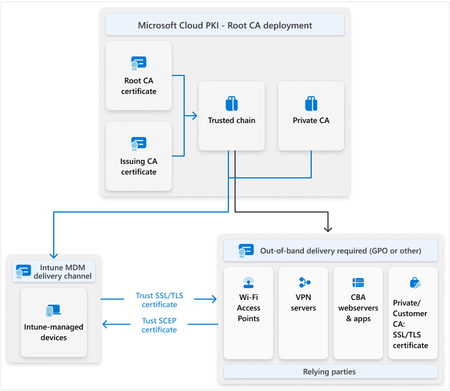
Hello Team, We are working in moving our devices Hybrid Entra ID Joined to Intune autopilot Entra ID Joined Current scenario: Hybrid Entra ID Joined devices (joined to both on-prem AD and Entra ID) Active Directory with Entra ID Connect for object synchronization AD Certificate Services (ADCS) issuing user and device certificates via GPO auto-enrollment Group Policies to push Wi-Fi configuration (EAP-TLS using device certificate) NPS RADIUS server using EAP-TLS ("Smart Card or Other Certificate") for secure 802.1X authentication On-prem SSO enabled through standard Kerberos authentication Now, I am testing Autopilot Win11 Entra ID Joined with WHfB using Cloud trust to SSO to on-prem resources. The autopilot is working, however, the WIFI is not working as the autopilot device doesn't have any certificate from the on-prem ADCS. What is the best practice to try be as much cloud and begin to decommision on-prem services. I have 2 options to push the User and computer certificate to the AUtopilot device: Option 1: Intune Certificate Connector that will bridge on-prem ADCS and Intune, In Intune a PKCS profile to install the certificate to the autopilot device. Option 2: Intune Cloud PKI and configuration profile PKCS profile to install the certificate to the autopilot device. on-prem install the root CA from the Intune cloud PKI. https://learn.microsoft.com/en-us/intune/intune-service/protect/microsoft-cloud-pki-deployment For the on-prem SSO I will contine using Cloud Trust. Component Target Device Identity Autopilot + Entra ID Joined only (no domain join) User Sign-In Windows Hello for Business (WHfB) with Cloud Kerberos Trust Certificate Issuance Replace ADCS/GPO with Microsoft Cloud PKI and Intune PKCS Wi-Fi Authentication Retain existing NPS RADIUS using EAP-TLS, but trust both ADCS and Cloud PKI root CAs On-prem SSO Enabled by AzureADKerberos on domain controllers Hybrid Devices Continue current operation during the transition — no immediate impact The 2 network environment needs to coexist: the on-prem and the cloud. Device Type Certificate Issuer Wi-Fi Auth SSO Hybrid AD-joined ADCS via GPO EAP-TLS (device cert) Native Kerberos Autopilot Entra ID Joined Cloud PKI via Intune EAP-TLS (device cert) WHfB + Cloud Trust (AzureADKerberos) How the New Wi-Fi Auth Works: Autopilot devices receive: A device certificate from Cloud PKI via Intune A Wi-Fi profile using EAP-TLS authentication NPS RADIUS server: Validates the device cert Issues access to Wi-Fi WHfB Cloud Trust provides a Kerberos ticket from AzureADKerberos, enabling seamless access to file shares, print servers, etc. This allows Autopilot Entra ID Joined devices to: Connect to Wi-Fi without GPO Access on-prem resources without passwords High-Level Implementation Steps Deploy Microsoft Cloud PKI in Intune Configure PKCS profiles for user and device certificates Deploy WHfB Cloud Trust via Intune + Entra ID (no AD join needed) Configure AzureADKerberos on domain controllers Install Cloud PKI Root CA in NPS server trust store Update NPS policy to accept certificates from both ADCS and Cloud PKI Deploy Wi-Fi profiles to Autopilot devices via Intune (EAP-TLS using device cert) Based on it, what is the best practice to move the device to the cloud as much possible.2.4KViews0likes4Comments
Domain Join Configuration Profile suddenly erroring out.
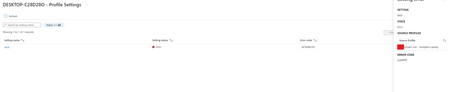
Good morning, I have never posted on here, so I hope this goes through. I have been working on getting HAADJ Autopilot setup in my organization the past few weeks and it has been going well so far, except for yesterday. In my testing I have successfully deployed a few machines using HYAAD Autopilot process with not many issues. Yesterday I pre-provisioned a laptop with no issues, it domain joined and Entra joined and I was able to reseal. A few minutes later I tried a different machine and then it didn't work on that machine. Since then I have been trying multiple machines, and it seems to not be working now at all. I am not sure what broke or changed in my environment that caused this to change. I am very new at Intune and picked up this environment from a team that left a few months ago, so it is a miracle I have gotten this far by myself, but now I am at a complete loss. This just broke on me and I have no lead as to what may have caused this. Please if anyone has ANY ideas on where to start for this please let me know. Google has not been much help. This is what I see when I check the report on the domain join config profile:6.5KViews0likes9CommentsWill Intune device-only subscription get additional value in FY27
Will the Intune device-only subscription (Microsoft Intune announces device-only subscription for shared resources | Microsoft Community Hub) get the additional features which Intune P1 will get in FY27 (Microsoft 365 adds advanced Microsoft Intune solutions at scale - Microsoft Intune Blog), Intune Remote Help, Intune Advanced Analytics and Intune P2? This would have a huge impact of our planning how to manage special purpose devices in production environments without any user affinity. Deploying security and configuration settings, Windows Autopilot for Windows IoT Enterprise LTSC kiosk deployment, Windows Autopatch (servicing), Remote Help and FOTA for Zebra devices would be drivers to add these production devices to Intune.126Views0likes0Comments
Intune MAM BYOD: Remove Account message for iOS devices
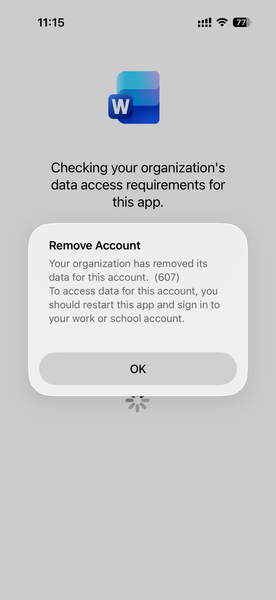
Hello, I am seeing an issue for Intune MAM BYOD(iOS) users. After a user account password reset, it causes Intune to remove the account configured from mobile applications like MS Outlook, Work, OneDrive, etc. Current Intune Configuration: Done - App Protection Policy Done - Conditional access policy --> Grant --> Requires app protection policy (checked) Users had to re-enrol to access his/her data. Here is the screenshot, Thank you,535Views0likes1CommentIssues with Windows 11 Autopilot Hybrid Joined Since last Week
Hi all, as of Thursday 4th December our Windows 11 Autopilot (Hybrid Joined) has ceased functioning. On the very first step, after the user attempts to enter their username&password, we can see the deployment profile gets downloaded to the device but then everything immediately stops with error "Something went wrong. Confirm you are using the correct sign-in information and that your organisation uses this feature. You can try and do this again and contact your system administrator with the error code 800004005". We can see that the ODJ process never starts. And we think we're seeing errors with the device reading the deployment profile JSON locally. Has anyone else had any errors? Wondering if Microsoft have made a change somewhere or have issues.7.7KViews1like18CommentsClose the Year Strong with Surface for Business Deals
As organizations look to maximize their remaining budget and prepare for 2026, now is the moment to modernize device fleets with Surface for Business. These limited-time Surface promotions make it easier to accelerate refresh cycles, strengthen endpoint security, and equip employees with devices that are AI-ready from day one. Surface for Business devices combine productivity-forward design, leading AI capabilities, and Microsoft security at multiple layers. Whether refreshing a subset of users or upgrading entire departments, organizations can close the year with hardware that helps reduce risk, assists in lowering management overhead, and positions teams for the next wave of AI-driven productivity. Secure by Design Surface for Business devices deliver hardware-based protections aligned with Secured-core PC standards. Hardware-based security, advanced firmware protections, and a growing number of memory-safe drivers help reduce exposure across the stack, providing peace of mind that clears the way for AI innovation. AI-Ready With advanced processors including powerful AI chips on supported models, Surface for Business devices are ready to help employees maximize their skills using AI to drive business forward. From a dedicated Copilot key 1 to Foundry on Windows 2 for developing local agents, these devices provide the foundation for people to achieve their best. Learn more about unlocking AI innovation in our new eBook. Ready to Deploy Surface for Business devices support Windows Autopilot 3 , enabling IT teams to deploy devices directly to employees, preconfigured with corporate profiles and security baselines, without imaging or desk-side setup. Combined with centralized management through Microsoft Intune 4 , organizations can reduce deployment time and help keep endpoints consistent from day one. Make the Most of Year-End Purchasing Opportunities Maximize remaining 2025 budget by exploring end-of-year savings on select Surface for Business devices. Work with your preferred reseller to capitalize on year-end spend, or purchase directly through Microsoft Store in the US 5 to take advantage of available offers that make modernizing your device fleet easier as you prepare for 2026. Resellers can help organizations align device selection, deployment plans, and support needs while optimizing budget utilization. Businesses purchasing through Microsoft Store benefit from fast, free shipping and a 60-day return window on most physical products. 6 Across both channels, Surface for Business offers provide a cost-effective path to refresh devices now rather than deferring upgrades—helping IT leaders complete their roadmap, meet procurement targets, and deliver new value to end users before the new year. Find a reseller [https://www.microsoft.com/surface/business/where-to-buy-microsoft-surface Buy from Microsoft Store US [https://www.microsoft.com/en-us/store/collections/surface-deals-bundles] References Feature availability varies by device and market. See Key Support for details. Some capabilities may require additional subscriptions not included with Windows or Surface devices. Windows Autopilot device preparation depends on specific capabilities available in Windows client and Microsoft Entra ID. It also requires a mobile device management (MDM) service such as Microsoft Intune. These capabilities can be obtained through various editions and subscription programs. Additional licenses required, not included with Surface. Offers and promotions vary by market. Terms apply. Microsoft Store only ships to certain countries; see Shipping options, costs, and delivery times - Microsoft Support for details.677Views1like0CommentsWindows Autopilot Error Code 0x800705b4 Preparing device for mobile management
We are implementing a number of Windows Autopilot via Lenovo Thinkbook 15-ITL. These are being deployed to authorised users whether they are at home connected to their home broadband or in the office connect to the Wide Area Network. Despite lots of testing, we randomly see the the error (see attached). If we wipe the device a couple of times, it seems to remedy the issue. I've tried to look online about this about various posts talk about the TPM, which it is not. I've tried to look through the logs from the device - what a minefield of information that means something to someone. Has anyone any ideas? Thanks Martin165KViews0likes24Comments