apple
150 TopicsNew iOS/iPadOS ADE enrollment policies experience
By: Anya Novicheva – Sr. Product Manager | Microsoft Intune Expected in Q2 CY26, iOS/iPadOS and macOS automated device enrollment (ADE) profiles will move to a new infrastructure which enables Intune to speed up the delivery of new features. These will be the new enrollment policies experience for Apple devices enrolling through ADE. With this update, you’ll notice the authentication methods are better organized, there’ll be no Company Portal authentication method or automatic deployment of the Company Portal application, Apple-deprecated settings have been removed, and there’ll be more granular admin controls for the policies page. All newly created enrollment policies for iOS/iPadOS/macOS will automatically be part of the new experience. Existing enrollment profiles won’t be affected. You’ll be able to delete, edit, and assign existing enrollment profiles but you’ll no longer be able to create them with the old experience. We recommend creating a new enrollment policy and setting it as the default as soon as this feature releases so new enrollments will use the new policy as soon as possible. All new features releasing after will be part of the new enrollment policies experience moving forward and will not be added to the old enrollment profiles. Create a new enrollment policy for iOS/iPadOS ADE In the Microsoft Intune admin center, navigate to Devices > Enrollment > Apple > Enrollment program tokens > select a token > Enrollment policies > Create. Here, new enrollment policies can be created and assigned to devices that have synced over from Apple Business Manager or Apple School Manager. Additionally, enrollment policies can be deleted or set as the default by navigating to the ellipsis in a policy. Benefits of the new experience: Enrollment time grouping support - Enrollment time grouping in Microsoft Intune The columns control can be used to select which columns should be default, which one should be the primary column, and which ones to show or hide. The search bar can be used to search by any column field contents and isn’t case sensitive. The filters control can be used to filter the policies by platform. We’ll add more filtering for the other columns soon. Sort each column by the ascending or descending order by clicking on the column header. No more automatic Company Portal app deployment from the enrollment policy itself or Company Portal as an authentication method option in the drop-down setting. The Company Portal app can still be used and sent down as a required or available app to the device depending on your organization’s needs. We always recommend using Setup Assistant with modern authentication for ADE policies with user affinity as it is the most secure method. However, if you still want to deploy the Company Portal authentication method your users or devices, you can do userless authentication (Enroll with no user affinity for authentication) and deploy the application as needed along with the required app configuration policy to the targeted devices. Note that this is not recommended. The “Install Company Portal”, “Install Company Portal with VPP, and “Run Company Portal in single app mode until authentication” settings aren’t supported and have been removed from the enrollment policy for iOS/iPadOS ADE. For more details refer to the blog: Move to Setup Assistant with Modern Authentication for Automated Device Enrollment Shared iPad for iPadOS ADE has its own authentication method for devices with no user device affinity. Setup Assistant with modern authentication is the default and recommended authentication method for ADE enrollment policies. Assigning new enrollment policies to devices The device assignment flow for ADE policies is the same. Within the policy, navigate to the Devices tab to select a device(s) and select Assign policy. Ensure that you’re assigning a new enrollment policy to the devices. Existing (old) enrollment profiles Existing enrollment profiles will remain in Devices > Enrollment > Apple > Enrollment program tokens > select a token > Profiles. New enrollment profiles within Profiles cannot and should not be created. Existing enrollment profiles can be deleted, edited, assigned to devices, and viewed. Their device assignments will not be affected or changed. We recommend you migrate your ADE devices from being assigned to old enrollment profiles over to new enrollment policies and always have the Await final configuration setting set to Yes. Additionally, we recommend you set your default enrollment policy to one of your newly created ones from the Enrollment policies tab. Important: If you delete an old enrollment profile, the device rename is no longer enforced (that is if someone changes the device name). Sending the Company Portal app to ADE devices with user device affinity (optional) - iOS/iPadOS only Previously within enrollment profiles, the Company Portal app was sent down automatically to devices with the creation of Setup Assistant with modern authentication and Company Portal authentication profiles. With new enrollment policies, the Company Portal application will never be sent down automatically from the creation or assignment of the enrollment policy. For enrollment policy with user device affinity, we strongly recommend you set the authentication method to Setup Assistant with modern authentication as the most secure and seamless method. For Setup Assistant with modern authentication, the Company Portal is no longer required because of Just in Time registration and compliance Remediation for iOS/iPadOS with Microsoft Intune. However, if you still want to send replicate the Company Portal authentication method for your users or devices, you can choose to Enroll without user affinity (userless) and then deploy the application as needed, along with the required app configuration policy to the targeted devices. Assigning the correct app configuration policy based on the authentication method is critical if you’re sending the Company Portal app to ADE devices without user device affinity. Otherwise, the Company Portal will cause issues on the device and won’t auto-update correctly. However, we highly recommend Setup Assistant with modern authentication as the ADE authentication method for your Apple devices with user affinity. Based on the Company Portal authentication method you use, send the following XML for the app configuration policy: If you're using the Company Portal on an ADE device enrolled without user affinity (also known as Device Staging): <dict> <key>IntuneUDAUserlessDevice</key> <string>{{SIGNEDDEVICEID}}</string> </dict> If you're using the Company Portal on an ADE device enrolling with user device affinity, such as the Company Portal authentication method: <dict> <key>IntuneCompanyPortalEnrollmentAfterUDA</key> <dict> <key>IntuneDeviceId</key> <string>{{deviceid}}</string> <key>UserId</key> <string>{{userid}}</string> </dict> </dict> Stay tuned to What’s new in Intune for the release! If you have any questions, leave a comment on this post or reach out on X @IntuneSuppTeam and we'll provide updates in the blog on the timing of this release. Post Updates: 06/26/25: Updated post with a new ETA of Q4 CY25 (previously Q2 CY25). Also revised the content to better clarify the new experiences and authentication scenarios. 09/12/25: Updated post with a new ETA of Q1 CY26 (previously Q4 CY25). 02/26/26: Updated post with a new ETA of Q2 CY26 (previously Q1 CY26) and expanded scope to include macOS ADE alongside iOS/iPadOS.20KViews1like29CommentsSupport tip: Move to declarative device management for Apple software updates
By: Benjamin Flamm – Product Manager | Microsoft Intune Apple recently announced at the Worldwide Developer Conference (WWDC) in June 2025 that mobile device management (MDM) software updates are deprecated in the upcoming Apple OS 26 versions. Instead, software updates will need to use declarative device management (DDM). In this blog, we want to provide you with everything you need to know to navigate this transition and easily manage software updates in DDM. What is DDM? DDM is an enhancement to Apple’s device management protocol that makes devices more proactive and autonomous, and this is perfectly highlighted by the major improvements that DDM brings to managing software updates. Previously, Intune had to send update commands and repeatedly check for the update status. With DDM, Intune simply tells the device the required OS version and the installation deadline, while the device proactively updates Intune on its progress from download to installation. Move to DDM for software updates The MDM software update features in Intune will initially be marked as ‘deprecated’ in the Intune admin center and support will end shortly after Apple OS 26 releases. Devices will ignore MDM update settings when DDM update settings are being enforced, so the only steps you need to do are to create your DDM update policies using the settings catalog. The following table lists the MDM software update features that’ll be unsupported later this year, along with the matching DDM feature that is currently available or coming soon. Legacy MDM feature New DDM feature iOS/iPadOS update policies Software Update or Software Update Enforce Latest settings, located in the settings catalog under Declarative Device Management (DDM): macOS update policies iOS update installation failures report Apple software update failures (Devices > Monitor) which is expected to release with Intune’s August (2508) service release. macOS update installation failures report Software updates report (macOS per-device) macOS software updates (Devices > All devices, select a macOS device > macOS software updates) which is expected to release with Intune’s August (2508) service release. macOS Settings catalog > Software Update payload and settings Software Update Settings located in the settings catalog under Declarative Device Management (DDM): Settings in the iOS or macOS ‘Device restrictions’ template Settings catalog > Restrictions, software update delay settings How do I manage software updates using Intune? With Apple deprecating MDM software updates, DDM is the recommended method to manage software updates in your organization. For a thorough guide that highlights the differences between MDM and DDM, along with how to configure DDM software updates review: Managed software updates with the settings catalog. Useful resources Apple announcements: Announcement of DDM software updates at WWDC 2023 Introduction of Software Update Settings at WWDC 2024 Announcement of MDM update deprecation at WWDC 2025 Intune Apple settings catalog configuration list | Microsoft Learn Apple Platform Deployment guide for managing updates | Apple Support Stay tuned to this post for updates! If you have any questions, leave a comment below or reach out to us on X @IntuneSuppTeam or @MSIntune. Updates: 7/25/2025: Updated the expected release timeline of the new per-device software update report for macOS.26KViews1like6CommentsNew block screen capture for iOS/iPadOS MAM protected apps
Following the announcement of Microsoft Intune support for Apple Intelligence, we recently introduced support to block screen capture for mobile application management (MAM) protected apps. This blog provides details of the default screen capture behavior to help you understand how it affects your users and the settings available to change the default behaviour. Background Previously, for iOS/iPadOS, there were no controls to limit screen captures per application, per user or without device enrollment. this resulted in a gap for organizations with only MAM protection. As part of our secure-by-default commitment, the new default behavior for your MAM-protected app may have changed. Now, based on your Intune app protection policy settings, when a user attempts to screen capture or share the screen from a managed account within a MAM-protected app, a blank screen will be captured instead of the actual screen image. How the MAM block screen capture works In Intune, the screen capture is controlled using the existing Send Org data to other apps setting within the Data Protection section of the iOS app protection policy (APP) and is blocked if both the following conditions are met: The app (Microsoft apps, third-party apps, or your line-of-business (LOB) app) is updated to use Intune App SDK v19.7.6 or later for Xcode 15 and v20.2.1 or later for Xcode 16. The app is targeted by APP and the setting Send Org data to other apps is set to “None” or any of the “Policy managed apps...” values. If Send Org data to other apps is configured to “All Apps”, the screen capture for your MAM protected apps isn’t blocked. Changing the default MAM screen capture block For some scenarios, you may wish to allow screen capture while retaining the existing APP configuration, such as allowing screen capture and sharing to policy managed apps. Therefore, we introduced a Managed app configuration key com.microsoft.intune.mam.screencapturecontrol = Disabled” to override the default behavior. To allow screen capture on iOS devices targeted with an app protection policy, follow these steps: Navigate to the Microsoft Intune admin center. Select Apps > App configuration policies > Create > Managed apps. On the Basics page, select the apps you wish to target. For this example we’ve selected Outlook (iOS/iPadOS), Teams (iOS/iPadOS) and an LOB app. On the Settings page, within the "General configuration settings” section, add the key "com.microsoft.intune.mam.screencapturecontrol" with the value "Disabled". Assign the configuration policy to the users who you want to target with the override setting. For more details, refer to Add an app configuration policy for managed apps on iOS/iPadOS and Android devices. Conclusion To keep your organizations secure, based on your policy, all screen capture attempts are blocked for MAM protected apps. The managed app configuration settings detailed in this blog allows you to override the default settings to meet any specific requirements within your organization. Stay tuned to What's new in Microsoft Intune for future improvements to the blocking screen capture capabilities and more Apple Intelligence features. Let us know if you have any questions by leaving a comment on this post or reaching out on X @IntuneSuppTeam.49KViews2likes46Comments
Apple business manager deployment - receiving pop-up bout apple account
Hello intune forum, I recently setup apple business manager in our enviroment to work with Intune. I've created the enrollment profile, setup the VPP token, etc. But now, a few of our users, myself included is getting a pop-up on our phones stating : "this apple account cannot make purchases". I made sure only the VPP apps are being pushed to the company phones and not the apps from the store. Anyone else have this issue?451Views1like2CommentsDay zero support for iOS/iPadOS and macOS 26
With Apple's release of iOS/iPadOS and macOS 26 Tahoe, we’ve been working hard to ensure that Microsoft Intune provides day zero support for Apple’s latest operating systems (OS) so that existing features work as expected. We’ll continue to upgrade our service and release new capabilities that integrate elements of the new OS versions. New settings With continued investments in the Intune data-driven infrastructure that powers the settings catalog, we’re able to provide day zero support for new OS settings as they’re released by Apple. The settings catalog has been updated to support newly released iOS/iPadOS and macOS settings for both declarative device management (DDM) and mobile device management (MDM) to empower your IT teams to have devices ready on day zero. New settings include: Audio Accessory Settings Configure temporary pairing behavior for AirPods and Beats audio accessories. Located under the Declarative Device Management (DDM) category. Temporary Pairing Disabled Temporary Pairing Unpairing Time Unpairing Policy Unpairing Hour Safari Settings Customize the Safari browsing experience. Located under the Declarative Device Management (DDM) category. Accept Cookies Allow Disabling Fraud Warning Allow History Clearing Allow JavaScript Allow Private Browsing Allow Popups Allow Summary Page Type Homepage URL Extension Identifier Restrictions Restrict specific features on devices. Located under the Restrictions category. Allow Safari History Clearing Allow Safari Private Browsing Allowed Camera Restriction Bundle IDs Denied ICCIDs For iMessage And FaceTime Denied ICCIDs For RCS Default Applications Restrict modifications to the default calling and messaging apps. Located under the Managed Settings category. Calling Messaging Web Content Filter Configure Safari History behavior when using content filtering. Located under the Web Content Filter category. Safari History Retention Enabled More information on configuring these new settings using the settings catalog can be found at Create a policy using settings catalog in Microsoft Intune. Intune Company Portal support for improved Purebred derived credentials flow With iOS 26, Purebred (version 3) is supporting a new and improved derived credentials user experience. As part of Intune’s day zero support, the Intune Company Portal for iOS/iPadOS will support Purebred's new experience. If your organization continues to use an older version of Purebred, there will be no changes to your Purebred and Company Portal derived credentials experience. If your organization is planning on upgrading to the new version of Purebred, be sure you have the latest Company Portal version (v5.2509.0). Support statement for “supported” versus “allowed” versions for user-less Apple devices As new operating system updates are released throughout the year by Apple, Intune plans to support critical functionality that comes with each new OS version. With the release of iOS/iPadOS and macOS 26, we’ll continue with our existing model for enrolling user-less devices for supported and allowed OS versions to keep enrolled devices secure and efficient. This includes devices enrolling without user affinity (user-less devices), such as shared iPads and devices enrolling through Automated Device Enrollment (ADE) without user affinity. We highly recommend updating your organization’s devices to the most recent Apple OS version publicly available to keep your devices secure and up to date. Supported OS versions means that user-less devices running the three most recent iOS/iPadOS versions will be fully supported by Intune. Devices running iOS/iPadOS 26.x, 18.x, and 17.x can enroll and take advantage of all Intune MDM functionality that is applicable to user-less devices, and all new eligible features will work on these devices. Allowed OS versions means that user-less devices running a non-supported iOS/iPadOS version (within three versions of the supported versions) will be able to enroll and take advantage of Intune’s eligible features supported by the MDM protocol but doesn’t guarantee that there won’t be breaking OS features, bugs, or issues. Devices enrolled with user affinity or apps that rely on user sign-in will continue to not be supported. User-less enrollment and feature support Supported Allowed Applicable Versions Three most recent versions (N-2): iOS/iPadOS 17.x and later macOS 14.x and later Up to three versions below the supported version (N-5): iOS/iPadOS 15.x and later macOS 12.x and later Can enroll Yes Yes User-less eligible Intune MDM Features Yes Yes. May be impacted by breaking OS features, bugs, or issues. User affinity enrollment Yes No Apps that require user sign-in Yes No For more details review the blog: Support statement for supported versus allowed versions for user-less Apple devices: Support statement for supported versus allowed versions for user-less Apple devices. If you have any questions or feedback, leave a comment on this post or reach out on X @IntuneSuppTeam. Stay tuned to What’s new in Intune for additional settings and capabilities that will soon be available. Known Issues We’ve received reports that devices configured using the App Lock (also known as Kiosk mode in Intune located under Device configuration > Templates > Device restrictions) may be unable to unlock from the lock screen after upgrading to iOS/iPadOS 26. To work around this issue, you can turn the screen off and back on, then enter the passcode to get access to the home screen. We’re working with Apple on a resolution and will update this blog as soon as more information becomes available. Post updates: 10/15/25: Added a 'Known Issues' section, and a details on a current known issue about the App Lock scenario.6.3KViews2likes9CommentsVPP Apps on DEP iPadOS Devices Do Not Automatically Update Error code: 0x87D13B9F
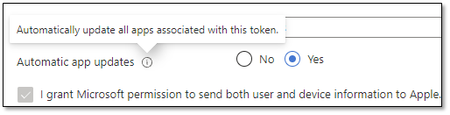
We're in the process of migrating to Intune and we're starting with DEP devices. However we've noticed that as applications are updated in the App Store, the device itself is not updating the applications automatically but requires human intervention. Today we checked one of the devices and saw that the update failed with error 0x87D13B9F: Application attempted to install 9/30/2021 6:43:12 AM App installation failed 9/30/2021 4:13:53 AM Hide details Error code: 0x87D13B9F An app update is available. Available apps can be updated using Company Portal and required apps will auto-update on device sync. Suggested remediation This code is returned when a VPP app is installed but there is a newer version available. Our Apple VPP token is configured for automatic updates: The Microsoft documentation confirms that: Automatic app updates - Choose from Yes or No to enable automatic updates. When enabled, Intune detects the VPP app updates inside the app store and automatically pushes them to the device when the device checks in. Note: Automatic app updates for Apple VPP apps will automatically update for both Required and Available install intents. For apps deployed with Available install intent, the automatic update generates a status message for the IT admin informing that a new version of the app is available. This status message is viewable by selecting the app, selecting Device Install Status, and checking the Status Details. All this to say that this configuration should be working as the application in question is required But it's not happening automatically Did we miss something somewhere? Any advice is greatly appreciated. References: https://docs.microsoft.com/en-us/troubleshoot/mem/intune/troubleshoot-app-install https://docs.microsoft.com/en-us/troubleshoot/mem/intune/app-install-error-codes https://docs.microsoft.com/en-us/mem/intune/apps/vpp-apps-ios#upload-an-apple-vpp-or-apple-business-manager-location-token 0x87D13B9F App Install Error - Microsoft Tech Community20KViews0likes12CommentsApple making device migration to Microsoft Intune easy with upcoming OS 26 release
By: Iris Yuning Ye – Product Manager | Microsoft Intune Apple recently announced a major update at their Worldwide Developers Conference 2025 that solves one of the biggest headaches for admins: migrating macOS and iOS/iPadOS devices from one mobile device management (MDM) solution to another without factory resets, manual re-enrollment, or missing configurations. With the new MDM Migration capability in macOS 26 and iOS/iPadOS 26, built directly into Apple Business Manager, IT admins are able to transition devices from third-party MDMs to Microsoft Intune seamlessly, and without user disruption. Migrating devices to Intune helps IT admins consolidate device management across platforms, enforce consistent security policies, and reduce operational complexity. In this blog, learn how to start using Apple’s MDM migration feature to easily move your macOS and iOS/iPadOS fleet to Intune. Prerequisite: macOS/iOS/iPadOS 26 and enrollment into a device management service is required to use the Apple MDM migration feature. 1. Pre-migration – preparation and set up Before starting the migration process, there are five major steps to follow for preparation. 1.1 Keep a record of your devices Start by creating a detailed inventory of all devices in your organization. This should include each device model, the version of OS it’s running, and whether it’s corporate-owned or user-owned. This step is critical because Apple’s new migration feature has specific OS version requirements. Knowing which devices are eligible helps you scope the migration accurately and avoid surprises later. 1.2 Document configurations in current MDM Before making any changes, document all existing configurations in your current MDM platform. This includes: Configuration profiles: Capture all profiles related to Wi-Fi, VPN, email, and certificates. These are essential for maintaining connectivity and access post-migration. Compliance policies: Note any rules that enforce password complexity, encryption, or device health checks. Security baselines: Record settings such as FileVault encryption, Gatekeeper, and the macOS firewall to ensure security standards are preserved. Custom scripts: List any scripts used for automation, monitoring, or maintenance tasks. Deployed applications: Document all apps currently deployed, including how they’re delivered (Volume Purchase Program, App Store, or custom packages). This documentation will serve as your blueprint for rebuilding these configurations in Intune. 1.3 Configure the Apple MDM push certificate Navigate to the Intune admin center, create and upload an Apple MDM push certificate. This certificate allows Intune to securely communicate with Apple devices. Without it, device management and policy enforcement can’t function. 1.4 Add Microsoft Intune to Apple Business Manager (ABM) or Apple School Manager (ASM) Next, integrate Microsoft Intune with ABM or ASM, by following these steps: Download the public key from Intune. Upload that key to ABM or ASM when creating a new MDM server. Then, download the server token from ABM or ASM and upload it back into Intune. This allows ABM to recognize Intune as a valid MDM server and enables device assignment. 1.5 Set up MDM Configurations in Intune Since migration is treated as a new device enrollment, you'll need to follow standard Intune ADE (Automated Device Enrollment) guidance to setup device enrollment profile. Some key steps include: Once the device is in ABM/ASM, token that must be created to link Intune with ABM. Then, the device needs to sync from ABM to Intune. There is an automatic sync every 12 hours, or admin can manually sync once every 15 min. After successfully synced device from ABM to Intune, you need to create the enrollment profile, and then manually assign it to the devices via device serial number, and then the device can power on and enroll through that assigned enrollment profile Using the configurations documented in step 1.2, begin replicating existing configurations in Intune. This includes but is not limited to: Rebuilding configuration profiles for network access and security. Reapplying compliance and security policies. Re-deploying applications. Rewriting or importing scripts as needed. Identify the other controls to implement that improves Zero Trust. Call to action: Please make sure testing the MDM configurations on a test device before assigning them to the devices you plan on migrating. And before initiating any migration, communicate with your endpoint users first, keeping them informed to avoid any confusion. 2. Migration – Admin step-by-step flow The admin experience starts from ABM or ASM. After logging into ABM or ASM, navigate to the Devices section. Select the device or group of devices targeted for migration to Intune. Selecting the ellipsis on the top right of device overview interface unveils the “Assign Device Management” button. Select the server you want to migrate the device to. In our case, it’s Intune. Confirm device assignment. 3. Migration – Endpoint step-by-step flow After completing the device management assignment, the device user receives a notification informing them that a management change is required. macOS iOS/iPadOS When the user selects the notification, they are guided through a simple approval process. If the user doesn’t initiate enrollment before the admin set enrollment deadline, an enforced migration occurs, which results in a non-dismissible and full-screen prompt that must be completed by the user before using the device. Regular migration Enforced migration (past deadline) Once the user approves the migration, the device communicates with Apple’s servers to get its new device management assignment. It then downloads and installs the new MDM profile. This migration process happens without rebooting the device. 4. Post-migration – Verification Lastly, verify the migration and enrollment successfully completed by navigating to the Intune admin center and confirming the new devices are listed. evice. Please note, it's important to have test device verifying required configurations running smoothly before migrating large number of devices and test your devices after migration to ensure everything is working smoothly. If you run into any issues, further adjustments may be needed. Special thanks to our Intune MVP, Somesh Pathak, whose content we leveraged in this blog! For more details and a video demo, check out Somesh’s blog at: https://intuneirl.com/mac-admins-your-migration-glow-up-just-dropped Summary In short, Apple’s new MDM migration in macOS and iOS/iPadOS 26 makes moving Mac, iPhone or iPad devices to Intune now easier than ever. With careful planning and a few simple steps, you can make the switch smoothly to manage your Apple devices all in one place. For Mac devices that aren’t running OS 26, you can check out our Intune Github for migration scripts and review the blog Managing and migrating Macs with Microsoft Intune. Let us know how your Mac journey is going by leaving a comment below, reaching out to us on X @IntuneSuppTeam, or join our Mac Admins Community on LinkedIn! Post updates: 12/04/25: Updated section "1.5 Set up MDM Configurations in Intune". 12/11/25: Updated MDM Migration URL.31KViews9likes44Comments
Intune - Issues with Account-Driven User Enrollment Issues on iOS 18.5
Hello everyone, Since the release of iOS 18, Apple has deprecated profile-based user enrollment via the Company Portal app, requiring the use of Account-Driven User Enrollment. While this change enhances user experience, I'm encountering challenges in implementing it. Steps Taken: Apple Business Manager (ABM) Account: Created and linked the ABM account to Intune using the token. Corporate devices are successfully appearing in Intune. MDM Server Configuration: Set Intune as the default MDM server for all devices in ABM. Domain Federation: Established Entra ID federation in ABM to synchronize all users. Intune Enrollment Profile: Created an 'Enrollment Type Profile' of type 'Account-Driven User Enrollment.' MDM Push Certificate: Configured and validated the MDM Push certificate. Issue Encountered: According to https://support.apple.com/guide/deployment/account-driven-enrollment-methods-dep4d9e9cd26/web, starting with iOS 18.2, hosting a service discovery file on a web server is no longer mandatory. The device should automatically contact the ABM organization associated with the Managed Apple ID if no web server is found. On an iOS 18.5 device, I navigate to: Settings > General > VPN & Device Management > Sign in to Work or School Account After entering my Microsoft email address (which matches my Managed Apple ID due to federation), I consistently receive the error: "Your Apple ID does not support the expected services on this device." In ABM, under "Access Management" > "Apple Services," all services are activated. Could I be missing a crucial step in the configuration? Any guidance or insights would be greatly appreciated. Thank you in advance for your help. Best regards,1.8KViews1like8Comments