app assure
53 TopicsAccelerate connectors development using AI agent in Microsoft Sentinel
Today, we’re excited to announce the public preview of a Sentinel connector builder agent, via VS code extension, that helps developers build Microsoft Sentinel codeless connectors faster with low-code and AI-assisted prompts. This new capability brings guided workflows directly into the tooling developers already use, helping accelerate time to value as the Sentinel ecosystem continues to grow. Learn more at Create custom connectors using Sentinel connector AI agent Why this matters As the Microsoft Sentinel ecosystem continues to expand, developers are increasingly tasked with delivering high‑quality, production‑ready connectors at a faster pace, often while working across different cloud platforms and development environments. Building these integrations involves coordinating schemas, configuration artifacts, Azure deployment concepts, and validation steps that provide flexibility and control, but can span multiple tools and workflows. As connector development scales across more partners and scenarios, there is a clear opportunity to better integrate these capabilities into the developer environments teams already rely on. The new Sentinel connector builder agent, using GitHub Copilot in the Sentinel VS code extension, brings more of the connector development lifecycle -- authoring, validation, testing, and deployment into a single, cohesive workflow. By consolidating these common steps, it helps developers move more easily from design to validation and deployment without disrupting established processes. Read the full announcement here: Accelerate connectors development using AI agent in Microsoft Sentinel Original Publication: Microsoft Security Community Blog, March 30th, 2026284Views0likes0Comments
Building Microsoft Sentinel Connectors in Minutes with the Sentinel Connector Builder Agent
Overview We previously announced the public preview of the Microsoft Sentinel connector builder agent via VS code extension, that helps developers build Microsoft Sentinel codeless connectors faster with low-code and AI-assisted prompts. This post walks through a hands-on lab using a mock Network Log API to demonstrate how the Sentinel connector builder agent simplifies building Codeless Connector Framework (CCF) pull connectors. Instead of manually creating ingestion infrastructure and configuration files, you’ll use a guided, conversational workflow in VS Code to generate connector artifacts, test them against a live API, and deploy them into Microsoft Sentinel. The lab focuses on the end-to-end experience ranging from API setup to validated connector deployment so you can see how quickly a working integration can be produced. For additional guidance beyond this lab, refer to our MS Learn documentation. The Lab Environment This lab is built around a mock Network Log API hosted as an Azure Function App. The purpose of the lab environment is to give us a live API that we can use to build, validate, and test the Sentinel CCF connector builder agent against end to end. The API exposes 50 synthetic network activity records that look and behave like a real product data source, including web traffic, DNS requests, blocked remote access attempts, malware command-and-control blocks, VPN activity, and other common network events. That makes it a useful stand-in for the type of telemetry many teams want to onboard into Microsoft Sentinel. The API is intentionally shaped like the kind of source a customer might expose for telemetry retrieval. It uses API key authentication through the X-API-Key header, returns paginated results through a nextLink model, and provides a predictable response structure that the builder agent can map into a pull connector configuration. The repo contains everything needed for the walkthrough. There is an ARM template to deploy the Function App, reference documentation for the API, and a sample connector package showing the generated polling config, table schema, DCR, and connector definition. The end goal of the lab is straightforward: use the builder agent to generate a CCF pull connector that ingests this API into the custom NetworkLogAPIGetNetworkLogs_CL table in Sentinel. Follow the full walkthrough here: Building Microsoft Sentinel Connectors in Minutes with the Sentinel Connector Builder Agent Original Publication: Microsoft Sentinel Blog, August 11th, 2026283Views0likes0CommentsEmpower Real-Time Security with Microsoft Sentinel’s CCF Push Feature
In today’s rapidly evolving threat landscape, organizations need security solutions that deliver actionable insights in real time, not minutes or hours after the fact. Microsoft Sentinel continues to expand its capabilities, driven by a commitment to empower customers and partners with cutting-edge tools for proactive defense. Today, we are excited to announce the public preview of our latest innovation, the Sentinel Codeless Connector Framework (CCF) Push feature. CCF Push addresses a critical need: enabling seamless, automated, and immediate delivery of security data to Sentinel, so teams can respond to threats as they happen. What Is CCF Push and Why Does It Matter? Microsoft Sentinel connectors generally follow two patterns. In the polling pattern, partners and customers expose their web‑facing REST API endpoints and use our traditional CCF connectors to poll those endpoints at intervals to gather data for ingestion into Sentinel. In the push pattern, partners and customers send data directly to a Sentinel workspace. Our new CCF Push capability was built to streamline and accelerate time to adoption for this second pattern. Read the full announcement here: Empower Real-Time Security with Microsoft Sentinel’s CCF Push Feature Original Publication: Microsoft Sentinel Blog, February 12th, 2026248Views0likes0CommentsAdvancing print readiness across the Windows on Arm ecosystem
Momentum across the Windows on Arm ecosystem continues to build as more commercial and retail customers adopt Arm-based Windows devices for everyday work. Customers are realizing tangible benefits such as improved performance per watt, longer battery life, quieter devices, and more consistent responsiveness across native Arm64 application workflows. As adoption grows, however, success depends not only on application availability, but on the readiness of foundational systems that customers rely on regardless of device or architecture. Printing, deeply embedded in business operations, remains one of the critical workflows that must keep pace. Microsoft’s Modern Print Strategy provides an important foundation for this transition, modernizing printing on Windows through standardized protocols, inbox class drivers, and extensible Print Support Apps. This approach aligns closely with the needs of Windows on Arm by reducing complexity and enabling consistent, secure printing across architectures. At the same time, Microsoft recognizes that many commercial customers depend on established print workflows, and that hardware partners continue to support these needs through universal and native print drivers. Together, these models enable both software developers and hardware partners to extend reliable print solutions to Windows on Arm, consistently and reliably. Below is a snapshot of print companies that have recently delivered or expanded solutions supporting Windows on Arm, demonstrating how the modern print ecosystem is evolving to meet customer expectations as Windows devices and the workloads they power continue to modernize ... Read the full announcement here: Advancing print readiness across the Windows on Arm ecosystem Original Publication: Microsoft Windows IT Pro Blog, May 6th, 2026183Views0likes0CommentsBuilding Microsoft Sentinel Connectors in Minutes with the Sentinel Connector Builder Agent
Overview We previously announced the public preview of the Microsoft Sentinel connector builder agent via VS code extension, that helps developers build Microsoft Sentinel codeless connectors faster with low-code and AI-assisted prompts. This post walks through a hands-on lab using a mock Network Log API to demonstrate how the Sentinel connector builder agent simplifies building Codeless Connector Framework (CCF) pull connectors. Instead of manually creating ingestion infrastructure and configuration files, you’ll use a guided, conversational workflow in VS Code to generate connector artifacts, test them against a live API, and deploy them into Microsoft Sentinel. The lab focuses on the end-to-end experience ranging from API setup to validated connector deployment so you can see how quickly a working integration can be produced. For additional guidance beyond this lab, refer to our MS Learn documentation. The Lab Environment This lab is built around a mock Network Log API hosted as an Azure Function App. The purpose of the lab environment is to give us a live API that we can use to build, validate, and test the Sentinel CCF connector builder agent against end to end. The API exposes 50 synthetic network activity records that look and behave like a real product data source, including web traffic, DNS requests, blocked remote access attempts, malware command-and-control blocks, VPN activity, and other common network events. That makes it a useful stand-in for the type of telemetry many teams want to onboard into Microsoft Sentinel. The API is intentionally shaped like the kind of source a customer might expose for telemetry retrieval. It uses API key authentication through the X-API-Key header, returns paginated results through a nextLink model, and provides a predictable response structure that the builder agent can map into a pull connector configuration. The repo contains everything needed for the walkthrough. There is an ARM template to deploy the Function App, reference documentation for the API, and a sample connector package showing the generated polling config, table schema, DCR, and connector definition. The end goal of the lab is straightforward: use the builder agent to generate a CCF pull connector that ingests this API into the custom NetworkLogAPIGetNetworkLogs_CL table in Sentinel. Prerequisites Before starting, make sure you have the following: Azure subscription -- with Contributor access on a resource group (for deploying the Function App) and Microsoft Sentinel Contributor access on a Sentinel-enabled workspace (for deploying the connector) Microsoft Sentinel workspace -- an existing Log Analytics workspace with Sentinel enabled. See Onboard Microsoft Sentinel to a Log Analytics workspace for more information. Azure CLI -- See How to install the Azure CLI for more information. VS Code with the Microsoft Sentinel for Visual Studio Code extension installed. GitHub Copilot -- with access to premium models. The connector builder agent requires Claude Sonnet 4.5 or 4.6, which uses Copilot premium model credits. Lab Repository -- Once the aforementioned prerequisites are met, you can access the lab repository here: Azure-Sentinel/Tools/CCF-Connector-Builder-Agent-Accelerator at master · Azure/Azure-Sentinel Deploying the Mock API The full CLI commands for this section are available in the repo. For a simpler option, you can use GitHub Copilot to handle the deployment. Enter this prompt: Follow the deployment instructions in Sentinel-CCF-Pull-Connector-Builder-Agent-Accelerator/agent-instructions.md. Let’s deploy the Network Log API and build a CCF pull connector. At a high level, the setup is four steps: clone the repo, create a resource group, ensure you have a Sentinel-enabled workspace, and deploy the Function App using the included ARM template. The template takes two parameters: an ApiKey of your choice (the secret the CCF connector will use to authenticate) and your Log Analytics workspace resource ID for Application Insights. Deployment takes about two to three minutes and outputs the FunctionAppName and endpoint URLs you will need later. Once deployed, verify the API is live: curl -s -H "X-API-Key: <your-api-key>" \ "https://<functionappname>.azurewebsites.net/api/GetNetworkLogs?page=1&pageSize=3" </functionappname></your-api-key> You should see a response like this: The API also exposes an /api/RefreshData endpoint that regenerates the 50 sample records with fresh timestamps. This is useful later in the walkthrough when you want to produce new events and trigger an immediate ingestion cycle without waiting for the next polling interval: curl -s -X POST -H "X-API-Key: <your-api-key>" \ "https://<functionappname>.azurewebsites.net/api/RefreshData" </functionappname></your-api-key> Building the Connector with the Sentinel Connector Builder Agent With the Microsoft Sentinel extension installed and GitHub Copilot running in agent mode, open a Copilot chat and enter a single prompt pointing at the API documentation file: That is the entire invocation. The agent takes it from there. It works through a structured seven-step sequence: preparation, polling config, table schema, DCR, connector definition, package validation, and summary. The agent produces four files in a sentinel-connectors/NetworkLogAPI_CCF/ output folder: NetworkLogAPI_PollingConfig.json – This is the API poller configuration. The agent reads the documentation and correctly identifies the GET /api/GetNetworkLogs endpoint, configures API Key authentication via the X-API-Key header, sets up NextPageUrl pagination using $.metadata.nextLink with a $.metadata.hasNextPage stop condition, and wires up the since query parameter for incremental delta pulls using the timestamp field. The RefreshData endpoint is correctly excluded, which the agent recognizes as a maintenance operation, not a security data stream. NetworkLogAPI_Table.json – This is the custom Log Analytics table schema for NetworkLogAPIGetNetworkLogs_CL . All 20 fields from the API response are mapped to the correct column types, with timestamp promoted to TimeGenerated as the standard Sentinel time column. NetworkLogAPI_DCR.json – This is the Data Collection Rule. This defines the stream declaration, the workspace destination, and the KQL transform that maps the raw snake_case API fields ( sourceIp , destinationIp , threatIndicator , etc.) to their PascalCase table columns. NetworkLogAPI_ConnectorDefinition.json – This is the connector UI configuration. This drives what the connector page looks like in Microsoft Sentinel: the title, description, prerequisite instructions, the BaseUrl and ApiKey input fields, sample KQL queries, and the connectivity status logic. The only point where the agent paused for input was to propose a connector description and ask for confirmation before writing it to the file. Everything else such as endpoint selection, auth type, pagination pattern, schema mapping, KQL transform, cross-file consistency was selected autonomously. To put that in perspective: without the agent, a developer building this connector from scratch would need to manually author four JSON files, understand the CCF schema for polling configs, DCRs, and connector definitions, write the KQL transform by hand, and validate that every cross-file reference lines up correctly. The agent compresses that work, typically hours of reading documentation, trial-and-error, and portal debugging, into a single prompt. Testing the Connector Before deploying anything to a Sentinel workspace, the Microsoft Sentinel connector builder agent lets you validate the generated polling config against the live API directly from your editor. Right-click the sentinel-connectors/NetworkLogAPI_CCF folder, select Microsoft Sentinel → Test Connector (Preview), and a Configuration Variables panel opens asking for the two template variables from the polling config: BaseUrl and apiKey . For other API patterns, there may be additional and different inputs. For example, apiKey input could be swapped with clientID and secret if the API supports OAUTH. Enter the Function App base URL and your API key, and the test runner connects immediately. The panel shows a live polling session. Poll #1 returns HTTP 200 with 50 events, and a countdown timer shows when the next poll will fire. Switching to the Events tab displays the ingested records in a tabular view with columns for timestamp , severity , action , bytesIn , bytesOut , category , and the rest of the mapped fields fresh from the API. Additionally, there are tabs for Headers, Payload, and Response, which can be useful for verifying that your pollerconfig.json configuration provides the expected request to your api with a working response. Data Extracted: The Test Connector feature can be used to visualize the response data in a table format to verify that data will land in a Sentinel table based on your configuration. Request from Poller: The Test Connector feature can be used to validate the request and response headers that will go out to the API based on the generated poller configuration. Request Response: The Test Connector feature shows you the live response from the API with respect to the request going to the API based on the poller configuration. This is a meaningful pre-flight check. It confirms that auth is working, the $.data events path resolves correctly, pagination is functional, and the polling interval fires as configured all before a single file is deployed to Azure. The most common connector configuration issues (wrong base URL, incorrect header name, mismatched JSON path) surface here in seconds rather than after a failed deployment and a 20-minute wait for Sentinel to attempt its first ingestion cycle. It is also the fastest way to troubleshoot if something goes wrong after deployment, far quicker than pushing changes to Azure and waiting for the connector to poll again. Deploying and Enabling the Connector With the connector tested and passing, deployment is the same right-click menu: right-click the sentinel-connectors/NetworkLogAPI_CCF folder, select Microsoft Sentinel → Deploy Connector (Preview). If you are not already signed in to Azure, the extension will prompt you to authenticate. The agent will also provide a clickbox in the chat window to invoke a connector deployment. Right Click Deploy Connector: UI Prompt Based Deploy Method: Once signed in, a workspace picker lists all available Log Analytics workspaces across your subscriptions. Select the one with Sentinel enabled and click Deploy. The extension deploys all four files to the workspace in the correct order: table schema first, then DCR, polling config, and connector definition. Once deployed, navigate to your Sentinel workspace via https://security.microsoft.com, go to Data Connectors, and find the Network Log API connector. The connector page shows the description, prerequisite notes, and the two credential fields generated by the agent: API Base URL and API Key. Enter your Function App base URL and API key and click Connect. The status updates to show the connector is connected and the deployment succeeded. Note: Data will appear in the workspace within 5 to 30 minutes depending on the polling interval. Run this query in Log Analytics to confirm ingestion. Note that the agent derives the table name from the vendor name and endpoint, so yours may differ slightly from the example below. Check the agent's summary output or the NetworkLogAPI_Table.json file for the exact name: NetworkLogAPIGetNetworkLogs_CL | sort by TimeGenerated desc | take 10 If you want to generate a fresh batch of events immediately rather than waiting for the next polling cycle, use the RefreshData endpoint to reset the sample records with new timestamps: curl -s -X POST -H "X-API-Key: " \ "https://.azurewebsites.net/api/RefreshData" Next Steps If you want to go further: Try it with your own API. The lab repo includes documentation on adapting the polling config, schema, and KQL transform to a real data source. Review the CCF connector schema documentation to understand the full range of supported configurations: pagination patterns, auth types, incremental pull strategies, and delta filter expressions. Explore the Microsoft Sentinel content hub to see how published connectors are structured and what the certification requirements look like for production submissions. Conclusion Following these steps, you saw how a working Sentinel connector can be generated, tested, and deployed in minutes rather than requiring days of manual configuration and infrastructure setup. If you are an ISV building a Sentinel integration and want hands-on support, Microsoft’s App Assure program is available to help. We partner with ISVs on connector development, validation, and deployment and provide guidance through implementation, testing, and readiness for production. You can get started by reaching out through our intake form. See our other Sentinel connector feature’s hands-on labs Building a CCF Nested API Pull Connector: A Technical Lab Walkthrough1.2KViews0likes0CommentsBehind the Build with Gigamon: Enriching Microsoft Sentinel with Network-Derived Telemetry
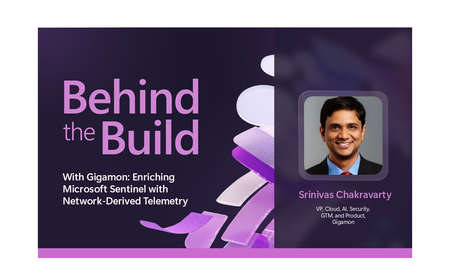
Behind the Build is an ongoing series spotlighting standout Microsoft partner collaborations. Each edition dives into the technical and strategic decisions that shape real-world integrations—highlighting engineering excellence, innovation, and the shared customer value created through partnership. Security teams today operate across an expanding set of signals, spanning identity, endpoint, cloud and application environments. Yet many organizations still lack sufficient visibility into how systems communicate across their infrastructure, creating gaps in detection, investigation, and response. In this edition of Behind the Build, I spoke with Srinivas Chakravarty, vice president, cloud ecosystems at Gigamon, about how Microsoft and Gigamon collaborated to bring network-derived telemetry into Microsoft Sentinel, helping customers enrich security investigations with deeper runtime context and AI-driven insights. The Evolution of Network Intelligence and Why It Matters For more than twenty years, Gigamon has helped organizations access and operationalize network traffic across complex environments. Today, the Gigamon Deep Observability Pipeline, helps enable organizations to extract actionable network-derived telemetry across hybrid infrastructure, encrypted traffic, containers, and modern application environments. That foundation makes the Gigamon Deep Observability Pipeline a strong complement to Microsoft Sentinel. Microsoft Sentinel brings together security telemetry from across the enterprise—including identity, endpoint, cloud, application, and network data sources—while Gigamon contributes enriched network-derived telemetry that provides additional runtime context into how systems, applications, and services communicate. Together, these signals can help organizations gain deeper insight for threat detection, investigation, and response. As Srinivas put it: “You have logs, you have metrics, you have traces, but network telemetry completes the picture.” Together, these data sources provide deeper context for threat detection, investigation, and AI-driven analysis. Read the full announcement here: Behind the Build with Gigamon: Enriching Microsoft Sentinel with Network-Derived Telemetry Original Publication: Microsoft Sentinel Blog, June 30th, 2026164Views0likes0CommentsExtending Sentinel Data Integration: Azure Blob Storage Support for CCF Connectors
As organizations scale their security operations, the ability to ingest, process, and analyze high volumes of data reliably becomes increasingly critical. Microsoft Sentinel continues to expand its ecosystem through the Codeless Connector Framework (CCF), enabling ISVs to build and deliver integrations with Sentinel faster while simplifying deployment for customers. Today, CCF extends even further with support for Azure Blob Storage, introducing a new pattern for how data can be delivered into Sentinel. Expanding Connector Patterns with Azure Blob Storage CCF has traditionally enabled connectors that integrate directly with partner APIs and data sources. With this latest enhancement, ISVs can now build connectors that read data from Azure Blob Storage—unlocking new flexibility in how security data is collected and delivered. In this model, an ISV writes data to an Azure Blob Storage account. The Sentinel connector then reads from that storage layer, using Azure-native components such as Event Grid and storage queues to process events and forward them through data collection rules (DCR) into Log Analytics workspace. This approach introduces a durable data layer between the data source and Sentinel, enabling more resilient and scalable ingestion scenarios. Read the full announcement here: Extending Sentinel Data Integration: Azure Blob Storage Support for CCF Connectors Original Publication: Microsoft Sentinel Blog, May 5th, 2026351Views0likes0CommentsExtending Sentinel Data Integration: Azure Blob Storage Support for CCF Connectors
As organizations scale their security operations, the ability to ingest, process, and analyze high volumes of data reliably becomes increasingly critical. Microsoft Sentinel continues to expand its ecosystem through the Codeless Connector Framework (CCF), enabling ISVs to build and deliver integrations with Sentinel faster while simplifying deployment for customers. Today, CCF extends even further with support for Azure Blob Storage, introducing a new pattern for how data can be delivered into Sentinel. Expanding Connector Patterns with Azure Blob Storage CCF has traditionally enabled connectors that integrate directly with partner APIs and data sources. With this latest enhancement, ISVs can now build connectors that read data from Azure Blob Storage—unlocking new flexibility in how security data is collected and delivered. In this model, an ISV writes data to an Azure Blob Storage account. The Sentinel connector then reads from that storage layer, using Azure-native components such as Event Grid and storage queues to process events and forward them through data collection rules (DCR) into Log Analytics workspace. This approach introduces a durable data layer between the data source and Sentinel, enabling more resilient and scalable ingestion scenarios. Why a durable data layer matters By leveraging Azure Blob Storage as part of the ingestion pipeline, CCF connectors gain important operational advantages. This architecture allows data to be buffered and processed asynchronously, helping manage fluctuations in data volume and ensuring consistent delivery. Key benefits include: Resilience: Buffers spikes and handles backpressure to maintain steady ingestion Improved Compatibility: Supports widely adopted Azure Blob-based log streaming, enabling seamless integration with partners that already use Azure for audit data delivery Data protection: Reduces risk of data loss during outages or throttling Scalability: Supports high-volume ingestion scenarios across tenants Flexibility: Enables architectures that can support multiple SIEMs or data consumers Together, these capabilities make CCF Azure Blob Storage based connectors a strong fit for partners managing large, variable, or distributed data pipelines. Partner adoption Early partners are already taking advantage of this capability to modernize their integrations and support evolving customer needs. Cloudflare Cloudflare integrates with Microsoft Sentinel using the Codeless Connector Framework (CCF) to bring Cloudflare log data into centralized security operations workflows. The connector ingests Cloudflare logs—delivered via Logpush to Azure Blob Storage—into Sentinel for analysis, enabling security teams to correlate web, network, and application activity with other security signals. By combining Cloudflare’s global threat visibility with Sentinel analytics and automation, this integration supports more effective threat detection, investigation, and incident response across Cloudflare‑protected environments. Netskope Web Transaction Events Netskope integrates with Microsoft Sentinel to provide detailed visibility into web and cloud activity across users, applications, and SaaS services. The connector ingests Netskope web transaction logs into Sentinel—leveraging Azure Blob Storage as a staging layer for log streaming and ingestion—to enable near real‑time analysis of user behavior, policy violations, and potential threats. By combining Netskope’s inline web inspection with Sentinel’s analytics and correlation capabilities, this integration helps security teams detect risky activity, investigate incidents, and strengthen monitoring across modern cloud environments. These integrations demonstrate how Azure Blob Storage support can simplify ingestion architectures while improving reliability and scalability for customers. Here is what our partners say about the functionality. Cloudflare: Netskope: Get started Developers can begin building CCF Azure Blob Storage -enabled connectors today using the guidance on Microsoft Learn. This documentation provides step-by-step instructions for configuring storage, processing events, and connecting data to Sentinel. In the unlikely event that you encounter any issues in building or updating your connector, App Assure is here to help. We are an engineering-backed team committed to supporting customers and software development companies throughout their journey with Sentinel to streamline integration and accelerate time to market. Reach out to us via our intake form for assistance.1.2KViews0likes0Comments