apis
789 TopicsVoice agents in Foundry Agent Service: architecture, trust boundaries, and real-audio latency
Assess where voice agents in Foundry Agent Service simplify the runtime, where enterprise trust boundaries remain, and what a 300-turn real-audio benchmark reveals about latency across six configurations.175Views0likes0Comments
SPFx Web Part Not Visible for External User in Client Tenant
Hi everyone, One of our team members has developed an SPFx web part that we have deployed and published in our client's SharePoint tenant using a service account. The web part is working as expected when we access the client tenant using the service account. However, when I access the same client tenant using my external/guest user account, I cannot see or use the SPFx web part. Current setup: The SPFx web part was developed by one of our team members. The solution has been deployed and published in the client's SharePoint tenant using a service account. The service account can see and use the web part successfully. My account has also been added to the client tenant as an external/guest user. However, when I access the same SharePoint site using my external account, the SPFx web part is not visible/available. I would like to understand whether this is expected behavior for SPFx web parts when accessed by external/guest users, or if we are missing some configuration. Could this be related to SharePoint permissions, Entra ID guest-user settings, the App Catalog, API permissions, or the SPFx solution deployment configuration? Are there any specific permissions or tenant-level settings that we should check to allow external users to access the SPFx web part? Is there any Microsoft-side restriction that prevents external/guest users from accessing SPFx web parts? Any guidance on what could be causing this issue and how we can troubleshoot or resolve it would be greatly appreciated. Thanks in advance!54Views0likes0Comments
Invoke-PnPSiteTemplate AND Set-PnPDefaultColumnValues error since this morning
Since this morning we experience a blocking issue with Invoke-PnPSiteTemplate cmdlet which is failing as soon as there are lists included in a pnp site template (which is pretty much every template in our case). We see this behaviour on all of our own tenants and all customer tenants. This is a very important part of our provioning engine so it's blocking all new sites & teams in all tenants. Context We have a provisioning engine that runs in Azure. It automatically creates SharePoint-sites and applies a configured PnP site template (either .pnp or .xml) Expected behavior Normally, the template gets applied correctly without any error Actual behavior An error occurs in our logging, also visible when reproducing this locally: Error applying default column values Microsoft.SharePoint.Client.ServerException: Exception of type 'Microsoft.SharePoint.Client.ServiceUnavailableException' was thrown. Microsoft.SharePoint.Client.ClientRequest.ProcessResponseStream(Stream responseStream) StackTrace: at Microsoft.SharePoint.Client.ListExtensions.SetDefaultColumnValuesImplementation(List list, IEnumerable1 columnValues) at Microsoft.SharePoint.Client.ListExtensions.SetDefaultColumnValues(List list, IEnumerable1 columnValues, Boolean overwriteExistingDefaultColumnValues) at PnP.Framework.Provisioning.ObjectHandlers.ObjectListInstance.ProvisionObjects(Web web, ProvisioningTemplate template, TokenParser parser, ProvisioningTemplateApplyingInformation applyingInformation) at PnP.Framework.Provisioning.ObjectHandlers.SiteToTemplateConversion.ApplyRemoteTemplate(Web web, ProvisioningTemplate template, ProvisioningTemplateApplyingInformation provisioningInfo, Boolean calledFromHierarchy, TokenParser tokenParser) at CallSite.Target(Closure , CallSite , Object , Object , Object , Object ) Steps to reproduce behavior Create a PnP template Apply the template, using invoke-pnpsitetemplate -Path "..." We also see the same error happening when executing this cmdlet: Set-PnPDefaultColumnValues -List "Documents" -Field Status -Value "MyDefaultValue" -Connection $pnpConnTargetSite So it seems related... anyone getting the same issues?800Views6likes10Comments
What is the Microsoft Graph API replacement for deprecated Recent, SharedWithMe, and Insights APIs?
Hi Microsoft Graph community, I'm currently working on a Microsoft Graph integration that needs to retrieve: Files recently accessed/used by the current user Files shared with the current user Files from OneDrive and SharePoint I'm currently using the following APIs: GET /me/drive/recent GET /me/drive/sharedWithMe GET /me/insights/used However, these APIs are deprecated, and some of them will stop returning data after November 2026. (https://learn.microsoft.com/en-us/graph/api/drive-sharedwithme?view=graph-rest-1.0&utm_source=chatgpt.com) I'm stuck in development because I haven't been able to identify a Microsoft-supported replacement that provides the same functionality. Could someone please clarify: What is the official replacement for /me/drive/recent? What is the official replacement for /me/drive/sharedWithMe? What is the official replacement for /me/insights/used? Is there a single recommended Microsoft Graph API that can provide recently used and shared files across both OneDrive and SharePoint? I'm specifically looking for the officially supported API/recommended approach, rather than a workaround that may also become deprecated. Any guidance from Microsoft Graph experts or Microsoft employees would be greatly appreciated. Thanks!585Views0likes1Comment
Building Microsoft Sentinel Connectors in Minutes with the Sentinel Connector Builder Agent
Overview We previously announced the public preview of the Microsoft Sentinel connector builder agent via VS code extension, that helps developers build Microsoft Sentinel codeless connectors faster with low-code and AI-assisted prompts. This post walks through a hands-on lab using a mock Network Log API to demonstrate how the Sentinel connector builder agent simplifies building Codeless Connector Framework (CCF) pull connectors. Instead of manually creating ingestion infrastructure and configuration files, you’ll use a guided, conversational workflow in VS Code to generate connector artifacts, test them against a live API, and deploy them into Microsoft Sentinel. The lab focuses on the end-to-end experience ranging from API setup to validated connector deployment so you can see how quickly a working integration can be produced. For additional guidance beyond this lab, refer to our MS Learn documentation. The Lab Environment This lab is built around a mock Network Log API hosted as an Azure Function App. The purpose of the lab environment is to give us a live API that we can use to build, validate, and test the Sentinel CCF connector builder agent against end to end. The API exposes 50 synthetic network activity records that look and behave like a real product data source, including web traffic, DNS requests, blocked remote access attempts, malware command-and-control blocks, VPN activity, and other common network events. That makes it a useful stand-in for the type of telemetry many teams want to onboard into Microsoft Sentinel. The API is intentionally shaped like the kind of source a customer might expose for telemetry retrieval. It uses API key authentication through the X-API-Key header, returns paginated results through a nextLink model, and provides a predictable response structure that the builder agent can map into a pull connector configuration. The repo contains everything needed for the walkthrough. There is an ARM template to deploy the Function App, reference documentation for the API, and a sample connector package showing the generated polling config, table schema, DCR, and connector definition. The end goal of the lab is straightforward: use the builder agent to generate a CCF pull connector that ingests this API into the custom NetworkLogAPIGetNetworkLogs_CL table in Sentinel. Prerequisites Before starting, make sure you have the following: Azure subscription -- with Contributor access on a resource group (for deploying the Function App) and Microsoft Sentinel Contributor access on a Sentinel-enabled workspace (for deploying the connector) Microsoft Sentinel workspace -- an existing Log Analytics workspace with Sentinel enabled. See Onboard Microsoft Sentinel to a Log Analytics workspace for more information. Azure CLI -- See How to install the Azure CLI for more information. VS Code with the Microsoft Sentinel for Visual Studio Code extension installed. GitHub Copilot -- with access to premium models. The connector builder agent requires Claude Sonnet 4.5 or 4.6, which uses Copilot premium model credits. Lab Repository -- Once the aforementioned prerequisites are met, you can access the lab repository here: Azure-Sentinel/Tools/CCF-Connector-Builder-Agent-Accelerator at master · Azure/Azure-Sentinel Deploying the Mock API The full CLI commands for this section are available in the repo. For a simpler option, you can use GitHub Copilot to handle the deployment. Enter this prompt: Follow the deployment instructions in Sentinel-CCF-Pull-Connector-Builder-Agent-Accelerator/agent-instructions.md. Let’s deploy the Network Log API and build a CCF pull connector. At a high level, the setup is four steps: clone the repo, create a resource group, ensure you have a Sentinel-enabled workspace, and deploy the Function App using the included ARM template. The template takes two parameters: an ApiKey of your choice (the secret the CCF connector will use to authenticate) and your Log Analytics workspace resource ID for Application Insights. Deployment takes about two to three minutes and outputs the FunctionAppName and endpoint URLs you will need later. Once deployed, verify the API is live: curl -s -H "X-API-Key: <your-api-key>" \ "https://<functionappname>.azurewebsites.net/api/GetNetworkLogs?page=1&pageSize=3" </functionappname></your-api-key> You should see a response like this: The API also exposes an /api/RefreshData endpoint that regenerates the 50 sample records with fresh timestamps. This is useful later in the walkthrough when you want to produce new events and trigger an immediate ingestion cycle without waiting for the next polling interval: curl -s -X POST -H "X-API-Key: <your-api-key>" \ "https://<functionappname>.azurewebsites.net/api/RefreshData" </functionappname></your-api-key> Building the Connector with the Sentinel Connector Builder Agent With the Microsoft Sentinel extension installed and GitHub Copilot running in agent mode, open a Copilot chat and enter a single prompt pointing at the API documentation file: That is the entire invocation. The agent takes it from there. It works through a structured seven-step sequence: preparation, polling config, table schema, DCR, connector definition, package validation, and summary. The agent produces four files in a sentinel-connectors/NetworkLogAPI_CCF/ output folder: NetworkLogAPI_PollingConfig.json – This is the API poller configuration. The agent reads the documentation and correctly identifies the GET /api/GetNetworkLogs endpoint, configures API Key authentication via the X-API-Key header, sets up NextPageUrl pagination using $.metadata.nextLink with a $.metadata.hasNextPage stop condition, and wires up the since query parameter for incremental delta pulls using the timestamp field. The RefreshData endpoint is correctly excluded, which the agent recognizes as a maintenance operation, not a security data stream. NetworkLogAPI_Table.json – This is the custom Log Analytics table schema for NetworkLogAPIGetNetworkLogs_CL . All 20 fields from the API response are mapped to the correct column types, with timestamp promoted to TimeGenerated as the standard Sentinel time column. NetworkLogAPI_DCR.json – This is the Data Collection Rule. This defines the stream declaration, the workspace destination, and the KQL transform that maps the raw snake_case API fields ( sourceIp , destinationIp , threatIndicator , etc.) to their PascalCase table columns. NetworkLogAPI_ConnectorDefinition.json – This is the connector UI configuration. This drives what the connector page looks like in Microsoft Sentinel: the title, description, prerequisite instructions, the BaseUrl and ApiKey input fields, sample KQL queries, and the connectivity status logic. The only point where the agent paused for input was to propose a connector description and ask for confirmation before writing it to the file. Everything else such as endpoint selection, auth type, pagination pattern, schema mapping, KQL transform, cross-file consistency was selected autonomously. To put that in perspective: without the agent, a developer building this connector from scratch would need to manually author four JSON files, understand the CCF schema for polling configs, DCRs, and connector definitions, write the KQL transform by hand, and validate that every cross-file reference lines up correctly. The agent compresses that work, typically hours of reading documentation, trial-and-error, and portal debugging, into a single prompt. Testing the Connector Before deploying anything to a Sentinel workspace, the Microsoft Sentinel connector builder agent lets you validate the generated polling config against the live API directly from your editor. Right-click the sentinel-connectors/NetworkLogAPI_CCF folder, select Microsoft Sentinel → Test Connector (Preview), and a Configuration Variables panel opens asking for the two template variables from the polling config: BaseUrl and apiKey . For other API patterns, there may be additional and different inputs. For example, apiKey input could be swapped with clientID and secret if the API supports OAUTH. Enter the Function App base URL and your API key, and the test runner connects immediately. The panel shows a live polling session. Poll #1 returns HTTP 200 with 50 events, and a countdown timer shows when the next poll will fire. Switching to the Events tab displays the ingested records in a tabular view with columns for timestamp , severity , action , bytesIn , bytesOut , category , and the rest of the mapped fields fresh from the API. Additionally, there are tabs for Headers, Payload, and Response, which can be useful for verifying that your pollerconfig.json configuration provides the expected request to your api with a working response. Data Extracted: The Test Connector feature can be used to visualize the response data in a table format to verify that data will land in a Sentinel table based on your configuration. Request from Poller: The Test Connector feature can be used to validate the request and response headers that will go out to the API based on the generated poller configuration. Request Response: The Test Connector feature shows you the live response from the API with respect to the request going to the API based on the poller configuration. This is a meaningful pre-flight check. It confirms that auth is working, the $.data events path resolves correctly, pagination is functional, and the polling interval fires as configured all before a single file is deployed to Azure. The most common connector configuration issues (wrong base URL, incorrect header name, mismatched JSON path) surface here in seconds rather than after a failed deployment and a 20-minute wait for Sentinel to attempt its first ingestion cycle. It is also the fastest way to troubleshoot if something goes wrong after deployment, far quicker than pushing changes to Azure and waiting for the connector to poll again. Deploying and Enabling the Connector With the connector tested and passing, deployment is the same right-click menu: right-click the sentinel-connectors/NetworkLogAPI_CCF folder, select Microsoft Sentinel → Deploy Connector (Preview). If you are not already signed in to Azure, the extension will prompt you to authenticate. The agent will also provide a clickbox in the chat window to invoke a connector deployment. Right Click Deploy Connector: UI Prompt Based Deploy Method: Once signed in, a workspace picker lists all available Log Analytics workspaces across your subscriptions. Select the one with Sentinel enabled and click Deploy. The extension deploys all four files to the workspace in the correct order: table schema first, then DCR, polling config, and connector definition. Once deployed, navigate to your Sentinel workspace via https://security.microsoft.com, go to Data Connectors, and find the Network Log API connector. The connector page shows the description, prerequisite notes, and the two credential fields generated by the agent: API Base URL and API Key. Enter your Function App base URL and API key and click Connect. The status updates to show the connector is connected and the deployment succeeded. Note: Data will appear in the workspace within 5 to 30 minutes depending on the polling interval. Run this query in Log Analytics to confirm ingestion. Note that the agent derives the table name from the vendor name and endpoint, so yours may differ slightly from the example below. Check the agent's summary output or the NetworkLogAPI_Table.json file for the exact name: NetworkLogAPIGetNetworkLogs_CL | sort by TimeGenerated desc | take 10 If you want to generate a fresh batch of events immediately rather than waiting for the next polling cycle, use the RefreshData endpoint to reset the sample records with new timestamps: curl -s -X POST -H "X-API-Key: " \ "https://.azurewebsites.net/api/RefreshData" Next Steps If you want to go further: Try it with your own API. The lab repo includes documentation on adapting the polling config, schema, and KQL transform to a real data source. Review the CCF connector schema documentation to understand the full range of supported configurations: pagination patterns, auth types, incremental pull strategies, and delta filter expressions. Explore the Microsoft Sentinel content hub to see how published connectors are structured and what the certification requirements look like for production submissions. Conclusion Following these steps, you saw how a working Sentinel connector can be generated, tested, and deployed in minutes rather than requiring days of manual configuration and infrastructure setup. If you are an ISV building a Sentinel integration and want hands-on support, Microsoft’s App Assure program is available to help. We partner with ISVs on connector development, validation, and deployment and provide guidance through implementation, testing, and readiness for production. You can get started by reaching out through our intake form. See our other Sentinel connector feature’s hands-on labs Building a CCF Nested API Pull Connector: A Technical Lab Walkthrough997Views0likes0Comments
Microsoft Sentinel UEBA – AWS CloudTrail data source fails to connect with HTTP 500
Hi everyone, I am currently testing the newer UEBA capabilities in Microsoft Sentinel through the Microsoft Defender Unified SecOps portal and I am facing an issue while trying to enable AWS CloudTrail as a UEBA data source. I wanted to share the troubleshooting steps I have already completed in case anyone has seen something similar. 1. Verified AWS CloudTrail ingestion AWS CloudTrail is already connected to Microsoft Sentinel and the AWSCloudTrail table is receiving data normally. There is no issue with the AWS connector or the existing log ingestion. 2. Verified the CloudTrail data I checked the CloudTrail data specifically for the events used by UEBA. The required ConsoleLogin events are present, with: - EventSource = signin.amazonaws.com - UserIdentityPrincipalId populated for the majority of events - Other relevant identity and source information available So the source data appears to meet the documented AWS CloudTrail UEBA requirements. 3. Verified permissions The required Microsoft Entra and Azure RBAC permissions were checked. The user also has permission to perform the Sentinel UEBA settings update. Other UEBA data sources have already been enabled successfully from the same environment. 4. Checked resource locks and other settings The Sentinel workspace was checked for Azure resource locks and none were found. The UEBA anomaly detection setting is also enabled. 5. Checked the backend operation When AWS CloudTrail is selected from the UEBA settings and I try to connect it, the operation fails with: InternalServerError – HTTP 500 The Azure Activity Log shows the operation as: Microsoft.SecurityInsights/settings/write with the final status: Failed – InternalServerError (HTTP Status Code: 500) There is no AuthorizationFailed or RequestDisallowedByPolicy error. 6. Tested the API directly I also checked the current UEBA configuration through the Microsoft SecurityInsights API. The GET request works and returns the existing UEBA configuration. As an additional test, I attempted to update the same existing UEBA configuration without adding AWS CloudTrail. That update also returned HTTP 500. This makes me think the issue may not be related specifically to AWS CloudTrail or the AWS data itself, but potentially to the UEBA settings update or backend service. My questions Has anyone recently experienced UEBA settings returning HTTP 500 when updating data sources, particularly in the new Microsoft Defender/Unified SecOps portal? If anyone from the Microsoft Sentinel team can confirm whether there is a known issue or additional prerequisite for enabling AWS CloudTrail UEBA, that would be very helpful. Thanks.472Views0likes1Comment
SharePoint Multi-geo: accessing a user's home-geo custom SharePoint properties from a different geo
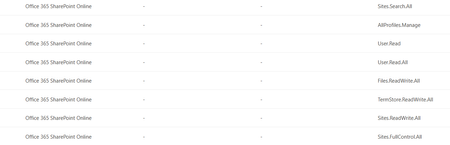
Setup M365 tenant, multi-geo (NAM + EMEA). SharePoint custom user profile properties are synced only in the user’s home geo (their Preferred Data Location). SPFx webparts running on the NAM tenant, using PnP/SP or AadTokenProvider. Goal: when an EMEA user opens a NAM page, read their SharePoint custom properties from the EMEA tenant. Issue 1 — Can’t read profile properties from a different geo-tenant What I’m doing const sp = spfi(emeaTenantUrl).using(SPFx(webpartContext), SPFxToken(webpartContext)); const result = await sp.profiles.getPropertiesFor(basicInfo.data.LoginName); Error Access Denied: This application does not have the required permissions to access profile information. The core problem — token is missing my approved scopes Approved Scopes in webApiPermissionManagement (Office 365 SharePoint Online) in SharePoint Admin Center: Sites.Search.All, AllProfiles.Manage, User.Read, User.Read.All, Files.ReadWrite.All, TermStore.ReadWrite.All, Sites.ReadWrite.All, Sites.FullControl.All. Token issued for the SharePoint resource only contains: Files.ReadWrite.All, M365BillingPlatform.Read.All, Sites.FullControl.All, Sites.ReadWrite.All, TermStore.ReadWrite.All. So AllProfiles.Manage, User.Read.All, Sites.Search.All are not in the token and an unexpected M365BillingPlatform.Read.All is. Also tried calling the SharePoint REST API directly with a token from AadTokenProvider → same Access Denied. Questions Why is the issued token missing my approved scopes (and where is M365BillingPlatform.Read.All coming from)? Is there a supported way to read a user’s SharePoint profile custom properties from a different geo-tenant from an SPFx webpart? Approved Scopes in Admin center Issue 2 — Search query template {User.*} properties not resolving cross-geo What I’m doing A SharePoint Search query in the webpart uses a query template that pulls custom user properties dynamically: {|owstaxidmetadataalltagsinfo:{User.customProperty1}} OR {|owstaxidmetadataalltagsinfo:{User.customProperty2}} The SP object is created the same way as in Issue 1. What’s not working When an EMEA user loads the webpart on the NAM tenant, the {User.*} tokens don’t resolve — the query modification shows the static property name itself instead of the user’s values from EMEA. Question How do I get the query template to resolve {User.customProperty} using the user’s home-geo (EMEA) profile values?136Views0likes0CommentsPost-Stream Refinement is now generally available in Microsoft Foundry
When we introduced Post-Stream Refinement in public preview earlier this year, it closed the oldest trade-off in real-time speech: you could finally keep instant streaming results and get a highly accurate final transcript, with no penalty to first-token latency. A second recognition pass runs in parallel with streaming and replaces each final segment with a more accurate version once the utterance completes. Today, Post-Stream Refinement reaches general availability for Azure AI Speech in Microsoft Foundry, backed by a production SLA. Just as important, it now ships with the capabilities production transcription actually depends on: diarization to preserve who said what, phrase lists for your product names and domain vocabulary, and a much wider footprint of 19 locales across 22 Azure regions. Everything you already know about Post-Stream Refinement still applies. The real-time contract is unchanged, your partial results stream exactly as before, and you enable refinement by setting a single property on your existing SpeechConfig. What changes at GA is that the refined transcript is now production-grade and speaker-aware. 📖 Read the Documentation What's new at general availability If you have already used Post-Stream Refinement in preview, here is exactly what changes at GA, and what stays the same. The streaming path and SDK contract are untouched; the refinement pass is now production-ready and gains speaker and vocabulary features. How Post-Stream Refinement works Real-time and final results serve different needs. Partial results must appear quickly so captions, voice interfaces, and agent turn-taking stay responsive. Final results need enough context to support storage, search, summarization, and business workflows. Post-Stream Refinement runs both at once: a fast streaming pass and a deeper refinement pass over the same audio, in parallel. Because the two passes share one input stream, enabling refinement does not require a second transcription job or a separate client pipeline. Your existing recognition events and partial-result handling stay exactly as they are. Speaker attribution with diarization New at GA, diarization is supported on the Post-Stream Refinement path, so the refined final transcript keeps its speaker labels. That makes the release a strong fit for meetings, contact centers, interviews, and any workflow where the transcript needs to identify who spoke, not just what was said. The refinement pass improves the wording, including proper nouns and named entities, while every utterance stays attributed to the right speaker. Phrase lists for your vocabulary Phrase lists let the recognizer prioritize the names and terms that matter to your application: product catalogs, medical and technical vocabulary, organization names, and acronyms that general speech models might not recognize consistently. At GA you can pair phrase lists with refinement so the second pass has both broad audio context and your domain vocabulary to draw on, which is where the largest accuracy gains on named entities show up. Quality impact In internal testing and partner evaluations across supported locales, Post-Stream Refinement reduced final-transcript word error rate by double-digit relative percentages compared with standard real-time transcription, with the largest gains on the hardest content: long utterances, proper nouns, and domain-specific speech. Pairing phrase lists with refinement improves named-entity accuracy further. Partial-result latency is unchanged; only the final transcript is refined. The refined final result may add a small amount of latency to the final segment because refinement happens after the segment audio is received. Partial results are unaffected. Supported languages and regions General availability supports 19 locales. You declare one locale per session, so the service is tuned to the language you expect. Alongside the Tier-1 languages, GA adds Indic locales, including Bengali, Marathi, Punjabi, and Telugu. Post-Stream Refinement is generally available in 22 Azure regions across the Americas, Europe, and Asia Pacific. Proven at Microsoft scale The technology behind Post-Stream Refinement already powers meeting transcription and Microsoft 365 Copilot experiences in Microsoft Teams, serving millions of users across meetings, webinars, and live events every day. General availability brings the same quality bar to every Azure AI Speech customer through a supported SDK integration, not a research prototype. Preview customers across industries, including automotive, consumer electronics, and aviation, reported positive gains in transcription quality, with the clearest improvements on the hardest content: proper nouns, long-form speech, and domain-specific audio. Several are now moving those workloads into production on the GA release. Get started Enabling Post-Stream Refinement is a small configuration change on your existing SpeechConfig. You will need: Speech SDK 1.50 or later. Earlier versions do not support the refinement path. A Speech resource in one of the supported regions listed above. The session locale you expect, set on the recognizer. Set the post-processing option to PostRefinement. The example below also shows the optional phrase list for your domain vocabulary. import azure.cognitiveservices.speech as speechsdk speech_config = speechsdk.SpeechConfig( subscription="YourSpeechKey", region="YourSpeechRegion") # Declare one locale for the session speech_config.speech_recognition_language = "en-US" # 1) Refine the final transcript (Post-Stream Refinement) speech_config.set_property( speechsdk.PropertyId.SpeechServiceResponse_PostProcessingOption, "PostRefinement") audio_config = speechsdk.AudioConfig(use_default_microphone=True) recognizer = speechsdk.SpeechRecognizer( speech_config=speech_config, audio_config=audio_config) # 2) (Optional) Phrase list for names, acronyms, and domain terms phrase_list = speechsdk.PhraseListGrammar.from_recognizer(recognizer) for term in ["Contoso", "Fabrikam", "Foundry", "OAuth"]: phrase_list.addPhrase(term) Your existing recognition events and partial-result handling remain unchanged. For speaker attribution, enable diarization through the established real-time diarization path; refinement applies to the final transcript while speaker labels are preserved. Choose the right release for your workload Post-Stream Refinement now has two paths. They are the same product family with a different feature boundary, so match the path to what your customer needs. Monolingual PSR — generally available Multilingual PSR — public preview Language selection One locale declared per session Automatic detection and code-switching in a single stream (open-range, no locale declared) Supported locales 19 locales, including Indic bn / mr / pa / te 25 languages / 29 locales, auto-detected Azure regions 22 Azure regions across the Americas, Europe, and Asia Pacific 6 Azure regions Phrase lists & diarization Supported Only diarization is supported Working across languages? If a single stream needs to handle multiple languages or code-switching without a declared locale, use Multilingual Post-Stream Refinement, now in public preview. For a known session locale with phrase lists and diarization, monolingual GA is the right path. Try Post-Stream Refinement Today Turn on higher-accuracy, language-aware transcription in your Azure AI Speech applications with a single configuration change. 📖 Read the Documentation We would love your feedback. Try Post-Stream Refinement in your applications and tell us how it improves your transcription quality.781Views0likes0CommentsFor the first time, real-time transcription goes multilingual
When we introduced Post-Stream Refinement earlier this year, it closed the oldest gap in real-time speech: you could finally get instant streaming results and a highly accurate final transcript, with no latency penalty. But it kept one hard requirement — you had to tell the service, up front, which single language to expect. Real-world speech does not work that way. People code-switch mid-sentence, product and brand names cross languages, and a global app serves users who simply speak differently from one session to the next. Today we remove that requirement. Multilingual Post-Stream Refinement enters public preview for Azure AI Speech in Microsoft Foundry, and for the first time ever a single real-time stream can transcribe multiple languages in one session — the spoken language is detected automatically, no locale is declared in advance, and the final transcript is refined for accuracy. Everything you already know about Post-Stream Refinement still applies; what changes is that the refinement pass itself is now multilingual. 📖 Read the Documentation What's New in This Release If you have already used Post-Stream Refinement, here is exactly what changes with the multilingual preview — and what stays the same: Quality Impact In internal testing and partner evaluations across Tier-1 locales, multilingual Post-Stream Refinement reduced word error rate (WER) by approximately 10% relative on average, with double-digit relative reductions on the hardest cases — long utterances, proper nouns, and multilingual or code-switched speech. Partial-result latency is unchanged; only the final transcript is refined. Gains are relative reductions versus the standard real-time model and vary by language, acoustic conditions, and content type. The refined final result may add a small amount of latency to the final segment; partial results are unaffected. Supported Languages and Regions The public preview supports 15 Tier-1 locales. Because language is detected automatically, a single stream can contain any mix of them: Available in these Azure regions: Real-World Impact Preview customers across industries — including travel, consumer electronics, automotive, aviation, and media — have reported positive gains in transcription quality. Customers testing multilingual and domain-specific audio have observed the clearest improvements on the hardest content: proper nouns, code-switching, and long-form speech. Several are actively validating the feature on their own audio ahead of general availability. Get Started Enabling multilingual Post-Stream Refinement is a small configuration change on your existing SpeechConfig. You will need: Speech SDK 1.50 or later. Earlier versions do not support the multilingual path. A Speech resource in one of the supported regions listed above. Auto-detect language configuration (open range) so the service identifies the language from the audio — no candidate list required. Set the post-processing option to PostRefinement and pass an open-range AutoDetectSourceLanguageConfig when you create the recognizer. Here is a complete, copy-paste Python example, including the optional end-of-utterance detection line: import azure.cognitiveservices.speech as speechsdk speech_config = speechsdk.SpeechConfig( subscription="YourSpeechKey", region="YourSpeechRegion") # 1) Refine the final transcript (Post-Stream Refinement) speech_config.set_property( speechsdk.PropertyId.SpeechServiceResponse_PostProcessingOption, "PostRefinement") # 2) Multilingual auto-detect - no candidate language list needed auto_detect_config = speechsdk.languageconfig.AutoDetectSourceLanguageConfig() audio_config = speechsdk.AudioConfig(use_default_microphone=True) recognizer = speechsdk.SpeechRecognizer( speech_config=speech_config, auto_detect_source_language_config=auto_detect_config, audio_config=audio_config) 💡 Tip: Refinement matters most for applications that store or process the final transcript — meeting notes, call analytics, compliance archives, AI summarization. If you only use partial results for a live display and discard them, your real-time UX (already fast) is unchanged, while any final transcript you keep improves. Try Multilingual Post-Stream Refinement Today Turn on higher-accuracy, language-aware transcription in your Azure AI Speech applications with a single configuration change. Available now in public preview in Microsoft Foundry. 📖 Read the Documentation We would love your feedback. Try Post-Stream Refinement in your applications and tell us how it improves your transcription quality.752Views0likes0Comments