apis
779 TopicsWhat’s new in Microsoft Sentinel: RSAC 2026
Security is entering a new era, one defined by explosive data growth, increasingly sophisticated threats, and the rise of AI-enabled operations. To keep pace, security teams need an AI-powered approach to collect, reason over, and act on security data at scale. At RSA Conference 2026 (RSAC), we’re unveiling the next wave of Sentinel innovations designed to help organizations move faster, see deeper, and defend smarter with AI-ready tools. These updates include AI-driven playbooks that accelerate SOC automation, Granular Delegated Admin Privileges (GDAP) and granular role-based access controls (RBAC) that let you scale your SOC, accelerated data onboarding through new connectors, and data federation that enables analysis in place without duplication. Together, they give teams greater clarity, control, and speed. Come see us at RSAC to view these innovations in action. Hear from Sentinel leaders during our exclusive Microsoft Pre-Day, then visit Microsoft booth #5744 for demos, theater sessions, and conversations with Sentinel experts. Read on to explore what’s new. See you at RSAC! Sentinel feature innovations: Sentinel SIEM Sentinel data lake Sentinel graph Sentinel MCP Threat Intelligence Microsoft Security Store Sentinel promotions Sentinel SIEM Playbook generator [Now in public preview] The Sentinel playbook generator delivers a new era of automation capabilities. You can vibe code complex automations, integrate with different tools to ensure timely and compliant workflows throughout your SOC and feel confident in the results with built in testing and documentation. Customers and partners are already seeing benefit from this innovation. “The playbook generator gives security engineers the flexibility and speed of AI-assisted coding while delivering the deterministic outcomes that enterprise security operations require. It's the best of both worlds, and it lives natively in Defender where the engineers already work.” – Jaime Guimera Coll | Security and AI Architect | BlueVoyant Learn more about playbook generator. SIEM migration experience [General availability now] The Sentinel SIEM migration experience helps you plan and execute SIEM migrations through a guided, in-product workflow. You can upload Splunk or QRadar exports to generate recommendations for best‑fit Sentinel analytics rules and required data connectors, then assess migration scope, validate detection coverage, and migrate from Splunk or QRadar to Sentinel in phases while tracking progress. “The tool helps turn a Splunk to Sentinel migration into a practical decision process. It gives clear visibility into which detections are relevant, how they align to real security use cases, and where it makes sense to enable or prioritize coverage—especially with cost and data sources in mind.” – Deniz Mutlu | Director | Swiss Post Cybersecurity Ltd Learn more about SIEM migration experience. GDAP, unified RBAC, and row-level RBAC for Sentinel [Public preview, April 1] As Sentinel environments grow for enterprises, MSSPs, hyperscalers, and partners operating across shared or multiple environments, the challenge becomes managing access control efficiently and consistently at scale. Sentinel’s expanded permissions and access capabilities are designed to meet these needs. Granular Delegated Admin Privileges (GDAP) lets you streamline management across multiple governed tenants using your primary account, based on existing GDAP relationships. Unified RBAC allows you to opt in to managing permissions for Sentinel workspaces through a single pane of glass, configuring and enforcing access across Sentinel experiences in the analytics tier and data lake in the Defender portal. This simplifies administration and improves operational efficiency by reducing the number of permission models you need to manage. Row-level RBAC scoping within tables enables precise, scoped access to data in the Sentinel data lake. Multiple SOC teams can operate independently within a shared Sentinel environment, querying only the data they are authorized to see, without separating workspaces or introducing complex data flow changes. Consistent, reusable scope definitions ensure permissions are applied uniformly across tables and experiences, while maintaining strong security boundaries. To learn more, read our technical deep dives on RBAC and GDAP. Sentinel data lake Sentinel data federation [Public preview, April 1] Sentinel data federation lets you analyze security data in place without copying or duplicating your data. Powered by Microsoft Fabric, you can now federate data from Fabric, Azure Data Lake Storage (ADLS), and Azure Databricks into Sentinel data lake. Federated data appears alongside native Sentinel data, so you can use familiar tools like KQL hunting, notebooks, and custom graphs to correlate signals and investigate across your entire digital estate, all while preserving governance and compliance. You can start analyzing data in place and progressively ingest data into Sentinel for deeper security insights, advanced automation, and AI-powered defense at scale. You are billed only when you run analytics on federated data using existing Sentinel data lake query and advanced insights meters. les for unified investigation and hunting Sentinel cost estimation tool [Public Preview, April 9] The new Sentinel cost estimation tool offers all Microsoft customers and partners a guided, meter-level cost estimation experience that makes pricing transparent and predictable. A built-in three-year cost projection lets you model data growth and ramp-up over time, anticipate spend, and avoid surprises. Get transparent estimates into spend as you scale your security operations. All other customers can continue to use the Azure calculator for Sentinel pricing estimates. See the Sentinel pricing page for more information. Sentinel data connectors A365 connector [Public preview, May 5] Bring AI agent telemetry into the Sentinel data lake to investigate agent behavior, tool usage, prompts, reasoning and execution using hunting, graph, and MCP workflows. GitHub audit log connector using API polling [General availability, March 6] Ingest GitHub enterprise audit logs into Sentinel to monitor user and administrator activity, detect risky changes, and investigate security events across your development environment. Google Kubernetes Engine (GKE) connector [General availability, March 6] Collect Google Kubernetes Engine (GKE) audit and workload logs in Sentinel to monitor cluster activity, analyze workload behavior, and detect security threats across Kubernetes environments. Microsoft Entra and Azure Resource Graph (ARG) connector enhancements [Public preview, April 15] Enable new Entra assets (EntraDevices, EntraOrgContacts) and ARG assets (ARGRoleDefinitions) in existing asset connectors, expanding inventory coverage and powering richer, built‑in graph experiences for greater visibility. With over 350 Sentinel data connectors, customers achieve broad visibility into complex digital environments and can expand their security operations effectively. “Microsoft Sentinel data lake forms the core of our agentic SOC. By unifying large volumes of Microsoft and third-party data, enabling graph-based analysis, and supporting MCP-driven workflows, it allows us to investigate faster, at lower cost, and with greater confidence.” – Øyvind Bergerud | Head of Security Operations | Storebrand Learn more about Sentinel data connectors. Sentinel connector builder agent using Sentinel Visual Studio Code extension [Public preview, March 31] Build Sentinel data connectors in minutes instead of weeks using the AI‑assisted Connector Builder agent in Visual Studio Code. This low‑code experience guides developers and ISVs end-to-end, automatically generating schemas, deployment assets, connector UI, secure secret handling, and polling logic. Built‑in validation surfaces issues early, so you can validate event logs before deployment and ingestion. Example prompt in GitHub Copilot Chat: @sentinel-connector-builder Create a new connector for OpenAI audit logs using https://api.openai.com/v1/organization/audit_logs Get started with custom connectors and learn more in our blog. Data filtering and splitting [Public preview, March 30] As security teams ingest more data, the challenge shifts from scale to relevance. With filtering and splitting now built into the Defender portal, teams can shape data before it lands in Sentinel, without switching tools or managing custom JSON files. Define simple KQL‑based transformations directly in the UI to filter low‑value events and intelligently route data, making ingestion optimization faster, more intuitive, and easier to manage at scale. Filtering at ingest time allows you to remove low-value or benign events to reduce noise, cut unnecessary processing, and ensure that high-signal data drives detections and investigations. Splitting enables intelligent routing of data between the analytics tier and the data lake tier based on relevance and usage. Together, these two capabilities help you balance cost and performance while scaling data ingestion sustainably as your digital estate grows. Create workbook reports directly from the data lake [Public preview, April 1] Sentinel workbooks can now directly run on the data lake using KQL, enabling you to visualize and monitor security data straight from the data lake. By selecting the data lake as the workbook data source, you can now create trend analysis and executive reporting. Sentinel graph Custom graphs [Public preview, April 1] Custom graphs let you build tailored security graphs tuned to your unique security scenarios using data from Sentinel data lake as well as non-Microsoft sources. With custom graph, powered by Fabric, you can build, query, and visualize connected data, uncover hidden patterns and attack paths, and help surface risks that are hard to detect when data is analyzed in isolation. These graphs provide the knowledge context that enables AI-powered agent experiences to work more effectively, speeding investigations, revealing blast radius, and helping you move from noisy, disconnected alerts to confident decisions at scale. In the words of our preview customers: “We ingested our Databricks management-plane telemetry into the Sentinel data lake and built a custom security graph. Without writing a single detection rule, the graph surfaced unusual patterns of activity and overprivileged access that we escalated for investigation. We didn't know what we were looking for, the graph surfaced the risk for us by revealing anomalous activity patterns and unusual access combinations driven by relationships, not alerts.” – SVP, Security Solutions | Financial Services organization Custom graph API usage for creating graph and querying graph will be billed starting April 1, 2026, according to the Sentinel graph meter. Creating custom graph Using the Sentinel VS Code extension, you can generate graphs to validate hunting hypotheses, such as understanding attack paths and blast radius of a phishing campaign, reconstructing multi‑step attack chains, and identifying structurally unusual or high‑risk behavior, making it accessible to your team and AI agents. Once persisted via a schedule job, you can access these custom graphs from the ready-to-use section in the graph experience in the Defender portal. Graphs experience in the Microsoft Defender portal After creating your custom graphs, you can access them in the graphs section of the Defender portal under Sentinel. From there, you’ll be able to perform interactive graph-based investigations, such as using a graph built for phishing analysis to help you quickly evaluate the impact of a recent incident, profile the attacker, and trace its paths across Microsoft telemetry and third-party data. The new graph experience lets you run Graph Query Language (GQL) queries, view the graph schema, visualize the graph, view graph results in tabular format, and interactively travers the graph to the next hop with a simple click. Sentinel MCP Sentinel MCP entity analyzer [General availability, April 1] Entity analyzer provides reasoned, out-of-the-box risk assessments that help you quickly understand whether a URL or user identity represents potential malicious activity. The capability analyzes data across modalities including threat intelligence, prevalence, and organizational context to generate clear, explainable verdicts you can trust. Entity analyzer integrates easily with your agents through Sentinel MCP server connections to first-party and third-party AI runtime platforms, or with your SOAR workflows through Logic Apps. The entity analyzer is also a trusted foundation for the Defender Triage Agent and delivers more accurate alert classifications and deeper investigative reasoning. This removes the need to manually engineer evaluation logic and creates trust for analysts and AI agents to act with higher accuracy and confidence. Learn more about entity analyzer and in our blog here. Entity analyzer will be billed starting April 1, 2026, based on Security Compute Units (SCU) consumption. Learn more about MCP billing. Sentinel MCP graph tool collection [Public preview, May 20] Graph tool collection helps you visualize and explore relationships between identities and device assets, threats and activities signals ingested by data connectors and alerted by analytic rules. The tool provides a clear graph view that highlights dependencies and configuration gaps, which makes it easier to understand how content interacts across your environment. This helps security teams assess coverage, optimize content deployment, and identify areas that may need tuning or additional data sources, all from a single, interactive workspace. Executing graph queries via the MCP tools will trigger the graph meter. Claude MCP connector [Public preview, April 1] Anthropic Claude can connect to Sentinel through a custom MCP connector, giving you AI-assisted analysis across your Sentinel environment. Microsoft provides step-by-step guidance for configuring a custom connector in Claude that securely connects to a Sentinel MCP server. With this connection you can summarize incidents, investigate alerts, and reason over security signals while keeping data inside Microsoft's security boundary. Access to large language models (LLMs) is managed through Microsoft authentication and role-based controls, supporting faster triage and investigation workflows while maintaining compliance and visibility. Threat Intelligence CVEs of interest in the Threat Intelligence Briefing Agent [Public preview in April] The Threat Intelligence Briefing Agent delivers curated intelligence based on your organization’s configuration, preferences, and unique industry and geographic needs. CVEs of interest which highlights vulnerabilities actively discussed across the security landscape and assesses their potential impact on your environment, delivering more timely threat intelligence insights. The agent automatically incorporates internet exposure data powered by the Sentinel platform to surface threats targeting technologies exposed in your organization. Together, these enhancements help you focus faster on the threats that matter most, without manual investigation. Microsoft Security Store Security Store embedded in Entra [General availability, March 23] As identity environments grow more complex, teams need to move faster and extend Entra with trusted third‑party capabilities that address operational, compliance, and risk challenges. The Security Store embedded directly into Entra lets you discover and adopt Entra‑ready agents and solutions in your workflow. You can extend Entra with identity‑focused agents that surface privileged access risk, identity posture gaps, network access insights, and overall identity health, turning identity data into clear recommendations and reports teams can use immediately. You can also enhance Entra with Verified ID and External ID integrations that strengthen identity verification, streamline account recovery, and reduce fraud across workforce, consumer, and external identities. Security Store embedded in Microsoft Purview [General availability, March 31] Extending data security across the digital estate requires visibility and enforcement into new data sources and risk surfaces, often requiring a partnered approach. The Security Store embedded directly into Purview lets you discover and evaluate integrated solutions inside your data security workflows. Relevant partner capabilities surface alongside context, making it easier to strengthen data protection, address regulatory requirements, and respond to risk without disrupting existing processes. You can quickly assess which solutions align to data security scenarios, especially with respect to securing AI use, and how they can leverage established classifiers, policies, and investigation workflows in Purview. Keeping integration discovery in‑flow and purchases centralized through the Security Store means you move faster from evaluation to deployment, reducing friction and maintaining a secure, consistent transaction experience. Security Store Advisor [General availability, March 23] Security teams today face growing complexity and choice. Teams often know the security outcome they need, whether that's strengthening identity protection, improving ransomware resilience, or reducing insider risk, but lack a clear, efficient way to determine which solutions will help them get there. Security Store Advisor provides a guided, natural-language discovery experience that shifts security evaluation from product‑centric browsing to outcome‑driven decision‑making. You can describe your goal in plain language, and the Advisor surfaces the most relevant Microsoft and partner agents, solutions, and services available in the Security Store, without requiring deep product knowledge. This approach simplifies discovery, reduces time spent navigating catalogs and documentation, and helps you understand how individual capabilities fit together to deliver meaningful security outcomes. Sentinel promotions Extending signups for promotional 50 GB commitment tier [Through June 2026] The Sentinel promotional 50 GB commitment tier offers small and mid-sized organizations a cost-effective entry point into Sentinel. Sign up for the 50 GB commitment tier until June 30, 2026, and maintain the promotional rate until March 31, 2027. This promotion is available globally with regional variations in pricing and accessible through EA, CSP, and Direct channels. Visit the Sentinel pricing page for details and to get started. Sentinel RSAC 2026 sessions All week – Sentinel product demos, Microsoft Booth #5744 Mon Mar 23, 3:55 PM – RSAC 2026 main stage Keynote with CVP Vasu Jakkal [KEY-M10W] Ambient and autonomous security: Building trust in the agentic AI era Tue Mar 24, 10:30 AM – Live Q&A session, Microsoft booth #5744 and online Ask me anything with Microsoft Security SMEs and real practitioners Tue Mar 24, 11 AM – Sentinel data lake theater session, Microsoft booth #5744 From signals to insights: How Microsoft Sentinel data lake powers modern security operations Tue Mar 24, 2 PM – Sentinel SIEM theater session, Microsoft booth #5744 Vibe-coding SecOps automations with the Sentinel playbook generator Wed Mar 25, 12 PM – Executive event at Palace Hotel with Threat Protection GM Scott Woodgate The AI risk equation: Visibility, control, and threat acceleration Wed Mar 25, 1:30 PM – Sentinel graph theater session, Microsoft booth #5744 Bringing knowledge-driven context to security with Microsoft Sentinel graph Wed Mar 25, 5 PM – MISA theater session, Microsoft booth #5744 Cut SIEM costs without reducing protection: A Sentinel data lake case study Thu Mar 26, 1 PM – Security Store theater session, Microsoft booth #5744 What's next for Security Store: Expanding in portal and smarter discovery All week – 1:1 meetings with Microsoft security experts Meet with Microsoft Defender and Sentinel SIEM and Defender Security Operations Additional resources Sentinel data lake video playlist Explore the full capabilities of Sentinel data lake as a unified, AI-ready security platform that is deeply integrated into the Defender portal Sentinel data lake FAQ blog Get answers to many of the questions we’ve heard from our customers and partners on Sentinel data lake and billing AI‑powered SIEM migration experience ninja training Walk through the SIEM migration experience, see how it maps detections, surfaces connector requirements, and supports phased migration decisions SIEM migration experience documentation Learn how the SIEM migration experience analyzes your exports, maps detections and connectors, and recommends prioritized coverage Accenture collaborates with Microsoft to bring agentic security and business resilience to the front lines of cyber defense Stay connected Check back each month for the latest innovations, updates, and events to ensure you’re getting the most out of Sentinel. We’ll see you in the next edition!12KViews6likes0CommentsYour Sentinel AMA Logs & Queries Are Public by Default — AMPLS Architectures to Fix That
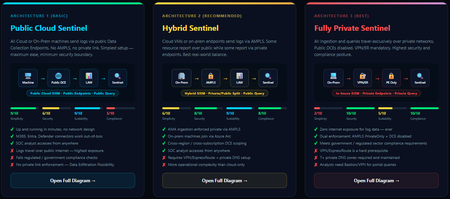
When you deploy Microsoft Sentinel, security log ingestion travels over public Azure Data Collection Endpoints by default. The connection is encrypted, and the data arrives correctly — but the endpoint is publicly reachable, and so is the workspace itself, queryable from any browser on any network. For many organisations, that trade-off is fine. For others — regulated industries, healthcare, financial services, critical infrastructure — it is the exact problem they need to solve. Azure Monitor Private Link Scope (AMPLS) is how you solve it. What AMPLS Actually Does AMPLS is a single Azure resource that wraps your monitoring pipeline and controls two settings: Where logs are allowed to go (ingestion mode: Open or PrivateOnly) Where analysts are allowed to query from (query mode: Open or PrivateOnly) Change those two settings and you fundamentally change the security posture — not as a policy recommendation, but as a hard platform enforcement. Set ingestion to PrivateOnly and the public endpoint stops working. It does not fall back gracefully. It returns an error. That is the point. It is not a firewall rule someone can bypass or a policy someone can override. Control is baked in at the infrastructure level. Three Patterns — One Spectrum There is no universally correct answer. The right architecture depends on your organisation's risk appetite, existing network infrastructure, and how much operational complexity your team can realistically manage. These three patterns cover the full range: Architecture 1 — Open / Public (Basic) No AMPLS. Logs travel to public Data Collection Endpoints over the internet. The workspace is open to queries from anywhere. This is the default — operational in minutes with zero network setup. Cloud service connectors (Microsoft 365, Defender, third-party) work immediately because they are server-side/API/Graph pulls and are unaffected by AMPLS. Azure Monitor Agents and Azure Arc agents handle ingestion from cloud or on-prem machines via public network. Simplicity: 9/10 | Security: 6/10 Good for: Dev environments, teams getting started, low-sensitivity workloads Architecture 2 — Hybrid: Private Ingestion, Open Queries (Recommended for most) AMPLS is in place. Ingestion is locked to PrivateOnly — logs from virtual machines travel through a Private Endpoint inside your own network, never touching a public route. On-premises or hybrid machines connect through Azure Arc over VPN or a dedicated circuit and feed into the same private pipeline. Query access stays open, so analysts can work from anywhere without needing a VPN/Jumpbox to reach the Sentinel portal — the investigation workflow stays flexible, but the log ingestion path is fully ring-fenced. You can also split ingestion mode per DCE if you need some sources public and some private. This is the architecture most organisations land on as their steady state. Simplicity: 6/10 | Security: 8/10 Good for: Organisations with mixed cloud and on-premises estates that need private ingestion without restricting analyst access Architecture 3 — Fully Private (Maximum Control) Infrastructure is essentially identical to Architecture 2 — AMPLS, Private Endpoints, Private DNS zones, VPN or dedicated circuit, Azure Arc for on-premises machines. The single difference: query mode is also set to PrivateOnly. Analysts can only reach Sentinel from inside the private network. VPN or Jumpbox required to access the portal. Both the pipe that carries logs in and the channel analysts use to read them are fully contained within the defined boundary. This is the right choice when your organisation needs to demonstrate — not just claim — that security data never moves outside a defined network perimeter. Simplicity: 2/10 | Security: 10/10 Good for: Organisations with strict data boundary requirements (regulated industries, audit, compliance mandates) Quick Reference — Which Pattern Fits? Scenario Architecture Getting started / low-sensitivity workloads Arch 1 — No network setup, public endpoints accepted Private log ingestion, analysts work anywhere Arch 2 — AMPLS PrivateOnly ingestion, query mode open Both ingestion and queries must be fully private Arch 3 — Same as Arch 2 + query mode set to PrivateOnly One thing all three share: Microsoft 365, Entra ID, and Defender connectors work in every pattern — they are server-side pulls by Sentinel and are not affected by your network posture. Please feel free to reach out if you have any questions regarding the information provided.326Views2likes1Comment
Troubleshooting Microsoft Foundry Accessing On‑Premises APIs Over Private Networking
Audience: Azure solution architects, network engineers, and AI practitioners deploying Microsoft Foundry in enterprise, network‑isolated environments. Scenario: Foundry Agent Service must call an on‑premises (or privately hosted) API over VPN or ExpressRoute using on‑premises corporate DNS. Connectivity works from a virtual machine (VM) in the virtual network (VNet), but fails when the same call is made from a Foundry agent. This post consolidates common field patterns observed across customer engagements and maps them directly to official Microsoft guidance. It highlights a frequently missed prerequisite for private connectivity: Project and Agent Capability Hosts. The Repeating Enterprise Pattern The architecture is familiar: Microsoft Foundry account and project Customer‑managed VNet with VPN or ExpressRoute to on‑premises Corporate (on‑premises) DNS used for API name resolution A VM in the VNet can successfully resolve and call the on‑prem API Foundry agents are configured to call the same API (often via an OpenAPI tool) Despite this, the agent fails with one or more of the following: DNS resolution failures Connection timeouts HTTP 401 or 403 responses Unexpected backend or proxy URLs appearing in logs The consistent question is: Why does this work from a VM in the VNet but not from the Foundry agents? Key Principle: Foundry Agents Do Not Automatically Run in Your VNet This is the most important mental model to reset. Creating a private endpoint for a Foundry Agent Service does not place agent runtime traffic into your VNet. Private endpoints are inbound constructs. Outbound connectivity from an agent only flows through your VNet when specific requirements are met. The most critical of those requirements is a Capability Host. What Is a Capability Host? A Capability Host defines where Foundry capabilities are allowed to execute. In private networking scenarios, the capability host: Binds a Foundry project or agent to a customer‑managed subnet Enables platform‑managed container injection into that subnet Ensures outbound traffic follows VNet routing, security controls, and DNS configuration Capability Host Scope Project Capability Host Associated at the project level Applies to all agents in the project Defines the customer subnet the project is allowed to use Agent Capability Host Associated at the individual agent level Can explicitly bind or override subnet placement Useful when agents require different isolation boundaries Key field insight: If no capability host is associated, the agent runtime is not injected into the VNet—even if VPN, ExpressRoute, private endpoints, and on‑prem DNS are correctly configured. Capability Host Lifecycle (Conceptual) 1 Microsoft Foundry Account ↓ Project ↓ Capability Host ↓ Delegated Agent Subnet (VNet) ↓ Agent Runtime (Container Injection) Without the capability host step, the chain breaks and the agent executes outside the customer network boundary. Why On‑Premises DNS Appears Correct—but Still Fails DNS is where most investigations stall. Teams typically confirm: On‑premises DNS resolves the API hostname VNet DNS settings forward queries to on‑prem DNS A VM in the subnet resolves and reaches the API Yet the agent still fails. The reason is simple: The VM is unquestionably inside the VNet The agent may not be Without a capability host, the agent runtime does not inherit: VNet DNS server settings Corporate DNS forwarding rules On‑premises name resolution paths As a result, DNS fails even though the DNS design itself is correct. Secondary Symptom: HTTP 401 Errors After subnet injection and DNS are corrected, some customers encounter HTTP 401 responses. This typically means: The API is now reachable The request is successfully routed through the private path Authentication or authorization is failing At this stage, troubleshooting moves from networking to identity: Validate the credential or token configured in the Foundry connection Confirm expected headers, audience, or auth flow Account for managed proxy hops in the request path A 401 at this point is progress—it confirms private connectivity is working. Permissions and Required Services for Capability Hosts Creating capability hosts requires both the correct Azure role-based access control (RBAC) permissions and the presence of specific dependent services. These prerequisites are frequently overlooked and can silently block capability host creation or leave hosts in a failed provisioning state. Required Permissions (RBAC) Microsoft documentation explicitly calls out the following minimum permissions: Contributor role on the Microsoft Foundry account to create capability hosts. User Access Administrator or Owner role on the subscription or resource group to grant the Foundry project’s managed identity access to dependent Azure resources when using standard agent setup. Without these roles, capability host creation may fail, or the host may be created without access to required downstream services. For details, see Role-based access control (RBAC) for Microsoft Foundry. Required Azure Services and Connections For standard and network-secured agent setups, capability hosts reference customer-owned Azure resources. The following services must exist and be connected to the Foundry project before creating the capability host: Azure Storage – for file uploads and artifacts Azure AI Search – for vector stores and retrieval Azure Cosmos DB – for thread and conversation storage Azure AI Services / Azure OpenAI – for model execution These services must be deployed in supported regions and, for private networking scenarios, in the same region as the virtual network. Capability hosts reference these resources through project connections, not raw resource IDs . Networking-Specific Requirements When using private networking: The agent subnet must already exist and be delegated appropriately. The capability host must reference the correct customer subnet at creation time. Required private endpoints and DNS resolution must be in place for dependent services. If networking or connections change, capability hosts cannot be updated in-place and must be deleted and recreated with the corrected configuration . Practical Fix Patterns 1. Create and Associate a Project Capability Host Bind the project to the intended delegated agent subnet Verify the customerSubnet reference Redeploy the agent after association This aligns directly with the Standard Setup with Private Networking model documented by Microsoft. 2. Validate Agent Placement and Network Inheritance Confirm the agent is associated with the expected capability host Verify the capability host references the correct subnet Ensure network and DNS settings are applied at the subnet level The agent inherits routing and DNS behavior only after successful subnet injection. 3. Validate DNS From the Agent Subnet Confirm VNet DNS settings point to on‑prem DNS Test name resolution from a VM in the same subnet Once injected, the agent uses the same DNS behavior as other resources in that subnet. 4. Use a Supported Foundry Experience Be aware of documented constraints: End‑to‑end network isolation is not supported in the newer Foundry portal experience Network‑isolated agent scenarios require the classic Foundry experience, SDK, or CLI Hosted agents do not support full isolation Mismatch here can make a correct network design appear broken. A Simple Checklist When a Foundry agent cannot reach an on‑prem API: Is a **Project Capability **Host associated? Is the capability host bound to the correct subnet? Is on‑prem DNS reachable from that subnet? Is a supported Foundry experience in use? If reachable, is authentication configured correctly? If items 1 and 2 are not satisfied, all other troubleshooting is premature. Closing Most private networking issues with Microsoft Foundry are not caused by VPNs or DNS infrastructure. They result from an incomplete understanding of **where the agent ****runtime ****actually **executes. Capability Hosts are the control point. When they are correctly configured, Foundry agents behave exactly as described in Microsoft guidance: they inherit VNet routing, DNS, and security controls and can securely access on‑premises systems over private connectivity. No capability host = no VNet injection = no on‑prem connectivity. References The following Microsoft‑published resources were referenced and aligned with throughout this article: Network‑secured agent setup (GitHub) – Reference implementation demonstrating a network‑secured Foundry Agent Service deployment with a customer‑managed virtual network, delegated agent subnet, and private connectivity patterns. This notebook illustrates how agent runtimes inherit network behavior only after subnet injection ralacher/network-secured-agent Set up private networking for Foundry Agent Service - Microsoft Foundry | Microsoft Learns .650Views2likes0Comments
Issue connecting Azure Sentinel GitHub app to Sentinel Instance when IP allow list is enabled
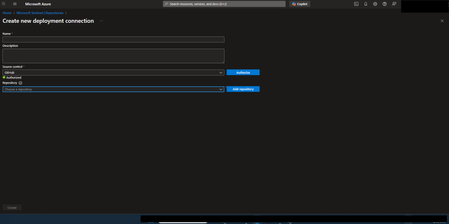
Hi everyone, I’m running into an issue connecting the Azure Sentinel GitHub app to my Sentinel workspace in order to create our CI/CD pipelines for our detection rules, and I’m hoping someone can point me in the right direction. Symptoms: When configuring the GitHub connection in Sentinel, the repository dropdown does not populate. There are no explicit errors, but the connection clearly isn’t completing. If I disable my organization’s IP allow list, everything works as expected and the repos appear immediately. I’ve seen that some GitHub Apps automatically add the IP ranges they require to an organization’s allow list. However, from what I can tell, the Azure Sentinel GitHub app does not seem to have this capability, and requires manual allow listing instead. What I’ve tried / researched: Reviewed Microsoft documentation for Sentinel ↔ GitHub integrations Looked through Azure IP range and Service Tag documentation I’ve seen recommendations to allow list the IP ranges published at //api.github.com/meta, as many GitHub apps rely on these ranges I’ve already tried allow listing multiple ranges from the GitHub meta endpoint, but the issue persists My questions: Does anyone know which IP ranges are used by the Azure Sentinel GitHub app specifically? Is there an official or recommended approach for using this integration in environments with strict IP allow lists? Has anyone successfully configured this integration without fully disabling IP restrictions? Any insight, references, or firsthand experience would be greatly appreciated. Thanks in advance!264Views0likes1Comment
Missing details in Azure Activity Logs – MICROSOFT.SECURITYINSIGHTS/ENTITIES/ACTION
The Azure Activity Logs are crucial for tracking access and actions within Sentinel. However, I’m encountering a significant lack of documentation and clarity regarding some specific operation types. Resources consulted: https://learn.microsoft.com/en-us/azure/sentinel/audit-sentinel-data https://learn.microsoft.com/en-us/rest/api/securityinsights/entities?view=rest-securityinsights-2024-01-01-preview https://learn.microsoft.com/en-us/rest/api/securityinsights/operations/list?view=rest-securityinsights-2024-09-01&tabs=HTTP My issue: I observed unauthorized activity on our Sentinel workspace. The Azure Activity Logs clearly indicate the user involved, the resource, and the operation type: "MICROSOFT.SECURITYINSIGHTS/ENTITIES/ACTION" But that’s it. No detail about what the action was, what entity it targeted, or how it was triggered. This makes auditing extremely difficult. It's clear the person was in Sentinel and perform an activity through it, from search, KQL, logs to find an entity from a KQL query. But, that's all... Strangely, this operation is not even listed in the official Sentinel Operations documentation linked above. My question: Has anyone encountered this and found a way to interpret this operation type properly? Any insight into how to retrieve more meaningful details (action context, target entity, etc.) from these events would be greatly appreciated.289Views0likes3CommentsTurn Enterprise Knowledge into Answers with Copilot Studio and Azure AI Search
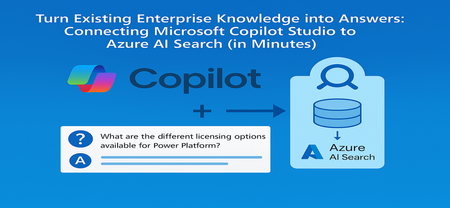
From the Field: Why This Integration Works As an experienced AI Cloud Solution Architect working in Greater China Region (GCR), I’ve seen one emerging pattern that delivers quick wins for some of my customers: combining Microsoft Copilot Studio with an existing Azure AI Search index. Teams choose this approach because it delivers two outcomes immediately: business users get grounded, reliable answers, and enterprises avoid re-building pipelines or re-platforming knowledge stores. This guide shows exactly how to connect Copilot Studio to an Azure AI Search index that is already live, so your copilot can answer confidently using your enterprise documents. What We Assume Is Already Ready To stay focused on the integration step, we assume: You have an Azure AI Search service deployed You have an index containing vectorized content (manuals, PDFs, policies, FAQs) Your platform/data team already handled ingestion, embeddings, and indexing In short, your Azure AI Search endpoint and admin key are ready, and the index already contains chunked content with embeddings. Step 1 - Collect Your Azure AI Search Connection Details From the Azure AI Search resource: Endpoint URL Azure AI Search → Overview → Url: https://<your-search-service>.search.windows.net Admin Key Azure AI Search → Keys Use either the primary or secondary key. Governance tip: For production, rotate keys regularly and use managed identities when possible. Step 2 - Add Azure AI Search as Knowledge Inside Copilot Studio Open your Copilot Studio agent Go to the Knowledge tab Select Add knowledge, choose Azure AI Search Provide: Endpoint URL Admin key Create or select the connection Choose your existing index from the dropdown Select Add to agent Step 3 - Test a Grounded Response Open the Test copilot pane and ask a question your indexed content can answer, such as: “What are the different licensing options available for Power Platform?” Verify that: The Activity Map shows Azure AI Search being invoked The answer reflects the correct document in your index Citations or references appear where applicable Conclusion Business value: You can activate grounded, explainable answers in Copilot Studio immediately by reusing your existing Azure AI Search index - no re-platforming, no new pipelines. Team model: Data/Platform teams own ingestion, enrichment, and vectorization. Business teams build and refine the copilot experience in Copilot Studio. Scale and governance: All components stay inside Azure, with enterprise-grade security, RBAC, and operational monitoring, while enabling low‑code agility for makers. For the full end-to-end lab (storage setup, embeddings, index creation), see: 🔗 https://github.com/Azure/Copilot-Studio-and-Azure (Lab 1.4). Acknowledgements This tutorial builds on foundational work by my EMEA colleague Pablo Carceller, whose GitHub repo on Copilot Studio and Azure has helped teams worldwide accelerate real customer implementations. 👉 GitHub - Copilot Studio and Azure: https://github.com/Azure/Copilot-Studio-and-Azure I would also like to thank the broader Cloud Accelerate Factory GCR team for their contributions, insights, and active collaboration in validating this pattern across customer engagements. Special appreciation to our AI Architects Dr. Longyu Qi, Jian (Jason) Shao, Lei (Leo) Ma, and Ethan Tseng, as well as our PM partners Yunxi (Rayne) Jin and Emma Wang, whose feedback and field experiences helped shape and refine this guide. Image credits: demo visuals adapted from materials by Pablo Carceller (GitHub Lab 1.4).511Views1like0CommentsTracking Every Token: Granular Cost and Usage Metrics for Microsoft Foundry Agents
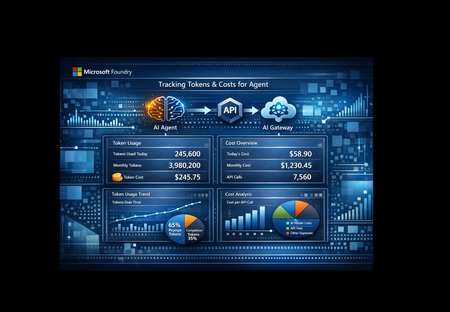
As organizations scale their use of AI agents, one question keeps surfacing: how much is each agent actually costing us? Not at the subscription level. Not at the resource group level. Per agent, per model, per request. This post walks through a solution that answers that question by combining three Azure services Microsoft AI Foundry, Azure API Management (APIM), and Application Insights into an observable, metered AI gateway with granular token-level telemetry including custom dates greater than a month for deeper analysis. The Problem: AI Costs Can be a Black Box Foundry’s built-in monitoring and cost views are ultimately powered by telemetry stored in Application Insights, and the out-of-the-box dashboards don’t always provide the exact per-request/per-caller token breakdown or the custom aggregations/joins teams may want for bespoke dashboards (for example, breaking down tokens by APIM subscription, product, tenant, user, route, or agent step). Using APIM to stamp consistent caller/context metadata (headers/claims), Foundry to generate the agent/model run telemetry, and App Insights as the queryable store to let you correlate gateway, agent run, tool/model calls and then build custom KQL-driven dashboards. With data captured in App Insights and custom KQL queries, questions such as below can be answered: Which agent consumed the most tokens last week? What's the average cost per request for a specific agent? How do prompt tokens vs. completion tokens break down per model? Is one agent disproportionately expensive compared to others? Why This Solution Was Built This solution was built to close the observability gap between "we deployed agents" and "we understand what those agents cost." The goals were straightforward: Per-agent, per-model cost attribution - Know exactly which agent is consuming what, down to the token. Real-time telemetry, not batch reports - Metrics flow into Application Insights within minutes, query via KQL. Zero agent modification - The agents themselves don't need to know about telemetry. The tracking happens at the gateway layer. Extensibility - Any agent hosted in Microsoft Foundry and exposed through APIM can be added with a single function call. How It Works The architecture is intentionally simple three services, one data flow. The notebook serves as a testing and prototyping environment, but the same `call_agent()` and `track_llm_usage()` code can be lifted directly into any production Python application that calls Foundry agents. Azure API Management acts as the AI Gateway. Every request to a Foundry-hosted agent flows through APIM, which handles routing, rate limiting, authentication, and tracing. APIM adds its own trace headers (`Ocp-Apim-Trace-Location`) so you can correlate gateway-level diagnostics with your application telemetry. After the API request is successfully completed, we can extract the necessary data from response headers. The notebook is designed for testing and rapid iteration call an agent, inspect the response, verify that telemetry lands in App Insights. It uses `httpx` to call agents through APIM, authenticating with `DefaultAzureCredential` and an APIM subscription key. After each response, it extracts the `usage` object `input_tokens`, `output_tokens`, `total_tokens` — and calculates an estimated cost based on built-in per-model pricing. Application Insights receives this telemetry via OpenTelemetry. The solution sends data to two tables: customMetrics - Cumulative counters for prompt tokens, completion tokens, total tokens, and cost in USD. These power dashboards and alerts. traces - Structured log entries with `custom_dimensions` containing agent name, model, operation ID, token counts, and cost per request. These power ad-hoc KQL queries. traces - stores your application’s trace/log messages (plus custom properties/measurements) as queryable records in Azure Monitor Logs. Demonstrating Granular Cost and Usage Metrics This is where the solution shines. Once telemetry is flowing, you can answer detailed questions with simple KQL queries. Per-Request Detail Query the `traces` table to see every individual agent call with full token and cost breakdown: traces | where message == "llm.usage" | extend cd = parse_json(replace_string( tostring(customDimensions["custom_dimensions"]), "'", "\"")) | extend agent_name = tostring(cd["agent_name"]), model = tostring(cd["model"]), prompt_tokens = toint(cd["prompt_tokens"]), completion_tokens = toint(cd["completion_tokens"]), total_tokens = toint(cd["total_tokens"]), cost_usd = todouble(cd["cost_usd"]) | project timestamp, agent_name, model, prompt_tokens, completion_tokens, total_tokens, cost_usd | order by timestamp desc This gives you a line-item audit trail every request, every agent, every token. Aggregated Metrics Per Agent Summarize across all requests to see averages and totals grouped by agent and model: traces | where message == "llm.usage" | extend cd = parse_json(replace_string( tostring(customDimensions["custom_dimensions"]), "'", "\"")) | extend agent_name = tostring(cd["agent_name"]), model = tostring(cd["model"]), prompt_tokens = toint(cd["prompt_tokens"]), completion_tokens = toint(cd["completion_tokens"]), total_tokens = toint(cd["total_tokens"]), cost_usd = todouble(cd["cost_usd"]) | summarize calls = count(), avg_prompt = avg(prompt_tokens), avg_completion = avg(completion_tokens), avg_total = avg(total_tokens), avg_cost = avg(cost_usd), total_cost = sum(cost_usd) by agent_name, model | order by total_cost desc Now you can see at a glance: Which agent is the most expensive across all calls Average token consumption per request useful for prompt optimization Prompt-to-completion ratio a high ratio may indicate verbose system prompts that could be trimmed Cost trends by model is GPT-4.1 worth the premium over GPT-4o-mini for a particular agent? The same can be done in code with your custom solution: from datetime import timedelta from azure.identity import DefaultAzureCredential from azure.monitor.query import LogsQueryClient KQL = r""" traces | where message == "llm.usage" | extend cd_raw = tostring(customDimensions["custom_dimensions"]) | extend cd = parse_json(replace_string(cd_raw, "'", "\"")) | extend agent_name = tostring(cd["agent_name"]), model = tostring(cd["model"]), operation_id = tostring(cd["operation_id"]), prompt_tokens = toint(cd["prompt_tokens"]), completion_tokens = toint(cd["completion_tokens"]), total_tokens = toint(cd["total_tokens"]), cost_usd = todouble(cd["cost_usd"]) | project timestamp, agent_name, model, operation_id, prompt_tokens, completion_tokens, total_tokens, cost_usd | order by timestamp desc """ def query_logs(): credential = DefaultAzureCredential() client = LogsQueryClient(credential) resp = client.query_resource( resource_id=APP_INSIGHTS_RESOURCE_ID, # defined in config cell query=KQL, timespan=None, # No time filter — returns all available data (up to 90-day retention) ) if resp.status != "Success": raise RuntimeError(f"Query failed: {resp.status} - {getattr(resp, 'error', None)}") table = resp.tables[0] rows = [dict(zip(table.columns, r)) for r in table.rows] return rows if __name__ == "__main__": rows = query_logs() if not rows: print("No telemetry found. Wait 2-5 min after running the agent cell and try again.") else: print(f"Found {len(rows)} records\n") print(f"{'Timestamp':<28} {'Agent':<16} {'Model':<12} {'Op ID':<12} " f"{'Prompt':>8} {'Completion':>11} {'Total':>8} {'Cost ($)':>10}") print("-" * 110) for r in rows[:20]: ts = str(r.get("timestamp", ""))[:19] print(f"{ts:<28} {r.get('agent_name',''):<16} {r.get('model',''):<12} " f"{r.get('operation_id',''):<12} {r.get('prompt_tokens',0):>8} " f"{r.get('completion_tokens',0):>11} {r.get('total_tokens',0):>8} " f"{r.get('cost_usd',0):>10.6f}") What You Can Build on Top Azure Workbooks - Build interactive dashboards showing cost trends over time, agent comparison charts, and token distribution heatmaps. Alerts - Trigger notifications when a single agent exceeds a cost threshold or when token consumption spikes unexpectedly. Azure Dashboard pinning - Pin KQL query results directly to a shared Azure Dashboard for team visibility. Power BI integration - Export telemetry data for executive-level cost reporting across all AI agents. Extensibility: Add Any Agent in One Line The solution is designed to scale with your agent portfolio. Any agent hosted in Microsoft Foundry and exposed through APIM can be integrated without modifying the telemetry pipeline. Adding a new agent is a single function call: response = call_agent("YourNewAgent", "Your prompt here") Token tracking, cost estimation, and telemetry export happen automatically. No additional configuration, no new infrastructure. From Notebook to Production The notebook is a testing harness, a fast way to validate agent connectivity, inspect raw responses, and confirm that telemetry arrives in App Insights. But the code isn't limited to notebooks. The core functions `call_agent()`, `track_llm_usage()`, and the OpenTelemetry configuration are plain Python. They can be dropped directly into any production application that calls Foundry agents through APIM: FastAPI / Flask web service - Wrap `call_agent()` in an endpoint and get per-request cost tracking out of the box. Azure Functions - Call agents from a serverless function with the same telemetry pipeline. Background workers or batch pipelines - Process multiple agent calls and aggregate cost data across runs. CLI tools or scheduled jobs - Run agent evaluations on a schedule with automatic cost logging. The pattern stays the same regardless of where the code runs: # 1. Configure OpenTelemetry + App Insights (once at startup) configure_azure_monitor(connection_string=APP_INSIGHTS_CONN) # 2. Call any agent through APIM response = call_agent("FinanceAgent", "Summarize Q4 earnings") # 3. Token usage and cost are tracked automatically # → customMetrics and traces tables in App Insights Start with the notebook to prove the pattern works. Then move the same code into your production codebase, the telemetry travels with it. Key Takeaways AI cost observability matters. As agent counts grow, per-agent cost attribution becomes essential for budgeting and optimization. APIM as an AI Gateway gives you routing, rate limiting, and tracing in one place without touching agent code. OpenTelemetry + Application Insights provides a battle-tested telemetry pipeline that scales from a single notebook to production workloads. KQL makes the data actionable. Per-request audits, per-agent summaries, and cost trending are all a query away. The solution is additive, not invasive. Agents don't need modification. The telemetry layer wraps around them. This approach gives developers the abiility to view metrics per user, API Key, Agent, request / tool call, or business dimensions(Cost Center, app, environment). If you're running AI agents in Microsoft Foundry and want to understand what they cost at a granular level this pattern gives you the visibility to make informed decisions about model selection, prompt design, and budget allocation. The full solution is available on GitHub: https://github.com/ccoellomsft/foundry-agents-apim-appinsights2.6KViews2likes0CommentsRetrieve Term Navigation Properties using REST API
I've set up a Term set in the global term store and enabled Navigation so I can add URLs for each of the Terms. Note that I'm not going to use the Term set navigation in my site - it's only there to try and retrieve it from my SPFx webpart. Note that I can get all the terms under my Term set - just not the navigation properties. Below is what I'm trying to get the navigation properties: https://TENANT.sharepoint.com/_api/v2.1/termStore/sets/TERMSETGUID/terms/TERMGUID/properties But I get: "The property 'properties' is null or does not exist". Also, expand doesn't seem to work at all. I'm not looking to use pnpjs or even graph if I can help it. Any ideas welcome.770Views2likes8CommentsGenerally Available: Evaluations, Monitoring, and Tracing in Microsoft Foundry
If you've shipped an AI agent to production, you've likely run into the same uncomfortable realization: the hard part isn't getting the agent to work - it's keeping it working. Models get updated, prompts get tweaked, retrieval pipelines drift, and user traffic surfaces edge cases that never appeared in your eval suite. Quality isn't something you establish once. It's something you have to continuously measure. Today, we're making that continuous measurement a first-class operational capability. Evaluations, Monitoring, and Tracing in Microsoft Foundry are now generally available through Foundry Control Plane. These aren't standalone tools bolted onto the side of the platform - they're deeply integrated with Azure Monitor, which means AI agent observability now lives in the same operational plane as the rest of your infrastructure. The Problem With Point-in-Time Evaluation Most evaluation workflows are designed around a pre-deployment gate. You build a test dataset, run your evals, review the scores, and ship. That approach has real value - but it has a hard ceiling. In production, agent behavior is a function of many things that change independently of your code: Foundation model updates ship continuously and can shift output style, reasoning patterns, and edge case handling in ways that don't always surface on your benchmark set. Prompt changes can have nonlinear effects downstream, especially in multi-step agentic flows. Retrieval pipeline drift changes what context your agent actually sees at inference time. A document index fresh last month may have stale or subtly different content today. Real-world traffic distribution is never exactly what you sampled for your test set. Production surfaces long-tail inputs that feel obvious in hindsight but were invisible during development. The implication is straightforward: evaluation has to be continuous, not episodic. You need quality signals at development time, at every CI/CD commit, and continuously against live production traffic - all using the same evaluator definitions so results are comparable across environments. That's the core design principle behind Foundry Observability. Continuous Evaluation Across the Full AI Lifecycle Built-In Evaluators Foundry's built-in evaluators cover the most critical quality and safety dimensions for production agent systems: Coherence and Relevance measure whether responses are internally consistent and on-topic relative to the input. These are table-stakes signals for any conversational or task-completion agent. Groundedness is particularly important for RAG-based architectures. It measures whether the model's output is actually supported by the retrieved context - as opposed to plausible-sounding content the model generated from its parametric memory. Groundedness failures are a leading indicator of hallucination risk in production, and they're often invisible to human reviewers at scale. Retrieval Quality evaluates the retrieval step independently from generation. Groundedness failures can originate in two places: the model may be ignoring good context, or the retrieval pipeline may not be surfacing relevant context in the first place. Splitting these signals makes it much easier to pinpoint root cause. Safety and Policy Alignment evaluates whether outputs meet your deployment's policy requirements - content safety, topic restrictions, response format compliance, and similar constraints. These evaluators are designed to run at every stage of the AI lifecycle: Local development - run evals inline as you iterate on prompts, retrieval config, or orchestration logic CI/CD pipelines - gate every commit against your quality baselines; catch regressions before they reach production Production traffic monitoring - continuously evaluate sampled live traffic and surface trends over time Because the evaluators are identical across all three contexts, a score in CI means the same thing as a score in production monitoring. See the Practical Guide to Evaluations and the Built-in Evaluators Reference for a deeper walkthrough. Custom Evaluators - Encoding Your Own Definition of Quality Built-in evaluators cover common signals well, but production agents often need to satisfy criteria specific to a domain, regulatory environment, or internal standard. Foundry supports two types of custom evaluators (currently in public preview): LLM-as-a-Judge evaluators let you configure a prompt and grading rubric, then use a language model to apply that rubric to your agent's outputs. This is the right approach for quality dimensions that require reasoning or contextual judgment - whether a response appropriately acknowledges uncertainty, whether a customer-facing message matches your brand tone, or whether a clinical summary meets documentation standards. You write a judge prompt with a scoring scale (e.g., 1–5 with criteria for each level) that evaluates a given {input} / {response} pair. Foundry runs this at scale and aggregates scores into your dashboards alongside built-in results. Code-based evaluators are Python functions that implement any evaluation logic you can express programmatically - regex matching, schema validation, business rule checks, compliance assertions, or calls to external systems. If your organization has documented policies about what a valid agent response looks like, you can encode those policies directly into your evaluation pipeline. Custom and built-in evaluators compose naturally - running against the same traffic, producing results in the same schema, feeding into the same dashboards and alert rules. Monitoring and Alerting - AI Quality as an Operational Signal All observability data produced by Foundry - evaluation results, traces, latency, token usage, and quality metrics - is published directly to Azure Monitor. This is where the integration pays off for teams already on Azure. What this enables that siloed AI monitoring tools can't: Cross-stack correlation. When your groundedness score drops, is it a model update, a retrieval pipeline issue, or an infrastructure problem affecting latency? With AI quality signals and infrastructure telemetry in the same Azure Monitor Application Insights workspace, you can answer that in minutes rather than hours of manual correlation across disconnected systems. Unified alerting. Configure Azure Monitor alert rules on any evaluation metric - trigger a PagerDuty incident when groundedness drops below threshold, send a Teams notification when safety violations spike, or create automated runbook responses when retrieval quality degrades. These are the same alert mechanisms your SRE team already uses. Enterprise governance by default. Azure Monitor's RBAC, retention policies, diagnostic settings, and audit logging apply automatically to all AI observability data. You inherit the governance framework your organization has already built and approved. Grafana and existing dashboards. If your team uses Azure Managed Grafana, evaluation metrics can flow into existing dashboards alongside your other operational metrics - a single pane of glass for application health, infrastructure performance, and AI agent quality. The Agent Monitoring Dashboard in the Foundry portal provides an AI-native view out of the box - evaluation metric trends, safety threshold status, quality score distributions, and latency breakdowns. Everything in that dashboard is backed by Azure Monitor data, so SRE teams can always drill deeper. End-to-End Tracing: From Quality Signal to Root Cause A groundedness score tells you something is wrong. A trace tells you exactly where the failure occurred and what the agent actually did. Foundry provides OpenTelemetry-based distributed tracing that follows each request through your entire agent system: model calls, tool invocations, retrieval steps, orchestration logic, and cross-agent handoffs. Traces capture the full execution path - inputs, outputs, latency at each step, tool call parameters and responses, and token usage. The key design decision: evaluation results are linked directly to traces. When you see a low groundedness score in your monitoring dashboard, you navigate directly to the specific trace that produced it - no manual timestamp correlation, no separate trace ID lookup. The connection is made automatically. Foundry auto-collects traces across the frameworks your agents are likely already built on: Microsoft Agent Framework Semantic Kernel LangChain and LangGraph OpenAI Agents SDK For custom or less common orchestration frameworks, the Azure Monitor OpenTelemetry Distro provides an instrumentation path. Microsoft is also contributing upstream to the OpenTelemetry project - working with Cisco Outshift, we've contributed semantic conventions for multi-agent trace correlation, standardizing how agent identity, task context, and cross-agent handoffs are represented in OTel spans. Note: Tracing is currently in public preview, with GA shipping by end of March. Prompt Optimizer (Public Preview) One persistent friction point in agent development is the iteration loop between writing prompts and measuring their effect. You make a change, run your evals, look at the delta, try to infer what about the change mattered, and repeat. Prompt Optimizer tightens this loop. It analyzes your existing prompt and applies structured prompt engineering techniques - clarifying ambiguous instructions, improving formatting for model comprehension, restructuring few-shot examples, making implicit constraints explicit - with paragraph-level explanations for every change it makes. The transparency is deliberate. Rather than producing a black-box "optimized" prompt, it shows you exactly what it changed and why. You can add constraints, trigger another optimization pass, and iterate until satisfied. When you're done, apply it with one click. The value compounds alongside continuous evaluation: run your eval suite against the current prompt, optimize, run evals again, see the measured improvement. That feedback loop - optimize, measure, optimize - is the closest thing to a systematic approach to prompt engineering that currently exists. What Makes our Approach to Observability Different There are other evaluation and observability tools in the AI ecosystem. The differentiation in Foundry's approach comes down to specific architectural choices: Unified lifecycle coverage, not just pre-deployment testing. Most existing evaluation tools are designed for offline, pre-deployment use. Foundry's evaluators run in the same form at development time, in CI/CD, and against live production traffic. Your quality metrics are actually comparable across the lifecycle - you can tell whether production quality matches what you saw in testing, rather than operating two separate measurement systems that can't be compared. No separate observability silo. Publishing all observability data to Azure Monitor means you don't operate a separate system for AI quality alongside your existing infrastructure monitoring. AI incidents route through your existing on-call rotations. AI quality data is subject to the same retention and compliance controls as the rest of your telemetry. Framework-agnostic tracing. Auto-instrumentation across Semantic Kernel, LangChain, LangGraph, and the OpenAI Agents SDK means you're not locked into a specific orchestration framework. The OpenTelemetry foundation means trace data is portable to any compatible backend, protecting your investment as the tooling landscape evolves. Composable evaluators. Built-in and custom evaluators run in the same pipeline, against the same traffic, producing results in the same schema, feeding into the same dashboards and alert rules. You don't choose between generic coverage and domain-specific precision - you get both. Evaluation linked to traces. Most systems treat evaluation and tracing as separate concerns. Foundry treats them as two views of the same event - closing the loop between detecting a quality problem and diagnosing it. Getting Started If you're building agents on Microsoft Foundry, or using Semantic Kernel, LangChain, LangGraph, or the OpenAI Agents SDK and want to add production observability, the entry point is Foundry Control Plane. Try it You'll need a Foundry project with an agent and an Azure OpenAI deployment. Enable observability by navigating to Foundry Control Plane and connecting your Azure Monitor workspace. Then walk through the Practical Guide to Evaluations, explore the Built-in Evaluators Reference, and set up end-to-end tracing for your agents.4.6KViews1like0CommentsIntegrating Microsoft Foundry with OpenClaw: Step by Step Model Configuration
Step 1: Deploying Models on Microsoft Foundry Let us kick things off in the Azure portal. To get our OpenClaw agent thinking like a genius, we need to deploy our models in Microsoft Foundry. For this guide, we are going to focus on deploying gpt-5.2-codex on Microsoft Foundry with OpenClaw. Navigate to your AI Hub, head over to the model catalog, choose the model you wish to use with OpenClaw and hit deploy. Once your deployment is successful, head to the endpoints section. Important: Grab your Endpoint URL and your API Keys right now and save them in a secure note. We will need these exact values to connect OpenClaw in a few minutes. Step 2: Installing and Initializing OpenClaw Next up, we need to get OpenClaw running on your machine. Open up your terminal and run the official installation script: curl -fsSL https://openclaw.ai/install.sh | bash The wizard will walk you through a few prompts. Here is exactly how to answer them to link up with our Azure setup: First Page (Model Selection): Choose "Skip for now". Second Page (Provider): Select azure-openai-responses. Model Selection: Select gpt-5.2-codex , For now only the models listed (hosted on Microsoft Foundry) in the picture below are available to be used with OpenClaw. Follow the rest of the standard prompts to finish the initial setup. Step 3: Editing the OpenClaw Configuration File Now for the fun part. We need to manually configure OpenClaw to talk to Microsoft Foundry. Open your configuration file located at ~/.openclaw/openclaw.json in your favorite text editor. Replace the contents of the models and agents sections with the following code block: { "models": { "providers": { "azure-openai-responses": { "baseUrl": "https://<YOUR_RESOURCE_NAME>.openai.azure.com/openai/v1", "apiKey": "<YOUR_AZURE_OPENAI_API_KEY>", "api": "openai-responses", "authHeader": false, "headers": { "api-key": "<YOUR_AZURE_OPENAI_API_KEY>" }, "models": [ { "id": "gpt-5.2-codex", "name": "GPT-5.2-Codex (Azure)", "reasoning": true, "input": ["text", "image"], "cost": { "input": 0, "output": 0, "cacheRead": 0, "cacheWrite": 0 }, "contextWindow": 400000, "maxTokens": 16384, "compat": { "supportsStore": false } }, { "id": "gpt-5.2", "name": "GPT-5.2 (Azure)", "reasoning": false, "input": ["text", "image"], "cost": { "input": 0, "output": 0, "cacheRead": 0, "cacheWrite": 0 }, "contextWindow": 272000, "maxTokens": 16384, "compat": { "supportsStore": false } } ] } } }, "agents": { "defaults": { "model": { "primary": "azure-openai-responses/gpt-5.2-codex" }, "models": { "azure-openai-responses/gpt-5.2-codex": {} }, "workspace": "/home/<USERNAME>/.openclaw/workspace", "compaction": { "mode": "safeguard" }, "maxConcurrent": 4, "subagents": { "maxConcurrent": 8 } } } } You will notice a few placeholders in that JSON. Here is exactly what you need to swap out: Placeholder Variable What It Is Where to Find It <YOUR_RESOURCE_NAME> The unique name of your Azure OpenAI resource. Found in your Azure Portal under the Azure OpenAI resource overview. <YOUR_AZURE_OPENAI_API_KEY> The secret key required to authenticate your requests. Found in Microsoft Foundry under your project endpoints or Azure Portal keys section. <USERNAME> Your local computer's user profile name. Open your terminal and type whoami to find this. Step 4: Restart the Gateway After saving the configuration file, you must restart the OpenClaw gateway for the new Foundry settings to take effect. Run this simple command: openclaw gateway restart Configuration Notes & Deep Dive If you are curious about why we configured the JSON that way, here is a quick breakdown of the technical details. Authentication Differences Azure OpenAI uses the api-key HTTP header for authentication. This is entirely different from the standard OpenAI Authorization: Bearer header. Our configuration file addresses this in two ways: Setting "authHeader": false completely disables the default Bearer header. Adding "headers": { "api-key": "<key>" } forces OpenClaw to send the API key via Azure's native header format. Important Note: Your API key must appear in both the apiKey field AND the headers.api-key field within the JSON for this to work correctly. The Base URL Azure OpenAI's v1-compatible endpoint follows this specific format: https://<your_resource_name>.openai.azure.com/openai/v1 The beautiful thing about this v1 endpoint is that it is largely compatible with the standard OpenAI API and does not require you to manually pass an api-version query parameter. Model Compatibility Settings "compat": { "supportsStore": false } disables the store parameter since Azure OpenAI does not currently support it. "reasoning": true enables the thinking mode for GPT-5.2-Codex. This supports low, medium, high, and xhigh levels. "reasoning": false is set for GPT-5.2 because it is a standard, non-reasoning model. Model Specifications & Cost Tracking If you want OpenClaw to accurately track your token usage costs, you can update the cost fields from 0 to the current Azure pricing. Here are the specs and costs for the models we just deployed: Model Specifications Model Context Window Max Output Tokens Image Input Reasoning gpt-5.2-codex 400,000 tokens 16,384 tokens Yes Yes gpt-5.2 272,000 tokens 16,384 tokens Yes No Current Cost (Adjust in JSON) Model Input (per 1M tokens) Output (per 1M tokens) Cached Input (per 1M tokens) gpt-5.2-codex $1.75 $14.00 $0.175 gpt-5.2 $2.00 $8.00 $0.50 Conclusion: And there you have it! You have successfully bridged the gap between the enterprise-grade infrastructure of Microsoft Foundry and the local autonomy of OpenClaw. By following these steps, you are not just running a chatbot; you are running a sophisticated agent capable of reasoning, coding, and executing tasks with the full power of GPT-5.2-codex behind it. The combination of Azure's reliability and OpenClaw's flexibility opens up a world of possibilities. Whether you are building an automated devops assistant, a research agent, or just exploring the bleeding edge of AI, you now have a robust foundation to build upon. Now it is time to let your agent loose on some real tasks. Go forth, experiment with different system prompts, and see what you can build. If you run into any interesting edge cases or come up with a unique configuration, let me know in the comments below. Happy coding!11KViews2likes2Comments