api
16 TopicsIntegrating Microsoft Foundry with OpenClaw: Step by Step Model Configuration
Step 1: Deploying Models on Microsoft Foundry Let us kick things off in the Azure portal. To get our OpenClaw agent thinking like a genius, we need to deploy our models in Microsoft Foundry. For this guide, we are going to focus on deploying gpt-5.2-codex on Microsoft Foundry with OpenClaw. Navigate to your AI Hub, head over to the model catalog, choose the model you wish to use with OpenClaw and hit deploy. Once your deployment is successful, head to the endpoints section. Important: Grab your Endpoint URL and your API Keys right now and save them in a secure note. We will need these exact values to connect OpenClaw in a few minutes. Step 2: Installing and Initializing OpenClaw Next up, we need to get OpenClaw running on your machine. Open up your terminal and run the official installation script: curl -fsSL https://openclaw.ai/install.sh | bash The wizard will walk you through a few prompts. Here is exactly how to answer them to link up with our Azure setup: First Page (Model Selection): Choose "Skip for now". Second Page (Provider): Select azure-openai-responses. Model Selection: Select gpt-5.2-codex , For now only the models listed (hosted on Microsoft Foundry) in the picture below are available to be used with OpenClaw. Follow the rest of the standard prompts to finish the initial setup. Step 3: Editing the OpenClaw Configuration File Now for the fun part. We need to manually configure OpenClaw to talk to Microsoft Foundry. Open your configuration file located at ~/.openclaw/openclaw.json in your favorite text editor. Replace the contents of the models and agents sections with the following code block: { "models": { "providers": { "azure-openai-responses": { "baseUrl": "https://<YOUR_RESOURCE_NAME>.openai.azure.com/openai/v1", "apiKey": "<YOUR_AZURE_OPENAI_API_KEY>", "api": "openai-responses", "authHeader": false, "headers": { "api-key": "<YOUR_AZURE_OPENAI_API_KEY>" }, "models": [ { "id": "gpt-5.2-codex", "name": "GPT-5.2-Codex (Azure)", "reasoning": true, "input": ["text", "image"], "cost": { "input": 0, "output": 0, "cacheRead": 0, "cacheWrite": 0 }, "contextWindow": 400000, "maxTokens": 16384, "compat": { "supportsStore": false } }, { "id": "gpt-5.2", "name": "GPT-5.2 (Azure)", "reasoning": false, "input": ["text", "image"], "cost": { "input": 0, "output": 0, "cacheRead": 0, "cacheWrite": 0 }, "contextWindow": 272000, "maxTokens": 16384, "compat": { "supportsStore": false } } ] } } }, "agents": { "defaults": { "model": { "primary": "azure-openai-responses/gpt-5.2-codex" }, "models": { "azure-openai-responses/gpt-5.2-codex": {} }, "workspace": "/home/<USERNAME>/.openclaw/workspace", "compaction": { "mode": "safeguard" }, "maxConcurrent": 4, "subagents": { "maxConcurrent": 8 } } } } You will notice a few placeholders in that JSON. Here is exactly what you need to swap out: Placeholder Variable What It Is Where to Find It <YOUR_RESOURCE_NAME> The unique name of your Azure OpenAI resource. Found in your Azure Portal under the Azure OpenAI resource overview. <YOUR_AZURE_OPENAI_API_KEY> The secret key required to authenticate your requests. Found in Microsoft Foundry under your project endpoints or Azure Portal keys section. <USERNAME> Your local computer's user profile name. Open your terminal and type whoami to find this. Step 4: Restart the Gateway After saving the configuration file, you must restart the OpenClaw gateway for the new Foundry settings to take effect. Run this simple command: openclaw gateway restart Configuration Notes & Deep Dive If you are curious about why we configured the JSON that way, here is a quick breakdown of the technical details. Authentication Differences Azure OpenAI uses the api-key HTTP header for authentication. This is entirely different from the standard OpenAI Authorization: Bearer header. Our configuration file addresses this in two ways: Setting "authHeader": false completely disables the default Bearer header. Adding "headers": { "api-key": "<key>" } forces OpenClaw to send the API key via Azure's native header format. Important Note: Your API key must appear in both the apiKey field AND the headers.api-key field within the JSON for this to work correctly. The Base URL Azure OpenAI's v1-compatible endpoint follows this specific format: https://<your_resource_name>.openai.azure.com/openai/v1 The beautiful thing about this v1 endpoint is that it is largely compatible with the standard OpenAI API and does not require you to manually pass an api-version query parameter. Model Compatibility Settings "compat": { "supportsStore": false } disables the store parameter since Azure OpenAI does not currently support it. "reasoning": true enables the thinking mode for GPT-5.2-Codex. This supports low, medium, high, and xhigh levels. "reasoning": false is set for GPT-5.2 because it is a standard, non-reasoning model. Model Specifications & Cost Tracking If you want OpenClaw to accurately track your token usage costs, you can update the cost fields from 0 to the current Azure pricing. Here are the specs and costs for the models we just deployed: Model Specifications Model Context Window Max Output Tokens Image Input Reasoning gpt-5.2-codex 400,000 tokens 16,384 tokens Yes Yes gpt-5.2 272,000 tokens 16,384 tokens Yes No Current Cost (Adjust in JSON) Model Input (per 1M tokens) Output (per 1M tokens) Cached Input (per 1M tokens) gpt-5.2-codex $1.75 $14.00 $0.175 gpt-5.2 $2.00 $8.00 $0.50 Conclusion: And there you have it! You have successfully bridged the gap between the enterprise-grade infrastructure of Microsoft Foundry and the local autonomy of OpenClaw. By following these steps, you are not just running a chatbot; you are running a sophisticated agent capable of reasoning, coding, and executing tasks with the full power of GPT-5.2-codex behind it. The combination of Azure's reliability and OpenClaw's flexibility opens up a world of possibilities. Whether you are building an automated devops assistant, a research agent, or just exploring the bleeding edge of AI, you now have a robust foundation to build upon. Now it is time to let your agent loose on some real tasks. Go forth, experiment with different system prompts, and see what you can build. If you run into any interesting edge cases or come up with a unique configuration, let me know in the comments below. Happy coding!10KViews2likes2CommentsVisual Studio AI Toolkit : Building Phi-3 GenAI Applications
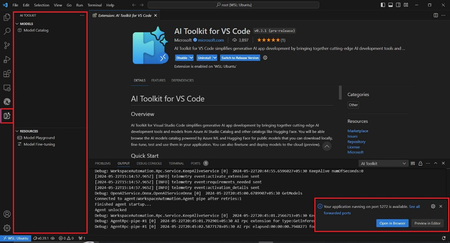
Port Forwarding, a valuable feature within the AI Toolkit, serves as a crucial gateway for seamless communication with the GenAI model. Whether it's through a straightforward API call or leveraging the SDKs, this functionality greatly enhances our ability to harness the power of the LLM/SLM. By enabling Port Forwarding, a plethora of new scenarios unfold, unlocking the full potential of our interactions with the model.9.9KViews2likes0CommentsCreate a Simple Speech REST API with Azure AI Speech Services
Explore the world of Speech recognition and Speech Synthesis with Azure AI Services. In this tutorial, you will learn how to create your own simple Speech REST API using Azure AI Speech Synthesis and Azure OpenAI services or OpenAI API. Experience the power of speech synthesis using Azure and explore the infinite number of possibilities today unveiled to you by Azure AI Services to create powerful products.6KViews2likes0CommentsStep-by-step: Integrate Ollama Web UI to use Azure Open AI API with LiteLLM Proxy
Introductions Ollama WebUI is a streamlined interface for deploying and interacting with open-source large language models (LLMs) like Llama 3 and Mistral, enabling users to manage models, test them via a ChatGPT-like chat environment, and integrate them into applications through Ollama’s local API. While it excels for self-hosted models on platforms like Azure VMs, it does not natively support Azure OpenAI API endpoints—OpenAI’s proprietary models (e.g., GPT-4) remain accessible only through OpenAI’s managed API. However, tools like LiteLLM bridge this gap, allowing developers to combine Ollama-hosted models with OpenAI’s API in hybrid workflows, while maintaining compliance and cost-efficiency. This setup empowers users to leverage both self-managed open-source models and cloud-based AI services. Problem Statement As of February 2025, Ollama WebUI, still do not support Azure Open AI API. The Ollama Web UI only support self-hosted Ollama API and managed OpenAI API service (PaaS). This will be an issue if users want to use Open AI models they already deployed on Azure AI Foundry. Objective To integrate Azure OpenAI API via LiteLLM proxy into with Ollama Web UI. LiteLLM translates Azure AI API requests into OpenAI-style requests on Ollama Web UI allowing users to use OpenAI models deployed on Azure AI Foundry. If you haven’t hosted Ollama WebUI already, follow my other step-by-step guide to host Ollama WebUI on Azure. Proceed to the next step if you have Ollama WebUI deployed already. Step 1: Deploy OpenAI models on Azure Foundry. If you haven’t created an Azure AI Hub already, search for Azure AI Foundry on Azure, and click on the “+ Create” button > Hub. Fill out all the empty fields with the appropriate configuration and click on “Create”. After the Azure AI Hub is successfully deployed, click on the deployed resources and launch the Azure AI Foundry service. To deploy new models on Azure AI Foundry, find the “Models + Endpoints” section on the left hand side and click on “+ Deploy Model” button > “Deploy base model” A popup will appear, and you can choose which models to deploy on Azure AI Foundry. Please note that the o-series models are only available to select customers at the moment. You can request access to the o-series models by completing this request access form, and wait until Microsoft approves the access request. Click on “Confirm” and another popup will emerge. Now name the deployment and click on “Deploy” to deploy the model. Wait a few moments for the model to deploy. Once it successfully deployed, please save the “Target URI” and the API Key. Step 2: Deploy LiteLLM Proxy via Docker Container Before pulling the LiteLLM Image into the host environment, create a file named “litellm_config.yaml” and list down the models you deployed on Azure AI Foundry, along with the API endpoints and keys. Replace "API_Endpoint" and "API_Key" with “Target URI” and “Key” found from Azure AI Foundry respectively. Template for the “litellm_config.yaml” file. model_list: - model_name: [model_name] litellm_params: model: azure/[model_name_on_azure] api_base: "[API_ENDPOINT/Target_URI]" api_key: "[API_Key]" api_version: "[API_Version]" Tips: You can find the API version info at the end of the Target URI of the model's endpoint: Sample Endpoint - https://example.openai.azure.com/openai/deployments/o1-mini/chat/completions?api-version=2024-08-01-preview Run the docker command below to start LiteLLM Proxy with the correct settings: docker run -d \ -v $(pwd)/litellm_config.yaml:/app/config.yaml \ -p 4000:4000 \ --name litellm-proxy-v1 \ --restart always \ ghcr.io/berriai/litellm:main-latest \ --config /app/config.yaml --detailed_debug Make sure to run the docker command inside the directory where you created the “litellm_config.yaml” file just now. The port used to listen for LiteLLM Proxy traffic is port 4000. Now that LiteLLM proxy had been deployed on port 4000, lets change the OpenAI API settings on Ollama WebUI. Navigate to Ollama WebUI’s Admin Panel settings > Settings > Connections > Under the OpenAI API section, write http://127.0.0.1:4000 as the API endpoint and set any key (You must write anything to make it work!). Click on “Save” button to reflect the changes. Refresh the browser and you should be able to see the AI models deployed on the Azure AI Foundry listed in the Ollama WebUI. Now let’s test the chat completion + Web Search capability using the "o1-mini" model on Ollama WebUI. Conclusion Hosting Ollama WebUI on an Azure VM and integrating it with OpenAI’s API via LiteLLM offers a powerful, flexible approach to AI deployment, combining the cost-efficiency of open-source models with the advanced capabilities of managed cloud services. While Ollama itself doesn’t support Azure OpenAI endpoints, the hybrid architecture empowers IT teams to balance data privacy (via self-hosted models on Azure AI Foundry) and cutting-edge performance (using Azure OpenAI API), all within Azure’s scalable ecosystem. This guide covers every step required to deploy your OpenAI models on Azure AI Foundry, set up the required resources, deploy LiteLLM Proxy on your host machine and configure Ollama WebUI to support Azure AI endpoints. You can test and improve your AI model even more with the Ollama WebUI interface with Web Search, Text-to-Image Generation, etc. all in one place.12KViews1like4Comments
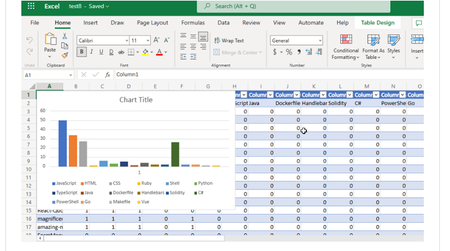
Visualizing Top GitHub Programming Languages in Excel with Microsoft Graph .NET SDK
Have you ever thought about going through all your GitHub Repositories, taking note of the languages used, aggregating them and visualizing it on Excel? Well, that is what this post is all about except you don’t have to do it manually in a mundane way.9.5KViews1like0CommentsNoSQL databases with Azure Cosmos DB
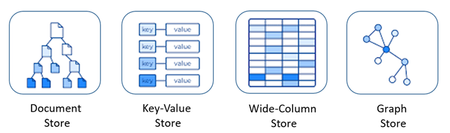
Learn about the differences between relational and NoSQL databases, and discover the advantages of Azure Cosmos DB. This Microsoft Azure database service supports multiple NoSQL models and offers high security, scalability, and global availability. Get started with a free tier and try your hand at storing data with Azure Cosmos DB.4.6KViews1like0CommentsKickoff and Get Started with the 30 Days of Microsoft Graph Tuesday 1st Nov 3pm UTC
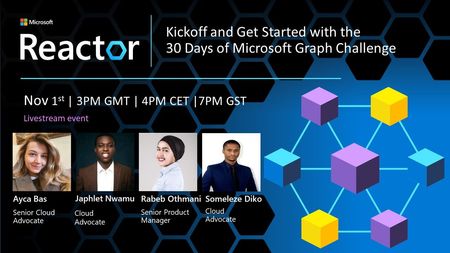
Register NOW Live Event Tuesday 1st November 2022 Time: 3PM UTC Did you know that you can access to all the data and intelligence behind the popular Microsoft 365 apps such as Microsoft Teams, Outlook, To-Do, OneDrive, Planner and more?2.8KViews1like0CommentsUsing Microsoft Learn new API to enable amazing content for a blended learning curricula
Welcome to the new Microsoft Learn Catalog API (Beta) The Microsoft Learn Catalog API (beta) lets you send a web-based query to Microsoft Learn and get back details about published content such as titles, products covered, and links to the training.5.9KViews1like4Comments