android
682 Topics
Microsoft Partner Center Support Not Working
Hi, I was wondering if someone can help, I recently created a Microsoft Partner Center Individual account, created an app in ten languages, and released it into the Microsoft Store. That part was the easy part. Then I noticed the search terms weren't working for my app, if I used all seven, my app didn't appear. My app only appears if I search for it by name, so nobody is ever going to see it, unless they guess my app name. So I go into Microsoft Partner Center to see if I can get some help, nothing in there works for help, I don't see a workspace for 'Apps and Games'. If I try to get help on my account settings I'm taken to something called the 'Engage Center', which doesn't work, it shows 2 flashing '...' icons and nothing more. So I'm a bit stuck, I cannot find any other way to contact Microsoft for help, I guess there is something wrong with my account maybe? Anyone got any advice on how I can get help with my Microsoft Partner Center issues? (Oh and yeah, I cannot post this either without using a tag which makes no sense either so sorry about that) Thanks, Phil.36Views0likes2Comments
Build Reliable AI Agents with Monitoring, Tool Integration, and Responsible AI in Microsoft Foundry
Build Reliable AI Agents with Monitoring, Tool Integration, and Responsible AI in Microsoft Foundry Introduction AI agents are becoming an important part of modern business applications. They can answer customer questions, automate repetitive tasks, retrieve information, and interact with external services. However, building an AI agent that works correctly in a development environment does not always mean it will perform reliably in production and https://geometrydasshapk.com/ As applications grow, agents must handle more complex requests, unexpected user inputs, changing data, and different operational conditions. Without proper monitoring and evaluation, it can become difficult to understand why an agent produces incorrect responses or fails to complete a task. Microsoft Foundry provides tools and capabilities that help development teams build, test, monitor, and improve AI-powered applications. By combining structured tool integration, evaluation workflows, observability, and responsible AI practices, teams can create agents that are easier to maintain and more dependable. This article explores a practical approach to building reliable AI agents using Microsoft Foundry. 1. Understand the Architecture of an AI Agent Before developing an AI agent, it is important to understand how its main components work together. A typical agent application includes several components: User interface: Receives questions and displays responses. Language model: Understands requests and generates responses. Instructions: Define the agent's role, limitations, and expected behavior. Tools: Allow the agent to interact with APIs, databases, and other services. Evaluation system: Measures response quality and task completion. Monitoring: Tracks errors, performance, and resource consumption. These components work together to process user requests and deliver useful results. For example, consider a customer support agent that helps users check their order status. The agent receives a question, identifies the required information, calls an order-management tool, and returns the result. A well-designed architecture should ensure that the agent does not invent order information or report an action as completed without confirmation from the relevant system. 2. Configure Agent Instructions and Responsibilities Agent instructions are an important part of application development. They explain what the agent should do, how it should communicate, and which actions it is allowed to perform. Poor instructions can lead to inconsistent responses, unnecessary tool calls, or unsupported claims. A practical instruction structure should include: Role definition Describe the agent's primary responsibility. Task boundaries Explain which requests the agent can handle and which requests require additional support. Tool usage Define when the agent should call available tools and what information it needs before doing so. Response requirements Specify how the agent should present results, errors, and incomplete operations. For example, an order support agent might follow these rules: Role: You are a customer order support assistant. Responsibilities: - Help users check order information. - Retrieve order details using approved tools. - Explain order status in simple language. Rules: - Never invent an order number or delivery date. - Verify information before reporting a completed action. - Ask for missing information when necessary. - Do not expose private customer information. - Explain tool errors clearly. These instructions establish a predictable foundation for the agent. 3. Connect AI Agents with External Tools An AI agent becomes more useful when it can interact with external systems. For example, an agent may need access to: Customer support platforms. Product information databases. Order management systems. Internal business APIs. Document repositories. Reporting services. Tool integration should follow a clearly defined contract. Each tool should have a specific purpose, expected input parameters, and a predictable output format. Consider an illustrative order lookup tool: def get_order_status(order_id): if not order_id: return { "success": False, "error": "Order ID is required" } order = find_order(order_id) if order is None: return { "success": False, "error": "Order not found" } return { "success": True, "order_id": order_id, "status": order.status } This example demonstrates the expected structure rather than a built-in Microsoft Foundry API. When integrating tools into an agent, developers should also consider authentication, authorization, input validation, API timeouts, and error handling. A tool should only have access to the resources required for its assigned task. 4. Evaluate Agent Responses Before Production Testing an AI agent is not limited to checking whether it produces grammatically correct answers. A response can sound convincing while containing incorrect information. Evaluation should measure multiple aspects of agent performance: Evaluation area What to measure Accuracy Does the response contain correct information? Groundedness Is the response supported by available data? Task completion Did the agent successfully complete the request? Tool selection Did it select the correct tool? Safety Did it follow security and privacy requirements? Consistency Does it behave reliably across similar requests? Microsoft Foundry provides evaluation capabilities that can help teams assess AI application performance. A useful evaluation dataset should contain representative user requests, expected outcomes, and relevant supporting information. For an order support agent, test cases might include: A valid order number. An invalid order number. A missing order number. An order with a pending delivery. An unavailable external service. A request containing instructions that attempt to override the agent's rules. Testing these scenarios helps developers identify weaknesses before releasing the application. 5. Monitor Performance and Identify Errors After deployment, monitoring becomes essential. Real users often submit requests that developers did not consider during initial testing. Monitoring helps teams understand how the agent behaves under actual operating conditions. Important metrics include: Request volume. Response latency. Tool execution time. Failed tool calls. Model token consumption. Evaluation scores. Application exceptions. Microsoft Foundry can be integrated with monitoring and observability services such as Azure Application Insights. Development teams can use monitoring information to identify recurring failures and investigate the underlying causes. For example, if an agent begins responding slowly, developers should investigate whether the issue comes from model processing, external API latency, database queries, or network connectivity. It is important to distinguish infrastructure problems from problems in the agent's instructions or configuration. 6. Implement Responsible AI and Security Controls Reliability also depends on how an AI agent handles sensitive information and potentially harmful requests. Developers should establish security controls before allowing an agent to interact with production systems. Important considerations include: Data protection: Avoid exposing personal or confidential information in responses and logs. Access control: Use appropriate identity and permission mechanisms to restrict access to external resources. Input validation: Validate information received from users before passing it to external tools. Prompt injection protection: Treat retrieved documents, user-provided content, and external tool outputs as untrusted data. Human oversight: Require human approval for sensitive operations such as financial transactions or account changes. Auditability: Maintain appropriate records of important agent actions and failures. Responsible AI practices should be included throughout development rather than added only after deployment. 7. Improve Agent Performance Through Continuous Testing An AI agent should not be considered a finished product after its first successful deployment. Models, instructions, tools, and user requirements can change over time. These changes may improve performance, but they can also introduce unexpected problems. A continuous improvement process can include: Collect representative production traces. Identify frequently occurring errors. Review failed interactions. Update instructions or tool descriptions. Run evaluation tests against the updated configuration. Compare the new results with the previous baseline. Deploy changes only after they pass the required checks. For example, if an order support agent frequently reports incorrect delivery information, developers should investigate whether the issue comes from outdated data, incorrect tool selection, or unsupported response generation. The appropriate fix should address the underlying cause rather than simply changing the wording of the agent's response. 8. Establish a Production Release Checklist Before releasing an AI agent, development teams should verify that the application meets its operational requirements. A practical release checklist includes: Agent instructions have been reviewed. All external tools have defined input and output contracts. Authentication and authorization are configured. Evaluation datasets cover important user scenarios. Critical safety tests have passed. Monitoring and error reporting are enabled. API failures and timeouts are handled correctly. Sensitive operations have appropriate approval controls. A rollback strategy is available. Production performance has been reviewed. These checks help reduce deployment risks and make ongoing maintenance easier. Conclusion Building reliable AI agents requires more than selecting a language model and writing a set of instructions. Developers must consider the entire application lifecycle, including architecture, tool integration, evaluation, monitoring, security, and continuous improvement. Microsoft Foundry offers a platform for developing and evaluating AI applications, while integrations with Azure services can help teams monitor and manage production workloads. By establishing clear agent responsibilities, testing different scenarios, monitoring actual performance, and reviewing every important configuration change, development teams can build AI applications that are more reliable, secure, and maintainable. The most effective approach is to treat AI agent development as an ongoing engineering process rather than a one-time deployment. Next Steps If you are developing AI-powered applications, consider exploring these areas: Microsoft Foundry documentation and agent development. Azure Application Insights for application monitoring. AI evaluation techniques for measuring response quality. Responsible AI principles for production applications. Automated testing and deployment workflows. Start with a small use case, establish measurable performance requirements, and gradually expand your agent's capabilities as your evaluation results improve.67Views0likes0CommentsNew policy implementation and web enrollment for Android personally owned work profile is now GA
We’re happy to announce two improvements for the management of Android personally owned work profile devices with Microsoft Intune, which is now generally available! A new implementation for how Intune delivers policies to devices. Web based enrollment. These updates modernize how Microsoft Intune manages devices and improves the enrollment flow. As of June 18, you will need to take action to opt in to the new implementation. This change will become required later in 2027, and we’ll continue to update this blog as rollout details become available. Keep reading to understand what’s changing, actions, and timelines you need to know. What’s changing New implementation We’re finalizing our work on moving the Android personally owned work profile implementation to the latest and greatest available – Google’s Android Management API (AMAPI). It has been almost a decade since Intune released support for Android personally owned work profile management. At that time, we accomplished this by building a custom device policy controller (DPC), in the form of the Intune Company Portal app. A lot has changed since then. Google released AMAPI and its companion app, Android Device Policy, which enforces AMAPI policy on devices. This is now Google’s recommended implementation, which we used to deliver the three corporate Android Enterprise management methods: corporate owned work profile, fully managed, and dedicated. Google no longer recommends use of custom DPCs and they’re deprecating associated functionality. The benefits of moving personally owned work profile management to AMAPI include: Faster release of new features across all four Android Enterprise management options. Consistent behaviors across all four Android Enterprise management options. The Microsoft Intune app will replace the Company Portal app as the user app (to manage devices, contact their IT department, collect logs, and more), providing an updated user experience and aligning it with the corporate Android Enterprise management options. Enables Intune to support the latest Android platform management capabilities, which are unavailable with custom DPC implementations. Web based enrollment The move to AMAPI also enables us to build a web-based enrollment flow for personally owned work profile devices, similar to web based device enrollment for iOS. The benefits of this include: Users don’t need to manually install an app to start Intune enrollment since they can start enrollment from a webpage instead. Users can access enrollment from any of the three different entry points which all launch the same webpage: Productivity apps - when admin has configured conditional access so that the user is required to enroll before accessing corporate resources (recommended) The Company Portal app This gives you more options for how to guide your users to get set up. A URL Android enrollment is more consistent with the iOS web-based enrollment flow. How to configure and monitor Web based enrollment As of June, 18th 2026 - A new setting is now available that lets you switch your tenant to the new web-based enrollment experience for all future personally owned work profile enrollments. We recommend that you configure this in a test tenant first, try out and document the user flow, and prepare your helpdesks accordingly before opting in on your main tenant. Once you opt in, there isn’t an option to opt out. Planned for Q2 2027, Intune will automatically configure all personally owned work profile enrollments across all tenants to be web enrollments. New implementation A new configuration policy allows you to migrate device groups to the new implementation. As a best practice, we encourage admins to evaluate migrating a smaller device set before migrating all devices. Before moving devices to the new implementation, you may want to email users or configure custom notifications to inform them of what to expect. Planned for Q2 2027, Intune will automatically migrate all remaining devices using the custom DPC implementation over to the new AMAPI implementation. Monitoring There is a new report that shows how many personally owned work profile devices are in each of the following states: On AMAPI Not targeted to move to AMAPI Targeted to move and pending completion (since it may roll out over some time) Attempted to move and hit an error (and why) How this will affect your users Web based enrollment After you opt in to web based enrollment or later after it’s changed to the default, all personally-owned devices (on all Android OS versions) will enroll with the web based flow. These devices will be managed with AMAPI. After enrollment, Intune will install a few apps automatically to ensure streamlined management. Microsoft Intune: User-facing app to manage devices, contact the IT department, collect diagnostic logs, and more. Company Portal: For mobile app management (MAM). Android Device Policy: To enforce AMAPI policies. This app is installed in a “hidden” state, so users won't see it in their app list. Microsoft Authenticator: To provide single sign on for users’ work account. Below is an example of the web based enrollment flow that a user would see if they needed to set a PIN on their device to meet admin requirements. New implementation When a device is moved to the new implementation (either through admin configuration or the later automatic move), devices won’t unenroll and users won’t lose access to corporate resources. Moving enrolled devices to the new implementation will be supported on any device running supported Android OS versions for user-based management methods at that time. The changes on the device will be: The Microsoft Intune app will install, and it will be the app for users to interact with instead the Company Portal. Users will not see a notification about this app installing. The Android Device Policy app will install to enforce policies. Users will not see a notification about this app installing and it will be in a “hidden” state on their device. If a device connected to corporate Wi-Fi with username and password authentication, when they move to AMAPI, they will lose access to corporate Wi-Fi until they sign in to the corporate Wi-Fi again. To avoid any potential disruption, we encourage you to move to certificate Wi-Fi authentication instead (as mentioned below). Timeline 2025: Use this time to revise any relevant policy configurations, update your internal documentation, and prepare your helpdesk teams, as advised below. June, 18th 2026: Enrollment: You’ll be able to opt in for all enrollments of personally owned work profile devices to be web based enrollments on AMAPI. New implementation: You’ll be able to set a configuration policy to migrate groups of previously enrolled devices over to AMAPI. Planned for Q2 2027: Enrollment: All enrollments (regardless of past configuration) will be web enrollments for devices running all Android OS versions. New implementation: All devices still on the custom DPC implementation and running supported Android OS versions for user-based management methods at that time will be automatically moved over to AMAPI. You will receive advanced notice of when these changes will be applying to your tenant. How to prepare We recommend you make these changes to prepare for the upcoming release and provide the most streamlined experience for users. Passkey support: If you have passkeys configured as the only accepted authentication method, users won't be able to enroll with the new web based enrollment flow. This is a known limitation, and we'll add passkey support before web based enrollment becomes the default for all personally owned work profile enrollments across all tenants - (Planned for Q4 2026). Important: Web-based enrollment doesn't support passkeys yet. If passkeys are your only allowed authentication method, enrollment will fail. Don't opt in to web-based enrollment until we announce passkey support for this flow. Replace custom policies: Intune ended support for custom configuration polices for personally owned work profile devices in April 2025. Custom policies are not supported in the new implementation. Replace all custom policies with equivalent policies using this setting mapping. Certificate authentication for Wi-Fi: If you’re using username and password authentication for Wi-Fi policies, we strongly encourage you to move to certificate authentication instead. Devices that are connected to corporate Wi-Fi with username and password authentication will lose access to corporate Wi-Fi when they are moved to AMAPI until the user signs into the corporate Wi-Fi network again. Devices using certificate authentication for Wi-Fi won’t lose access, and it’s also a more secure authentication method. Evaluate biometric configuration: Devices on the new implementation won't apply policies that prevent users from using face, fingerprint, iris, or trust agents to unlock their device. However, policies that prevent this at the work profile level are still supported. If you have this configured at the device level, consider blocking at the work profile level to protect work resources in an equivalent way. Note that for users who have turned on the setting to use one lock (unified password for the device and work profiles), then biometric settings configured for the work profile will apply to the device instead, since there isn't a separate work profile unlock. Review enrollment restrictions: In enrollment restrictions (also referred to as device platform restrictions) the “Android Enterprise (work profile)” restriction for personally owned work profile devices has a setting to Allow or Block “Personally owned” devices. This configuration will not apply to devices on AMAPI and the setting will be removed from the Intune admin center when all devices are moved to AMAPI. As communicated in the Intune Android 12 blog, this setting does not work reliably on devices running Android 12 and later. Conceptually, personally owned work profile management is meant for personal devices, so blocking personal devices from enrolling and only allowing corporate devices isn’t recommended. If you currently have the “Personally owned” setting set to Block for personal work profile devices, you should plan an alternate way for blocking these devices. Options include using a corporate management method instead (such as corporate owned work profile) or configuring the personal work profile enrollment restriction to block enrollments for all users except for users in a specified group. Update Android OS: Intune currently supports Android 10 and later on personally owned work profile devices. We recommend you guide users to update to their device’s latest supported Android version for the best experience. Helpdesk preparation: Inform your helpdesk teams of these coming changes so they know what to expect. For devices on the new implementation, diagnostic logs will be collected using the Microsoft Intune app (instead of the Company Portal app). Plan to update any user instructions you have after you try out the web based enrollment flow. iOS web based enrollment: We recommend you consider setting up web based device enrollment for iOS now or when we release Android web based enrollment for a more consistent and improved user experience. Changes to be aware of A few defaults will change as part of the move to the new implementation. Required app installation behavior: In the custom DPC implementation, users can uninstall required apps, and then they are reinstalled automatically within a few hours. In the new implementation, users won’t be able to uninstall required apps from their device, which is the same experience as on corporate Android Enterprise devices. Caller ID and contact search: In the custom DPC implementation, the settings to “Display work contact caller-id in personal profile” and “Search work contacts from personal profile” are two independent settings. In AMAPI, they are controlled with a single setting. If you have blocked either, Intune will automatically block both for devices on the new implementation. Intune will update the policy user interface to have a single setting once all devices are on the new implementation. Screen timeout: In the custom DPC implementation, you can configure screen timeouts either for the full device or for the work profile under “Maximum minutes of inactivity until work profile locks.” In AMAPI, you can only configure this at the work profile level. Intune will set this to the lesser of the two when devices move to the new implementation. We will remove the device level setting from policies when all devices are on AMAPI. Security provider and Google Play services: The compliance settings for "Up-to-date security provider" and "Google Play Services is configured" won't be supported for devices on AMAPI. This is because security providers will automatically be updated and Google Play Services are required for device enrollment and management. Intune will remove these settings from compliance policies when all devices are on AMAPI. Enrollment reports: A couple of enrollment reports will not report on devices enrolled into AMAPI management. They are the “Enrollment failures” and “Incomplete user enrollments” reports that are found in Devices > Enrollment in the Monitor tab. Google Domain allow listing: The device restriction setting “Google domain allow-list” will not be supported for devices on AMAPI. This capability is now managed directly in the Google Admin console rather than through device restriction policies. Once the onboarding account has been migrated to a Microsoft Entra account and federated with a Google account, admins can configure this setting in the Google Admin console under the Third-party integrations node by enabling “Authenticate Using Google.” Intune will remove this setting from device restriction policies once all devices are on AMAPI. Stay tuned to this blog for updates! If you have any questions or feedback on this change, leave a comment on this post or reach out on X @IntuneSuppTeam. Post updates 02/19/25: Updated the Timeline and How this will affect your users + New Implementations sections. 04/08/25: Updated these sections: How to configure and monitor, How this will affect your users, Timeline, How to prepare, and Changes to be aware of. 04/09/25: Updated the Changes to be aware of section to include details about TeamViewer supportability. 08/22/25: Added images and updated all sections with the latest information, including an updated Timeline section and removing the information about the delay to TeamViewer support. 09/09/25: Added a screenshot to clarify Android enrollment restrictions. 09/23/25: Update the Changes to be aware of section to include more information about 'Enrollment reports'. 02/12/26: Updates to the Changes to be aware of section to include more information about 'Security provider and Google Play services'. 03/27/26: Updates to the Changes to be aware of section to include more information about 'Google Domain allow listing'. 05/13/26: Updated the Timeline section to reflect availability in late Q2 of calendar year 2026. 06/18/26: Updated to note that as of June 18 this is now generally available! You may need to take action to opt in to the new implementation. 10/28/26: Updated the Changes to be aware of section to remove information about password requirements. 10/29/26: Updated the Timeline section to reflect the revised expected availability in Q2 of calendar year 2027 (previously late Q2 of calendar year 2026).34KViews3likes42Comments
Copilot Feature Request: Real-Time Two-Way Voice Interpretation with Speaker Identification
Voice Interpretation for Microsoft Copilot Dear Microsoft Copilot Team, I would like to suggest a new feature for Copilot: Real-Time Two-Way Voice Interpretation. Users select two languages (for example, Lao and Vietnamese) and place their phone between people speaking different languages. Copilot would automatically detect the speaker's language, translate the conversation in real time, and play the translation aloud, allowing natural communication without manual translation. Key capabilities: •Automatic language detection. •Continuous two-way voice translation. •Speaker identification and optional labels (Manager, Colleague, Speaker 1, etc.). •Option to translate a specific speaker or all participants. •Customizable translation voices and speech speed. •Better support for regional accents and everyday expressions. •Context-aware translation that focuses on meaning rather than word-for-word conversion. •Simple controls to start, pause, mute, switch languages, and stop interpretation. Privacy: Voice recognition and saved speaker profiles should be optional, require user consent, and be easy to manage or delete. Translated voices should be clearly distinguished from the original speaker's voice. Benefits: This feature could help migrant workers, travelers, students, businesses, and international teams communicate more easily. For example, a Vietnamese worker in Laos could speak naturally with Lao-speaking colleagues while Copilot handles real-time interpretation. Integrating this capability directly into Copilot would make multilingual communication simpler and more accessible for users worldwide. Thank you for considering this suggestion. Best regards, A Microsoft Copilot User44Views0likes0CommentsEdge on Android: Syncs personal data (e.g. history, payment methods), despite me turning them off
Sync settings chosen during first-run setup are ignored. All sync types get turned on. Steps taken Install Outlook. (Link: https://play.google.com/store/apps/details?id=com.microsoft.office.outlook ) Sign in to Outlook. Uninstall and re-install Edge. (Link: https://play.google.com/store/apps/details?id=com.microsoft.emmx ) Choose whether to set Edge as default browser. Tap the tiny blue text, which says "Sync settings". (Not the tiny blue text immediately underneath, which says "Microsoft Privacy Statement"). All sync types are turned on by default. Turn off all sync items except one, e.g. Passwords. Dismiss "Sync settings" Re-open "Sync settings", to confirm your settings are still there. Then dismiss it again. Sign in, or "Continue". Continue setting up Edge. Open the Edge menu. Tap your account Tap Sync. Result: ALL sync items are turned on, despite having turned them off in step 6. Request Is this bug fixed, in a later version of Edge? Note: This bug does not fit in the official feedback method for Edge for Android. I am hoping the helpful elves at the other end of the Edge feedback form are reading this question. Because I have sent them the link to https://learn.microsoft.com/en-us/answers/questions/6035494/edge-on-android-syncs-personal-data-history-paymen. My environment Google Pixel 10a Android 17 Edge version 155.0.4283.48 (also reproduced with earlier version: 154.0.4258.38) OR Edge Canary version 157.0.4338.0 (Downloaded 2026-10-19)110Views0likes0Comments
Android Enterprise System update expected behavior
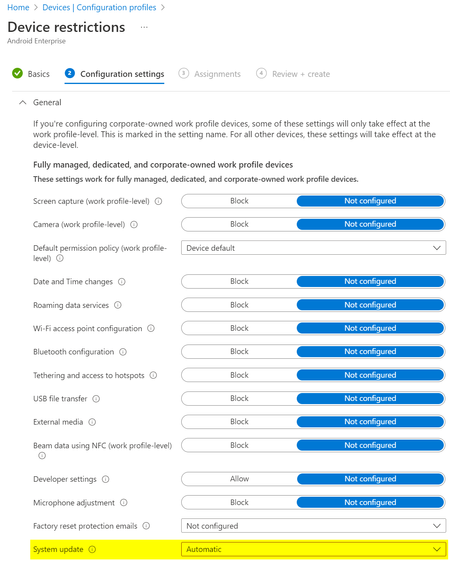
What would be the expected behaviour when we set the System update to Automatic in the Android Enterprise Device restriction profile? We have several devices rebooting "randomly" and without notification and when we check the dumpstate logs, these reboots were triggered by an update: Canonical boot reason: reboot,enterprise,mainline_updbug. According to the Android documentation this could be correct: https://source.android.com/devices/tech/admin/ota-updates Since we don't see the same behaviour on all devices, while they share the same Update policy, I'm not sure what to expect from this setting?4.7KViews0likes4Comments
[Solved] OneNote for Android Not Working
I have a Samsung Galaxy A32 running Android 12. A few days ago, Onenote started telling me was running offline and wanted me to sign in. There was a sign in button on the screen but tapping it did nothing. I could still update notes and the changes would appear on other devices. I should have left it alone, but... I uninstalled Onenote, restarted the phone, and reinstalled it. Since then, when accessing any notebook, the app tells me the notebook isn't open and asks if I'd like to open it. After I tap OK, it says "Sorry, we couldn't open the notes that you were looking for. They may have been moved or deleted, or you may not have permission to open them." It does this for every notebook I try to access. The notebooks are accessible on Windows machines, using the app or a browser. If I try to use a browser on the phone, it flips to the app, or if the app is not installed, the browser asks if I want to install it. There is no access to my notebooks via the browser on the phone. The last steps I've tried are: 1. Clear data from the app 2. Uninstall the app 3. Restart the phone 4. Install the app It takes me right back to where I was, unable to access my notebooks. I also have an old LG tablet running Android 7. After doing the above 4 steps, the results are the same as I get on the phone. Is this a known issue? Is there a fix for it? Tnx!Solved29KViews0likes12CommentsPhone Link Fails to Sync Properly
It has been 3 months or so that phone link stopped working properly with my Android Samsung S26+ and Samsung S24+ phones. The phones are on the latest android version and the phone to link app is also updated on both my PC and phone. I have spoken with customer service at microsoft and there seems to be no answer. I get msgs on my phone but they do not all display on the PC. Only select msgs show. If I mirror the phone however everything shows properly. Any advice on how to fix this issue? Could it be because android phones moved from the samsung default messaging app to the google RSS mssging app? Any fix for this? I tried installing and unistalling the phone on my pc as well as unlinked then linked the phone twice.237Views2likes1Comment