andrewcoughlin
15 Topics
Triggering Azure Functions from Blob Storage Using Event Grid
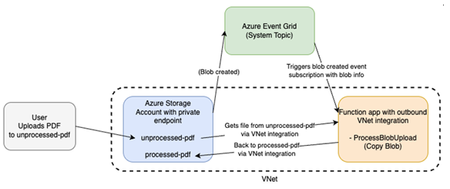
Overview Modern workloads increasingly rely on reacting to files as soon as they arrive in Azure Blob Storage. While Azure provides multiple ways to trigger computing from blob operations, choosing the right event-driven pattern is not always straightforward—especially in enterprise environments where latency, reliability, and operational transparency all matter. Introduction Hello everyone, Andrew Coughlin here, a Cloud Solution Architect specializing in Infrastructure as a Service on Azure. In this post, I am going to walk through how to implement a direct Event Grid to Azure Function pattern. This is the simplest and lowest-latency option when you want real-time reactions to blob uploads. Scenario Suppose you have a workload where files are continuously uploaded into Azure Blob Storage and you need to trigger downstream processing. Typical requirements include avoiding polling, achieving near real-time execution, and maintaining strong observability. Architecture Blob Storage → Event Grid → Azure Function The Process Create and deploy the Azure Function 2. Validate the function 3. Create the Event Grid subscription 4. Upload a blob and validate the flow Step 1 — Create and Deploy the Azure Function (Function First) The Function must exist before creating the Event Grid subscription because Event Grid validates the endpoint during creation. Steps: 1. Create a Function App (Consumption plan + storage account) 2. Open Function App → Functions → Create 3. Select Event Grid trigger 4. Provide function name 5. Create and save the function Note: A storage account is required for all Function Apps and is created or selected during app creation. Implement the Function Below are examples of the HandleBlobCreatedEvent.cs, EventGridListenerFunction.csproj, Program.cs, and host.json Example of HandleBlobCreatedEvents.cs: namespace EventGridListenerFunction { public class HandleBlobCreatedEvent { private readonly ILogger _logger; public HandleBlobCreatedEvent(ILoggerFactory loggerFactory) { _logger = loggerFactory.CreateLogger<HandleBlobCreatedEvent>(); } [Function(nameof(HandleBlobCreatedEvent))] public void Run([EventGridTrigger] string data) { // Event Grid sends events as a JSON array using var doc = JsonDocument.Parse(data); if (doc.RootElement.ValueKind == JsonValueKind.Array) { foreach (var ev in doc.RootElement.EnumerateArray()) { HandleOneEvent(ev); } } else { HandleOneEvent(doc.RootElement); } } private void HandleOneEvent(JsonElement ev) { if (ev.TryGetProperty("eventType", out var eventType)) _logger.LogInformation("EventType: {EventType}", eventType.GetString()); if (ev.TryGetProperty("subject", out var subject)) _logger.LogInformation("Subject: {Subject}", subject.GetString()); if (ev.TryGetProperty("data", out var dataObj) && dataObj.ValueKind == JsonValueKind.Object && dataObj.TryGetProperty("url", out var urlProp)) { _logger.LogInformation("Blob URL: {Url}", urlProp.GetString()); } else { _logger.LogWarning("No data.url found in payload."); } } } } Example of Program.cs: var builder = FunctionsApplication.CreateBuilder(args); builder.ConfigureFunctionsWebApplication(); builder.Services .AddApplicationInsightsTelemetryWorkerService() .ConfigureFunctionsApplicationInsights(); builder.Build().Run(); Example of Host.json: { "version": "2.0", "logging": { "applicationInsights": { "samplingSettings": { "isEnabled": true, "excludedTypes": "Request" }, "enableLiveMetricsFilters": true } } } Example of EventGridListenerFunction.csproj: <Project Sdk="Microsoft.NET.Sdk"> <PropertyGroup> <TargetFramework>net8.0</TargetFramework> <AzureFunctionsVersion>v4</AzureFunctionsVersion> <OutputType>Exe</OutputType> <ImplicitUsings>enable</ImplicitUsings> <Nullable>enable</Nullable> </PropertyGroup> <ItemGroup> <FrameworkReference Include="Microsoft.AspNetCore.App" /> <PackageReference Include="Microsoft.ApplicationInsights.WorkerService" Version="2.23.0" /> <PackageReference Include="Microsoft.Azure.Functions.Worker" Version="2.51.0" /> <PackageReference Include="Microsoft.Azure.Functions.Worker.ApplicationInsights" Version="2.50.0" /> <PackageReference Include="Microsoft.Azure.Functions.Worker.Extensions.EventGrid" Version="3.5.0" /> <PackageReference Include="Microsoft.Azure.Functions.Worker.Extensions.Http.AspNetCore" Version="2.1.0" /> <PackageReference Include="Microsoft.Azure.Functions.Worker.Sdk" Version="2.0.7" /> </ItemGroup> </Project> Step 2 — Create the Event Grid Subscription Navigate to the Storage Account → Events → Create Event Subscription and select BlobCreated events targeting the Function. Step 3 — Validate Upload a blob and confirm the Function triggers and logs event data. Common Pitfalls Creating the subscription before the function exists • Storage account misconfiguration • Networking restrictions preventing Function access to storage Conclusion The direct Event Grid to Azure Function pattern provides a simple and reliable approach for real-time blob processing without additional infrastructure. Disclaimer The sample scripts are not supported under any Microsoft standard support program or service. The sample scripts are provided AS IS without warranty of any kind. Microsoft further disclaims all implied warranties including, without limitation, any implied warranties of merchantability or of fitness for a particular purpose. The entire risk arising out of the use or performance of the sample scripts and documentation remains with you. In no event shall Microsoft, its authors, or anyone else involved in the creation, production, or delivery of the scripts be liable for any damages whatsoever (including, without limitation, damages for loss of business profits, business interruption, loss of business information, or other pecuniary loss) arising out of the use of or inability to use the sample scripts or documentation, even if Microsoft has been advised of the possibility of such damages.Azure Migrate – Deployment Failure Due to Policy Blocking
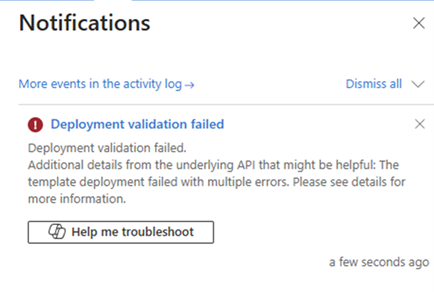
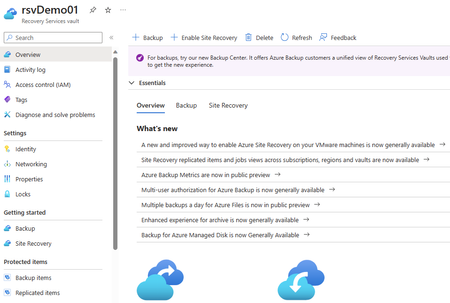
Introduction Hello everyone, My name is Andrew Coughlin, and I am a Cloud Solutions Architect at Microsoft, specializing in Azure Infrastructure. In my role, I assist customers with utilizing Azure Migrate to transition their virtual machines from on-premises environments to Azure. Recently, I encountered an issue related to the setup of Azure Migrate, which arises when certain built-in policies are configured to deny compliance settings for storage account and key vault setup. These policies are designed to ensure that storage accounts and key vaults are deployed securely. In this document, I will address the specific issue encountered and provide guidance on how to resolve it. When setting up Azure Migrate, the process begins with creating a project. Once the project is established, you proceed to configure the discovery phase. There are three methods available for deploying this appliance: Hyper-V, VMware, or Physical servers. After selecting whether the servers are virtualized and identifying the platform, you will be presented with the following screens: Next you will enter your appliance name and click Generate key. If you have any applicable policies: If the settings are configured to "Deny," the deployment will fail, and the following message will be displayed: Azure Migrate creates the following resources when you click generate key: Storage Account Key vault Recovery Services Vault At the time this article was written, it is not possible to customize any settings for these three resources during deployment via Azure Migrate. In the following section, we will discuss the supported method to address this issue. Determine which policies caused the failure (Portal) First click on the bell in the top right-hand corner. Click on Deployment validation failed. Expand the most recent validation failed operation. NOTE: There may be multiple validation failures depending on the number of policies that denied Azure Migrate from creating the resources. Additionally, it may take several minutes for these operations to appear in the activity log. Click on any of the ‘deny’ Policy action, click on JSON. Scroll through the JSON until you find “policies”. Within the policies you will see, which policy prevented the resources from being created. In this example we see a policy named “[Preview] Storage account public access should be disallowed”. Review each ‘Deny’ Policy action and note which policy denied the actions. Continue to Add Policy Exception. Determine which policies caused the failure (Using Developer Tools) Alternatively, you may utilize the developer tools within your browser to identify which policies are obstructing the deployment. Click on Settings within the browser. Click More Tools > Click Developer Tools. Click on Network. Type the appliance name and click Generate key. Click on the validate?api-version=XXXX-XX-XX. Click Response. Copy and paste the error into a text editor of your choice to read the policies that blocked the deployment. Continue to Add Policy Exception. Add Policy Exception We will need to temporarily add an exception to the policy. Once the discovery steps for Azure Migrate are complete, the exceptions can be removed. It is recommended to add the exception is solely for the resource group where Azure Migrate is being deployed, ensuring that all other resources continue to be monitored under these policies. Click on Azure Policy. Click on Compliance, ensure your scope is set at the right level of where you believe the policy is assigned to. Type storage. Click on the policy for public access should be disallowed. Click View assignment. Click Edit Assignment. Click on the … next to Exclusions. Select the subscription and resource group you want to exclude this policy from. Click Add to Selected Scope. Click Save. Click Review + save. Click Save. Keep in mind if there are multiple policies blocking this you will need to do Steps 1 – 13 for each policy that blocked part of the creation of the resources. Once you have done this for all policies, continue to Step 14. Once finished you can go back to the Azure Migrate – Discover page. Provide your appliance name again and click Generate. Once finished you should receive the Deployment succeeded. If not you will need to repeat the above steps to find out what prevented the deployment. Remove Policy Exception Now let’s go ahead and remove the exceptions as they are no longer needed once we have successful deployment. Click on Azure Policy. Click on Compliance, ensure your scope is set at the right level of where you believe the policy is assigned to. Type storage. Click on the policy you want to remove the exception for. Click Edit assignment. Click on the … next to Exclusions. Select the subscription and resource group you want to remove the exclude from. Click Remove next to the resource group. Click Review + save. Click Yes. Click Save. Once completed you will get an updated policy assignment message. Keep in mind if there are multiple policies blocking this you will need to do Steps 1 – 12 for each policy that you want to remove the exception for. Once you have done this for all policies you’re finished. Conclusion In response to inquiries about whether it is possible to pre-create the storage account, Key Vault, and Recovery Services vault, or create these resources after a failure based on the names Azure Migrate attempted to create, the short answer is that this practice is neither recommended nor supported. Pre-creating these resources may result in unexpected issues and is not advisable. This article discussed the supported method for deploying Azure Migrate when policies are blocking the deployment of essential Azure Migrate resources. Thank you for reading this blog, and I hope it provides valuable assistance. I look forward to your next visit.Private Endpoint DNS Resolution with Azure Private Resolver for Multi-Region
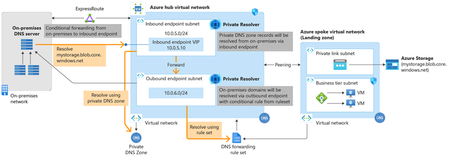
Have you ever wondered how to setup private endpoint and dns resolution for when you have connectivity to Azure in two different locations of your business? In this blog I will explain how to set this up with a storage account.How To Determine What Devices Are Connecting To a Storage Account
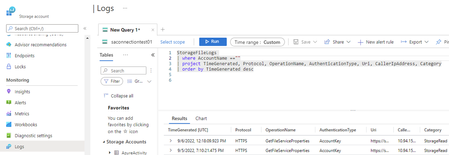
Have you ever wondered how to determine if any devices are still using a storage account blob, file, table, or queues? In this blog post I will talk about the process of setting up monitoring to understand if/what devices are still communicating to a storage account.