alwayson
26 TopicsSQL Agent Jobs in an AlwaysOn / Mirroring Environment
Running SQL Agent Jobs in an AlwaysOn or Database Mirroring environment can be a challenge, as the database might be not accessible at the time when the job starts. This is especially the case for all SAP collector and backup jobs. On the other hand there might be jobs that should not run on primary server (e.g. DBCC Checks), but on a readable secondary or readonly standby database (Log Shipping). In the worst case either the jobs fail or run on the wrong server. To prevent this, SAP created a small stored procedure to control the run of these kind of jobs. To use the stored procedure, use this script use master; GO IF (OBJECT_ID(N'dbo.CheckAccess') IS NOT NULL ) DROP PROCEDURE [dbo].CheckAccess GO CREATE PROCEDURE dbo.CheckAccess @DBName AS NVARCHAR(128) = N'master', @RunOnPrimary AS TINYINT = 1, @RunOnSecondary AS TINYINT = 0, @RunOnReadonly AS TINYINT = 0, RC AS TINYINT = 0 OUTPUT AS BEGIN DECLARE @IsReadOnly TINYINT; DECLARE @State TINYINT; DECLARE @StandBy TINYINT; DECLARE @UserAccess TINYINT; DECLARE @AOState TINYINT; DECLARE @AORole TINYINT; DECLARE @Message NVARCHAR(50); SET RC = 0; SET @Message = N'Everything is OK.'; IF EXISTS(SELECT TOP 1 database_id FROM sys.databases WHERE database_id = DB_ID(@DBName)) BEGIN -- Check for the normal database state SELECT @IsReadOnly = is_read_only, @State = state, @StandBy = is_in_standby, @UserAccess = user_access FROM sys.databases WHERE name = @DBName; IF NOT ((@State + @UserAccess) = 0 AND (@IsReadOnly <= @RunOnReadonly) AND (@StandBy <= @RunOnReadonly)) BEGIN SET RC = 1; SET @Message = N'Database is NOT accessible.'; END; END ELSE BEGIN SET RC = 2; SET @Message = N'Database doesn''t exists.'; END -- Check if we are running in an AlwaysOn Configuration IF EXISTS(SELECT TOP 1 database_id FROM sys.dm_hadr_database_replica_states WHERE database_id = DB_ID(@DBName)) BEGIN SELECT @AOState = db.database_state, @AORole = rs.role FROM sys.dm_hadr_database_replica_states AS db INNER JOIN sys.dm_hadr_availability_replica_states AS rs ON db.group_id = rs.group_id WHERE db.is_local = 1 AND rs.is_local = 1 AND db.database_id = DB_ID(@DBName) IF NOT(@AOState = 0 AND ((@RunOnPrimary != 0 AND @RunOnPrimary = @AORole) OR (@RunOnSecondary != 0 AND @RunOnSecondary = @AORole - 1))) BEGIN SET RC = 3; SET @Message = N'The database is not in the required state for Always-ON access.'; END; END; PRINT @Message END; GO and run it on all nodes of the affected system (either AlwaysOn, Database Mirroring or Log Shipping). It will create a stored procedure CheckAccess in the master database. The procedure has 5 parameters: Parameter Data Type Default Value Description @DBName NVARCHAR(128) N'master' Database to check. @RunOnPrimary TINYINT 1 Should the job run on the primary database ? @RunOnSecondary TINYINT 0 Should the job run on the secondary database ? @RunOnReadonly TINYINT 0 Should the job run on the read only databases (Log Shipping) ? RC TINYINT 0 Return code (0 = Success, 1 = Failure) With the parameters @RunOnPrimary, @RunOnSecondary and @RunOnReadonly you can control in which state of the AlwaysOn database the Job should start. A combination of these parameters is possible, so the job can run on primary and secondary databases if you set both to 1. Even if you do not use AlwaysOn or readonly databases or if you set all the options to 0 the stored procedure will check for the availability of the database. It will return a failure (1) if the database is absent, offline, suspect, in recovery and all the other states that won't let you access the database. A valid call looks like this (Check the TST database if it is accessible and check if it is the primary database in an AlwaysOn configuration): exec dbo.CheckAccess N'TST',1,0,0,@RC OUTPUT To enable the CheckAccess stored procedure for jobs, we have to change the job a bit. In this example it is an SAP Collector Job (SAP_SCU_SAPMonitor_TST_MSSQL_COLLECTOR) for the TST SAP database. Open the properties for the job (right click -> Properties) Switch to the Steps branch on the left and edit the first step with the name DBCOLL. Change the database to master (as the stored procedure lives there) and change the script from EXECUTE sap_dbcoll to DECLARE @Msg NVARCHAR(128) DECLARE RC TINYINT exec dbo.CheckAccess N'TST',1,0,0,@RC OUTPUT IF RC = 0 exec( 'use [TST] EXECUTE sap_dbcoll' ) Ensure that you change the database accordingly (here TST) for your system. The step then should look like: On the advanced tab change the 'On failure action' field to 'Quit the job reporting failure' and save and exit the job definition. This will ensure that the DBCOLL part will only start when the database is accessible and is the primary database in the AlwaysOn Configuration. You can use this stored procedure for any job, when you follow this generic approach: DECLARE @Msg NVARCHAR(128) DECLARE RC TINYINT exec dbo.CheckAccess N'<Database in Question>',1,0,0,@RC OUTPUT IF RC = 0 exec( 'use [<Database in Question>] <Step definition>' ) Regards ClasAlways On - Synchronize SAP login, jobs and objects
SQL Server AlwaysOn is one of the High Availability solutions available for an SAP system. It consists of two or more computers each hosting a SQL Server with a copy of the SAP database. A listener points to the actual primary copy and is used from the SAP system as the only connection point. For details how to setup and configure an SAP system together with SQL Server AlwaysOn see this blog post and its referenced blog posts. During the setup the SAP System is configured from the current primary node and all non-database related objects such as SQL Server Agent Jobs, logins etc. are created only on the current primary database. In a case of a (automatic) failover to one of the secondary nodes of AlwaysOn these objects are then missing. Jürgen has introduced a script (sap_helprevlogin) in his initial blog post about the database load after setting up AlwaysOn. This script will transfer only the logins, but will fall short on transferring jobs, server level permissions and other assignments. One of the SAP developers working in our team has built a comprehensive PowerShell script (sap_synchronize_always_on.ps1) to perform all these tasks and to transfer all the SAP objects from the initial installation to all the other nodes of the AlwaysOn system. The script connects to the primary instance, reads the configuration of the secondary nodes and then synchronizes the objects and jobs with these nodes. The script must be executed by a domain administrator which has SQL Server sysadmin privileges on all AlwaysOn instances. The script uses up to three input variables: The server name of the SQL Server instance or the listener name of the High-Availability group. The default is (local) The name of the SAP database, which must be in an High-Availability group on the given server Single login (optional): Only one login gets copied along with SAP CCMS jobs owned by the login. By default all logins mapped to the database are copied. The script will execute: Create a procedure CheckAccess in the master database (see this blog about the details about it) Discover which logins are mapped to the database Discover which SAP CCMS jobs belong to those logins If the job does not use CheckAccess then change the job step to use CheckAccess and run the job step in master Open a connection to each secondary and: Create procedure CheckAccess in the master database Create the logins if they don't exist already using the same sid. Create the jobs if they don't exist already. If a job exists and if the job does not CheckAccess then change the job step to use CheckAccess and run in master If new SAP CCMS jobs are added because of remote monitoring from a different SAP system using DBACOCKPIT, the script can be re-executed. It will then copy only new objects which have not been copied before. You can find this useful script attached, which makes the synchronization of the SAP Systems in an AlwaysOn environment so much easier. Please ensure that you test the execution in your test environment first, before you run it in production. Neither SAP nor Microsoft takes any responsibility from using this script, you run it on your own risk. Update January 2017: New script version that copies the sid<adm> and SAPService<SID> logins from the SAP System as well. Best regards | Bless! Clas & Guðmundur
Always on VPN prompting for action needed - Azure AD Join issue?
Hello! We have Always on VPN implemented for our Windows 10 laptops. Everything was/is working great, until we purchased Microsoft 365. Once devices started to Azure AD Join, it put in an additional user certificate from MS-Organization-Access. Now, anytime a user logs in, instead of automatically connecting as they expect, you will have to go to the VPN connection and you will see "Action Needed." Once you click connect, it brings up a dropdown to select which certificate to use, the options being the one created for AoVPN (email address as the name) and the other being the one created by the azure ad join. Selecting and connecting the proper certificate does not persist between logins. Is there a way to specify which certificate it needs to be pointing at to avoid this issue?33KViews0likes4CommentsMore Questions From Customers About SQL Server Transparent Data Encryption – TDE + Azure Key Vault
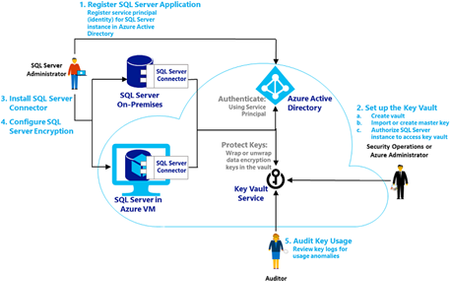
First published on MSDN on Apr 04, 2017 Recently many customers have been moving from AIX and HPUX to Windows 2016 & SQL Server 2016 running on Azure as these UNIX platforms are no longer mainstream, developed or invested by their vendorsMost of these customers are deploying TDE to protect the Database files and backups.Large Australian Energy Company Modernizes SAP Applications & Moves to Azure Public Cloud
First published on MSDN on Mar 27, 2017 This blog is a technical overview of a project recently completed by a large Australian Energy Company (the Company) over the past 12 months to transform the Company's SAP Solution from an End of Life HPUX/Oracle platform to a modern SQL Server 2016 solution running on the Azure Public Cloud.