ai
3 TopicsWindows Server 2028: A trusted foundation for an evolving enterprise
Enterprise infrastructure has evolved in response to changing and increasing business demands. Windows Server helped connect the enterprise by bringing people and resources together with Active Directory. As more business processes moved into software, it became a place to run business-critical applications. And when those applications multiplied, Hyper-V helped customers host the infrastructure they depend on more flexibly. Windows Server has evolved and grown with customers through each shift. Now customers are asking where AI should run when it needs to work with those applications and data. The cloud is part of the answer, but so is the local infrastructure they operate themselves. With Windows Server 2028, we’re strengthening the platform across the work it already does—and beginning to enable enterprise hybrid intelligence. Today, we’re introducing Windows Server 2028, in public preview now. This major release raises the security and access bar, accelerates enterprise infrastructure, and simplifies management at scale. It also begins our long term investments extending Microsoft Foundry to bring AI inference to fleets of local token factories, giving customers more choices to put the right intelligence in the right place with the right cost structure. For customers interested in early access to Windows Server 2028 features and direct engagement with Windows Server engineering, consider applying to Windows Server Technology Adoption Program (TAP) at aka.ms/WSTAP Enable enterprise hybrid intelligence AI raises an infrastructure question: where should inference run? A cloud service may be the right choice for one application. Another may need inference close to its data, near a physical operation, or within an environment the customer controls. Customers need to make that choice without building and operating a separate AI stack for every location, and want to scale their local inference servers on the same trusted platform delivering storage, compute, networking, and databases across their enterprise today. With Windows Server 2028, we’re investing across the stack needed to run inference on enterprise infrastructure. At the hardware layer, we’re introducing powerful new AI accelerators with Windows Server 2028. We’re excited to share that AMD’s Instinct MI350P card is in preview starting H1 2027 for in-market supported Windows Servers and Windows Server 2028. At the platform layer, we’re developing capabilities to deploy and configure inference environments, manage accelerated hardware, and direct model requests to the right environment. At the runtime layer, we’re working to support open-weight and custom models across technologies including Foundry Local, Windows ML, vLLM, and Llama.cpp. Running inference in an enterprise also means protecting and governing it. Windows Servers benefit from broad Windows investment in agent security and management, including Microsoft eXecution Containers for isolation, integration with Microsoft Foundry for model catalogs, and Agent 365 for agent identity and governance. Together, these capabilities are intended to help customers run AI close to their applications and data while connecting that work to a broader hybrid AI architecture. Raising the security and access bar The more an organization relies on its servers, the more important it is to keep them secure. Administrators need to protect the operating system and the virtual machines it hosts, maintain the certificates that secure connections, and prepare for threats that will change over the life of the infrastructure. Doing that well should not depend on every team starting from scratch. Windows Server 2028 is designed to give customers a stronger starting point. A hardened Server Core configuration by default and a new security baseline help reduce the work of establishing a secure baseline from day 1. Trusted Launch extends protection to virtual machines, guaranteeing boot integrity across your VM fleet, and Confidential VM support begins a journey to support integrity-protected runtimes on supported CVM hardware. We’re also investing in automatic certificate management and post-quantum cryptography, addressing both the day-to-day task of maintaining secure connections and the longer-term need to modernize them against the threats of tomorrow. Accelerate enterprise infrastructure Applications and data keep placing new demands on the systems beneath them. Customers are adopting faster storage and moving larger volumes of data, but the value of that hardware depends on whether the rest of the infrastructure can keep up. For organizations running critical workloads on Windows Server, performance improvements need to reach the applications they already operate. Windows Server 2028 adds native NVMe storage enabled by default and NVMe over TCP and RDMA transports, along with the ability to boot from ReFS. These technology ingredients combine to deliver high-performance, scalable, resilient storage solutions for Windows Server customers and help customers make better use of modern hardware to give demanding workloads more room to grow. Simplify administration and management at scale Managing a server and managing a server estate are different jobs. Across datacenters, clouds, and remote sites, teams need ways to apply policy, manage updates, and see what is running across the estate across an extraordinary diversity of Windows workloads. We hear regularly from customers who want to use proven Windows management processes and manage Clients and Servers as one fleet. We are proud to build on our recognition as a leader in Server Virtualization to help customers manage Windows Servers at scale. For teams that already manage Windows clients with Microsoft Intune, we are excited to announce Intune management for Windows Servers is now in Preview. Intune support for Windows Server brings familiar endpoint-management workflows including configuration, compliance, applications, and updates to eligible, persistent servers. Azure and Azure Arc continue to provide cloud-native management workflows for production and business-critical servers wherever they run. When a workload needs attention or a virtualization host needs troubleshooting, administrators need to get close to the machine and understand what is happening. Enterprise customers around the world run Windows Server VM fleets at scale, and need modern management tools to keep up. Windows Admin Center Virtualization Mode gives administrators the depth to work with individual servers and virtualized infrastructure as one fabric, and we are pleased to announce that WAC vMode is now in GA. These Cloud and On-Premises approaches complement one another. Customers can start with the workflows that fit their environment today, and grow into tomorrow with a consistent toolset that meets them where they are with the best of Azure and Windows management all together. Bringing Windows Server 2028 to enterprise infrastructure Bringing this vision to life takes an ecosystem spanning software, silicon, and systems integrators. We’re working closely with hardware partners to bring accelerated computing to the enterprise infrastructure customers already rely on. The strength of Windows and the strength of our ecosystem go hand in hand, and we thank our fantastic partners for their work scaling with us to support the needs of today’s enterprises. “Windows Server 2028’s advancements in security, virtualization, and modern infrastructure align naturally with AMD’s technology investments. Together, these technologies can help organizations protect data in use, modernize virtualized estates, and build efficient platforms for the next generation of mission-critical and AI-enabled workloads.” Kumaran Siva, Corporate Vice President of Business Development, AMD "Security for the AI era must be engineered across the platform—from firmware and the operating system through the full server lifecycle. Dell and Microsoft are working together so Dell PowerEdge customers can maximize the value of Windows Server 2028, including advances supporting the transition to post-quantum cryptography, with the reliability, automated protection and operational confidence they expect for their most critical workloads.” Anita Henry, Vice President of Infrastructure Solutions Group Engineering, Dell Technologies “As customers modernize distributed IT estates, they need security rooted in the server, reliability and simpler operations across edge, datacenter, and cloud. HPE ProLiant Compute, supported by Windows Server 2028’s security and hybrid-management, creates a strong foundation for resilient infrastructure that can adapt as business-critical workloads evolve.” Lauren Engebretson, Head of Compute Solutions and Enablement, Hewlett Packard Enterprise “The transition to post quantum cryptography is a major initiative for governments and enterprises. Intel’s PQC transition is well underway and, through deep co-engineering with Microsoft, we anticipate the Intel Xeon platform and Windows Server 2028 together will offer a strong PQC-capable foundation for our customers to build upon.” Srini Krishna, Distinguished Engineer, GM of Data Center Products, Intel Corporation “Customers want to bring AI closer to their data and decisions while building on the enterprise infrastructure they already rely on. Windows Server 2028, together with Lenovo Hybrid AI Advantage™ and Lenovo ThinkSystem and ThinkEdge servers, can help customers extend that foundation for trusted AI—from the edge to the data center and cloud—with greater choice, control and speed.” Scott Patti, Vice President of Infrastructure Solutions Group, Lenovo Going forward Windows Server 2028 is part of a bigger picture: intelligence across the cloud, enterprise infrastructure, and personal devices. As AI-accelerated workloads diffuse across the enterprise, different workloads have different needs. Some call for the breadth and scale of the cloud. Others need to run close to business-critical applications and data, on infrastructure customers control. Still others belong on the devices people use every day. Cost, latency, IP protection, data residency, and regulatory requirements all shape that decision. Our vision is to extend Microsoft Foundry across these environments, so teams can build with familiar tools and run each workload where it makes the most sense, from client, to cloud, to powerful Windows Server token factories running in corporate datacenters. As we move toward general availability, we’ll keep working with customers to learn where running inference on their own infrastructure makes the greatest difference—and to shape how Windows Server fits into a broader hybrid AI architecture. We’re excited about what Windows Server 2028 makes possible, and we look forward to sharing more as these capabilities develop. Explore Windows Server 2028 Security, performance, and management features are available in preview through the Windows Server Insider Program, and the Server team is looking forward to your feedback on the Windows Server Insiders Forum. Hybrid intelligence capabilities are available to a limited number of customers through an early access program, and hardware requirements apply. Thank you for the trust you’ve placed in Windows Server. Windows Server 2028 is our commitment to keep earning it: by strengthening the foundation you rely on and helping you put it to work in new ways.Windows Admin Center (v2) Public Preview build has been updated!
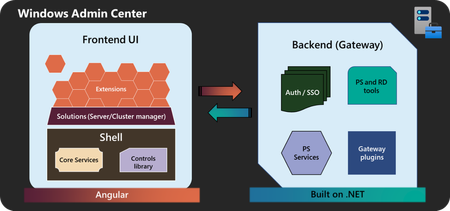
It’s been seven months since we released the last Public Preview for our “Modernized Gateway” (known as v2) -- today, we’re updating the Public Preview build with new functionality and bug fixes. As we get closer to officially releasing this version to general availability (GA), we want to hear from you first so that we proactively address any feedback you may have! Please note that this is still a Public Preview version of Windows Admin Center, so it is not recommended to install this build in your production environment. This preview version will no longer be able to be installed side-by-side with the last GA release (version 2311, or any of the previous releases). Once you install this build and migrate your user data and environment configurations, you will not be able to go back. We’ve been working behind the scenes to ensure that Windows Admin Center is up-to-date, secure, and reliable. We suggest experienced users of Windows Admin Center and Windows Admin Center developers give this new build a try. Read on to learn about the new features and updates! What's new in this v2 build Upgrade to .NET Core The Windows Admin Center frontend user-interface (UI) is built on Angular, which is in turn built on our shell. The shell hosts all the core services and most of our UI components, our solutions like server and cluster manager, and, on top of that, every extension that you use for server management. Our front end interacts with our backend, which is also known as our gateway. The gateway hosts our authorization structure, our PS services, our gateway plug-ins, and plays a critical role in every single experience that you use in Windows Admin Center. In this release, we have upgraded our backend again, from the .NET Core 6 to .NET Core 8, bringing enhanced security and improved cryptography to our product. This also includes support for HTTP 2, reducing latency and enhancing the responsiveness of Windows Admin Center. Combined with improved performance, providing faster load times, you’ll be able to get your tasks done more quickly and efficiently. Virtual machine tool update We have heard your feedback and have improved the virtual machine (VM) tool experience! Our primary goal is to provide you with the list of VMs as soon as possible so you are empowered to efficiently carry out your administrative tasks. Today, we invite you all to enable this feature, use the tool, and share your feedback. Highlights: The VM Power operations (e.g. start, pause etc.) now only update the VM selected without reloading the entire table, saving customers valuable time To optimize responsiveness (e.g., clicking, hovering and scrolling), we have removed the runtime pipeline. To prioritize loading the VM list first, certain operations are deferred until after the initial load (e.g., cluster node check) To optimize performance, we have reduced the columns in the default view. Note that this can be toggled off using the “Detailed Mode” toggle to switch back to the previous experience A new streamlined Azure Site Recovery integration experience for users How to enable the feature Navigate to your Windows Admin Center settings by selecting the gear in the top right corner of the header. Navigate to the “Advanced” tab. Add the following experiment key: msft.sme.hyperv.hyperVPreviewMode Updated installer While modernizing our gateway, we also made the installer more flexible by providing increased customization options including network access settings, selecting trusted hosts, providing a fully qualified domain name (FQDN) for your gateway machine, and more. For more details about the installer, read on to the Installing the v2 build section. Data migration To ensure that your user and environment data is transferred over, we have implemented a data migration flow so that you will seamlessly transition to the new v2 build. All of your data will be copied over, except for 4 items that will require user intervention. For more details about the installer, read on to the Migrating your data section. Settings update As part of our gateway modernization effort, you may notice that your Windows Admin Center settings look a little bit different. As we discussed in the 2211 Windows Admin Center release, we have deprecated the in-app update experience and have consequently removed the settings blade for Updates. Additionally, the Access and Shared Connections blades are now available on local gateway installations (also known as “desktop mode” in legacy gateway builds). Multi-process, micro-service based The v2 build also leverages microservice architecture. Prior to this upgrade, Windows Admin Center performed all tasks in a single process. With our new model, we start one process for Windows Admin Center on application startup that serves as a process manager. As you use Windows Admin Center, additional sub-processes are spun up to perform specific tasks. Additionally, gateway plug-ins that are compatible with the v2 build will also run their own collection of sub-processes under the Windows Admin Center service manager to perform their functions. Changing from a monolithic service to a microservice model helps our v2 build be more flexible, scalable, and resilient. Kestrel HTTP web server Previously, Windows Admin Center utilized Katana components, including a web server, on the backend. With the v2 build, we’ve shifted to an ASP.NET Core Kestrel web server. Kestrel is the recommended web server for ASP.NET Core applications. Kestrel is: High performing: Kestrel is optimized to handle a large number of concurrent connections efficiently. Lightweight: Optimized for running in resource-constrained environments, such as containers and edge devices. Security hardened: Kestrel supports HTTPS and is hardened against web server vulnerabilities. Additionally, Kestrel supports the HTTP/2 web protocol, where previously we had only supported HTTP1.1 with the Katana components. The upgrade from HTTP1.1 to HTTP/2 brings reduced latency to our application as well as increased responsiveness through enhanced features like multiplexing and server push. Switching to a Kestrel web server will also allow for Windows Admin Center to potentially enable cross-platform support in the future. How does the v2 build impact my extension? Gateway plug-in extensions will be the most impacted by the changes to our v2 build. Windows Admin Center gateway plug-ins enable API communication from the UI of your tool or solution to a target node. Windows Admin Center hosts a gateway service that relays commands and scripts from gateway plug-ins to be executed on target nodes. The gateway service can be extended to include custom gateway plug-ins that support protocols other than the default ones (PowerShell and WMI). Because gateway plug-ins communicate with Windows Admin Center’s backend to enable API communication, gateway plug-in code may include components written with the .NET framework version 4.6.2, which will not function with .NET Core. This code needs to be updated to use the .NET Core framework. Additionally, we’ve modified the way plug-ins work with our v2 build. Instead of developing a C# class which implements the IPlugIn interface from the Microsoft.ManagementExperience.FeatureInterfaces namespace to extend the gateway plug-in, extensions will now be written in the form of ASP.NET MVC controllers. These controllers have increased flexibility compared to the simple C# class and extensive documentation. Learn more about gateway plug-in development in Windows Admin Center here. What about my tool and/or solution extension? Solution and tool extensions do not communicate with Windows Admin Center’s backend in-depth and should be minimally impacted by the v2 build. We strongly recommend testing your extension to ensure it continues to run smoothly on the new backend. Installing the v2 build With our v2 build, we’ve made changes to our installer to offer more flexibility to the user. When running the installer, you will be presented with three different installation modes: express localhost setup, express remote setup, and custom setup. Express setup options Two of the three installation modes for the v2 build are express modes—express localhost setup and express remote setup. Both express setup options do not allow for the configuration of the following features: Login authentication mode Host access network names Internal and external network ports Certificate type and thumbprint Endpoint FQDN Trusted hosts mode WinRM over HTTPS If you would like to configure any of these features, please use the custom setup option instead. If you select the express localhost setup option, WAC will be accessible through port 6600 and will use internal ports 6601-6610. If you select the express remote setup option, WAC will be accessible through port 443 and will use internal ports 6601-6610. Custom setup Selecting custom setup allows you to configure all Windows Admin Center setup options: Network access – This page allows you to select how you will be using Windows Admin Center. You may choose to restrict WAC access to other users by selecting localhost access only or allow remote access through machine name of FQDN. Port numbers – This page allows you to select the ports that will be reserved for Windows Admin Center. WAC uses one external port for its primary processes. Other processes use internal ports. There are two internal processes by default, but extensions may define their own services that will require port access. By default, the internal range is 10 ports. Select TLS certificate – This page allows you to select Self-Signed certificates or an official TLS certificate that Windows Admin Center should use. Self-Signed certificates include Self-signed CA root certificates and TLS certificates that work with the latest Edge/Chrome browser. Fully qualified domain name – This page allows you to provide a fully qualified domain name for network access. This name must match the name on the TLS certificate. Trusted hosts – This page allows you to select which type of remote hosts you’d like to manage. You may choose to manage only trusted domain computers or allow access to non-domain joined machines. WinRM over HTTPS - This page allows you to select whether to use HTTPS for WinRM communication. WinRM communicates over HTTP by default. Troubleshooting installation If your installation failed, or you’re having trouble opening WAC after install, you may need to uninstall and reinstall. This can also happen if you have an older version of a v2 build installed, and you are trying to update to a newer version. To uninstall, follow the instructions in the Uninstalling and cleanup section of this document. Migrating your data Once you have installed the v2 build, much of your transferable data is automatically copied over to the new build, reducing the time it takes for you to get started. However, there are four items that will require your input on: Proxy credentials WebSocket Origin configuration Azure registration Extensions You will only have to do this once. Once your data is fully migrated, future releases of Windows Admin Center will have the seamless update experience you know and love. Proxy credentials Windows Admin Center will not be able to able access Azure services and the public extension feed without proper proxy credentials. If you have a proxy set up, then you will need to enter the proxy address, as well as the username and password to give Windows Admin Center access. WebSocket Origin configuration If you had previously configured WebSocket Origins, you can review and edit them here. To get you started, we have imported the WebSocket Origins list from your previous Windows Admin Center setup. Azure registration Windows Admin Center now requires additional redirect URLs to be configured with the Azure App Registration instance. This can only be done through the Azure Portal. Selecting the “Configure” button will programmatically update the Azure App Registration on your behalf. After it is registered, you may need to re-enable Azure login to Windows Admin Center. You will need the elevated permissions on this Azure subscription to perform this re-registration. Extensions The extension feed for v2 builds is not currently fully configured. You may notice missing extensions from this Windows Admin Center instance, including extensions not installed by default on install and ones you may have installed from your own feed or from external partners. As of right now, this page is read-only. We’re working with our internal and external partners to ensure that all extensions are compatible with v2—these extensions will be available soon. Review + complete You will not be allowed to use Windows Admin Center unless you complete these steps. Uninstalling the v2 build To uninstall the Windows Admin Center (v2), perform one of the following actions: In the Apps & Features page of your gateway machine settings, select Windows Admin Center (v2) Preview from the program list and then select uninstall. Navigate to the folder where the Windows Admin Center (v2)is installed (default directory is C:\ProgramData\Microsoft\Windows\Start Menu\Programs\Windows Admin Center (v2)) and select “Uninstall Windows Admin Center (v2)” Run C:\Program Files\WindowsAdminCenter\unins000.exe Running the installer again will not result in an uninstall option at this time. To ensure your installation was removed successfully, check if a WindowsAdminCenter folder exists in C:\ProgramData or C:\Program Files. If it does not exist in either location, your application has been successfully uninstalled. During the uninstallation process, everything put on the machine during installation will be removed, except for the Windows Admin Center (v2) .exe installer file. If you have another build of Windows Admin Center also installed at the time of your v2 build uninstallation, no files or properties of the other build will be touched during the uninstallation process. There are no interdependencies between the two installations. FAQs Q: Can you install a build of Windows Admin Center (v2) when you already have an existing build of Windows Admin Center installed? A: No, you cannot. Once you install this build and migrate your data over, you will not be able to run the legacy build of Windows Admin Center since they use the same ports. Q: Can I change the ports my Windows Admin Center installation is using after install? A: Yes, In the Program Files for Windows Admin Center, we’ve included a PowerShell module called Microsoft.WindowsAdminCenter.Configuration.psm1. This module allows you to modify your WAC configuration after installation and can be found in the PowerShellModules folder of your installation (C:\Program Files\WindowsAdminCenter\PowerShellModules\ by default). To change the ports WAC is using, run the following command: Set-WACHttpsPort -Wacport <port> -ServicePortRangeStart <port> -ServicePortRangeEnd <port> Q: Changing the ports is great, but can I change other configuration settings after install? A: Yes! You may use the PowerShell module Microsoft.WindowsAdminCenter.Configuration.psm1 to change your configuration settings. It can be found in the PowerShellModules folder of your installation. Q: Why aren’t all these changes just in the 2311 release? A: To ensure the best quality experience, we require customer and developer feedback before these changes are generally available. Q: Are all the features in the 2311 release available in this build? A: Yes! Read more about the Windows Admin Center 2311 release. Known issues The account for the PowerShell session in the PowerShell tool always defaults to the user signed into the Windows Admin Center gateway, even if different management credentials were specified when remoting to a connection. The extension feed for the v2 build has not been configured. Extensions not included in the Windows Admin Center installer (including external partner extensions) will not be available unless you add an extension feed. Even with an added feed, the following extensions do not currently function with the v2 build: Dell OpenManage Lenovo XClarity Integrator HPE OneView HPE Server extension and HPE Azure Stack HCI extension HPE Storage manager Fujitsu ServerView RAID Fujitsu Software Infrastructure Manager (ISM) Fujitsu ServerView Health Pure Storage FlashArray Looking forward Please be on the lookout later this year for our next GA release. It will include even more features for Hyper-V, several Windows Server 2025 exclusive features, and will be the most performant build of Windows Admin Center to date! Download now! We hope you enjoy this new, modern version of Windows Admin Center and the various new functionality in preview. Direct Download Link! As always, thanks for your ongoing support, adoption, and feedback. Your contributions through user feedback continue to be vital and valuable to us, helping us prioritize and sequence our investments. Windows Admin Center is continuously evolving and growing as a tool and a platform, and we are beyond thrilled to have you part of our journey. Thank you, Windows Admin Center Team (@servermgmt)18KViews9likes21CommentsRegister now for the Migrate to Innovate Summit
Join the summit on March 11, presented in partnership with Intel. Stay agile, innovate for the future, and maintain a competitive edge by accelerating your cloud migration and modernization journey. Microsoft thought leaders will discuss the latest news and trends, showcase real-world case studies, and share how Azure can help you fully embrace AI. Join us to: Maximize business value and build the foundation for successful innovation by leveraging the latest Azure and Intel capabilities for your workloads. Dive into case studies and real-world examples showcasing how organizations have successfully transformed their business and how you can be next by migrating and modernizing on Azure. Make sure your cloud migration and modernization journey is using the best practices and strategies featured in product demonstrations. Register now > Migrate to Innovate Summit Tuesday, March 11, 2025 9:00 AM–11:30 AM Pacific Time (UTC-7)104Views0likes0Comments