ai studio
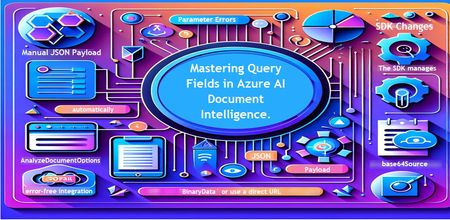
23 TopicsMastering Query Fields in Azure AI Document Intelligence with C#
Introduction Azure AI Document Intelligence simplifies document data extraction, with features like query fields enabling targeted data retrieval. However, using these features with the C# SDK can be tricky. This guide highlights a real-world issue, provides a corrected implementation, and shares best practices for efficient usage. Use case scenario During the cause of Azure AI Document Intelligence software engineering code tasks or review, many developers encountered an error while trying to extract fields like "FullName," "CompanyName," and "JobTitle" using `AnalyzeDocumentAsync`: The error might be similar to Inner Error: The parameter urlSource or base64Source is required. This is a challenge referred to as parameter errors and SDK changes. Most problematic code are looks like below in C#: BinaryData data = BinaryData.FromBytes(Content); var queryFields = new List<string> { "FullName", "CompanyName", "JobTitle" }; var operation = await client.AnalyzeDocumentAsync( WaitUntil.Completed, modelId, data, "1-2", queryFields: queryFields, features: new List<DocumentAnalysisFeature> { DocumentAnalysisFeature.QueryFields } ); One of the reasons this failed was that the developer was using `Azure.AI.DocumentIntelligence v1.0.0`, where `base64Source` and `urlSource` must be handled internally. Because the older examples using `AnalyzeDocumentContent` no longer apply and leading to errors. Practical Solution Using AnalyzeDocumentOptions. Alternative Method using manual JSON Payload. Using AnalyzeDocumentOptions The correct method involves using AnalyzeDocumentOptions, which streamlines the request construction using the below steps: Prepare the document content: BinaryData data = BinaryData.FromBytes(Content); Create AnalyzeDocumentOptions: var analyzeOptions = new AnalyzeDocumentOptions(modelId, data) { Pages = "1-2", Features = { DocumentAnalysisFeature.QueryFields }, QueryFields = { "FullName", "CompanyName", "JobTitle" } }; - `modelId`: Your trained model’s ID. - `Pages`: Specify pages to analyze (e.g., "1-2"). - `Features`: Enable `QueryFields`. - `QueryFields`: Define which fields to extract. Run the analysis: Operation<AnalyzeResult> operation = await client.AnalyzeDocumentAsync( WaitUntil.Completed, analyzeOptions ); AnalyzeResult result = operation.Value; The reason this works: The SDK manages `base64Source` automatically. This approach matches the latest SDK standards. It results in cleaner, more maintainable code. Alternative method using manual JSON payload For advanced use cases where more control over the request is needed, you can manually create the JSON payload. For an example: var queriesPayload = new { queryFields = new[] { new { key = "FullName" }, new { key = "CompanyName" }, new { key = "JobTitle" } } }; string jsonPayload = JsonSerializer.Serialize(queriesPayload); BinaryData requestData = BinaryData.FromString(jsonPayload); var operation = await client.AnalyzeDocumentAsync( WaitUntil.Completed, modelId, requestData, "1-2", features: new List<DocumentAnalysisFeature> { DocumentAnalysisFeature.QueryFields } ); When to use the above: Custom request formats Non-standard data source integration Key points to remember Breaking changes exist between preview versions and v1.0.0 by checking the SDK version. Prefer `AnalyzeDocumentOptions` for simpler, error-free integration by using built-In classes. Ensure your content is wrapped in `BinaryData` or use a direct URL for correct document input: Conclusion Using AnalyzeDocumentOptions provides a cleaner and more reliable way to work with query fields in Azure AI Document Intelligence using C#. By aligning with the latest SDK approach, developers can simplify implementation, reduce common errors, and improve code maintainability. Keeping up with SDK enhancements and recommended practices ensures more accurate and efficient document data extraction. As Azure AI capabilities continue to evolve, adopting modern integration patterns will help you build scalable and future-ready document processing solutions with greater confidence. Reference Official AnalyzeDocumentAsync Documentation. Official Azure SDK documentation. Azure Document Intelligence C# SDK support add-on query field.523Views0likes0CommentsHow to Visualize Your Azure AI Workloads Usage for Observability
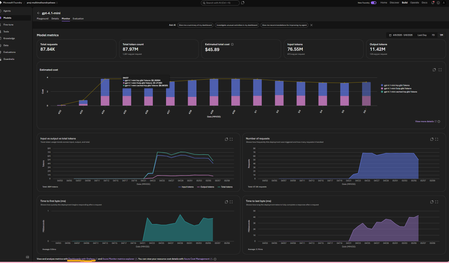
This article assumes you already have an Azure Foundry project and resource deployed in Microsoft Foundry. The options referenced here are documented in detail in the linked articles; this post serves as a consolidated step by step guide bringing them all together and explaining where each option is most useful. A Summary: Need Best Option Quick day-over-day visual, minimal setup Grafana Dashboard (Option 3) Custom growth % calculations App Insights + KQL in Log Analytics (Option 4) Shareable, interactive report Azure Workbooks (Option 5) Per-user/per-agent granularity APIM + App Insights (Option 6) Quick one-off chart, export to Excel Microsoft Foundry Monitor tab or App Insights Metrics Explorer (Option 1 and 2) Option 1. Within the Microsoft Foundry Portal (Quickest, No Setup) If you have models deployed in Microsoft Foundry and would like to monitor its usage, go to the New Foundry Portal → Build → Models → Monitor tab. View metrics such as: Estimated cost Total token usage Input vs. output tokens Number of requests This is the simplest way to monitor both model and agent usage. For PAYG plans: You can also view your total allocated quota (and figure out which Tier you are on) using the Quota Management Screen (New Foundry Portal → Operate → Quota tab). This screen shows how much your total allocated quota is, per model in a given subscription + region + Deployment Type (Global, Data Zones or Regional). For eg., in the image below, for gpt-4o, I am allocated 7M total TPM in my subscription. I am only using 150K TPM of the allocated 7M TPM amount. Which means, my requests will get throttled if I exceed the 150K TPM limit. To avoid throttling, I would need to increase my shared allocation limit. NOTE: you are charged for usage, so if you allow more capacity, you use more, so you pay more. Option 2: Azure Monitor Metrics Explorer This is already built into the Azure Portal and gives you time-series charts out of the box. Go to Azure Portal → your Azure OpenAI / Foundry resource → Monitoring → Metrics Select a metric like AzureOpenAIRequests or TokenTransaction Set Aggregation to Sum (total) or Max and Time granularity to 1 day Split by ModelDeploymentName to see per-model trends Adjust the time range (e.g., last 30 days) — you'll see day-over-day bars/lines Tip: You can pin these charts to an Azure Dashboard for a persistent view, or click Share → Download to Excel to get the raw data for your own analysis. Option 3: Azure Managed Grafana (Best Pre-Built Dashboard) This is the best option for a polished, real-time, day-over-day dashboard with no custom code. There's a pre-built AI Foundry dashboard ready to import. [grafana.com], [Create a M...ed Grafana] How to set it up: Create an Azure Managed Grafana workspace (if you don't have one) In Grafana, go to Dashboards → New → Import → enter dashboard ID 24039 (for Foundry) Select your Azure Monitor data source and point it to your Foundry resource Tip: You can also import this directly from the Azure Portal: Monitor → Dashboards with Grafana → AI Foundry. That's it — the dashboard gives you (per model deployment): Token trends over time (inference, prompt, completion — day over day) Request trends over time (AzureOpenAIRequests as a time series) Latency trends (bonus) NOTE: Default time range is 7 days — adjust to 30/60/90 days for growth trends Option 4: Application Insights + KQL Queries (Most Flexible, Custom Reports) If you want fully custom day-over-day growth calculations (e.g., % change day-to-day), this is the way. [azurefeeds.com] Setup: Ensure your Foundry project is connected to an Application Insights resource (Foundry → Settings → Connected Resources). Open up App Insights resource → Logs → New Query or choose a sample query. In the images below, we simply ran 'requests' and set the time range to 24 hours. There is also a Kusto Query Language (KQL) mode or Simple mode on the right-hand side: Simple mode will let you run out of the box samples. KQL mode will open up a query window for you to enter custom queries. Below are the results in grid view. Same view but showing a chart: Export options: Another way to get the above graphs are via Log Analytics. Simply enable Diagnostic Settings on your Azure OpenAI resource → send to a Log Analytics workspace. Open Log Analytics → Logs and try our your sample queries. Sample KQL for day-over-day token usage (adjust to your needs): AzureMetrics | where MetricName in ("TokenTransaction", "ProcessedPromptTokens", "GeneratedTokens") | where TimeGenerated > ago(30d) | summarize DailyTokens = sum(Total) by bin(TimeGenerated, 1d), MetricName | order by TimeGenerated asc | render timechart Result: Sample KQL for day-over-day growth % (adjust to your needs): AzureMetrics | where MetricName == "TokenTransaction" | where TimeGenerated > ago(30d) | summarize DailyTokens = sum(Total) by Day = bin(TimeGenerated, 1d) | sort by Day asc | extend PrevDay = prev(DailyTokens) | extend GrowthPct = round((DailyTokens - PrevDay) / PrevDay * 100, 2) | project Day, DailyTokens, GrowthPct Option 5: Azure Monitor Workbooks (Custom Dashboards, Shareable) Workbooks let you build interactive, parameterized dashboards that combine metrics and KQL logs. What's more, you can select resources from multiple subscriptions and visualize them all in one place using Workbooks! Go to Azure Portal → Monitor → Workbooks → New Add a Metrics query panel → select your Log Analytics or App Insights or Foundry resource -> Enter the same query you used in Option 4. Do a test run and view the graphs (this can be viewed as charts or a list (grid view)): 4. Save and share with your team. Option 6: APIM + Application Insights (Granular Per-Caller/Per-Agent Tracking) 1. If your app routes requests through Azure API Management, you can use the azure-openai-emit-token-metric policy to send per-request token metrics to Application Insights with custom dimensions (User ID, Subscription ID, Agent, etc.). [Azure API...osoft Docs] This is ideal for scenarios like: "Which agent consumed the most tokens last week?" "What's the token usage per API consumer/team?" NOTE: Microsoft Foundry resources do not track usage by users. So, fronting your Foundry resource with an APIM could be a way to track users provided you pass the username/id in the request context. How you implement this is upto your app design. Ref: AI-Gateway/labs/token-metrics-emitting/token-metrics-emitting.ipynb at main · Azure-Samples/AI-Gateway · GitHub Bonus: Check out all other APIM + AI related policies here: AI-Gateway/labs/semantic-caching at main · Azure-Samples/AI-Gateway AI-Gateway/labs/token-rate-limiting at main · Azure-Samples/AI-Gateway AI-Gateway/labs/token-metrics-emitting/token-metrics-emitting.ipynb at main · Azure-Samples/AI-Gateway · GitHubIf You're Building AI on Azure, ECS 2026 is Where You Need to Be
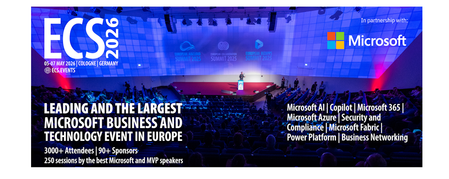
Let me be direct: there's a lot of noise in the conference calendar. Generic cloud events. Vendor showcases dressed up as technical content. Sessions that look great on paper but leave you with nothing you can actually ship on Monday. ECS 2026 isn't that. As someone who will be on stage at Cologne this May, I can tell you the European Collaboration Summit combined with the European AI & Cloud Summit and European Biz Apps Summit is one of the few events I've seen where engineers leave with real, production-applicable knowledge. Three days. Three summits. 3,000+ attendees. One of the largest Microsoft-focused events in Europe, and it keeps getting better. If you're building AI systems on Azure, designing cloud-native architectures, or trying to figure out how to take your AI experiments to production — this is where the conversation is happening. What ECS 2026 Actually Is ECS 2026 runs May 5–7 at Confex in Cologne, Germany. It brings together three co-located summits under one roof: European Collaboration Summit — Microsoft 365, Teams, Copilot, and governance European AI & Cloud Summit — Azure architecture, AI agents, cloud security, responsible AI European BizApps Summit — Power Platform, Microsoft Fabric, Dynamics For Azure engineers and AI developers, the European AI & Cloud Summit is your primary destination. But don't ignore the overlap, some of the most interesting AI conversations happen at the intersection of collaboration tooling and cloud infrastructure. The scale matters here: 3,000+ attendees, 100+ sessions, multiple deep-dive tracks, and a speaker lineup that includes Microsoft executives, Regional Directors, and MVPs who have built, broken, and rebuilt production systems. The Azure + AI Track - What's Actually On the Agenda The AI & Cloud Summit agenda is built around real technical depth. Not "intro to AI" content, actual architecture decisions, patterns that work, and lessons from things that didn't. Here's what you can expect: AI Agents and Agentic Systems This is where the energy is right now, and ECS is leaning in. Expect sessions covering how to design agent workflows, chain reasoning steps, handle memory and state, and integrate with Azure AI services. Marco Casalaina, VP of Products for Azure AI at Microsoft, is speaking if you want to understand the direction of the Azure AI platform from the people building it, this is a direct line. Azure Architecture at Scale Cloud-native patterns, microservices, containers, and the architectural decisions that determine whether your system holds up under real load. These sessions go beyond theory you'll hear from engineers who've shipped these designs at enterprise scale. Observability, DevOps, and Production AI Getting AI to production is harder than the demos suggest. Sessions here cover monitoring AI systems, integrating LLMs into CI/CD pipelines, and building the operational practices that keep AI in production reliable and governable. Cloud Security and Compliance Security isn't optional when you're putting AI in front of users or connecting it to enterprise data. Tracks cover identity, access patterns, responsible AI governance, and how to design systems that satisfy compliance requirements without becoming unmaintainable. Pre-Conference Deep Dives One underrated part of ECS: the pre-conference workshops. These are extended, hands-on sessions typically 3–6 hours that let you go deep on a single topic with an expert. Think of them as intensive short courses where you can actually work through the material, not just watch slides. If you're newer to a particular area of Azure AI, or you want to build fluency in a specific pattern before the main conference sessions, these are worth the early travel. The Speaker Quality Is Different Here The ECS speaker roster includes Microsoft executives, Microsoft MVPs, and Regional Directors, people who have real accountability for the products and patterns they're presenting. You'll hear from over 20 Microsoft speakers: Marco Casalaina — VP of Products, Azure AI at Microsoft Adam Harmetz — VP of Product at Microsoft, Enterprise Agent And dozens of MVPs and Regional Directors who are in the field every day, solving the same problems you are. These aren't keynote-only speakers — they're in the session rooms, at the hallway track, available for real conversations. The Hallway Track Is Not a Cliché I know "networking" sounds like a corporate afterthought. At ECS it genuinely isn't. When you put 3,000 practitioners, engineers, architects, DevOps leads, security specialists in one venue for three days, the conversations between sessions are often more valuable than the sessions themselves. You get candid answers to "how are you actually handling X in production?" that you won't find in documentation. The European Microsoft community is tight-knit and collaborative. ECS is where that community concentrates. Why This Matters Right Now We're in a period where AI development is moving fast but the engineering discipline around it is still maturing. Most teams are figuring out: How to move from AI prototype to production system How to instrument and observe AI behaviour reliably How to design agent systems that don't become unmaintainable How to satisfy security and compliance requirements in AI-integrated architectures ECS 2026 is one of the few places where you can get direct answers to these questions from people who've solved them — not theoretically, but in production, on Azure, in the last 12 months. If you go, you'll come back with practical patterns you can apply immediately. That's the bar I hold events to. ECS consistently clears it. Register and Explore the Agenda Register for ECS 2026: ecs.events Explore the AI & Cloud Summit agenda: cloudsummit.eu/en/agenda Dates: May 5–7, 2026 | Location: Confex, Cologne, Germany Early registration is worth it the pre-conference workshops fill up. And if you're coming, find me, I'll be the one talking too much about AI agents and Azure deployments. See you in Cologne.
The "IQ Layer": Microsoft’s Blueprint for the Agentic Enterprise
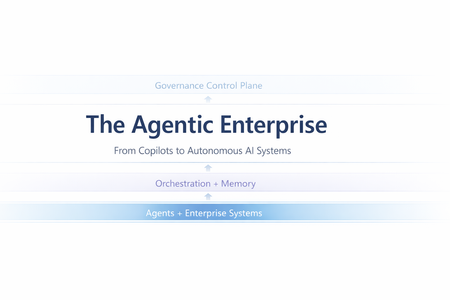
The "IQ Layer": Microsoft’s Blueprint for the Agentic Enterprise Modern enterprises have experimented with artificial intelligence for years, yet many deployments have struggled to move beyond basic automation and conversational interfaces. The fundamental limitation has not been the reasoning power of AI models—it has been their lack of organizational context. In most organizations, AI systems historically lacked visibility into how work actually happens. They could process language and generate responses, but they could not fully understand business realities such as: Who is responsible for a project What internal metrics represent Where corporate policies are stored How teams collaborate across tools and departments Without this contextual awareness, AI often produced answers that sounded intelligent but lacked real business value. To address this challenge, Microsoft introduced a new architectural model known as the IQ Layer. This framework establishes a structured intelligence layer across the enterprise, enabling AI systems to interpret work activity, enterprise data, and organizational knowledge. The architecture is built around three integrated intelligence domains: Work IQ Fabric IQ Foundry IQ Together, these layers allow AI systems to move beyond simple responses and deliver insights that are aligned with real organizational context. The Three Foundations of Enterprise Context For AI to evolve from a helpful assistant into a trusted decision-support partner, it must understand multiple dimensions of enterprise operations. Microsoft addresses this need by organizing contextual intelligence into three distinct layers. IQ Layer Purpose Platform Foundation Work IQ Collaboration and work activity signals Microsoft 365, Microsoft Teams, Microsoft Graph Fabric IQ Structured enterprise data understanding Microsoft Fabric, Power BI, OneLake Foundry IQ Knowledge retrieval and AI reasoning Azure AI Foundry, Azure AI Search, Microsoft Purview Each layer contributes a unique type of intelligence that enables enterprise AI systems to understand the organization from different perspectives. Work IQ — Understanding How Work Gets Done The first layer, Work IQ, focuses on the signals generated by daily collaboration and communication across an organization. Built on top of Microsoft Graph, Work IQ analyses activity patterns across the Microsoft 365 ecosystem, including: Email communication Virtual meetings Shared documents Team chat conversations Calendar interactions Organizational relationships These signals help AI systems map how work actually flows across teams. Rather than requiring users to provide background context manually, AI can infer critical information automatically, such as: Project stakeholders Communication networks Decision makers Subject matter experts For example, if an employee asks: "What is the latest update on the migration project?" Work IQ can analyse multiple collaboration sources including: Project discussions in Microsoft Teams Meeting transcripts Shared project documentation Email discussions As a result, AI responses become grounded in real workplace activity instead of generic information. Fabric IQ — Understanding Enterprise Data While Work IQ focuses on collaboration signals, Fabric IQ provides insight into structured enterprise data. Operating within Microsoft Fabric, this layer transforms raw datasets into meaningful business concepts. Instead of interpreting information as isolated tables and columns, Fabric IQ enables AI systems to reason about business entities such as: Customers Products Orders Revenue metrics Inventory levels By leveraging semantic models from Power BI and unified storage through OneLake, Fabric IQ establishes a shared data language across the organization. This allows AI systems to answer strategic questions such as: "Why did revenue decline last quarter?" Instead of simply retrieving numbers, the AI can analyse multiple business drivers, including: Product performance trends Regional sales variations Customer behaviour segments Supply chain disruptions The outcome is not just data access, but decision-oriented insight. Foundry IQ — Understanding Enterprise Knowledge The third layer, Foundry IQ, addresses another major enterprise challenge: fragmented knowledge repositories. Organizations store valuable information across numerous systems, including: SharePoint repositories Policy documents Contracts Technical documentation Internal knowledge bases Corporate wikis Historically, connecting these knowledge sources to AI required complex retrieval-augmented generation (RAG) architectures. Foundry IQ simplifies this process through services within Azure AI Foundry and Azure AI Search. Capabilities include: Automated document indexing Semantic search capabilities Document grounding for AI responses Access-aware information retrieval Integration with Microsoft Purview ensures that governance policies remain intact. Sensitivity labels, compliance rules, and access permissions continue to apply when AI systems retrieve and process information. This ensures that users only receive information they are authorized to access. From Chatbots to Autonomous Enterprise Agents The full potential of the IQ architecture becomes clear when all three layers operate together. This integrated intelligence model forms the basis of what Microsoft describes as the Agentic Enterprise—an environment where AI systems function as proactive digital collaborators rather than passive assistants. Instead of simple chat interfaces, organizations will deploy AI agents capable of understanding context, reasoning about business situations, and initiating actions. Example Scenario: Supply Chain Disruption Consider a scenario where a shipment delay threatens delivery commitments. Within the IQ architecture: Fabric IQ Detects anomalies in shipment or logistics data and identifies potential risks to delivery schedules. Foundry IQ Retrieves supplier contracts and evaluates service-level agreements to determine whether penalties or mitigation clauses apply. Work IQ Identifies the logistics manager responsible for the account and prepares a contextual briefing tailored to their communication patterns. Tasks that previously required hours of investigation can now be completed by AI systems within minutes. Governance Embedded in the Architecture For enterprise leaders, security and compliance remain critical considerations in AI adoption. Microsoft designed the IQ framework with governance deeply embedded in its architecture. Key governance capabilities include: Permission-Aware Intelligence AI responses respect user permissions enforced through Microsoft Entra ID, ensuring individuals only see information they are authorized to access. Compliance Enforcement Data classification and protection policies defined in Microsoft Purview continue to apply throughout AI workflows. Observability and Monitoring Organizations can monitor AI agents and automation processes through tools such as Microsoft Copilot Studio and other emerging agent management platforms. This provides transparency and operational control over AI-driven systems. The Strategic Shift: AI as Enterprise Infrastructure Perhaps the most significant implication of the IQ architecture is the transformation of AI from a standalone tool into a foundational enterprise capability. In earlier deployments, organizations treated AI as isolated applications or experimental tools. With the IQ Layer approach, AI becomes deeply integrated across core platforms including: Microsoft 365 Microsoft Fabric Azure AI Foundry This integrated intelligence allows AI systems to behave more like experienced digital employees. They can: Understand organizational workflows Analyse complex data relationships Retrieve institutional knowledge Collaborate with human teams Enterprises that successfully implement this intelligence layers will be better positioned to make faster decisions, respond to change more effectively, and unlock new levels of operational intelligence. References: Work IQ MCP overview (preview) - Microsoft Copilot Studio | Microsoft Learn What is Fabric IQ (preview)? - Microsoft Fabric | Microsoft Learn What is Foundry IQ? - Microsoft Foundry | Microsoft Learn From Data Platform to Intelligence Platform: Introducing Microsoft Fabric IQ | Microsoft Fabric Blog | Microsoft Fabric1.6KViews0likes0CommentsAgents League: Meet the Winners
Agents League brought together developers from around the world to build AI agents using Microsoft's developer tools. With 100+ submissions across three tracks, choosing winners was genuinely difficult. Today, we're proud to announce the category champions. 🎨 Creative Apps Winner: CodeSonify View project CodeSonify turns source code into music. As a genuinely thoughtful system, its functions become ascending melodies, loops create rhythmic patterns, conditionals trigger chord changes, and bugs produce dissonant sounds. It supports 7 programming languages and 5 musical styles, with each language mapped to its own key signature and code complexity directly driving the tempo. What makes CodeSonify stand out is the depth of execution. CodeSonify team delivered three integrated experiences: a web app with real-time visualization and one-click MIDI export, an MCP server exposing 5 tools inside GitHub Copilot in VS Code Agent Mode, and a diff sonification engine that lets you hear a code review. A clean refactor sounds harmonious. A messy one sounds chaotic. The team even built the MIDI generator from scratch in pure TypeScript with zero external dependencies. Built entirely with GitHub Copilot assistance, this is one of those projects that makes you think about code differently. 🧠 Reasoning Agents Winner: CertPrep Multi-Agent System View project CertPrep Multi-Agent System team built a production-grade 8-agent system for personalized Microsoft certification exam preparation, supporting 9 exam families including AI-102, AZ-204, AZ-305, and more. Each agent has a distinct responsibility: profiling the learner, generating a week-by-week study schedule, curating learning paths, tracking readiness, running mock assessments, and issuing a GO / CONDITIONAL GO / NOT YET booking recommendation. The engineering behind the scene here is impressive. A 3-tier LLM fallback chain ensures the system runs reliably even without Azure credentials, with the full pipeline completing in under 1 second in mock mode. A 17-rule guardrail pipeline validates every agent boundary. Study time allocation uses the Largest Remainder algorithm to guarantee no domain is silently zeroed out. 342 automated tests back it all up. This is what thoughtful multi-agent architecture looks like in practice. 💼 Enterprise Agents Winner: Whatever AI Assistant (WAIA) View project WAIA is a production-ready multi-agent system for Microsoft 365 Copilot Chat and Microsoft Teams. A workflow agent routes queries to specialized HR, IT, or Fallback agents, transparently to the user, handling both RAG-pattern Q&A and action automation — including IT ticket submission via a SharePoint list. Technically, it's a showcase of what serious enterprise agent development looks like: a custom MCP server secured with OAuth Identity Passthrough, streaming responses via the OpenAI Responses API, Adaptive Cards for human-in-the-loop approval flows, a debug mode accessible directly from Teams or Copilot, and full OpenTelemetry integration visible in the Foundry portal. Franck also shipped end-to-end automated Bicep deployment so the solution can land in any Azure environment. It's polished, thoroughly documented, and built to be replicated. Thank you To every developer who submitted and shipped projects during Agents League: thank you 💜 Your creativity and innovation brought Agents League to life! 👉 Browse all submissions on GitHub1.7KViews3likes2Comments
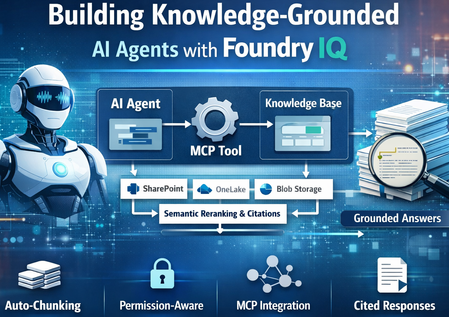
Building Knowledge-Grounded AI Agents with Foundry IQ
Foundry IQ now integrates with Foundry Agent Service via MCP (Model Context Protocol), enabling developers to build AI agents grounded in enterprise knowledge. This integration combines Foundry IQ’s intelligent retrieval capabilities with Foundry Agent Service’s orchestration, enabling agents to retrieve and reason over enterprise data. Key capabilities include: Auto-chunking of documents Vector embedding generation Permission-aware retrieval Semantic reranking Citation-backed responses Together, these capabilities allow AI agents to retrieve enterprise knowledge and generate responses that are accurate, traceable, and aligned with organizational permissions. Why Use Foundry IQ with Foundry Agent Service? Intelligent Retrieval Foundry IQ extends beyond traditional vector search by introducing: LLM-powered query decomposition Parallel retrieval across multiple sources Semantic reranking of results This enables agents to retrieve the most relevant enterprise knowledge even for complex queries. Permission-Aware Retrieval Agents only access content users are authorized to see. Access control lists from sources such as: SharePoint OneLake Azure Blob Storage are automatically synchronized and enforced at query time. Auto-Managed Indexing Foundry IQ automatically manages: Document chunking Vector embedding generation Indexing This eliminates the need to manually build and maintain complex ingestion pipelines. The Three Pillars of Foundry IQ 1. Knowledge Sources Foundry IQ connects to enterprise data wherever it lives — SharePoint, Azure Blob Storage, OneLake, and more. When you add a knowledge source: Auto-chunking — Documents are automatically split into optimal segments Auto-embedding — Vector embeddings are generated without manual pipelines Auto-ACL sync — Access permissions are synchronized from supported sources (SharePoint, OneLake) Auto-Purview integration — Sensitivity labels are respected from supported sources2. Knowledge Bases 2. Knowledge Bases A Knowledge Base unifies multiple sources into a single queryable index. Multiple agents can share the same knowledge base, ensuring consistent answers across your organization 3. Agentic Retrieval Agentic retrieval is an LLM-assisted retrieval pipeline that: Decomposes complex questions into subqueries Executes searches in parallel across sources Applies semantic reranking Returns a unified response with citations Agent → MCP Tool Call → Knowledge Base → Grounded Response with Citations The retrievalReasoningEffort parameter controls LLM processing: minimal — Fast queries low — Balanced reasoning medium — Complex multi-part questions Project Architecture ┌─────────────────────────────────────────────────────────────────────┐ │ FOUNDRY AGENT SERVICE │ │ ┌─────────────┐ ┌─────────────┐ ┌─────────────────────────┐ │ │ │ Agent │───▶│ MCP Tool │───▶│ Project Connection │ │ │ │ (gpt-4.1) │ │ (knowledge_ │ │ (RemoteTool + MI Auth) │ │ │ └─────────────┘ │ base_retrieve) └─────────────────────────┘ │ └─────────────────────────────│───────────────────────────────────────┘ │ ▼ ┌─────────────────────────────────────────────────────────────────────┐ │ FOUNDRY IQ (Azure AI Search) │ │ ┌─────────────────────────────────────────────────────────────┐ │ │ │ MCP Endpoint: │ │ │ │ /knowledgebases/{kb-name}/mcp?api-version=2025-11-01-preview│ │ │ └─────────────────────────────────────────────────────────────┘ │ │ │ │ │ ┌─────────────────┐ ┌─────────────────┐ ┌─────────────────────┐ │ │ │ Knowledge │ │ Knowledge │ │ Indexed Documents │ │ │ │ Sources │──│ Base │──│ (auto-chunked, │ │ │ │ (Blob, SP, etc) │ │ (unified index) │ │ auto-embedded) │ │ │ └─────────────────┘ └─────────────────┘ └─────────────────────┘ │ └─────────────────────────────────────────────────────────────────────┘ Prerequisites Enable RBAC on Azure AI Search az search service update --name your-search --resource-group your-rg \ --auth-options aadOrApiKey Assign Role to Project's Managed Identity az role assignment create --assignee $PROJECT_MI \ --role "Search Index Data Reader" \ --scope "/subscriptions/.../Microsoft.Search/searchServices/{search}" Install Dependencies pip install azure-ai-projects>=2.0.0b4 azure-identity python-dotenv requests Connecting a Knowledge Base to an Agent The integration requires three steps. Connect Knowledge Base to Agent via MCP The integration requires three steps: Create a project connection — Links your AI Foundry project to the knowledge base using ProjectManagedIdentity authentication Create an agent with MCPTool — The agent uses knowledge_base_retrieve to query the knowledge base Chat with the agent — Use the OpenAI client to have grounded conversations Step 1: Create Project Connection import requests from azure.identity import DefaultAzureCredential, get_bearer_token_provider credential = DefaultAzureCredential() PROJECT_RESOURCE_ID = "/subscriptions/.../providers/Microsoft.CognitiveServices/accounts/.../projects/..." MCP_ENDPOINT = "https://{search}.search.windows.net/knowledgebases/{kb}/mcp?api-version=2025-11-01-preview" def create_project_connection(): """Create MCP connection to knowledge base.""" bearer = get_bearer_token_provider(credential, "https://management.azure.com/.default") response = requests.put( f"https://management.azure.com{PROJECT_RESOURCE_ID}/connections/kb-connection?api-version=2025-10-01-preview", headers={"Authorization": f"Bearer {bearer()}"}, json={ "name": "kb-connection", "properties": { "authType": "ProjectManagedIdentity", "category": "RemoteTool", "target": MCP_ENDPOINT, "isSharedToAll": True, "audience": "https://search.azure.com/", "metadata": {"ApiType": "Azure"} } } ) response.raise_for_status() Step 2: Create Agent with MCP Tool from azure.ai.projects import AIProjectClient from azure.ai.projects.models import PromptAgentDefinition, MCPTool def create_agent(): client = AIProjectClient(endpoint=PROJECT_ENDPOINT, credential=credential) # MCP tool connects agent to knowledge base mcp_kb_tool = MCPTool( server_label="knowledge-base", server_url=MCP_ENDPOINT, require_approval="never", allowed_tools=["knowledge_base_retrieve"], project_connection_id="kb-connection" ) # Create agent with knowledge base tool agent = client.agents.create_version( agent_name="enterprise-assistant", definition=PromptAgentDefinition( model="gpt-4.1", instructions="""You MUST use the knowledge_base_retrieve tool for every question. Include citations from sources.""", tools=[mcp_kb_tool] ) ) return agent, client Step 3: Chat with the Agent def chat(agent, client): openai_client = client.get_openai_client() conversation = openai_client.conversations.create() while True: question = input("You: ").strip() if question.lower() == "quit": break response = openai_client.responses.create( conversation=conversation.id, input=question, extra_body={ "agent_reference": { "name": agent.name, "type": "agent_reference" } } ) print(f"Assistant: {response.output_text}") More Information Azure AI Search Knowledge Stores Foundry Agent Service Model Context Protocol (MCP) Azure AI Projects SDK Summary The integration of Foundry IQ with Foundry Agent Service enables developers to build knowledge-grounded AI agents for enterprise scenarios. By combining: MCP-based tool calling Permission-aware retrieval Automatic document processing Semantic reranking organizations can build secure, enterprise-ready AI agents that deliver accurate, traceable responses backed by source data.Power Apps Vibe Experience: Build Business Apps at the Speed of Ideas
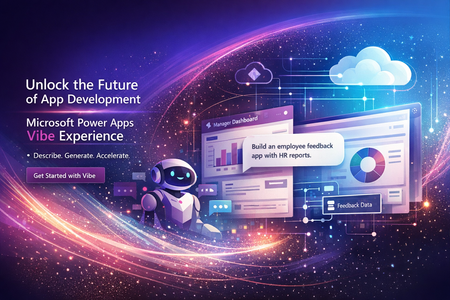
Power Apps Vibe Experience: Building Business Applications with AI in Minutes Organizations today operate in a fast-paced digital environment where new business challenges emerge constantly. Whether it’s managing internal workflows, tracking projects, or collecting customer feedback, businesses often require custom applications to support their processes. However, traditional application development—even with modern low-code tools—still requires time, technical expertise, and coordination between multiple teams. Designing the user interface, building the data model, writing logic, and integrating services can take weeks or even months. To address this challenge, Microsoft Power Apps has introduced the Power Apps Vibe experience, a new AI-driven way to build enterprise applications by simply describing the outcome you want. This innovative approach represents a significant evolution in the Microsoft Power Platform ecosystem, enabling organizations to move from idea to working application faster than ever before. What Is the Power Apps Vibe Experience? The Power Apps Vibe experience is an AI-first development environment designed to simplify and accelerate the creation of business applications. Instead of manually designing each component of an application, users can start by describing their business requirement in natural language. For example, a user might type: “Create an internal app where employees can submit support requests, track approvals, and receive notifications.” Based on this prompt, the platform automatically generates the foundational elements required to build the application. These include: Business requirements and solution plan A structured data model built on Microsoft Dataverse User interface layouts and navigation Forms and pages Application logic and workflows All these elements are created within a single integrated development workspace. This dramatically reduces the time and complexity associated with traditional application development. Why Power Apps Vibe Is Important for Modern Organizations Many organizations face a common challenge: they have plenty of ideas for improving processes but lack the resources to implement them quickly. Building custom software often requires developers, project managers, designers, and testers. Even with low-code platforms, organizations still need time to design data models and configure application logic. The Vibe experience addresses these challenges by introducing AI-assisted application generation. Key Benefits Faster Time to Value Organizations can create functional applications in minutes instead of weeks. This allows teams to rapidly prototype ideas and deliver solutions faster. Empowering Citizen Developers Business users who understand the problem best can now participate directly in building solutions. They do not need advanced coding skills to create useful applications. Enterprise-Grade Security Applications built using Power Apps Vibe run on Microsoft Dataverse, which provides: Role-based access control Secure data storage Compliance and governance capabilities This ensures that even AI-generated applications meet enterprise security requirements. Consistent Governance IT administrators maintain full control through: Tenant policies Data governance rules Environment management This balance allows organizations to encourage innovation while maintaining control over their technology environment. How the Power Apps Vibe Experience Works The development process in the Vibe experience follows a simple three-step model. Step 1: Describe the Business Problem The process begins with a natural language description of the application requirement. For example: “Create an inventory management app where warehouse staff can track stock levels, update inventory, and generate reports.” The AI analyses this prompt to understand the core business objectives. Step 2: AI Generates the Application Plan Next, the system produces a structured plan for the application. This plan typically includes: User roles and permissions Data entities and relationships Functional requirements Suggested workflows This planning stage helps ensure the application is aligned with the intended business scenario. Step 3: Automated Application Creation Once the plan is confirmed, the platform automatically generates the application. This includes: Data tables and schema Forms and screens Navigation structure Business logic Basic workflows Because the platform creates these components together, the data model and application structure remain synchronized. Core Capabilities of Power Apps Vibe Rapid Prototyping One of the most powerful features of the Vibe experience is rapid prototyping. Teams can quickly convert ideas into working applications that can be tested and refined. Benefits include: Faster proof-of-concept development Reduced design effort Early feedback from stakeholders Unified Development Environment Traditional application development often involves multiple tools and stages. Developers may use different platforms for: Planning Data modelling UI design Workflow creation The Vibe experience combines these activities into a single integrated workspace. This unified environment ensures that changes to the data model automatically update the application. AI-Assisted Development Artificial intelligence plays a continuous role throughout the development lifecycle. AI can assist with: Prompt suggestions Code generation App design improvements Architecture recommendations Because the system understands the context of the business problem, it can suggest optimizations and enhancements. Instant Application Generation With a single prompt, the platform can generate an entire application structure. Automatically generated components include: Data tables Forms and pages Navigation menus Business rules Application logic This dramatically reduces the effort required to build enterprise-ready applications. Power Apps Vibe vs Canvas Apps vs Model-Driven Apps Within the Microsoft Power Apps ecosystem, developers can choose from multiple development approaches. Each approach serves different use cases. Feature Power Apps Vibe Canvas Apps Model-Driven Apps Development Style AI-generated Visual UI design Data-driven Creation Method Natural language Drag-and-drop designer Data schema UI Customization Moderate High Limited Data Model Automatically generated Flexible sources Dataverse required Speed Very fast Medium Medium Ideal Use Case Rapid prototypes Custom UI apps Enterprise solutions Conclusion The Power Apps Vibe experience represents a major step forward in the evolution of low-code platforms. By combining artificial intelligence with the capabilities of Microsoft Power Platform, Microsoft is enabling organizations to transform ideas into working applications faster than ever before. For businesses seeking to improve productivity, streamline workflows, and innovate rapidly, the Vibe experience offers a powerful new way to build enterprise solutions. Reference Links: https://learn.microsoft.com/en-us/power-apps/vibe/overview https://learn.microsoft.com/en-us/power-apps/vibe/create-app-data-plan https://learn.microsoft.com/en-us/power-platform/released-versions/new-powerappsBuilding High-Performance Agentic Systems
Most enterprise chatbots fail in the same quiet way. They answer questions. They impress in demos. And then they stall in production. Knowledge goes stale. Answers cannot be audited. The system cannot act beyond generating text. When workflows require coordination, execution, or accountability, the chatbot stops being useful. Agentic systems exist because that model is insufficient. Instead of treating the LLM as the product, agentic architecture embeds it inside a bounded control loop: plan → act (tools) → observe → refine The model becomes one component in a runtime system with explicit state management, safety policies, identity enforcement, and operational telemetry. This shift is not speculative. A late-2025 MIT Sloan Management Review / BCG study reports that 35% of organizations have already adopted AI agents, with another 44% planning deployment. Microsoft is advancing open protocols for what it calls the “agentic web,” including Agent-to-Agent (A2A) interoperability and Model Context Protocol (MCP), with integration paths emerging across Copilot Studio and Azure AI Foundry. The real question is no longer whether agents are coming. It is whether enterprise architecture is ready for them. This article translates “agentic” into engineering reality: the runtime layers, latency and cost levers, orchestration patterns, and governance controls required for production deployment. The Core Capabilities of Agentic AI What makes an AI “agentic” is not a single feature—it’s the interaction of different capabilities. Together, they form the minimum set needed to move from “answering” to “operating”. Autonomy – Goal-Driven Task Completion Traditional bots are reactive: they wait for a prompt and produce output. Autonomy introduces a goal state and a control loop. The agent is given an objective (or a trigger) and it can decide the next step without being micromanaged. The critical engineering distinction is that autonomy must be bounded: in production, you implement it with explicit budgets and stop conditions—maximum tool calls, maximum retries, timeouts, and confidence thresholds. The typical execution shape is a loop: plan → act → observe → refine. A project-management agent, for example, doesn’t just answer “what’s the status?” It monitors signals (work items, commits, build health), detects a risk pattern (slippage, dependency blockage), and then either surfaces an alert or prepares a remediation action (re-plan milestones, notify owners). In high-stakes environments, autonomy is usually human-in-the-loop by design: the agent can draft changes, propose next actions, and only execute after approval. Over time, teams expand the autonomy envelope for low-risk actions while keeping approvals for irreversible or financially sensitive operations. Tool Integration – Taking Action and Staying Current A standalone LLM cannot fetch live enterprise state and cannot change it. Tool integration is how an agent becomes operational: it can query systems of record, call APIs, trigger workflows, and produce outputs that reflect the current world rather than the model’s pretraining snapshot. There are two classes of tools that matter in enterprise agents: Retrieval tools (grounding / RAG)When the agent needs facts, it retrieves them. This is the backbone of reducing hallucination: instead of guessing, the agent pulls authoritative content (SharePoint, Confluence, policy repositories, CRM records, Fabric datasets) and uses it as evidence. In practice, retrieval works best when it is engineered as a pipeline: query rewrite (optional) → hybrid search (keyword + vector) → filtering (metadata/ACL) → reranking → compact context injection. The point is not “stuff the prompt with documents,” but “inject only the minimum evidence required to answer accurately.” Action tools (function calling / connectors) These are the hands of the agent: update a CRM record, create a ticket, send an email, schedule a meeting, generate a report, run a pipeline. Tool integration shifts value from “advice” to “execution,” but also introduces risk—so action tools need guardrails: least-privilege permissions, input validation, idempotency keys, and post-condition checks (confirm the update actually happened). In Microsoft ecosystems, this tool plane often maps to Graph actions + business connectors (via Logic Apps/Power Automate) + custom APIs, with Copilot Studio (low code) or Foundry-style runtimes (pro code) orchestrating the calls. Memory (Context & Learning) – Context Awareness and Adaptation “Memory” is not just a long prompt. In agentic systems, memory is an explicit state strategy: Working memory: what the agent has learned during the current run (intermediate tool results, constraints, partial plans). Session memory: what should persist across turns (user preferences, ongoing tasks, summarized history). Long-term memory: enterprise knowledge the agent can retrieve (indexed documents, structured facts, embeddings + metadata). Short-term memory enables multi-step workflows without repeating questions. An HR onboarding agent can carry a new hire’s details from intake through provisioning without re-asking, because the workflow state is persisted and referenced. Long-term “learning” is typically implemented through feedback loops rather than real-time model weight updates: capturing corrections, storing validated outcomes, and periodically improving prompts, routing logic, retrieval configuration, or (where appropriate) fine-tuning. The key design rule is that memory must be policy-aware: retention rules, PII handling, and permission trimming apply to stored state as much as they apply to retrieved documents. Orchestration – Coordinating Multi-Agent Teams Complex enterprise work is rarely single-skill. Orchestration is how agentic systems scale capability without turning one agent into an unmaintainable monolith. The pattern is “manager + specialists”: an orchestrator decomposes the goal into subtasks, routes each to the best tool or sub-agent, and then composes a final response. This can be done sequentially or in parallel. Employee onboarding is a classic: HR intake, IT account creation, equipment provisioning, and training scheduling can run in parallel where dependencies allow. The engineering challenge is making orchestration reliable: defining strict input/output contracts between agents (often structured JSON), handling failures (timeouts, partial completion), and ensuring only one component has authority to send the final user-facing message to avoid conflicting outputs. In Microsoft terms, orchestration can be implemented as agentic flows in Copilot Studio, connected-agent patterns in Foundry, or explicit orchestrators in code using structured tool schemas and shared state. Strategic Impact – How Agentic AI Changes Knowledge Work Agentic AI is no longer an experimental overlay to enterprise systems. It is becoming an embedded operational layer inside core workflows. Unlike earlier chatbot deployments that answered isolated questions, modern enterprise agents execute end-to-end processes, interact with structured systems, maintain context, and operate within governed boundaries. The shift is not about conversational intelligence alone; it is about workflow execution at scale. The transformation becomes clearer when examining real implementations across industries. In legal services, agentic systems have moved beyond document summarization into operational case automation. Assembly Software’s NeosAI, built on Azure AI infrastructure, integrates directly into legal case management systems and automates document analysis, structured data extraction, and first-draft generation of legal correspondence. What makes this deployment impactful is not merely the generative drafting capability, but the integration architecture. NeosAI is not an isolated chatbot; it operates within the same document management systems, billing systems, and communication platforms lawyers already use. Firms report time savings of up to 25 hours per case, with document drafting cycles reduced from days to minutes for first-pass outputs. Importantly, the system runs within secure Azure environments with zero data retention policies, addressing one of the most sensitive concerns in legal AI adoption: client confidentiality. JPMorgan’s COiN platform represents another dimension of legal and financial automation. Instead of conversational assistance, COiN performs structured contract intelligence at production scale. It analyzes more than 12,000 commercial loan agreements annually, extracting over 150 clause attributes per document. Work that previously required approximately 360,000 human hours now executes in seconds. The architecture emphasizes structured NLP pipelines, taxonomy-based clause classification, and private cloud deployment for regulatory compliance. Rather than replacing legal professionals, the system flags unusual clauses for human review, maintaining oversight while dramatically accelerating analysis. Over time, COiN has also served as a knowledge retention mechanism, preserving institutional contract intelligence that would otherwise be lost with employee turnover. In financial services, the impact is similarly structural. Morgan Stanley’s internal AI Assistant allows wealth advisors to query over 100,000 proprietary research documents using natural language. Adoption has reached nearly universal usage across advisor teams, not because it replaces expertise, but because it compresses research time and surfaces insights instantly. Building on this foundation, the firm introduced an AI meeting debrief agent that transcribes client conversations using speech-to-text models and generates CRM notes and follow-up drafts through GPT-based reasoning. Advisors review outputs before finalization, preserving human judgment. The result is faster client engagement and measurable productivity improvements. What differentiates Morgan Stanley’s approach is not only deployment scale, but disciplined evaluation before release. The firm established rigorous benchmarking frameworks to test model outputs against expert standards for accuracy, compliance, and clarity. Only after meeting defined thresholds were systems expanded firmwide. This pattern—evaluation before scale—is becoming a defining trait of successful enterprise agent deployment. Human Resources provides a different perspective on agentic AI. Johnson Controls deployed an AI HR assistant inside Slack to manage policy questions, payroll inquiries, and onboarding support across a global workforce exceeding 100,000 employees. By embedding the agent in a channel employees already use, adoption barriers were reduced significantly. The result was a 30–40% reduction in live HR call volume, allowing HR teams to redirect focus toward strategic workforce initiatives. Similarly, Ciena integrated an AI assistant directly into Microsoft Teams, unifying HR and IT support through a single conversational interface. Employees no longer navigate separate portals; the agent orchestrates requests across backend systems such as Workday and ServiceNow. The technical lesson here is clear: integration breadth drives usability, and usability drives adoption. Engineering and IT operations reveal perhaps the most technically sophisticated application of agentic AI: multi-agent orchestration. In a proof-of-concept developed through collaboration between Microsoft and ServiceNow, an AI-driven incident response system coordinates multiple agents during high-priority outages. Microsoft 365 Copilot transcribes live war-room discussions and extracts action items, while ServiceNow’s Now Assist executes operational updates within IT service management systems. A Semantic Kernel–based manager agent maintains shared context and synchronizes activity across platforms. This eliminates the longstanding gap between real-time discussion and structured documentation, automatically generating incident reports while freeing engineers to focus on remediation rather than clerical tasks. The system demonstrates that orchestration is not conceptual—it is operational. Across these examples, the pattern is consistent. Agentic AI changes knowledge work by absorbing structured cognitive labor: document parsing, compliance classification, research synthesis, workflow routing, transcription, and task coordination. Humans remain essential for judgment, ethics, and accountability, but the operational layer increasingly runs through AI-mediated execution. The result is not incremental productivity improvement; it is structural acceleration of knowledge processes. Design and Governance Challenges – Managing the Risks As agentic AI shifts from answering questions to executing workflows, governance must mature accordingly. These systems retrieve enterprise data, invoke APIs, update records, and coordinate across platforms. That makes them operational actors inside your architecture—not just assistants. The primary shift is this: autonomy increases responsibility. Agents must be observable. Every retrieval, reasoning step, and tool invocation should be traceable. Without structured telemetry and audit trails, enterprises lose visibility into why an agent acted the way it did. Agents must also operate within scoped authority. Least-privilege access, role-based identity, and bounded credentials are essential. An HR agent should not access finance systems. A finance agent should not modify compliance data without policy constraints. Autonomy only works when it is deliberately constrained. Execution boundaries are equally critical. High-risk actions—financial approvals, legal submissions, production changes—should include embedded thresholds or human approval gates. Autonomy should be progressive, not absolute. Cost and performance must be governed just like cloud infrastructure. Agentic systems can trigger recursive calls and model loops. Without usage monitoring, rate limits, and model-tier routing, compute consumption can escalate unpredictably. Finally, agentic systems require continuous evaluation. Real-world testing, live monitoring, and drift detection ensure the system remains aligned with business rules and compliance requirements. These are not “set and forget” deployments. In short, agentic AI becomes sustainable only when autonomy is paired with observability, scoped authority, embedded guardrails, cost control, and structured oversight. Conclusion – Towards the Agentic Enterprise The organizations achieving meaningful returns from agentic AI share a common pattern. They do not treat AI agents as experimental tools. They design them as production systems with defined roles, scoped authority, measurable KPIs, embedded observability, and formal governance layers. When autonomy is paired with integration, memory, orchestration, and governance discipline, agentic AI becomes more than automation—it becomes an operational architecture. Enterprises that master this architecture are not merely reducing costs; they are redefining how knowledge work is executed. In this emerging model, human professionals focus on strategic judgment and innovation, while AI agents manage structured cognitive execution at scale. The competitive advantage will not belong to those who deploy the most AI, but to those who deploy it with architectural rigor and governance maturity. Before we rush to deploy more agents, a few questions are worth asking: If an AI agent executes a workflow in your enterprise today, can you trace every reasoning step and tool invocation behind that decision? Does your architecture treat AI as a conversational layer - or as an operational actor with scoped identity, cost controls, and policy enforcement? Where should autonomy stop in your organization - and who defines that boundary? Agentic AI is not just a capability shift. It is an architectural decision. Curious to hear how others are designing their control planes and orchestration layers. References MIT Sloan – “Agentic AI, Explained” by Beth Stackpole: A foundational overview of agentic AI, its distinction from traditional generative AI, and its implications for enterprise workflows, governance, and strategy. Microsoft TechCommunity – “Introducing Multi-Agent Orchestration in Foundry Agent Service”: Details Microsoft’s multi-agent orchestration capabilities, including Connected Agents, Multi-Agent Workflows, and integration with A2A and MCP protocols. Microsoft Learn – “Extend the Capabilities of Your Agent – Copilot Studio”: Explains how to build and extend custom agents in Microsoft Copilot Studio using tools, connectors, and enterprise data sources. Assembly Software’s NeosAI case – Microsoft Customer Stories JPMorgan COiN platform – GreenData Case Study HR support AI (Johnson Controls, Ciena, Databricks) – Moveworks case studies ServiceNow & Semantic Kernel multi-agent P1 Incident – Microsoft Semantic Kernel Blog
Exploring Azure Face API: Facial Landmark Detection and Real-Time Analysis with C#
In today’s world, applications that understand and respond to human facial cues are no longer science fiction—they’re becoming a reality in domains like security, driver monitoring, gaming, and AR/VR. With Azure Face API, developers can leverage powerful cloud-based facial recognition and analysis tools without building complex machine learning models from scratch. In this blog, we’ll explore how to use C# to detect faces, identify key facial landmarks, estimate head pose, track eye and mouth movements, and process real-time video streams. Using OpenCV for visualization, we’ll show how to overlay landmarks, draw bounding boxes, and calculate metrics like Eye Aspect Ratio (EAR) and Mouth Aspect Ratio (MAR)—all in real time. You'll learn to: Set up Azure Face API Detect 27 facial landmarks Estimate head pose (yaw, pitch, roll) Calculate eye aspect ratio (EAR) and mouth openness Draw bounding boxes around features using OpenCV Process real-time video Prerequisites .NET 8 SDK installed Azure subscription with Face API resource Visual Studio 2022 or later Webcam for testing (optional) Basic understanding of C# and computer vision concepts Part 1: Azure Face API Setup 1.1 Install Required NuGet Packages dotnet add package Azure.AI.Vision.Face dotnet add package OpenCvSharp4 dotnet add package OpenCvSharp4.runtime.win 1.2 Create Azure Face API Resource Navigate to Azure Portal Search for "Face" and create a new Face API resource Choose your pricing tier (Free tier: 20 calls/min, 30K calls/month) Copy the Endpoint URL and API Key 1.3 Configure in .NET Application appsettings.json: { "Azure": { "FaceApi": { "Endpoint": "https://your-resource.cognitiveservices.azure.com/", "ApiKey": "your-api-key-here" } } } Initialize Face Client: using Azure; using Azure.AI.Vision.Face; using Microsoft.Extensions.Configuration; public class FaceAnalysisService { private readonly FaceClient _faceClient; private readonly ILogger<FaceAnalysisService> _logger; public FaceAnalysisService(ILogger<FaceAnalysisService> logger, IConfiguration configuration) { _logger = logger; string endpoint = configuration["Azure:FaceApi:Endpoint"]; string apiKey = configuration["Azure:FaceApi:ApiKey"]; _faceClient = new FaceClient(new Uri(endpoint), new AzureKeyCredential(apiKey)); _logger.LogInformation("FaceClient initialized with endpoint: {Endpoint}", endpoint); } } Part 2: Understanding Face Detection Models 2.1 Basic Face Detection public async Task<List<FaceDetectionResult>> DetectFacesAsync(byte[] imageBytes) { using var stream = new MemoryStream(imageBytes); var response = await _faceClient.DetectAsync( BinaryData.FromStream(stream), FaceDetectionModel.Detection03, FaceRecognitionModel.Recognition04, returnFaceId: false, returnFaceAttributes: new FaceAttributeType[] { FaceAttributeType.HeadPose }, returnFaceLandmarks: true, returnRecognitionModel: false ); _logger.LogInformation("Detected {Count} faces", response.Value.Count); return response.Value.ToList(); } Part 3: Facial Landmarks - The 27 Key Points 3.1 Understanding Facial Landmarks 3.2 Accessing Landmarks in Code public void PrintLandmarks(FaceDetectionResult face) { var landmarks = face.FaceLandmarks; if (landmarks == null) { _logger.LogWarning("No landmarks detected"); return; } // Eye landmarks Console.WriteLine($"Left Eye Outer: ({landmarks.EyeLeftOuter.X}, {landmarks.EyeLeftOuter.Y})"); Console.WriteLine($"Left Eye Inner: ({landmarks.EyeLeftInner.X}, {landmarks.EyeLeftInner.Y})"); Console.WriteLine($"Left Eye Top: ({landmarks.EyeLeftTop.X}, {landmarks.EyeLeftTop.Y})"); Console.WriteLine($"Left Eye Bottom: ({landmarks.EyeLeftBottom.X}, {landmarks.EyeLeftBottom.Y})"); // Mouth landmarks Console.WriteLine($"Upper Lip Top: ({landmarks.UpperLipTop.X}, {landmarks.UpperLipTop.Y})"); Console.WriteLine($"Under Lip Bottom: ({landmarks.UnderLipBottom.X}, {landmarks.UnderLipBottom.Y})"); // Nose landmarks Console.WriteLine($"Nose Tip: ({landmarks.NoseTip.X}, {landmarks.NoseTip.Y})"); } 3.3 Visualizing All Landmarks public void DrawAllLandmarks(FaceLandmarks landmarks, Mat frame) { void DrawPoint(FaceLandmarkCoordinate point, Scalar color) { if (point != null) { Cv2.Circle(frame, new Point((int)point.X, (int)point.Y), radius: 3, color: color, thickness: -1); } } // Eyes (Green) DrawPoint(landmarks.EyeLeftOuter, new Scalar(0, 255, 0)); DrawPoint(landmarks.EyeLeftInner, new Scalar(0, 255, 0)); DrawPoint(landmarks.EyeLeftTop, new Scalar(0, 255, 0)); DrawPoint(landmarks.EyeLeftBottom, new Scalar(0, 255, 0)); DrawPoint(landmarks.EyeRightOuter, new Scalar(0, 255, 0)); DrawPoint(landmarks.EyeRightInner, new Scalar(0, 255, 0)); DrawPoint(landmarks.EyeRightTop, new Scalar(0, 255, 0)); DrawPoint(landmarks.EyeRightBottom, new Scalar(0, 255, 0)); // Eyebrows (Cyan) DrawPoint(landmarks.EyebrowLeftOuter, new Scalar(255, 255, 0)); DrawPoint(landmarks.EyebrowLeftInner, new Scalar(255, 255, 0)); DrawPoint(landmarks.EyebrowRightOuter, new Scalar(255, 255, 0)); DrawPoint(landmarks.EyebrowRightInner, new Scalar(255, 255, 0)); // Nose (Yellow) DrawPoint(landmarks.NoseTip, new Scalar(0, 255, 255)); DrawPoint(landmarks.NoseRootLeft, new Scalar(0, 255, 255)); DrawPoint(landmarks.NoseRootRight, new Scalar(0, 255, 255)); DrawPoint(landmarks.NoseLeftAlarOutTip, new Scalar(0, 255, 255)); DrawPoint(landmarks.NoseRightAlarOutTip, new Scalar(0, 255, 255)); // Mouth (Blue) DrawPoint(landmarks.UpperLipTop, new Scalar(255, 0, 0)); DrawPoint(landmarks.UpperLipBottom, new Scalar(255, 0, 0)); DrawPoint(landmarks.UnderLipTop, new Scalar(255, 0, 0)); DrawPoint(landmarks.UnderLipBottom, new Scalar(255, 0, 0)); DrawPoint(landmarks.MouthLeft, new Scalar(255, 0, 0)); DrawPoint(landmarks.MouthRight, new Scalar(255, 0, 0)); // Pupils (Red) DrawPoint(landmarks.PupilLeft, new Scalar(0, 0, 255)); DrawPoint(landmarks.PupilRight, new Scalar(0, 0, 255)); } Part 4: Drawing Bounding Boxes Around Features 4.1 Eye Bounding Boxes /// <summary> /// Draws rectangles around eyes using OpenCV. /// </summary> public void DrawEyeBoxes(FaceLandmarks landmarks, Mat frame) { int boxWidth = 60; int boxHeight = 35; // Calculate Rectangles var leftEyeRect = new Rect((int)landmarks.EyeLeftOuter.X - boxWidth / 2, (int)landmarks.EyeLeftOuter.Y - boxHeight / 2, boxWidth, boxHeight); var rightEyeRect = new Rect((int)landmarks.EyeRightOuter.X - boxWidth / 2, (int)landmarks.EyeRightOuter.Y - boxHeight / 2, boxWidth, boxHeight); // Draw Rectangles (Green in BGR) Cv2.Rectangle(frame, leftEyeRect, new Scalar(0, 255, 0), 2); Cv2.Rectangle(frame, rightEyeRect, new Scalar(0, 255, 0), 2); // Add Labels Cv2.PutText(frame, "Left Eye", new Point(leftEyeRect.X, leftEyeRect.Y - 5), HersheyFonts.HersheySimplex, 0.4, new Scalar(0, 255, 0), 1); Cv2.PutText(frame, "Right Eye", new Point(rightEyeRect.X, rightEyeRect.Y - 5), HersheyFonts.HersheySimplex, 0.4, new Scalar(0, 255, 0), 1); } 4.2 Mouth Bounding Box /// <summary> /// Draws rectangle around mouth region. /// </summary> public void DrawMouthBox(FaceLandmarks landmarks, Mat frame) { int boxWidth = 80; int boxHeight = 50; // Calculate center based on the vertical lip landmarks int centerX = (int)((landmarks.UpperLipTop.X + landmarks.UnderLipBottom.X) / 2); int centerY = (int)((landmarks.UpperLipTop.Y + landmarks.UnderLipBottom.Y) / 2); var mouthRect = new Rect(centerX - boxWidth / 2, centerY - boxHeight / 2, boxWidth, boxHeight); // Draw Mouth Box (Blue in BGR) Cv2.Rectangle(frame, mouthRect, new Scalar(255, 0, 0), 2); // Add Label Cv2.PutText(frame, "Mouth", new Point(mouthRect.X, mouthRect.Y - 5), HersheyFonts.HersheySimplex, 0.4, new Scalar(255, 0, 0), 1); } 4.3 Face Bounding Box /// <summary> /// Draws rectangle around entire face using the face rectangle from API. /// </summary> public void DrawFaceBox(FaceDetectionResult face, Mat frame) { var faceRect = face.FaceRectangle; if (faceRect == null) { return; } var rect = new Rect( faceRect.Left, faceRect.Top, faceRect.Width, faceRect.Height ); // Draw Face Bounding Box (Red in BGR) Cv2.Rectangle(frame, rect, new Scalar(0, 0, 255), 2); // Add Label with dimensions Cv2.PutText(frame, $"Face {faceRect.Width}x{faceRect.Height}", new Point(rect.X, rect.Y - 10), HersheyFonts.HersheySimplex, 0.5, new Scalar(0, 0, 255), 2); } 4.4 Nose Bounding Box /// <summary> /// Draws bounding box around nose using nose landmarks. /// </summary> public void DrawNoseBox(FaceLandmarks landmarks, Mat frame) { // Calculate horizontal bounds from Alar tips int minX = (int)Math.Min(landmarks.NoseLeftAlarOutTip.X, landmarks.NoseRightAlarOutTip.X); int maxX = (int)Math.Max(landmarks.NoseLeftAlarOutTip.X, landmarks.NoseRightAlarOutTip.X); // Calculate vertical bounds from Root to Tip int minY = (int)Math.Min(landmarks.NoseRootLeft.Y, landmarks.NoseTip.Y); int maxY = (int)landmarks.NoseTip.Y; // Create Rect with a 10px padding buffer var noseRect = new Rect( minX - 10, minY - 10, (maxX - minX) + 20, (maxY - minY) + 20 ); // Draw Nose Box (Yellow in BGR) Cv2.Rectangle(frame, noseRect, new Scalar(0, 255, 255), 2); } Part 5: Geometric Calculations with Landmarks 5.1 Calculating Euclidean Distance /// <summary> /// Calculates distance between two landmark points. /// </summary> public static double CalculateDistance(dynamic point1, dynamic point2) { double dx = point1.X - point2.X; double dy = point1.Y - point2.Y; return Math.Sqrt(dx * dx + dy * dy); } 5.2 Eye Aspect Ratio (EAR) Formula /// <summary> /// Calculates the Eye Aspect Ratio (EAR) to detect eye closure. /// </summary> public double CalculateEAR( FaceLandmarkCoordinate top1, FaceLandmarkCoordinate top2, FaceLandmarkCoordinate bottom1, FaceLandmarkCoordinate bottom2, FaceLandmarkCoordinate inner, FaceLandmarkCoordinate outer) { // Vertical distances double v1 = CalculateDistance(top1, bottom1); double v2 = CalculateDistance(top2, bottom2); // Horizontal distance double h = CalculateDistance(inner, outer); // EAR formula: (||p2-p6|| + ||p3-p5||) / (2 * ||p1-p4||) return (v1 + v2) / (2.0 * h); } Simplified Implementation: /// <summary> /// Calculates Eye Aspect Ratio (EAR) for a single eye. /// Reference: "Real-Time Eye Blink Detection using Facial Landmarks" (Soukupová & Čech, 2016) /// </summary> public double ComputeEAR(FaceLandmarks landmarks, bool isLeftEye) { var top = isLeftEye ? landmarks.EyeLeftTop : landmarks.EyeRightTop; var bottom = isLeftEye ? landmarks.EyeLeftBottom : landmarks.EyeRightBottom; var inner = isLeftEye ? landmarks.EyeLeftInner : landmarks.EyeRightInner; var outer = isLeftEye ? landmarks.EyeLeftOuter : landmarks.EyeRightOuter; if (top == null || bottom == null || inner == null || outer == null) { _logger.LogWarning("Missing eye landmarks"); return 1.0; // Return 1.0 (open) to prevent false positives for drowsiness } double verticalDist = CalculateDistance(top, bottom); double horizontalDist = CalculateDistance(inner, outer); // Simplified EAR for Azure 27-point model double ear = verticalDist / horizontalDist; _logger.LogDebug( "EAR for {Eye}: {Value:F3}", isLeftEye ? "left" : "right", ear ); return ear; } Usage Example: var leftEAR = ComputeEAR(landmarks, isLeftEye: true); var rightEAR = ComputeEAR(landmarks, isLeftEye: false); var avgEAR = (leftEAR + rightEAR) / 2.0; Console.WriteLine($"Average EAR: {avgEAR:F3}"); // Open eyes: ~0.25-0.30 // Closed eyes: ~0.10-0.15 5.3 Mouth Aspect Ratio (MAR) /// <summary> /// Calculates Mouth Aspect Ratio relative to face height. /// </summary> public double CalculateMouthAspectRatio(FaceLandmarks landmarks, FaceRectangle faceRect) { double mouthHeight = landmarks.UnderLipBottom.Y - landmarks.UpperLipTop.Y; double mouthWidth = CalculateDistance(landmarks.MouthLeft, landmarks.MouthRight); double mouthOpenRatio = mouthHeight / faceRect.Height; double mouthWidthRatio = mouthWidth / faceRect.Width; _logger.LogDebug( "Mouth - Height ratio: {HeightRatio:F3}, Width ratio: {WidthRatio:F3}", mouthOpenRatio, mouthWidthRatio ); return mouthOpenRatio; } 5.4 Inter-Eye Distance /// <summary> /// Calculates the distance between pupils (inter-pupillary distance). /// </summary> public double CalculateInterEyeDistance(FaceLandmarks landmarks) { return CalculateDistance(landmarks.PupilLeft, landmarks.PupilRight); } /// <summary> /// Calculates distance between inner eye corners. /// </summary> public double CalculateInnerEyeDistance(FaceLandmarks landmarks) { return CalculateDistance(landmarks.EyeLeftInner, landmarks.EyeRightInner); } 5.5 Face Symmetry Analysis /// <summary> /// Analyzes facial symmetry by comparing left and right sides. /// </summary> public FaceSymmetryMetrics AnalyzeFaceSymmetry(FaceLandmarks landmarks) { double centerX = landmarks.NoseTip.X; double leftEyeDistance = CalculateDistance(landmarks.EyeLeftInner, new { X = centerX, Y = landmarks.EyeLeftInner.Y }); double leftMouthDistance = CalculateDistance(landmarks.MouthLeft, new { X = centerX, Y = landmarks.MouthLeft.Y }); double rightEyeDistance = CalculateDistance(landmarks.EyeRightInner, new { X = centerX, Y = landmarks.EyeRightInner.Y }); double rightMouthDistance = CalculateDistance(landmarks.MouthRight, new { X = centerX, Y = landmarks.MouthRight.Y }); return new FaceSymmetryMetrics { EyeSymmetryRatio = leftEyeDistance / rightEyeDistance, MouthSymmetryRatio = leftMouthDistance / rightMouthDistance, IsSymmetric = Math.Abs(leftEyeDistance - rightEyeDistance) < 5.0 }; } public class FaceSymmetryMetrics { public double EyeSymmetryRatio { get; set; } public double MouthSymmetryRatio { get; set; } public bool IsSymmetric { get; set; } } Part 6: Head Pose Estimation 6.1 Understanding Head Pose Angles Azure Face API provides three Euler angles for head orientation: 6.2 Accessing Head Pose Data public void AnalyzeHeadPose(FaceDetectionResult face) { var headPose = face.FaceAttributes?.HeadPose; if (headPose == null) { _logger.LogWarning("Head pose not available"); return; } double yaw = headPose.Yaw; double pitch = headPose.Pitch; double roll = headPose.Roll; Console.WriteLine("Head Pose:"); Console.WriteLine($" Yaw: {yaw:F2}° (Left/Right)"); Console.WriteLine($" Pitch: {pitch:F2}° (Up/Down)"); Console.WriteLine($" Roll: {roll:F2}° (Tilt)"); InterpretHeadPose(yaw, pitch, roll); } 6.3 Interpreting Head Pose public string InterpretHeadPose(double yaw, double pitch, double roll) { var directions = new List<string>(); // Interpret Yaw (horizontal) if (Math.Abs(yaw) < 10) directions.Add("Looking Forward"); else if (yaw < -20) directions.Add($"Turned Left ({Math.Abs(yaw):F0}°)"); else if (yaw > 20) directions.Add($"Turned Right ({yaw:F0}°)"); // Interpret Pitch (vertical) if (Math.Abs(pitch) < 10) directions.Add("Level"); else if (pitch < -15) directions.Add($"Looking Down ({Math.Abs(pitch):F0}°)"); else if (pitch > 15) directions.Add($"Looking Up ({pitch:F0}°)"); // Interpret Roll (tilt) if (Math.Abs(roll) > 15) { string side = roll < 0 ? "Left" : "Right"; directions.Add($"Tilted {side} ({Math.Abs(roll):F0}°)"); } return string.Join(", ", directions); } 6.4 Visualizing Head Pose on Frame /// <summary> /// Draws head pose information with color-coded indicators. /// </summary> public void DrawHeadPoseInfo(Mat frame, HeadPose headPose, FaceRectangle faceRect) { double yaw = headPose.Yaw; double pitch = headPose.Pitch; double roll = headPose.Roll; int centerX = faceRect.Left + faceRect.Width / 2; int centerY = faceRect.Top + faceRect.Height / 2; string poseText = $"Yaw: {yaw:F1}° Pitch: {pitch:F1}° Roll: {roll:F1}°"; Cv2.PutText(frame, poseText, new Point(faceRect.Left, faceRect.Top - 10), HersheyFonts.HersheySimplex, 0.5, new Scalar(255, 255, 255), 1); int arrowLength = 50; double yawRadians = yaw * Math.PI / 180.0; int arrowEndX = centerX + (int)(arrowLength * Math.Sin(yawRadians)); Cv2.ArrowedLine(frame, new Point(centerX, centerY), new Point(arrowEndX, centerY), new Scalar(0, 255, 0), 2, tipLength: 0.3); double pitchRadians = -pitch * Math.PI / 180.0; int arrowPitchEndY = centerY + (int)(arrowLength * Math.Sin(pitchRadians)); Cv2.ArrowedLine(frame, new Point(centerX, centerY), new Point(centerX, arrowPitchEndY), new Scalar(255, 0, 0), 2, tipLength: 0.3); } 6.5 Detecting Head Orientation States public enum HeadOrientation { Forward, Left, Right, Up, Down, TiltedLeft, TiltedRight, UpLeft, UpRight, DownLeft, DownRight } public List<HeadOrientation> DetectHeadOrientation(HeadPose headPose) { const double THRESHOLD = 15.0; bool lookingUp = headPose.Pitch > THRESHOLD; bool lookingDown = headPose.Pitch < -THRESHOLD; bool lookingLeft = headPose.Yaw < -THRESHOLD; bool lookingRight = headPose.Yaw > THRESHOLD; var orientations = new List<HeadOrientation>(); if (!lookingUp && !lookingDown && !lookingLeft && !lookingRight) orientations.Add(HeadOrientation.Forward); if (lookingUp && !lookingLeft && !lookingRight) orientations.Add(HeadOrientation.Up); if (lookingDown && !lookingLeft && !lookingRight) orientations.Add(HeadOrientation.Down); if (lookingLeft && !lookingUp && !lookingDown) orientations.Add(HeadOrientation.Left); if (lookingRight && !lookingUp && !lookingDown) orientations.Add(HeadOrientation.Right); if (lookingUp && lookingLeft) orientations.Add(HeadOrientation.UpLeft); if (lookingUp && lookingRight) orientations.Add(HeadOrientation.UpRight); if (lookingDown && lookingLeft) orientations.Add(HeadOrientation.DownLeft); if (lookingDown && lookingRight) orientations.Add(HeadOrientation.DownRight); return orientations; } Part 7: Real-Time Video Processing 7.1 Setting Up Video Capture using OpenCvSharp; public class RealTimeFaceAnalyzer : IDisposable { private VideoCapture? _capture; private Mat? _frame; private readonly FaceClient _faceClient; private bool _isRunning; public async Task StartAsync() { _capture = new VideoCapture(0); _frame = new Mat(); _isRunning = true; await Task.Run(() => ProcessVideoLoop()); } private async Task ProcessVideoLoop() { while (_isRunning) { if (_capture == null || !_capture.IsOpened()) break; _capture.Read(_frame); if (_frame == null || _frame.Empty()) { await Task.Delay(1); // Minimal delay to prevent CPU spiking continue; } Cv2.Resize(_frame, _frame, new Size(640, 480)); // Ensure we don't await indefinitely in the rendering loop _ = ProcessFrameAsync(_frame.Clone()); Cv2.ImShow("Face Analysis", _frame); if (Cv2.WaitKey(30) == 'q') break; } Dispose(); } private async Task ProcessFrameAsync(Mat frame) { // This is where your DrawFaceBox, DrawAllLandmarks, and EAR logic will sit. // Remember to use try-catch here to prevent API errors from crashing the loop. } public void Dispose() { _isRunning = false; _capture?.Dispose(); _frame?.Dispose(); Cv2.DestroyAllWindows(); } } 7.2 Optimizing API Calls Problem: Calling Azure Face API on every frame (30 fps) is expensive and slow. Solution: Call API once per second, cache results for 30 frames. private List<FaceDetectionResult> _cachedFaces = new(); private DateTime _lastDetectionTime = DateTime.MinValue; private readonly object _cacheLock = new(); private async Task ProcessFrameAsync(Mat frame) { if ((DateTime.Now - _lastDetectionTime).TotalSeconds >= 1.0) { _lastDetectionTime = DateTime.Now; byte[] imageBytes; Cv2.ImEncode(".jpg", frame, out imageBytes); var faces = await DetectFacesAsync(imageBytes); lock (_cacheLock) { _cachedFaces = faces; } } List<FaceDetectionResult> facesToProcess; lock (_cacheLock) { facesToProcess = _cachedFaces.ToList(); } foreach (var face in facesToProcess) { DrawFaceAnnotations(face, frame); } } Performance Improvement: 30x fewer API calls (1/sec instead of 30/sec) ~$0.02/hour instead of ~$0.60/hour Smooth 30 fps rendering < 100ms latency for visual updates 7.3 Drawing Complete Face Annotations private void DrawFaceAnnotations(FaceDetectionResult face, Mat frame) { DrawFaceBox(face, frame); if (face.FaceLandmarks != null) { DrawAllLandmarks(face.FaceLandmarks, frame); DrawEyeBoxes(face.FaceLandmarks, frame); DrawMouthBox(face.FaceLandmarks, frame); DrawNoseBox(face.FaceLandmarks, frame); double leftEAR = ComputeEAR(face.FaceLandmarks, isLeftEye: true); double rightEAR = ComputeEAR(face.FaceLandmarks, isLeftEye: false); double avgEAR = (leftEAR + rightEAR) / 2.0; Cv2.PutText(frame, $"EAR: {avgEAR:F3}", new Point(10, 30), HersheyFonts.HersheySimplex, 0.6, new Scalar(0, 255, 0), 2); } if (face.FaceAttributes?.HeadPose != null) { DrawHeadPoseInfo(frame, face.FaceAttributes.HeadPose, face.FaceRectangle); string orientation = InterpretHeadPose(face.FaceAttributes.HeadPose.Yaw, face.FaceAttributes.HeadPose.Pitch, face.FaceAttributes.HeadPose.Roll); Cv2.PutText(frame, orientation, new Point(10, 60), HersheyFonts.HersheySimplex, 0.6, new Scalar(255, 255, 0), 2); } } Part 8: Advanced Features and Use Cases 8.1 Face Tracking Across Frames public class FaceTracker { private class TrackedFace { public FaceRectangle Rectangle { get; set; } public DateTime LastSeen { get; set; } public int TrackId { get; set; } } private List<TrackedFace> _trackedFaces = new(); private int _nextTrackId = 1; public int TrackFace(FaceRectangle newFace) { const int MATCH_THRESHOLD = 50; var match = _trackedFaces.FirstOrDefault(tf => { double distance = Math.Sqrt(Math.Pow(tf.Rectangle.Left - newFace.Left, 2) + Math.Pow(tf.Rectangle.Top - newFace.Top, 2)); return distance < MATCH_THRESHOLD; }); if (match != null) { match.Rectangle = newFace; match.LastSeen = DateTime.Now; return match.TrackId; } var newTrack = new TrackedFace { Rectangle = newFace, LastSeen = DateTime.Now, TrackId = _nextTrackId++ }; _trackedFaces.Add(newTrack); return newTrack.TrackId; } public void RemoveOldTracks(TimeSpan maxAge) { _trackedFaces.RemoveAll(tf => DateTime.Now - tf.LastSeen > maxAge); } } 8.2 Multi-Face Detection and Analysis public async Task<FaceAnalysisReport> AnalyzeMultipleFacesAsync(byte[] imageBytes) { var faces = await DetectFacesAsync(imageBytes); var report = new FaceAnalysisReport { TotalFacesDetected = faces.Count, Timestamp = DateTime.Now, Faces = new List<SingleFaceAnalysis>() }; for (int i = 0; i < faces.Count; i++) { var face = faces[i]; var analysis = new SingleFaceAnalysis { FaceIndex = i, FaceLocation = face.FaceRectangle, FaceSize = face.FaceRectangle.Width * face.FaceRectangle.Height }; if (face.FaceLandmarks != null) { analysis.LeftEyeEAR = ComputeEAR(face.FaceLandmarks, true); analysis.RightEyeEAR = ComputeEAR(face.FaceLandmarks, false); analysis.InterPupillaryDistance = CalculateInterEyeDistance(face.FaceLandmarks); } if (face.FaceAttributes?.HeadPose != null) { analysis.HeadYaw = face.FaceAttributes.HeadPose.Yaw; analysis.HeadPitch = face.FaceAttributes.HeadPose.Pitch; analysis.HeadRoll = face.FaceAttributes.HeadPose.Roll; } report.Faces.Add(analysis); } report.Faces = report.Faces.OrderByDescending(f => f.FaceSize).ToList(); return report; } public class FaceAnalysisReport { public int TotalFacesDetected { get; set; } public DateTime Timestamp { get; set; } public List<SingleFaceAnalysis> Faces { get; set; } } public class SingleFaceAnalysis { public int FaceIndex { get; set; } public FaceRectangle FaceLocation { get; set; } public int FaceSize { get; set; } public double LeftEyeEAR { get; set; } public double RightEyeEAR { get; set; } public double InterPupillaryDistance { get; set; } public double HeadYaw { get; set; } public double HeadPitch { get; set; } public double HeadRoll { get; set; } } 8.3 Exporting Landmark Data to JSON using System.Text.Json; public string ExportLandmarksToJson(FaceDetectionResult face) { var landmarks = face.FaceLandmarks; var landmarkData = new { Face = new { Rectangle = new { face.FaceRectangle.Left, face.FaceRectangle.Top, face.FaceRectangle.Width, face.FaceRectangle.Height } }, Eyes = new { Left = new { Outer = new { landmarks.EyeLeftOuter.X, landmarks.EyeLeftOuter.Y }, Inner = new { landmarks.EyeLeftInner.X, landmarks.EyeLeftInner.Y }, Top = new { landmarks.EyeLeftTop.X, landmarks.EyeLeftTop.Y }, Bottom = new { landmarks.EyeLeftBottom.X, landmarks.EyeLeftBottom.Y } }, Right = new { Outer = new { landmarks.EyeRightOuter.X, landmarks.EyeRightOuter.Y }, Inner = new { landmarks.EyeRightInner.X, landmarks.EyeRightInner.Y }, Top = new { landmarks.EyeRightTop.X, landmarks.EyeRightTop.Y }, Bottom = new { landmarks.EyeRightBottom.X, landmarks.EyeRightBottom.Y } } }, Mouth = new { UpperLipTop = new { landmarks.UpperLipTop.X, landmarks.UpperLipTop.Y }, UnderLipBottom = new { landmarks.UnderLipBottom.X, landmarks.UnderLipBottom.Y }, Left = new { landmarks.MouthLeft.X, landmarks.MouthLeft.Y }, Right = new { landmarks.MouthRight.X, landmarks.MouthRight.Y } }, Nose = new { Tip = new { landmarks.NoseTip.X, landmarks.NoseTip.Y }, RootLeft = new { landmarks.NoseRootLeft.X, landmarks.NoseRootLeft.Y }, RootRight = new { landmarks.NoseRootRight.X, landmarks.NoseRootRight.Y } }, HeadPose = face.FaceAttributes?.HeadPose != null ? new { face.FaceAttributes.HeadPose.Yaw, face.FaceAttributes.HeadPose.Pitch, face.FaceAttributes.HeadPose.Roll } : null }; return JsonSerializer.Serialize(landmarkData, new JsonSerializerOptions { WriteIndented = true }); } Part 9: Practical Applications 9.1 Gaze Direction Estimation public enum GazeDirection { Center, Left, Right, Up, Down, UpLeft, UpRight, DownLeft, DownRight } public GazeDirection EstimateGazeDirection(HeadPose headPose) { const double THRESHOLD = 15.0; bool lookingUp = headPose.Pitch > THRESHOLD; bool lookingDown = headPose.Pitch < -THRESHOLD; bool lookingLeft = headPose.Yaw < -THRESHOLD; bool lookingRight = headPose.Yaw > THRESHOLD; if (lookingUp && lookingLeft) return GazeDirection.UpLeft; if (lookingUp && lookingRight) return GazeDirection.UpRight; if (lookingDown && lookingLeft) return GazeDirection.DownLeft; if (lookingDown && lookingRight) return GazeDirection.DownRight; if (lookingUp) return GazeDirection.Up; if (lookingDown) return GazeDirection.Down; if (lookingLeft) return GazeDirection.Left; if (lookingRight) return GazeDirection.Right; return GazeDirection.Center; } 9.2 Expression Analysis Using Landmarks public class ExpressionAnalyzer { public bool IsSmiling(FaceLandmarks landmarks) { double mouthCenterY = (landmarks.UpperLipTop.Y + landmarks.UnderLipBottom.Y) / 2; double leftCornerY = landmarks.MouthLeft.Y; double rightCornerY = landmarks.MouthRight.Y; return leftCornerY < mouthCenterY && rightCornerY < mouthCenterY; } public bool IsMouthOpen(FaceLandmarks landmarks, FaceRectangle faceRect) { double mouthHeight = landmarks.UnderLipBottom.Y - landmarks.UpperLipTop.Y; double mouthOpenRatio = mouthHeight / faceRect.Height; return mouthOpenRatio > 0.08; // 8% of face height } public bool AreEyesClosed(FaceLandmarks landmarks) { double leftEAR = ComputeEAR(landmarks, isLeftEye: true); double rightEAR = ComputeEAR(landmarks, isLeftEye: false); double avgEAR = (leftEAR + rightEAR) / 2.0; return avgEAR < 0.18; // Threshold for closed eyes } } 9.3 Face Orientation for AR/VR Applications public class FaceOrientationFor3D { public (Vector3 forward, Vector3 up, Vector3 right) GetFaceOrientation(HeadPose headPose) { double yawRad = headPose.Yaw * Math.PI / 180.0; double pitchRad = headPose.Pitch * Math.PI / 180.0; double rollRad = headPose.Roll * Math.PI / 180.0; var forward = new Vector3((float)(Math.Sin(yawRad) * Math.Cos(pitchRad)), (float)(-Math.Sin(pitchRad)), (float)(Math.Cos(yawRad) * Math.Cos(pitchRad))); var up = new Vector3((float)(Math.Sin(yawRad) * Math.Sin(pitchRad) * Math.Cos(rollRad) - Math.Cos(yawRad) * Math.Sin(rollRad)), (float)(Math.Cos(pitchRad) * Math.Cos(rollRad)), (float)(Math.Cos(yawRad) * Math.Sin(pitchRad) * Math.Cos(rollRad) + Math.Sin(yawRad) * Math.Sin(rollRad))); var right = Vector3.Cross(up, forward); return (forward, up, right); } } public struct Vector3 { public float X, Y, Z; public Vector3(float x, float y, float z) { X = x; Y = y; Z = z; } public static Vector3 Cross(Vector3 a, Vector3 b) => new Vector3(a.Y * b.Z - a.Z * b.Y, a.Z * b.X - a.X * b.Z, a.X * b.Y - a.Y * b.X); } Conclusion This technical guide has explored the capabilities of Azure Face API for facial analysis in C#. We've covered: Key Capabilities Demonstrated Facial Landmark Detection - Accessing 27 precise points on the face Head Pose Estimation - Tracking yaw, pitch, and roll angles Geometric Calculations - Computing EAR, distances, and ratios Visual Annotations - Drawing bounding boxes with OpenCV Real-Time Processing - Optimized video stream analysis Technical Achievements Computer Vision Math: Euclidean distance calculations Eye Aspect Ratio (EAR) formula Mouth aspect ratio measurements Face symmetry analysis OpenCV Integration: Drawing bounding boxes and landmarks Color-coded feature highlighting Real-time annotation overlays Video capture and processing Practical Applications This technology enables: 👁️ Gaze tracking for UI/UX studies 🎮 Head-controlled game interfaces 📸 Auto-focus camera systems 🎭 Expression analysis for feedback 🥽 AR/VR avatar control 📊 Attention analytics for presentations ♿ Accessibility features for disabled users Performance Metrics Detection Accuracy: 95%+ for frontal faces Landmark Precision: ±2-3 pixels Processing Latency: 200-500ms per API call Frame Rate: 30 fps with caching Further Exploration Advanced Topics to Explore: Face Recognition - Identify individuals Age/Gender Detection - Demographic analysis Emotion Detection - Facial expression classification Face Verification - 1:1 identity confirmation Similar Face Search - 1:N face matching Face Grouping - Cluster similar faces Call to Action 📌 Explore these resources to get started: Official Documentation Azure Face API Documentation Face API REST Reference Azure Face SDK for .NET Related Libraries OpenCVSharp - OpenCV wrapper for .NET System.Drawing - .NET image processing Source Code GitHub Repository: ravimodi_microsoft/SmartDriver Sample Code: Included in this articleAzure Skilling at Microsoft Ignite 2025
The energy at Microsoft Ignite was unmistakable. Developers, architects, and technical decision-makers converged in San Francisco to explore the latest innovations in cloud technology, AI applications, and data platforms. Beyond the keynotes and product announcements was something even more valuable: an integrated skilling ecosystem designed to transform how you build with Azure. This year Azure Skilling at Microsoft Ignite 2025 brought together distinct learning experiences, over 150+ hands-on labs, and multiple pathways to industry-recognized credentials—all designed to help you master skills that matter most in today's AI-driven cloud landscape. Just Launched at Ignite Microsoft Ignite 2025 offered an exceptional array of learning opportunities, each designed to meet developers anywhere on the skilling journey. Whether you joined us in-person or on-demand in the virtual experience, multiple touchpoints are available to deepen your Azure expertise. Ignite 2025 is in the books, but you can still engage with the latest Microsoft skilling opportunities, including: The Azure Skills Challenge provides a gamified learning experience that lets you compete while completing task-based achievements across Azure's most critical technologies. These challenges aren't just about badges and bragging rights—they're carefully designed to help you advance technical skills and prepare for Microsoft role-based certifications. The competitive element adds urgency and motivation, turning learning into an engaging race against the clock and your peers. For those seeking structured guidance, Plans on Learn offer curated sets of content designed to help you achieve specific learning outcomes. These carefully assembled learning journeys include built-in milestones, progress tracking, and optional email reminders to keep you on track. Each plan represents 12-15 hours of focused learning, taking you from concept to capability in areas like AI application development, data platform modernization, or infrastructure optimization. The Microsoft Reactor Azure Skilling Series, running December 3-11, brings skilling to life through engaging video content, mixing regular programming with special Ignite-specific episodes. This series will deliver technical readiness and programming guidance in a livestream presentation that's more digestible than traditional documentation. Whether you're catching episodes live with interactive Q&A or watching on-demand later, you’ll get world-class instruction that makes complex topics approachable. Beyond Ignite: Your Continuous Learning Journey Here's the critical insight that separates Ignite attendees who transform their careers from those who simply collect swag: the real learning begins after the event ends. Microsoft Ignite is your launchpad, not your destination. Every module you start, every lab you complete, and every challenge you tackle connects to a comprehensive learning ecosystem on Microsoft Learn that's available 24/7, 365 days a year. Think of Ignite as your intensive immersion experience—the moment when you gain context, build momentum, and identify the skills that will have the biggest impact on your work. What you do in the weeks and months following determines whether that momentum compounds into career-defining expertise or dissipates into business as usual. For those targeting career advancement through formal credentials, Microsoft Certifications, Applied Skills and AI Skills Navigator, provide globally recognized validation of your expertise. Applied Skills focus on scenario-based competencies, demonstrating that you can build and deploy solutions, not simply answer theoretical questions. Certifications cover role-based scenarios for developers, data engineers, AI engineers, and solution architects. The assessment experiences include performance-based testing in dedicated Azure tenants where you complete real configuration and development tasks. And finally, the NEW AI Skills Navigator is an agentic learning space, bringing together AI-powered skilling experiences and credentials in a single, unified experience with Microsoft, LinkedIn Learning and GitHub – all in one spot Why This Matters: The Competitive Context The cloud skills race is intensifying. While our competitors offer robust training and content, Microsoft's differentiation comes not from having more content—though our 1.4 million module completions last fiscal year and 35,000+ certifications awarded speak to scale—but from integration of services to orchestrate workflows. Only Microsoft offers a truly unified ecosystem where GitHub Copilot accelerates your development, Azure AI services power your applications, and Azure platform services deploy and scale your solutions—all backed by integrated skilling content that teaches you to maximize this connected experience. When you continue your learning journey after Ignite, you're not just accumulating technical knowledge. You're developing fluency in an integrated development environment that no competitor can replicate. You're learning to leverage AI-powered development tools, cloud-native architectures, and enterprise-grade security in ways that compound each other's value. This unified expertise is what transforms individual developers into force-multipliers for their organizations. Start Now, Build Momentum, Never Stop Microsoft Ignite 2025 offered the chance to compress months of learning into days of intensive, hands-on experience, but you can still take part through the on-demand videos, the Global Ignite Skills Challenge, visiting the GitHub repos for the /Ignite25 labs, the Reactor Azure Skilling Series, and the curated Plans on Learn provide multiple entry points regardless of your current skill level or preferred learning style. But remember: the developers who extract the most value from Ignite are those who treat the event as the beginning, not the culmination, of their learning journey. They join hackathons, contribute to GitHub repositories, and engage with the Azure community on Discord and technical forums. The question isn't whether you'll learn something valuable from Microsoft Ignite 2025-that's guaranteed. The question is whether you'll convert that learning into sustained momentum that compounds over months and years into career-defining expertise. The ecosystem is here. The content is ready. Your skilling journey doesn't end when Ignite does—it accelerates.3.9KViews0likes0Comments