ai studio
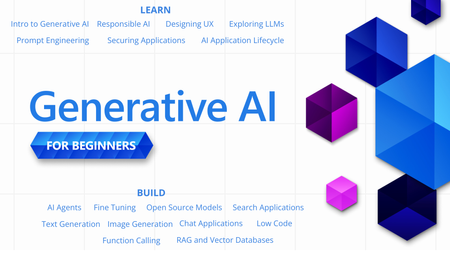
33 TopicsGenerative AI for Beginners - Full Videos Series Released!
With so many new technologies, tools and terms in the world of Generative AI, it can be hard to know where to start or what to learn next. "Generative AI for Beginners" is designed to help you on your learning journey no matter where you are now. We are happy announce that the "Generative AI for Beginners" course has received a major refresh - 18 new videos for each lesson.Essential Microsoft Resources for MVPs & the Tech Community from the AI Tour
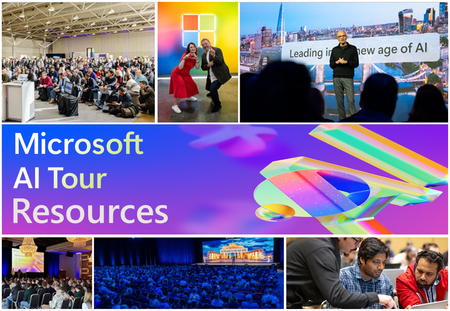
Unlock the power of Microsoft AI with redeliverable technical presentations, hands-on workshops, and open-source curriculum from the Microsoft AI Tour! Whether you’re a Microsoft MVP, Developer, or IT Professional, these expertly crafted resources empower you to teach, train, and lead AI adoption in your community. Explore top breakout sessions covering GitHub Copilot, Azure AI, Generative AI, and security best practices—designed to simplify AI integration and accelerate digital transformation. Dive into interactive workshops that provide real-world applications of AI technologies. Take it a step further with Microsoft’s Open-Source AI Curriculum, offering beginner-friendly courses on AI, Machine Learning, Data Science, Cybersecurity, and GitHub Copilot—perfect for upskilling teams and fostering innovation. Don’t just learn—lead. Access these resources, host impactful training sessions, and drive AI adoption in your organization. Start sharing today! Explore now: Microsoft AI Tour Resources.Responsible AI Resources for Developers
In the rapidly evolving world of technology, AI stands at the forefront of innovation. However, with great power comes great responsibility. As developers, we play a pivotal role in shaping the future of AI, ensuring it aligns with ethical standards and societal values. Microsoft is committed to guiding developers on this journey with resources and tools designed to develop responsible AI.Building your own copilot – yes, but how? (Part 1 of 2)
Today, there’s a wide range of built-in services and features designed to enable organizations and developers to build their own copilots, able to answer questions based on their own knowledge bases and data sources. But how to choose the most suitable one for each scenario? This blog post wants to provide an overview of some of the main choices you have in the Microsoft technology ecosystem. Part 1 will look into low-code tools and out-of-the-box features, while part 2 will focus on code-heavy and extensible options.Agents League: Meet the Winners
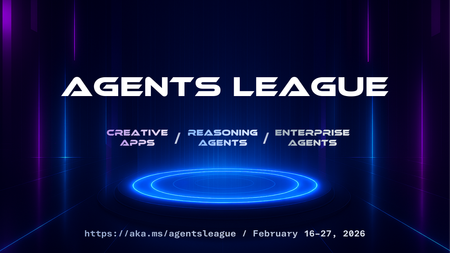
Agents League brought together developers from around the world to build AI agents using Microsoft's developer tools. With 100+ submissions across three tracks, choosing winners was genuinely difficult. Today, we're proud to announce the category champions. 🎨 Creative Apps Winner: CodeSonify View project CodeSonify turns source code into music. As a genuinely thoughtful system, its functions become ascending melodies, loops create rhythmic patterns, conditionals trigger chord changes, and bugs produce dissonant sounds. It supports 7 programming languages and 5 musical styles, with each language mapped to its own key signature and code complexity directly driving the tempo. What makes CodeSonify stand out is the depth of execution. CodeSonify team delivered three integrated experiences: a web app with real-time visualization and one-click MIDI export, an MCP server exposing 5 tools inside GitHub Copilot in VS Code Agent Mode, and a diff sonification engine that lets you hear a code review. A clean refactor sounds harmonious. A messy one sounds chaotic. The team even built the MIDI generator from scratch in pure TypeScript with zero external dependencies. Built entirely with GitHub Copilot assistance, this is one of those projects that makes you think about code differently. 🧠 Reasoning Agents Winner: CertPrep Multi-Agent System View project CertPrep Multi-Agent System team built a production-grade 8-agent system for personalized Microsoft certification exam preparation, supporting 9 exam families including AI-102, AZ-204, AZ-305, and more. Each agent has a distinct responsibility: profiling the learner, generating a week-by-week study schedule, curating learning paths, tracking readiness, running mock assessments, and issuing a GO / CONDITIONAL GO / NOT YET booking recommendation. The engineering behind the scene here is impressive. A 3-tier LLM fallback chain ensures the system runs reliably even without Azure credentials, with the full pipeline completing in under 1 second in mock mode. A 17-rule guardrail pipeline validates every agent boundary. Study time allocation uses the Largest Remainder algorithm to guarantee no domain is silently zeroed out. 342 automated tests back it all up. This is what thoughtful multi-agent architecture looks like in practice. 💼 Enterprise Agents Winner: Whatever AI Assistant (WAIA) View project WAIA is a production-ready multi-agent system for Microsoft 365 Copilot Chat and Microsoft Teams. A workflow agent routes queries to specialized HR, IT, or Fallback agents, transparently to the user, handling both RAG-pattern Q&A and action automation — including IT ticket submission via a SharePoint list. Technically, it's a showcase of what serious enterprise agent development looks like: a custom MCP server secured with OAuth Identity Passthrough, streaming responses via the OpenAI Responses API, Adaptive Cards for human-in-the-loop approval flows, a debug mode accessible directly from Teams or Copilot, and full OpenTelemetry integration visible in the Foundry portal. Franck also shipped end-to-end automated Bicep deployment so the solution can land in any Azure environment. It's polished, thoroughly documented, and built to be replicated. Thank you To every developer who submitted and shipped projects during Agents League: thank you 💜 Your creativity and innovation brought Agents League to life! 👉 Browse all submissions on GitHub1.7KViews3likes2CommentsBuilding your own copilot – yes, but how? (Part 2 of 2)
With the term copilot we refer to a virtual assistant solution hosted in the Cloud, using an LLM as a chat engine, which is fed with business data and custom prompts and eventually integrated with 3 rd party services and plugins. In the first blog of this series , we covered how to build a copilot on custom data using low code tools and Azure out-of-the-box features. In this blog post we’ll focus on a code-first experience.If You're Building AI on Azure, ECS 2026 is Where You Need to Be
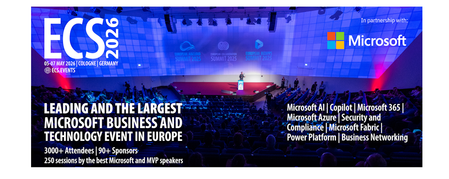
Let me be direct: there's a lot of noise in the conference calendar. Generic cloud events. Vendor showcases dressed up as technical content. Sessions that look great on paper but leave you with nothing you can actually ship on Monday. ECS 2026 isn't that. As someone who will be on stage at Cologne this May, I can tell you the European Collaboration Summit combined with the European AI & Cloud Summit and European Biz Apps Summit is one of the few events I've seen where engineers leave with real, production-applicable knowledge. Three days. Three summits. 3,000+ attendees. One of the largest Microsoft-focused events in Europe, and it keeps getting better. If you're building AI systems on Azure, designing cloud-native architectures, or trying to figure out how to take your AI experiments to production — this is where the conversation is happening. What ECS 2026 Actually Is ECS 2026 runs May 5–7 at Confex in Cologne, Germany. It brings together three co-located summits under one roof: European Collaboration Summit — Microsoft 365, Teams, Copilot, and governance European AI & Cloud Summit — Azure architecture, AI agents, cloud security, responsible AI European BizApps Summit — Power Platform, Microsoft Fabric, Dynamics For Azure engineers and AI developers, the European AI & Cloud Summit is your primary destination. But don't ignore the overlap, some of the most interesting AI conversations happen at the intersection of collaboration tooling and cloud infrastructure. The scale matters here: 3,000+ attendees, 100+ sessions, multiple deep-dive tracks, and a speaker lineup that includes Microsoft executives, Regional Directors, and MVPs who have built, broken, and rebuilt production systems. The Azure + AI Track - What's Actually On the Agenda The AI & Cloud Summit agenda is built around real technical depth. Not "intro to AI" content, actual architecture decisions, patterns that work, and lessons from things that didn't. Here's what you can expect: AI Agents and Agentic Systems This is where the energy is right now, and ECS is leaning in. Expect sessions covering how to design agent workflows, chain reasoning steps, handle memory and state, and integrate with Azure AI services. Marco Casalaina, VP of Products for Azure AI at Microsoft, is speaking if you want to understand the direction of the Azure AI platform from the people building it, this is a direct line. Azure Architecture at Scale Cloud-native patterns, microservices, containers, and the architectural decisions that determine whether your system holds up under real load. These sessions go beyond theory you'll hear from engineers who've shipped these designs at enterprise scale. Observability, DevOps, and Production AI Getting AI to production is harder than the demos suggest. Sessions here cover monitoring AI systems, integrating LLMs into CI/CD pipelines, and building the operational practices that keep AI in production reliable and governable. Cloud Security and Compliance Security isn't optional when you're putting AI in front of users or connecting it to enterprise data. Tracks cover identity, access patterns, responsible AI governance, and how to design systems that satisfy compliance requirements without becoming unmaintainable. Pre-Conference Deep Dives One underrated part of ECS: the pre-conference workshops. These are extended, hands-on sessions typically 3–6 hours that let you go deep on a single topic with an expert. Think of them as intensive short courses where you can actually work through the material, not just watch slides. If you're newer to a particular area of Azure AI, or you want to build fluency in a specific pattern before the main conference sessions, these are worth the early travel. The Speaker Quality Is Different Here The ECS speaker roster includes Microsoft executives, Microsoft MVPs, and Regional Directors, people who have real accountability for the products and patterns they're presenting. You'll hear from over 20 Microsoft speakers: Marco Casalaina — VP of Products, Azure AI at Microsoft Adam Harmetz — VP of Product at Microsoft, Enterprise Agent And dozens of MVPs and Regional Directors who are in the field every day, solving the same problems you are. These aren't keynote-only speakers — they're in the session rooms, at the hallway track, available for real conversations. The Hallway Track Is Not a Cliché I know "networking" sounds like a corporate afterthought. At ECS it genuinely isn't. When you put 3,000 practitioners, engineers, architects, DevOps leads, security specialists in one venue for three days, the conversations between sessions are often more valuable than the sessions themselves. You get candid answers to "how are you actually handling X in production?" that you won't find in documentation. The European Microsoft community is tight-knit and collaborative. ECS is where that community concentrates. Why This Matters Right Now We're in a period where AI development is moving fast but the engineering discipline around it is still maturing. Most teams are figuring out: How to move from AI prototype to production system How to instrument and observe AI behaviour reliably How to design agent systems that don't become unmaintainable How to satisfy security and compliance requirements in AI-integrated architectures ECS 2026 is one of the few places where you can get direct answers to these questions from people who've solved them — not theoretically, but in production, on Azure, in the last 12 months. If you go, you'll come back with practical patterns you can apply immediately. That's the bar I hold events to. ECS consistently clears it. Register and Explore the Agenda Register for ECS 2026: ecs.events Explore the AI & Cloud Summit agenda: cloudsummit.eu/en/agenda Dates: May 5–7, 2026 | Location: Confex, Cologne, Germany Early registration is worth it the pre-conference workshops fill up. And if you're coming, find me, I'll be the one talking too much about AI agents and Azure deployments. See you in Cologne.
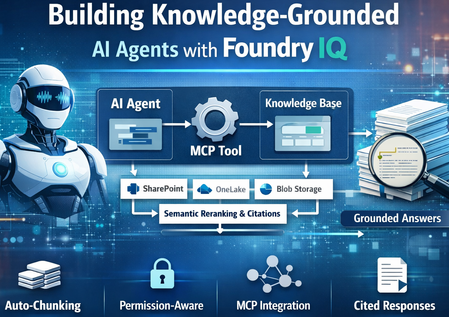
Building Knowledge-Grounded AI Agents with Foundry IQ
Foundry IQ now integrates with Foundry Agent Service via MCP (Model Context Protocol), enabling developers to build AI agents grounded in enterprise knowledge. This integration combines Foundry IQ’s intelligent retrieval capabilities with Foundry Agent Service’s orchestration, enabling agents to retrieve and reason over enterprise data. Key capabilities include: Auto-chunking of documents Vector embedding generation Permission-aware retrieval Semantic reranking Citation-backed responses Together, these capabilities allow AI agents to retrieve enterprise knowledge and generate responses that are accurate, traceable, and aligned with organizational permissions. Why Use Foundry IQ with Foundry Agent Service? Intelligent Retrieval Foundry IQ extends beyond traditional vector search by introducing: LLM-powered query decomposition Parallel retrieval across multiple sources Semantic reranking of results This enables agents to retrieve the most relevant enterprise knowledge even for complex queries. Permission-Aware Retrieval Agents only access content users are authorized to see. Access control lists from sources such as: SharePoint OneLake Azure Blob Storage are automatically synchronized and enforced at query time. Auto-Managed Indexing Foundry IQ automatically manages: Document chunking Vector embedding generation Indexing This eliminates the need to manually build and maintain complex ingestion pipelines. The Three Pillars of Foundry IQ 1. Knowledge Sources Foundry IQ connects to enterprise data wherever it lives — SharePoint, Azure Blob Storage, OneLake, and more. When you add a knowledge source: Auto-chunking — Documents are automatically split into optimal segments Auto-embedding — Vector embeddings are generated without manual pipelines Auto-ACL sync — Access permissions are synchronized from supported sources (SharePoint, OneLake) Auto-Purview integration — Sensitivity labels are respected from supported sources2. Knowledge Bases 2. Knowledge Bases A Knowledge Base unifies multiple sources into a single queryable index. Multiple agents can share the same knowledge base, ensuring consistent answers across your organization 3. Agentic Retrieval Agentic retrieval is an LLM-assisted retrieval pipeline that: Decomposes complex questions into subqueries Executes searches in parallel across sources Applies semantic reranking Returns a unified response with citations Agent → MCP Tool Call → Knowledge Base → Grounded Response with Citations The retrievalReasoningEffort parameter controls LLM processing: minimal — Fast queries low — Balanced reasoning medium — Complex multi-part questions Project Architecture ┌─────────────────────────────────────────────────────────────────────┐ │ FOUNDRY AGENT SERVICE │ │ ┌─────────────┐ ┌─────────────┐ ┌─────────────────────────┐ │ │ │ Agent │───▶│ MCP Tool │───▶│ Project Connection │ │ │ │ (gpt-4.1) │ │ (knowledge_ │ │ (RemoteTool + MI Auth) │ │ │ └─────────────┘ │ base_retrieve) └─────────────────────────┘ │ └─────────────────────────────│───────────────────────────────────────┘ │ ▼ ┌─────────────────────────────────────────────────────────────────────┐ │ FOUNDRY IQ (Azure AI Search) │ │ ┌─────────────────────────────────────────────────────────────┐ │ │ │ MCP Endpoint: │ │ │ │ /knowledgebases/{kb-name}/mcp?api-version=2025-11-01-preview│ │ │ └─────────────────────────────────────────────────────────────┘ │ │ │ │ │ ┌─────────────────┐ ┌─────────────────┐ ┌─────────────────────┐ │ │ │ Knowledge │ │ Knowledge │ │ Indexed Documents │ │ │ │ Sources │──│ Base │──│ (auto-chunked, │ │ │ │ (Blob, SP, etc) │ │ (unified index) │ │ auto-embedded) │ │ │ └─────────────────┘ └─────────────────┘ └─────────────────────┘ │ └─────────────────────────────────────────────────────────────────────┘ Prerequisites Enable RBAC on Azure AI Search az search service update --name your-search --resource-group your-rg \ --auth-options aadOrApiKey Assign Role to Project's Managed Identity az role assignment create --assignee $PROJECT_MI \ --role "Search Index Data Reader" \ --scope "/subscriptions/.../Microsoft.Search/searchServices/{search}" Install Dependencies pip install azure-ai-projects>=2.0.0b4 azure-identity python-dotenv requests Connecting a Knowledge Base to an Agent The integration requires three steps. Connect Knowledge Base to Agent via MCP The integration requires three steps: Create a project connection — Links your AI Foundry project to the knowledge base using ProjectManagedIdentity authentication Create an agent with MCPTool — The agent uses knowledge_base_retrieve to query the knowledge base Chat with the agent — Use the OpenAI client to have grounded conversations Step 1: Create Project Connection import requests from azure.identity import DefaultAzureCredential, get_bearer_token_provider credential = DefaultAzureCredential() PROJECT_RESOURCE_ID = "/subscriptions/.../providers/Microsoft.CognitiveServices/accounts/.../projects/..." MCP_ENDPOINT = "https://{search}.search.windows.net/knowledgebases/{kb}/mcp?api-version=2025-11-01-preview" def create_project_connection(): """Create MCP connection to knowledge base.""" bearer = get_bearer_token_provider(credential, "https://management.azure.com/.default") response = requests.put( f"https://management.azure.com{PROJECT_RESOURCE_ID}/connections/kb-connection?api-version=2025-10-01-preview", headers={"Authorization": f"Bearer {bearer()}"}, json={ "name": "kb-connection", "properties": { "authType": "ProjectManagedIdentity", "category": "RemoteTool", "target": MCP_ENDPOINT, "isSharedToAll": True, "audience": "https://search.azure.com/", "metadata": {"ApiType": "Azure"} } } ) response.raise_for_status() Step 2: Create Agent with MCP Tool from azure.ai.projects import AIProjectClient from azure.ai.projects.models import PromptAgentDefinition, MCPTool def create_agent(): client = AIProjectClient(endpoint=PROJECT_ENDPOINT, credential=credential) # MCP tool connects agent to knowledge base mcp_kb_tool = MCPTool( server_label="knowledge-base", server_url=MCP_ENDPOINT, require_approval="never", allowed_tools=["knowledge_base_retrieve"], project_connection_id="kb-connection" ) # Create agent with knowledge base tool agent = client.agents.create_version( agent_name="enterprise-assistant", definition=PromptAgentDefinition( model="gpt-4.1", instructions="""You MUST use the knowledge_base_retrieve tool for every question. Include citations from sources.""", tools=[mcp_kb_tool] ) ) return agent, client Step 3: Chat with the Agent def chat(agent, client): openai_client = client.get_openai_client() conversation = openai_client.conversations.create() while True: question = input("You: ").strip() if question.lower() == "quit": break response = openai_client.responses.create( conversation=conversation.id, input=question, extra_body={ "agent_reference": { "name": agent.name, "type": "agent_reference" } } ) print(f"Assistant: {response.output_text}") More Information Azure AI Search Knowledge Stores Foundry Agent Service Model Context Protocol (MCP) Azure AI Projects SDK Summary The integration of Foundry IQ with Foundry Agent Service enables developers to build knowledge-grounded AI agents for enterprise scenarios. By combining: MCP-based tool calling Permission-aware retrieval Automatic document processing Semantic reranking organizations can build secure, enterprise-ready AI agents that deliver accurate, traceable responses backed by source data.