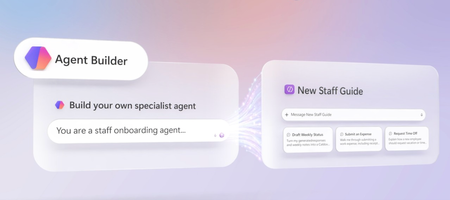
agent builder
1 TopicCreate agents fast with Agent Builder in Copilot
Describe what you want in one prompt, and Copilot Agent Builder generates the name, instructions, skills, and knowledge setup for you — grounded only in the SharePoint sites, files, and Copilot Connectors you choose. Teach your agent a Skill to handle recurring work, like drafting weekly status emails from your own template, then test it in Preview before you publish. Share it with people or groups and set exact permissions, track real usage in the new Monitor tab, and push your best agents into your org’s Agent Store catalog. Ned Friend, Group Product Manager for Copilot Agent Builder shares how to turn an agent into a tool your whole team can run, measure, and trust. One prompt. A fully configured agent. Agent Builder in Copilot auto-generates the name, instructions, skills, and knowledge grounding from your description. See how it works. No code. Just a prompt and a template. Agent Builder in Copilot turns that into a Skill your agent runs to generate standardized outputs, like status emails or reports, on demand. Check it out. Pin your agent to trusted sources only. Add SharePoint files, Outlook mail, Teams meetings, or connect business systems, so that it only uses information you give it, nothing else. See how it works. 👥 Who it’s for: Team leads and managers who want trusted, repeatable answers for their team, plus IT admins and Microsoft 365 power users building specialist Copilot agents without code. ⏱️ Chapters: 0:00 Build specialist agents inside Copilot 0:34 Ground agents in trusted org knowledge 1:31 Create a new hire onboarding agent 2:15 Natural-language agent creation 2:41 Ground answers in SharePoint knowledge 4:13 Skills for repeatable tasks 4:53 Precise knowledge grounding 6:37 Preview and test before publishing 7:03 Share your agent with set permissions 7:39 See the new hire’s agent view 8:22 Usage monitoring 8:41 Publish agents to your org catalog Copilot Agent Builder lets you create a specialist agent by describing what you want it to do in plain language. Agent Builder interprets that prompt and automatically generates the agent’s name, description, instructions, skills, knowledge sources, and suggested prompts, which you can review and edit directly. Ground every answer in the exact knowledge you choose: SharePoint and OneDrive files, Outlook email and calendar, Microsoft Teams chats and meetings, or external business systems connected through Copilot Connectors. Turn on web search only when you want the agent to research beyond your organization, like competitor or customer research. Add Skills to teach the agent repeatable, multi-step work — in this video, a weekly status update email built from a real template, matching its tone, sections, and formatting automatically. Preview and test the agent before publishing, then share it with people or groups and set whether they can use it or edit it. Once your agent is live, the Monitor tab tracks total sessions, daily active users, average messages per session, average duration, and which knowledge sources get used most. For agents with strong adoption, publish them to the Built by your org section of the Agent Store for wider use across your organization. Try Copilot Agent Builder for yourself — it’s included with Copilot. Subscribe to Microsoft Mechanics for more videos like this. Unfamiliar with Microsoft Mechanics? Microsoft’s Official Video Series for IT — Subscribe https://www.youtube.com/c/MicrosoftMechanicsSeries — Microsoft Tech Community: https://techcommunity.microsoft.com/t5/microsoft-mechanics-blog/bg-p/MicrosoftMechanicsBlog — Podcast: https://microsoftmechanics.libsyn.com/podcast Join us on social: — https://twitter.com/MSFTMechanics — https://www.linkedin.com/company/microsoft-mechanics/ — https://www.instagram.com/msftmechanics/ — https://www.tiktok.com/@msftmechanics Video Transcript: -You’re probably used to working with Copilot across Microsoft 365 for everyday tasks, but did you know that you can create your own specialist agents in minutes to provide informed, authoritative answers and produce consistent, standardized content for specific business scenarios? Think about the work you do every day. Maybe it’s reviewing content for compliance, creating customer or internal-focused communications, or answering work-related policy questions. While Copilot can help with these tasks using broadly available information, Agent Builder, on the other hand, which is included in Copilot, lets you build and use agents with a specific purpose, grounded in trusted organizational knowledge. Think of it as the difference between hiring a general contractor to remodel your home and bringing in a licensed electrician to design an electrical plan to rewire the house. -Both skill sets are valuable, but the specialist brings focused expertise, follows established standards, and is trusted for a specific type of work. Similarly, a specialist agent can be created to serve a specific purpose and configured to provide custom expert answers by only using the information sources you choose to ground them with. Specialist agents can generate standardized deliverables based on specific skills that follow your organizational guidelines, and creating one is as simple as describing what you want it to do and letting Agent Builder build it for you. -So let’s make this real. As a manager, instead of repeatedly walking new hires through team processes, resources, and responsibilities, I can create a new hire onboarding agent that provides trusted answers and consistent deliverables. It helps new employees get productive faster and deliver work aligned with our organization’s guidelines from day one. Here I’m in Copilot. I have a growing team with lots of new members, and agents are the best way to make team knowledge accessible. Before you build anything, it’s a good idea to check out the Agent Store for the agents you can already choose from, including ones shared with you by people on your team. And if nothing fits the bill, you can easily create your own custom agents from scratch. -So let’s start building. I’ll scroll back up and select create agent, and I’m taken to the Agent Builder experience, where I just need to describe what I want our agent to do. I’ll type, “You are a new staff onboarding agent to help answer questions about business processes, how to perform common tasks, and provide answers to product or service questions. Answer using information in these locations and files.” I want to give the agent access to the specific knowledge to inform its responses. I can either hit the plus sign or use a forward slash to reference content for this agent to use as it answers questions. So I’ll use the forward slash and use this SharePoint site where we already store official documents and files. -Now I’ll use the plus sign to add more content, such as files, meetings, chats, and more. This time I’ll choose a specific process document. Now the site and file will be the only information used for the agent’s responses. And when I hit send, this will take a moment to run, but what’s impressive is Agent Builder interprets my intent and it automatically generates an agent name, description, and detailed instructions for how the agent should behave. It also added skills, knowledge, and suggested prompts that I’ll cover in a minute. I can review everything and make edits directly here if I want to. -So right now, the agent can answer questions in chat with defined and approved expert knowledge. I want to go further. I want our agent to be able to author standardized weekly status emails. Skills are perfect for that, or any time that I want an agent to complete a repeatable task consistently following defined steps. I just need to describe the skill using natural language. Under its instructions, you can see skills. Based on our initial prompt, it’s generated a new staff onboarding skill automatically. I can also create or add my own skills to extend what the agent can do. -Here, I’ll write another prompt to create a weekly status update email skill based on generated responses and use this email as a template. And again, I’ll add a forward slash with the name of the file. This will teach the agent how to author the update using the right tone, altitude, sections, and formatting. And behind the scenes, it’s doing all the coding and configurations for me. And when it’s done, it will appear under the Skills section here. -As another option, if you’re already using skills from other places, you can also upload those files here. So my initial prompt updated the knowledge and now I’ll configure that further to make my agent even more of a specialist. Knowledge is the heart of an agent. Here you can see the sources that I specified in my prompt earlier. The quality of the agent depends on the quality of the knowledge you provide. If I wanted to, I could add additional sources, such as cloud files from SharePoint or OneDrive, the user’s Outlook email and calendar, as well as Microsoft Teams chats, channels, and recorded meetings. -I also have the option to connect to specific business systems using Copilot connectors. These could be enterprise intranet sites, SaaS apps like ticketing systems that we’re connected to, and more. This way, the agent will be able to find relevant information exactly where it’s stored. Optionally, I can select web search for when it makes sense for the agent to look up information on the internet, for example, things like competitor and customer research. In this case, I won’t do that because I only want the agent to use internal knowledge. -Additionally, I could manually add attachments from my local device if they are not already in the cloud. So I did all of that manually, but I could also ask the chat experience on the left to do more or click suggest improvements to trigger that, and the same applies to instructions. This last section contains suggested prompts that were generated automatically based on my initial prompt. These help new users learn how to use the agent and give existing users a shortcut to repeat the most common prompts for the agent. These are also editable. I want my users to build on these first three suggestions as well as use their own questions, so I’ll delete the rest. -At this point, in just a few minutes, I’ve defined and scoped my agent experience using the knowledge available to my team, and I can test it out before finalizing or sharing it. Clicking into the preview tab shows me what the agent will look like once it’s published. I’ll test it using a prompt. “What do I need to do to schedule my upcoming vacation time?” And it responds with the standard process. This preview shows how it will appear for people using the agent. If you don’t like how it responds or how it looks, like the icon, description, or the suggested prompts, you can just go back to the configure tab and make changes. -Now that our agent is tested and ready, I can create it and share it with my team. To do that, I just need to hit create. And in the background, that is going to register it as a private agent for my own personal use when I’m using Copilot Chat. Then, to share this agent with others in my organization, I can select share, and it’s just like sharing a file. I just need to add people or group names and I can control whether the people I share with can simply use the agent or also make edits to the agent. -From there, I just need to confirm and our agent is shared over email and in the Agent Store. With the agent shared, let me show you what a new hire would see. Here I’m signed in as that new hire, Katri, where I got an email with a link to the agent we just shared, so I’ll open it. I can see the suggested prompts that we added previously. In this case, I’ll ask it, “Summarize my previous week using my meetings and emails to help build a status report.” It reasons over the knowledge sources and reference email we added earlier and generates a standardized response with accomplishments, meetings attended, risks, and issues under review, as well as next steps and more. Once my agent has been in production for a while, I can see how much people are using it to know that it’s working as expected. -The new monitor tab in Agent Builder gives you visibility into how your agents are being used, including total sessions, daily active users, average messages per session, and average duration. And you can see how people are engaging over time and the knowledge sources used in conversations. For agents that get significant usage, you might want to publish it into the built by your org section of the Agent Store. That’s as easy as opening the agent menu and clicking submit to your org catalog. Here you can specify additional information like the terms of use and customize your developer name to be something more official. With that, it will go to my admin to approve and then get discovered and used by my organization for even more impact. -With Agent Builder in Copilot, it’s easy to create your own specialist agents in minutes that provide informed, authoritative answers and produce consistent, standardized content for specific business scenarios. It’s included with Copilot, so try it for yourself today, and subscribe to Microsoft Mechanics if you haven’t already. Thank you for watching.100Views0likes0Comments