windows
86 TopicsFoundry Local Web UI for IIS
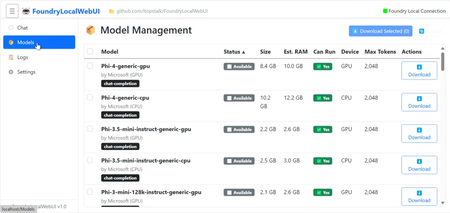
If you've been exploring local AI with Microsoft Foundry Local, you've learned that running a chatbot frontend on Windows Server or Windows Client that you can access over the network comes with a challenging set of dependencies. FoundryLocalWebUI is a simple, self-contained web frontend for Foundry Local that runs on IIS, works on both Windows Server and Windows Client, and uses common Windows ecosystem components. You can find the project on GitHub: https://github.com/itopstalk/FoundryWebUI Here is an explanatory video here: https://youtu.be/IGWNhSQziZI FoundryLocalWebUI is a lightweight web application designed to be hosted on IIS, which is already available to Windows Server and can be enabled on Windows Client with a few clicks. There is no need to install a separate web server, worry about a package manager, or spin up a Windows Subsystem for Linux environment. FoundryLocalWebUI is an experimental proof of concept. It doesn't support multiple users and just provides basic chatbot functionality. It's suitable if: You're evaluating Foundry Local and want a quick, no-fuss frontend to test models through a browser rather than the command line. You want to keep your deployment footprint small and your dependencies minimal. You're running Windows Client and want a local chat interface without the overhead of heavier solutions. The setup process is intentionally straightforward. Make sure that Git is installed: winget install --id Git.Git -e --accept-source-agreements --accept-package-agreements Clone the repo and run the installer (you'll have to use set-executionpolicy to allow the PowerShell script to run) cd C:\Projects git clone https://github.com/itopstalk/FoundryWebUI.git FoundryLocalWebUI cd FoundryLocalWebUI # Windows Server 2025: .\Install-FoundryWebUI.ps1 # Windows 10/11: .\Install-FoundryWebUI-Desktop.ps1 Full setup details are in the GitHub repo, and the walkthrough video covers the process end to end if you'd rather follow along visually. This is still early days for the project, and I'd love to hear from the community. Local AI is becoming a real option for organizations that need to keep data on-premises and maintain control over their infrastructure. Spin up a WS 2025 eval edition VM and give it a go.248Views1like0CommentsHow to enable HTTPS support for Microsoft Connected Cache for Enterprise and Education
Starting on June 16 th , 2026, or soon after, Intune will enforce HTTPS content delivery for customers using Microsoft Connected Cache for Enterprise and Education. To continue using Microsoft Connected Cache to localize Intune Win32 app downloads and reduce the bandwidth impact on your network, you’ll need to configure HTTPS on Connected Cache nodes. Without this configuration, devices will still fetch the requested content, but they’ll fall back to the Content Delivery Network (CDN) and lose the performance and bandwidth savings that Microsoft Connected Cache provides. This guide assumes you have already deployed a standalone Microsoft Connected Cache node in your environment. If not, please see the Create and configure Microsoft Connected Cache nodes page. By the end of this walkthrough, you’ll be able to: Prepare the TLS certificate that your Connected Cache needs Enable HTTPS support on both Windows and Linux‑based Microsoft Connected Cache servers Validate that HTTPS is working end‑to‑end Diagnose the most common setup issues This guide mirrors the workflow described in Microsoft Connected Cache’s public documentation. For further explanation of what HTTPS support changes for Microsoft Connected Cache review HTTPS Support for Microsoft Connected Cache Overview, then proceed to Configure HTTPS on Windows or Configure HTTPS on Linux. Step-by-step: Enabling HTTPS support To keep this walkthrough easy to follow, the screenshots and command examples use a simple, reproducible environment that matches what most admins will see during their first HTTPS configuration. In this guide, the examples are based on: A single Connected Cache node deployment Windows 11, using a local user runtime account Public certificate authority (CA)-signed TLS certificate This baseline environment is only meant to make the screenshots and file paths predictable. Your own environment may look different, and that’s completely fine. Many customers run Microsoft Connected Cache on: Linux (Ubuntu or RHEL) Windows Server 2022 or Windows Server 2025 Networks with outbound restrictions Most of the workflow is identical across these variations. The folder structure, log locations, and command flow will look nearly the same on any Windows host. If you’re running Microsoft Connected Cache on Linux, the workflow is the same, but simpler—bash scripts are ran directly instead of being invoked through PowerShell. If your environment includes proxies, make sure all required endpoints are allowed. Before you start Before generating a certificate signing request (CSR) or importing a certificate, there are a few quick checks to make sure your Connected Cache server can enable HTTPS successfully. First, visit the “Cache Node Management” tab on Azure portal. Under the “Software Version” column, verify that your cache node is running on software version 2.0.0.2112 or higher. If not, you will need to reinstall Connected Cache. Next, confirm the hostname or IP address your client devices use to reach your Connected Cache node—this value will be configured when you generate the CSR. Also, ake sure port 443 is free on the host; Microsoft Connected Cache needs to bind to it. Finally, if your network performs TLS-inspection, ensure the required endpoints are allowed. Intercepted HTTPS traffic will cause devices to reject Microsoft Connected Cache’s TLS certificate, even if everything else is configured correctly. Once these checks are done, your node is ready for the HTTPS workflow: generate the CSR on your Connected Cache host machine, sign it with your CA, and import the resulting certificate. For more details, refer to the documentation: HTTPS on Windows Prerequisites. 1. Generate a CSR The first step in enabling HTTPS support is generating a CSR directly on your Microsoft Connected Cache node. This step cannot be skipped. Microsoft Connected Cache must create the CSR itself so it can generate and retain the private key that will later be paired with your signed certificate during TLS negotiation. When configuring the parameters for the generateCsr script, the most important values to get right are the Subject and SAN. These must match exactly how your managed client devices connect to your Connected Cache node. If the client devices use FQDN, include that FQDN; if they connect via IP, include that IP. A mismatch here won’t break CSR generation, but it’ll cause clients to bypass Microsoft Connected Cache later since they won’t trust the certificate during the TLS negotiation. For parameter configuration guidance on your specific environment, review these documented scenario-based parameter examples. After parameter configuration, you will need to locate the Installer scripts directory, the same as when you installed Microsoft Connected Cache originally. You can move directly to this path by running the following command in your terminal: Push-Location (deliveryoptimization-cli Microsoft Connected Cache-get-scripts-path) Once in the correct folder path, run the generateCsr command with your configured parameters. Running the command launches the CSR generation workflow inside the Microsoft Connected Cache-managed Windows Subsystem for Linux (WSL) distribution. The terminal output shows exactly what Connected Cache is doing: where it stores certificate files, where logs are written, which WSL distribution is being used, and the final location of the generated CSR. You’ll also see that Microsoft Connected Cache runs the CSR generation as a scheduled task inside WSL—this is expected and part of the normal flow. For example: This output confirms that Microsoft Connected Cache: Validated the CSR request Passed the Subject (Common Name) and SAN values to the internal script Generated the private key and CSR, stored both inside the container Wrote logs to the \Certificates\logs folder Created the CSR file in the Certificates folder When the process completes, you’ll see the timestamped CSR written to the Windows-side certificates folder (…\Certificates\certs). This is the file you’ll submit to your signing CA: Troubleshooting: Every time you run generateCsr, Microsoft Connected Cache writes a full log to a directory that ends with …\Certificates\logs. The terminal output shows you the exact path, and you can always return to this folder if you need to understand what happened during CSR generation. If you do need to troubleshoot, start by opening the most recent log file. The generateCsr log provides a detailed trace of each step. The following lines are checkpoints (in order) that you can look for in the more extensive log output: “Algorithm validation passed / CSR name validation passed” - Microsoft Connected Cache accepted your inputs and is ready to generate the CSR. “Subject Components: … / SAN Components: …” - Microsoft Connected Cache will embed these values into the CSR. If these don’t match your Connected Cache server hostname or IP address, regenerate the CSR. “Attempting to call http://localhost:5000/csr” - Microsoft Connected Cache internal controller is generating the keypair and CSR inside the WSL container. “Key verification succeeded” - Microsoft Connected Cache successfully generated and validated the private key. “CSR verification successful” - OpenSSL has validated the CSR structure. “Successfully copied logs to windowsCerts location” - The logs were written to the host machine directory. “CSR generation completed successfully” - Completed end-to-end successfully. One thing to be aware of: during a successful run, you may still see messages like: mkdir: cannot create directory '/keys': Permission denied chmod: cannot access '/keys': No such file or directory These are not errors. The script checks for required folders before creating them, and if they already exist, those checks generate harmless warnings. As long as the script finishes with a success message and you see a .csr file in the certs folder, the run is successful. 2. Sign the CSR This step occurs outside of the scope of Microsoft Connected Cache. Signing your CSR will rely on the PKI that your organization has chosen to use. This may include an internal ADCS, other enterprise internal PKI, or an externally hosted PKI (DigiCert, Let’s Encrypt, etc.). Of note, Cloud PKI will not work with Connected Cache because it requires the CSR be generated via SCEP before signing. Ensure that your client devices will be able to trust the CA signature. For many customers, we recommend signing using a public CA that Windows client devices automatically trust. Please reference documentation on signing the CSR for more details. The only requirement on the Connected Cache side is that the certificate is in unencrypted .crt format. Microsoft Connected Cache cannot import password-protected certificate formats yet - including .pfx bundles - even if they contain the correct certificate. For now, make sure your signing CA gives you, or allows you to export, a plain X.509 .crt file. After your CA signs the CSR, you’ll import the resulting certificate back to Microsoft Connected Cache. With the signed certificate in hand, place it in the same certs folder where your CSR was generated. Microsoft Connected Cache expects both files to live together so it can pair the returned certificate with the private key created earlier. A successful setup in the folder directory looks like this: If the certificate exists in the Certificates folder in .crt format, you’re ready to continue. Note: The CSR and .crt certificate do not have to have the same name. 3. Import the certificate back to Microsoft Connected Cache Before importing your certificate, remember that the CSR must have been generated on the same Microsoft Connected Cache node. You cannot skip directly to importing a certificate - Microsoft Connected Cache must have created the private key during CSR generation so it can pair the signed certificate with that key. After configuring the parameters referenced in the documentation to import the signed TLS certificate, run the importCert command from the same scripts directory used during CSR generation. When you start the import, Microsoft Connected Cache runs a full verification workflow inside its managed WSL distribution. The terminal output for this step is intentionally simple—it shows only that the certificate file passed basic validation, that the internal import script was invoked, and that the import is running as a scheduled task within the WSL distribution. You’ll also see that logging is active and that Microsoft Connected Cache has begun monitoring the process: Although the terminal output is brief, the full workflow is visible in the import logs. A successful import means Microsoft Connected Cache: Found your .crt file in the expected folder Ran cryptographic verification confirming the certificate, CSR, and private key all match Copied the certificate into the container and updated Microsoft Connected Cache internal configuration Restarted the container with the new certificate Enabled HTTPS for Microsoft Connected Cache’s Intune content endpoints Once these steps are complete, Microsoft Connected Cache is fully configured to serve HTTPS content. You usually won’t see new files added to the Windows certs folder after import as the changes occur inside the Connected Cache container. The final validation that import is successful is if the script exits successfully and the logs show that Microsoft Connected Cache restarted with the new certificate in place. Troubleshooting Troubleshooting certificate import is similar to troubleshooting CSR generation: every run produces a detailed log in the ...\Certificates\logs folder. If import fails, these logs will show exactly which step did not complete. At this stage, SAN or hostname mismatches do not show up; those only appear later during client-side validation. The importCert script only ensures that your certificate, CSR, and private key match (stored inside container, not visible from Certificates folder) and that Microsoft Connected Cache can load them. To help interpret the log, below are the checkpoints you can reference (in order): “Certificate file validation passed” - Microsoft Connected Cache found the .crt file in the certs folder and its .crt format is valid. “Using CertName: … / CSR being used: …” - Microsoft Connected Cache matched the certificate to the CSR that generated the private key. “SUCCESS: The CSR, certificate and private key cryptographic materials all match” - Microsoft Connected Cache verified the keypair, CSR, and certificate are a correct trio. “Nginx restarted successfully with new certificates” - Microsoft Connected Cache is now configured to serve HTTPS on port 443 inside the container. “Certificate import completed successfully” - The end-to-end import succeeded with no errors. Once the importCert script succeeds, your node is ready for validation. Validating HTTPS support end-to-end Once your certificate is imported, the final step is validating that Microsoft Connected Cache is now serving content over HTTPS. Detailed test commands are all documented in the Validate HTTPS on Windows guide. Complete the tests first on the Microsoft Connected Cache server, then on a client device. This order matters - server-side validation confirms Microsoft Connected Cache is listening on port 443 with its new TLS certificate; client-side validation confirms that client devices can trust and use that certificate. On your Microsoft Connected Cache server Start validation on the Microsoft Connected Cache host server. The server side tests include HTTPS and HTTP health endpoint checks that confirm: Microsoft Connected Cache is successfully bound to port 443 The TLS certificate loaded correctly The TLS certificate, private key, and CSR all correspond Microsoft Connected Cache can return its health endpoint over HTTPS If any of the server-side validation steps fail, check the generateCsr and importCert logs in the …\Certificates\logs folder. The validation guide includes troubleshooting tests that help distinguish whether the issue is certificate-related, connectivity-related, or due to another process on the host. Only move on to client-side validation once the Microsoft Connected Cache server passes its own tests. On your client device After confirming the server is configured correctly, the next stage is validating HTTPS content delivery from a client device that is pointed to use Microsoft Connected Cache. The client-side tests contain both browser-based and command line tests that help verify: The client trusts the issuing CA DNS resolves the Microsoft Connected Cache hostname correctly The device can complete a full TLS handshake with Microsoft Connected Cache The device is retrieving HTTPS content from Microsoft Connected Cache rather than falling back to CDN Once both server-side and client side-validation steps succeed, you can be confident that your Microsoft Connected Cache node is fully configured and ready to serve Intune content securely over HTTPS. Known issues with HTTPS Support Configuration Most customers will complete the HTTPS workflow without any problems, but there are a few known issues we want to call out proactively. These issues are currently being addressed and will be resolved in an updated installer and container release. ImportCert issues on Windows Server 2022/2025 using gMSA If your Microsoft Connected Cache runtime account is a Group Managed Service Account (gMSA) on Windows Server 2022 or Windows Server 2025, you may see importCert failures. You can still run the importCert workflow, just knox`w this behavior is a known issue. The updated Windows installer will fully resolve this. ImportCert issues on Windows 11 using a local user runtime The same importCert issue can also appear on Windows 11 if you are using a local user as the runtime account. Again, it is safe to run the import anyway; the installer fix coming shortly will resolve this issue. ImportCert hangs on software version 2119_e (buffer bug) During the week of January 19 th , we deployed container version 2119_e to all customer cache nodes. We discovered a bug where the container’s internal buffer is not cleared during importCert, causing the import to run indefinitely. If you see this behavior and your Azure portal shows version 2119_e, this is likely the cause. If your cache node is on software version 2119_e today, try to rerun the scripts or wait for the software version update. Your node remains functional even if importCert does not complete. The fixes for these issues have all been validated. Once ready for public release, the latest software version will be pushed to all cache nodes and the updated Windows installer will be available to download in Azure portal. Stay tuned to the Microsoft Connected Cache Release Notes for up-to-date information. Enabling HTTPS support on Linux hosts This guide walked through the setup of HTTPS using a Windows-based Microsoft Connected Cache host, since that’s what most customers deploy today. If you're running Microsoft Connected Cache on Linux, the overall steps are the same - generate a CSR on the node, sign it with your CA, and import the resulting .crt file - but a few details differ. For a Linux-hosted Microsoft Connected Cache nodes, shell scripts handle the entire process, specifically generateCsr.sh and importCert.sh. The Enable HTTPS Support on Linux guide documents these steps in detail, including the exact script parameters, file locations, and how to interpret the Linux-specific logs. The biggest differences on Linux are: You run the CSR and import scripts directly in bash (no WSL component). File paths and log locations follow the Linux directory structure (/var/mcc/...). Check port conflicts, firewall configuration, and TLS inspection using Linux tools (ss, iptables, proxy settings). Validation steps use Linux equivalents of the server side tests documented in the Windows validation guide. Maintaining your HTTPS configuration Once your Microsoft Connected Cache node is serving content over HTTPS, the next thing to plan for is ongoing certificate maintenance. TLS certificates aren’t a onetime import - certificates expire, CA chains change, and your operational process needs to keep up. Microsoft Connected Cache will soon surface certificate details both through a command line script and directly in the Azure portal, but those capabilities are not available yet. Until then, verification and rotation rely on simple checks you perform on the Microsoft Connected Cache host. Monitoring The easiest way to monitor your deployment today is to periodically check the Key Metrics chart in the Overview blade of your Microsoft Connected Cache resource in Azure. If Intune content is flowing through Microsoft Connected Cache, that’s a strong proxy signal that HTTPS is healthy. For the certificate itself, many admins perform a lightweight weekly or monthly review: ensuring the TLS certificate is still valid, not approaching expiration, and still matches the configuration you imported. Re-running the validation tests from our public documentation every so often is also a good way to catch any issues early. The updated Windows installer, as mentioned in Known Issues, will also have a PowerShell script that displays the status and expiration date of existing TLS certificates. Renewal When planning for renewal, we recommend starting at least 60 days before the certificate expires. Renewal is typically straightforward: either reuse the existing CSR (most common) or generate a new one, then have your CA resign it, convert it into .crt format, and test the renewed certificate on a test node if you have one. If your workflow doesn’t include a test Connected Cache node, you can still safely import the renewed certificate on your production node - if import fails, Microsoft Connected Cache simply keeps using the existing certificate until a valid one is applied, so you won’t break your environment. If your certificate management system has automation capabilities, you can script Microsoft Connected Cache’s certificate renewal workflow as well - for example, by using Secure Shell (SSH) to remotely to run the generateCSR or importCert scripts on the host machine. For larger or distributed environments, testing the signing and import processes on a non-production node first can help confirm SAN correctness, trust behavior, and chain completeness before touching production. We are actively working to streamline certificate monitoring and renewal inside Microsoft Connected Cache. Summary HTTPS support for Microsoft Connected Cache will soon become a requirement for delivering Intune Win32 apps, and every Microsoft Connected Cache node must be configured for HTTPS by June 16, 2026. After the deadline, Intune Win32 apps will only be delivered via HTTPS. However, all other content – Windows updates, Office apps, etc – will continue to be served via HTTP after the June 16 th enforcement date. This guide walked through the essentials: generating a CSR on your Microsoft Connected Cache node, submitting it to your CA, importing the signed certificate, and validating HTTPS from both the server and client devices. Along the way, you saw how to interpret the logs, verify Connected Cache is using your certificate correctly, and ensure that Teams and/or Intune content is flowing over HTTPS instead of falling back to CDN. As you move forward, keep your workflow consistent - regenerate or reuse CSRs the same way each cycle, validate regularly, and renew certificates well before expiration. Even though improvements are coming soon, completing this setup now ensures your environment is ready long before Intune HTTPS enforcement begins. With your certificate in place, HTTPS validated, and a simple renewal process in hand, your Microsoft Connected Cache deployment is prepared for the June 16 th , 2026 deadline and ready to deliver Intune content securely. FAQs Do I really need HTTPS Support, and by when? Yes. All Microsoft Connected Cache nodes serving Intune Win32 apps must deliver over HTTPS by June 16, 2026. If HTTPS isn’t configured, devices will fall back to CDN when requesting Intune win32 apps —content delivery still works, but you’ll lose caching benefits. Why do I have to generate the CSR on the Connected Cache node? Since Microsoft Connected Cache must generate and retain the private key itself. Certificates signed from any other machine, keypair, or CSR cannot be imported. The CSR you generate on the node produces the only key that Microsoft Connected Cache will accept. Can I reuse an existing certificate? Only if it was originally issued from the CSR generated on the same Microsoft Connected Cache node. If the certificate was created elsewhere (different machine, tooling, or CSR), Microsoft Connected Cache won’t accept it. Can I reuse my CSR when renewing the certificate? Yes. Many customers reuse the same CSR each cycle as long as the CA resigns it. Reusing the old certificate output is not supported. Can I “bring my own certificate”? Not yet. Microsoft Connected Cache only supports certificates created from its own CSR. Support for bringing an external certificate is coming soon; stay up to date by viewing the latest Microsoft Connected Cache Release Notes Can I use a wildcard certificate? Microsoft Connected Cache does not officially support them and they’re not recommended. Wildcards often involve shared private keys across systems, which creates operational and security risks. What certificate formats does Microsoft Connected Cache support? Microsoft Connected Cache only supports unencrypted .crt files today. Password protected .pfx or .p12 formats cannot be imported. What happens if I redeploy Microsoft Connected Cache or the hostname changes? If the hostname or connection path changes, you must request a new certificate that matches the new SAN parameters. If the hostname stays the same and the certificate came from the Connected Cache-generated CSR, you can continue using it. If you have any questions, leave a comment below or reach out to us on X @IntuneSuppTeam!2KViews0likes4CommentsSecurity baseline for Windows Server 2025, version 2602
Microsoft is pleased to announce the February 2026 Revision (v2602) of the security baseline package for Windows Server 2025! You can download the baseline package from the Microsoft Security Compliance Toolkit, test the recommended configurations in your environment, and customize / implement them as appropriate. Summary of Changes in This Release This release includes several changes made since the Security baseline for Windows Server 2025, version 2506 to further assist in the security of enterprise customers along with better aligning with the latest capabilities and standards. The changes include what is now depicted in the table below. Security Policy Change Summary Configure the behavior of the sudo command Configured as Enabled: Disabled on both MS and DC Configure Validation of ROCA-vulnerable WHfB keys during authentication Configured as Enabled: Block on DC to block Windows Hello for Business (WHfB) keys that are vulnerable to the Return of Coppersmith's attack (ROCA) Disable Internet Explorer 11 Launch Via COM Automation Configured as Enabled to prevent legacy scripts and applications from programmatically launching Internet Explorer 11 using COM automation interfaces Do not apply the Mark of the Web tag to files copied from insecure sources Configured as Disabled on both MS and DC Network security: Restrict NTLM: Audit Incoming NTLM Traffic Configured as Enable auditing for all accounts on both MS and DC Network security: Restrict NTLM: Audit NTLM authentication in this domain Configured as Enable all on DC Network security: Restrict NTLM: Outgoing NTLM traffic to remote servers Configured as Audit all on both MS and DC NTLM Auditing Enhancements Already enabled by default to improve visibility into NTLM usage within your environment Prevent downloading of enclosures Remove from the baseline as it is not applicable for Windows Server 2025. It depends on IE – RSS feed Printer: Configure RPC connection settings Enforce the default, RPC over TCP with Authentication Enabled, on both MS and DC Printer: Configure RPC listener settings Configure as RPC over TCP | Kerberos on MS Printer: Impersonate a client after authentication Add RESTRICTED SERVICES\PrintSpoolerService to allow the Print Spooler’s restricted service identity to impersonate clients securely Configure the behavior of the sudo command Sudo for Windows can be used as a potential escalation of privilege vector when enabled in certain configurations. It may allow attackers or malicious insiders to run commands with elevated privileges, bypassing traditional UAC prompts. This is especially concerning in environments with Active Directory or domain controllers. We recommend to configuring the policy Configure the behavior of the sudo command (System) as Enabled with the maximum allowed sudo mode as Disabled to prevent the sudo command from being used. Configure Validation of ROCA-vulnerable WHfB keys during authentication To mitigate Windows Hello for Business (WHfB) keys that are vulnerable to the Return of Coppersmith's attack (ROCA), we recommend enabling the setting Configure Validation of ROCA-vulnerable WHfB keys during authentication (System\Security Account Manager) in a Block mode in domain controllers. To ensure there are no incompatible devices/orphaned/vulnerable keys in use that will break when blocked, please see Using WHfBTools PowerShell module for cleaning up orphaned Windows Hello for Business Keys - Microsoft Support. Note: A reboot is not required for changes to this setting to take effect. Disable Internet Explorer 11 Launch Via COM Automation Similar to the Windows 11 version 25H2 security baseline, we recommend disabling Internet Explorer 11 Launch Via COM Automation (Windows Components\Internet Explorer) to prevent legacy scripts and applications from programmatically launching Internet Explorer 11 using COM automation interfaces such as CreateObject("InternetExplorer.Application"). Allowing such behavior poses a significant risk by exposing systems to the legacy MSHTML and ActiveX components, which are vulnerable to exploitation. Do not apply the Mark of the Web tag to files copied from insecure sources We have included the setting Do not apply the Mark of the Web tag to files copied from insecure sources (Windows Components\File Explorer) configured as Disabled, which is consistent with Windows 11 security baseline. When this configuration is set to Disabled, Windows applies the Mark of the Web (MotW) tag to files copied from locations classified as Internet or other untrusted zones. This tag helps enforce additional protections such as SmartScreen checks and Office macro blocking, reducing the risk of malicious content execution. NTLM Auditing As part of our ongoing effort to help customers transition away from NTLM and adopt Kerberos for a more secure environment, we introduce new recommendations to strengthen monitoring and prepare for future NTLM restrictions on Windows Server 2025. Configure Network security: Restrict NTLM: Audit Incoming NTLM Traffic (Security Options) to Enable auditing for all accounts on both member servers and domain controllers. When enabled, the server logs events for all NTLM authentication requests that would be blocked once incoming NTLM traffic restrictions are enforced. Configure Network security: Restrict NTLM: Audit NTLM authentication in this domain (Security Options) to Enable all on domain controllers. This setting logs NTLM pass-through authentication requests from servers and accounts that would be denied when NTLM authentication restrictions are applied at the domain level. Configure Outgoing NTLM traffic to remote servers (Security Options) to Audit all on both member servers and domain controllers to log an event for each NTLM authentication request sent to a remote server, helping identify servers that still receive NTLM traffic. In addition, there are two new NTLM auditing capabilities enabled by default that were recently introduced in Windows Server 2025 and Windows 11 version 25H2. These enhancements provide detailed audit logs to help security teams monitor and investigate authentication activity, identify insecure practices, and prepare for future NTLM restrictions. Since these auditing improvements are enabled by default, no additional configuration is required, and thus the baseline does not explicitly enforce them. For more details, see Overview of NTLM auditing enhancements in Windows 11 and Windows Server 2025. Prevent Downloading of Enclosures The policy Prevent downloading of enclosures (Windows Components\RSS Feeds) has been removed from the Windows Server 2025 security baseline. This setting is not applicable to Windows Server 2025 because it depends on Internet Explorer functionality for RSS feeds. Printer security enhancements There are two new policies in Windows Server 2025 designed to significantly improve security posture of printers: Require IPPS for IPP printers (Printers) Set TLS/SSL security policy for IPP printers (Printers) Enabling these policies may cause operational challenges in environments that still rely on IPP or use self-signed or locally issued certificates. For this reason, these policies are not ter enforced in the Windows Server 2025 security baseline. However, we do recommend customers transition out of IPP or self-signed certificates and restricting them for a more secure environment. In addition, there are some changes to printer security Added RESTRICTED SERVICES\PrintSpoolerServiceto the Impersonate a client after authentication (User Rights Assignments) policy for both member servers and domain controllers, consistent with security baseline for Windows 11 version 25H2. Enforced the default setting for Configure RPC connection settings (Printers) to always use RPC over TCP with Authentication Enabled on both member servers and domain controllers. This prevents misconfiguration that could introduce security risks. Raised the security bar of the policy Configure RPC listener settings (Printers) from Negotiate (default) to Kerberos on member servers. This change encourages customers to move away from NTLM and adopt Kerberos for a more secure environment. Secure Boot certificate update To help organizations deploy, manage, and monitor the Secure Boot certificate update, Windows includes several policy settings under Administrative Templates\Windows Components\Secure Boot. These settings are deployment controls and aids. Enable Secure Boot Certificate Deployment allows an organization to explicitly initiate certificate deployment on a device. When enabled, Windows begins the Secure Boot certificate update process the next time the Secure Boot task runs. This setting does not override firmware compatibility checks or force updates onto unsupported devices. Automatic Certificate Deployment via Updates controls whether Secure Boot certificate updates are applied automatically through monthly Windows security and non‑security updates. By default, devices that Microsoft has identified as capable of safely applying the updates will receive and apply them automatically as part of cumulative servicing. If this setting is disabled, automatic deployment is blocked and certificate updates must be initiated through other supported deployment methods. Certificate Deployment via Controlled Feature Rollout allows organizations to opt devices into a Microsoft‑managed Controlled Feature Rollout for Secure Boot certificate updates. When enabled, Microsoft assists with coordinating deployment across enrolled devices to reduce risk during rollout. Devices participating in a Controlled Feature Rollout must have diagnostic data enabled. Devices that are not enrolled will not participate. Secure Boot certificate updates depend on device firmware support. Some devices have known firmware limitations that can prevent updates from being applied safely. Organizations should test representative hardware, monitor Secure Boot event logs, and consult the deployment guidance at https://aka.ms/GetSecureBoot for detailed recommendations and troubleshooting information. SMB Server hardening feature SMB Server has been susceptible to relay attacks (e.g., CVE-2025-55234), and Microsoft has released multiple features to protect against the relay attacks including SMB Server signing, which can be enabled with the setting of Microsoft network server: Digitally sign communications (always) (Security Option) SMB Server extended protection for authentication (EPA), which can be enabled with the setting of Microsoft network server: Server SPN target name validation level (Security Option) To further support customers to adopt these SMB Server hardening features, in the September 2025 Security Updates, Microsoft has released support for Audit events, across all supported in-market platforms, to audit SMB client compatibility for SMB Server signing as well as SMB Server EPA. These audit capabilities can be controlled via the two policies located at Network\Lanman Server Audit client does not support signing Audit SMB client SPN support This allows you to identify any potential device or software incompatibility issues before deploying the hardening measures that are already supported by SMB Server. Our recommendation is For domain controllers, the SMB signing is already enabled by default so there is no action needed for hardening purposes. For member servers, first enabling the two new audit features to assess the environment and then decide whether SMB Server Signing or EPA should be used to mitigate the attack vector. Please let us know your thoughts by commenting on this post or through the Security Baseline Community.1.7KViews2likes0CommentsDebunking the myth: Cloud-native Windows devices and access to on-premises resources
By: Roger Southgate - Sr. Product Manager | Microsoft Intune Myth vs reality Myth: Cloud-native Windows devices can’t access on-premises resources such as file shares or legacy applications. Reality: With minimal or no configuration, cloud-native devices can seamlessly access on-premises resources using NTLM or Kerberos. Introduction Microsoft’s vision for secure, productive workplaces is clear: adopt cloud-first services, integrate Zero Trust throughout, and deploy Windows 11 devices as cloud-native endpoints to stay agile and future-ready. If you’re yet to begin this journey, review the Set up and configure a cloud-native Windows endpoint with Microsoft Intune tutorial. For context, a cloud-native device is a Windows device, joined to Microsoft Entra and managed by Intune. No domain join, no group policy, and no Microsoft Configuration Manager required. Leveraging complementary services such as Windows Autopilot and Windows Autopatch enables users to self-provision their devices, work remotely, and remain secure by applying the latest Windows Updates. But what about user’s data, files, and applications that they require to be productive? Moving to the cloud is a common goal for many organizations, though practical realities can make this a gradual process. Legacy technology, operational constraints, complexity, and other challenges can hinder adoption. While the goal might be to migrate all data to cloud-friendly repositories such as SharePoint Online and OneDrive, and transition applications to SaaS solutions, these migrations don’t happen overnight. In many cases, data may remain scattered across internal servers and on-premises repositories, creating scenarios where cloud-native devices still need to connect to these resources. Accessing on-premises resources What happens when you take a cloud-native device and try to access an on-premises resource such as a file share? Similarly, what about access to an application that is located on-premises? While these are just two examples, they can be used interchangeably in this scenario since the process of getting access is the same, regardless of apps or files. This is a topic that is raised (and often misunderstood) when discussing the transition of Windows devices to the cloud. Cloud-native devices were designed to take this scenario into account and have seamless access to on-premises resources. Note: This assumes you have line-of-sight to an Active Directory Domain Controller and that your on-premises resources, such as file shares and applications, use Windows authentication. Like a domain-joined device, a cloud-native device won’t have line of sight by default unless it’s physically on-site (for example, in a corporate office). If you require this functionality, you may need to use a VPN or Zero Trust Network Access (ZTNA) solution to provide this connectivity to on-premises resources. More on this later, when we touch on Microsoft Entra Global Secure Access. Legacy applications and authentication When people talk about legacy applications in this context, they typically mean apps that can only do legacy (NTLM or Kerberos) authentication with Active Directory. The good news is that for users synchronized using Microsoft Entra Connect Sync, cloud-native devices can seamlessly authenticate using NTLM and Kerberos just like domain-joined devices. When an on-premises domain account is synchronized to Microsoft Entra ID via Microsoft Entra Connect Sync, Windows uses details from Microsoft Entra ID, such as the source Active Directory domain name and the user’s User Principal Name (UPN), to locate a Domain Controller the same way an Active Directory domain-joined device does. If the user has signed into Windows using a password, Windows sends the on-premises domain information and user credentials to the Domain Controller to obtain a Kerberos Ticket-Granting Ticket (TGT) or NTLM token, based on the protocol the on-premises resource or application supports. From that point onwards, the TGT is used to get session keys that grant access to resources. Refer to How SSO to on-premises resources works on Microsoft Entra joined devices for additional details on how this process works. Note: Windows 11, version 24H2 and later releases have removed the NTLMv1 protocol as part of Microsoft's broader initiative to phase out NTLM. Refer to the Microsoft support article on Upcoming changes to NTLMv1 in Windows 11, version 24H2 and Windows Server 2025 for additional details. Windows Hello for Business Passwordless authentication mechanisms such as FIDO2 and Windows Hello for Business are a cornerstone of Microsoft’s security vision. Adopting these authentication methods delivers stronger security and better, simpler user experiences. Windows Hello for Business provides phishing-resistant credentials as required by some security guidelines such as the Australian Cyber Security Centre ‘Essential Eight’. If you’re not already doing so, deploying cloud-native devices is a great opportunity to start using Windows Hello for Business, especially since it’s enabled by default on these devices. Windows Hello for Business is also a feature which results in a win-win scenario by enhancing security for IT, while also improving the user experience. While enabling Windows Hello for Business is a simple process, there’s some additional configuration required to enable single sign-on to on-premises Active Directory authenticated resources, and this is where we sometimes see customers running into issues. If username and password work successfully to access an on-premises resource, but Windows Hello for Business credentials don’t then ensure that you’ve setup Cloud Kerberos trust to enable single sign-on. Cloud Kerberos Trust removes much of the complexity once associated with configuring Windows Hello for Business, greatly simplifying the deployment process. When signing in with Windows Hello for Business, the device uses a partial Kerberos TGT issued by Microsoft Entra ID to obtain a full TGT from Active Directory, which in turn is used to get session keys to access resources. Refer to Microsoft Entra join authentication to Active Directory using cloud Kerberos trust for additional details. Zero Trust and modern connectivity On your Zero Trust journey, if you need to provide access to on-premises applications and services, consider replacing your traditional VPN with a modern solution, enabled by Microsoft Entra Private Access. Doing so will help you ensure secure, fine-grained access to private applications and resources, without exposing your full network - aligned with Microsoft’s three Zero Trust principles: verify explicitly, enforce least privilege, and assume breach. Review Zero Trust and Cloud-Native Windows for a deeper dive into this topic. On the subject of Zero Trust, did you know that Microsoft has developed a Zero Trust Workshop? By adopting Zero Trust, your organization can enhance its security posture and reduce risk and complexity while improving compliance and governance. Navigating the complexities of modern security is challenging and a Zero Trust strategy is the first step in providing clarity and direction. The Zero Trust Workshop is a guided framework to help you translate your Zero Trust strategy into actionable implementation steps which track your deployment progress and align with Microsoft recommendations. We’ve had many customers leverage the workshop to supercharge their Zero Trust journey and realize the full value of their existing security investments. The workshop can be run self-guided or in collaboration with your Microsoft account team or a partner and is vendor agnostic. Key takeaways If you aren’t already provisioning new Windows devices as cloud-native, check out Set up and configure a cloud-native Windows endpoint with Microsoft Intune and Cloud-native Windows endpoints: Begin by beginning to get started with a cloud-native Windows proof of concept today. Cloud-native doesn’t mean cloud only, these devices get the benefits of being cloud-first while maintaining the backward compatibility needed to access on-premises resources when necessary. Modern identity solutions such as Microsoft Entra ID, Windows Hello for Business, and Zero Trust Network Access can simultaneously enhance security and user experience. Be sure to check out our Zero Trust Workshop to help you plan and implement these and other technologies as part of your Zero Trust strategy. If you have any questions, leave a comment below or reach out to us on X @IntuneSuppTeam!6.9KViews3likes4Comments
Get-Secret fails when Powershell script runs in a scheduled task.
I have a PowerShell backup script that connects to SMB shares, copies files from one share to the other share, and disconnects. Passwords used to connect to the shares are stored in a SecretStore. The user account that the script runs under is an unpriviledged Backup Operator that has access to the SMB shares. THe SecretStore was created under the same user context. I can run the script manually in the console, and it executes correctly. When I run the same script as a scheduled task, running under the same user account, the script stops when the Get-Secret cmdlet is called. Here is some pertinent information: PS C:\Users\incodebackup\Documents\Scripts\TUNet_Backup> $PSVersionTable Name Value ---- ----- PSVersion 5.1.14393.3471 PSEdition Desktop PSCompatibleVersions {1.0, 2.0, 3.0, 4.0...} BuildVersion 10.0.14393.3471 CLRVersion 4.0.30319.42000 WSManStackVersion 3.0 PSRemotingProtocolVersion 2.3 SerializationVersion 1.1.0.1 PS C:\Users\incodebackup\Documents\Scripts\TUNet_Backup> Get-Module -ListAvailable Directory: C:\Program Files\WindowsPowerShell\Modules ModuleType Version Name ExportedCommands ---------- ------- ---- ---------------- Script 1.0.1 Microsoft.PowerShell.Operation.V... {Get-OperationValidation, Invoke-OperationValidation} Binary 1.1.2 Microsoft.PowerShell.SecretManag... {Register-SecretVault, Unregister-SecretVault, Get-SecretVault, Set-SecretVaultDefault...} Binary 1.0.6 Microsoft.PowerShell.SecretStore {Unlock-SecretStore, Set-SecretStorePassword, Get-SecretStoreConfiguration, Set-SecretStoreConfiguration...} PS C:\Users\incodebackup\Documents\Scripts\TUNet_Backup> Get-SCheduledTask | Format-List -Property * State : Ready Actions : {MSFT_TaskExecAction} Author : WIN-M95PVJLVDAB\incodebackup Date : 2026-01-27T15:28:35.7952875 Description : This task copies files out of the TUNET/datafile directory once a say to ARCHIBALD. Documentation : Principal : MSFT_TaskPrincipal2 SecurityDescriptor : Settings : MSFT_TaskSettings3 Source : TaskName : Daily TUNet Backup Copy TaskPath : \ Triggers : {MSFT_TaskDailyTrigger} URI : \Daily TUNet Backup Copy Version : PSComputerName : CimClass : Root/Microsoft/Windows/TaskScheduler:MSFT_ScheduledTask CimInstanceProperties : {Actions, Author, Date, Description...} CimSystemProperties : Microsoft.Management.Infrastructure.CimSystemProperties I execute Start-Transcript early in the script execution, and because of the crash(?), it is short enough to included in its entirety: ********************** Windows PowerShell transcript start Start time: 20260127190002 Username: WIN-M95PVJLVDAB\incodebackup RunAs User: WIN-M95PVJLVDAB\incodebackup Machine: WIN-M95PVJLVDAB (Microsoft Windows NT 10.0.14393.0) Host Application: C:\Windows\System32\WindowsPowerShell\v1.0\powershell.exe -ExecutionPolicy Bypass -NonInteractive -File C:\Users\Incodebackup\Documents\Scripts\TUNet_Backup\Copy-TUNetBackup.ps1 -daily -test Process ID: 2084 PSVersion: 5.1.14393.3471 PSEdition: Desktop PSCompatibleVersions: 1.0, 2.0, 3.0, 4.0, 5.0, 5.1.14393.3471 BuildVersion: 10.0.14393.3471 CLRVersion: 4.0.30319.42000 WSManStackVersion: 3.0 PSRemotingProtocolVersion: 2.3 SerializationVersion: 1.1.0.1 ********************** Transcript started, output file is C:\Users\Incodebackup\Documents\Scripts\TUNet_Backup\daily_2026-01-27_190002.log 2026/01/27 19:00:02 INFO 940 TUNet backup script started. 2026/01/27 19:00:02 INFO 941 Copy-TUNetBackup.ps1 Version: 6.0F 2026/01/27 19:00:02 INFO 942 Parameter qhourly: False 2026/01/27 19:00:02 INFO 943 Parameter hourly: False 2026/01/27 19:00:02 INFO 944 Parameter daily: True 2026/01/27 19:00:02 INFO 945 Parameter purge: False 2026/01/27 19:00:02 INFO 946 Parameter archive: False 2026/01/27 19:00:02 INFO 947 Parameter test: True 2026/01/27 19:00:02 INFO 1035 Creating mutex object. 2026/01/27 19:00:02 INFO 1037 Creating semaphore object. 2026/01/27 19:00:02 INFO 1058 Mutex timeout set: 300000 2026/01/27 19:00:02 INFO 1072 Attempting to acquire mutex to enter semaphore... 2026/01/27 19:00:02 INFO 1074 ...got the mutex! 2026/01/27 19:00:02 INFO 1075 Attempting to enter the semaphore... 2026/01/27 19:00:02 INFO 1077 ... got the semaphore! 2026/01/27 19:00:02 INFO 719 Release-Mutex: Attempting to release mutex... 2026/01/27 19:00:02 INFO 721 Release-Mutex: ...done. 2026/01/27 19:00:02 INFO 1090 Using TEST values for source and destination paths. 2026/01/27 19:00:02 INFO 1109 TUnet Source: \\192.168.100.46\Netbackup\Netbackup\Tantalus\test_src\datafile 2026/01/27 19:00:02 INFO 1110 ARCHIE Dest: \\192.168.100.46\Netbackup\Netbackup\Tantalus\test_dest\datafile 2026/01/27 19:00:02 INFO 1114 Attempt to acquire mutex to mount network shares... 2026/01/27 19:00:02 INFO 1116 ...got the mutex! 2026/01/27 19:00:02 INFO 1117 Opening SecretStore vault...! 2026/01/27 19:00:02 INFO 1120 ... vault opened! 2026/01/27 19:00:02 INFO 1121 Checking connection to \\192.168.100.46\Netbackup\Netbackup\Tantalus ... 2026/01/27 19:00:02 INFO 1126 ...not connected to \\192.168.100.46\Netbackup\Netbackup\Tantalus . 2026/01/27 19:00:02 INFO 1127 Get FULTON\incodebackup password... ********************** Windows PowerShell transcript end End time: 20260127190002 ********************** Now I will show you the script around line 1127 where it goes out into the weeds: Write-Log -Level "INFO" -Message "$(__LINE__) Opening SecretStore vault...!" $pw = Import-CliXml -Path '.\TUNet-Backup-Vault.xml' -Verbose Unlock-SecretStore -Password $pw Write-Log -Level "INFO" -Message "$(__LINE__) ... vault opened!" # # Statements omitted # Write-Log -Level "INFO" -Message "$(__LINE__) Get $archie_un password..." try { $pw = Get-Secret -Name $archie_un -Verbose -Debug } catch { $err_msg = "Get-Secret exception. Name: $archie_un Exception: $($_.Exception.Message)" Write-Log -Level "FATAL" -Message "$(__LINE__) $err_msg" throw $err_msg } Write-Log -Level "INFO" -Message "$(__LINE__) ...done!" I was able to unlock the SecretStore, but Get-Secret fails. The very odd thing, besides not getting my password out the SecretStore, is that there is no exception posted by Powershell. I have no information at all about why my attempt did not work. If Get-Secret exited, then I would expect one of the two possible log messages printed in the transcript, but as you can see, the transcript ended. Note: the entire script body is encapsulated in a try{} block, which has an associated finally{} block, which contains other logging commands that execute when the finally{} block is entered, but in scheduled task instance, nothing. If anyone can tell me how to make Get-Secret work, that would be great, but I'll settle very gratefully for some way to get more information from this system to try to figure out why it is not, that would be most helpful. Additional information supplied on request.43Views0likes1Comment