tips and tricks
790 TopicsCopilot Chat vsus. Microsoft 365 Copilot. What's the difference?
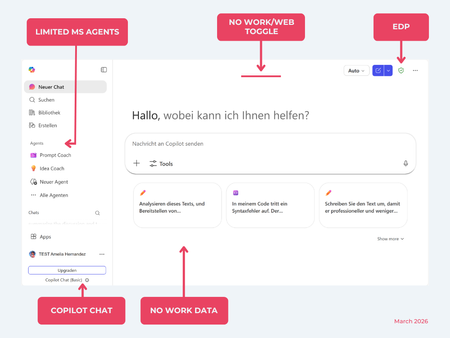
While their names sound similar at first glance, Microsoft 365 Copilot and Microsoft 365 Copilot Chat, they differ in several aspects. And more importantly: one is built on top of the other. What is Copilot Chat (Basic)? First things first. Microsoft 365 Copilot Chat is often simply called Copilot Chat. Copilot Chat (Basic) generates answers based on web content, while Microsoft 365 Copilot (Premium) is also grounded on users' data, like emails, meetings, files, and more. Since early 2025, Microsoft 365 Copilot Chat has been available to all users in organizations, becoming the entry point to AI assistance for many organizations. Copilot Chat (Basic) is the foundational Copilot experience available at no extra cost for everyone with an eligible Microsoft 365 plan, including: Microsoft 365 E3 / E5 Microsoft 365 A3 / A5 Microsoft 365 Business Standard & Business Premium Copilot Chat (Basic) is secured, compliant, and it does not required the full Copilot add-on license. Copilot Chat (Basic) is able to ground responses on: Public web content. Content explicitly shared or work data manually uploaded to the chat by the user. On-screen content or content displayed on-screen in apps like Outlook, Word, Excel, PowerPoint, and OneNote. When it comes to agents, Copilot Chat (Basic) offers these features: You can create your own declarative agents grounded on public web content with Agent Builder. You can use agents built by your org grounded on organizational data with the pay-as-you-go method. There are Microsoft prebuilt agents available like Prompt Coach, however Microsoft premium prebuilt agents like Researcher or Analyst are not included. The screenshot below shows how Copilot Chat looks and highlights its main capabilities. Note the Upgrade button, meaning this is not Microsoft 365 Copilot, but the Copilot Chat (Basic) experience. Note that EDP (Enterprise Data Protection) is available in Copilot Chat (Basic). What is Microsoft 365 Copilot (Premium)? Microsoft 365 Copilot (Premium) is a paid add-on license that builds on top of Copilot Chat and unlocks Copilot's full power. It is available for selected Microsoft 365 plans, including: Microsoft 365 E3 / E5 Microsoft 365 A3 / A5 Microsoft 365 Business Standard & Business Premium With a Microsoft 365 Copilot license, users get everything Copilot Chat (Basic) offers, plus much more: Data grounding: Microsoft 365 Copilot (Premium) includes Copilot Chat grounded on web and/or on user's Microsoft 365 data like emails, meetings, chats, and documents. Office apps: It integrates deeply into Microsoft 365 apps like Outlook, Teams, Word, Excel, and more. The integration includes features like Edit with Copilot allowing Copilot to adjust live your documents or email based on your prompts. Custom agents: It brings the capability to create your own declarative agents grounded in organizational data and/or web data. You can create agent either using Agent Builder or Copilot Studio. MS prebuilt agents: Premium prebuilt agents like Researcher and Analyst are included in Microsoft 365 Copilot (Premium). The screenshot below shows the Copilot chat experience for users who have a Microsoft 365 Copilot license. Note that EDP or Enterprise Data Protection also applies here How can I access Microsoft 365 Copilot Chat? Today, Copilot Chat is accessible via https://m365.cloud.microsoft or https://copilot.cloud.microsoft using your Entra ID (work or school account). One important difference in day-to-day experience: Users with a Microsoft 365 Copilot license typically see Copilot prominently surfaced across Microsoft 365 apps. Users with Copilot Chat only may not see it pinned by default on the Microsoft 365 home page. To improve discoverability, Microsoft 365 Copilot administrators can pin Copilot Chat via the Microsoft 365 admin center, ensuring that users can easily access it without friction. Especially convenient is that if you use the M365 Copilot Chat app on Windows, you can open Copilot using the keyboard shortcut Ctrl + C. What’s the difference? The differences between Copilot Chat and Microsoft 365 Copilot mainly come down to: Licensing Data grounding (web-only vs. personal work data) Integration depth within Microsoft 365 apps I’ve listed the key differences in the comparison below. 👇Solved350Views3likes12CommentsBuild a Fully Offline AI App with Foundry Local and CAG
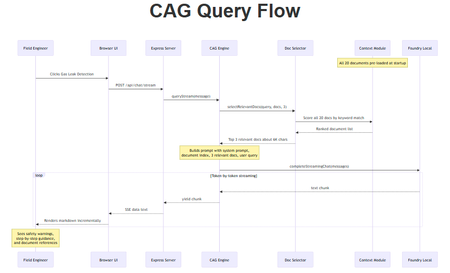
A hands-on guide to building an on-device AI support agent using Context-Augmented Generation, JavaScript, and Foundry Local. You have probably heard the AI pitch: "just call our API." But what happens when your application needs to work without an internet connection? Perhaps your users are field engineers standing next to a pipeline in the middle of nowhere, or your organisation has strict data privacy requirements, or you simply want to build something that works without a cloud bill. This post walks you through how to build a fully offline, on-device AI application using Foundry Local and a pattern called Context-Augmented Generation (CAG). By the end, you will have a clear understanding of what CAG is, how it compares to RAG, and the practical steps to build your own solution. The finished application: a browser-based AI support agent that runs entirely on your machine. What Is Context-Augmented Generation? Context-Augmented Generation (CAG) is a pattern for making AI models useful with your own domain-specific content. Instead of hoping the model "knows" the answer from its training data, you pre-load your entire knowledge base into the model's context window at startup. Every query the model handles has access to all of your documents, all of the time. The flow is straightforward: Load your documents into memory when the application starts. Inject the most relevant documents into the prompt alongside the user's question. Generate a response grounded in your content. There is no retrieval pipeline, no vector database, and no embedding model. Your documents are read from disc, held in memory, and selected per query using simple keyword scoring. The model generates answers grounded in your content rather than relying on what it learnt during training. CAG vs RAG: Understanding the Trade-offs If you have explored AI application patterns before, you have likely encountered Retrieval-Augmented Generation (RAG). Both CAG and RAG solve the same core problem: grounding an AI model's answers in your own content. They take different approaches, and each has genuine strengths and limitations. CAG (Context-Augmented Generation) How it works: All documents are loaded at startup. The most relevant ones are selected per query using keyword scoring and injected into the prompt. Strengths: Drastically simpler architecture with no vector database, no embeddings, and no retrieval pipeline Works fully offline with no external services Minimal dependencies (just two npm packages in this sample) Near-instant document selection with no embedding latency Easy to set up, debug, and reason about Limitations: Constrained by the model's context window size Best suited to small, curated document sets (tens of documents, not thousands) Keyword scoring is less precise than semantic similarity for ambiguous queries Adding documents requires an application restart RAG (Retrieval-Augmented Generation) How it works: Documents are chunked, embedded into vectors, and stored in a database. At query time, the most semantically similar chunks are retrieved and injected into the prompt. Strengths: Scales to thousands or millions of documents Semantic search finds relevant content even when the user's wording differs from the source material Documents can be added or updated dynamically without restarting Fine-grained retrieval (chunk-level) can be more token-efficient for large collections Limitations: More complex architecture: requires an embedding model, a vector database, and a chunking strategy Retrieval quality depends heavily on chunking, embedding model choice, and tuning Additional latency from the embedding and search steps More dependencies and infrastructure to manage Want to compare these patterns hands-on? There is a RAG-based implementation of the same gas field scenario using vector search and embeddings. Clone both repositories, run them side by side, and see how the architectures differ in practice. When Should You Choose Which? Consideration Choose CAG Choose RAG Document count Tens of documents Hundreds or thousands Offline requirement Essential Optional (can run locally too) Setup complexity Minimal Moderate to high Document updates Infrequent (restart to reload) Frequent or dynamic Query precision Good for keyword-matchable content Better for semantically diverse queries Infrastructure None beyond the runtime Vector database, embedding model For the sample application in this post (20 gas engineering procedure documents on a local machine), CAG is the clear winner. If your use case grows to hundreds of documents or requires real-time ingestion, RAG becomes the better choice. Both patterns can run offline using Foundry Local. Foundry Local: Your On-Device AI Runtime Foundry Local is a lightweight runtime from Microsoft that downloads, manages, and serves language models entirely on your device. No cloud account, no API keys, no outbound network calls (after the initial model download). In this sample, your application is responsible for deciding which model to use, and it does that through the foundry-local-sdk . The app creates a FoundryLocalManager , asks the SDK for the local model catalogue, and then runs a small selection policy from src/modelSelector.js . That policy looks at the machine's available RAM, filters out models that are too large, ranks the remaining chat models by preference, and then returns the best fit for that device. Why does it work this way? Because shipping one fixed model would either exclude lower-spec machines or underuse more capable ones. A 14B model may be perfectly reasonable on a 32 GB workstation, but the same choice would be slow or unusable on an 8 GB laptop. By selecting at runtime, the same codebase can run across a wider range of developer machines without manual tuning. What makes it particularly useful for developers: No GPU required — runs on CPU or NPU, making it accessible on standard laptops and desktops Native SDK bindings — in-process inference via the foundry-local-sdk npm package, with no HTTP round-trips to a local server Automatic model management — downloads, caches, and loads models automatically Dynamic model selection — the SDK can evaluate your device's available RAM and pick the best model from the catalogue Real-time progress callbacks — ideal for building loading UIs that show download and initialisation progress The integration code is refreshingly minimal. Here is the core pattern: import { FoundryLocalManager } from "foundry-local-sdk"; // Create a manager and get the model catalogue const manager = FoundryLocalManager.create({ appName: "my-app" }); // Auto-select the best model for this device based on available RAM const models = await manager.catalog.getModels(); const model = selectBestModel(models); // Download if not cached, then load into memory if (!model.isCached) { await model.download((progress) => { console.log(`Download: ${progress.toFixed(0)}%`); }); } await model.load(); // Create a chat client for direct in-process inference const chatClient = model.createChatClient(); const response = await chatClient.completeChat([ { role: "system", content: "You are a helpful assistant." }, { role: "user", content: "How do I detect a gas leak?" } ]); That is it. No server configuration, no authentication tokens, no cloud provisioning. The model runs in the same process as your application. The download step matters for a simple reason: offline inference only works once the model files exist locally. The SDK checks whether the chosen model is already cached on the machine. If it is not, the application asks Foundry Local to download it once, store it locally, and then load it into memory. After that first run, the cached model can be reused, which is why subsequent launches are much faster and can operate without any network dependency. Put another way, there are two cooperating pieces here. Your application chooses which model is appropriate for the device and the scenario. Foundry Local and its SDK handle the mechanics of making that model available locally, caching it, loading it, and exposing a chat client for inference. That separation keeps the application logic clear whilst letting the runtime handle the heavy lifting. The Technology Stack The sample application is deliberately simple. No frameworks, no build steps, no Docker: Layer Technology Purpose AI Model Foundry Local + auto-selected model Runs locally via native SDK bindings; best model chosen for your device Back end Node.js + Express Lightweight HTTP server, everyone knows it Context Markdown files pre-loaded at startup No vector database, no embeddings, no retrieval step Front end Single HTML file with inline CSS No build step, mobile-responsive, field-ready The total dependency footprint is two npm packages: express and foundry-local-sdk . Architecture Overview The four-layer architecture, all running on a single machine. The system has four layers, all running in a single process on your device: Client layer: a single HTML file served by Express, with quick-action buttons and a responsive chat interface Server layer: Express.js starts immediately and serves the UI plus an SSE status endpoint; API routes handle chat (streaming and non-streaming), context listing, and health checks CAG engine: loads all domain documents at startup, selects the most relevant ones per query using keyword scoring, and injects them into the prompt AI layer: Foundry Local runs the auto-selected model on CPU/NPU via native SDK bindings (in-process inference, no HTTP round-trips) Building the Solution Step by Step Prerequisites You need two things installed on your machine: Node.js 20 or later: download from nodejs.org Foundry Local: Microsoft's on-device AI runtime: winget install Microsoft.FoundryLocal Foundry Local will automatically select and download the best model for your device the first time you run the application. You can override this by setting the FOUNDRY_MODEL environment variable to a specific model alias. Getting the Code Running # Clone the repository git clone https://github.com/leestott/local-cag.git cd local-cag # Install dependencies npm install # Start the server npm start Open http://127.0.0.1:3000 in your browser. You will see a loading overlay with a progress bar whilst the model downloads (first run only) and loads into memory. Once the model is ready, the overlay fades away and you can start chatting. Desktop view Mobile view How the CAG Pipeline Works Let us trace what happens when a user asks: "How do I detect a gas leak?" The query flow from browser to model and back. 1 Server starts and loads documents When you run npm start , the Express server starts on port 3000. All .md files in the docs/ folder are read, parsed (with optional YAML front-matter for title, category, and ID), and grouped by category. A document index is built listing all available topics. 2 Model is selected and loaded The model selector evaluates your system's available RAM and picks the best model from the Foundry Local catalogue. If the model is not already cached, it downloads it (with progress streamed to the browser via SSE). The model is then loaded into memory for in-process inference. 3 User sends a question The question arrives at the Express server. The chat engine selects the top 3 most relevant documents using keyword scoring. 4 Prompt is constructed The engine builds a messages array containing: the system prompt (with safety-first instructions), the document index (so the model knows all available topics), the 3 selected documents (approximately 6,000 characters), the conversation history, and the user's question. 5 Model generates a grounded response The prompt is sent to the locally loaded model via the Foundry Local SDK's native bindings. The response streams back token by token through Server-Sent Events to the browser. A response with safety warnings and step-by-step guidance The sources panel shows which documents were used Key Code Walkthrough Loading Documents (the Context Module) The context module reads all markdown files from the docs/ folder at startup. Each document can have optional YAML front-matter for metadata: // src/context.js export function loadDocuments() { const files = fs.readdirSync(config.docsDir) .filter(f => f.endsWith(".md")) .sort(); const docs = []; for (const file of files) { const raw = fs.readFileSync(path.join(config.docsDir, file), "utf-8"); const { meta, body } = parseFrontMatter(raw); docs.push({ id: meta.id || path.basename(file, ".md"), title: meta.title || file, category: meta.category || "General", content: body.trim(), }); } return docs; } There is no chunking, no vector computation, and no database. The documents are held in memory as plain text. Dynamic Model Selection Rather than hard-coding a model, the application evaluates your system at runtime: // src/modelSelector.js const totalRamMb = os.totalmem() / (1024 * 1024); const budgetMb = totalRamMb * 0.6; // Use up to 60% of system RAM // Filter to models that fit, rank by quality, boost cached models const candidates = allModels.filter(m => m.task === "chat-completion" && m.fileSizeMb <= budgetMb ); // Returns the best model: e.g. phi-4 on a 32 GB machine, // or phi-3.5-mini on a laptop with 8 GB RAM This means the same application runs on a powerful workstation (selecting a 14B parameter model) or a constrained laptop (selecting a 3.8B model), with no code changes required. This is worth calling out because it is one of the most practical parts of the sample. Developers do not have to decide up front which single model every user should run. The application makes that decision at startup based on the hardware budget you set, then asks Foundry Local to fetch the model if it is missing. The result is a smoother first-run experience and fewer support headaches when the same app is used on mixed hardware. The System Prompt For safety-critical domains, the system prompt is engineered to prioritise safety, prevent hallucination, and enforce structured responses: // src/prompts.js export const SYSTEM_PROMPT = `You are a local, offline support agent for gas field inspection and maintenance engineers. Behaviour Rules: - Always prioritise safety. If a procedure involves risk, explicitly call it out. - Do not hallucinate procedures, measurements, or tolerances. - If the answer is not in the provided context, say: "This information is not available in the local knowledge base." Response Format: - Summary (1-2 lines) - Safety Warnings (if applicable) - Step-by-step Guidance - Reference (document name + section)`; This pattern is transferable to any safety-critical domain: medical devices, electrical work, aviation maintenance, or chemical handling. Adapting This for Your Own Domain The sample project is designed to be forked and adapted. Here is how to make it yours in three steps: 1. Replace the documents Delete the gas engineering documents in docs/ and add your own markdown files. The context module handles any markdown content with optional YAML front-matter: --- title: Troubleshooting Widget Errors category: Support id: KB-001 --- # Troubleshooting Widget Errors ...your content here... 2. Edit the system prompt Open src/prompts.js and rewrite the system prompt for your domain. Keep the structure (summary, safety, steps, reference) and update the language to match your users' expectations. 3. Override the model (optional) By default the application auto-selects the best model. To force a specific model: # See available models foundry model list # Force a smaller, faster model FOUNDRY_MODEL=phi-3.5-mini npm start # Or a larger, higher-quality model FOUNDRY_MODEL=phi-4 npm start Smaller models give faster responses on constrained devices. Larger models give better quality. The auto-selector picks the largest model that fits within 60% of your system RAM. Building a Field-Ready UI The front end is a single HTML file with inline CSS. No React, no build tooling, no bundler. This keeps the project accessible to beginners and easy to deploy. Design decisions that matter for field use: Dark, high-contrast theme with 18px base font size for readability in bright sunlight Large touch targets (minimum 48px) for operation with gloves or PPE Quick-action buttons for common questions, so engineers do not need to type on a phone Responsive layout that works from 320px to 1920px+ screen widths Streaming responses via SSE, so the user sees tokens arriving in real time The mobile chat experience, optimised for field use. Visual Startup Progress with SSE A standout feature of this application is the loading experience. When the user opens the browser, they see a progress overlay showing exactly what the application is doing: Loading domain documents Initialising the Foundry Local SDK Selecting the best model for the device Downloading the model (with a percentage progress bar, first run only) Loading the model into memory This works because the Express server starts before the model finishes loading. The browser connects immediately and receives real-time status updates via Server-Sent Events. Chat endpoints return 503 whilst the model is loading, so the UI cannot send queries prematurely. // Server-side: broadcast status to all connected browsers function broadcastStatus(state) { initState = state; const payload = `data: ${JSON.stringify(state)}\n\n`; for (const client of statusClients) { client.write(payload); } } // During initialisation: broadcastStatus({ stage: "downloading", message: "Downloading phi-4...", progress: 42 }); This pattern is worth adopting in any application where model loading takes more than a few seconds. Users should never stare at a blank screen wondering whether something is broken. Testing The project includes unit tests using the built-in Node.js test runner, with no extra test framework needed: # Run all tests npm test Tests cover configuration, server endpoints, and document loading. Use them as a starting point when you adapt the project for your own domain. Ideas for Extending the Project Once you have the basics running, there are plenty of directions to explore: Conversation memory: persist chat history across sessions using local storage or a lightweight database Hybrid CAG + RAG: add a vector retrieval step for larger document collections that exceed the context window Multi-modal support: add image-based queries (photographing a fault code, for example) PWA packaging: make it installable as a standalone offline application on mobile devices Custom model fine-tuning: fine-tune a model on your domain data for even better answers Ready to Build Your Own? Clone the CAG sample, swap in your own documents, and have an offline AI agent running in minutes. Or compare it with the RAG approach to see which pattern suits your use case best. Get the CAG Sample Get the RAG Sample Summary Building a local AI application does not require a PhD in machine learning or a cloud budget. With Foundry Local, Node.js, and a set of domain documents, you can create a fully offline, mobile-responsive AI agent that answers questions grounded in your own content. The key takeaways: CAG is ideal for small, curated document sets where simplicity and offline capability matter most. No vector database, no embeddings, no retrieval pipeline. RAG scales further when you have hundreds or thousands of documents, or need semantic search for ambiguous queries. See the local-rag sample to compare. Foundry Local makes on-device AI accessible: native SDK bindings, in-process inference, automatic model selection, and no GPU required. The architecture is transferable. Replace the gas engineering documents with your own content, update the system prompt, and you have a domain-specific AI agent for any field. Start simple, iterate outwards. Begin with CAG and a handful of documents. If your needs outgrow the context window, graduate to RAG. Both patterns can run entirely offline. Clone the repository, swap in your own documents, and start building. The best way to learn is to get your hands on the code. This project is open source under the MIT licence. It is a scenario sample for learning and experimentation, not production medical or safety advice. local-cag on GitHub · local-rag on GitHub · Foundry LocalAgentOps: The Missing Layer Between DevOps and AIOps
In the last decade, the way we build and operate software has transformed dramatically. DevOps broke down the walls between development and operations, enabling faster delivery, continuous integration, and scalable infrastructure. Then came AIOps, promising to harness artificial intelligence to monitor, analyze, and automate IT operations at scale. https://dellenny.com/agentops-the-missing-layer-between-devops-and-aiops/23Views0likes0CommentsCost Optimization for Copilot and AI Agents on Azure
Artificial Intelligence is no longer experimental it’s operational. Organizations are rapidly deploying copilots, AI agents, and generative AI solutions on Azure to drive productivity, automate workflows, and unlock insights. But there’s a reality that quickly follows every successful deployment: cost becomes a concern. https://dellenny.com/cost-optimization-for-copilot-and-ai-agents-on-azure/22Views0likes0CommentsInside Microsoft 365 Copilot: How It Actually Works
An architect’s perspective on grounding, orchestration, and the real engine behind AI productivity If you’ve used Microsoft 365 Copilot, you’ve probably had that moment: “How is this thing actually doing all of this?” It reads your emails, summarizes meetings, drafts documents, and somehow feels aware of your work context. But beneath the polished UX lies a system that’s far more structured—and deliberate—than a simple chatbot. https://dellenny.com/inside-microsoft-365-copilot-how-it-actually-works/28Views1like0CommentsCopilot Studio vs Azure AI Agents: What Should You Use?
As a solution architect, I’ve seen a recurring pattern in enterprise AI discussions: teams jump into building “AI agents” without first deciding what kind of platform they actually need. That’s where confusion often begins especially when comparing Microsoft Copilot Studio and Azure-based custom AI agents (via Azure AI Foundry / Azure AI Studio). https://dellenny.com/copilot-studio-vs-azure-ai-agents-what-should-you-use/26Views0likes0CommentsBuilding Your First Local RAG Application with Foundry Local
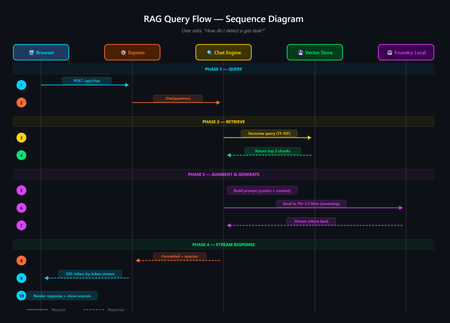
A developer's guide to building an offline, mobile-responsive AI support agent using Retrieval-Augmented Generation, the Foundry Local SDK, and JavaScript. Imagine you are a gas field engineer standing beside a pipeline in a remote location. There is no Wi-Fi, no mobile signal, and you need a safety procedure right now. What do you do? This is the exact problem that inspired this project: a fully offline RAG-powered support agent that runs entirely on your machine. No cloud. No API keys. No outbound network calls. Just a local language model, a local vector store, and your own documents, all accessible from a browser on any device. In this post, you will learn how it works, how to build your own, and the key architectural decisions behind it. If you have ever wanted to build an AI application that runs locally and answers questions grounded in your own data, this is the place to start. The finished application: a browser-based AI support agent that runs entirely on your machine. What Is Retrieval-Augmented Generation? Retrieval-Augmented Generation (RAG) is a pattern that makes AI models genuinely useful for domain-specific tasks. Rather than hoping the model "knows" the answer from its training data, you: Retrieve relevant chunks from your own documents using a vector store Augment the model's prompt with those chunks as context Generate a response grounded in your actual data The result is fewer hallucinations, traceable answers with source attribution, and an AI that works with your content rather than relying on general knowledge. If you are building internal tools, customer support bots, field manuals, or knowledge bases, RAG is the pattern you want. RAG vs CAG: Understanding the Trade-offs If you have explored AI application patterns before, you have likely encountered Context-Augmented Generation (CAG). Both RAG and CAG solve the same core problem: grounding an AI model's answers in your own content. They take different approaches, and each has genuine strengths and limitations. RAG (Retrieval-Augmented Generation) How it works: Documents are split into chunks, vectorised, and stored in a database. At query time, the most relevant chunks are retrieved and injected into the prompt. Strengths: Scales to thousands or millions of documents Fine-grained retrieval at chunk level with source attribution Documents can be added or updated dynamically without restarting Token-efficient: only relevant chunks are sent to the model Supports runtime document upload via the web UI Limitations: More complex architecture: requires a vector store and chunking strategy Retrieval quality depends on chunking parameters and scoring method May miss relevant content if the retrieval step does not surface it CAG (Context-Augmented Generation) How it works: All documents are loaded at startup. The most relevant ones are selected per query using keyword scoring and injected into the prompt. Strengths: Drastically simpler architecture with no vector database or embeddings All information is always available to the model Minimal dependencies and easy to set up Near-instant document selection Limitations: Constrained by the model's context window size Best suited to small, curated document sets (tens of documents) Adding documents requires an application restart Want to compare these patterns hands-on? There is a CAG-based implementation of the same gas field scenario using whole-document context injection. Clone both repositories, run them side by side, and see how the architectures differ in practice. When Should You Choose Which? Consideration Choose RAG Choose CAG Document count Hundreds or thousands Tens of documents Document updates Frequent or dynamic (runtime upload) Infrequent (restart to reload) Source attribution Per-chunk with relevance scores Per-document Setup complexity Moderate (ingestion step required) Minimal Query precision Better for large or diverse collections Good for keyword-matchable content Infrastructure SQLite vector store (single file) None beyond the runtime For the sample application in this post (20 gas engineering procedure documents with runtime upload), RAG is the clear winner. If your document set is small and static, CAG may be simpler. Both patterns run fully offline using Foundry Local. Foundry Local: Your On-Device AI Runtime Foundry Local is a lightweight runtime from Microsoft that downloads, manages, and serves language models entirely on your device. No cloud account, no API keys, no outbound network calls (after the initial model download). What makes it particularly useful for developers: No GPU required: runs on CPU or NPU, making it accessible on standard laptops and desktops Native SDK bindings: in-process inference via the foundry-local-sdk npm package, with no HTTP round-trips to a local server Automatic model management: downloads, caches, and loads models automatically Hardware-optimised variant selection: the SDK picks the best variant for your hardware (GPU, NPU, or CPU) Real-time progress callbacks: ideal for building loading UIs that show download and initialisation progress The integration code is refreshingly minimal: import { FoundryLocalManager } from "foundry-local-sdk"; // Create a manager and discover models via the catalogue const manager = FoundryLocalManager.create({ appName: "gas-field-local-rag" }); const model = await manager.catalog.getModel("phi-3.5-mini"); // Download if not cached, then load into memory if (!model.isCached) { await model.download((progress) => { console.log(`Download: ${Math.round(progress * 100)}%`); }); } await model.load(); // Create a chat client for direct in-process inference const chatClient = model.createChatClient(); const response = await chatClient.completeChat([ { role: "system", content: "You are a helpful assistant." }, { role: "user", content: "How do I detect a gas leak?" } ]); That is it. No server configuration, no authentication tokens, no cloud provisioning. The model runs in the same process as your application. The Technology Stack The sample application is deliberately simple. No frameworks, no build steps, no Docker: Layer Technology Purpose AI Model Foundry Local + Phi-3.5 Mini Runs locally via native SDK bindings, no GPU required Back end Node.js + Express Lightweight HTTP server, everyone knows it Vector Store SQLite (via better-sqlite3 ) Zero infrastructure, single file on disc Retrieval TF-IDF + cosine similarity No embedding model required, fully offline Front end Single HTML file with inline CSS No build step, mobile-responsive, field-ready The total dependency footprint is three npm packages: express , foundry-local-sdk , and better-sqlite3 . Architecture Overview The five-layer architecture, all running on a single machine. The system has five layers, all running on a single machine: Client layer: a single HTML file served by Express, with quick-action buttons and a responsive chat interface Server layer: Express.js starts immediately and serves the UI plus SSE status and chat endpoints RAG pipeline: the chat engine orchestrates retrieval and generation; the chunker handles TF-IDF vectorisation; the prompts module provides safety-first system instructions Data layer: SQLite stores document chunks and their TF-IDF vectors; documents live as .md files in the docs/ folder AI layer: Foundry Local runs Phi-3.5 Mini on CPU or NPU via native SDK bindings Building the Solution Step by Step Prerequisites You need two things installed on your machine: Node.js 20 or later: download from nodejs.org Foundry Local: Microsoft's on-device AI runtime: winget install Microsoft.FoundryLocal The SDK will automatically download the Phi-3.5 Mini model (approximately 2 GB) the first time you run the application. Getting the Code Running # Clone the repository git clone https://github.com/leestott/local-rag.git cd local-rag # Install dependencies npm install # Ingest the 20 gas engineering documents into the vector store npm run ingest # Start the server npm start Open http://127.0.0.1:3000 in your browser. You will see the status indicator whilst the model loads. Once the model is ready, the status changes to "Offline Ready" and you can start chatting. Desktop view Mobile view How the RAG Pipeline Works Let us trace what happens when a user asks: "How do I detect a gas leak?" The query flow from browser to model and back. 1 Documents are ingested and indexed When you run npm run ingest , every .md file in the docs/ folder is read, parsed (with optional YAML front-matter for title, category, and ID), split into overlapping chunks of approximately 200 tokens, and stored in SQLite with TF-IDF vectors. 2 Model is loaded via the SDK The Foundry Local SDK discovers the model in the local catalogue and loads it into memory. If the model is not already cached, it downloads it first (with progress streamed to the browser via SSE). 3 User sends a question The question arrives at the Express server. The chat engine converts it into a TF-IDF vector, uses an inverted index to find candidate chunks, and scores them using cosine similarity. The top 3 chunks are returned in under 1 ms. 4 Prompt is constructed The engine builds a messages array containing: the system prompt (with safety-first instructions), the retrieved chunks as context, the conversation history, and the user's question. 5 Model generates a grounded response The prompt is sent to the locally loaded model via the Foundry Local SDK's native chat client. The response streams back token by token through Server-Sent Events to the browser. Source references with relevance scores are included. A response with safety warnings and step-by-step guidance The sources panel shows which chunks were used and their relevance Key Code Walkthrough The Vector Store (TF-IDF + SQLite) The vector store uses SQLite to persist document chunks alongside their TF-IDF vectors. At query time, an inverted index finds candidate chunks that share terms with the query, then cosine similarity ranks them: // src/vectorStore.js search(query, topK = 5) { const queryTf = termFrequency(query); this._ensureCache(); // Build in-memory cache on first access // Use inverted index to find candidates sharing at least one term const candidateIndices = new Set(); for (const term of queryTf.keys()) { const indices = this._invertedIndex.get(term); if (indices) { for (const idx of indices) candidateIndices.add(idx); } } // Score only candidates, not all rows const scored = []; for (const idx of candidateIndices) { const row = this._rowCache[idx]; const score = cosineSimilarity(queryTf, row.tf); if (score > 0) scored.push({ ...row, score }); } scored.sort((a, b) => b.score - a.score); return scored.slice(0, topK); } The inverted index, in-memory row cache, and prepared SQL statements bring retrieval time to sub-millisecond for typical query loads. Why TF-IDF Instead of Embeddings? Most RAG tutorials use embedding models for retrieval. This project uses TF-IDF because: Fully offline: no embedding model to download or run Zero latency: vectorisation is instantaneous (it is just maths on word frequencies) Good enough: for 20 domain-specific documents, TF-IDF retrieves the right chunks reliably Transparent: you can inspect the vocabulary and weights, unlike neural embeddings For larger collections or when semantic similarity matters more than keyword overlap, you would swap in an embedding model. For this use case, TF-IDF keeps the stack simple and dependency-free. The System Prompt For safety-critical domains, the system prompt is engineered to prioritise safety, prevent hallucination, and enforce structured responses: // src/prompts.js export const SYSTEM_PROMPT = `You are a local, offline support agent for gas field inspection and maintenance engineers. Behaviour Rules: - Always prioritise safety. If a procedure involves risk, explicitly call it out. - Do not hallucinate procedures, measurements, or tolerances. - If the answer is not in the provided context, say: "This information is not available in the local knowledge base." Response Format: - Summary (1-2 lines) - Safety Warnings (if applicable) - Step-by-step Guidance - Reference (document name + section)`; This pattern is transferable to any safety-critical domain: medical devices, electrical work, aviation maintenance, or chemical handling. Runtime Document Upload Unlike the CAG approach, RAG supports adding documents without restarting the server. Click the upload button to add new .md or .txt files. They are chunked, vectorised, and indexed immediately. The upload modal with the complete list of indexed documents. Adapting This for Your Own Domain The sample project is designed to be forked and adapted. Here is how to make it yours in four steps: 1. Replace the documents Delete the gas engineering documents in docs/ and add your own markdown files. The ingestion pipeline handles any markdown content with optional YAML front-matter: --- title: Troubleshooting Widget Errors category: Support id: KB-001 --- # Troubleshooting Widget Errors ...your content here... 2. Edit the system prompt Open src/prompts.js and rewrite the system prompt for your domain. Keep the structure (summary, safety, steps, reference) and update the language to match your users' expectations. 3. Tune the retrieval In src/config.js : chunkSize: 200 : smaller chunks give more precise retrieval, less context per chunk chunkOverlap: 25 : prevents information falling between chunks topK: 3 : how many chunks to retrieve per query (more gives more context but slower generation) 4. Swap the model Change config.model in src/config.js to any model available in the Foundry Local catalogue. Smaller models give faster responses on constrained devices; larger models give better quality. Building a Field-Ready UI The front end is a single HTML file with inline CSS. No React, no build tooling, no bundler. This keeps the project accessible to beginners and easy to deploy. Design decisions that matter for field use: Dark, high-contrast theme with 18px base font size for readability in bright sunlight Large touch targets (minimum 44px) for operation with gloves or PPE Quick-action buttons that wrap on mobile so all options are visible without scrolling Responsive layout that works from 320px to 1920px+ screen widths Streaming responses via SSE, so the user sees tokens arriving in real time The mobile chat experience, optimised for field use. Testing The project includes unit tests using the built-in Node.js test runner, with no extra test framework needed: # Run all tests npm test Tests cover the chunker, vector store, configuration, and server endpoints. Use them as a starting point when you adapt the project for your own domain. Ideas for Extending the Project Once you have the basics running, there are plenty of directions to explore: Embedding-based retrieval: use a local embedding model for better semantic matching on diverse queries Conversation memory: persist chat history across sessions using local storage or a lightweight database Multi-modal support: add image-based queries (photographing a fault code, for example) PWA packaging: make it installable as a standalone offline application on mobile devices Hybrid retrieval: combine TF-IDF keyword search with semantic embeddings for best results Try the CAG approach: compare with the local-cag sample to see which pattern suits your use case Ready to Build Your Own? Clone the RAG sample, swap in your own documents, and have an offline AI agent running in minutes. Or compare it with the CAG approach to see which pattern suits your use case best. Get the RAG Sample Get the CAG Sample Summary Building a local RAG application does not require a PhD in machine learning or a cloud budget. With Foundry Local, Node.js, and SQLite, you can create a fully offline, mobile-responsive AI agent that answers questions grounded in your own documents. The key takeaways: RAG is ideal for scalable, dynamic document sets where you need fine-grained retrieval with source attribution. Documents can be added at runtime without restarting. CAG is simpler when you have a small, stable set of documents that fit in the context window. See the local-cag sample to compare. Foundry Local makes on-device AI accessible: native SDK bindings, in-process inference, automatic model selection, and no GPU required. TF-IDF + SQLite is a viable vector store for small-to-medium collections, with sub-millisecond retrieval thanks to inverted indexing and in-memory caching. Start simple, iterate outwards. Begin with RAG and a handful of documents. If your needs are simpler, try CAG. Both patterns run entirely offline. Clone the repository, swap in your own documents, and start building. The best way to learn is to get your hands on the code. This project is open source under the MIT licence. It is a scenario sample for learning and experimentation, not production medical or safety advice. local-rag on GitHub · local-cag on GitHub · Foundry LocalSharePoint List Agent with Microsoft 365 Copilot – Create Lists Instantly with Natural Language
🚀 New Video! Introducing the SharePoint List Agent powered by Microsoft 365 Copilot Microsoft continues to push boundaries with AI in the workplace, and the new SharePoint List Agent is one of the most exciting capabilities rolling out right now. Based on Message Center MC1208689 and Roadmap ID 534606, this feature brings a huge productivity boost: you can now create SharePoint lists simply by describing what you need in natural language — directly within Copilot experiences across Teams, Outlook, Word, and more. In my latest YouTube video, I walk through: ✨ What the SharePoint List Agent is and how it works ✨ How Copilot turns structured content (orders, invoices, expenses, projects…) into lists in one click ✨ The updated GA rollout timeline for February 2026 ✨ Admin controls and licensing requirements ✨ Real scenarios where this feature saves time and reduces manual work This is a significant step forward for organizations using Microsoft 365 Copilot — making list creation simpler, faster, and more intuitive than ever. 🎥 Watch the full breakdown here: 👉 https://youtu.be/uypMK-jLw_0 If you work with SharePoint, Copilot, or Microsoft 365 in general, this is definitely a feature you’ll want to explore. Let me know what you think in the comments! 👇 #Microsoft365 #Copilot #SharePoint #M365Updates #AIProductivity #GiulianoDeLuca #SharePointListAgent #MicrosoftAdmins243Views0likes1CommentComplete Guide to Deploying OpenClaw on Azure Windows 11 Virtual Machine
1. Introduction to OpenClaw OpenClaw is an open-source AI personal assistant platform that runs on your own devices and executes real-world tasks. Unlike traditional cloud-based AI assistants, OpenClaw emphasizes local deployment and privacy protection, giving you complete control over your data. Key Features of OpenClaw Cross-Platform Support: Runs on Windows, macOS, Linux, and other operating systems Multi-Channel Integration: Interact with AI through messaging platforms like WhatsApp, Telegram, and Discord Task Automation: Execute file operations, browser control, system commands, and more Persistent Memory: AI remembers your preferences and contextual information Flexible AI Backends: Supports multiple large language models including Anthropic Claude and OpenAI GPT OpenClaw is built on Node.js and can be quickly installed and deployed via npm. 2. Security Advantages of Running OpenClaw on Azure VM Deploying OpenClaw on an Azure virtual machine instead of your personal computer offers significant security benefits: 1. Environment Isolation Azure VMs provide a completely isolated runtime environment. Even if the AI agent exhibits abnormal behavior or is maliciously exploited, it won't affect your personal computer or local data. This isolation mechanism forms the foundation of a zero-trust security architecture. 2. Network Security Controls Through Azure Network Security Groups (NSGs), you can precisely control which IP addresses can access your virtual machine. The RDP rules configured in the deployment script allow you to securely connect to your Windows 11 VM via Remote Desktop while enabling further restrictions on access sources. 3. Data Persistence and Backup Azure VM managed disks support automatic snapshots and backups. Even if the virtual machine encounters issues, your OpenClaw configuration and data remain safe. 4. Elastic Resource Management You can adjust VM specifications (memory, CPU) at any time based on actual needs, or stop the VM when not in use to save costs, maintaining maximum flexibility. 5. Enterprise-Grade Authentication Azure supports integration with Azure Active Directory (Entra ID) for identity verification, allowing you to assign different access permissions to team members for granular access control. 6. Audit and Compliance Azure provides detailed activity logs and audit trails, making it easy to trace any suspicious activity and meet enterprise compliance requirements. 3. Deployment Steps Explained This deployment script uses Azure CLI to automate the installation of OpenClaw and its dependencies on a Windows 11 virtual machine. Here are the detailed execution steps: Prerequisites Before running the script, ensure you have: Install Azure CLI # Windows users can download the MSI installer https://aka.ms/installazurecliwindows # macOS users brew install azure-cli # Linux users curl -sL https://aka.ms/InstallAzureCLIDeb | sudo bash 2. Log in to Azure Account az login 3. Prepare Deployment Script Save the provided deploy-windows11-vm.sh script locally and grant execute permissions: chmod +x deploy-windows11-vm.sh Step 1: Configure Deployment Parameters The script begins by defining key configuration variables that you can modify as needed: RESOURCE_GROUP="Your Azure Resource Group Name" # Resource group name VM_NAME="win11-openclaw-vm" # Virtual machine name LOCATION="Your Azure Regison Name" # Azure region ADMIN_USERNAME="Your Azure VM Administrator Name" # Administrator username ADMIN_PASSWORD="our Azure VM Administrator Password" # Administrator password (change to a strong password) VM_SIZE="Your Azure VM Size" # VM size (4GB memory) Security Recommendations: Always change ADMIN_PASSWORD to your own strong password Passwords should contain uppercase and lowercase letters, numbers, and special characters Never commit scripts containing real passwords to code repositories Step 2: Check and Create Resource Group The script first checks if the specified resource group exists, and creates it automatically if it doesn't: echo "Checking resource group $RESOURCE_GROUP..." az group show --name $RESOURCE_GROUP &> /dev/null if [ $? -ne 0 ]; then echo "Creating resource group $RESOURCE_GROUP..." az group create --name $RESOURCE_GROUP --location $LOCATION fi A resource group is a logical container in Azure used to organize and manage related resources. All associated resources (VMs, networks, storage, etc.) will be created within this resource group. Step 3: Create Windows 11 Virtual Machine This is the core step, using the az vm create command to create a Windows 11 Pro virtual machine: az vm create \ --resource-group $RESOURCE_GROUP \ --name $VM_NAME \ --image MicrosoftWindowsDesktop:windows-11:win11-24h2-pro:latest \ --size $VM_SIZE \ --admin-username $ADMIN_USERNAME \ --admin-password $ADMIN_PASSWORD \ --public-ip-sku Standard \ --nsg-rule RDP Parameter Explanations: --image: Uses the latest Windows 11 24H2 Professional edition image --size: Standard_B2s provides 2 vCPUs and 4GB memory, suitable for running OpenClaw --public-ip-sku Standard: Assigns a standard public IP --nsg-rule RDP: Automatically creates network security group rules allowing RDP (port 3389) inbound traffic Step 4: Retrieve Virtual Machine Public IP After VM creation completes, the script retrieves its public IP address: PUBLIC_IP=$(az vm show -d -g $RESOURCE_GROUP -n $VM_NAME --query publicIps -o tsv) echo "VM Public IP: $PUBLIC_IP" This IP address will be used for subsequent RDP remote connections. Step 5: Install Chocolatey Package Manager Using az vm run-command to execute PowerShell scripts inside the VM, first installing Chocolatey: az vm run-command invoke -g $RESOURCE_GROUP -n $VM_NAME --command-id RunPowerShellScript \ --scripts "Set-ExecutionPolicy Bypass -Scope Process -Force; [System.Net.ServicePointManager]::SecurityProtocol = [System.Net.ServicePointManager]::SecurityProtocol -bor 3072; iex ((New-Object System.Net.WebClient).DownloadString( 'https://community.chocolatey.org/install.ps1'))" Chocolatey is a package manager for Windows, similar to apt or yum on Linux, simplifying subsequent software installations. Step 6: Install Git Git is a dependency for many npm packages, especially those that need to download source code from GitHub for compilation: az vm run-command invoke -g $RESOURCE_GROUP -n $VM_NAME --command-id RunPowerShellScript \ --scripts "C:\ProgramData\chocolatey\bin\choco.exe install git -y" Step 7: Install CMake and Visual Studio Build Tools Some of OpenClaw's native modules require compilation, necessitating the installation of C++ build toolchain: az vm run-command invoke -g $RESOURCE_GROUP -n $VM_NAME --command-id RunPowerShellScript \ --scripts "C:\ProgramData\chocolatey\bin\choco.exe install cmake visualstudio2022buildtools visualstudio2022-workload-vctools -y" Component Descriptions: cmake: Cross-platform build system visualstudio2022buildtools: VS 2022 Build Tools visualstudio2022-workload-vctools: C++ development toolchain Step 8: Install Node.js LTS Install the Node.js Long Term Support version, which is the core runtime environment for OpenClaw: az vm run-command invoke -g $RESOURCE_GROUP -n $VM_NAME --command-id RunPowerShellScript \ --scripts "$env:Path = [System.Environment]::GetEnvironmentVariable('Path','Machine') + ';' + [System.Environment]::GetEnvironmentVariable('Path','User'); C:\ProgramData\chocolatey\bin\choco.exe install nodejs-lts -y" The script refreshes environment variables first to ensure Chocolatey is in the PATH, then installs Node.js LTS. Step 9: Globally Install OpenClaw Use npm to globally install OpenClaw: az vm run-command invoke -g $RESOURCE_GROUP -n $VM_NAME --command-id RunPowerShellScript \ --scripts "$env:Path = [System.Environment]::GetEnvironmentVariable('Path','Machine') + ';' + [System.Environment]::GetEnvironmentVariable('Path','User'); npm install -g openclaw" Global installation makes the openclaw command available from anywhere in the system. Step 10: Configure Environment Variables Add Node.js and npm global paths to the system PATH environment variable: az vm run-command invoke -g $RESOURCE_GROUP -n $VM_NAME --command-id RunPowerShellScript \ --scripts " $npmGlobalPath = 'C:\Program Files\nodejs'; $npmUserPath = [System.Environment]::GetFolderPath('ApplicationData') + '\npm'; $currentPath = [System.Environment]::GetEnvironmentVariable('Path', 'Machine'); if ($currentPath -notlike \"*$npmGlobalPath*\") { $newPath = $currentPath + ';' + $npmGlobalPath; [System.Environment]::SetEnvironmentVariable('Path', $newPath, 'Machine'); Write-Host 'Added Node.js path to system PATH'; } if ($currentPath -notlike \"*$npmUserPath*\") { $newPath = [System.Environment]::GetEnvironmentVariable('Path', 'Machine') + ';' + $npmUserPath; [System.Environment]::SetEnvironmentVariable('Path', $newPath, 'Machine'); Write-Host 'Added npm global path to system PATH'; } Write-Host 'Environment variables updated successfully!'; " This ensures that node, npm, and openclaw commands can be used directly even in new terminal sessions. Step 11: Verify Installation The script finally verifies that all software is correctly installed: az vm run-command invoke -g $RESOURCE_GROUP -n $VM_NAME --command-id RunPowerShellScript \ --scripts "$env:Path = [System.Environment]::GetEnvironmentVariable('Path','Machine') + ';' + [System.Environment]::GetEnvironmentVariable('Path','User'); Write-Host 'Node.js version:'; node --version; Write-Host 'npm version:'; npm --version; Write-Host 'openclaw:'; npm list -g openclaw" Successful output should look similar to: Node.js version: v20.x.x npm version: 10.x.x openclaw: openclaw@x.x.x Step 12: Connect to Virtual Machine After deployment completes, the script outputs connection information: ============================================ Deployment completed! ============================================ Resource Group: Your Azure Resource Group Name VM Name: win11-openclaw-vm Public IP: xx.xx.xx.xx Admin Username: Your Administrator UserName VM Size: Your VM Size Connect via RDP: mstsc /v:xx.xx.xx.xx ============================================ Connection Methods: Windows Users: Press Win + R to open Run dialog Enter mstsc /v:public_ip and press Enter Log in using the username and password set in the script macOS Users: Download "Windows App" from the App Store Add PC connection with the public IP Log in using the username and password set in the script Linux Users: # Use Remmina or xfreerdp xfreerdp /u:username /v:public_ip Step 13: Initialize OpenClaw After connecting to the VM, run the following in PowerShell or Command Prompt # Initialize OpenClaw openclaw onboard # Configure AI model API key # Edit configuration file: C:\Users\username\.openclaw\openclaw.json notepad $env:USERPROFILE\.openclaw\openclaw.json Add your AI API key in the configuration file: { "agents": { "defaults": { "model": "Your Model Name", "apiKey": "your-api-key-here" } } } Step 14: Start OpenClaw # Start Gateway service openclaw gateway # In another terminal, connect messaging channels (e.g., WhatsApp) openclaw channels login Follow the prompts to scan the QR code and connect OpenClaw to your messaging app. 4. Summary Through this guide, we've successfully implemented the complete process of automatically deploying OpenClaw on an Azure Windows 11 virtual machine. The entire deployment process is highly automated, completing everything from VM creation to installing all dependencies and OpenClaw itself through a single script. Key Takeaways Automation Benefits: Using az vm run-command allows executing configuration scripts immediately after VM creation without manual RDP login Dependency Management: Chocolatey simplifies the Windows package installation workflow Environment Isolation: Running AI agents on cloud VMs protects local computers and data Scalability: Scripted deployment facilitates replication and team collaboration, easily deploying multiple instances Cost Optimization Tips Standard_B2s VMs cost approximately $0.05/hour (~$37/month) on pay-as-you-go pricing When not in use, stop the VM to only pay for storage costs Consider Azure Reserved Instances to save up to 72% Security Hardening Recommendations Change Default Port: Modify RDP port from 3389 to a custom port Enable JIT Access: Use Azure Security Center's just-in-time access feature Configure Firewall Rules: Only allow specific IP addresses to access Regular System Updates: Enable automatic Windows Updates Use Azure Key Vault: Store API keys in Key Vault instead of configuration files 5. Additional Resources Official Documentation OpenClaw Website: https://openclaw.ai OpenClaw GitHub: https://github.com/openclaw/openclaw OpenClaw Documentation: https://docs.openclaw.ai Azure CLI Documentation: https://docs.microsoft.com/cli/azure/ Azure Resources Azure VM Pricing Calculator: https://azure.microsoft.com/pricing/calculator/ Azure Free Account: https://azure.microsoft.com/free/ (new users receive $200 credit) Azure Security Center: https://azure.microsoft.com/services/security-center/ Azure Key Vault: https://azure.microsoft.com/services/key-vault/13KViews4likes4Comments