spark
31 TopicsOverload to Optimal: Tuning Microsoft Fabric Capacity
Co-Authored by: Daya Ram, Sr. Cloud Solutions Architect and Rafia Aqil, Could Solutions Architect Optimizing Microsoft Fabric capacity is both a performance and cost exercise. By diagnosing workloads, tuning cluster and Spark settings, and applying data best practices, teams can reduce run times, avoid throttling, and lower total cost of ownership—without compromising SLAs. Use Fabric’s built-in observability (Monitoring Hub, Capacity Metrics, Spark UI) to identify hot spots and then apply cluster- and data-level remediations. Capacity Planning For capacity planning and sizing guidance, see Plan your capacity size. Selecting the wrong SKU can lead to two major issues: Over-provisioning: Paying for resources you don’t need. Under-provisioning: Struggling with performance bottlenecks and failed jobs. To simplify this process, Microsoft provides the Fabric SKU Estimator, a powerful tool designed to help organizations accurately size their capacity based on real-world usage patterns. Run the SKU Estimator before onboarding new workloads or scaling existing ones. Combine its recommendations with monitoring tools like Fabric Capacity Metrics to validate performance and adjust as needed. Options to Diagnose Capacity Issues 1) Monitoring Hub — Start with the Story of the Run What to use it for: Browse Spark activity across applications (notebooks, Spark Job Definitions, and pipelines). Quickly surface long‑running or anomalous runs; view read/write bytes, idle time, core allocation, and utilization. How to use it From the Fabric portal, open Monitoring (Monitor Hub). Select a Notebook or Spark Job Definition to run and choose Historical Runs. Inspect the Run Duration chart; click on a run to see read/write bytes, idle time, core allocation, overall utilization, and other Spark metrics. What to look for Use the guide: application detail monitoring to review and monitor your application. 2) Capacity Metrics App — Measure the Whole Environment What to use it for: Review capacity-wide utilization and system events (overloads, queueing); compare utilization across time windows and identify sustained peaks. How to use it Open the Microsoft Fabric Capacity Metrics app for your capacity. Review the Compute page (ribbon charts, utilization trends) and the System events tab to see overload or throttling windows. Use the Timepoint page to drill into a 30‑second interval and see which operations consumed the most compute. What to look for Use the Troubleshooting guide: Monitor and identify capacity usage to pinpoint top CU‑consuming items. 3) Spark UI — Diagnose at Deeper Level Why it matters: Spark UI exposes skew, shuffle, memory pressure, and long stages. Use it after Monitoring Hub/Capacity Metrics to pinpoint the problematic job. Key tabs to inspect Stages: uneven task durations (data skew), heavy shuffle read/write, large input/output volumes. Executors: storage memory, task time (GC), shuffle metrics. High GC or frequent spills indicate memory tuning is needed. Storage: which RDDs/cached tables occupy memory; any disk spill. Jobs: long‑running jobs and gaps in the timeline (driver compilation, non‑Spark code, driver overload). What to look for Set via environment Spark properties or session config. Data skew, Memory usage, High/Low Shuffles: Adjust Apache Spark settings: i.e. spark.ms.autotune.enabled, spark.task.cpus and spark.sql.shuffle.partitions. Remediation and Optimization Suggestions A) Cluster & Workspace Settings Runtime & Native Execution Engine (NEE) Use Fabric Runtime 1.3 (Spark 3.5, Delta 3.2) and enable the Native Execution Engine to boost performance; enable at the environment level under Spark compute → Acceleration. Starter Pools vs. Custom Pools Starter Pool: prehydrated, medium‑size pools; fast session starts, good for dev/quick runs. Custom Pools: size nodes, enable autoscale, dynamic executors. Create via workspace Spark Settings (requires capacity admin to enable workspace customization). High Concurrency Session Sharing Enable High Concurrency to share Spark Sessions across notebooks (and pipelines) to reduce session startup latency and cost; use session tags in pipelines to group notebooks. Autotune for Spark Enable Autotune (spark.ms.autotune.enabled = true) to auto‑adjust per‑query: spark.sql.shuffle.partitions Spark.sql.autoBroadcastJoinThreshold spark.sql.files.maxPartitionBytes. Autotune is disabled by default and is in preview; enable per environment or session. B) Data‑level best practices Microsoft Fabric offers several approaches to maintain optimal file sizes in Delta tables, review documentation here: Table Compaction - Microsoft Fabric. Intelligent Cache Enabled by default (Runtime 1.1/1.2) for Spark pools: caches frequently read files at node level for Delta/Parquet/CSV; improves subsequent read performance and TCO. OPTIMIZE & Z‑Order Run OPTIMIZE regularly to rewrite files and improve file layout. V‑Order V‑Order (disabled by default in new workspaces) can accelerate reads for read‑heavy workloads; enable via spark.sql.parquet.vorder.default = true. Vacuum Run VACUUM to remove unreferenced files (stale data); default retention is 7 days; align retention across OneLake to control storage costs and maintain time travel. Collaboration & Next Steps Engage Data Engineering Team to Define an Optimization Playbook Start with reviewing capacity sizing guidance, cluster‑level optimizations (runtime/NEE, pools, concurrency, Autotune) and then target data improvements (Z‑order, compaction, caching, query refactors). Triage: Monitor Hub → Capacity Metrics → Spark UI to map workloads and identify high‑impact jobs, and workloads causing throttling. Schedule: Operationalize maintenance: OPTIMIZE (full or selective) during off‑peak windows; enable Auto Compaction for micro‑batch/streaming writes; add VACUUM to your cadence with agreed retention. Add regular code review sessions to ensure consistent performance patterns. Fix: Adjust pool sizing or concurrency; enable Autotune; tune shuffle partitions; refactor problematic queries; re‑run compaction. Verify: Re‑run the job and change, i.e. reduced run time, lower shuffle, improved utilization.662Views2likes0CommentsAzure Databricks Cost Optimization: A Practical Guide
Co-Authored by: Sanjeev Nair Sanjeev Nair and Rafia Aqil Rafia_Aqil This guide walks through a proven approach to Databricks cost optimization, structured in three phases: Discovery, Cluster/Data/Code Best Practices, and Team Alignment & Next Steps. Phase 1: Discovery Assessing Your Current State The following questions are designed to guide your initial assessment and help you identify areas for improvement. Documenting answers to each will provide a baseline for optimization and inform the next phases of your cost management strategy. Environment & Organization Cluster Management Cost Optimization Data Management Performance Monitoring Future Planning What is the current scale of your Databricks environment? How many workspaces do you have? How are your workspaces organized (e.g., by environment type, region, use case)? How many clusters are deployed? How many users are active? What are the primary use cases for Databricks in your organization? Data engineering Data science Machine learning Business intelligence How are clusters currently managed? Manual configuration Automated scripts Databricks REST API Cluster policies What is the average cluster uptime? Hours per day Days per week What is the average cluster utilization rate? CPU usage Memory usage What is the current monthly spend on Databricks? Total cost Breakdown by workspace Breakdown by cluster What cost management tools are currently in use? Azure Cost Management Third-party tools Are there any existing cost optimization strategies in place? Reserved instances Spot instances Cluster auto-scaling What is the current data storage strategy? Data lake Data warehouse Hybrid What is the average data ingestion rate? GB per day Number of files What is the average data processing time? ETL jobs Machine learning models What types of data formats are used in your environment? Delta Lake Parquet JSON CSV Other formats relevant to your workloads What performance monitoring tools are currently in use? Databricks Ganglia Azure Monitor Third-party tools What are the key performance metrics tracked? Job execution time Cluster performance Data processing speed Are there any planned expansions or changes to the Databricks environment? New use cases Increased data volume Additional users What are the long-term goals for Databricks cost optimization? Reducing overall spend Improving resource utilization & cost attribution Enhancing performance Understanding Databricks Cost Structure Total Cost = Cloud Cost + DBU Cost Cloud Cost: Compute (VMs, networking, IP addresses), storage (ADLS, MLflow artifacts), other services (firewalls), cluster type (serverless compute, classic compute) DBU Cost: Workload size, cluster/warehouse size, photon acceleration, compute runtime, workspace tier, SKU type (Jobs, Delta Live Tables, All Purpose Clusters, Serverless), model serving, queries per second, model execution time Diagnose Cost and Issues Effectively diagnosing cost and performance issues in Databricks requires a structured approach. Use the following steps and metrics to gain visibility into your environment and uncover actionable insights. 1. Identify Costly Workloads Account Console Usage Reports: Review usage reports to identify usage breakdowns by product, SKU name, and custom tags. Usage Breakdown by Product and SKU: Helps you understand which services and compute types (clusters, SQL warehouses, serverless options) are consuming the most resources. Custom Tags for Attribution: Tags allow you to attribute costs to teams, projects, or departments, making it easier to identify high-cost areas. Workflow and Job Analysis: By correlating usage data with workflows and jobs, you can pinpoint long-running or resource-heavy workloads that drive costs. Focus on Long-Running Workloads: Examine workloads with extended runtimes or high resource utilization. Key Question: Which pipelines or workloads are driving the majority of your costs? Now That You’ve Identified Long-Running Workloads, Review These Key Areas: 2. Review Cluster Metrics CPU Utilization: Track guest, iowait, idle, irq, nice, softirq, steal, system, and user times to understand how compute resources are being used. Memory Utilization: Monitor used, free, buffer, and cached memory to identify over- or under-utilization. Key Question: Is your cluster over- or under-utilized? Are resources being wasted or stretched too thin? 3. Review SQL Warehouse Metrics Live Statistics: Monitor warehouse status, running/queued queries, and current cluster count. Time Scale Filter: Analyze query and cluster activity over different time frames (8 hours, 24 hours, 7 days, 14 days). Peak Query Count Chart: Identify periods of high concurrency. Completed Query Count Chart: Track throughput and query success/failure rates. Running Clusters Chart: Observe cluster allocation and recycling events. Query History Table: Filter and analyze queries by user, duration, status, and statement type. Key Question: Is your SQL Warehouse over- or under-utilized? Are resources being wasted or stretched too thin? 4. Review Spark UI Stages Tab: Look for skewed data, high input/output, and shuffle times. Uneven task durations may indicate data skew or inefficient data handling. Jobs Timeline: Identify long-running jobs or stages that consume excessive resources. Stage Analysis: Determine if stages are I/O bound or suffering from data skew/spill. Executor Metrics: Monitor memory usage, CPU utilization, and disk I/O. Frequent garbage collection or high memory usage may signal the need for better resource allocation. 4.1. Spark UI: Storage & Jobs Tab Storage Level: Check if data is stored in memory, on disk, or both. Size: Assess the size of cached data. Job Analysis: Investigate jobs that dominate the timeline or have unusually long durations. Look for gaps caused by complex execution plans, non-Spark code, driver overload, or cluster malfunction. 4.2. Spark UI: Executor Tab Storage Memory: Compare used vs. available memory. Task Time (Garbage Collection): Review long tasks and garbage collection times. Shuffle Read/Write: Measure data transferred between stages. 5. Additional Diagnostic Methods System Tables in Unity Catalog: Query system tables for cost attribution and resource usage trends. Cost Observability Queries Tagging Analysis: Use tags to identify which teams or projects consume the most resources. Dashboards & Alerts: Set up cost dashboards and budget alerts for proactive monitoring. Phase 2: Cluster/Code/Data Best Practices Alignment Cluster UI Configuration and Cost Attribution Effectively configuring clusters/workloads in Databricks is essential for balancing performance, scalability, and cost. Tunning settings and features when used strategically can help organizations maximize resource efficiency and minimize unnecessary spending. Key Configuration Strategies 1. Reduce Idle Time: Clusters to incur costs even when not actively processing workloads. To avoid paying for unused resources: Enable Auto-Terminate: Set clusters automatically shut down after a period of inactivity. This simple setting can significantly reduce wasted spending. Enable Autoscaling: Workloads fluctuate in size and complexity. Autoscaling allows clusters to dynamically adjust the number of nodes based on demand: Automatic Resource Adjustment: Scale up for heavy jobs and scale down for lighter loads, ensuring you only pay for what you use. It significantly enhances cost efficiency and overall performance. For serverless and streaming, using Delta Live Tables with autoscaling is recommended. This approach leads to better resource management and reliability. Use Spot Instances: For batch processing and non-critical workloads, spot instances offer substantial cost savings: Lower VM Costs: Spot instances are typically much cheaper than standard VMs. However, they are not recommended for jobs requiring constant uptime due to potential interruptions. Considerations: Azure Spot VMs are intended for non-critical, fault-tolerant tasks. They can be evicted without notice, riskingproduction stability. No SLA guarantees mean potentialdowntime for critical applications. Using Spot VMs could lead to reliability issues in production environments. Leverage Photon Engine: Photon is Databricks’ high-performance, vectorized query engine: Accelerate Large Workloads: Photon can dramatically reduce runtime for compute-intensive tasks, improving both speed and cost efficiency. Keep Runtimes Up to Date: Using the latest Databricks runtime ensures optimal performance and security: Benefit from Improvements: Regular updates include performance enhancements, bug fixes, and new features. Apply Cluster Policies: Cluster policies help standardize configurations and enforce cost controls across teams: Governance and Consistency: Policies can restrict certain settings, enforce tagging, and ensure clusters are created with cost-effective defaults. Optimize Storage: type impacts both performance and cost: Switch from HDDs to SSDs: SSDs provide faster caching and shuffle operations, which can improve job efficiency and reduce runtime. Tag Clusters for Cost Attribution: Tagging clusters enables granular tracking and reporting: Visibility and Accountability: Use tags to attribute costs to specific teams, projects, or environments, supporting better budgeting and chargeback processes. Select the Right Cluster Type: Different workloads require different cluster types, see table below for Serverless vs Classic Compute: Feature Classic Compute Serverless Compute Control Full control over config & network Minimal control, fully managed by Databricks Startup Time Slower (unless pre-warmed) Instant Cost Model Hourly, supports reservations Pay-per-use, elastic scaling Security VNet injection, private endpoints NCC-based private connectivity Best For Heavy ETL, ML, compliance workloads Interactive queries, unpredictable demand Job Clusters: Ideal for scheduled jobs and Delta Live Tables. All-Purpose Clusters: Suited for ad-hoc analysis and collaborative work. Single-Node Clusters: Efficient for simple exploratory data analysis or pure Python tasks. Serverless Compute: Scalable, managed workloads with automatic resource management. 11. Monitor and Adjust Regularly: review cluster metrics and query history: Continuous Optimization: Use built-in dashboards to monitor usage, identify bottlenecks, and adjust cluster size or configuration as needed. Code Best Practices Avoid Reprocessing Large Tables Use a CDC (Change Data Capture) architecture with Delta Live Tables (DLT) to process only new or changed data, minimizing unnecessary computation. Ensure Code Parallelizes Well Write Spark code that leverages parallel processing. Avoid loops, deeply nested structures, and inefficient user-defined functions (UDFs) that can hinder scalability. Reduce Memory Consumption Tweak Spark configurations to minimize memory overhead. Clean out legacy or unnecessary settings that may have carried over from previous Spark versions. Prefer SQL Over Complex Python Use SQL (declarative language) for Spark jobs whenever possible. SQL queries are typically more efficient and easier to optimize than complex Python logic. Modularize Notebooks Use %run to split large notebooks into smaller, reusable modules. This improves maintainability. Use LIMIT in Exploratory Queries When exploring data, always use the LIMIT clause to avoid scanning large datasets unnecessarily. Monitor Job Performance Regularly review Spark UI to detect inefficiencies such as high shuffle, input, or output. Review the below table for optimization opportunities: Spark stage high I/O - Azure Databricks | Microsoft Learn Databricks Code Performance Enhancements & Data Engineering Best Practices By enabling the below features and applying best practices, you can significantly lower costs, accelerate job execution, and build Databricks pipelines that are both scalable and highly reliable. For more guidance review: Comprehensive Guide to Optimize Data Workloads | Databricks. Feature / Technique Purpose / Benefit How to Use / Enable / Key Notes Disk Caching Accelerates repeated reads of Parquet files Set spark.databricks.io.cache.enabled = true Dynamic File Pruning (DFP) Skips irrelevant data files during queries, improves query performance Enabled by default in Databricks Low Shuffle Merge Reduces data rewriting during MERGE operations, less need to recalculate ZORDER Use Databricks runtime with feature enabled Adaptive Query Execution (AQE) Dynamically optimizes query plans based on runtime statistics Available in Spark 3.0+, enabled by default Deletion Vectors Efficient row removal/change without rewriting entire Parquet file Enable in workspace settings, use with Delta Lake Materialized Views Faster BI queries, reduced compute for frequently accessed data Create in Databricks SQL Optimize Compacts Delta Lake files, improves query performance Run regularly, combine with ZORDER on high-cardinality columns ZORDER Physically sorts/co-locates data by chosen columns for faster queries Use with OPTIMIZE, select columns frequently used in filters/joins Auto Optimize Automatically compacts small files during writes Enable optimizeWrite and autoCompact table properties Liquid Clustering Simplifies data layout, replaces partitioning/ZORDER, flexible clustering keys Recommended for new Delta tables, enables easy redefinition of clustering keys File Size Tuning Achieve optimal file size for performance and cost Set delta.targetFileSize table property Broadcast Hash Join Optimizes joins by broadcasting smaller tables Adjust spark.sql.autoBroadcastJoinThreshold and spark.databricks.adaptive.autoBroadcastJoinThreshold Shuffle Hash Join Faster join alternative to sort-merge join Prefer over sort-merge join when broadcasting isn’t possible, Photon engine can help Cost-Based Optimizer (CBO) Improves query plans for complex joins Enabled by default, collect column/table statistics with ANALYZE TABLE Data Spilling & Skew Handles uneven data distribution and excessive shuffle Use AQE, set spark.sql.shuffle.partitions=auto, optimize partitioning Data Explosion Management Controls partition sizes after transformations (e.g., explode, join) Adjust spark.sql.files.maxPartitionBytes, use repartition() after reads Delta Merge Efficient upserts and CDC (Change Data Capture) Use MERGE operation in Delta Lake, combine with CDC architecture Data Purging (Vacuum) Removes stale data files, maintains storage efficiency Run VACUUM regularly based on transaction frequency Phase 3: Team Alignment and Next Steps Implementing Cost Observability and Taking Action Effective cost management in Databricks goes beyond configuration and code—it requires robust observability, granular tracking, and proactive measures. Below outlines how your teams can achieve this using system tables, tagging, dashboards, and actionable scripts. Cost Observability with System Tables Databricks Unity Catalog provides system tables that store operational data for your account. These tables enable historical cost observability and empower FinOps teams to analyze spend independently. System Tables Location: Found inside the Unity Catalog under the “system” schema. Key Benefits: Structured data for querying, historical analysis, and cost attribution. Action: Assign permissions to FinOps teams so they can access and analyze dedicated cost tables. Enable Tags for Granular Tracking Tagging is a powerful feature for tracking, reporting, and budgeting at a granular level. Classic Compute: Manually add key/value pairs when creating clusters, jobs, SQL Warehouses, or Model Serving endpoints. Use cluster policies to enforce custom tags. Serverless Compute: Create budget policies and assign permissions to teams or members for serverless workloads. Action: Tag all compute resources to enable detailed cost attribution and reporting. Track Costs with Dashboards and Alerts Databricks offers prebuilt dashboards and queries for cost forecasting and usage analysis. Dashboards: Visualize spend, usage trends, and forecast future costs. Prebuilt Queries: Use top queries with system tables to answer meaningful cost questions. Budget Alerts: Set up alerts in the Account Console (Usage > Budget) to receive notifications when spend approaches defined thresholds. Build Culture of Efficiency To go beyond technical fixes and build a culture of efficiency, by focusing on the below strategic actions: Collaborate with Internal Engineers: Spend time with engineering teams to understand workload patterns and optimization opportunities. Peer Reviews and Code Audits: Conduct regular code review sessions and peer reviews to ensure best practices are followed for Spark jobs, data pipelines, and cluster configurations. Create Internal Best Practice Documentation: Develop clear guidelines for writing optimized code, managing data, and maintaining clusters. Make these resources easily accessible for all teams. Implement Observability Dashboards: Use Databricks’ built-in features to create dashboards that track spend, monitor resource utilization, and highlight anomalies. Set Alerts and Budgets: Configure alerts for long-running workloads and establish budgets using prebuilt Databricks capabilities to prevent cost overruns. 5. Azure Reservations and Azure Savings Plan When optimizing Databricks costs on Azure, it’s important to understand the two main commitment-based savings options: Azure Reservations and Azure Savings Plans. Both can help you reduce compute costs, but they differ in flexibility and how savings are applied. Which Should You Choose? Reservations are ideal if you have stable, predictable Databricks workloads and want maximum savings. Savings Plans are better if you expect your compute needs to change, or if you want a simpler, more flexible way to save across multiple services. Pro Tip: You can combine both options—use Reservations for your baseline, always-on Databricks clusters, and Savings Plans for bursty, variable, or new workloads. Summary Table: Action Steps It’s critical to monitor costs continuously and align your teams with established best practices, while scheduling regular code review sessions to ensure efficiency and consistency. Area Best Practice / Action System Tables Use for historical cost analysis and attribution Tagging Apply to all compute resources for granular tracking Dashboards Visualize spend, usage, and forecasts Alerts Set budget alerts for proactive cost management Scripts/Queries Build custom analysis tools for deep insights Cluster/Data/Code Review & Align Regularly review best practices, share findings, and align teams on optimization Save on your Usage Consider Azure Reservations and Azure Savings Plan1.6KViews4likes0CommentsFrom Bronze to Gold: Data Quality Strategies for ETL in Microsoft Fabric
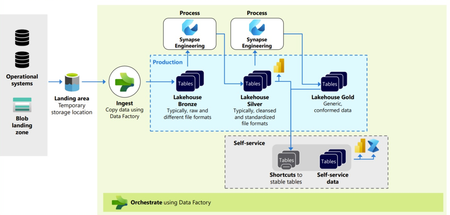
Introduction Data fuels analytics, machine learning, and AI but only if it’s trustworthy. Most organizations struggle with inconsistent schemas, nulls, data drift, or unexpected upstream changes that silently break dashboards, models, and business logic. Microsoft Fabric provides a unified analytics platform with OneLake, pipelines, notebooks, and governance capabilities. When combined with Great Expectations, an open-source data quality framework, Fabric becomes a powerful environment for enforcing data quality at scale. In this article, we explore how to implement enterprise-ready, parameterized data validation inside Fabric notebooks using Great Expectations including row-count drift detection, schema checks, primary-key uniqueness, and time-series batch validation. A quick reminder: ETL (Extract, Transform, Load) is the process of pulling raw data from source systems, applying business logic and quality validations, and delivering clean, curated datasets for analytics and AI. While ETL spans the full Medallion architecture, this guide focuses specifically on data quality checks in the Bronze layer using the NYC Taxi sample dataset. 🔗 Full implementation is available in my GitHub repository: sallydabbahmsft/Data-Quality-Checks-in-Microsoft-Fabric: Data Quality Checks in Microsoft Fabric Why Data Quality Matters More Than Ever? AI and analytics initiatives fail not because of model quality but because the underlying data is inaccurate, incomplete, or inconsistent. Organizations adopting Microsoft Fabric often ask: How can we validate data as it lands in Bronze? How do we detect schema changes before they break downstream pipelines? How do we prevent silent failures, anomalies, and drift? How do we standardize data quality checks across multiple tables and pipelines? Great Expectations provides a unified, testable, automation-friendly way to answer these questions. Great Expectations in Fabric Great Expectations (GX) is an open-source library for: ✔ Declarative data quality rules ("expectations") ✔ Automated validation during ETL ✔ Rich documentation and reporting ✔ Batch-based validation for time-series or large datasets ✔ Integration with Python, Spark, SQL, and cloud data platforms Fabric notebooks now support Great Expectations natively (via PySpark), enabling engineering teams to: Build reusable DQ suites Parameterize expectations by pipeline Validate full datasets or daily partitions Integrate validation into Fabric pipelines and alerting Data Quality Across the Medallion Architecture This solution follows the Medallion Architecture, with validation at every layer. This pipeline follows a Medallion Architecture, moving data through the Bronze, Silver, and Gold layers while enforcing data quality checks at every stage. 📘 P.S. Fabric also supports this via built-in Medallion task flows: Task flows overview - Microsoft Fabric | Microsoft Learn 🥉Bronze Layer: Ingestion & Validation Ingest raw source data into Bronze without transformations. Run foundational DQ checks to ensure structural integrity. Bronze DQ answers: ➡ Did the data arrive correctly? 🥈Silver Layer: Transformation & Validation Clean, standardize, and enrich Bronze data. Validate business rules, schema consistency, reference values, and more. Silver DQ answers: ➡ Is the data accurate and logically correct? 🥇 Gold Layer: Enrichment & Consumption Produce curated, analytics-ready datasets. Validate metrics, aggregates, and business KPIs. Gold DQ answers: ➡ Can executives trust the numbers? Recommended Data Quality Validations: Bronze Layer (Raw Ingestion) Ingestion Volume & Row Drift – Validate total row count and detect unexpected volume drops or spikes. Schema & Data Type Compliance – Ensure the table structure and column data types match the expected schema. Null / Empty Column Checks – Identify missing or empty values in required fields. Primary Key Uniqueness – Detect duplicate records based on the defined composite or natural key. Silver Layer (Cleaned & Standardized Data) Reference & Domain Value Validation – Confirm that values match valid categories, lookups, or reference datasets. Business Rule Enforcement – Validate logic constraints (e.g., StartDate <= EndDate, percentages within range). Anomaly / Outlier Detection – Identify unusual patterns or values that deviate from historical behavior. Post-Standardization Deduplication – Ensure standardized and enriched records no longer contain duplicates. Gold Layer (Curated, Business-Ready Data) Metric & Aggregation Consistency – Validate totals, ratios, rollups, and other aggregated metrics. KPI Threshold Monitoring – Trigger alerts when KPIs exceed defined thresholds. Data / Feature Drift Detection (for ML) – Monitor changes in distributions across time. Cross-System Consistency Checks – Compare business metrics across internal systems to ensure alignment. Implementing Data Quality with Great Expectations in Fabric Step 1 - Read data from Lakehouse (parametrized): lakehouse_name = "Bronze" table_name = "NYC Taxi - Green" query = f"SELECT * FROM {lakehouse_name}.`{table_name}`" df = spark.sql(query) Step 2 - Create and Register a Suite: context = gx.get_context() suite = context.suites.add( gx.ExpectationSuite(name="nyc_bronze_suite") ) Step 3 - Add Bronze Layer Expectations (Reusable Function): import great_expectations as gx def add_bronze_expectations( suite: gx.ExpectationSuite, primary_key_columns: list[str], required_columns: list[str], expected_schema: list[str], expected_row_count: int | None = None, max_row_drift_pct: float = 0.2, ) -> gx.ExpectationSuite: # 1. Ingestion Count & Row Drift if expected_row_count is not None: min_rows = int(expected_row_count * (1 - max_row_drift_pct)) max_rows = int(expected_row_count * (1 + max_row_drift_pct)) row_count_expectation = gx.expectations.ExpectTableRowCountToBeBetween( min_value=min_rows, max_value=max_rows, ) suite.add_expectation(expectation=row_count_expectation) # 2. Schema Compliance schema_expectation = gx.expectations.ExpectTableColumnsToMatchSet( column_set=expected_schema, exact_match=True, ) suite.add_expectation(expectation=schema_expectation) # 3. Required columns: NOT NULL for col in required_columns: not_null_expectation = gx.expectations.ExpectColumnValuesToNotBeNull( column=col ) suite.add_expectation(expectation=not_null_expectation) # 4. Primary key uniqueness (if provided) if primary_key_columns: unique_pk_expectation = gx.expectations.ExpectCompoundColumnsToBeUnique( column_list=primary_key_columns ) suite.add_expectation(expectation=unique_pk_expectation) return suite Step 4 - Attach Data Asset & Batch Definition: data_source = context.data_sources.add_spark(name="bronze_datasource") data_asset = data_source.add_dataframe_asset(name="nyc_bronze_data") batch_definition = data_asset.add_batch_definition_whole_dataframe("full_bronze_batch") Step 5 - Run Validation: validation_definition = gx.ValidationDefinition( data=batch_definition, suite=suite, name="Bronze_DQ_Validation" ) results = validation_definition.run( batch_parameters={"dataframe": df} ) print(results) 7. Optional: Time-Series Batch Validation (Daily Slices) Fabric does not yet support add_batch_definition_timeseries, so your notebook implements custom logic to validate each day independently: dates_df = df.select(F.to_date("lpepPickupDatetime").alias("dt")).distinct() for d in dates: df_day = df.filter(F.to_date("lpepPickupDatetime") == d) results = validation_definition.run(batch_parameters={"dataframe": df_day}) This enables: Daily anomaly detection Partition-level completeness checks Early schema drift detection Automating DQ with Fabric Pipelines Fabric pipelines can orchestrate your data quality workflow: Trigger notebook after ingestion Pass parameters (table, layer, suite name) Persist DQ results to Lakehouse or Log Analytics Configure alerts in Fabric Monitor Production workflow Run the notebook Check validation results If failures exist: Raise an incident Fail the pipeline Notify the on-call engineer This creates a closed loop of ingestion → validation → monitoring → alerting. An example of DQ pipeline: Results: How Enterprises Benefit By standardizing data quality rules across all domains, organizations ensure consistent expectations and uniform validation practices , improved observability makes data quality issues visible and actionable, enabling teams to detect and resolve failures early. This, in turn, enhances overall reliability, ensuring downstream transformations and Power BI reports operate on clean, trustworthy data. Ultimately, stronger data quality directly contributes to AI readiness high-quality, well-validated data produces significantly better analytics and machine learning outcomes. Conclusion Great Expectations + Microsoft Fabric creates a scalable, modular, enterprise-ready approach for ensuring data quality across the entire medallion architecture. Whether you're validating raw ingested data, transformed datasets, or business-ready tables, the approach demonstrated here enables consistency, observability, and automation across all pipelines. With Fabric’s unified compute, orchestration, and monitoring, teams can now integrate DQ as a first-class citizen not an afterthought. Links: Implement medallion lakehouse architecture in Fabric - Microsoft Fabric | Microsoft Learn GX Expectations Gallery • Great Expectations701Views0likes1Comment
Secure Medallion Architecture Pattern on Azure Databricks (Part I)
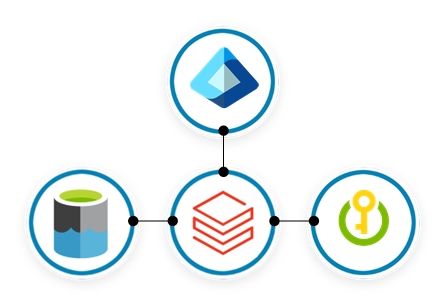
This article presents a security-first pattern for Azure Databricks: a Medallion Architecture where Bronze, Silver and Gold each run as their Lakeflow Job and cluster, orchestrated by a parent job. Run-as identities are Microsoft Entra service principals; storage access is governed via Unity Catalog External Locations backed by the Access Connector’s managed identity. Least-privilege is enforced with cluster policies and UC grants. Prefer managed tables to unlock Predictive Optimisation, Automatic liquid clustering and Automatic statistics. Secrets live in Azure Key Vault and are read at runtime. Monitor reliability and cost with system tables and Jobs UI. Part II covers more low-level concepts and CI/CD.1.2KViews11likes0CommentsExternal Data Sharing With Microsoft Fabric
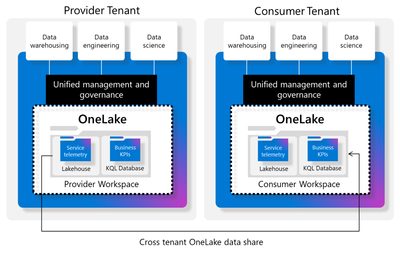
The demands and growth of data for external analytics consumption is rapidly growing. There are many options to share data externally and the field is very dynamic. One of the most frictionless and easy onboarding steps for external data sharing we will explore is with Microsoft Fabric. This external data allows users to share data from their tenant with users in another Microsoft Fabric tenant.6.2KViews3likes2CommentsClosing the loop: Interactive write-back from Power BI to Azure Databricks
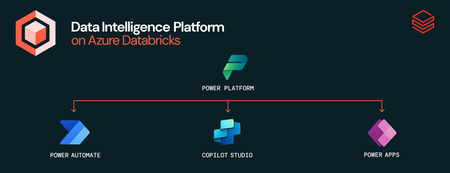
This is a collaborative post from Microsoft and Databricks. We thank Toussaint Webb, Product Manager at Databricks, for his contributions. We're excited to announce that the Azure Databricks connector for Power Platform is now Generally Available. With this integration, organizations can seamlessly build Power Apps, Power Automate flows, and Copilot Studio agents with secure, governed data and no data duplication. A key functionality unlocked by this connector is the ability to write data back from Power BI to Azure Databricks. Many organizations want to not only analyze data but also act on insights quickly and efficiently. Power BI users, in particular, have been seeking a straightforward way to “close the loop” by writing data back from Power BI into Azure Databricks. This capability is now here - real-time updates and streamlined operational workflows with the new Azure Databricks connector for Power Platform. With this connector, users can now read from and write to Azure Databricks data warehouses in real time, all from within familiar interfaces — no custom connectors, no data duplication, and no loss of governance. How It Works: Write-backs from Power BI through Power Apps Enabling writebacks from Power BI to Azure Databricks is seamless. Follow these steps: Open Power Apps and create a connection to Azure Databricks (documentation). In Power BI (desktop or service), add a Power Apps visual to your report (purple Power Apps icon). Add data to connect to your Power App via the visualization pane. Create a new Power App directly from the Power BI interface, or choose an existing app to embed. Start writing records to Azure Databricks! With this integration, users can make real-time updates directly within Power BI using the embedded Power App, instantly writing changes back to Azure Databricks. Think of all the workflows that this can unlock, such as warehouse managers monitoring performance and flagging issues on the spot, or store owners reviewing and adjusting inventory levels as needed. The seamless connection between Azure Databricks, Power Apps, and Power BI lets you close the loop on critical processes by uniting reporting and action in one place. Try It Out: Get started with Azure Databricks Power Platform Connector The Power Platform Connector is now Generally Available for all Azure Databricks customers. Explore more in the deep dive blog here and to get started, check out our technical documentation. Coming soon we will add the ability to execute existing Azure Databricks Jobs via Power Automate. If your organization is looking for an even more customizable end-to-end solution, check out Databricks Apps in Azure Databricks! No extra services or licenses required.3.9KViews2likes2CommentsPower BI & Azure Databricks: Smarter Refreshes, Less Hassle
We are excited to extend the deep integration between Azure Databricks and Microsoft Power BI with the Public Preview of the Power BI task type in Azure Databricks Workflows. This new capability allows users to update and refresh Power BI semantic models directly from their Azure Databricks workflows, ensuring real-time data updates for reports and dashboards. By leveraging orchestration and triggers within Azure Databricks Workflows, organizations can improve efficiency, reduce refresh costs, and enhance data accuracy for Power BI users. Power BI tasks seamlessly integrate with Unity Catalog in Azure Databricks, enabling automated updates to tables, views, materialized views, and streaming tables across multiple schemas and catalogs. With support for Import, DirectQuery, and Dual Storage modes, Power BI tasks provide flexibility in managing performance and security. This direct integration eliminates manual processes, ensuring Power BI models stay synchronized with underlying data without requiring context switching between platforms. Built into Azure Databricks Lakeflow, Power BI tasks benefit from enterprise-grade orchestration and monitoring, including task dependencies, scheduling, retries, and notifications. This streamlines workflows and improves governance by utilizing Microsoft Entra ID authentication and Unity Catalog suite of security and governance offerings. We invite you to explore the new Power BI tasks today and experience seamless data integration—get started by visiting the [ADB Power BI task documentation].2.2KViews0likes2Comments
Efficient Log Management with Microsoft Fabric
Introduction In the era of digital transformation, managing and analyzing log files in real-time is essential for maintaining application health, security, and performance. There are many 3rd party solutions in this area allowing collecting / processing storing, analyzing and acting upon this data source. But sometimes as your systems scale, those solution can become very costly, their cost model increases based on the amount of ingested data and not according to the real resources utilization or customer value This blog post explores a robust architecture leveraging Microsoft Fabric SaaS platform focused on its Realtime Intelligence capabilities for efficient log files collection processing and analysis. The use cases can vary from simple application errors troubleshooting, to more advanced use case such as application trends detection: detecting slowly degrading performance issues: like average user session in the app for specific activities last more than expected to more proactive monitoring using log based KPIs definition and monitoring those APIS for alerts generation Regarding cost , since Fabric provides a complete separation between compute and storage you can grow your data without necessarily growing your compute costs and you still pay for the resources that re used in a pay as you go model. Architecture Overview The proposed architecture integrates Microsoft Fabric’s Real time intelligence (Realtime Hub) with your source log files to create a seamless, near real-time log collection solution It is based on Microsoft Fabric: a SAAS solution which is a unified suite integrating several best of breed Microsoft analytical experiences. Fabric is a modern data/ai platform based on unified and open data formats (parquet/delta) allowing both classical data lakes experiences using both traditional Lakehouse/warehouse SQL analytics as well as real-time intelligence on semi structured data , all in on a lake-centric SaaS platform. Fabric's open foundation with built-in governance enables you to connect to various clouds and tools while maintaining data trust. This is High level Overview of Realtime Intelligence inside Fabric Log events - Fabric based Architecture When looking in more details a solution for log collection processing storage and analysis we propose the following architecture Now let's discuss it in more details: General notes: Since Fabric is a SAAS solution, all the components can be used without deploying any infrastructure in advance, just by a click of a button and very simple configurations you can customize the relevant components for this solution The main components used in this solution are Data Pipeline Onelake and Eventhouse Our data source for this example is taken from this public git repo: https://github.com/logpai/loghub/tree/master/Spark The files were taken and stored inside an S3 bucket to simulate the easiness of the data pipeline integration to external data sources. A typical log file looks like this : 16/07/26 12:00:30 INFO util.Utils: Successfully started service 'sparkDriverActorSystem' on port 59219. 16/07/26 12:00:30 INFO spark.SparkEnv: Registering MapOutputTracker 16/07/26 12:00:30 INFO spark.SparkEnv: Registering BlockManagerMaster 16/07/26 12:00:30 INFO storage.DiskBlockManager: Created local directory at /opt/hdfs/nodemanager/usercache/curi/appcache/application_1460011102909_0176/blockmgr-5ea750cb-dd00-4593-8b55-4fec98723714 16/07/26 12:00:30 INFO storage.MemoryStore: MemoryStore started with capacity 2.4 GB Components Data Pipeline First challenge to solve is how to bring the log files from your system into Fabric this is the Log collection phase: many solutions exist for this phase each with its pros and cons In Fabric the standard approach to bring data in is by use of Copy Activity in ADF or in its Fabric SAAS version is now called Data Pipeline: Data pipeline is a low code / no code tool allowing to manage and automate the process of moving and transforming data within Microsoft Fabric, a serverless ETL tool with more than 100 connectors enabling integration with a wide variety of data sources, including databases, cloud services, file systems, and more. In addition, it supports an on prem agent called self-hosted integration runtime, this agent that you install on a VM, acts as a bridge allowing to run your pipeline on a local VM and securing your connection from on prem network to the cloud Let’s describe in more details our solution data pipeline: Bear in mind ADF is very flexible and supports reading at scale from a wide range of data sources / files integrated as well to all major cloud vendors from blob storage retrieval : like S3, GCS, Oracle Cloud, File systems, FTP/SFTP etc so that even if your files are generated externally to Azure this is not an issue at all. Visualization of Fabric Data Pipeline Log Collection ADF Copy Activity: Inside Data pipeline we will create an Activity called Copy Activity with the following basic config Source: mapped to your data sources: it can be azure blob storage with container containing the log files, other cloud object storage like S3 or GCS , log files will be retrieved in general from a specific container/folder and are fetched based on some prefix/suffix in the file name. To support incremental load process we can configure it to delete the source files that it reads so that once the files are successfully transferred to their target they will be automatically deleted from their source . On the next iteration pipeline will not have to process the same files again. Sink: Onelake/Lakehouse folder: we create ahead of time a Lakehouse which is an abstract data container allowing to hold and manage at scale your data either structured or unstructured, we will then select it from the list of connectors (look for Onelake/Lakehouse) Log Shippers: This is an optional component, sometimes it is not allowed for the ETL to access your OnPrem Vnet , in this case tools like Fluentd , Filebeat , Open Telemetry collector used to forward your application collected logs to the main entry point of the system: the Azure Blob Storage. Azcopy CLI: if you don’t wish to invest into expensive tools and all you need to copy your data in a scale/secure manner to Azure Storage, you might consider create your own log shipping solution based on the free Azcopy tool together withs some basic scripting around it for scheduling: Azcopy is a command-line utility designed for high-performance uploading, downloading, and copying data to and from Microsoft Azure Blob and File storage. Fabric first Activity : Copy from Source Bucket to Lakehouse Log Preparation Upon log files landing in the azure blob storage, EventStream can be used to trigger the Data Pipeline that will handle the data preparation and loading phase. So what is Data preparation phase’s main purpose? After the log files land in the storage and before they are loaded to the realtime logs database the KQL Database , it might be necessary to transform the data with some basic manipulations . The reasons for that might be different A Few examples Bad data formats: for example, sometimes logs files contain problematic characters like new lines inside a row (stack trace error message with new lines as part of the message field of the record) Metadata enrichment: sometimes the log file names contain in their name some meaningful data : for example file name describes the originating process name / server name , so this metadata can be lost once the file content is loaded into database Regulation restrictions: sometimes logs contain private data like names, credit card numbers, social security number etc called PII that must be removed , hashed or encrypted before the load to database In our case we will be running a pyspark notebook who reads the files from Onelake folder, fixes the new lines inside a row issue, and create new files in another Onelake folder, we call this notebook with a base parameter called log_path that defines the log files location on the Onelake to read from Fabric second Activity : Running the Notebook Log Loading Inside Data pipeline , the last step, after the transformation phase, we call again the Copy data activity but this time source and sink are differen: Source: Lakehouse folder (previous notebook output) Sink: Evenhouse specific Table (created ahead of time): it is basically an empty table (lograw) Visualization of Fabric last Activity : Loading to EventHouse In summary for this stage the log collection and preparation: we broke this into 3 data pipeline activities: Copy Activity: Read the log files from source: This is the first step of the log ingestion pipeline it is running inside our orchestrator Data pipeline. Run Notebook Activity : Transform the log files : this is the execution of a single or chain of notebooks Copy Activity : Load the log files into destination datatbase : KQL inside Evenhouse : the logs database table called lograw, it is a specific table created ahead of time inside EventHouse Database Inside The Eventhouse We needed to create a KQL database with a table to hold the raw ingested log records KQL datbase is a scalable and efficient storage solution for log files, optimized for high-volume data ingestion and retrieval. Eventhouses and KQL databases operate on a fully managed Kusto engine. With an Eventhouse or KQL database, you can expect available compute for your analytics within 5 to 10 seconds. The compute resources grow with your data analytic needs. Log Ingestion to KQL Database with Update Policy We can separate the ETL transformation logic of what happens to the data before, it reaches the Eventhouse KQL database and after that. Before it reached the database , the only transformation we did was calling during the data pipeline a notebook to handle the new lines merge logic, This cannot be easily done as part of the database ingestion logic simply because when we try to load the files with new lines as part of a field of a record , it breaks the convention and what happens is that the ingestion process creates separate table records for each new line of the exceptions stacktrace. On the other hand, we might need to define basic transformation rules: such as date formatting, type conversion (string to numbers) , parse and extract some interesting value from a String based on regular exception, create JSON (dynamic type) of a hierarchical string (XML / JSON string etc) for all these transformations we can work with what is called an update policy we can define a simple ETL logic inside KQL database as explained here During this step we create from logsraw staging table a new table called logparsed , that will be our destination final table for the log queries. Those are the KQL Tables defined to hold the log files .create table logsraw ( timestamp:string , log_level:string, module:string, message:string) .create table logsparsed ( formattedDatetime:datetime , log_level:string, log_module:string, message:string) This is the update policy that automatically converts data from, the staging table logsraw to the destination table logparsed .create-or-alter function parse_lograw() { logsraw | project formattedtime = todatetime(strcat("20", substring(timestamp, 0, 2), "-", substring(timestamp, 3, 2), "-", substring(timestamp, 6, 2), "T", substring(timestamp, 9, 8))), log_level, logmodule=module, message } .alter table logsparsed policy update @'[{ "IsEnabled": true, "Source": "logsraw", "Query": "parse_lograw()", "IsTransactional": true, "PropagateIngestionProperties": true}]' Since we don't need to retain the data in the staging table (lograw) we can define a retention policy of 0 TTL like this : .alter-merge table logsraw policy retention softdelete = 0sec recoverability = disabled Query Log files After data is ingested and transformed it lands in a basic logs table that is schematized : logparsed, in general we have some common fields that are mapped to their own columns like : log level (INFO/ ERROR/ DEBUG) , log category , log timestamp (a datetime typed column) and log message which can be in general either a simple error string or a complex JSON formatted string in which case it is usually preferred to be converted to dynamic type that will bring additional benefits like simplified query logic, and reduced data processing (to avoid expensive joins) Example for Typical Log Queries Category Purpose KQL Query Troubleshooting Looking for an error at specific datetime range logsparsed | where message contains "Exception" and formattedDatetime between ( datetime(2016-07-26T12:10:00) .. datetime(2016-07-26T12:20:00)) Statistics Basic statistics Min/Max timestamp of log events logsparsed | summarize minTimestamp=min(formattedDatetime), maxTimestamp=max(formattedDatetime) Exceptions Stats Check Exceptions Distributions logsparsed | extend exceptionType = case(message contains "java.io.IOException","IOException", message contains "java.lang.IllegalStateException","IllegalStateException", message contains "org.apache.spark.rpc.RpcTimeoutException", "RpcTimeoutException", message contains "org.apache.spark.SparkException","SparkException", message contains "Exception","Other Exceptions", "No Exception") | where exceptionType != "No Exception" | summarize count() by exceptionType Log Module Stats Check Modules Distribution logsparsed | summarize count() by log_module | order by count_ desc | take 10 Realtime Dashboards After querying the logs, it is possible to visualize the query results in Realtime dashboards, for that all what’s required Select the query Click on Pin to Dashboard After adding the queries to tiles inside the dashboard this is a typical dashboard we can easily build: Realtime dashboards can be configured to be refreshed in Realtime like illustrated here: in which case user can very easily configure how often to refresh the queries and visualization : at the extreme case it can be as low as Continuus There are many more capabilities implemented in the Real-Time Dashboard, like data exploration Alerting using Data Activator , conditional formatting (change items colors based on KPIs threshold) and this framework and capabilities are heavily invested and keep growing. What about AI Integration ? Machine Learning Models: Kusto supports out of the box time series analysis allowing for example anomaly detection: https://learn.microsoft.com/en-us/fabric/real-time-intelligence/dashboard-explore-data and clustering but if it’s not enough for you, you can always mirror the data of your KQL tables into Onelake delta parquet format by selecting OneLake availability This configuration will create another copy of your data in open format delta parquet : you have it available for any Spark/Python/SparkML/SQL analytics for whatever machine learning exploration and ML modeling you wish to explore train and serve This is illustrated here : Bear in mind , there is no additional storage cost to turn on OneLake availability Conclusion A well-designed real-time intelligence solution for log file management using Microsoft Fabric and EventHouse can significantly enhance an organization’s ability to monitor, analyze, and respond to log events. By leveraging modern technologies and best practices, organizations can gain valuable insights and maintain robust system performance and security.4.5KViews1like0Comments
Using Spark to track PowerBI Activity Events
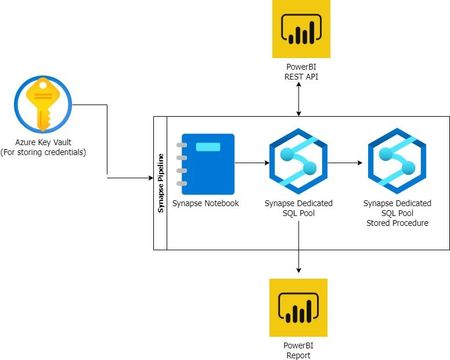
Have you ever wondered what goes on behind the scenes when users interact with your PowerBI reports? The PowerBI REST API opens a door to a wealth of activity data that can be harnessed to gain insights into user behavior and system performance. In this blog post, we'll explore the exciting possibilities of using Apache Spark to tap into the PowerBI REST API, enabling you to track and analyze activity events seamlessly. By the end, you'll be equipped to create a comprehensive PowerBI dashboard that gives you a real-time pulse on your PowerBI environment. Discover how this integration not only empowers you to monitor user interactions but also opens avenues for optimizing report performance, ensuring data security, and making informed decisions for your PowerBI deployment. This will guide you through the process of connecting Spark to the PowerBI REST API, retrieving detailed activity logs, and transforming the data into actionable insights. Buckle up for a journey into the world of real-time analytics and data-driven decision-making. Ready to supercharge your PowerBI monitoring? Let's dive in!4.1KViews0likes1Comment