spark
48 Topics
Optimize selective analytics reads in Azure Data Lake Storage with ABFS Vectored Read
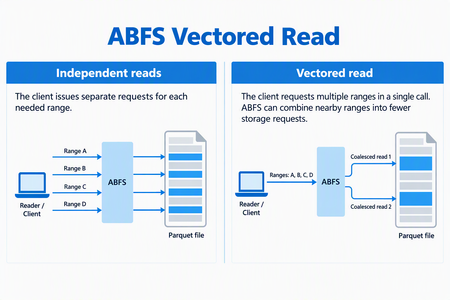
ABFS Vectored Read helps compatible analytics engines reduce request overhead when reading selected portions of columnar files in Azure Data Lake Storage. By coordinating multiple noncontiguous byte ranges through the Azure Blob File System (ABFS) driver, it can combine nearby ranges into fewer storage requests and execute those requests asynchronously. For data engineers working with selective Parquet queries, this brings the storage read pattern closer to what the query needs: a coordinated set of ranges rather than a collection of independent small reads. When the Parquet reader supports vectored I/O and the runtime includes a compatible ABFS client, Spark workloads that use higher-level APIs can enable this capability through configuration - without rewriting queries, changing application logic, or migrating data. Why selective reads need coordinated I/O Consider a query that selects a few columns from a Parquet dataset and filters out most row groups. The reader can skip much of the data the query doesn't need, but the data it needs may be spread across different parts of the file. Reading each range independently can create many small storage requests. Each request carries network and processing overhead, so selecting less data doesn't necessarily remove the cost of coordinating those reads. Vectored Read lets a compatible reader provide the ranges together, giving the client an opportunity to plan the I/O as a group. How ABFS Vectored Read works A compatible reader submits the file ranges it needs together. ABFS validates and sorts the ranges, combines nearby ranges when appropriate, and divides the resulting work to fit its read buffers. It then queues the storage requests asynchronously and returns the requested bytes to the corresponding range buffers. Illustrative request pattern, not a benchmark. Actual grouping depends on range layout and client configuration; coalesced storage requests can include bytes between the requested ranges. This is a client-side optimization. It does not change the file format or rewrite your stored data. The engine still receives the data for the ranges it requested. What this means for your workloads For compatible selective-read workloads, Vectored Read offers: Less request overhead: Combining nearby ranges can reduce separate storage requests and network round trips. Coordinated I/O: Asynchronous reads allow the client to work on multiple requested ranges without treating every range as an isolated operation. Configuration-based adoption: Compatible Spark workloads using the Hadoop Parquet and ABFS path can use the feature without rewriting their queries. The best starting point is a workload that reads selected portions of Parquet files through abfs:// or abfss://. Full sequential scans may see less benefit, and engines that bypass the Hadoop/ABFS path do not use this capability. Support depends on the Hadoop, hadoop-azure, and parquet-hadoop libraries included in the runtime, not only on the Spark version. See Availability and resources for the minimum versions and verification guidance. The benefit depends on the number, size, and spacing of requested ranges, the coalescing configuration, storage and network latency, concurrency and caching. Combining ranges can reduce requests and round trips, but it can also read additional bytes between noncontiguous requested ranges. Compare query duration, storage transactions, bytes read, and resource utilization against a controlled baseline using representative data and concurrency. Get started First, verify that your runtime contains Apache Hadoop 3.3.5 or later, including the hadoop-azure module, and parquet-hadoop 1.12.3 or later. The presence of an ABFS URI alone does not establish that the optimized implementation is installed. For Spark, enable the Parquet setting before the application starts, using the spark.hadoop. prefix: spark-submit \ --conf spark.hadoop.parquet.hadoop.vectored.io.enabled=true \ <other-options> \ <application> Replace the command placeholders with your normal submission options and application. Set the property explicitly rather than relying on a default, which can vary by packaged Parquet version. For managed services, use the service's supported cluster or session configuration mechanism. Availability and resources Azure Databricks does not currently support ABFS Vectored Read because its runtime ships an ABFS version that does not include this capability. In addition, Photon does not use the ABFS driver for data access, even when a workload uses an abfs:// or abfss:// URI. Therefore, the presence of an ABFS URI alone does not indicate that Vectored Read is available. For other packaged or managed runtimes, verify that the environment includes Apache Hadoop 3.3.5 or later with the hadoop-azure module, and parquet-hadoop 1.12.3 or later. Start with one representative selective-read workload and compare it with your baseline. For background, see the ABFS driver overview.61Views1like0Comments
From Chaos to Clarity: Your Databricks Workspace on a Single Pane of Glass
The question that never stays answered — until now As Azure Databricks workspaces evolve, complexity creeps in unnoticed. Every Azure Databricks conversation with customers eventually lands on the same question: “What do we actually have in this workspace?” Over time, clusters multiply, jobs get cloned, warehouses are spun up for one-off demos and forgotten, and Unity Catalog keeps expanding until it’s hard to reason about. In most enterprises, each business or data science team operates its own workspace, while the central platform or operations team has little to no visibility into what’s being created or why. Teams often spend days—or weeks—trying to piece together what exists, who owns it, and the business purpose behind it, only to realize they still don’t have the full picture. And when the same question comes up next quarter, the cycle starts all over again. To address this, we built a utility that helps customers answer exactly that—by providing a single pane of glass for all Databricks assets through comprehensive cataloging and usage analysis. The utility works in two phases: Discovery and Analysis. This post focuses on the first step—the Discovery phase, where we establish a clear, authoritative inventory of everything that exists in the workspace. What the Discovery Phase delivers? Think of the Discovery phase as a workspace health assessment. Once configured against a target workspace, the utility runs in a selected mode and consolidates all discovered assets into a centralized, Delta-based repository. The result is a structured, queryable, and dashboard-ready metadata store. Behind the scenes, ten purpose-built scanners run in a tiered and parallelized architecture, enabling a fast yet comprehensive scan of the entire workspace. Scanner What is Cataloged Clusters Interactive, job, SQL — configs, policies, pools Jobs Workflows, schedules, tasks, run history Warehouses SQL endpoints, sizes, serverless settings Pipelines Delta Live Tables and their state Unity Catalog Catalogs, schemas, tables, volumes Workspace Objects Notebooks, repos, ML experiments, serving endpoints, alerts, Genie spaces Security Identity, network, data protection settings Billing 30–180 days of DBU usage by SKU and product Utilization Real CPU, memory, runtime patterns (deep scan) Spark Job Optimizer (plugin) Skew, spill, small files, broadcast hints (deep scan) Design Overview # Block Role Contents / Flow 1 Source Starting point — the Databricks environments being discovered. One or more Azure Databricks workspaces. Auth via OAuth. Outputs an authenticated WorkspaceClient to the Orchestrator. 2 Orchestrator The brain of the utility — coordinates scanning, concurrency, retries, timing. Tiered thread-pool executor, scan config (mode, billing window, UC depth, max workers). Dispatches scanners in controlled waves. 3 Tier 1 Scanners Lightweight, high-concurrency scans. Run first for quick signal. Clusters, Warehouses, Pipelines, Security. Up to 12 workers, 10-min timeout. Artifacts flow to the Centralized Repository. 4 Tier 2 Scanners High-volume scans. Controlled concurrency to avoid API throttling. Jobs, Workspace Objects (notebooks, repos, experiments, serving, alerts, Genie), Unity Catalog, Billing (30–180 days DBU). 1/2 workers, 30-min timeout. 5 Tier 3 Scanners Sequential, analysis-grade scans (deep scan only). Utilization (CPU, memory, SQL usage patterns) and Spark Job Optimizer plugin (skew, spill, small files, broadcast hints). Runs after Tiers 1 & 2. 6 Centralized Repository The catalog of truth — where all output lands, timestamped and queryable. Unity Catalog Delta tables (dashboard-ready) plus portable JSON and CSV exports for offline sharing or downstream tools. 7 Single Pane of Glass The user-facing view — insight at a glance. Pre-built Lakeview dashboard: KPI strip, inventory charts, and week-over-week trends. Refresh to see current workspace state. Why users love the view — visualization that earns its keep This is where the Discovery phase stops being just a scan and starts becoming a decision-making tool. Because everything is consolidated into a single, Unity Catalog–backed source of truth, the Lakeview dashboard delivers a genuine single pane of glass for the entire Databricks workspace. At a glance, you get: KPI strip at the top — total clusters, active jobs, UC tables, SQL warehouses, DLT pipelines, workspace objects. One glance, one number each. Inventory charts — clusters by type, jobs by schedule, warehouses by size, tables by catalog. The shape of your workspace becomes obvious. The “that doesn’t look right” moments — The idle SQL warehouse with zero queries, the cluster running the wrong runtime, the notebook floating outside any repo. These surface instantly, without hunting. Change over time — because every scan is timestamped, you can literally see your platform grow (or sprawl) week over week. In the first customer walkthrough, the platform team identified an always-on SQL warehouse with zero queries and three jobs running on the wrong compute tier—all within the first 30 minutes. That single view paid for the project. Sample Item Catalog Closing thoughts The Discovery phase isn’t about governance for governance’s sake—it’s about clarity. Before teams can optimize costs, improve performance, or enforce standards, they first need a reliable answer to a basic question: what actually exists today? By giving platform and operations teams a single, authoritative view of all Databricks assets—grounded in data, not tribal knowledge—Discovery turns guesswork into informed decisions. In the next phase, Analysis, that foundation is used to go deeper: identifying inefficiencies, risks, and opportunities to simplify and optimize the platform. But it all starts here—by finally knowing what you have. Special thank you to Antony Bitar, Collin Brian and Jason Pereira for their support in reviewing the content.621Views0likes0CommentsAnnouncing the New Home for the Azure Databricks Blog
We’re excited to share that the Azure Databricks blog has moved to a new address on Microsoft Tech Community Hub! Azure Databricks | Microsoft Community Hub Our new blog home is designed to make it easier than ever for you to discover the latest product updates, deep technical insights, and real-world best practices directly from the Azure Databricks product team. Whether you're a data engineer, data scientist, or analytics leader, this is your go-to destination for staying informed and inspired. What You’ll Find on the New Blog At our new address, you can expect: Latest Announcements – Stay up to date with new features, capabilities, and releases Best Practice Guidance – Learn proven approaches for building scalable data and AI solutions Technical Deep Dives – Explore detailed walkthroughs and architecture insights Customer Stories – See how organizations are driving impact with Azure Databricks Why the Move? This new blog gives us the flexibility to deliver a better reading experience, improved navigation, and richer content dedicated to Azure Databricks. It also allows us to bring you more frequent updates and more in-depth resources tailored to your needs. Stay Connected We encourage you to bookmark the new blog and check back regularly. Even better—follow along so you never miss an update. By staying connected, you’ll be among the first to hear about new features, performance improvements, and expert recommendations to help you get the most out of Azure Databricks. 👉 Follow the new Azure Databricks blog today and stay ahead with the latest announcements and best practices. We’re looking forward to continuing this journey with you—now at our new home! Check out the latest blogs if you haven’t already: • Introducing Lakeflow Connect Free Tier, now available on Azure Databricks | Microsoft Community Hub •Near–Real-Time CDC to Delta Lake for BI and ML with Lakeflow on Azure Databricks | Microsoft Community Hub387Views0likes0CommentsSmart Pipelines Orchestration: Designing Predictable Data Platforms on Shared Spark
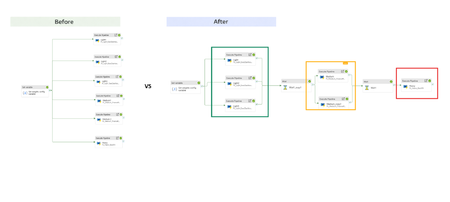
Introduction In mature data platforms, scaling compute is rarely the primary challenge. Shared, elastic Spark pools already provide sufficient processing capacity for most workloads. The harder problem is achieving predictable execution when multiple pipelines compete for the same resources. In Azure Synapse, Spark pools are commonly shared across pipelines to optimize cost and utilization. While this model is efficient, it introduces a key limitation: execution order is determined by scheduling behavior, not business priority. This post describes an orchestration pattern that makes priority explicit, allowing critical workloads to run predictably on shared Spark compute without modifying Spark code, configuration, or cluster capacity. Goal This work does not aim to optimize Spark performance. Its goal is to ensure that, when pipelines share a Spark pool: latency-sensitive workloads run first heavy backfills do not delay critical pipelines execution order is deterministic under contention All of this needed to be achieved without changes to Spark configuration, notebook logic, or cluster size. Why This Problem Occurs In a naïve orchestration model, pipelines are triggered in parallel. From Spark’s perspective: all jobs are equivalent all jobs attempt to acquire executors at the same time scheduling decisions are based on availability and timing As a result, priority is implicit and often incorrect. A heavy workload may acquire executors before a lightweight but critical one simply because it requests more resources earlier. This behavior is expected from Spark. The issue lies in orchestration, not in compute. Core Concept: Priority as Execution Ordering In shared Spark platforms, priority is enforced through execution ordering, not compute tuning. The orchestration layer controls when workloads are admitted to shared compute. Once execution begins, Spark processes each workload normally. This preserves Spark’s execution model while providing deterministic workload ordering. Step 1: Workload Classification In the demo presented in this blog, workloads are classified during configuration based on business impact: Category Description Priority example Light (critical) SLA sensitive dashboard and downstream consumers High priority , low resource weight(data volume) Medium (High) Core reporting workloads Medium priority Heavy(Best Effort) Backfills and historical computes Low priority, high resource weight(data volume) This classification is external to Spark and external to code. It represents business intent, not implementation. As a future phase, classification can be automated,for example, an agent may adjust priority based on observed failure rates or execution stability. Workload classification is expressed as orchestration metadata, for example: [ {"name":"ExecDashboard","pipeline":"PL_Light_ExecDashboard","weight":1,"tier":"Critical"}, {"name":"FinanceReporting","pipeline":"PL_Medium_FinanceReporting","weight":3,"tier":"High"}, {"name":"Backfill","pipeline":"PL_Heavy_Backfill","weight":8,"tier":"BestEffort"} ] What Runs in Each Workload Category All pipelines execute on the same shared Spark pool, but the work they perform differs in scope, data volume, and sensitivity to contention. Light workloads power SLA-sensitive dashboards and downstream consumers. Their notebooks perform targeted reads with strong filtering, limited joins, and small aggregations. Execution time is short, and overall pipeline duration is dominated by executor availability rather than computation. Medium workloads represent core reporting and analytics logic. These notebooks process larger datasets, perform joins across multiple sources, and apply aggregations that are more expensive than Light workloads but still time-bounded and business-critical. Heavy workloads are best-effort pipelines such as backfills and historical recomputation. Their notebooks scan large data volumes, apply expensive transformations, and are optimized for throughput rather than responsiveness. These workloads tolerate delay but place significant pressure on shared compute when admitted concurrently. All workloads use the same Spark pool, executor configuration, and runtime. The distinction reflects business intent and execution characteristics, not Spark tuning. Example notebooks for each category are available in the accompanying GitHub repository. Step 2: Naïve Orchestration (Baseline) The following pipeline run illustrates the baseline behavior when all workloads are triggered in parallel against a shared Spark pool. All Light, Medium, and Heavy pipelines are admitted concurrently. Executor acquisition and execution order depend on timing rather than business priority, resulting in non-deterministic behavior under contention. Although Light workloads require minimal compute, they are delayed by executor contention caused by Medium and Heavy pipelines entering the Spark pool at the same time. Step 3: Smart Orchestration (Priority-Aware) Orchestration Model The same child pipelines and notebooks are reused. The parent pipeline enforces admission order: Light (Critical) Medium (High) Heavy (Best Effort) Dependencies control admission to the Spark pool. Parallelism is preserved within a priority class. Effect on Shared Spark Light workloads enter the Spark pool without contention Medium workloads run after Light completes Heavy workloads are intentionally delayed Executor acquisition aligns with business priority Light pipelines execute first and complete before medium pipelines are admitted. Heavy workloads run last by design. No Spark configuration changes are introduced. The Spark pool, notebooks, and executor configuration are identical to the naïve run. Only the orchestration graph differs. Step 4: Impact on Light Workloads Light workloads are particularly sensitive to orchestration because their runtime is dominated by queueing time, not computation. Comparing the naïve and priority-aware runs shows that Spark execution time is unchanged, but pipeline duration improves due to earlier admission to the Spark pool and immediate executor access Naïve Execution Spark execution time: short and unchanged Pipeline duration: minutes under contention Delay caused by executor unavailability Smart Execution Spark execution time: unchanged Pipeline duration closely matches compute time Immediate access to executors The improvement comes from removing admission contention, not from increasing resources. Results and Performance Compared to naïve orchestration, priority-aware orchestration ensures that Light workloads complete in minutes rather than tens of minutes under contention, while Spark execution time itself remains unchanged. Heavy workloads no longer delay latency-sensitive pipelines, and execution order is deterministic across runs. These improvements are achieved solely by controlling admission to the shared Spark pool, without modifying Spark configuration, notebook logic, or cluster capacity. Next Steps: 1. Optimizing Heavy Workloads Once heavy workloads are isolated by priority, they can be optimized independently: retries with backoff tolerance for transient failures increased executor counts or larger pools Without admission control, these optimizations increase contention, with smart orchestration, they do not impact critical pipelines. 2. Moving Beyond Static Classification In this implementation, workload classification is static and configuration-driven, which is sufficient for stabilization. A next phase is adaptive classification: collect execution metrics and failure rates detect unstable pipelines reclassify pipelines that exceed thresholds (e.g., >20% failures in a rolling window) This prevents unstable workloads from impacting critical execution paths and makes the pipeline reliable with minimal maintenance. 3. Assisted Classification with Copilot agent At scale, priority decisions benefit from automation. A Copilot-style agent can use historical execution data to recommend classification changes, grounding decisions in observed behavior while keeping engineers in control. Example: Changing workload classification from Light to Medium Consider a pipeline initially classified as Light because it powers an SLA-sensitive dashboard and typically executes quickly with minimal resource usage. Over time, execution telemetry shows a change in behavior: The pipeline fails in 4 of the last 10 runs due to transient Spark errors Average duration has increased by 3×, even when admitted early Retry attempts amplify contention for other Light workloads Based on these signals, an automated agent flags the workload as unstable and recommends reclassifying it from Light to Medium. After reclassification: The pipeline is admitted after Light workloads but before Heavy workloads It no longer blocks latency-critical paths when retries occur Execution remains predictable, while instability is isolated from critical workloads The notebook logic and Spark configuration remain unchanged, only the workload’s admission priority is updated via orchestration metadata. This approach allows the platform to adapt to changing workload characteristics while preserving deterministic execution for critical pipelines. Conclusion Parallel execution is a default, not a strategy. In shared environments, orchestration must explicitly encode business intent rather than relying on scheduler behavior. Enforcing priority at the orchestration layer restores predictability without sacrificing efficiency and provides a foundation for adaptive, policy-driven execution as platforms evolve. Links Orchestrating data movement and transformation in Azure Data Factory - Training | Microsoft Learn How to Optimize Spark Jobs for Maximum Performance: A Complete Guide GitHub repo for notebook reference: sallydabbahmsft/Smart-pipelines-orchestration Feedback: Sally Dabbah | LinkedIn913Views2likes2CommentsOverload to Optimal: Tuning Microsoft Fabric Capacity
Co-Authored by: Daya Ram, Sr. Cloud Solutions Architect and Rafia Aqil, Could Solutions Architect Optimizing Microsoft Fabric capacity is both a performance and cost exercise. By diagnosing workloads, tuning cluster and Spark settings, and applying data best practices, teams can reduce run times, avoid throttling, and lower total cost of ownership—without compromising SLAs. Use Fabric’s built-in observability (Monitoring Hub, Capacity Metrics, Spark UI) to identify hot spots and then apply cluster- and data-level remediations. Capacity Planning For capacity planning and sizing guidance, see Plan your capacity size. Selecting the wrong SKU can lead to two major issues: Over-provisioning: Paying for resources you don’t need. Under-provisioning: Struggling with performance bottlenecks and failed jobs. To simplify this process, Microsoft provides the Fabric SKU Estimator, a powerful tool designed to help organizations accurately size their capacity based on real-world usage patterns. Run the SKU Estimator before onboarding new workloads or scaling existing ones. Combine its recommendations with monitoring tools like Fabric Capacity Metrics to validate performance and adjust as needed. Options to Diagnose Capacity Issues 1) Monitoring Hub — Start with the Story of the Run What to use it for: Browse Spark activity across applications (notebooks, Spark Job Definitions, and pipelines). Quickly surface long‑running or anomalous runs; view read/write bytes, idle time, core allocation, and utilization. How to use it From the Fabric portal, open Monitoring (Monitor Hub). Select a Notebook or Spark Job Definition to run and choose Historical Runs. Inspect the Run Duration chart; click on a run to see read/write bytes, idle time, core allocation, overall utilization, and other Spark metrics. What to look for Use the guide: application detail monitoring to review and monitor your application. 2) Capacity Metrics App — Measure the Whole Environment What to use it for: Review capacity-wide utilization and system events (overloads, queueing); compare utilization across time windows and identify sustained peaks. How to use it Open the Microsoft Fabric Capacity Metrics app for your capacity. Review the Compute page (ribbon charts, utilization trends) and the System events tab to see overload or throttling windows. Use the Timepoint page to drill into a 30‑second interval and see which operations consumed the most compute. What to look for Use the Troubleshooting guide: Monitor and identify capacity usage to pinpoint top CU‑consuming items. 3) Spark UI — Diagnose at Deeper Level Why it matters: Spark UI exposes skew, shuffle, memory pressure, and long stages. Use it after Monitoring Hub/Capacity Metrics to pinpoint the problematic job. Key tabs to inspect Stages: uneven task durations (data skew), heavy shuffle read/write, large input/output volumes. Executors: storage memory, task time (GC), shuffle metrics. High GC or frequent spills indicate memory tuning is needed. Storage: which RDDs/cached tables occupy memory; any disk spill. Jobs: long‑running jobs and gaps in the timeline (driver compilation, non‑Spark code, driver overload). What to look for Set via environment Spark properties or session config. Data skew, Memory usage, High/Low Shuffles: Adjust Apache Spark settings: i.e. spark.ms.autotune.enabled, spark.task.cpus and spark.sql.shuffle.partitions. Remediation and Optimization Suggestions A) Cluster & Workspace Settings Runtime & Native Execution Engine (NEE) Use Fabric Runtime 1.3 (Spark 3.5, Delta 3.2) and enable the Native Execution Engine to boost performance; enable at the environment level under Spark compute → Acceleration. Starter Pools vs. Custom Pools Starter Pool: prehydrated, medium‑size pools; fast session starts, good for dev/quick runs. Custom Pools: size nodes, enable autoscale, dynamic executors. Create via workspace Spark Settings (requires capacity admin to enable workspace customization). High Concurrency Session Sharing Enable High Concurrency to share Spark Sessions across notebooks (and pipelines) to reduce session startup latency and cost; use session tags in pipelines to group notebooks. Autotune for Spark Enable Autotune (spark.ms.autotune.enabled = true) to auto‑adjust per‑query: spark.sql.shuffle.partitions Spark.sql.autoBroadcastJoinThreshold spark.sql.files.maxPartitionBytes. Autotune is disabled by default and is in preview; enable per environment or session. B) Data‑level best practices Microsoft Fabric offers several approaches to maintain optimal file sizes in Delta tables, review documentation here: Table Compaction - Microsoft Fabric. Intelligent Cache Enabled by default (Runtime 1.1/1.2) for Spark pools: caches frequently read files at node level for Delta/Parquet/CSV; improves subsequent read performance and TCO. OPTIMIZE & Z‑Order Run OPTIMIZE regularly to rewrite files and improve file layout. V‑Order V‑Order (disabled by default in new workspaces) can accelerate reads for read‑heavy workloads; enable via spark.sql.parquet.vorder.default = true. Vacuum Run VACUUM to remove unreferenced files (stale data); default retention is 7 days; align retention across OneLake to control storage costs and maintain time travel. Collaboration & Next Steps Engage Data Engineering Team to Define an Optimization Playbook Start with reviewing capacity sizing guidance, cluster‑level optimizations (runtime/NEE, pools, concurrency, Autotune) and then target data improvements (Z‑order, compaction, caching, query refactors). Triage: Monitor Hub → Capacity Metrics → Spark UI to map workloads and identify high‑impact jobs, and workloads causing throttling. Schedule: Operationalize maintenance: OPTIMIZE (full or selective) during off‑peak windows; enable Auto Compaction for micro‑batch/streaming writes; add VACUUM to your cadence with agreed retention. Add regular code review sessions to ensure consistent performance patterns. Fix: Adjust pool sizing or concurrency; enable Autotune; tune shuffle partitions; refactor problematic queries; re‑run compaction. Verify: Re‑run the job and change, i.e. reduced run time, lower shuffle, improved utilization.1.2KViews2likes0CommentsFrom Bronze to Gold: Data Quality Strategies for ETL in Microsoft Fabric
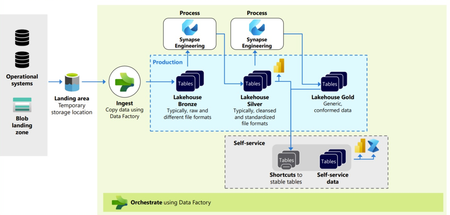
Introduction Data fuels analytics, machine learning, and AI but only if it’s trustworthy. Most organizations struggle with inconsistent schemas, nulls, data drift, or unexpected upstream changes that silently break dashboards, models, and business logic. Microsoft Fabric provides a unified analytics platform with OneLake, pipelines, notebooks, and governance capabilities. When combined with Great Expectations, an open-source data quality framework, Fabric becomes a powerful environment for enforcing data quality at scale. In this article, we explore how to implement enterprise-ready, parameterized data validation inside Fabric notebooks using Great Expectations including row-count drift detection, schema checks, primary-key uniqueness, and time-series batch validation. A quick reminder: ETL (Extract, Transform, Load) is the process of pulling raw data from source systems, applying business logic and quality validations, and delivering clean, curated datasets for analytics and AI. While ETL spans the full Medallion architecture, this guide focuses specifically on data quality checks in the Bronze layer using the NYC Taxi sample dataset. 🔗 Full implementation is available in my GitHub repository: sallydabbahmsft/Data-Quality-Checks-in-Microsoft-Fabric: Data Quality Checks in Microsoft Fabric Why Data Quality Matters More Than Ever? AI and analytics initiatives fail not because of model quality but because the underlying data is inaccurate, incomplete, or inconsistent. Organizations adopting Microsoft Fabric often ask: How can we validate data as it lands in Bronze? How do we detect schema changes before they break downstream pipelines? How do we prevent silent failures, anomalies, and drift? How do we standardize data quality checks across multiple tables and pipelines? Great Expectations provides a unified, testable, automation-friendly way to answer these questions. Great Expectations in Fabric Great Expectations (GX) is an open-source library for: ✔ Declarative data quality rules ("expectations") ✔ Automated validation during ETL ✔ Rich documentation and reporting ✔ Batch-based validation for time-series or large datasets ✔ Integration with Python, Spark, SQL, and cloud data platforms Fabric notebooks now support Great Expectations natively (via PySpark), enabling engineering teams to: Build reusable DQ suites Parameterize expectations by pipeline Validate full datasets or daily partitions Integrate validation into Fabric pipelines and alerting Data Quality Across the Medallion Architecture This solution follows the Medallion Architecture, with validation at every layer. This pipeline follows a Medallion Architecture, moving data through the Bronze, Silver, and Gold layers while enforcing data quality checks at every stage. 📘 P.S. Fabric also supports this via built-in Medallion task flows: Task flows overview - Microsoft Fabric | Microsoft Learn 🥉Bronze Layer: Ingestion & Validation Ingest raw source data into Bronze without transformations. Run foundational DQ checks to ensure structural integrity. Bronze DQ answers: ➡ Did the data arrive correctly? 🥈Silver Layer: Transformation & Validation Clean, standardize, and enrich Bronze data. Validate business rules, schema consistency, reference values, and more. Silver DQ answers: ➡ Is the data accurate and logically correct? 🥇 Gold Layer: Enrichment & Consumption Produce curated, analytics-ready datasets. Validate metrics, aggregates, and business KPIs. Gold DQ answers: ➡ Can executives trust the numbers? Recommended Data Quality Validations: Bronze Layer (Raw Ingestion) Ingestion Volume & Row Drift – Validate total row count and detect unexpected volume drops or spikes. Schema & Data Type Compliance – Ensure the table structure and column data types match the expected schema. Null / Empty Column Checks – Identify missing or empty values in required fields. Primary Key Uniqueness – Detect duplicate records based on the defined composite or natural key. Silver Layer (Cleaned & Standardized Data) Reference & Domain Value Validation – Confirm that values match valid categories, lookups, or reference datasets. Business Rule Enforcement – Validate logic constraints (e.g., StartDate <= EndDate, percentages within range). Anomaly / Outlier Detection – Identify unusual patterns or values that deviate from historical behavior. Post-Standardization Deduplication – Ensure standardized and enriched records no longer contain duplicates. Gold Layer (Curated, Business-Ready Data) Metric & Aggregation Consistency – Validate totals, ratios, rollups, and other aggregated metrics. KPI Threshold Monitoring – Trigger alerts when KPIs exceed defined thresholds. Data / Feature Drift Detection (for ML) – Monitor changes in distributions across time. Cross-System Consistency Checks – Compare business metrics across internal systems to ensure alignment. Implementing Data Quality with Great Expectations in Fabric Step 1 - Read data from Lakehouse (parametrized): lakehouse_name = "Bronze" table_name = "NYC Taxi - Green" query = f"SELECT * FROM {lakehouse_name}.`{table_name}`" df = spark.sql(query) Step 2 - Create and Register a Suite: context = gx.get_context() suite = context.suites.add( gx.ExpectationSuite(name="nyc_bronze_suite") ) Step 3 - Add Bronze Layer Expectations (Reusable Function): import great_expectations as gx def add_bronze_expectations( suite: gx.ExpectationSuite, primary_key_columns: list[str], required_columns: list[str], expected_schema: list[str], expected_row_count: int | None = None, max_row_drift_pct: float = 0.2, ) -> gx.ExpectationSuite: # 1. Ingestion Count & Row Drift if expected_row_count is not None: min_rows = int(expected_row_count * (1 - max_row_drift_pct)) max_rows = int(expected_row_count * (1 + max_row_drift_pct)) row_count_expectation = gx.expectations.ExpectTableRowCountToBeBetween( min_value=min_rows, max_value=max_rows, ) suite.add_expectation(expectation=row_count_expectation) # 2. Schema Compliance schema_expectation = gx.expectations.ExpectTableColumnsToMatchSet( column_set=expected_schema, exact_match=True, ) suite.add_expectation(expectation=schema_expectation) # 3. Required columns: NOT NULL for col in required_columns: not_null_expectation = gx.expectations.ExpectColumnValuesToNotBeNull( column=col ) suite.add_expectation(expectation=not_null_expectation) # 4. Primary key uniqueness (if provided) if primary_key_columns: unique_pk_expectation = gx.expectations.ExpectCompoundColumnsToBeUnique( column_list=primary_key_columns ) suite.add_expectation(expectation=unique_pk_expectation) return suite Step 4 - Attach Data Asset & Batch Definition: data_source = context.data_sources.add_spark(name="bronze_datasource") data_asset = data_source.add_dataframe_asset(name="nyc_bronze_data") batch_definition = data_asset.add_batch_definition_whole_dataframe("full_bronze_batch") Step 5 - Run Validation: validation_definition = gx.ValidationDefinition( data=batch_definition, suite=suite, name="Bronze_DQ_Validation" ) results = validation_definition.run( batch_parameters={"dataframe": df} ) print(results) 7. Optional: Time-Series Batch Validation (Daily Slices) Fabric does not yet support add_batch_definition_timeseries, so your notebook implements custom logic to validate each day independently: dates_df = df.select(F.to_date("lpepPickupDatetime").alias("dt")).distinct() for d in dates: df_day = df.filter(F.to_date("lpepPickupDatetime") == d) results = validation_definition.run(batch_parameters={"dataframe": df_day}) This enables: Daily anomaly detection Partition-level completeness checks Early schema drift detection Automating DQ with Fabric Pipelines Fabric pipelines can orchestrate your data quality workflow: Trigger notebook after ingestion Pass parameters (table, layer, suite name) Persist DQ results to Lakehouse or Log Analytics Configure alerts in Fabric Monitor Production workflow Run the notebook Check validation results If failures exist: Raise an incident Fail the pipeline Notify the on-call engineer This creates a closed loop of ingestion → validation → monitoring → alerting. An example of DQ pipeline: Results: How Enterprises Benefit By standardizing data quality rules across all domains, organizations ensure consistent expectations and uniform validation practices , improved observability makes data quality issues visible and actionable, enabling teams to detect and resolve failures early. This, in turn, enhances overall reliability, ensuring downstream transformations and Power BI reports operate on clean, trustworthy data. Ultimately, stronger data quality directly contributes to AI readiness high-quality, well-validated data produces significantly better analytics and machine learning outcomes. Conclusion Great Expectations + Microsoft Fabric creates a scalable, modular, enterprise-ready approach for ensuring data quality across the entire medallion architecture. Whether you're validating raw ingested data, transformed datasets, or business-ready tables, the approach demonstrated here enables consistency, observability, and automation across all pipelines. With Fabric’s unified compute, orchestration, and monitoring, teams can now integrate DQ as a first-class citizen not an afterthought. Links: Implement medallion lakehouse architecture in Fabric - Microsoft Fabric | Microsoft Learn GX Expectations Gallery • Great Expectations3.8KViews0likes1CommentSecure Medallion Architecture Pattern on Azure Databricks (Part I)
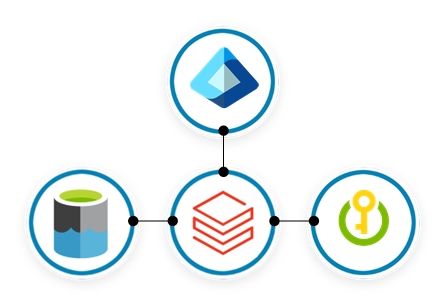
This article presents a security-first pattern for Azure Databricks: a Medallion Architecture where Bronze, Silver and Gold each run as their Lakeflow Job and cluster, orchestrated by a parent job. Run-as identities are Microsoft Entra service principals; storage access is governed via Unity Catalog External Locations backed by the Access Connector’s managed identity. Least-privilege is enforced with cluster policies and UC grants. Prefer managed tables to unlock Predictive Optimisation, Automatic liquid clustering and Automatic statistics. Secrets live in Azure Key Vault and are read at runtime. Monitor reliability and cost with system tables and Jobs UI. Part II covers more low-level concepts and CI/CD.2.4KViews13likes0CommentsExternal Data Sharing With Microsoft Fabric
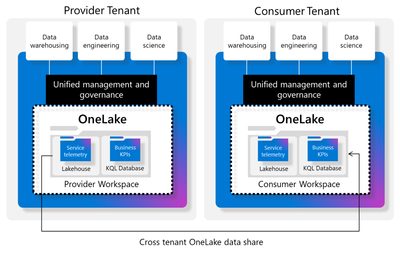
The demands and growth of data for external analytics consumption is rapidly growing. There are many options to share data externally and the field is very dynamic. One of the most frictionless and easy onboarding steps for external data sharing we will explore is with Microsoft Fabric. This external data allows users to share data from their tenant with users in another Microsoft Fabric tenant.6.9KViews3likes2CommentsClosing the loop: Interactive write-back from Power BI to Azure Databricks
This is a collaborative post from Microsoft and Databricks. We thank Toussaint Webb, Product Manager at Databricks, for his contributions. We're excited to announce that the Azure Databricks connector for Power Platform is now Generally Available. With this integration, organizations can seamlessly build Power Apps, Power Automate flows, and Copilot Studio agents with secure, governed data and no data duplication. A key functionality unlocked by this connector is the ability to write data back from Power BI to Azure Databricks. Many organizations want to not only analyze data but also act on insights quickly and efficiently. Power BI users, in particular, have been seeking a straightforward way to “close the loop” by writing data back from Power BI into Azure Databricks. This capability is now here - real-time updates and streamlined operational workflows with the new Azure Databricks connector for Power Platform. With this connector, users can now read from and write to Azure Databricks data warehouses in real time, all from within familiar interfaces — no custom connectors, no data duplication, and no loss of governance. How It Works: Write-backs from Power BI through Power Apps Enabling writebacks from Power BI to Azure Databricks is seamless. Follow these steps: Open Power Apps and create a connection to Azure Databricks (documentation). In Power BI (desktop or service), add a Power Apps visual to your report (purple Power Apps icon). Add data to connect to your Power App via the visualization pane. Create a new Power App directly from the Power BI interface, or choose an existing app to embed. Start writing records to Azure Databricks! With this integration, users can make real-time updates directly within Power BI using the embedded Power App, instantly writing changes back to Azure Databricks. Think of all the workflows that this can unlock, such as warehouse managers monitoring performance and flagging issues on the spot, or store owners reviewing and adjusting inventory levels as needed. The seamless connection between Azure Databricks, Power Apps, and Power BI lets you close the loop on critical processes by uniting reporting and action in one place. Try It Out: Get started with Azure Databricks Power Platform Connector The Power Platform Connector is now Generally Available for all Azure Databricks customers. Explore more in the deep dive blog here and to get started, check out our technical documentation. Coming soon we will add the ability to execute existing Azure Databricks Jobs via Power Automate. If your organization is looking for an even more customizable end-to-end solution, check out Databricks Apps in Azure Databricks! No extra services or licenses required.5.3KViews2likes2Comments