Security Operations
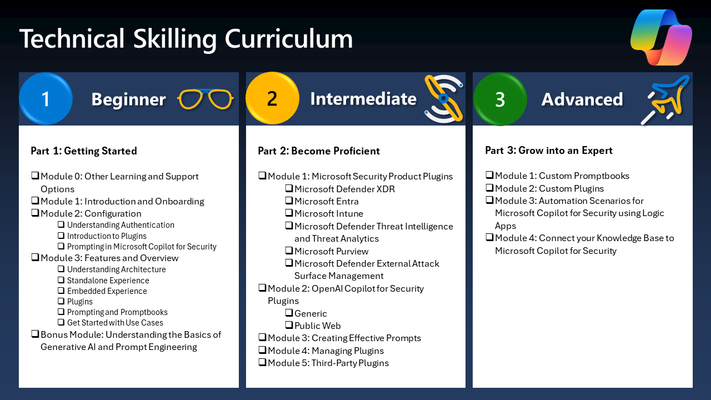
37 TopicsHow to Become a Microsoft Security Copilot Ninja: The Complete Level 400 Training
Learn how to become a Microsoft Security Copilot (Copilot) Ninja! This blog will walk you through the resources you'll need to master and make best use of Microsoft's Security Copilot product!170KViews27likes21CommentsBusting myths on Microsoft Security Copilot
This blog aims to dispel common misconceptions surrounding Microsoft Security Copilot, a cutting-edge tool designed to enhance cybersecurity measures. By addressing these myths, we hope to provide clarity on how this innovative solution can be leveraged to strengthen your organization's security.2.9KViews9likes0CommentsAutomating Phishing Email Triage with Microsoft Security Copilot
This blog details automating phishing email triage using Azure Logic Apps, Azure Function Apps, and Microsoft Security Copilot. Deployable in under 10 minutes, this solution primarily analyzes email intent without relying on traditional indicators of compromise, accurately classifying benign/junk, suspicious, and phishing emails. Benefits include reducing manual workload, improved threat detection, and (optional) integration seamlessly with Microsoft Sentinel – enabling analysts to see Security Copilot analysis within the incident itself. Designed for flexibility and control, this Logic App is a customizable solution that can be self-deployed from GitHub. It helps automate phishing response at scale without requiring deep coding expertise, making it ideal for teams that prefer a more configurable approach and want to tailor workflows to their environment. The solution streamlines response and significantly reduces manual effort. Access the full solution on the Security Copilot Github: GitHub - UserReportedPhishing Solution. For teams looking for a more sophisticated, fully integrated experience, the Security Copilot Phishing Triage Agent represents the next generation of phishing response. Natively embedded in Microsoft Defender, the agent autonomously triages phishing incidents with minimal setup. It uses advanced LLM-based reasoning to resolve false alarms, enabling analysts to stay focused on real threats. The agent offers step-by-step decision transparency and continuously learns from user feedback. Read the official announcement here. Introduction: Phishing Challenges Continue to Evolve Phishing continues to evolve in both scale and sophistication, but a growing challenge for defenders isn't just stopping phishing, it’s scaling response. Thanks to tools like Outlook’s "Report Phishing" button and increased user awareness, organizations are now flooded with user-reported emails, many of which are ambiguous or benign. This has created a paradox: better detection by users has overwhelmed SOC teams, turning email triage into a manual, rotational task dreaded for its repetitiveness and time cost, often taking over 25 minutes per email to review. Our solution addresses that problem, by automating the triage of user-reported phishing through AI-driven intent analysis. It's not built to replace your secure email gateways or Microsoft Defender for Office 365; those tools have already done their job. This system assumes the email: Slipped past existing filters, Was suspicious enough for a user to escalate, Lacks typical IOCs like malicious domains or attachments. As a former attacker, I spent years crafting high-quality phishing emails to penetrate the defenses of major banks. Effective phishing doesn't rely on obvious IOCs like malicious domains, URLs, or attachments… the infrastructure often appears clean. The danger lies in the intent. This is where Security Copilot’s LLM-based reasoning is critical, analyzing structure, context, tone, and seasonal pretexts to determine whether an email is phishing, suspicious, spam, or legitimate. What makes this novel is that it's the first solution built specifically for the “last mile” of phishing defense, where human suspicion meets automation, and intent is the only signal left to analyze. It transforms noisy inboxes into structured intelligence and empowers analysts to focus only on what truly matters. Solution Overview: How the Logic App Solution Works (and Why It's Different) Core Components: Azure Logic Apps: Orchestrates the entire workflow, from ingestion to analysis, and 100% customizable. Azure Function Apps: Parses and normalizes email data for efficient AI consumption. Microsoft Security Copilot: Performs sophisticated AI-based phishing analysis by understanding email intent and tactics, rather than relying exclusively on predefined malicious indicators. Key Benefits: Rapid Analysis: Processes phishing alerts and, in minutes, delivers comprehensive reports that empower analysts to make faster, more informed triage decisions – compared to manual reviews that can take up to 30 minutes. And, unlike analysts, Security Copilot requires zero sleep! AI-driven Insights: LLM-based analysis is leveraged to generate clear explanations of classifications by assessing behavioral and contextual signals like urgency, seasonal threats, Business Email Compromise (BEC), subtle language clues, and otherwise sophisticated techniques. Most importantly, it identifies benign emails, which are often the bulk of reported emails. Detailed, Actionable Reports: Generates clear, human-readable HTML reports summarizing threats and recommendations for analyst review. Robust Attachment Parsing: Automatically examines attachments like PDFs and Excel documents for malicious content or contextual inconsistencies. Integrated with Microsoft Sentinel: Optional integration with Sentinel ensures central incident tracking and comprehensive threat management. Analysis is attached directly to the incident, saving analysts more time. Customization: Add, move, or replace any element of the Logic App or prompt to fit your specific workflows. Deployment Guide: Quick, Secure, and Reliable Setup The solution provides Azure Resource Manager (ARM) templates for rapid deployment: Prerequisites: Azure Subscription with Contributor access to a resource group. Microsoft Security Copilot enabled. Dedicated Office 365 shared mailbox (e.g., phishing@yourdomain.com) with Mailbox.Read.Shared permissions. (Optional) Microsoft Sentinel workspace. Refer to the up to date deployment instructions on the Security Copilot GitHub page. Technical Architecture & Workflow: The automated workflow operates as follows: Email Ingestion: Monitors the shared mailbox via Office 365 connector. Triggers on new email arrivals every 3 minutes. Assumes that the reported email has arrived as an attachment to a "carrier" email. Determine if the Email Came from Defender/Sentinel: If the email came from Defender, it would have a prepended subject of “Phishing”, if not, it takes the “False” branch. Change as necessary. Initial Email Processing: Exports raw email content from the shared mailbox. Determines if .msg or .eml attachments are in binary format and converts if necessary. Email Parsing via Azure Function App: Extracts data from email content and attachments (URLs, sender info, email body, etc.) and returns a JSON structure. Prepares clean JSON data for AI analysis. This step is required to "prep" the data for LLM analysis due to token limits. Click on the “Parse Email” block to see the output of the Function App for any troubleshooting. You'll also notice a number of JSON keys that are not used but provided for flexibility. Security Copilot Advanced AI Reasoning: Analyzes email content using a comprehensive prompt that evaluates behavioral and seasonal patterns, BEC indicators, attachment context, and social engineering signals. Scores cumulative risk based on structured heuristics without relying solely on known malicious indicators. Returns validated JSON output (some customers are parsing this JSON and performing other action). This is where you would customize the prompt, should you need to add some of your own organizational situations if the Logic App needs to be tuned: JSON Normalization & Error Handling: A “normalization” Azure Function ensures output matches the expected JSON schema. Sometimes LLMs will stray from a strict output structure, this aims to solve that problem. If you add or remove anything from the Parse Email code that alters the structure of the JSON, this and the next block will need to be updated to match your new structure. Detailed HTML Reporting: Generates a detailed HTML report summarizing AI findings, indicators, and recommended actions. Reports are emailed directly to SOC team distribution lists or ticketing systems. Optional Sentinel Integration: Adds the reasoning & output from Security Copilot directly to the incident comments. This is the ideal location for output since the analyst is already in the security.microsoft.com portal. It waits up to 15 minutes for logs to appear, in situations where the user reports before an incident is created. The solution works pretty well out of the box but may require some tuning, give it a test. Here are some examples of the type of Security Copilot reasoning. Benign email detection: Example of phishing email detection: More sophisticated phishing with subtle clues: Enhanced Technical Details & Clarifications Attachment Processing: When multiple email attachments are detected, the Logic App processes each binary-format email sequentially. If PDF or Excel attachments are detected, they are parsed for content and are evaluated appropriately for content and intent. Security Copilot Reliability: The Security Copilot Logic App API call uses an extensive retry policy (10 retries at 10-minute intervals) to ensure reliable AI analysis despite intermittent service latency. If you run out of SCUs in an hour, it will pause until they are refreshed and continue. Sentinel Integration Reliability: Acknowledges inherent Sentinel logging delays (up to 15 minutes). Implements retry logic and explicit manual alerting for unmatched incidents, if the analysis runs before the incident is created. Security Best Practices: Compare the Function & Logic App to your company security policies to ensure compliance. Credentials, API keys, and sensitive details utilize Azure Managed Identities or secure API connections. No secrets are stored in plaintext. Azure Function Apps perform only safe parsing operations; attachments and content are never executed or opened insecurely. Be sure to check out how the Microsoft Defender for Office team is improving detection capabilities as well Microsoft Defender for Office 365's Language AI for Phish: Enhancing Email Security | Microsoft Community Hub.Case Study: Harnessing Copilot for Security in Defending Against Cyberthreats
Get ready to dive into a real-life security incident within Microsoft Defender XDR! In this case study, you’ll take on the role of a security analyst and uncover how Copilot for Security can empower you throughout the investigation. Let’s see how you can tackle cyber threats head-on!4.7KViews6likes0CommentsImproving Threat Hunting Efficiency using Copilot for Security
Copilot for Security is the next level in the ongoing story to resolve efficiency in security. It is a solution that can help organizations overcome the challenges of threat hunting and achieve better security outcomes.14KViews6likes2CommentsEmpowering Security Copilot with NL2KQL: Transforming Natural Language into Insightful KQL queries
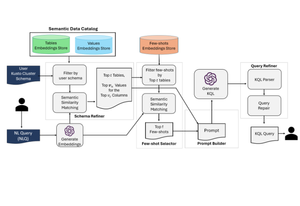
By leveraging NL2KQL, a powerful framework that translates natural language into KQL queries, Security Copilot makes querying in KQL as intuitive as a conversation. In this article, we’ll explore the story behind NL2KQL, its potential to transform security operations, and why it matters for the future of cybersecurity.2.5KViews3likes0CommentsAzure Lighthouse support for MSSP use of Security Copilot Sentinel scenarios in Public Preview
Security Copilot support for Azure Lighthouse Sentinel use cases for managed security service provider (MSSP) tenants is now in public preview. With this support, MSSPs can purchase SCUs and attach them to the managing tenant in Azure Lighthouse and use those SCUs to run Security Copilot skills related to Microsoft Sentinel on their customer tenants via Azure Lighthouse. All the Sentinel skills available in Security Copilot will be invokable from the Azure Lighthouse tenant without the customer needing to have Security Copilot, thereby making Security Copilot available to MSSPs who manage multiple customers. Supported scenarios include querying the customer Sentinel incident, incident entities/ details, querying Sentinel workspaces, and fetching Sentinel incident query. These skills can be invoked on per customer Sentinel workspace. Managing tenants using Azure Lighthouse now can do the following, without their customers needing to provision SCUs: Use the same natural language based prompts using Sentinel skills on customer data Create custom promptbooks using Sentinel skills to automate their investigations Use Logic Apps to trigger these promptbooks While this release doesn’t support all Security Copilot skills across customer tenants for MSSPs, it is an important development on the road to full support for Security Copilot for MSSPs using Azure Lighthouse. Read on to learn more about what this means for your practice, and how to get started. What is Azure Lighthouse? Azure Lighthouse is built into the Azure portal and allows IT partners to manage multiple tenants for Azure services. It provides a unified management experience, enabling partners to view and manage resources across all their customers' Azure environments from a single pane of glass. It supports multi-customer management, meaning partners can perform actions across multiple customer tenants simultaneously. This is particularly useful for Managed Service Providers (MSPs) who need to manage resources at scale. What is changing? We are introducing Azure Lighthouse support for MSSPs to use Security Copilot on their customer tenants without requiring customers to purchase Security Compute Units (SCUs). With Azure Lighthouse support, SCUs should be purchased by a MSSP admin for use on their customer’s tenant . To get started, MSSPs can go to Azure to onboard on to Security Copilot and apply their purchased SCUs to their Azure Lighthouse subscription. In Azure Lighthouse, the MSSP needs to ensure that they have access setup to their customer’s Sentinel environment. Once the setup is completed, MSSPs can invoke Sentinel skills on the customer tenant via the Security Copilot Standalone portal and use the SCUs associated to the Azure Lighthouse subscription. MSSPs can further use custom promptbooks and logic apps to automate their workflows. In future, managed service support will continue to expand to include other skills and capabilities such as Entra, Intune and Purview skills. We will also add support to run the skills in parallel on multiple workspaces across customer tenants so that the same prompt can return the response from multiple tenants for better analysis. What other access controls are supported? As of December 2024, we now support M365 Partner Center GDAP (Granular Delegated Admin Privileges) which allows the managing tenant to operate directly in their customer’s environment using their customer’s Security Copilot tenant. M365 Partner Center GDAP: GDAP is focused on Microsoft 365 services and is available through the Partner Center. It provides more granular and time-bound access to customer workloads, addressing security concerns by offering least-privileged access. Unlike Azure Lighthouse, GDAP relationships are more specific and time-bound, with a maximum duration of two years. Partners can request and manage these relationships through the Partner Center. GDAP is designed to help partners provide services to customers who have regulatory requirements or security concerns about high levels of partner access. MSSPs can get access to customer tenants via GDAP and log into the Security Copilot standalone portal or the embedded experience to get their jobs done. The MSSP will be able to execute all the skills in Security Copilot (Entra, Defender, Purview, Intune, XDR etc.,), a full list of skills is available here as GDAP supports all these services. In this configuration, the customer is the one purchasing Security Copilot SCUs and the MSSP uses these SCUs associated to the customer tenant, rather than SCUs associated to the MSSP’s tenant. Since Entra, Defender, Purview, Intune are not supported in Azure Lighthouse, the only way for MSSPs to use Security Copilot on their customer tenant for these products is by directly logging into the customer tenant and utilizing the SCUs purchased by customers. Additional Resources Understand authentication in Microsoft Security Copilot | Microsoft Learn Grant MSSPs access to Microsoft Security Copilot | Microsoft Learn Microsoft Security Copilot Frequently Asked Questions | Microsoft Learn Microsoft 365 Lighthouse frequently asked questions (FAQs) GDAP frequently asked questions - Partner Center | Microsoft Learn4.2KViews3likes0CommentsRedefining Cyber Defence with Microsoft Security Exposure Management (MSEM) and Security Copilot
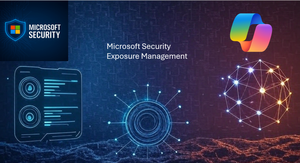
Introduction Microsoft Security Exposure Management (MSEM) provides the Cyber Defense team with a unified, continuously updated awareness of assets exposure, relevant attack paths and provides classifications to these findings. While MSEM continuously creates and updates these finding, the Security Operations Center (SOC) Engineering team needs to reach to this data and interact with it as a part of their proactive discovery exercises. Microsoft Security Copilot (SCP) on the other hand, acts as an always-ready AI-powered copilot to the SOC Engineering team. When combined, the situational awareness from MSEM and the quick and consistent retrieval capabilities of SCP, MSEM and SCP empower the SOC Engineers with a natural-language front door into exposure insights and attack paths, this combination also opens the door to include MSEM content, and the reasoning over this content in Security Copilot prompts, in prompt books and allows the use of this content in automation scenarios that leverage security copilot. Traditionally, a SOC person needs to navigate to Microsoft Security Advanced Hunting, retrieve data related to assets with a certain level of exposure, and then start building plans for each asset to reduce its exposure, a plan that needs to take into consideration the nature of the exposure, the location the asset is hosted and the characteristics of the asset and requires working knowledge of each impacted system. This approach: Is a time-consuming process, especially when taking into consideration the learning curve associated with learning about each exposure before deciding on the best course of exposure reduction; and Can result in some undesired habits like adapting a reactive approach, rather than a proactive approach; Prioritizing assets with a certain exposure risk level; or attending to exposures that are already familiar to the person reviewing the list of exposures and attack paths. Overview of Exposure Management Microsoft Security Exposure Management is a security solution that provides a unified view of security posture across company assets and workloads. Security Exposure Management enriches asset information with security context that helps you to proactively manage attack surfaces, protect critical assets, and explore and mitigate exposure risk. Who uses Security Exposure Management? Security Exposure Management is aimed at: Security and compliance admins responsible for maintaining and improving organizational security posture. Security operations (SecOps) and partner teams who need visibility into data and workloads across organizational silos to effectively detect, investigate, and mitigate security threats. Security architects responsible for solving systematic issues in overall security posture. Chief Information Security Officers (CISOs) and security decision makers who need insights into organizational attack surfaces and exposure in order to understand security risk within organizational risk frameworks. What can I do with Security Exposure Management? With Security Exposure Management, you can: Get a unified view across the organization Manage and investigate attack surfaces Discover and safeguard critical assets Manage exposure Connect your data Reference links: Overview What is Microsoft Security Exposure Management (MSEM)? What's new in MSEM Get started Start using MSEM MSEM prerequisites How to import data from external data connectors in MSEM Concept Learn about critical asset management in MSEM Learn about attack surface management in MSEM Learn about exposure insights in MSEM Learn about attack paths in MSEM How-To Guide Review and classify critical assets in MSEM Review security initiatives in MSEM Investigate security metrics in MSEM Review security recommendations in MSEM Query the enterprise exposure graph MSEM Explore with the attack surface map in MSEM Review potential attack paths in MSEM Integration and licensing for MSEM Compare MSEM with Secure Score Overview of Security Copilot plugins and skills Microsoft Security Copilot is a generative AI-powered assistant designed to augment security operations by accelerating detection, investigation, and response. Its extensibility through plugins and skills enables organizations to tailor the platform to their unique environments, integrate diverse data sources, and automate complex workflows. Plugin Architecture and Categories: Security Copilot supports a growing ecosystem of plugins categorized into: First-party plugins: Native integrations with Microsoft services such as Microsoft Sentinel, Defender XDR, Intune, Entra, Purview, and Defender for Cloud. Third-party plugins: Integrations with external security platforms and ISVs, enabling broader telemetry and contextual enrichment. Custom plugins: User-developed extensions using KQL, GPT, or API-based logic to address specific use cases or data sources. Plugins act as grounding sources—providing context, verifying responses, and enabling Copilot to operate across embedded experiences or standalone sessions. Users can toggle plugins on/off, prioritize sources, and personalize settings (e.g., default Sentinel workspace) to streamline investigations. Skills and Promptbooks Skills in Security Copilot are modular capabilities that guide the AI in executing tasks such as incident triage, threat hunting, or policy analysis. These are often bundled into promptbooks, which are reusable, scenario-driven workflows that combine plugins, prompts, and logic to automate investigations or compliance checks. Security analysts can create, manage, and share promptbooks across tenants, enabling consistent execution of best practices. Promptbooks can be customized to include plugin-specific logic, such as querying Microsoft Graph API or running KQL-based detections. Role-Based Access and Governance Security Copilot enforces role-based access through Entra ID security groups: Copilot Owners: Full access to manage plugins, promptbooks, and tenant-wide settings. Copilot Contributors: Can create sessions and use promptbooks but have limited plugin publishing rights. Each embedded experience may require additional service-specific roles (e.g., Sentinel Reader, Endpoint Security Manager) to access relevant data. Governance files and onboarding templates help teams align plugin usage with organizational policies. Connecting Exposure Management with Security Copilot There are multiple benefits of connecting MSEM with Security Copilot (as explained in section 1 [Introduction] of this paper). We wrote a plugin with two skills to harness the Exposure Management insights within Security Copilot and to eventually understand the exposure of assets hosted in a particular cloud platform by your organization and of assets belonging to a specific user. A high-level architecture of the connectivity looks like this: The two skills of the plugins correspond to the following two use cases: Obtain exposure of an asset hosted on a particular cloud platform by your organization Obtain exposure of an asset belonging to a specific user As a user you could also specify the exposure level for which you want to extract the data, in each of the above use cases. Plugin Code (YAML) GitHub - Microsoft Security Exposure Management plugin for Security Copilot - YAML Proof of Concept (screen video) Conclusion Here, we proposed an alternative approach that drives up the SOC’s efficiency and helps the organization reduce the time from exposure discovery to exposure reduction. The alternative approach proposed allows the SOC person to retrieve assets that fit a certain profile, i.e. prompt Security Copilot to “List all assets hosted on Azure with Low Exposure Level” and after all affected assets are retrieved, the user can then prompt Security Copilot to “For each asset, help me create a 7-days plan to reduce these exposures” and can then finally conclude with the prompt “Create an Executive Report, start by explaining to none-technical audience the risks associated with the identified exposures, then list all affected assets, along with a summary of the steps needed to reduce the exposures identified”. These prompts can also be organized in a promptbook, further reducing the burden on the SOC person, and can also be made using Automation on regular intervals, where the automation can later email the report to intended audience or can be further extended to create relevant tickets in the IT Service Management System. An additional approach to risk management is to keep an eye on highly targeted personas within the organization, with the proposed integration a SOC person can prompt Security Copilot to find “What are the exposure risks associated with the devices owned by the Contoso person john.doe@contoso.com”. This helps the SOC person identify and remediate attack paths targeting devices used by highly targeted persons, where the SOC person can, within the same session, start digging deeper into finding any potential exploitation of these exposures, get recommendations on how to reduce these exposures, and draft an action plan.690Views2likes0CommentsNext-Gen Device Incident Investigation & Threat Hunting with Custom Plugins
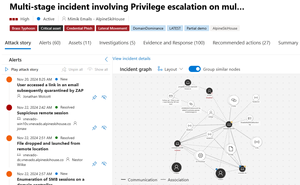
The Security Copilot custom plugin empowers you to extend Security Copilot functionalities beyond the preinstalled and third-party plugins. This blog introduces two custom plugins that you can install and use in your environment. An incident investigation case study will be used to demonstrate the features of these two custom plugins. Additionally, a step-by-step guide will walk you through the setup process, which only takes a few clicks. The first custom plugin, “Custom Plugin Defender Device Investigation”, provides the following skills: Title: File - Files Downloaded Description: Lists files downloaded to this device in specific timeframe within past 30 days. Title: File - Last 15 Days Files Downloaded Description: Lists files downloaded to this device in the last 15 days. Title: File - Any Device Events Related To This File Description: Display device events that include the filename, in specific timeframe. Title: File - Sensitive Files Events Description: Lists sensitive files events on this device in the last 10 days. Title: File - File Origin Description: Display the origin or source of the file, in past 30 days. Title: Process - Process Executions Summary Description: Summary of process executions on this device in specific timeframe. Title: Process - Detailed Process Executions Description: Detailed all process execution events on device within a brief period, e.g. an hour. Title: Process - Detailed Process Events Description: Detailed specific process execution events on device within a defined time frame. Title: Lateral Movement - RDP To Device Description: Inbound RDP connection to this device in a specific timeframe. Title: Lateral Movement - Logon To Device Description: Logon events from other devices to this device in a specific timeframe. Title: Lateral Movement - Logons To Device In Last 10 Days Description: Logon events from other devices to this device in the last 10 days. Title: Network - Outbound Network Events Description: Device outbound network events, including attempts and failed connections. Title: Network - Inbound Network Events Description: Device inbound network events and attempts in a specific timeframe. Title: Network - Device Listening Ports Description: Displays device listening ports in specific timeframe. Title: Device Events - Scheduled Task Events Description: Scheduled task events seen on a device in a specific timeframe. Title: Device Events - User Account Events Description: User account events seen on a device in a specific timeframe. Title: Device Events - User Account Added Or Removed From Local Group Description: User account added or removed from local group in a specific timeframe. Title: Suspicious Activities - ASR Rules Triggered Description: ASR rules that were triggered on this device in the past 7 days. Title: Suspicious Activities - ASMSI Script Detection Description: Script detection from Windows Antimalware Scan Interface (AMSI) in past 7 days. Title: Suspicious Activities - Exploit Guard Events Description: Exploit Guard events detected on this device in past 7 days. Title: Suspicious Activities - Network Protection Events Description: Network Protection events triggered on this device in the past 7 days. Title: Suspicious Activities - Device Tampering Attempts Description: Possible tampering attempts on this device in the past 7 days. The second custom plugin, “Custom Plugin Defender Device Info”, offers specific device information often needed during an investigation. Its skills include: Title: Device OS Information Description: Latest device OS information with the device name as the input. Title: Device Current and Past IPs Description: The current and past IPs assigned to this device in the last 10 days. Title: Device Users and Login Counts Description: List users logged onto this device and the number of times, within the last 10 days. Title: Device Alert Information Description: Alerts observed on this device in the last 30 days. Title: Device Installed Applications Description: Currently installed applications on this device. Title: Device Vulnerability Information Description: Vulnerabilities identified on this device. Title: Device Critical Vulnerabilities Description: Vulnerability with CVSS score 7 or higher, or exploit is publicly available. Both custom plugins are available for download from the Security Copilot GitHub repository at this link. Step-by-step guides on how to install the custom plugin will be covered later in this blog. Let's start by demonstrating some of the capabilities of the two custom plugins through a case study of a Microsoft Defender XDR incident. For this incident, the Security Copilot incident summary reveals that the threat actor used a credential phishing attack to gain initial access. Over the course of the incident, several instances of lateral movement, credential access, and privilege escalation were detected, impacting users and devices across the network. Key activities included the use of tools like Mimikatz and Rubeus, suspicious remote sessions, and evidence of system manipulation. From the Security Copilot incident summary, you learn that the attack started when user “jonaw” clicked on a malicious URL in an email. Following that, a suspicious remote session was detected on device “vnevado-win10v”. To investigate the suspicious remote session on the device, one way is to leverage the “Lateral Movement – Logon To Device” skill from the “Custom Plugin Defender Device Investigation” plugin in Security Copilot's standalone mode. This skill presents the logon events that occurred on the device within the specified timeframe. The logon events include console logons, Remote Desktop logons, remote registry logons, scheduled task logons, and more. You can invoke this skill by navigating to the System Capabilities menu option from the prompt bar. To get to the System Capabilities menu option, select the Prompts option from the prompt bar, as shown next. Then the System Capabilities menu option appears. This skill is located under the plugin named “CUSTOM PLUGIN DEFENDER DEVICE INVESTIGATION”, as shown next. Once this skill is selected, you will need to fill in three input fields: the device name, start time, and end time. For this case study, the alert for the suspicious remote session was triggered for device vnevado-win10v, occurring at approximately 9:42 UTC on November 22 nd 2024. For the investigation, let's set the start time to 2024-11-22 9:30 UTC and the end time to 9:50 UTC, as shown in the next screenshot. The next screenshot demonstrates that Security Copilot executes this skill. Using the “Export to Excel” option in the Copilot response, you can download then manually review the logon events. Upon inspection, it is discovered that for device vnevado-win10v, there is a long list of logon events involving different user accounts within the 20-minute time frame. A screenshot showing a portion of the logon events is displayed next. You can then ask Security Copilot with this prompt: “Can you review the previous output of the logon events for the device vnevado-win10v between 2024-11-22 09:30 and 2024-11-22 09:50, summarize the logon events and also point out anything suspicious”. The next screenshot displays the Security Copilot prompt along with the beginning of its response. The logon event summary provided by Security Copilot is thorough but a bit long. At the end, it includes the identified suspicious logon activities: There are several instances where logon attempts are followed by successful logons within milliseconds, which could indicate automated or scripted logon attempts. There are 10 logon events with an "Unknown" logon type, which is unusual and may warrant further investigation. The account debrab has one logon event where it is marked as a local admin, which should be verified for legitimacy. For your reference, the last section of the Security Copilot’s logon event summary is shown in the next screen capture. After reviewing the logon event summary for device vnevado-win10v, let’s find out who might be the owner of this device. The “Device Users and Login Counts” skill from the “Custom Plugin Defender Device Info” plugin provides a summary of how many times each user has logged into the device over the past 30 days. Typically, the user with the most logins is likely the device owner. Once the skill is executed for device vnevado-win10v, Security Copilot reports that “user jonaw has logged onto the device vnevado-win10v a total of 189 times in the last 30 days”, as shown in the next screen capture. This helps to identify user “jonaw” as the likely device owner, which in turn makes user “debrab” appear even more suspicious. Let’s go back to the detailed logon events provided by Security Copilot earlier and take another look at user account “debrab”. The next screenshot shows the logon events for device vnevado-win10v, filtered to display only those associated with the user “debrab”. One notable observation is that the logon type for user “debrab” is either batch or unknown, which appears suspicious as well, especially with one batch logon with local admin privilege. What is a batch logon type? You can ask Security Copilot for more insights. The next screenshot displays Copilot’s responses, which explains that a batch logon type is typically used for scheduled tasks. The batch logon seems odd in this case. One of Security Copilot's key features is its ability to distinguish between normal and anomalous behavior in IT operations. In this case, let’s ask Security Copilot whether it’s common for someone with local admin privilege to log on to a device through a batch logon. As seen in the previous screenshot, Security Copilot points out that the batch logon is unusual, as it is typically used for scheduled tasks or automated processes, not for interactive sessions by administrators. Security Copilot’s response further confirms that the batch logon events with user account “debrab” are suspicious. This information and the other Security Copilot observations can assist you in identifying the suspicious remote session detected on device “vnevado-win10v”. The incident summary generated by Security Copilot not only mentions the detection of a suspicious remote session on device vnevado-win10v, but also reports the presence of suspicious files, including mimikatz.exe, rubeus.exe, xcopy.exe, and powershell.exe. The incident summary snippet is displayed next for reference. Let’s now examine what occurred on the device involving these suspicious files. A quick and easy way to start the investigation is to check for files downloaded to the device and reviewing the device's process execution events around the time of the incident to identify anything suspicious. Manually checking for downloaded files and examining process execution events can be time-consuming and labor-intensive. However, with the help of Security Copilot, these tasks can be performed more quickly and efficiently. The “File - Files Downloaded” skill from the “Custom Plugin Defender Device Investigation” plugin can be used to quickly identify files that were downloaded onto a device within a specific time period. Then, the “Process - Process Executions Summary” skill from the same Security Copilot plugin can be used to list the processes that executed on the device during the same timeframe. You can then ask Security Copilot to analyze these processes to identify anything suspicious. After the “File - Files Downloaded” skill executes, Security Copilot identifies a file named DomainDominance198.zip was downloaded to device vnevado-win10v. Another thing to keep in mind is that not all the information from the Copilot findings is directly visible in the Security Copilot console. You can expand the output result within the console or export the findings to Excel for a clearer view of the additional details. For this investigation, you can then more thoroughly review the URL from which the file was downloaded, verify the file location through its folder path, and locate the user account associated with the download. The next screenshot displays these additional details seen in the Excel spreadsheet. Then, the “Process - Process Executions Summary” skill provides a list of processes executed on the same device, vnevado-win10v, during the same period. Instead of manually reviewing all 128 processes, you can ask Security Copilot to analyze the processes and flag any suspicious ones. In addition, it's worth mentioning earlier in the investigation, leveraging the Microsoft Entra plugin, Security Copilot reports that user account “jonaw” belongs to Jonathan Wolcott, an account executive in the Sales department. With this information, let’s ask Security Copilot to identify any process execution that should typically not be carried out by someone outside of the IT department. Here is the Security Copilot prompt you can use: User “jonaw” is an account executive in the sales department, with this information, can you identify any processes that typically should not be carried out by someone outside of the IT department? Security Copilot then identifies six suspicious processes and provides its reasoning along the way. Once again, you can export the Security Copilot findings to Excel for a more thorough review. The next screenshot displays the results in Excel, with a more readable format. Now that a few more suspicious processes have been identified, let's revisit the downloaded file, DomainDominance198.zip, to see if more details can be uncovered. The skill, “File - Any Device Events Related To This File”, is part of the “Custom Plugin Defender Device Investigation” plugin in Security Copilot. It is designed to identify any device events or activities related to a specific file. It uses the filename as a keyword to filter and display only the device events containing this keyword within a defined time period. For this security incident, let's use this skill to search for device events containing the name of the downloaded file, DomainDominance198. Upon reviewing the Security Copilot response exported to Excel, you can see that a new file, DomainDominance198.ps1, has been created in the same directory as DomainDominance198.zip. In addition, the “File - File Origin” skill in the “Custom Plugin Defender Device Investigation” plugin provides details about a file's origin or source. It shows where the file came from, and any associated file or connection linked to it. In this case, as shown in the next screenshot, Security Copilot reveals that the file DomainDominance198.zip was downloaded from a specific URL. And that the file DomainDominance198.ps1 is associated with file DomainDominance198.zip, as shown next. The additional details in Security Copilot’s responses highlight the exact association, indicating that the File Origin Referrer URL for DomainDominance198.ps1 is DomainDominance198.zip, as shown in the next screen capture. With these insights, let's use another Security Copilot skill to conduct a more in-depth examination of PowerShell execution events on device vnevado-win10v. The skill, “Process - Detailed Process Events”, is also part of the “Custom Plugin Defender Device Investigation” plugin. It retrieves detailed process execution events, including process command line information and the parent process execution details, for the specified process on a given device within a defined time frame. When this skill is invoked, it requires four mandatory fields to be filled, as shown next. Security Copilot then displays the PowerShell execution events identified on device vnevado-win10v within the specified timeframe of 2024-11-22 09:30 to 2024-11-22 10:30, as shown next. From a more condensed text view of the responses from Security Copilot, a range of unusual or potentially harmful behaviors can be observed in the next screenshot. Some of these suspicious events are highlighted in yellow or displayed in bold in the next screenshot. The process execution events retrieved include command line details and parent process, therefore you are able to see both the PowerShell execution and processes launched with PowerShell as the parent process. The suspicious processes, such as mimikatz.exe, Rubeus.exe, xcopy.exe, PxExec.exe, and others mentioned in the Security Copilot incident summary, are identified here, allowing you to quickly recognize the correlation. Additionally, you can ask Security Copilot to assist you in reviewing the suspicious events. For instance, immediately after the xcopy command was used to copy the file “Rubeus.exe” to the remote device vnevado-win10b, a subsequent command involving “PsExec.exe” is observed in the detailed PowerShell execution events presented earlier by Security Copilot. The two command lines are shown in the next screen capture. Consulting with Security Copilot reveals that “PsExec.exe” executed a command remotely on the device vnevado-win10b. This command launched “Rubeus.exe” to dump Kerberos tickets for the user “nestorw” and saved the output to C:\Temp\AdminTicket.txt. Security Copilot notes that this action indicates credential dumping and potential lateral movement within the network. The next screenshot shows the prompt along with part of the responses from Security Copilot. As there are many other potentially harmful behaviors also observed in the detailed PowerShell execution events presented by Security Copilot earlier, you can submit each of these suspicious events to Security Copilot and ask for insights. Downloading and Installing the Custom Plugins The configuration files for the custom plugins can be downloaded from this link. Once you have the configuration file (in YAML format), here are the steps to upload and install it to your Security Copilot instance. Step 1: Select the Sources icon in the Prompt bar. Step 2: Scroll to the bottom of the Manage Sources page, within the Custom section, you'll find the "Add a plugin" option. Step 3: Click on “Add plugin” and then choose “Copilot for Security plugin”, as illustrated in the next screenshot. Step 4: Click on “Upload file” to install configuration file, which is in YAML format. Step 5: Click on Add. And voilà, the new custom plugin appears along with other plugins in the Manage sources section, as seen in the screen capture next. Now you can start using the custom plugins and they will appear in the “System Capabilities” section.2.4KViews2likes0Comments