secure posture
19 Topics
Part 3: Build custom email security reports with Power BI and workbooks in Microsoft Sentinel
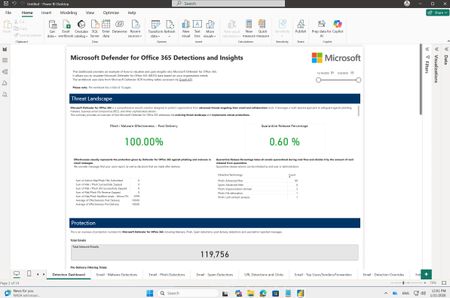
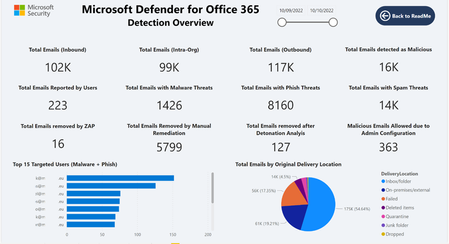
TL;DR: We're releasing a brand-new Power BI template for email security reporting and a major update (v3) to the Microsoft Sentinel workbook. Both solutions share the same rich visuals and insights. Choose Power BI for quick deployment without Sentinel, or the Sentinel workbook for extended data retention and multi-tenant scenarios. Get started in minutes with either option. Introduction Security teams in both small and large organizations track key metrics to make critical security decisions and identify meaningful trends in their organizations. While Microsoft Defender for Office 365 provides rich, built-in reporting capabilities, many security teams need custom reporting solutions to create dedicated views, combine multiple data sources, and derive deeper insights tailored to their unique requirements. Earlier last year (Part 1 and Part 2) we shared examples of how you can use workbooks in Microsoft Sentinel to build a custom email security insights dashboard for Microsoft Defender for Office 365. Today, we are excited to announce the release of a new Power BI template file for Microsoft Defender for Office 365 customers, along with an updated version of the Microsoft Defender for Office 365 Detections and Insights workbook in Microsoft Sentinel. Both solutions share the same visual design and structure, giving you a consistent experience regardless of which platform you choose. Power BI template file - Microsoft Defender for Office 365 Detections and Insights: Microsoft Sentinel workbook - Microsoft Defender for Office 365 Detections and Insights: NEW: Power BI template file for Microsoft Defender for Office 365 Detections and Insights This custom reporting template file utilizes Power BI and Microsoft Defender XDR Advanced Hunting through the Microsoft Graph security API. It is designed for Microsoft Defender for Office 365 customers who have access to Advanced Hunting but are not using Microsoft Sentinel. Advanced Hunting data in Microsoft Defender for Office 365 tables is available for up to 30 days. The reporting template uses these same data tables to visualize insights into an organization's email security, including protection, detection, and response metrics provided by Microsoft Defender for Office 365. Note: If data retention beyond 30 days is required, customers can use the Microsoft Defender for Office 365 Detections and Insights workbook in Microsoft Sentinel. You can find the new .pbit template file and detailed instructions on how to set up and use it in the unified Microsoft Sentinel and Microsoft 365 Defender GitHub repository. This new Power BI template uses the same visuals and structure as the Microsoft Defender for Office 365 Detections and Insights workbook in Microsoft Sentinel, providing an easy way to gain deep email security insights across a wide range of use cases. UPDATED: Microsoft Defender for Office 365 Detections and Insights workbook in Microsoft Sentinel We are excited to announce the release of a new version (3.0.0) of the Microsoft Defender for Office 365 Detections and Insights workbook in Microsoft Sentinel. The workbook is part of the Microsoft Defender XDR solution in Microsoft Sentinel and can be installed and started to use with a few simple clicks. In this new release we incorporated feedback we have received from many customers in the past few months to add new visuals, updated existing visuals and add insights focusing on security operations. What’s New Here are some notable changes and new capabilities available in the updated workbook template. Improved structure: Headings and grouped insights have been added to tabs for easier navigation and understanding of metrics. Contextual explanations: Each tab, section, and visual now includes descriptions to help users interpret insights effectively. Drill-down capability: A single “Open query link” action allows users to view the underlying KQL query for each visual, enabling quick investigation and hunting by modifying conditions or removing summaries to access raw data. Detection Dashboard tab enhancements: Added an example Effectiveness metric, updated visuals to focus on overall Microsoft Defender for Office 365 protection values, and introduced new sections for Emerging Threats and Microsoft 365 Secure Email Gateway Performance. New Security Operations Center (SOC) Insights tab: Provides operational metrics such as Security Incident Response, Investigation, and Response Actions for SOC teams. Advanced threat insights: Includes new LLM-based content analysis detections and threat classification insights on the Emails – Phish Detections tab. External forwarding insights: Added deep visibility into Inbox rules and SMTP forwarding in Outlook, including destination details to assess potential data leakage risks. Geo-location improvements: Sender IPv4 insights now include top countries for better geographic context for each Threat types (Malware, Spam, Phish). Enhanced top attacked users and top senders: Added TotalEmailCount and Bad_Traffic_Percentage for richer context in top attacked users and senders charts. Expanded URL click insights: URL click-based threat detection visuals now include Microsoft 365 Copilot as a workload. How to use the workbook across multiple tenants If you manage multiple environments with Microsoft Sentinel — or you are an MSSP (Managed Security Service Provider) working across multiple customer tenants — you can also use the workbook in multi‑tenant scenarios. Once the required configuration is in place, you can change the Subscription and Workspace parameters in the workbook to be multi select and load data from one or multiple tenants. This enables to see deep email security insights in multi‑tenant environments, including: Aggregated multi‑tenant view: You can view aggregated insights across tenants in a single workbook view. By multi‑selecting tenants in the Subscription and Workspace parameters, the workbook automatically loads and combines data from all selected environments for all visuals on all tabs. Side‑by-side‑ comparison: For example, you can compare phishing detection trends or top attacked users across two or more tenants simply by opening the workbook in two browser windows placed side by side. Note: For the multiselect option‑ to work in the current workbook version, you need to manually adjust the Subscription and Workspace parameters. This configuration is planned to become the default in the next release of the workbook. Until then, you can simply apply this change using the workbook’s Edit mode. How to get the updated workbook version The latest version of the Microsoft Defender for Office 365 Detections and Insights workbook is available as part of the Microsoft Defender XDR solution in the Microsoft Sentinel - Content hub. Version 3.0.13 of the solution has the updated workbook template. If you already have the Microsoft Defender XDR solution deployed, version 3.0.13 is available now as an update. After you install the update, you will have the new workbook template available to use. Note: If you had the workbook saved from a previous template version, make sure you delete the old workbook and use the save button on the new template to recreate a new local version with the latest updates. If you install the Microsoft Defender XDR solution for the first time, you are deploying the latest version and will have the updated template ready to use. How to edit and share the workbook with others You can customize each visual easily. Simply edit the workbook after saving, then adjust the underlying KQL query, change the type of the visual, or create new insights. More information: Visualize your data using workbooks in Microsoft Sentinel | Microsoft Learn Granting other users access to the workbook also possible, see the Manage Access to Microsoft Sentinel Workbooks with Lower Scoped RBAC on the Microsoft Sentinel Blog. Do you have feedback related to reporting in Microsoft Defender for Office 365? You can provide direct feedback via filling the form: aka.ms/mdoreportingfeedback Do you have questions or feedback about Microsoft Defender for Office 365? Engage with the community and Microsoft experts in the Defender for Office 365 forum. More information Integrate Microsoft Defender XDR with Microsoft Sentinel Learn more about Microsoft Sentinel workbooks Learn more about Microsoft Defender XDRStrengthening calendar security through enhanced remediation
In today’s evolving threat landscape, phishing attacks are becoming increasingly sophisticated, often leveraging meeting invites to bypass traditional defenses. While Security Operations (SOC) teams rely on Microsoft Defender’s remediation actions to remove malicious emails, a hidden risk persists: calendar entries created by Outlook during email delivery. These entries can remain active even after the email is deleted, leaving users exposed to harmful content. This update addresses that gap. Remediation supports cleaning up calendar entries SOC teams currently use remediation actions such as Move to Junk, Delete, Soft Delete, and Hard Delete to quickly eliminate email threats from user inboxes. However, meeting invite emails introduce an additional challenge. Even after the email is removed, Outlook automatically creates a calendar entry during delivery, which remains accessible to users. For example, consider a phishing email sent as a meeting invite. Despite the admin removing the email from the user’s inbox, the user can still interact with the same malicious content via the calendar entry. This residual entry may contain harmful links or phishing content, creating a security gap. With this update, we’re taking the first step toward closing that gap. Hard Delete will now also remove the associated calendar entry for any meeting invite email. This ensures threats are fully eradicated—not just from the inbox but also from the calendar—reducing the risk of user interaction with malicious content. This change applies to Hard Delete actions taken from any surface, including Explorer, Advanced Hunting, and API. Note: 1) Deleted calendar entries can be restored by resending the meeting invite. 2) This action does not remove calendar entries manually added by users via .ics files. Ability to Block URL domains via submission/TABL actions from Explorer SOC teams can currently add senders and URLs to the TABL block list when submitting false negatives to Microsoft. However, phishing campaigns often use variations of URLs under the same parent domain, making full URL blocking less effective. With this update, TABL options for URL domains are now dynamically surfaced, enabling SOC teams to block entire domains without leaving their workflow. This enhancement simplifies remediation and strengthens defenses against domain-based phishing attacks. These updates strengthen SOC remediation workflows by closing critical security gaps and ensuring threats are fully neutralized across all user touchpoints. By extending remediation to calendar entries and enabling domain-level URL blocking, we deliver comprehensive protection that reduces risk, streamlines operations, and safeguards user experiences. At Microsoft, our priority is your security, and we remain committed to empowering SOC teams with tools that make defense smarter and more effective. Learn more: Remediate malicious email that was delivered in Office 365 - Microsoft Defender for Office 365 | Microsoft Learn
Built-in report button is available in Microsoft Outlook across platforms
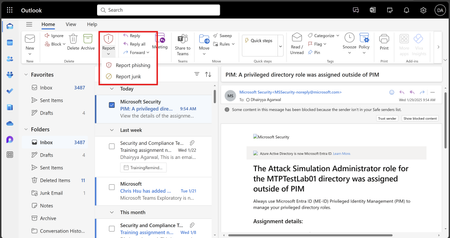
Outlook and Defender for Office 365 are excited to announce the release of built-in report button in Microsoft Outlook across platforms (web, new Outlook for Windows, classic Outlook for Windows, Outlook for Mac, Outlook for Android, Outlook for iOS, and Outlook for android Lite) for both personal and commercial accounts. You can find the built-in button across Outlook: Outlook on the web. New Outlook for Windows. Outlook for Mac version 16.89 (24090815) or later. Classic Outlook for Windows version Current channel: Version 16.0.17827.15010 or later. Monthly Enterprise Channel: Version 16.0.18025.20000 or later. Semi-Annual Channel (Preview): Release 2502, build 16.0.18526.20024 Semi-Annual Channel: Release 2502, build 16.0.18526.20024 Outlook for iOS version 4.2511 or later and Outlook for Android version 4.2446 or later. Outlook for Android Lite Benefits the built-in report button provides for security admins It works out of the box with no setup required The reporting experience for end user is the same across consumer and commercial accounts The report button is consistent across Outlook clients The report button is front and center on all clients The report button is present on the grid view, reading panel, preview panel, context menu The report button enables the user to select in bulk and report messages at once You can turn on and off the pre and post reporting popups for users in your organization using You can customize the individual pre and post reporting popup by adding text and links in 7 diff languages The report button is present on shared and delegate mailboxes enabling end users to report emails. Now present on outlook for web, new outlook for windows, outlook for mac, outlook for android and outlook for iOS The end user reports made by these clients are routed as per the message reported destination configured in the user reported settings. You can view the user report as soon as they are made on the If you have configured Microsoft only or Microsoft and my reporting mailbox in the user reported settings, the result from Microsoft analysis are available on the result column You can turn off the built-in report button on user reported settings by Selecting non-Microsoft add-in button and providing the address of the reporting mailbox of the 3 rd party add-in, or Deselecting monitor reported messages in outlook Note: The report phish add-in and the report message add-in does not provide support for shared and delegate mailbox. The report phish add-in, the report message add-in, and the built-in report button all read from the same user reported settings and use the same internal reporting API. In a way there are two different doors (entry point) to the same house (the backend). For the moment, the report message and report phish add-in are in maintenance mode to provide enough time for customers to migrate to the built-in button. To learn more, please check out Transition from Report Message or the Report Phishing add-ins - Microsoft Defender for Office 365 | Microsoft Learn Report phishing and suspicious emails in Outlook for admins - Microsoft Defender for Office 365 | Microsoft Learn User reported settings - Microsoft Defender for Office 365 | Microsoft Learn Protect yourself from phishing - Microsoft Support Report phishing - Microsoft Support How do I report phishing or junk email? - Microsoft SupportMicrosoft Defender EOP
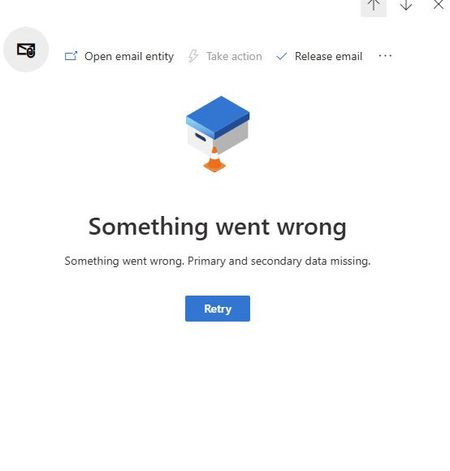
We have been experiencing an issue since last week where we are unable to view the details of quarantined emails. Could you please confirm if this is related to a known backend service issue, or if there are any specific troubleshooting steps we should perform on our end? Any guidance or updates would be greatly appreciated.All Excel Macro Files Suddenly Flagged as Malware (X97M/Slacker.gen!A) Across M365 Starting April 16
Starting around 8 PM GMT+8 on April 16, 2025, macro-enabled Excel files with extensions such as .xlsm, .xlsb, or .xls began being automatically flagged as malware, specifically identified as X97M/Slacker.gen!A—when opened or edited in SharePoint, OneDrive, or Teams. Before this, the same files were not flagged as malicious, even when opened or edited, and this behavior had remained consistent for several months. This issue affects our entire tenant, with over 800 files being flagged as malware under the name X97M/Slacker.gen!A. These files are located across various locations and have been modified by different users. We are a Cloud-only tenant, and we have not done any configuration changes in Threat Policies for the past few months.1.5KViews0likes0Comments
2024 Sender Requirements - How are you handling valid e-mails sent to junk?
With the new Sender Requirements rolled out beginning in February 2024, how are you handling legitimate e-mails getting "Filtered As Junk" in O365? I am seeing very large corporations with e-mails landing in our junk e-mail now, but they are one offs. When checking the e-mail headers using MX Toolbox, I'm seeing that usually somewhere in the hops before they hit our servers, they are on a blacklist (or X-CustomSpam header is coming back as "SPF Record Fail"). And O365 seems to be sending those to spam. In our case, I don't think it's great to continually add domains to the whitelist, as it's really up to the sender to ensure they have a good "reputation", aren't on blacklists, and following the sender requirements having full DMARC, DKIM, and SPF compliance. 365 admins, are you seeing more e-mails quarantined or sent to spam and how are you dealing with it?Solved2.5KViews0likes3Comments