rbac
34 TopicsImplementing Intune RBAC and Scope Tags for Zero Trust and Least Privilege
If you’re rolling out Microsoft Intune at scale, the hardest part usually isn’t creating policies—it’s making sure the right people can manage the right things, without turning every admin account into a “keys to the kingdom” risk. In this guide, you’ll learn how to use Intune RBAC and Scope Tags to enforce least privilege, build clear management boundaries by region/agency/environment, and pair device compliance with Entra Conditional Access to strengthen a Zero Trust posture—plus a practical RACI approach so ownership stays clear as your environment grows. TL;DR Use Intune RBAC to align admin permissions to job responsibilities, reducing standing privilege and limiting who can change policies, apps, and security settings. Use Scope Tags to create visibility/management boundaries (region, agency, environment) so admins only see and manage what they own. Pair Intune compliance + Entra Conditional Access to enforce “access only from compliant devices / protected apps,” which supports a Zero Trust posture. Establish a RACI model so ownership is explicit across Endpoint, Identity, Security, Apps, AD, Help Desk, and Compliance teams. Track outcomes (compliance rates, blocked risky sign-ins, RBAC audit events, scope boundary effectiveness, GPO migration progress) and review on a regular cadence. Zero Trust and Least Privilege in Modern Endpoint Management Zero Trust is an approach to security that treats every access attempt as untrusted until it is proven otherwise. Rather than relying on “inside the network = safe,” organizations evaluate each request using signals such as user identity, device health, location, and risk, and they re-check those signals over time. In an endpoint program, Microsoft Intune supports this model by establishing device compliance, applying app protection where appropriate, and working with Conditional Access so that access decisions can depend on verified user and device posture. A practical way to describe Zero Trust is through three recurring themes: (1) make access decisions using explicit verification (strong authentication plus context and risk signals), (2) minimize privilege by granting only the access needed and reducing standing admin rights where possible, and (3) design for compromise by limiting lateral movement and reducing the impact of any single breach. These concepts align with Microsoft’s published Zero Trust guidance. Role-Based Access Control (RBAC) in Intune allows organizations to delegate administrative permissions based on roles, responsibilities, and scope. For modern endpoint environments, RBAC ensures that only authorized personnel can manage devices, deploy configurations, or access sensitive data, which is a foundational control in a Zero Trust model where access is granted based on least privilege and verified identity. By combining Intune's RBAC capabilities with Scope Tags, organizations can create visibility boundaries that align with their organizational structure, whether by region, department, business unit, or function. This prevents over-allowing permissions by assigning only the rights needed for each role, supports Zero Trust by enforcing least privilege and role-based access, and improves operational security by limiting who can manage devices and policies. Understanding Intune RBAC Roles and Permissions Microsoft Intune provides nine built-in RBAC roles designed to address common administrative scenarios. Each role has predefined permissions that determine what actions users can perform within the Intune environment, helping organizations delegate administrative tasks while maintaining control over access to sensitive information. The built-in roles include Intune Administrator with full access to all Intune features and settings (This role should not be used for every day management tasks and should be limited to only a few individuals who would be responsible for performing more elevated tasks in the Intune Portal), Policy and Profile Manager who manages device configuration profiles and compliance policies, Application Manager who manages mobile and managed applications, Endpoint Security Manager who manages security and compliance features, Help Desk Operator who performs remote tasks on users and devices, Read-Only Operator with view-only access, School Administrator for Windows 10 devices in Intune for Education, Intune Role Administrator who manages custom roles and assignments, and Cloud PC roles for managing Cloud PC features and Windows Autopatch roles for managing updates. Built-in Role Primary Permissions Use Case Application Manager Manages mobile and managed applications, app configuration policies, and app protection policies Teams responsible for deploying and managing organizational apps across devices Policy and Profile Manager Manages device configuration profiles, compliance policies, and conditional access policies IT administrators configuring device settings and ensuring compliance across the organization Endpoint Security Manager Manages security baselines, endpoint detection and response, and BitLocker policies Security teams focused on device protection and threat mitigation Help Desk Operator Performs remote tasks including device restart, password reset, and remote lock First-line support staff assisting end users with device issues Read-Only Operator View-only access to all Intune data and reports without modification rights Auditors and stakeholders needing visibility without administrative capabilities Beyond built-in roles, Intune supports custom roles that allow administrators to define specific permissions for users or groups based on their responsibilities. Custom roles enable fine-grained access control by selecting granular permissions for each role, ensuring users have access only to the features and data they require. For example, a custom role could grant only the 'Rotate local administrator password' permission to a specific Helpdesk Managers group, demonstrating the principle of least privilege in action. Create Custom Roles Login to the Intune Admin Portal with the Intune Administrator Role and navigate to Tenant Administration> Roles > All Roles > Create then select the type of role you want to create. I will select “Intune Role” Give your Custom Role a Name and a brief description. Scroll through the list of permissions as they will all be set to no by default and select the permissions relevant to the responsibility of the custom role. If you have already created your Scope Tag add it here, then review and select create Once the role is created you can select the new role and create an assignment. Give it a name and description, then select the admin group to be assigned to the role. Add the groups that the role will be managing. Add your relevant Scope Tags then select create. To take things one step further I would recommend leveraging Privileged Identity Management (PIM) for groups so that you can leverage Just-in-Time Assignments for the Intune roles. One last note on custom roles if you do not want to start from scratch with the permission sets, you can also duplicate a built-in role and modify the permissions as needed. Just select the 3 dots to the right of the role and select Duplicate Implementing Scope Tags for Distributed IT Management Scope Tags are labels that help control what different admins can see and manage in Microsoft Intune. By adding scope tags to Intune items like configuration profiles, apps, policies, or device groups and assigning the same labels to admins, organizations create clear boundaries, so each admin only sees the devices and settings they are responsible for. This capability is essential for distributed IT environments where different teams manage different locations, departments, or business units. Every Intune tenant includes a default scope tag that is automatically applied to all objects and admins, ensuring everything continues working smoothly even without custom tags configured. The key benefits of using scope tags include enabling distributed IT management by allowing regional or departmental admins to manage their specific resources, controlling access by limiting admin visibility to specific resources, enhancing security by preventing unauthorized access, improving organization by grouping resources by scope, and providing flexibility to support multiple administrative models. Scope tags work together with RBAC role assignments through three components: the role defining what actions admins can perform, scope tags determining which objects admins can see, and scope groups limiting which users and devices they can affect. Common use cases for scope tags include managed service providers limiting access to specific customer resources, regional IT administrators ensuring teams only manage and see objects relevant to their region, separating testing versus production environments when a dedicated test tenant is not available, and separating Azure Virtual Desktop resources for AVD administrators. Creating Scope Tags While still under Tenant Administration> Roles select Scope Tags Then Create. Give it a name and description. Assign the proper groups then select create. If this is all implemented properly, the admin will only be able to see items and devices that have the Scope tag that has been assigned to their role. Here are views of the apps in my tenant when signed in as a Intune Administrator (which Scope tags do not apply t And here are the same views when logged in with an admin with the iOS admin role that we created. Establishing a RACI Model for Intune Management While establishing a RACI model is not something done in the Intune portal, it is crucial in my opinion for enterprise customers since Intune covers such a vast number of capabilities that should not all be done by one team if we are practicing least privilege and zero trust. A RACI matrix is a powerful tool for defining organizational roles and responsibilities, identifying who is Responsible, Accountable, Consulted, and Informed for each activity. In Microsoft Intune management, implementing a RACI model eliminates ambiguity about which teams handle security policies, application management, patch compliance, Conditional Access, and GPO migration. The RACI framework defines four key roles: Responsible individuals execute the task or deliverable, Accountable is the single person ultimately answerable for correct completion and decision-making authority, Consulted are experts or stakeholders whose feedback is sought during the task, and Informed are those kept up to date on progress or decisions without actively contributing. For Intune environments, a well-designed RACI matrix promotes organizational alignment by mapping all key stakeholders across central IT and individual agencies or departments, clarifies decision rights by defining who approves, who executes, and who provides input for each Intune activity, ensures accountability by assigning a single accountable party for each deliverable to prevent diffusion of responsibility, and improves communication by identifying upfront who needs to be consulted and kept informed. Based on internal implementation experience and with Microsoft Federal customers, organizations should list deliverables not just activities, define roles not individual names to ensure the matrix remains relevant as people change positions, enforce exactly one Accountable person per task, assign Responsible, Consulted, and Informed roles thoughtfully, validate in a short review session, publish where work happens, and evolve the matrix as the project evolves. RACI Matrix for Security Policies and Compliance The following are just generic examples of some of the workloads and how they could be managed with a RACI matrix. Security policies and compliance management in Intune require clear ownership across multiple teams. Organizations must define who creates compliance policies requiring device encryption and minimum OS versions, who deploy security baselines like the Microsoft Defender for Endpoint Security Baseline, who manages Conditional Access policies that require device compliance, and who responds to non-compliant devices. A typical RACI model for security policies assigns the Cloud Security Team as Accountable for overall security policy strategy and compliance requirements, the Endpoint Team as Responsible for creating and deploying compliance policies and security baselines in Intune, the Application Team as Consulted for application-specific security requirements, the Help Desk as Informed about policy changes that may affect device compliance status, and the Compliance Team as Consulted to ensure policies meet regulatory requirements and as Informed about compliance status reports. For patch management and application compliance, the RACI model shifts slightly with the Endpoint Team becoming Accountable for patch deployment strategy and timing, the Application Team becoming Responsible for testing application compatibility with updates, the Help Desk becoming Responsible for addressing user-reported issues after patches, and the Cloud Security Team becoming Consulted for security update prioritization. Organizations implementing Windows Autopatch benefit from Microsoft managing problematic quality and feature update deployment cancellations using telemetry, automatically splitting devices into rings based on percentage of total devices, and managing patching behavior for Windows, Microsoft 365 Apps, Edge, Teams, and Drivers. This shifts some Accountable and Responsible designations to Microsoft while keeping internal teams Informed and Consulted. Intune Activity Accountable Responsible Consulted Informed Security Policy Creation Cloud Security Team Endpoint Team Application Team, Compliance Team Help Desk Compliance Policy Deployment Cloud Security Team Endpoint Team Compliance Team Help Desk, Application Team Security Baseline Management Cloud Security Team Endpoint Team Application Team Help Desk, Compliance Team Patch Management Strategy Endpoint Team Application Team Cloud Security Team Help Desk, Compliance Team Non-Compliance Response Cloud Security Team Endpoint Team, Help Desk Compliance Team Application Team Application and Conditional Access Management Responsibilities Application management and Conditional Access in Intune span multiple organizational functions requiring coordinated responsibility. For application lifecycle management, the Application Team is both Accountable and Responsible for deployment strategy, app protection policies, creating and testing app packages and configurations. The Endpoint Team is Consulted for deployment targeting and device compatibility, while the Help Desk is Informed about new applications and support procedures. For Conditional Access policy management, multiple teams coordinate their expertise. The Cloud Security Team is Accountable for overall Conditional Access strategy and Zero Trust implementation. The Endpoint Team is Responsible for ensuring device compliance status feeds correctly into Conditional Access decisions. The Identity Team is Responsible for configuring Conditional Access policies in Microsoft Entra ID. The Application Team is Consulted about application-specific access requirements, and the Help Desk is both Informed about access restrictions and Responsible for assisting users blocked by Conditional Access policies. Conditional Access integration with Intune creates a powerful Zero Trust security model where Intune evaluates device compliance based on compliance policies, compliance status is reported to Microsoft Entra ID, Conditional Access policies check device compliance status, and access is granted or blocked based on compliance status. For mobile application management, the Application Team is both Accountable and Responsible for app protection policies including data protection settings, access requirements like PIN and biometric authentication, and integration with Conditional Access. The Cloud Security Team is Consulted for security requirements, and the Endpoint Team is Informed about app-level controls that complement device-level policies. GPO Migration to Intune: Roles and Responsibilities Migrating Group Policy Objects from on-premises Active Directory to Microsoft Intune represents a critical transformation requiring clear ownership and phased execution. The migration process uses Group Policy Analytics, a built-in tool in Intune that analyzes on-premises GPOs by importing them as XML exports and translating them against the Settings Catalog to determine which policies are supported, deprecated, or unsupported in Intune. Organizations export GPOs from the Group Policy Management Console by right clicking the GPO, selecting Save Report, and saving as XML format. After importing to Intune via Devices > Group Policy Analytics, the tool generates a percentage-based report showing exactly how many settings have a direct 1:1 mapping to modern Intune settings. The Group Policy Analytics tool categorizes settings into three distinct types: Supported settings that have a direct counterpart in Intune and can be migrated via Settings Catalog policies, Deprecated settings no longer applicable to modern Windows versions, and Not Supported settings that do not currently have a CSP mapping and often require alternative management methods like PowerShell scripts or Proactive Remediations. Approximately 45% of GPOs can be successfully migrated to Settings Catalog, 30% require alternative approaches via PowerShell remediations, and 25% can be deprecated and retired based on typical migration outcomes. RACI Model for GPO Migration For the RACI model, the Endpoint Team is Accountable for the overall GPO migration strategy and timeline, the Active Directory Team is Responsible for exporting GPOs and documenting current policy structures, the Application Team is Consulted to validate that application-specific GPOs migrate correctly and that applications continue functioning, the Cloud Security Team is Consulted to ensure migrated policies maintain security posture, and the Help Desk is Informed about changes to device configurations and becomes Responsible for user communication about policy transitions. Integrating Conditional Access with Device Compliance Conditional Access integration with Intune device compliance creates an additional layer of security by enforcing access controls based on device compliance status and app protection policies. This integration ensures that only compliant devices and protected apps can access organizational resources, forming a cornerstone of Zero Trust architecture. Device-Based Conditional Access Implementation Device-based Conditional Access uses device compliance status from Intune to control access to organizational resources through a four-step process: Intune evaluates device compliance based on compliance policies Compliance status is reported to Microsoft Entra ID Conditional Access policies check device compliance status Access is granted or blocked based on compliance status To implement device compliance Conditional Access, organizations first create and assign device compliance policies in Intune requiring elements like BitLocker encryption, Microsoft Defender antivirus enabled, Windows Firewall enabled, and minimum OS version requirements. Then in the Microsoft Entra Admin Center under Security > Conditional Access, administrators create policies specifying: Users as target groups like Corporate Users Cloud apps as All cloud apps or selected Microsoft 365 apps Device platform as Windows or other platforms Access control requiring device to be marked as compliant Measuring Success and Continuous Improvement Organizations implementing Intune RBAC and Scope Tags should establish metrics to measure success and identify areas for continuous improvement. Key performance indicators include percentage of devices compliant with security policies, time to resolve non-compliance issues, number of unauthorized access attempts blocked by Conditional Access, percentage of GPOs successfully migrated to Intune Settings Catalog, and administrative efficiency measured by reduction in time spent on routine management tasks. Compliance reporting in Intune provides visibility into device compliance status across the organization, with reports showing compliant versus non-compliant devices, specific compliance policy violations, and trends over time. Organizations typically see compliance rates improve from a 65% baseline to 95% or higher within 12 months of implementing proper RBAC roles and Scope Tags. This improvement results from clearer ownership, faster policy deployment, and more focused administrative oversight. Conditional Access sign-in logs in Microsoft Entra ID reveal which access attempts are granted or blocked, the reasons for access decisions, and patterns of risky sign-ins that may indicate compromised credentials or devices. For RBAC effectiveness, organizations should monitor audit logs to track which administrators are performing which actions, identify any privilege escalation attempts or suspicious administrative activity, and ensure separation of duties is maintained. Scope tag effectiveness can be measured by confirming that administrators only see resources within their designated scope, tracking incidents where admins requested access outside their scope, and validating that regional or departmental segregation is working as intended. Organizations should establish a regular review cadence with monthly compliance and security posture reviews, quarterly RBAC and Scope Tag access reviews, bi-annual GPO migration progress assessments, and annual Zero Trust maturity assessments. Disclaimer All screenshots are from a non-production lab environment and can/will vary per environment. All processes and directions are of my own opinion and not of Microsoft and are from my years of experience with the Intune product in multiple customer environments References Role-based access control (RBAC) with Microsoft Intune - Microsoft Intune | Microsoft Learn Use role-based access control (RBAC) and scope tags for distributed IT - Microsoft Intune | Microsoft Learn Aligning responsibilities across teams - Cloud Adoption Framework | Microsoft Learn How to Require Device Compliance with Conditional Access - Microsoft Entra ID | Microsoft Learn Configuring Microsoft Intune just-in-time admin access with Azure AD PIM for Groups | Microsoft Community Hub
Admin‑On‑Behalf‑Of issue when purchasing subscription
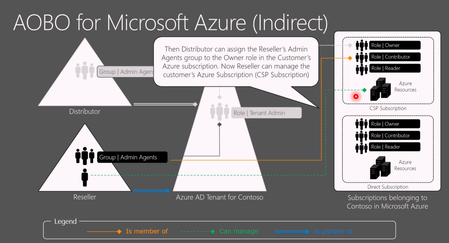
Hello everyone! I want to reach out to you on the internet and ask if anyone has the same issue as we do when creating PAYG Azure subscriptions in a customer's tenant, in which we have delegated access via GDAP through PartnerCenter. It is a bit AI formatted question. When an Azure NCE subscription is created for a customer via an Indirect Provider portal, the CSP Admin Agent (foreign principal) is not automatically assigned Owner on the subscription. As a result: AOBO (Admin‑On‑Behalf‑Of) does not activate The subscription is invisible to the partner when accessing Azure via Partner Center service links The partner cannot manage and deploy to a subscription they just provided This breaks the expected delegated administration flow. Expected Behavior For CSP‑created Azure subscriptions: The CSP Admin Agent group should automatically receive Owner (or equivalent) on the subscription AOBO should work immediately, without customer involvement The partner should be able to see the subscription in Azure Portal and deploy resources Actual Behavior Observed For Azure NCE subscriptions created via an Indirect Provider: No RBAC assignment is created for the foreign AdminAgent group The subscription is visible only to users inside the customer tenant Partner Center role (Admin Agent foreign group) is present, but without Azure RBAC. Required Customer Workaround For each new Azure NCE subscription, the customer must: Sign in as Global Admin Use “Elevate access to manage all Azure subscriptions and management groups” Assign themselves Owner on the subscription Manually assign Owner to the partner’s foreign AdminAgent group Only after this does AOBO start working. Example Partner tries to access the subscription: https://portal.azure.com/#@customer.onmicrosoft.com/resource/subscriptions/<subscription-id>/overview But there is no subscription visible "None of the entries matched the given filter" https://learn.microsoft.com/en-us/azure/role-based-access-control/elevate-access-global-admin?tabs=azure-portal%2Centra-audit-logs#step-1-elevate-access-for-a-global-administrator from the customer's global admin. and manual RBAC fix in Cloud console: az role assignment create \ --assignee-object-id "<AdminAgent-Foreign-Group-ObjectId>" \ --role "Owner" \ --scope "/subscriptions/<subscription-id>" \ --assignee-principal-type "ForeignGroup" After this, AOBO works as expected for delegated administrators (foreign user accounts). Why This Is a Problem Partners sell Azure subscriptions that they cannot access Forces resources from customers to involvement from customers Breaks delegated administration principles For Indirect CSPs managing many tenants, this is a decent operational blocker. Key Question to Microsoft / Community Does anyone else struggle with this? Is this behavior by design for Azure NCE + Indirect CSP? Am I missing some point of view on why not to do it in the suggested way?70Views0likes0Comments
Exchange Online access via PIM
Hi, We are looking to grant more granular access to the Exchange Online portal for our support teams instead of the Exchange Admin Entra role. The idea is to set up cloud security groups, onboard them to PIM and grant the users eligible assignments. The groups would be then assigned to the Exchange Online role groups (RBAC) in the Exchange Portal. It appears though that Exchange Portal requires mail-enabled security groups and mail-enabled security groups cannot be onboarded to PIM. Does anyone know if this is by design? What is the alternative solution to grant JIT access to the Exchange Portal instead of the Entra role or the standing access of the users assigned directly to the RBAC roles on the Exchange Portal? Many thanks.905Views1like2Comments
Azure API Management Gateway - RBAC on the API level
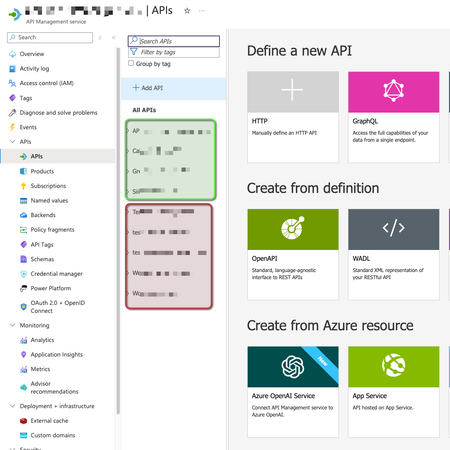
Is it possible to grant access on specific APIs implementation, making users able to see some APIs but not others inside the same Azure API Management Gateway? For example: User1 can manage green ones, but not red ones. Thanks.290Views0likes3Comments
RBAC Intune - Can not see devices
Hi @all :-), I have defined a custom role for our admins in different departments (see screenshot). The administrators are in a group, the group is assigned to that role. Scope groups are assigned (users and devices in the department) and scope tags are set. But the department admin can not access the device list (not authorized). What permission is missing? I hope someone can give me a hint. 🙂2.6KViews0likes3CommentsAzure AI Health Bot – now supports Microsoft Entra Access Management
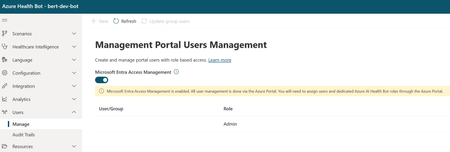
We are excited to announce the introduction of Microsoft Entra Access Management support in the Azure AI Health Bot. This enhancement increases security by leveraging the robust and proven capabilities of Microsoft Entra. Customers interested in this feature can opt-in by navigating to the User Management page and enabling the Microsoft Entra Access Management feature. This feature can only be enabled for users who have the Health Bot Admin role in the Azure access control identity-access-management (IAM) pane. When Microsoft Entra Access Management is enabled, all users and roles should be managed through Azure Access control identity-access-management (IAM) pane. The Access Control (IAM) now contains the same Azure AI Health Bot roles in Azure, such as Health Bot Admin, Health Bot Editor and Health Bot Reader. When the Microsoft Entra Access Management feature is enabled, the User Management page will be read-only. All users in the Management Portal page will need to be manually added with the right roles through the Azure Access Control (IAM) page in the Azure Portal. You can read more on the Microsoft Entra Access Management features on our public documentation page365Views1like0CommentsPermission to manage a group of devices
Some of our employees need to manage a small fleet of (approx. 30) AutoPilot/InTune enrolled devices. We want to allow them to accomplish all remote tasks (only) on these devices (from "Retire" to "Locate device"). How can we achieve that? (I wish we could simply assign them some built-in role but I don't know which one.)Solved1.6KViews0likes3CommentsPermissions for Teams Phone Management
Hello. Our organization is looking to cut back on the number of users who have the Intune Administrator RBAC role, and in looking for solutions, I have an issue. I want to create a custom RBAC role called "Phones Admin" which will have the ability to enroll and manage Teams phone devices. However, I'm trying to decipher what permissions this kind of role would need, if it is possible. Has anyone done something like this, and if so, how did you configure the custom role?832Views0likes0Comments