pipelines
22 Topics
🎉 Announcing General Availability of AI & RAG Connectors in Logic Apps (Standard)
We’re excited to share that a comprehensive set of AI and Retrieval-Augmented Generation (RAG) capabilities is now Generally Available in Azure Logic Apps (Standard). This release brings native support for document processing, semantic retrieval, embeddings, and grounded reasoning directly into the Logic Apps workflow engine. 🔌 Available AI Connectors in Logic Apps Standard Logic Apps (Standard) had previously previewed four AI-focused connectors that open the door for a new generation of intelligent automation across the enterprise. Whether you're processing large volumes of documents, enriching operational data with intelligence, or enabling employees to interact with systems using natural language, these connectors provide the foundation for building solutions that are smarter, faster, and more adaptable to business needs. These are now in GA. They allow teams to move from routine workflow automation to AI-assisted decisioning, contextual responses, and multi-step orchestration that reflects real business intent. Below is the full set of built-in connectors and their actions as they appear in the designer. 1. Azure OpenAI Actions Get an embedding Get chat completions Get chat completions using Prompt Template Get completion Get multiple chat completions Get multiple embeddings What this unlocks Bring natural language reasoning and structured AI responses directly into workflows. Common scenarios include guided decisioning, user-facing assistants, classification and routing, or preparing embeddings for semantic search and RAG workflows. 2. Azure AI Search Actions Delete a document Delete multiple documents Get agentic retrieval output (Preview) Index a document Index multiple documents Merge document Search vectors Search vectors with natural language What this unlocks Add vector, hybrid semantic, and natural language search directly to workflow logic. Ideal for retrieving relevant content from enterprise data, powering search-driven workflows, and grounding AI responses with context from your own documents. 3. Azure AI Document Intelligence Action Analyze document What this unlocks Document Intelligence serves as the entry point for document-heavy scenarios. It extracts structured information from PDFs, images, and forms, allowing workflows to validate documents, trigger downstream processes, or feed high-quality data into search and embeddings pipelines. 4. AI Operations Actions Chunk text with metadata Parse document with metadata What this unlocks Transform unstructured files into enriched, structured content. Enables token-aware chunking, page-level metadata, and clean preparation of content for embeddings and semantic search at scale. 🤖 Advanced AI & Agentic Workflows with AgentLoop Logic Apps (Standard) also supports AgentLoop (also Generally Available), allowing AI models to use workflow actions as tools and iterate until the task is complete. Combined with chunking, embeddings, and natural language search, this opens the door to advanced agentic scenarios such as document intelligence agents, RAG-based assistants, and iterative evaluators. Conclusion With these capabilities now built into Logic Apps Standard, teams can bring AI directly into their integration workflows without additional infrastructure or complexity. Whether you’re streamlining document-heavy processes, enabling richer search experiences, or exploring more advanced agentic patterns, these capabilities provide a strong foundation to start building today.
GitHub App authentication for Azure Pipelines causes webhooks to dissapear
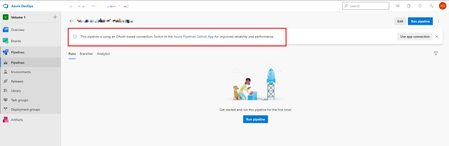
Greetings, we are using GitHub as the code repository service together with Azure DevOps Pipelines for CI/CD. All the pipelines need to have their triggers authenticated to GitHub in order for the pipelines to trigger Authentication works either with personal OAuth Service Connections or via the Azure Pipelines App for GitHub The recommended way is using the Pipelines App The problem: when I authenticate the pipeline trigger via the GitHub Azure Pipelines App, the webhooks from the repository which the pipeline is pointing to dissapear and the automatic triggering stops working! To make the issue even more ridiculous - we have 5 pipelines but only with 4 of them this happens! One is working completely fine with with the recommended GitHub App authentication. What I tried: Recreating service connections in Azure DevOps Reinstalling the Azure Pipelines GitHub App Recreating the pipelines Nothing worked, I am forced to use OAuth which is always throwing a warning to switch to app authentication because it's better performing and more reliable. Quite ridiculous to recommend a certain way of doing things, then making it work less reliable than the not-recommended way. Anyone has any ideas? Thanks in advance.2.1KViews1like1CommentSetting up Code Coverage data in Azure DevOps Pipeline, C# .NET 9
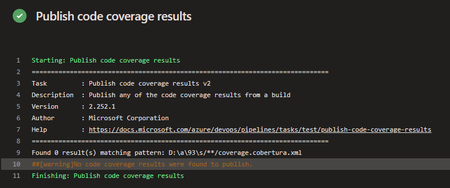
Hello everyone, I would like some assistance with my Azure DevOps pipeline. I am trying to set up Tasks in my Azure DevOps pipeline to collect Code Coverage results, after running UTs using the VsTest Task, to then have a Powershell Task in the Pipeline write to a SQL db the contents of those metrics. The main issue I am encountering is actually finding the published results after the UTs successfully run. I have set up Tasks to publish the results, then find them & then insert, but the publish doesn't seem to actually publish to the directory I specify, or if it does publish, I cannot see where to. Here are the Tasks I currently have set-up. Task to run UTs: steps: - task: VSTest@2 displayName: 'VsTest - testAssemblies' inputs: testAssemblyVer2: | **\$(BuildConfiguration)\*\*test*.dll !**\obj\** runSettingsFile: '$/B3API/Main/B3API.Tests/codecoverage.runsettings' runInParallel: true runTestsInIsolation: false codeCoverageEnabled: true platform: '$(BuildPlatform)' configuration: '$(BuildConfiguration)' failOnMinTestsNotRun: true codecoverage.runsettings file: <?xml version="1.0" encoding="utf-8"?> <RunSettings> <DataCollectionRunSettings> <DataCollectors> <DataCollector friendlyName="Code Coverage"> <Configuration> <Format>cobertura</Format> </Configuration> </DataCollector> </DataCollectors> </DataCollectionRunSettings> </RunSettings> Task to publish results: steps: - task: PublishCodeCoverageResults@2 displayName: 'Publish code coverage results' inputs: summaryFileLocation: '$(System.DefaultWorkingDirectory)/**/coverage.cobertura.xml' pathToSources: '$(System.DefaultWorkingDirectory)/**/coverage' Task to find published file & store into variable: steps: - powershell: | $coverageFile = "$(System.DefaultWorkingDirectory)/**/coverage.cobertura.xml" [xml]$coverageData = Get-Content $coverageFile $coveragePercentage = $coverageData.coverage.@line-rate # Store the coverage data in a variable Write-Host "##vso[task.setvariable variable=coveragePercentage]$coveragePercentage" displayName: 'Store Coverage in variable' The main issue it the Task to publish, it does not publish the results, I think it is due to not finding them in the first place. Thank you for taking the time to read my post, any help would be greatly appreciated, thanks!335Views0likes3Comments
How to delete pipeline tags with special characters?
I want to delete specific tags attached to Azure pipeline builds, for example "hello: world". I've come to the conclusion that the ADO REST API endpoint for handling Tag deletions cannot parse special characters in the URL's slug i.e. colons and whitespaces. According to thehttps://learn.microsoft.com/en-us/rest/api/azure/devops/build/tags/delete-build-tag?view=azure-devops-rest-7.1, the tag should be specified in the URL slug, followed by query string parameters if applicable. I tried the following: 1. If I insert the tag directly into the URL it will look like this: https://dev.azure.com/organisation/project/_apis/build/builds/1234567/tags/hello: world?api-version=7.1 This returns: "Response status code does not indicate success: 400 (Bad Request)." 2. But if I encode my slug using `[System.Web.HttpUtility]::UrlEncode($tag)`, the URL looks like this: https://dev.azure.com/organisation/project/_apis/build/builds/1234567/tags/hello%3a+world?api-version=7.1 This returns "Response status code does not indicate success: 404 (Not Found)." So it seems the encoding might have worked, although it appears to be searching for a tag without decoding the URL first? Does anyone know if there is a way for deleting tags with special characters? I have over 1600+ tags that need to be deleted so manually doing this through the UI would not be a viable option. EDIT: I just realised the documentation has a small note saying: This API will not work for tags with special characters. To remove tags with special characters, use the PATCH method instead (in 6.0+) Tried the PATCH method instead of DELETE and still not working. And there's no examples provided in the docs.121Views0likes2Comments
How to Orchestrate ADF Pipelines as Selectable Steps in a Configurable Job
I am working on building a dynamic job orchestration mechanism using Azure Data Factory (ADF). I have multiple pipelines in ADF, and each pipeline represents a distinct step in a larger job. I would like to implement a solution where I can dynamically select or deselect individual pipeline steps (i.e., ADF pipelines) as part of a job. The idea is to configure a job by checking/unchecking steps, and then execute only the selected ones in sequence or based on dependencies. Available resources for this solution: Azure Data Factory (ADF) Azure SQL Managed Instance (SQL MI) Any other relevant Azure-native service (if needed) Could you please suggest a solution that meets the following requirements: Dynamically configure which pipelines (steps) to include in a job. Add or remove steps without changing hardcoded logic in ADF. Ensure scalability and maintainability of the orchestration logic. Keep the solution within the scope of ADF, SQL MI, and potentially other Azure-native services (no external apps or third-party orchestrators). Any design pattern, architecture recommendations, or examples would be greatly appreciated. Thanks!75Views0likes0CommentsBeginners performance tip: Use pipelines.
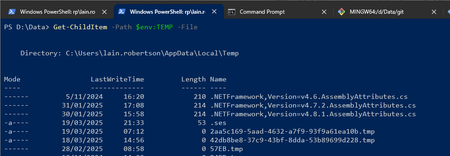
Hi folks, In my role, I see a lot of poorly-written PowerShell code spanning a lot of different contexts. Without fail, the most common failing I see is that the script simply won't scale, meaning performance will decrease significantly when it's run against larger data sets. And within this context, one of the biggest reasons is the overuse of variables and the underutilisation of the PowerShell pipeline. If you're the investigative type, here's some official documentation and training on the pipeline: about_Pipelines - PowerShell | Microsoft Learn Understand the Windows PowerShell pipeline - Training | Microsoft Learn A short explanation is that piping occurs when the output from one command is automatically sent to and used by another command. As an example, let's say I want my first command to fetch all the files in my temporary directory (just the root in this case). I might run a command like the following: Get-ChildItem -Path $env:TEMP -File Which, as you'd expect, produces a list of files. Where PowerShell differs from the old command prompt (or DOS prompt, if you're old like me) is that it's not simply a bunch of text written to the screen. Instead, each of these files is an object. If you don't know what an object is, think of it as a school lunchbox for the time being, where that lunchbox contains a bunch of useful stuff (just data; nothing tasty, sadly) inside. Because this isn't just a bunch of useless text, we can take the individual lunchboxes (objects) produced from this first command and send those to another command. As the second command sees each lunchbox, it can choose to do something with it - or even just ignore it; the possibilities are endless! When the lunchboxes coming out of the first command travel to the second command, the pathway they travel along is the pipeline! It's what joins the two commands together. Continuing the example above, I now want to remove those lunchboxes - I mean files - from my temporary directory, which I'll do by piping the lunchboxes from the first command into a second command that will perform the deleting. Get-ChildItem -Path $env:TEMP -File | Remove-Item -Confirm:$false -ErrorAction:SilentlyContinue Now, there's no output to show for this command but it does pretty much what you'd expect: Deletes the files. Now, there's another way we could have achieved the same thing using variables and loops, which I'll demonstrate first before circling back to how this relates to performance and scalability. # Get all the files first and assign them to a variable. $MyTempFiles = Get-ChildItem -Path $env:TEMP -File; # Now we have a single variable holding all files, send all those files (objects) to the second command to delete them. $MyTempFiles | Remove-Item -Confirm:$false -ErrorAction:SilentlyContinue; This isn't the only way you you can go about it, and you can see I'm still using piping in the second command - but none of this is important. The important point - and this brings us back to the topic of performance - is that I've assigned all of the files to a variable instead of simply passing them over the pipeline. This means that all of these files consume memory and continue to do so until I get rid of the variable (named $MyTempFiles). Now, imagine that instead of dealing with a few hundred files in my temp directory, I'm dealing with 400,000 user objects from an Azure Active Directory tenant and I'll retrieving all attributes. The difference in memory usage is incomparable. And when Windows starts feeling memory pressure, this impacts disk caching performance and before you know it, the Event Log system starts throwing performance events everywhere. It's not a good outcome. So, the more objects you have, the more your performance decreases in a linear manner. Pipeline to the rescue! This conversation is deliberately simple and doesn't go into the internal mechanics of how many commands you might like using actually work, but only relevant part I want to focus on is something called paging. Let's say you use Get-MgBetaUser to pull down those 400,000 users from Azure Active Directory. Get-MgBetaUser (Microsoft.Graph.Beta.Users) | Microsoft Learn Internally, the command won't be pulling them down all at once. Instead, it will pull down a bite-sized chunk (i.e. a page, as evidenced by the ability to specify a value for the PageSize parameter that features in the above documentation) and push that out onto the pipeline. And if you are piping from Get-MgBetaUser to a second command, then that second command can read that set of users from the pipeline to do what it needs to do. And so on through any other commands until eventually there are no more commands left. At this stage - and this is where the memory efficiency comes in - that batch of users can be released from memory as they are no longer needed by anything. In pictures, and using a page size of 1,000, this looks like: Now, as anyone familiar with .NET can attest to, memory isn't actually released immediately by default. The .NET engine manages memory resourcing and monitoring internally but the key takeaway is by using the pipeline, we're allowing the early release of memory to occur. Conversely, when we store everything in a variable, we're preventing the .NET memory manager from releasing memory early. This, in turn, leads to the above-mentioned performance issues. In pictures, this looks like: Is there real benefit? Yes, absolutely. And it can be quite significant, too. In one case, I triaged a script that was causing system failure (Windows PowerShell has/had a default process limit of 2 GB) through storing Azure results in a variable. After some minor tweaks so that it used the pipeline, process memory fluctuated between 250 MB to 400 MB. Working with pipelines typically doesn't require any extra effort - and in some cases can actually condense your code. However, the performance and scalability benefits can potentially be quite significant - particularly on already-busy systems. Cheers, Lain222Views2likes0CommentsDeploy Logic App Standard to storage account with private endpoints using Terraform
This blog provides examples on how to use Terraform and Azure DevOps to create standard Logic App to a storage account within private network. Here are the resources that will be created: VNET and subnets for Logic App and storage account Storage account and fileshare Private endpoints for storage file, blob, table and queue and the private DNS zones App service plan Application insight Standard Logic App with VNET intigration Private endpoint for Logic App and private DNS zone5.4KViews3likes1Comment
Deploy Logic App Standard with Application Routing Feature Based on Terraform and Azure Pipeline
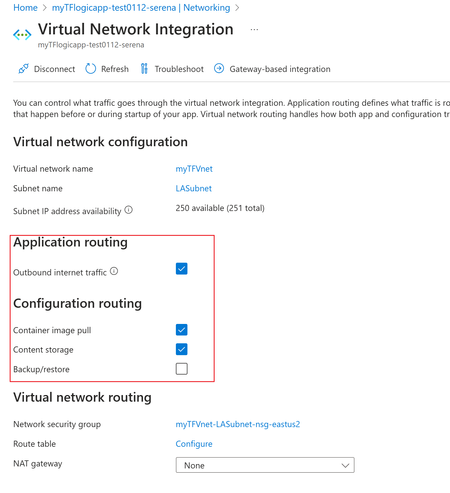
Due to Terraform's cross-cloud compatibility, automation, and efficient execution, among many other advantages, more and more customers use it to deploy integration solutions based on Azure Logic App standard. However, despite the extensive contributions from the community and individual contributors providing Terraform templates and supporting VNET integration solutions for Logic App standards, there are still very few terraform templates covering the "Application routing" and "Configuration routing" settings: This article shared a mature plan to deploy logic app standard then set the mentioned routing features automatically. It's based on Terraform template and Azure DevOps Pipeline. Code Reference: https://github.com/serenaliqing/LAStandardTerraformDeployment/tree/main/Terraform-Deployment-Demo About Terraform Template: Please kindly find the the template in directory Terraform/LAStandard.tf, it includes the terraform definitions for logic app standard, the backend storage account, application insights, virtual network and VNET integration settings. About VNET Routing Configuration Because there is no terraform examples available for VNET routing, we add VNET Settings by invoking "Patch" request to ARM RESTful API endpoint for interacting with logic app standard site: https://management.azure.com/subscriptions/<Your subscription id>/resourceGroups/$(deployRG)/providers/Microsoft.Web/sites/$(deployLA)?api-version=2022-03-01 We figured out the required request body in network trace as the following format: { "properties": { "vnetContentShareEnabled": false, "vnetImagePullEnabled": true, "vnetRouteAllEnabled": false, "vnetBackupRestoreEnabled": false } } Please find the YAML file in TerraformPipeline/logicappstandard-terraform.yml. Within the Yaml file , the "AzureCLI@2" task is used to send the request by Azure CLI command. task to send the patch request. Special Tips: To use the terraform task during Azure pipeline run, it's required to install terraform extension (which you can find in the following link): https://marketplace.visualstudio.com/items?itemName=ms-devlabs.custom-terraform-tasks Terraform tasks: Reference: Deploy Logic App Standard with Terraform and Azure DevOps pipelines https://registry.terraform.io/providers/hashicorp/azurerm/latest/docs/resources/app_service https://azure.microsoft.com/en-us/products/devops/pipelines496Views2likes0CommentsAzure DevOps git tag release pipeline
I'm wanting to get an Azure DevOps Pipeline (Classic) to run on a schedule against a Git Tag. This tag is set by a CD pipeline to mark when it has been deployed in the live environment. The scenario is that a "safe" release can be re-released on a regular schedule to ensure that it still matches what is expected (it's an Azure ARM release, and I want to tidy up any unauthorised changes made by lazy engineers). I cannot though find a way to achieve this. While you can filter on tags from builds in a release pipeline, that's not Git tags, but things manually set in ADO. I have tried using a build pipeline first (don't actually need one for this, but I can live with it) and using a branch filter to refs/tags/mytag, but it never seems to run. Can anybody help out here?1.7KViews0likes2Comments