microsoft surface
19 TopicsElevate teaching and learning with AI-powered experiences on Surface Copilot+ PCs
Surface is a premium endpoint, designed and built by Microsoft to run Microsoft technology. When it comes to the classroom, Surface Copilot+ PCs bring the best of Microsoft—hardware, Windows, Microsoft 365 1 , and Microsoft 365 Copilot 1 —into one teaching device, delivering intelligent experiences more securely on‑device and in the cloud. For educators, this means every lesson and interaction is powered by a device purpose-built for teaching and learning in the digital era. Why Surface for Education? Surface Copilot+ PCs, combined with Windows 11, give teachers a powerful platform designed to simplify teaching and elevate learning. With lightning-fast performance, educators can create engaging lessons, generate content, and personalize instruction. Windows 11 features like Snap Layouts, Click to Do 2 , and Copilot Voice streamline multitasking and lesson prep, while intuitive touch, pen 3 , and voice input make teaching feel natural. Together, Surface and Windows 11 help deliver a more secure, AI-supported solution that can save time, support creativity, and help teachers focus on what matters most—students. Engage students with AI-enhanced learning Picture a classroom where every student is actively engaged, their curiosity sparked by lesson plans and quizzes thoughtfully designed by teachers with the help of AI. Microsoft Learning Zone, included with all Microsoft Education licenses at no extra cost 4 , is an AI-powered learning app for Windows 11 designed to help educators create engaging lessons. The app’s AI powered lesson creation feature is designed specifically for Copilot+ PCs. Thanks to the Copilot+ PC’s built-in Neural Processing Unit (NPU), these devices offer fast, reliable performance by running AI models directly on the device and combining them with cloud-based capabilities when needed. This hybrid approach helps Microsoft Learning Zone generate lessons quickly and keeps the experience smooth, secure, and ready for classroom use. It also helps educators streamline lesson planning with interactive activities, instant feedback, and personalized learning pathways. For example, teachers can use Microsoft Learning Zone to develop Kahoot! quizzes for a whole class or to prepare individualized learning experiences like personalized practice questions based on recent student performance, while keeping student data more secure and private. Surface Copilot+ PCs can also help teachers use AI in context to streamline lesson prep and administrative tasks, so they can spend less time on administration and more time inspiring students. For example, teachers can engage with Copilot in a single click using the Copilot key 5 on a Surface keyboard or by saying “Hey Copilot” out loud. And using pen, touch, and voice commands in conjunction with Teach in Microsoft 365 Copilot 6 running on Surface, teachers have a central hub for generating lesson plans, quizzes, rubrics, flashcards, feedback, and more. They can transform ideas and research into engaging lectures in moments, tailor instruction to meet the needs of every learner, and connect with colleagues to share best practices. Recently, we also announced the Microsoft Elevate for Educators skilling program along with more AI-powered experiences purpose-built for education, including the Study and Learn agents in Microsoft 365 Copilot, and Study Guide. Microsoft Elevate helps equip educators with the AI skills they need for the classroom of the future. Delivered through platforms like Microsoft Learn and Minecraft Education, these flexible learning paths ensure that educators can build AI fluency at their own pace, whether they're just beginning their journey or advancing to specialized applications. Read more about Microsoft Elevate and other AI tools for education here. In classrooms where both teachers and students are using Surface Copilot+ PCs, Live Captions 7 with on-device automatic translation can help make spoken content accessible to all students, including students with hearing impairments. The NPU transcribes and translates audio in real time, supporting 40+ languages into English, all processed on-device versus the cloud. Ideally with Surface Copilot+ PCs and Microsoft’s AI-powered tools, technology fades into the background in the classroom, helping teacher creativity and connection take center stage and enabling student learning to be more dynamic, inclusive, and impactful. Empower the classroom of the future, today Surface Copilot+ PCs, purpose-built by Microsoft, are designed to be the foundation for today’s classrooms and the launchpad for tomorrow’s AI innovations. With Windows evolving as the canvas for intelligent AI and agents, Surface devices and Windows together form an essential, AI-assisted platform for educators. Now, every teacher can activate Copilot agents 8 directly on their Surface device to act as a digital teaching partner. These agents can adapt to each teacher’s unique style, streamline daily routines, and unlock new possibilities for student learning. Building agents is simple: teachers or IT can use ready-made templates or create custom agents using natural language, all within the familiar Surface and Windows environment. Surface’s intuitive hardware—touchscreen, pen, voice, and the dedicated Copilot key—makes accessing AI support effortless. Teachers can get immediate answers to classroom questions, troubleshoot tech issues, or navigate school resources using natural input methods. By combining Copilot’s intelligent capabilities with Surface’s secure hardware, educators can gain a more personalized, efficient, and protected teaching experience ready for the future of learning. In addition, Surface Copilot+ PCs help support the full range of learning needs by delivering the performance and experience required for the education tools students and educators depend on every day. Surface devices are designed to work with common education apps like TestNav for assessments, Minecraft Education for STEM, Adobe Express for creativity, and assistive technologies such as JAWS. And, going forward, the built-in NPU on Copilot+ PCs like Surface enables Microsoft and other educational software providers to develop innovative new AI experiences that can run on the device, in the cloud, or both. Boost productivity and collaboration In the classroom, Surface Copilot+ PCs can become the teaching command center: always ready, always responsive. With a simple voice command, Copilot Voice and improved Windows Search 9 instantly pull up lesson plans, student materials, or answers to unexpected questions, freeing instructors from frantic searches and giving back precious prep time. Collaborating on Surface is intuitive and efficient. Teachers can quickly save lesson materials in Teams or OneDrive 1 and share them with students for interactive feedback. Whether teachers are leading a lively discussion in person, connecting with students remotely, or conferencing with colleagues via video, Windows Studio Effects on Copilot+ PCs ensure they’re always seen and heard clearly. Subtle features like background blur, eye contact, and automatic framing help maintain a professional presence, so the focus stays on interacting with students or other teachers—not on the tech. And Surface Copilot+ PCs are designed to empower mobility in and outside the classroom. With extended battery life and lightweight devices, teachers are no longer tethered to a desk or a charger. They can move about freely, interact with students, project and present seamlessly, and focus on teaching. For example, on a Surface Pro with Surface Pen inking, Dual Studio Mics, and natural language prompts in Copilot, teachers can annotate readings, capture ideas by voice, and generate lesson materials on the fly—without breaking the flow of instruction. Throughout the day, Surface Copilot+ PCs can also help teachers anticipate what’s next. Context-aware Windows Search doesn’t just find files—it suggests smart next steps, like opening a document in Word or sharing it with a colleague, streamlining workflows. When inspiration for a lesson strikes, Click to Do lets teachers quickly summarize, explain, or create new content on the fly, helping them build engaging lectures and materials in real time. Surface’s vibrant touchscreen and Snap Layouts can help keep resources organized and visible, supporting a productive work experience. And, most importantly, Surface devices help safeguard faculty, staff, students, and sensitive school data with advanced security and remote management features 1 . As innovations advance in AI, Microsoft and Surface provide built-in protection at every layer—hardware, firmware, operating system, cloud, software applications, and identity. Surface Copilot+ PCs are more than just devices—they’re partners in teaching, learning, and innovation. By combining Microsoft’s advanced hardware, intuitive software, and powerful AI, Surface empowers educators to engage students, boost productivity, and modernize their classrooms, all while keeping data more secure and private. Visit Surface.com/Business to learn more. Students, parents and educators can save up to 10% on select Surface devices and more at the Microsoft Store. 10 Disclaimers: Sold separately. Software license required for some features. Click to Do. Copilot+ PC feature. Image actions now available across devices; other actions vary by device, region, language, and character sets. Subscription required for some actions. Learn more. Surface Pen sold separately. Surface Slim Pen (2nd Edition) experiences and compatibility vary by which Surface device you are using it with. Visit Surface Slim Pen Compatibility to learn more. Microsoft Learning Zone requires a Microsoft 365 Education Essentials, Core (A3), or Advanced (A5) license. Microsoft Education licenses. Copilot key feature availability varies by market, see aka.ms/keysupport. This feature is only available to Faculty/Staff with a Microsoft 365 for Education license. Teach in the Microsoft 365 Copilot App. Copilot+ PC feature. Live Captions translates video and audio subtitles into English from 40+ languages and from 25+ languages into Chinese (Simplified). See Copilot+ PC FAQs. Copilot with commercial data protection is available at no additional cost for users with an Entra ID with an enabled, eligible Microsoft 365 license. Copilot for Microsoft 365 sold separately and requires a qualifying volume license or subscription - Microsoft Copilot for Microsoft 365 | Microsoft 365. Minimum age limits apply to use of Copilot and certain AI features. Details. Copilot+ PC feature. Improved Windows search works with specific text, image, and document formats only; optimized for select languages (English, Chinese (Simplified), French, German, Japanese, and Spanish). See Copilot+ PC FAQs. Microsoft Store Education discount is available to K-12 and higher education students, faculty and parents. Education discount only valid on select products, and may not be combinable with other offers. See terms and conditions at Education & Student Discounts on Laptops, Microsoft 365, Windows, Surface | Microsoft Store53Views0likes0CommentsMeeting Control, Now Within Reach: Surface Hub 3 + MAXHUB Universal Console
Modern meeting spaces require flexibility, simplicity, and consistency for IT teams managing collaboration environments. Announced at Microsoft Ignite 2024, center-of-table console support for Surface Hub 3 extends Microsoft Teams Rooms on Windows by enabling certified third-party touch consoles for in-room meeting control. Center-of-Table Console Support Surface Hub 3 now supports Teams Rooms Certified Universal Consoles, introducing an additional option to control meetings beyond the interactive display. This includes the MAXHUB TCP33T Universal Console, a certified hardware solution in this ecosystem. By connecting a touch console directly to Surface Hub 3, users can join meetings, manage controls, and share wired content from their PCs while seated at the table. Benefits of Certified Universal Consoles Teams Rooms Certified Universal Consoles can help provide IT admins with: Microsoft Teams Rooms integration through certified accessories Flexible room design options including front-of-room deployments Consistent user experience across meeting spaces Simplified meeting controls for table-based interaction MAXHUB TCP33T Universal Console Overview The MAXHUB TCP33T is a Teams Rooms Certified Universal Console designed to work with Windows-based touch board devices such as Surface Hub 3. It delivers touchscreen control for Microsoft Teams Rooms meetings and serves as a dedicated entry point for wired content sharing. Common Deployment Scenarios Large conference rooms requiring table-based control Standardized Teams Rooms deployments across buildings Collaborative meetings requiring easy content sharing Requirements Deployments require Surface Hub 3 running Microsoft Teams Rooms on Windows and a Teams Rooms Certified Universal Console such as the MAXHUB TCP33T. Looking Ahead This new Universal Console ecosystem reflects Microsoft's commitment to flexible, scalable collaboration experiences. By pairing Surface Hub 3 with certified accessories like the MAXHUB TCP33T, organizations can design meeting spaces that meet modern collaboration needs. Live Webinar Wednesday the 14th of January... Sign up now! Join us for an exclusive webinar with Microsoft and MAXHUB as we explore how the MAXHUB Universal Console enhances the Microsoft Surface Hub experience. Hear from industry experts and learn how to: ✔ Reduce friction in the room ✔ Streamline collaboration workflows ✔ Centralize meeting controls — without leaving your seat! Featured Speakers: • Frank Buchholz, Director, Product Marketing — Microsoft • Jean Barrett, Technology Solutions Professional — Microsoft • Alan Nicholls, Microsoft Teams Professional — MAXHUB Register for a session and secure your spot👇 January 14 @9AM PST session: Register here January 14 @5PM PST session: Register here Resources Center-of-table console support Teams Rooms app version needed Center-of-table console support announcement during Microsoft Ignite 2024268Views1like0CommentsImproved address management in service orders on Surface Portals
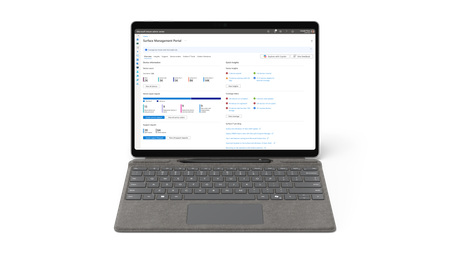
We’ve introduced an important usability improvement to the address selection experience in the service order workflow on both Surface Management Portal and Surface Support Portal. When raising a service order, users can add both the billing and shipping addresses and save them for future use. Previously, all saved addresses were stored together and appeared in both dropdown menus. This caused confusion and made it difficult for users to select the correct one. To improve this experience, we’ve separated saved addresses by type. Shipping addresses now appear only in the Shipping Address dropdown, and billing addresses appear only in the Billing Address dropdown. As part of this update, all previously saved addresses have been moved to the Shipping Address section. Users can now save billing addresses separately as they create new orders. This change makes the selection process simpler, clearer, and more intuitive, allowing users to easily select the right address. To learn more about the Surface Management Portal and Surface Support Portal, see the following Microsoft Learn articles: Surface portals overview Surface Support Portal overview Surface Management Portal overview Assign admin roles for Surface Portals201Views0likes2CommentsEndpoints and AI strategy: Lessons of the Microsoft Work Trend Index 2025
AI adoption is accelerating, and PCs are now key to delivering fast, secure, and seamless AI experiences. Surface Copilot+ PCs combine local AI processing, cloud connectivity, and enterprise-grade security—making endpoints central to every AI strategy.610Views0likes0CommentsPartner showcase: Developing for on-device AI with Surface Copilot+ PCs with Teknikos
Explore how Teknikos built a Windows-native AI document assistant using Phi Silica and the Windows App SDK. This blog highlights the architecture behind the Teknikos PDF Explorer, which runs entirely on-device using NPUs—delivering fast, private, and cost-stable AI experiences without cloud dependencies. Ideal for developers and BDMs exploring hybrid AI and Copilot+ PC capabilities.643Views2likes0CommentsNew Surface Laptop 5G for Business, Copilot+ PC
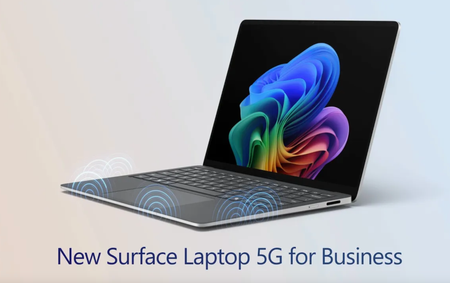
Stay securely connected with rearchitected 5G design — including six smart-switching antennas, eSIM and Wi-Fi 7 — without relying on hotspots. As the first Surface Laptop to feature 5G, it enables enterprise-ready AI features for deeper insights, productivity boosts, and powerful local inferencing wherever work happens. Stay connected anywhere. The first Surface laptop with built-in 5G — supporting NanoSIM, eSIM, smart signal switching, and international roaming. See it here. High-performance AI experiences. Surface Laptop 5G is powered by Intel Core Ultra processors with AI Boost. Watch here. No IT setup required. Surface Laptop 5G can arrive business-ready with zero-touch deployment and managed 5G policies. Check it out. QUICK LINKS: 00:00 — Surface Laptop 5G for Business 00:28 — Built-in 5G 01:30 — Hardware 02:06 — Intel® Core™ Ultra 02:41 — Built-in open-source AI models 03:20 — Management controls for IT 03:52 — Enterprise-Grade Security 04:16 — Wrap up Link References Check out https://surface.com/business Unfamiliar with Microsoft Mechanics? As Microsoft’s official video series for IT, you can watch and share valuable content and demos of current and upcoming tech from the people who build it at Microsoft. Subscribe to our YouTube: https://www.youtube.com/c/MicrosoftMechanicsSeries Talk with other IT Pros, join us on the Microsoft Tech Community: https://techcommunity.microsoft.com/t5/microsoft-mechanics-blog/bg-p/MicrosoftMechanicsBlog Watch or listen from anywhere, subscribe to our podcast: https://microsoftmechanics.libsyn.com/podcast Keep getting this insider knowledge, join us on social: Follow us on Twitter: https://twitter.com/MSFTMechanics Share knowledge on LinkedIn: https://www.linkedin.com/company/microsoft-mechanics/ Enjoy us on Instagram: https://www.instagram.com/msftmechanics/ Loosen up with us on TikTok: https://www.tiktok.com/@msftmechanics Video Transcript: -Surface Laptop 5G for Business with Intel Core Ultra Series 2 processors brings together intelligent connectivity, ultra-fast performance, and premium design. It’s built for AI as a Copilot+ PC to deliver new, connected, on-device, and hybrid experiences, all while keeping your business data protected with enterprise-grade security. -Now, not all 5G laptops are created equal. Surface Laptop 5G supports both physical Nano and eSIM for flexibility to connect from anywhere. In fact, we’ve rearchitected Surface Laptop to optimize connectivity, while still maintaining the sleek and lightweight design. It’s been engineered from the ground up for optimal signal strength with a strategically-placed six-antenna array, along with a newly developed custom composite palm rest. This material and antenna placement helps ensure superior signal transparency so it’s not blocked by your desk or your legs. The signal dynamically switches between antennas based on how you interact with the device to ensure the strongest possible connection. -For example, whether you’re typing or using the touch pad, the 5G signal is routed to the least obstructed antennas. And as you move between spaces or locations during your day, you don’t need to worry about staying connected. There’s no need to connect to hotspots or untrusted networks because it’s designed to seamlessly transition between 5G and known Wi-Fi networks, and includes support for Wi-Fi 7. -Now, continuing our hardware tour, on the right side, you’ll see a Surface Connect port. This is positioned next to the removable NanoSIM tray. Then on the left side of the device, there are two USB-C Thunderbolt ports, a USB-A and a 3.5mm headphone port. Moving up the device, Surface Laptop 5G comes with a signature 3:2 aspect ratio, 13.8" PixelSense touch display. The screen is anti-reflective, and not only does it come with Dolby Vision IQ support, but it has an impressive dynamic refresh rate of up to 120Hz. -Next, let’s move on to what powers the Surface Laptop 5G for Business. This is the first Surface Copilot+ PC to support Intel with 5G and it comes with a choice of Intel Core Ultra 5 and 7 processors. It supports up to 32GB of memory on package and has integrated Intel Arc Graphics. The Intel AI Boost Neural Processing Unit, or NPU, is capable of running up to 48 TOPS without compromising battery life. And the device comes with up to one terabyte of M.2 Gen 4 SSD storage. All of this makes it optimized to run connected Copilot experiences, like powerful reasoning agents capable of generating deep insights with your work data, as well as the on-device foundational models from Windows AI Foundry. This includes 40 plus local and ready-to-use open source models like Phi Silica for text generation, built-in OCR for text recognition in images, super resolution to upscale images and video, image segmentation for background removal, and more. Your productivity experiences and factor-enhanced with AI, including improved Windows search, which combines keyword and vector-based search for more relevant results. -Next, let’s look at the enterprise-grade management controls for IT. Here, Microsoft Intune can be used to provision 5G connectivity with your network policies from the first time Surface Laptop connects to the internet, which helps ensure that only known and trusted networks can be connected to. Together with Windows Autopilot deployment, Surface Laptop 5G can be shipped directly to your workforce with your defined security policies and apps so that they’re business-ready before connecting to your managed resources. Surface Laptop 5G meets the Secured-core PC standard with a Microsoft Pluton security processor. Additionally, authentication with Windows Hello facial recognition benefits from enhanced sign-in security using virtualization. This is all part of Microsoft’s end-to-end, chip-to-cloud security that helps keep your information, devices, and users safe wherever they work from. -So that was a quick tour of how the new Surface Laptop 5G for Business was thoughtfully engineered to bring together intelligent connectivity, ultra-fast performance, and premium design. Check out surface.com/business for availability and more information. Thanks for watching.1.1KViews3likes0CommentsOn-device AI and security: What really matters for the enterprise
AI is evolving, and so is the way businesses run it. Traditionally, most AI workloads have been processed in the cloud. When a user gives an AI tool a prompt, that input is sent over the internet to remote servers, where the model processes it and sends back a result. This model supports large-scale services like Microsoft 365 Copilot, which integrates AI into apps like Word, Excel, and Teams. Now, a new capability is emerging alongside cloud-based AI. AI can also run directly on a PC—no internet connection or remote server required. This is known as on-device processing. It means the data and the model stay on the device itself, and the work is done locally. Modern CPUs and GPUs are beginning to support this kind of processing. But neural processing units (NPUs), now included in enterprise-grade PCs such as Microsoft Surface Copilot+ PCs, are specifically designed to run AI workloads efficiently. NPUs are designed to perform the types of operations AI needs at high speed while using less power. That makes them ideal for features that need to work instantly, in a sustained fashion in the background, or without an internet connection. A flexible approach to AI deployment NPUs can enable power-efficient on-device processing, fast response times with small models, consistent functionality in offline scenarios, and more control over how data is processed and stored. For organizations, it adds flexibility in choosing how and where to run AI—whether to support real-time interactions at the edge or meet specific data governance requirements. At the same time, cloud-based AI remains essential to how organizations deliver intelligent services across teams and workflows. Microsoft 365 Copilot, for example, is powered by cloud infrastructure and integrates deeply across productivity applications using enterprise-grade identity, access, and content protections. Both models serve different but complementary needs. On-device AI adds new options for responsiveness and control. Cloud-based AI enables broad integration and centralized scale. Together, they give businesses flexibility to align AI processing with the demands of the use case, whether for fast local inference or connected collaboration. For business and IT leaders, the question is not which model is better but how to use each effectively within a secure architecture. That starts with understanding where data flows, how it is protected, and what matters most at the endpoint. Understanding AI data flow and its security impact AI systems rely on several types of input such as user prompts, system context, and business content. When AI runs in the cloud, data is transmitted to remote servers for processing. When it runs on the device, processing happens locally. Both approaches have implications for security. With cloud AI, protection depends on the strength of the vendor’s infrastructure, encryption standards, and access controls. Security follows a shared responsibility model where the cloud provider secures the platform while the enterprise defines its policies for data access, classification, and compliance. Microsoft’s approach to data security and privacy in cloud AI services Although the purpose of this blog post is to talk about on-device AI and security, it’s worth a detour to briefly touch on how Microsoft approaches data governance across its cloud-based AI services. Ultimately, the goal is for employees to be able to use whatever tools work best for what they want to get done, and they may not differentiate between local and cloud AI services. That means having a trusted provider for both is important for long-term AI value and security in the organization. Microsoft’s generative AI solutions, including Azure OpenAI Service and Copilot services and capabilities, do not use your organization’s data to train foundation models without your permission. The Azure OpenAI Service is operated by Microsoft as an Azure service; Microsoft hosts the OpenAI models in Microsoft's Azure environment and the Service does not interact with any services operated by OpenAI (e.g. ChatGPT, or the OpenAI API). Microsoft 365 Copilot and other AI tools operate within a secured boundary, pulling from organization-specific content sources like OneDrive and Microsoft Graph while respecting existing access permissions. For more resources on data privacy and security in Microsoft cloud AI services, check out Microsoft Learn. Local AI security depends on a trusted endpoint When AI runs on the device, the data stays closer to its source. This reduces reliance on network connectivity and can help limit exposure in scenarios where data residency or confidentiality is a concern. But it also means the device must be secured at every level. Running AI on the device does not inherently make it more or less secure. It shifts the security perimeter. Now the integrity of the endpoint matters even more. Surface Copilot+ PCs are built with this in mind. As secured-core PCs, they integrate hardware-based protections that help guard against firmware, OS-level, and identity-based threats. TPM 2.0 and Microsoft Pluton security processors provide hardware-based protection for sensitive data Hardware-based root of trust verifies system integrity from boot-up Microsoft-developed firmware can reduce exposure to third-party supply chain risks and helps address emerging threats rapidly via Windows Update Windows Hello and Enhanced Sign-in Security (ESS) offer strong authentication at the hardware level These protections and others work together to create a dependable foundation for local AI workloads. When AI runs on a device like this, the same enterprise-grade security stack that protects the OS and applications also applies to AI processing. Why application design is part of the security equation Protecting the device is foundational—but it’s not the whole story. As organizations begin to adopt generative AI tools that run locally, the security conversation must also expand to include how those tools are designed, governed, and managed. The value of AI increases dramatically when it can work with rich, contextual data. But that same access introduces new risks if not handled properly. Local AI tools must be built with clear boundaries around what data they can access, how that access is granted, and how users and IT teams can control it. This includes opt-in mechanisms, permission models, and visibility into what’s being stored and why. Microsoft Recall (preview) on Copilot+ PCs is a case study in how thoughtful application design can make local AI both powerful and privacy conscious. It captures snapshots of the desktop embedded with contextual information, enabling employees to find almost anything that has appeared on their screen by describing it in their own words. This functionality is only possible because Recall has access to a wide range of on-device data—but that access is carefully managed. Recall runs entirely on the device. It is turned off by default—even when enabled by IT—and requires biometric sign-in with Windows Hello Enhanced Sign-in Security to activate. Snapshots are encrypted and stored locally, protected by Secured-core PC features and the Microsoft Pluton security processor. These safeguards ensure that sensitive data stays protected, even as AI becomes more deeply embedded in everyday workflows. IT admins can manage Recall through Microsoft Intune, with policies to enable or disable the feature, control snapshot retention, and apply content filters. Even when Recall is enabled, it remains optional for employees, who can pause snapshot saving, filter specific apps or websites, and delete snapshots at any time. This layered approach—secure hardware, secure OS, and secure app design—reflects Microsoft’s broader strategy for responsible local AI and aligns to the overall Surface security approach. It helps organizations maintain governance and compliance while giving users confidence that they are in control of their data and that the tools are designed to support them, not surveil them. This balance is essential to building trust in AI-powered workflows and ensuring that innovation doesn’t come at the expense of privacy or transparency. For more information, check out the related blog post. Choosing the right AI model for the use case Local AI processing complements cloud AI, offering additional options for how and where workloads run. Each approach supports different needs and use cases. What matters is selecting the right model for the task while maintaining consistent security and governance across the entire environment. On-device AI is especially useful in scenarios where organizations need to reduce data movement or ensure AI works reliably in disconnected environments In regulated industries such as finance, legal, or government, local processing can help support compliance with strict data-handling requirements In the field, mobile workers can use AI features such as document analysis or image recognition without relying on a stable connection For custom enterprise models, on-device execution through the Windows AI Foundry Local lets developers embed AI in apps while maintaining control over how data is used and stored These use cases reflect a broader trend. Businesses want more flexibility in how they deploy and manage AI. On-device processing makes that possible without requiring a tradeoff in security or integration. Security fundamentals matter most Microsoft takes a holistic view of AI security across cloud services, on-device platforms, and everything in between. Whether your AI runs in Azure or on a Surface device, the same principles apply. Protect identity, encrypt data, enforce access controls, and ensure transparency. This approach builds on the enterprise-grade protections already established across Microsoft’s technology stack. From the Secure Development Lifecycle to Zero Trust access policies, Microsoft applies rigorous standards to every layer of AI deployment. For business leaders, AI security extends familiar principles—identity, access, data protection—into new AI-powered workflows, with clear visibility and control over how data is handled across cloud and device environments. Securing AI starts with the right foundations AI is expanding from cloud-only services to include new capable endpoints. This shift gives businesses more ways to match the processing model to the use case without compromising security. Surface Copilot+ PCs support this flexibility by delivering local AI performance on a security-forward enterprise-ready platform. When paired with Microsoft 365 and Azure services, they offer a cohesive ecosystem that respects data boundaries and aligns with organizational policies. AI security is not about choosing between cloud or device. It is about enabling a flexible, secure ecosystem where AI can run where it delivers the most value—on the endpoint, in the cloud, or across both. This adaptability unlocks new ways to work, automate, and innovate, without increasing risk. Surface Copilot+ PCs are part of that broader strategy, helping organizations deploy AI with confidence and control—at scale, at speed, and at the edge of what’s next.1.2KViews1like0CommentsThinking by hand: digital inking with Surface Pen
Keyboard and mouse or touchpad have become fundamental to everyday work. Microsoft Surface engineers have spent years refining those traditional tools to deliver exceptional experiences—but that’s not the end of the story. What if there was another tool—something that added flexibility, creativity, and a more personal way to engage with your ideas? That’s where inking comes in. The digital inking experience on Surface devices is designed to facilitate new ways of working. To understand how a seemingly simple tool can transform productivity, we spoke with Surface MVPs, who are experts recognized for their deep knowledge of Surface devices. They shared how using the Surface Pen supports effective ideation, collaboration, and innovation. To learn how embracing digital ink can enhance your business’s device strategy, read on. Ideas in motion Some ideas are easier to write down. Others are easier to draw. Inking makes it simple to capture both with sketches, diagrams, or notes as thinking develops. Rob Quickenden, Chief Technology Officer at Cisilion, relies on the Surface Pen to communicate complex concepts. "In meetings, I often draw solutions for customers or my team directly in OneNote or Whiteboard, whether offline or in real time," he says. That could mean a rough outline of a network infrastructure, a quick process flow for a marketing project, or notes layered over a shared document to streamline decision-making. Inking can communicate ideas that would otherwise require long explanations, which can increase the efficiency of collaboration. Surface Slim Pen 2 capabilities include a feature called Zero Force inking, which reduces the delay between the pen touching the screen and the ink appearing. A sharper tip and precision tilt detection enhance control. Haptic feedback provides tactile cues that simulate a writing sensation. The added tactile response engages the hand and the mind for intuitive and fluid inking. The result feels natural—like pen on paper, but with the expansive capabilities of digital technology. Digital efficiency, handcrafted engagement: how handwriting activates complex brain connectivity Research using EEG analysis shows that handwriting with a digital pen activates more complex brain connectivity patterns than typing, supporting memory formation and deeper learning.[1] Yet traditional handwritten notes come with drawbacks: they pile up, get misplaced, and aren’t searchable. OneNote Copilot now supports inked notes, allowing users to analyze both typed and handwritten notes directly from the ribbon or canvas.[2] With Microsoft Surface Pro and Microsoft 365, handwritten notes can be synced, searched, and converted to type. In OneNote, you can write meeting notes with the pen, circle key points, and later search for any word—even handwritten ones. Brett Gilbertson, Digital Skills Coach and Microsoft Surface MVP, says, “The most underutilized and overlooked feature on Surface Pro is the pen. It’s essential for notetaking, ideating, and creating—a true thinking tool.” He switches seamlessly between structured notes in OneNote and freeform sketches in Whiteboard. Collaboration without friction: Enhancing remote and in-person teamwork with digital inking In digital meetings, quick visuals help teams align. Inking adds this layer of interaction, turning passive screens into active workspaces. Josh Jones, Modern Work Specialist at Microsoft, uses the Surface Pen during Teams meetings to stay focused and effective. “Nothing is more impressive in a Teams sales call than quickly annotating or scribbling on a PowerPoint presentation to emphasize a point,” he says. In project planning, inking supports real-time changes. During a Whiteboard session, participants can add ideas and adjust flowcharts without switching tools. Everyone stays engaged because the interaction is direct and visible. The Surface Slim Pen button can be set to open apps like OneNote or Whiteboard or launch capture tools. With one press, a user moves from thinking to doing. In-person work benefits as well. Drawing on a shared screen helps explain steps or review feedback without adding to the agenda. Teams can sketch a timeline, update a checklist, or approve changes on the spot, and visual ideas can be captured in real time. Precision productivity: achieving detailed control with Surface Pen The touchpads on Surface devices are designed to be highly responsive and accurate, but fine tasks may benefit from additional control only a pen can offer. The Surface Pen delivers that control, supporting designers, engineers, and professionals who work with detailed visuals. SungKi Park, IT & Integrated Communication Coordinator, integrates inking into both creative and business tasks. "I use the Surface Pen a lot for Adobe Photoshop and Illustrator work," he says. "And for work, I use it for signing electronic documents." In Photoshop, the pressure-sensitive pen refines brush strokes and selections. In Illustrator, tilt functionality creates natural shading. Precision matters in everyday work, as well, whether signing contracts, marking up reports, or annotating documents. Mobility without compromise Work doesn’t happen in one place. It shifts between offices, airports, coffee shops, and meeting rooms. Sometimes, a different input method makes all the difference. Anand Narayanaswamy, a freelance writer and author, balances both touch and pen input flexibly to enable focused work in more places. "I use both the touchscreen and pen depending on the task," he says. "For instance, I use the pen for drawing in Paint, which helps me create stunning visuals." The pen's precision and ease of use make it ideal for quick sketches, annotations, and signing documents on the go. Switching between keyboard, touch, and pen keeps work moving. A quick note in OneNote during a call. A diagram in Whiteboard while waiting for a flight. A contract signed on the spot, no printer required. The Surface Slim Pen 2 makes portability seamless. It magnetically attaches to Surface Pro Signature Keyboard or Surface Laptop Studio, so it stays charged and in reach, providing up to 15 hours of battery life.[3] Technology made human Work takes many forms—structured notes, quick sketches, informal ideas jotted down between meetings. Inking empowers employees with more options to match the input method to the task. When pen, screen, and software are engineered to work together, the experience becomes seamless, whether capturing notes, collaborating on visual ideas, or just brainstorming. If you’re excited by the power of the pen to change how your teams work for the better, Surface provides a thoughtfully engineered set of features to maximize the value of the technology. Discover the latest Surface Pro devices for business to get started. [1] Handwriting but not typewriting leads to widespread brain connectivity: a high-density EEG study with implications for the classroom, Front. Psychol. , 25 January 2024, Sec. Educational Psychology, Volume 14 – 2023, https://doi.org/10.3389/fpsyg.2023.1219945 [2] Subscription required for some features. [3] Battery life varies significantly based on device configuration, usage, network and feature configuration, signal strength, settings, and other factors. Learn more about Surface battery performance for details.1.9KViews3likes0CommentsCheck out Surface at Microsoft Ignite 2024
Explore the latest Microsoft Surface innovations at Ignite 2024 in Chicago and online. Discover AI-driven productivity, advanced security, and enhanced collaboration tools in must-attend sessions, hands-on labs, and interactive demos.869Views2likes0CommentsEmbracing AI for a competitive edge: How AI-enabled PCs position your business to lead
The 2024 Microsoft Work Trend Index Annual Report, AI at Work Is Here. Now Comes the Hard Part, reveals a pivotal shift in how organizations must adapt to remain competitive: AI is increasingly being integrated into everyday workflows across various industries. In the blog post, we will discuss some of the data highlighted by this report and how AI-enabled PCs can help businesses capitalize on these trends.1.8KViews0likes0Comments