managed home screen
15 Topics
Microsoft Managed Home Screen: Unwanted Samsung One UI 8.0 Elements Appearing
Hello Tech Community, Our organization is currently deploying a configuration in Microsoft Intune using a Corporate-owned dedicated device enrollment profile. We’ve applied a device restriction policy to configure Samsung tablets in Multi-app Kiosk mode, with Managed Home Screen set as the launcher. Instead of using an app configuration policy, Managed Home Screen is configured through the device restrictions policy. We’ve left the device navigation options unconfigured, which should hide the following UI elements: Android Overview button Android Home button Android App drawer Once all policies and required apps are installed, Managed Home Screen successfully acts as the launcher for end-users to sign in. Overall, this works well; however, we’ve encountered an intermittent issue: After multiple lock/unlock cycles, the navigation bar sometimes reappears, showing the Overview, Home, and App Drawer buttons. This allows users to access background apps that are not exposed through Managed Home Screen, which defeats the kiosk experience. Device details: Samsung Galaxy Tab S10 FE Android 16, One UI 8.0 Managed Home Screen version: 2.2.0.107721 Has anyone experienced this behavior or have recommendations to prevent these UI elements from reappearing? I’ll gladly provide additional details about our configuration if needed. Thank you!290Views4likes1Comment
Multi-App Kiosk not applying on Samsung A55 (Android 16)
Hello everyone, I’m facing a critical issue with Android Enterprise Multi-App Kiosk mode on a Samsung Galaxy A55 (SM-A556B). The problem started suddenly last week without any configuration changes, and now no Android Enterprise configuration profiles apply anymore. What happened originally The device was running Android 15, and it had been working fine for months in Managed Home Screen (Multi-App Kiosk). Then suddenly: Managed Home Screen stopped showing all apps The device booted into MHS, but the screen was completely empty No policy changes were made on our side I tried several troubleshooting steps, but nothing fixed it. Eventually, I factory-reset the device and re-enrolled it as a Corporate-Owned Dedicated Device (COBO). Current situation after re-enrollment Even after a clean enrollment: No Android Enterprise device restriction profiles apply (Multi-App Kiosk doesn’t start at all) The device stays in the normal Samsung launcher Only very basic commands work: Remote restart App install/uninstall via group assignment All assigned apps show as Installed Profile status in Intune shows Success, but nothing is actually enforced I then upgraded the device to Android 16 (patch 2025-11-01). Unfortunately, the behavior did not change. Current configuration Android Enterprise → Device Restrictions → Multi-App kiosk Allowed apps: Teams, Managed Home Screen, Contacts Managed Home Screen installed Enrollment type: Android Enterprise – Fully Managed / Dedicated No OEM kiosk (no Samsung Knox settings) No Work Profile on the device Symptoms now Managed Home Screen never launches Kiosk mode is completely ignored Device is fully usable like a normal phone Only app deployments work, nothing else This began while still on Android 15 Updating to 16 did NOT resolve the issue Questions Has anyone seen this behavior where Android Enterprise policies stop applying entirely after MHS fails? Is there a known issue with Samsung A55, Android 15/16, or Managed Home Screen? Could this be related to a bug in the Fully Managed/Dedicated enrollment flow for the A55? Any recommended workarounds or known fixes? Any guidance is appreciated — this behavior is completely blocking Kiosk deployments for us. Thanks!173Views0likes1Comment
Manged Home Screen: Outlook
We are running into issues with the Managed Home Screen and Outlook. Once the user has logged into the Managed Home Screen and tries to access Outlook, it gets stuck in an authentication loop. Loops: Discovering Accounts -> Accounts Found -> Back to Discovering accounts. This is affecting multiple devices/accounts. This only affects493Views1like9Comments
AzureADSharedMode - Teams without PIN
I prepared in Intune profile for Samsung devices in kiosk mode with a multi-app setting. I added Teams, Outlook, Egde and Managed Home Screen as apps. In addition, I also created a configuration profile for the Managed Home Screen application in which I set that it is necessary to configure a PIN for the session. I also set the Require PIN code after returning from screen saver option. Everything works great until the user leaves the Teams app on or someone calls the user logged into Teams. At this point, no PIN is needed to unlock the device. You can easily access Teams of the logged-in user. The user is asked for the session PIN only when he wants to switch to another app. I didn't set screen lock in android settings because in my opinion it's pointless since the device is in shared mode. Have you encountered anything like this? It poses a potential security risk if a logged-in user leaves the Teams app open, puts the phone down and walks away from it, and at that moment someone calls the phone and the person who picks it up without probelm gets access to the logged-in user's teams.441Views1like2Comments
Intune - Multi-App Kiosk Mode Android - Managed Home Screen - How to Toggle Between Open Apps?
Hi there, We use Intune - Multi-App Kiosk Mode for Android - Managed Home Screen quite a bit. However, we'd like to be able to see open Apps and switch between them like you can on a standard Android phone (using the 3 vertical lines icon). I can't find an equivalent function in Managed Home Screen. Any ideas? Ta, Ian HearnesSolved355Views0likes3CommentsManaged Home Screen FIDO2 authentication
Hello! I was just wondering if it is possible to use NFC Smartcard to make it easier to log in to Manged Home Screen? I have a Thales FIDO2 certified smartcard next to me which is registered on my account but i only see password field and not720Views1like2Comments
Managed Home Screen Woes
Setting up a Company Owned Dedicated (kiosk) Android device can be a bit challenging to get just right. After several hours of reading Reddit, Microsoft, and Personally owned blogs and threads, I figured I would consolidate everything I have found to hopefully have this show up on someone else's Google results. (Main link for Managed Home Screen Configuration: https://learn.microsoft.com/en-us/mem/intune/apps/app-configuration-managed-home-screen-app ) Calling issues with Managed Home Screen The Issue: Devices were able to receive phone calls, but the only notification was in the default system's notification tray; this was while the device was locked and unlocked. This posed an issue as we would like to 1) disable the default system tray and 2) We need at least the phone to light up when it was locked to let the users know they're getting a call. The Solution: After researching it is my assumption that the underlying issue is that while the phone is managed, and enrolled as a Company Owned Dedicated Device, for some reason the UI elements are NOT identified as managed items. So the administrator must deploy the following applications as Android Enterprise System Apps and set them as required installs: com.samsung.android.incallui --- I named this Call UI, Publisher Android com.android.server.telecom --- I named this Telecom (1 of 2 Req for Phone App), Publisher Android com.samsung.android.app.telephonyui --- I named this Telephony UI (2 of 2 Req for Phone App), Publisher Android (Yes, these are probably not the "Android Designated Application Name" but that's what they're staying as in my tenant.) That's it. Done. Phone was able to receive calls with the normal quarter of the top screen notification, as well as a full screen notification if the device was locked. However, some previous research also let me to these other items that may help someone else from googling: The Android Phone App Package ID / Android Phone App Bundle ID / Samsung Phone App is: com.samsung.android.dialer --- I named this Phone, Publisher Samsung (unsure for Google, Motorola, etc phones, this works for Samsung) This needs to be set as required as well, and assumedly placed on the managed home screen for the user to make calls (unsure if it is needed to receive calls only... if you have some type of use case for that?). Most predominant links relating to the issue: Article 1: https://www.reddit.com/r/Intune/comments/t427kv/shared_android_phonecalls_from_kiosk_mode/ Article 2: https://www.reddit.com/r/Intune/comments/vxw8xn/comment/ifylsaz/?utm_source=share&utm_medium=web2x&context=3 Managed Home Screen Conflicts App Configuration Policies currently don’t really show you any information as to why or what a conflict is; just that it’s conflicting (thanks, Microsoft). Some common issues I’ve seen around is that while some configurations are available in both the Device Configuration Profile and the App Configuration Policy; you should not apply these settings in both places (see the tables of configurations on the Microsoft doc for Managed Home Screen at the top of this article). Personally, I like having the configurations setup as: Managed Home Screen App Config Policy: Configuration Key Value Type Configuration Value Exit lock task mode password string 123456 MAX time outside MHS integer 600 MAX inactive time outside MHS integer 180 Enable MAX time outside MHS bool TRUE Enable MAX inactive time outside MHS bool TRUE Enable easy access of debug menu bool TRUE Define Theme Color string light Applications in folder are ordered by name bool TRUE Application order enabled bool TRUE Device's serial number choice {{SerialNumber}} Show device name bool TRUE Show Device Info setting bool TRUE Show Volume setting bool TRUE Show Flashlight setting bool TRUE Show Bluetooth setting bool TRUE Show Managed Setting bool TRUE Show Wi-Fi setting bool TRUE Battery and Signal Strength indicator bar bool TRUE Set device wall paper string https://i.imgur.com/OPlCeFG.jpg Lock Home Screen bool TRUE Enable notifications badge bool TRUE (Exiting Kiosk mode is then within the Device Managed Settings > i > Exit Kiosk Mode with the ‘Exit lock task mode password’ pin.) Dedicated Device Configuration Policy: (In my experience, this is an overview of the settings that should / shouldn’t be set with Managed Home Screen. This is not all the settings, that’s a lot of typing. But this will give you a good start. I am sure not all of these affect the Managed Home Screen as well, but at least the ones under Device Experience do.) General: Permission Policy – Default Date and Time – Block Factory Reset, Status Bar – Blocked Skip first hints – Enable Power Button Menu – Block System Error Warnings – Allow Enabled System Navigation Features – Home and overview buttons System Notifications and Information – Show both Device Experience: Enrollment Type – Dedicated Device Kiosk Mode – Multi-App Custom Layout – Enable (Note: all of these apps need to be deployed and set as required) App Notification Badges – Enable Virtual Home Button thru Wi-Fi Configuration– ALL Not Configured (as these are configured within the App Configuration Policy!) Bluetooth, Flashlight, Media, Quick access to device info – Enabled Managed Home Screen Background I found that the best place to configure this is only within the App Configuration Policy. The main issue everyone seems to face is that the image URL must end with a ‘.jpg’. This is very easily overcome; find an image on Google, Download it, Go to Imgur, Upload it (watch your ad), Right click it afterwards, then click Copy Image Link. Boom imgur.com/somerandomletters.jpg Finding the Android App Identifier Honestly, this is a lot more complicated than it needs to be. Note: Adding the Managed Home Screen app to the Home Screen shows up as Managed Settings and works great. Here’s a list of the common ones: App Name Store URL App Identifier Calendar https://play.google.com/store/apps/details?id=com.samsung.android.calendar com.samsung.android.calendar Camera https://play.google.com/store/apps/details?id=com.sec.android.app.camera com.sec.android.app.camera Clock https://play.google.com/store/apps/details?id=com.google.android.deskclock&hl=en-US com.google.android.deskclock Gallery https://play.google.com/store/apps/details?id=com.sec.android.gallery3d com.sec.android.gallery3d Google Play Store com.android.vending Microsoft Intune https://play.google.com/store/apps/details?id=com.microsoft.intune&hl=en-US com.microsoft.intune Managed Home Screen https://play.google.com/store/apps/details?id=com.microsoft.launcher.enterprise&hl=en-US com.microsoft.launcher.enterprise Microsoft OneDrive https://play.google.com/store/apps/details?id=com.microsoft.skydrive&hl=en-US com.microsoft.skydrive Microsoft Outlook https://play.google.com/store/apps/details?id=com.microsoft.office.outlook&hl=en-US com.microsoft.office.outlook Microsoft Teams https://play.google.com/store/apps/details?id=com.microsoft.teams&hl=en-US com.microsoft.teams Phone https://play.google.com/store/apps/details?id=com.samsung.android.dialer com.samsung.android.dialer Samsung Notes https://play.google.com/store/apps/details?id=com.samsung.android.app.notes&hl=en-US com.samsung.android.app.notes Settings https://play.google.com/store/apps/details?id=com.android.settings com.android.settings There were a LOT of articles and treads I read about these issues and I cannot possibly find them all again to post here. But here are a few to try and give credit: https://learn.microsoft.com/en-us/mem/intune/apps/app-configuration-managed-home-screen-app https://www.reddit.com/r/Intune/comments/t427kv/shared_android_phonecalls_from_kiosk_mode/ https://www.reddit.com/r/Intune/comments/vxw8xn/comment/ifylsaz/?utm_source=share&utm_medium=web2x&context=3 https://github.com/petarov/google-android-app-ids (Some of these are incorrect for my use cases (needed Android apps not Google Apps)) https://learn.microsoft.com/en-us/mem/intune/configuration/device-restrictions-android-for-work?WT.mc_id=Portal-Microsoft_Intune_DeviceSettings https://learn.microsoft.com/en-us/mem/intune/apps/apps-ae-system#enable-a-system-app-in-intune14KViews4likes2Comments
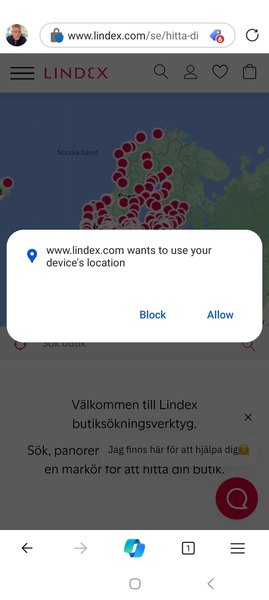
Managed Home Screen, Overlay permission, not able to allow site permissions
Hi, We use shared devices, enrolled as dedicated devices with Azure AD, and deploy Managed Home Screen to them. Overlay permission is granted for MHS. When browsing to a website (in Edge) that requires permissons to use the device Location or Camera the expected pop-up asking you to Allow or Block the permission is shown, however nothing happens when pressing any of the options. Meaning you cannot allow site permissions. I know this is related to the Overlay permission that is granted for MHS, since it works if I exit kiosk mode. We had a similar problem a few months ago, where we got another message saying “This site can´t ask for your permissions…” when we tapped the Allow button. That problem was solved by adding an app configuration for Edge, “Enable Overlay Permission Detection” and set it to False. That setting is still applied but since some weeks ago, probably since last Edge update, it does not help. I have found a workaround, not very user friendly though. If I refresh the web site 3-4 times until the permission pop-up stops showing, I can tap the lock-icon in the address bar and switch the required permission from blocked to allowed.1.8KViews0likes0CommentsCannot allow site permissions Edge + MHS
We are deploying Edge in Managed Home Screen on our Android shared device (with Azure AD). When browsing to a web site that asks for permissions (Location, Camera, etc) we get the pop-up for selecting Block or Allow but the nothing happens when tapping any option. If we exit kiosk-mode (turn of Managed Home Screen) it works as expected, but as soon as MHS is active we cannot grant any site permissions. One workaround we found is to refresh the site several times and then tap the padlock in the address bar. The permission is now set to "automatically blocked" and can be changed to "allowed" but this is not a very user friendly way of course. I should also inform that the overlay detection setting in Edge is disabled. Please advice! //Niklas929Views0likes0Comments