managed home screen
18 Topics
Microsoft Managed Home Screen: Unwanted Samsung One UI 8.0 Elements Appearing
Hello Tech Community, Our organization is currently deploying a configuration in Microsoft Intune using a Corporate-owned dedicated device enrollment profile. We’ve applied a device restriction policy to configure Samsung tablets in Multi-app Kiosk mode, with Managed Home Screen set as the launcher. Instead of using an app configuration policy, Managed Home Screen is configured through the device restrictions policy. We’ve left the device navigation options unconfigured, which should hide the following UI elements: Android Overview button Android Home button Android App drawer Once all policies and required apps are installed, Managed Home Screen successfully acts as the launcher for end-users to sign in. Overall, this works well; however, we’ve encountered an intermittent issue: After multiple lock/unlock cycles, the navigation bar sometimes reappears, showing the Overview, Home, and App Drawer buttons. This allows users to access background apps that are not exposed through Managed Home Screen, which defeats the kiosk experience. Device details: Samsung Galaxy Tab S10 FE Android 16, One UI 8.0 Managed Home Screen version: 2.2.0.107721 Has anyone experienced this behavior or have recommendations to prevent these UI elements from reappearing? I’ll gladly provide additional details about our configuration if needed. Thank you!344Views6likes2Comments
Multi-App Kiosk not applying on Samsung A55 (Android 16)
Hello everyone, I’m facing a critical issue with Android Enterprise Multi-App Kiosk mode on a Samsung Galaxy A55 (SM-A556B). The problem started suddenly last week without any configuration changes, and now no Android Enterprise configuration profiles apply anymore. What happened originally The device was running Android 15, and it had been working fine for months in Managed Home Screen (Multi-App Kiosk). Then suddenly: Managed Home Screen stopped showing all apps The device booted into MHS, but the screen was completely empty No policy changes were made on our side I tried several troubleshooting steps, but nothing fixed it. Eventually, I factory-reset the device and re-enrolled it as a Corporate-Owned Dedicated Device (COBO). Current situation after re-enrollment Even after a clean enrollment: No Android Enterprise device restriction profiles apply (Multi-App Kiosk doesn’t start at all) The device stays in the normal Samsung launcher Only very basic commands work: Remote restart App install/uninstall via group assignment All assigned apps show as Installed Profile status in Intune shows Success, but nothing is actually enforced I then upgraded the device to Android 16 (patch 2025-11-01). Unfortunately, the behavior did not change. Current configuration Android Enterprise → Device Restrictions → Multi-App kiosk Allowed apps: Teams, Managed Home Screen, Contacts Managed Home Screen installed Enrollment type: Android Enterprise – Fully Managed / Dedicated No OEM kiosk (no Samsung Knox settings) No Work Profile on the device Symptoms now Managed Home Screen never launches Kiosk mode is completely ignored Device is fully usable like a normal phone Only app deployments work, nothing else This began while still on Android 15 Updating to 16 did NOT resolve the issue Questions Has anyone seen this behavior where Android Enterprise policies stop applying entirely after MHS fails? Is there a known issue with Samsung A55, Android 15/16, or Managed Home Screen? Could this be related to a bug in the Fully Managed/Dedicated enrollment flow for the A55? Any recommended workarounds or known fixes? Any guidance is appreciated — this behavior is completely blocking Kiosk deployments for us. Thanks!205Views0likes1Comment
Manged Home Screen: Outlook
We are running into issues with the Managed Home Screen and Outlook. Once the user has logged into the Managed Home Screen and tries to access Outlook, it gets stuck in an authentication loop. Loops: Discovering Accounts -> Accounts Found -> Back to Discovering accounts. This is affecting multiple devices/accounts. This only affects520Views1like9Comments
AzureADSharedMode - Teams without PIN
I prepared in Intune profile for Samsung devices in kiosk mode with a multi-app setting. I added Teams, Outlook, Egde and Managed Home Screen as apps. In addition, I also created a configuration profile for the Managed Home Screen application in which I set that it is necessary to configure a PIN for the session. I also set the Require PIN code after returning from screen saver option. Everything works great until the user leaves the Teams app on or someone calls the user logged into Teams. At this point, no PIN is needed to unlock the device. You can easily access Teams of the logged-in user. The user is asked for the session PIN only when he wants to switch to another app. I didn't set screen lock in android settings because in my opinion it's pointless since the device is in shared mode. Have you encountered anything like this? It poses a potential security risk if a logged-in user leaves the Teams app open, puts the phone down and walks away from it, and at that moment someone calls the phone and the person who picks it up without probelm gets access to the logged-in user's teams.473Views1like2CommentsFrom the frontlines: Accelerating retail worker shared device experience (Part one)
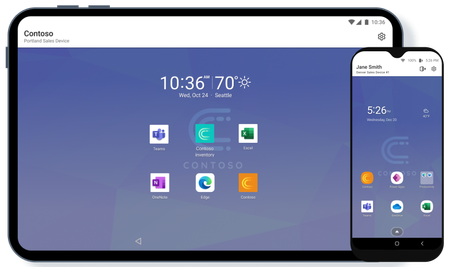
By: Yusuke Shinoki – Sr Product Manager | Microsoft Intune This is the second article in the "From the frontlines" series. I'm Yusuke Shinoki, I wanted to share the insights I’ve gained from my retail customers who often talk to me be about their frontline worker device scenarios. Technology has revolutionized the retail industry by enhancing operational efficiency and customer experiences. Retail employees now use shared devices to access inventory data, check product availability, and manage orders on the go. Store staff monitor sales and productivity digitally, enabling frontline workers to better serve customers by quickly accessing essential information. In supermarkets and pharmacies operating 24/7, shared devices are rotated among shift workers to perform tasks critical to the business operations. Collaboration and real time access to data is becoming increasingly important for frontline workers. Simultaneously, it’s essential to maintain secure access in line with the Zero Trust security strategy. Let’s discuss how retail associates can benefit from using Intune-managed devices at work while balancing productivity and security. Retail associates device needs Let’s say retail giant ‘Contoso’ wants to provide shared devices to retail associates, so they can help customers and drive sales. They want each associate to be able to pick up a device at the beginning of their shift and allow them to feel like it’s their own for the duration of the shift. Additionally, they want their associates to be able to collaborate with other associates via Microsoft Teams and access their internal employee portal. At the end of their shift, they want associates to log off and return their devices to the central pool, confident that their personal data won’t be seen by the next associate. To support this scenario on shared devices, use Intune’s Android Enterprise dedicate devices enrollment solution with Microsoft Entra shared mode (Fig. 1) and Managed Home Screen. Android Enterprise dedicated devices with Microsoft Entra shared mode and Managed Home Screen allows IT admins to provide consistent shared device user experience. In Contoso’s case, the Contoso IT team needs to provide user experiences for retail associates such as: Easy experience for device sign-in when starting their shift and sign-out at the end of their shift. Setting a temporary session PIN for individual associates during their shifts while using devices. Easy app switching. Associates experience The Contoso IT team must ensure seamless device sign-in to maximize associate productivity during limited shift hours. Intune and Managed Home Screen provide options to reduce shift swapping time by allowing workers to simply enter their Microsoft Entra ID account into the device and sign in. Microsoft Entra ID accounts require entering a User Principal Name such as "user@contoso.com". By configuring the "Domain name" setting in Managed Home Screen, associates will automatically see the domain name options available to them. This allows associates to quickly enter their ID and start using the device efficiently. (Fig. 2) After completing the initial Microsoft Entra ID authentication on the Managed Home Screen, associates set up a temporary session PIN (Fig. 3). This session PIN allows them to securely use shared devices for their tasks throughout their shift. The associates’ credentials are then used to enable a single sign-on experience with supported apps. Usually switching apps in Kiosk mode is cumbersome, but Managed Home Screen leverages the virtual app switcher button to switch between apps quickly, just like they do on their regular Android devices. (Fig. 4) This feature enhances the user experience by allowing seamless transitions between applications, ensuring that workers can maintain productivity without unnecessary delays. Once the associate's shift ends, they can easily log out and return the device to the pool. This ensures that all apps are securely signed out, preventing the next shift's associate from accessing any personal data handled by the previous user (Fig. 5). Even if the previous user forgets to sign out at the end of their shift, it's not a problem. The next user can easily start their session by using the “Switch User” option (Fig. 6). These streamlined user experiences allow retail associates to concentrate on their tasks without delays, improving productivity and user experience. Setting up Managed Home Screen and the new simplified sign-in option Configuring Managed Home Screen can be done through the device configuration profile (Fig. 7) but if you need advanced customization you can use app configuration policies (Fig. 8). This configuration is the same as described previously for the healthcare scenario: From the frontlines: Revolutionizing healthcare workers experience. For step-by-step instructions on setting up Managed Home Screen, refer to the blog: How to setup Microsoft Managed Home Screen in kiosk mode on Dedicated and Fully managed devices. In addition to “Domain name” configuration, we’ve been working on further simplifying the sign-in experience. As of March 2025, we introduced QR code sign-in as a public preview. This new feature aims to streamline the initial sign-in process for frontline workers. For additional details on QR code authentication, refer to the following information: Simplify frontline workers’ sign-in experience with QR code authentication | Microsoft Community Hub How to enable QR code authentication in Microsoft Entra ID (preview) - Microsoft Entra ID | Microsoft Learn. Summary In this post, we explored how retail shop associates can use Android Enterprise dedicated devices with Entra Shared Mode and Managed Home Screen powered by Microsoft Intune throughout their shifts. This same type of configuration can be used in many other Android shared device scenarios such as warehouse operations, factory floor, and more. For more guidance review the Microsoft Learn articles: For information on how to set up shared Android devices refer to: Enroll Android Enterprise dedicated, fully managed, or corporate-owned work profile devices in Intune You can find more information on Managed Home Screen and how it can improve the user experience refer to: Configure the Microsoft Managed Home Screen app If you’d like to learn more about how Microsoft Entra Shared Device Mode can help your users easily sign in and sign out leveraging single sign-on review: Shared Device Mode overview - Microsoft identity platform To learn about how to setup maintenance windows and define application update conditions refer to: Corporate-owned Android Enterprise device restriction settings in Microsoft Intune For information on enabling new QR code authentication refer to: How to enable QR code authentication in Microsoft Entra ID (preview) - Microsoft Entra ID. If your device usage is similar to that of frontline workforces, consider using this solution and let us know how it works for you by leaving a comment below or reaching out to us on X @IntuneSuppTeam! In our next “From the frontlines”, we’ll dive into scenarios involving dedicated devices tailored for specific tasks that enhance customer service and efficiency in the retail industry. Check out From the frontlines: Frontline worker management with Microsoft Intune to see more “From the frontlines” blogs. Stay tuned!3KViews5likes0Comments
Intune - Multi-App Kiosk Mode Android - Managed Home Screen - How to Toggle Between Open Apps?
Hi there, We use Intune - Multi-App Kiosk Mode for Android - Managed Home Screen quite a bit. However, we'd like to be able to see open Apps and switch between them like you can on a standard Android phone (using the 3 vertical lines icon). I can't find an equivalent function in Managed Home Screen. Any ideas? Ta, Ian HearnesSolved374Views0likes3CommentsManaged Home Screen FIDO2 authentication
Hello! I was just wondering if it is possible to use NFC Smartcard to make it easier to log in to Manged Home Screen? I have a Thales FIDO2 certified smartcard next to me which is registered on my account but i only see password field and not747Views1like2Comments