MDE
19 Topics
Microsoft Defender for Endpoint Plan 1 Now Generally Available
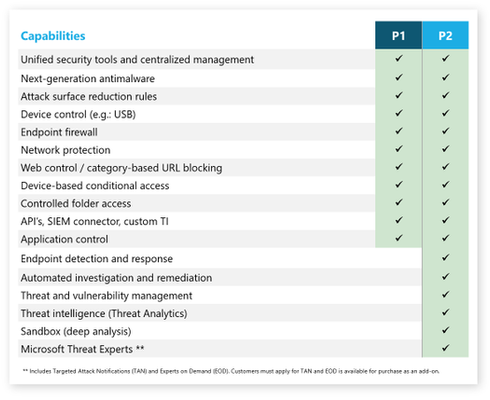
We are excited to announce the General Availability of Microsoft Defender for Endpoint Plan 1 (P1). Defender for Endpoint P1 demonstrates Microsoft’s commitment to delivering best of breed, multi-platform, and multi-cloud security for all organizations across the globe, providing a foundational set of our market leading endpoint security capabilities for Windows, macOS, Android, and iOS at a lower price point.
Boost protection of your Linux estate with behavior monitoring, extended distro coverage, and more
Microsoft protection for your Linux estate is getting an impressive boost across the full spectrum of the security suite. We are thrilled to share the latest news about Microsoft Defender for Endpoint on Linux next generation protection, endpoint detection and response (EDR), threat and vulnerability management (TVM).How to remove MDE managed devices in MEM?
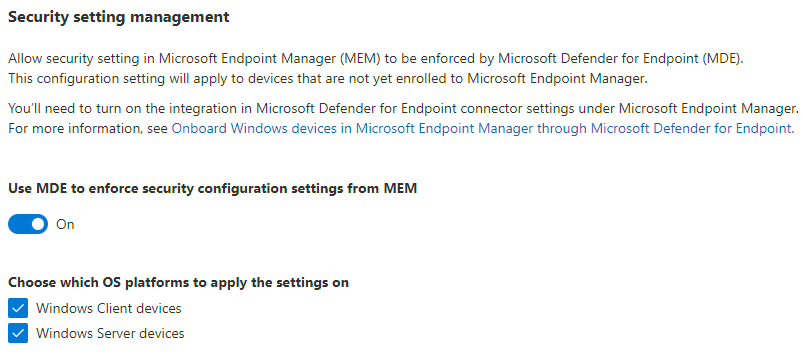
Hi, I had two windows server VMs with MDE(Microsoft Defender for Endpoint) onboarded. For test purpose, I turned on the security settings management in MDE to let MEM deploy some security policies to them. It worked fine. I got corresponding device entries in AAD and MEM and was able to manage the VMs like other Intune managed devices. After I deleted the VMs, I found the device entries are somehow lingering. For MDE, I knew there is a data retention time which is 30 days in my case. I waited for a month and the VMs do disappear from MDE. But I can still see them in AAD and MEM till now. I can't do anything to them in MEM, while I can temporarily delete them in AAD and see them respawn next day. According to the doc, there is a way to solve this problem, but I can't see how. https://learn.microsoft.com/en-us/mem/intune/protect/mde-security-integration#frequently-asked-questions-and-considerations Does anyone know what "be removed from the scope of Configuration Management in the Security Center" means and how to perform it? Thanks for reading this post.Solved7.8KViews0likes2CommentsDefender for Endpoint - Data Storage Location integrity question (GDPR/EU)
Hi, I have a question specific to Defender for Endpoint and its data storage within EU and the information provided on Microsoft Docs. The english text states customer data in psuedonymized form may also be stored and processed in US. Data storage location Defender for Endpoint operates in the Microsoft Azure datacenters in the European Union, the United Kingdom, or in the United States. Customer data collected by the service may be stored in: (a) the geo-location of the tenant as identified during provisioning or, (b) if Defender for Endpoint uses another Microsoft online service to process such data, the geolocation as defined by the data storage rules of that other online service. Customer data in pseudonymized form may also be stored in the central storage and processing systems in the United States. Once configured, you cannot change the location where your data is stored. This provides a convenient way to minimize compliance risk by actively selecting the geographic locations where your data will reside. <https://eur02.safelinks.protection.outlook.com/?url=https%3A%2F%2Fdocs.microsoft.com%2Fen-us%2Fmicrosoft-365%2Fsecurity%2Fdefender-endpoint%2Fdata-storage-privacy%3Fview%3Do365-worldwide&data=04%7C01%7C%7C1404cf212ff34bf4979e08d9333620bc%7C15d06cbf5ba64055954d531141e50e6c%7C0%7C0%7C637597130888246031%7CUnknown%7CTWFpbGZsb3d8eyJWIjoiMC4wLjAwMDAiLCJQIjoiV2luMzIiLCJBTiI6Ik1haWwiLCJXVCI6Mn0%3D%7C1000&sdata=29la4wV9ktedgf0s7ssq58fQ702nsI2oQRTUGc41lFw%3D&reserved=0> OK, I get that. What I don't get is that on the corresponding Docs site in Swedish, the machine-translation instead presents the word "anonymiserad" which in English is "anonymized" which is a completely different thing. Is this a bug? What is actually correct here and where can I find information about this? The following is in swedish, link/Source at the bottom: Datalagringsplats Defender för Endpoint fungerar Microsoft Azure datacenter i EU, Storbritannien eller USA. Kunddata som samlas in av tjänsten kan lagras i: (a) klientorganisationens geoplats som identifieras under etableringen eller(b) om Defender för Endpoint använder en annan Microsoft-onlinetjänst för att bearbeta sådana data, den geolokalisering som definieras av datalagringsreglerna för den andra onlinetjänsten. Kunddata i anonymiserad form kan också lagras i de centrala lagrings- och bearbetningssystemen i USA. När den har konfigurerats kan du inte ändra platsen där dina data lagras. Det här är ett bekvämt sätt att minimera efterlevnadsrisken genom att aktivt välja de geografiska platser där dina data ska lagras. <https://eur02.safelinks.protection.outlook.com/?url=https%3A%2F%2Fdocs.microsoft.com%2Fsv-se%2Fmicrosoft-365%2Fsecurity%2Fdefender-endpoint%2Fdata-storage-privacy%3Fview%3Do365-worldwide&data=04%7C01%7C%7C1404cf212ff34bf4979e08d9333620bc%7C15d06cbf5ba64055954d531141e50e6c%7C0%7C0%7C637597130888246031%7CUnknown%7CTWFpbGZsb3d8eyJWIjoiMC4wLjAwMDAiLCJQIjoiV2luMzIiLCJBTiI6Ik1haWwiLCJXVCI6Mn0%3D%7C1000&sdata=M5N09JM9glwHRV8ztMUZhZyVGBxhQsjaAq8w70%2FqEbk%3D&reserved=0>4.4KViews0likes1Comment
Can I check whether an IoC/hash is already monitored by MDE?
The list of IoC is limited to 15k. I imagine some IoCs entries from our "custom list" are already monitored by Microsoft/MDE. So, is there a way to check whether there is a detection rule for a specific IoC (hash)? This would save us some thousand entries and improve our monitoring coverage. *Better to join forces than reinvent the wheel.3.3KViews1like3Comments
Microsoft Defender for Endpoint (MDE) Live Response and Performance Script.
Importance of MDE Live Response and Scripts Live Response is crucial for incident response and forensic investigations. It enables analysts to: Collect evidence remotely. Run diagnostics without interrupting users. Remediate threats in real time. For more information on MDE Live Response visit the below documentation. Investigate entities on devices using live response in Microsoft Defender for Endpoint - Microsoft Defender for Endpoint | Microsoft Learn PowerShell scripts enhance this capability by automating tasks such as: Performance monitoring. Log collection. Configuration validation. This automation improves efficiency, consistency, and accuracy in security operations. For more details on running performance analyzer visit the below link. Performance analyzer for Microsoft Defender Antivirus - Microsoft Defender for Endpoint | Microsoft Learn While performance analyzer is run locally on the system to collect Microsoft Defender Anti-Virus performance details , in this document we are describing on running the performance analyzer from MDE Live Response console. This is a situation where Security administrators do not have access to the servers managed by Infra administrators. Prerequisites Required Roles and Permissions To use Live Response in Microsoft Defender for Endpoint (MDE), specific roles and permissions are necessary. The Security Administrator role, or an equivalent custom role, is typically required to enable Live Response within the portal. Users must possess the “Manage Portal Settings” permission to activate Live Response features. Permissions Needed for Live Response Actions Active Remediation Actions under Security Operations: Take response actions Approve or dismiss pending remediation actions Manage allowed/blocked lists for automation and indicators Unified Role-Based Access Control (URBAC): From 16/02/2025, new customers must use URBAC. Roles are assigned to Microsoft Entra groups. Access must be assigned to device groups for Live Response to function properly. Setup Requirements Enable Live Response: Navigate to Advanced Features in the Defender portal. Only users with the “Manage Portal Settings” permission can enable this feature. Supported Operating System Versions: Windows 10/11 (Version 1909 or later) Windows Server (2012 R2 with KB5005292, 2016 with KB5005292, 2019, 2022, 2025) macOS and Linux (specific minimum versions apply) Actual Script Details and Usage The following PowerShell script records Microsoft Defender performance for 60 seconds and saves the output to a temporary file: # Get the default temp folder for the current user $tempPath = [System.IO.Path]::GetTempPath() $outputFile = Join-Path -Path $tempPath -ChildPath "DefenderTrace.etl" $durationSeconds = 60 try { Write-Host "Starting Microsoft Defender performance recording for $durationSeconds seconds..." Write-Host "Recording will be saved to: $outputFile" # Start performance recording with duration New-MpPerformanceRecording -RecordTo $outputFile -Seconds $durationSeconds Write-Host "Recording completed. Output saved to $outputFile" } catch { Write-Host "Failed to start or complete performance recording: $_" } 🔧 Usage Notes: Run this script in an elevated PowerShell session. Ensure Defender is active, and the system supports performance recording. The output .etl file can be analyzed using performance tools like Windows Performance Analyzer. Steps to Initiate Live Response Session and Run the script. Below are the steps to initiate a Live Response session from Security.Microsoft.com portal. Below screenshot shows that console session is established. Then upload the script file to console library from your local system. Type “Library” to list the files. You can see that script got uploaded to Library. Now you execute the script by “run <file name>” command. Output of the script gets saved in the Library. Run “getfile <path of the file>” to get the file downloaded to your local system download folder. Then you can run Get-MpPerformanceReport command from your local system PowerShell as shown below to generate the report from the output file collected in above steps. Summary and Benefits This document outlines the use of MDE Live Response and PowerShell scripting for performance diagnostics. The provided script helps security teams monitor Defender performance efficiently. Similar scripts can be executed from Live Response console including signature updates , start/stop services etc. These scripts are required as a part of security investigation or MDE performance troubleshooting process. Benefits: Faster incident response through remote diagnostics. Improved visibility into endpoint behaviour. Automation of routine performance checks. Enhanced forensic capabilities with minimal user disruption.where can I see the "detection build id/number"?
Where can I see the "detection build id/number". For example, at https://msrc.microsoft.com/update-guide/vulnerability/CVE-2021-40444 it says; "Enterprise customers who manage updates should select the detection build 1.349.22.0 or newer and deploy it across their environments." I would like to know what version do my customer have deployed.Solved2.4KViews0likes1CommentUpdate Entra ID Device Extension Attributes via PowerShell & Create Dynamic Security Groups.
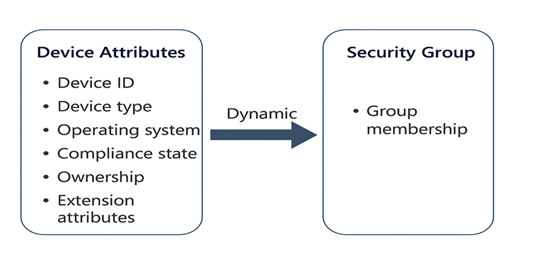
2) Overview of Extension Attributes and Updating via PowerShell What Are Extension Attributes? Extension attributes (1–15) are predefined string fields available on Entra ID device objects. They are exposed to Microsoft Graph as the extensionAttributes property. These attributes can store custom values like department, environment tags (e.g., Prod, Dev), or ownership details. Why Use Them? Dynamic Group Membership: Use extension attributes in membership rules for security or Microsoft 365 groups. Policy Targeting: Apply Defender for Endpoint (MDE) policies, Conditional Access or Intune policies to devices based on custom tags. For details on configuration of the policies refer below documentation links. https://learn.microsoft.com/en-us/defender-endpoint/manage-security-policies https://learn.microsoft.com/en-us/intune/intune-service/ https://learn.microsoft.com/en-us/entra/identity/conditional-access/ Updating Extension Attributes via PowerShell and Graph API Use Microsoft Graph PowerShell to authenticate and update device properties. Required permission: “Device.ReadWrite.All”. 3) Using PowerShell to Update Extension Attributes create app registration in Entra ID with permissions Device.ReadWriteall and Grant admin Consent. Register an app How to register an app in Microsoft Entra ID - Microsoft identity platform | Microsoft Learn Graph API permissions Reference. For updating Entra ID device properties you need “Device.ReadWrite.all” permission and Intune administrator role to run the script. Microsoft Graph permissions reference - Microsoft Graph | Microsoft Learn Below is the script Important things to note and update the script with your custom values. a) update the path of the excel file in the script. column header is 'DeviceName' Note: You may want to use CSV instead of excel file if Excel is not available on the admin workstation running this process. b) update the credential details - tenantId,clientId & clientSecret in the script. Client id and client secret are created as a part of app registration. c) update the Externsionattribute and value in the script. This is the value of the extension attribute you want to use in dynamic membership rule creation. ___________________________________________________________________________ #Acquire token $tenantId = "xxxxxxxxxxxxxxxxxxxxx" $clientId = "xxxxxxxxxxxxxxxx" $clientSecret = "xxxxxxxxxxxxxxxxxxxx" $excelFilePath = "C:\Temp\devices.xlsx" # Update with actual path $tokenResponse = Invoke-RestMethod -Uri "https://login.microsoftonline.com/ $tenantId/oauth2/v2.0/token" -Method POST -Body $tokenBody $accessToken = $tokenResponse.access_token # Import Excel module and read device names Import-Module ImportExcel $deviceList = Import-Excel -Path $excelFilePath foreach ($device in $deviceList) { $deviceName = $device.DeviceName # Assumes column header is 'DeviceName' Get device ID by name $headers = @{ "Authorization" = "Bearer $accessToken"} $deviceLookupUri = "https://graph.microsoft.com/beta/devices?`$filter=displayName eq '$deviceName'" try { $deviceResponse = Invoke-RestMethod -Uri $deviceLookupUri -Headers $headers -Method GET } catch { Write-Host "Error querying device: $deviceName - $_" continue } if ($null -eq $deviceResponse.value -or $deviceResponse.value.Count -eq 0) { Write-Host "Device not found: $deviceName" continue } $deviceId = $deviceResponse.value[0].id # Prepare PATCH request $uri = "https://graph.microsoft.com/beta/devices/$deviceId" $headers["Content-Type"] = "application/json" $body = @{ extensionAttributes = @{ extensionAttribute6 = "MDE" } } | ConvertTo-Json -Depth 3 try { $response = Invoke-RestMethod -Uri $uri -Method Patch -Headers $headers -Body $body Write-Host "Updated device: $deviceName"} catch { Write-Host "Failed to update device: $deviceName - $_" } } Write-Host "Script execution completed." ________________________________________________________________________________________________________________________ Here’s a simple summary of what the script does: Gets an access token from Microsoft Entra ID using the app’s tenant ID, client ID, and client secret (OAuth 2.0 client credentials flow). Reads an Excel file (update the path in $excelFilePath, and ensure the column header is DeviceName) to get a list of device names. Loops through each device name from the Excel file: Calls Microsoft Graph API to find the device ID by its display name. If the device is found, sends a PATCH request to Microsoft Graph to update extensionAttribute6 with the value "MDE". Logs the result for each device (success or failure) and prints messages to the console. 4) Using Extension Attributes in Dynamic Device Groups Once extension attributes are set, you can create a dynamic security group in Entra ID: Go to Microsoft Entra admin center → Groups → New group. Select Security as the group type and choose Dynamic Device membership. Add a membership rule, for example: (device.extensionAttributes.extensionAttribute6 -eq "MDE") 4. Save the group. Devices with extensionAttribute6 = MDE will automatically join. 5) Summary Extension attributes in Entra ID allow custom tagging of devices for automation and policy targeting. You can update these attributes using Microsoft Graph PowerShell. These attributes can be used in dynamic device group rules, enabling granular MDE policies, Conditional Access and Intune deployments. Disclaimer This script is provided "as-is" without any warranties or guarantees. It is intended for educational and informational purposes only. Microsoft and the author assume no responsibility for any issues that may arise from the use or misuse of this script. Before deploying in a production environment, thoroughly test the script in a controlled setting and review it for compliance with your organization's security and operational policies.