log analytics
149 TopicsSplitting single-tenant Microsoft Defender XDR Sentinel logs in multiple company scenarios
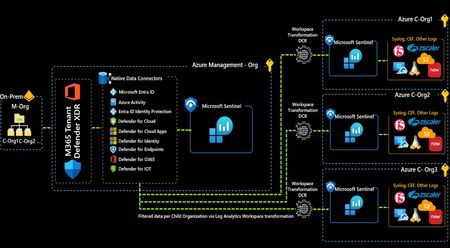
This article describes a simple, yet effective solution for the problem of segregating Microsoft Defender XDR and Entra ID Sentinel logs ingestion in a single-tenant with multiple companies scenario, leveraging Log Analytics workspace transformations and some simple KQL query statements.
Part 3: Unified Security Intelligence - Orchestrating GenAI Threat Detection with Microsoft Sentinel
Why Sentinel for GenAI Security Observability? Before diving into detection rules, let's address why Microsoft Sentinel is uniquely positioned for GenAI security operations—especially compared to traditional or non-native SIEMs. Native Azure Integration: Zero ETL Overhead The problem with external SIEMs: To monitor your GenAI workloads with a third-party SIEM, you need to: Configure log forwarding from Log Analytics to external systems Set up data connectors or agents for Azure OpenAI audit logs Create custom parsers for Azure-specific log schemas Maintain authentication and network connectivity between Azure and your SIEM Pay data egress costs for logs leaving Azure The Sentinel advantage: Your logs are already in Azure. Sentinel connects directly to: Log Analytics workspace - Where your Container Insights logs already flow Azure OpenAI audit logs - Native access without configuration Azure AD sign-in logs - Instant correlation with identity events Defender for Cloud alerts - Platform-level AI threat detection included Threat intelligence feeds - Microsoft's global threat data built-in Microsoft Defender XDR - AI-driven cybersecurity that unifies threat detection and response across endpoints, email, identities, cloud apps and Sentinel There's no data movement, no ETL pipelines, and no latency from log shipping. Your GenAI security data is queryable in real-time. KQL: Built for Complex Correlation at Scale Why this matters for GenAI: Detecting sophisticated AI attacks requires correlating: Application logs (your code from Part 2) Azure OpenAI service logs (API calls, token usage, throttling) Identity signals (who authenticated, from where) Threat intelligence (known malicious IPs) Defender for Cloud alerts (platform-level anomalies) KQL's advantage: Kusto Query Language is designed for this. You can: Join across multiple data sources in a single query Parse nested JSON (like your structured logs) natively Use time-series analysis functions for anomaly detection and behavior patterns Aggregate millions of events in seconds Extract entities (users, IPs, sessions) automatically for investigation graphs Example: Correlating your app logs with Azure AD sign-ins and Defender alerts takes 10 lines of KQL. In a traditional SIEM, this might require custom scripts, data normalization, and significantly slower performance. User Security Context Flows Natively Remember the user_security_context you pass in extra_body from Part 2? That context: Automatically appears in Azure OpenAI's audit logs Flows into Defender for Cloud AI alerts Is queryable in Sentinel without custom parsing Maps to the same identity schema as Azure AD logs With external SIEMs: You'd need to: Extract user context from your application logs Separately ingest Azure OpenAI logs Write correlation logic to match them Maintain entity resolution across different data sources With Sentinel: It just works. The end_user_id, source_ip, and application_name are already normalized across Azure services. Built-In AI Threat Detection Sentinel includes pre-built detections for cloud and AI workloads: Azure OpenAI anomalous access patterns (out of the box) Unusual token consumption (built-in analytics templates) Geographic anomalies (using Azure's global IP intelligence) Impossible travel detection (cross-referencing sign-ins with AI API calls) Microsoft Defender XDR (correlation with endpoint, email, cloud app signals) These aren't generic "high volume" alerts—they're tuned for Azure AI services by Microsoft's security research team. You can use them as-is or customize them with your application-specific context. Entity Behavior Analytics (UEBA) Sentinel's UEBA automatically builds baselines for: Normal request volumes per user Typical request patterns per application Expected geographic access locations Standard model usage patterns Then it surfaces anomalies: "User_12345 normally makes 10 requests/day, suddenly made 500 in an hour" "Application_A typically uses GPT-3.5, suddenly switched to GPT-4 exclusively" "User authenticated from Seattle, made AI requests from Moscow 10 minutes later" This behavior modeling happens automatically—no custom ML model training required. Traditional SIEMs would require you to build this logic yourself. The Bottom Line For GenAI security on Azure: Sentinel reduces time-to-detection because data is already there Correlation is simpler because everything speaks the same language Investigation is faster because entities are automatically linked Cost is lower because you're not paying data egress fees Maintenance is minimal because connectors are native If your GenAI workloads are on Azure, using anything other than Sentinel means fighting against the platform instead of leveraging it. From Logs to Intelligence: The Complete Picture Your structured logs from Part 2 are flowing into Log Analytics. Here's what they look like: { "timestamp": "2025-10-21T14:32:17.234Z", "level": "INFO", "message": "LLM Request Received", "request_id": "a7c3e9f1-4b2d-4a8e-9c1f-3e5d7a9b2c4f", "session_id": "550e8400-e29b-41d4-a716-446655440000", "prompt_hash": "d3b07384d113edec49eaa6238ad5ff00", "security_check_passed": "PASS", "source_ip": "203.0.113.42", "end_user_id": "user_550e8400", "application_name": "AOAI-Customer-Support-Bot", "model_deployment": "gpt-4-turbo" } These logs are in the ContainerLogv2 table since our application “AOAI-Customer-Support-Bot” is running on Azure Kubernetes Services (AKS). Steps to Setup AKS to stream logs to Sentinel/Log Analytics From Azure portal, navigate to your AKS, then to Monitoring -> Insights Select Monitor Settings Under Container Logs Select the Sentinel-enabled Log Analytics workspace Select Logs and events Check the ‘Enable ContainerLogV2’ and ‘Enable Syslog collection’ options More details can be found at this link Kubernetes monitoring in Azure Monitor - Azure Monitor | Microsoft Learn Critical Analytics Rules: What to Detect and Why Rule 1: Prompt Injection Attack Detection Why it matters: Prompt injection is the GenAI equivalent of SQL injection. Attackers try to manipulate the model by overriding system instructions. Multiple attempts indicate intentional malicious behavior. What to detect: 3+ prompt injection attempts within 10 minutes from similar IP let timeframe = 1d; let threshold = 3; AlertEvidence | where TimeGenerated >= ago(timeframe) and EntityType == "Ip" | where DetectionSource == "Microsoft Defender for AI Services" | where Title contains "jailbreak" or Title contains "prompt injection" | summarize count() by bin (TimeGenerated, 1d), RemoteIP | where count_ >= threshold What the SOC sees: User identity attempting injection Source IP and geographic location Sample prompts for investigation Frequency indicating automation vs. manual attempts Severity: High (these are actual attempts to bypass security) Rule 2: Content Safety Filter Violations Why it matters: When Azure AI Content Safety blocks a request, it means harmful content (violence, hate speech, etc.) was detected. Multiple violations indicate intentional abuse or a compromised account. What to detect: Users with 3+ content safety violations in a 1 hour block during a 24 hour time period. let timeframe = 1d; let threshold = 3; ContainerLogV2 | where TimeGenerated >= ago(timeframe) | where isnotempty(LogMessage.end_user_id) | where LogMessage.security_check_passed == "FAIL" | extend source_ip=tostring(LogMessage.source_ip) | extend end_user_id=tostring(LogMessage.end_user_id) | extend session_id=tostring(LogMessage.session_id) | extend application_name = tostring(LogMessage.application_name) | extend security_check_passed = tostring (LogMessage.security_check_passed) | summarize count() by bin(TimeGenerated, 1h),source_ip,end_user_id,session_id,Computer,application_name,security_check_passed | where count_ >= threshold What the SOC sees: Severity based on violation count Time span showing if it's persistent vs. isolated Prompt samples (first 80 chars) for context Session ID for conversation history review Severity: High (these are actual harmful content attempts) Rule 3: Rate Limit Abuse Why it matters: Persistent rate limit violations indicate automated attacks, credential stuffing, or attempts to overwhelm the system. Legitimate users who hit rate limits don't retry 10+ times in minutes. What to detect: Users blocked by rate limiter 5+ times in 10 minutes let timeframe = 1h; let threshold = 5; AzureDiagnostics | where ResourceProvider == "MICROSOFT.COGNITIVESERVICES" | where OperationName == "Completions" or OperationName contains "ChatCompletions" | extend tokensUsed = todouble(parse_json(properties_s).usage.total_tokens) | summarize totalTokens = sum(tokensUsed), requests = count(), rateLimitErrors = countif(httpstatuscode_s == "429") by bin(TimeGenerated, 1h) | where count_ >= threshold What the SOC sees: Whether it's a bot (immediate retries) or human (gradual retries) Duration of attack Which application is targeted Correlation with other security events from same user/IP Severity: Medium (nuisance attack, possible reconnaissance) Rule 4: Anomalous Source IP for User Why it matters: A user suddenly accessing from a new country or VPN could indicate account compromise. This is especially critical for privileged accounts or after-hours access. What to detect: User accessing from an IP never seen in the last 7 days let lookback = 7d; let recent = 1h; let baseline = IdentityLogonEvents | where Timestamp between (ago(lookback + recent) .. ago(recent)) | where isnotempty(IPAddress) | summarize knownIPs = make_set(IPAddress) by AccountUpn; ContainerLogV2 | where TimeGenerated >= ago(recent) | where isnotempty(LogMessage.source_ip) | extend source_ip=tostring(LogMessage.source_ip) | extend end_user_id=tostring(LogMessage.end_user_id) | extend session_id=tostring(LogMessage.session_id) | extend application_name = tostring(LogMessage.application_name) | extend security_check_passed = tostring (LogMessage.security_check_passed) | extend full_prompt_sample = tostring (LogMessage.full_prompt_sample) | lookup baseline on $left.AccountUpn == $right.end_user_id | where isnull(knownIPs) or IPAddress !in (knownIPs) | project TimeGenerated, source_ip, end_user_id, session_id, Computer, application_name, security_check_passed, full_prompt_sample What the SOC sees: User identity and new IP address Geographic location change Whether suspicious prompts accompanied the new IP Timing (after-hours access is higher risk) Severity: Medium (environment compromise, reconnaissance) Rule 5: Coordinated Attack - Same Prompt from Multiple Users Why it matters: When 5+ users send identical prompts, it indicates a bot network, credential stuffing, or organized attack campaign. This is not normal user behavior. What to detect: Same prompt hash from 5+ different users within 1 hour let timeframe = 1h; let threshold = 5; ContainerLogV2 | where TimeGenerated >= ago(timeframe) | where isnotempty(LogMessage.prompt_hash) | where isnotempty(LogMessage.end_user_id) | extend source_ip=tostring(LogMessage.source_ip) | extend end_user_id=tostring(LogMessage.end_user_id) | extend prompt_hash=tostring(LogMessage.prompt_hash) | extend application_name = tostring(LogMessage.application_name) | extend security_check_passed = tostring (LogMessage.security_check_passed) | project TimeGenerated, prompt_hash, source_ip, end_user_id, application_name, security_check_passed | summarize DistinctUsers = dcount(end_user_id), Attempts = count(), Users = make_set(end_user_id, 100), IpAddress = make_set(source_ip, 100) by prompt_hash, bin(TimeGenerated, 1h) | where DistinctUsers >= threshold What the SOC sees: Attack pattern (single attacker with stolen accounts vs. botnet) List of compromised user accounts Source IPs for blocking Prompt sample to understand attack goal Severity: High (indicates organized attack) Rule 6: Malicious model detected Why it matters: Model serialization attacks can lead to serious compromise. When Defender for Cloud Model Scanning identifies issues with a custom or opensource model that is part of Azure ML Workspace, Registry, or hosted in Foundry, that may be or may not be a user oversight. What to detect: Model scan results from Defender for Cloud and if it is being actively used. What the SOC sees: Malicious model Applications leveraging the model Source IPs and users accessed the model Severity: Medium (can be user oversight) Advanced Correlation: Connecting the Dots The power of Sentinel is correlating your application logs with other security signals. Here are the most valuable correlations: Correlation 1: Failed GenAI Requests + Failed Sign-Ins = Compromised Account Why: Account showing both authentication failures and malicious AI prompts is likely compromised within a 1 hour timeframe l let timeframe = 1h; ContainerLogV2 | where TimeGenerated >= ago(timeframe) | where isnotempty(LogMessage.source_ip) | extend source_ip=tostring(LogMessage.source_ip) | extend end_user_id=tostring(LogMessage.end_user_id) | extend session_id=tostring(LogMessage.session_id) | extend application_name = tostring(LogMessage.application_name) | extend security_check_passed = tostring (LogMessage.security_check_passed) | extend full_prompt_sample = tostring (LogMessage.full_prompt_sample) | extend message = tostring (LogMessage.message) | where security_check_passed == "FAIL" or message contains "WARNING" | join kind=inner ( SigninLogs | where ResultType != 0 // 0 means success, non-zero indicates failure | project TimeGenerated, UserPrincipalName, ResultType, ResultDescription, IPAddress, Location, AppDisplayName ) on $left.end_user_id == $right.UserPrincipalName | project TimeGenerated, source_ip, end_user_id, application_name, full_prompt_sample, prompt_hash, message, security_check_passed Severity: High (High probability of compromise) Correlation 2: Application Logs + Defender for Cloud AI Alerts Why: Defender for Cloud AI Threat Protection detects platform-level threats (unusual API patterns, data exfiltration attempts). When both your code and the platform flag the same user, confidence is very high. let timeframe = 1h; ContainerLogV2 | where TimeGenerated >= ago(timeframe) | where isnotempty(LogMessage.source_ip) | extend source_ip=tostring(LogMessage.source_ip) | extend end_user_id=tostring(LogMessage.end_user_id) | extend session_id=tostring(LogMessage.session_id) | extend application_name = tostring(LogMessage.application_name) | extend security_check_passed = tostring (LogMessage.security_check_passed) | extend full_prompt_sample = tostring (LogMessage.full_prompt_sample) | extend message = tostring (LogMessage.message) | where security_check_passed == "FAIL" or message contains "WARNING" | join kind=inner ( AlertEvidence | where TimeGenerated >= ago(timeframe) and AdditionalFields.Asset == "true" | where DetectionSource == "Microsoft Defender for AI Services" | project TimeGenerated, Title, CloudResource ) on $left.application_name == $right.CloudResource | project TimeGenerated, application_name, end_user_id, source_ip, Title Severity: Critical (Multi-layer detection) Correlation 3: Source IP + Threat Intelligence Feeds Why: If requests come from known malicious IPs (C2 servers, VPN exit nodes used in attacks), treat them as high priority even if behavior seems normal. //This rule correlates GenAI app activity with Microsoft Threat Intelligence feed available in Sentinel and Microsoft XDR for malicious IP IOCs let timeframe = 10m; ContainerLogV2 | where TimeGenerated >= ago(timeframe) | where isnotempty(LogMessage.source_ip) | extend source_ip=tostring(LogMessage.source_ip) | extend end_user_id=tostring(LogMessage.end_user_id) | extend session_id=tostring(LogMessage.session_id) | extend application_name = tostring(LogMessage.application_name) | extend security_check_passed = tostring (LogMessage.security_check_passed) | extend full_prompt_sample = tostring (LogMessage.full_prompt_sample) | join kind=inner ( ThreatIntelIndicators | where IsActive == "true" | where ObservableKey startswith "ipv4-addr" or ObservableKey startswith "network-traffic" | project IndicatorIP = ObservableValue ) on $left.source_ip == $right.IndicatorIP | project TimeGenerated, source_ip, end_user_id, application_name, full_prompt_sample, security_check_passed Severity: High (Known bad actor) Workbooks: What Your SOC Needs to See Executive Dashboard: GenAI Security Health Purpose: Leadership wants to know: "Are we secure?" Answer with metrics. Key visualizations: Security Status Tiles (24 hours) Total Requests Success Rate Blocked Threats (Self detected + Content Safety + Threat Protection for AI) Rate Limit Violations Model Security Score (Red Team evaluation status of currently deployed model) ContainerLogV2 | where TimeGenerated > ago (1d) | extend security_check_passed = tostring (LogMessage.security_check_passed) | summarize SuccessCount=countif(security_check_passed == "PASS"), FailedCount=countif(security_check_passed == "FAIL") by bin(TimeGenerated, 1h) | extend TotalRequests = SuccessCount + FailedCount | extend SuccessRate = todouble(SuccessCount)/todouble(TotalRequests) * 100 | order by SuccessRate 1. Trend Chart: Pass vs. Fail Over Time Shows if attack volume is increasing Identifies attack time windows Validates that defenses are working ContainerLogV2 | where TimeGenerated > ago (14d) | extend security_check_passed = tostring (LogMessage.security_check_passed) | summarize SuccessCount=countif(security_check_passed == "PASS"), FailedCount=countif(security_check_passed == "FAIL") by bin(TimeGenerated, 1d) | render timechart 2. Top 10 Users by Security Events Bar chart of users with most failures ContainerLogV2 | where TimeGenerated > ago (1d) | where isnotempty(LogMessage.end_user_id) | extend end_user_id=tostring(LogMessage.end_user_id) | extend security_check_passed = tostring (LogMessage.security_check_passed) | where security_check_passed == "FAIL" | summarize FailureCount = count() by end_user_id | top 20 by FailureCount | render barchart Applications with most failures ContainerLogV2 | where TimeGenerated > ago (1d) | where isnotempty(LogMessage.application_name) | extend application_name=tostring(LogMessage.application_name) | extend security_check_passed = tostring (LogMessage.security_check_passed) | where security_check_passed == "FAIL" | summarize FailureCount = count() by application_name | top 20 by FailureCount | render barchart 3. Geographic Threat Map Where are attacks originating? Useful for geo-blocking decisions ContainerLogV2 | where TimeGenerated > ago (1d) | where isnotempty(LogMessage.application_name) | extend application_name=tostring(LogMessage.application_name) | extend source_ip=tostring(LogMessage.source_ip) | extend security_check_passed = tostring (LogMessage.security_check_passed) | where security_check_passed == "FAIL" | extend GeoInfo = geo_info_from_ip_address(source_ip) | project sourceip, GeoInfo.counrty, GeoInfo.city Analyst Deep-Dive: User Behavior Analysis Purpose: SOC analyst investigating a specific user or session Key components: 1. User Activity Timeline Every request from the user in time order ContainerLogV2 | where isnotempty(LogMessage.end_user_id) | project TimeGenerated, LogMessage.source_ip, LogMessage.end_user_id, LogMessage. session_id, Computer, LogMessage.application_name, LogMessage.request_id, LogMessage.message, LogMessage.full_prompt_sample | order by tostring(LogMessage_end_user_id), TimeGenerated Color-coded by security status AlertInfo | where DetectionSource == "Microsoft Defender for AI Services" | project TimeGenerated, AlertId, Title, Category, Severity, SeverityColor = case( Severity == "High", "🔴 High", Severity == "Medium", "🟠 Medium", Severity == "Low", "🟢 Low", "⚪ Unknown" ) 2. Session Analysis Table All sessions for the user ContainerLogV2 | where TimeGenerated > ago (1d) | where isnotempty(LogMessage.end_user_id) | extend end_user_id=tostring(LogMessage.end_user_id) | where end_user_id == "<username>" // Replace with actual username | extend application_name=tostring(LogMessage.application_name) | extend source_ip=tostring(LogMessage.source_ip) | extend session_id=tostri1ng(LogMessage.session_id) | extend security_check_passed = tostring (LogMessage.security_check_passed) | project TimeGenerated, session_id, end_user_id, application_name, security_check_passed Failed requests per session ContainerLogV2 | where TimeGenerated > ago (1d) | extend security_check_passed = tostring (LogMessage.security_check_passed) | where security_check_passed == "FAIL" | extend end_user_id=tostring(LogMessage.end_user_id) | extend session_id=tostring(LogMessage.session_id) | extend security_check_passed = tostring (LogMessage.security_check_passed) | summarize Failed_Sessions = count() by end_user_id, session_id | order by Failed_Sessions Session duration ContainerLogV2 | where TimeGenerated > ago (1d) | where isnotempty(LogMessage.session_id) | extend security_check_passed = tostring (LogMessage.security_check_passed) | where security_check_passed == "PASS" | extend end_user_id=tostring(LogMessage.end_user_id) | extend session_id=tostring(LogMessage.session_id) | extend application_name=tostring(LogMessage.application_name) | extend source_ip=tostring(LogMessage.source_ip) | summarize Start=min(TimeGenerated), End=max(TimeGenerated), count() by end_user_id, session_id, source_ip, application_name | extend DurationSeconds = datetime_diff("second", End, Start) 3. Prompt Pattern Detection Unique prompts by hash Frequency of each pattern Detect if user is fuzzing/testing boundaries Sample query for user investigation: ContainerLogV2 | where TimeGenerated > ago (14d) | where isnotempty(LogMessage.prompt_hash) | where isnotempty(LogMessage.full_prompt_sample) | extend prompt_hash=tostring(LogMessage.prompt_hash) | extend full_prompt_sample=tostring(LogMessage.full_prompt_sample) | extend application_name=tostring(LogMessage.application_name) | summarize count() by prompt_hash, full_prompt_sample | order by count_ Threat Hunting Dashboard: Proactive Detection Purpose: Find threats before they trigger alerts Key queries: 1. Suspicious Keywords in Prompts (e.g. Ignore, Disregard, system prompt, instructions, DAN, jailbreak, pretend, roleplay) let suspicious_prompts = externaldata (content_policy:int, content_policy_name:string, q_id:int, question:string) [ @"https://raw.githubusercontent.com/verazuo/jailbreak_llms/refs/heads/main/data/forbidden_question/forbidden_question_set.csv"] with (format="csv", has_header_row=true, ignoreFirstRecord=true); ContainerLogV2 | where TimeGenerated > ago (14d) | where isnotempty(LogMessage.full_prompt_sample) | extend full_prompt_sample=tostring(LogMessage.full_prompt_sample) | where full_prompt_sample in (suspicious_prompts) | extend end_user_id=tostring(LogMessage.end_user_id) | extend session_id=tostring(LogMessage.session_id) | extend application_name=tostring(LogMessage.application_name) | extend source_ip=tostring(LogMessage.source_ip) | project TimeGenerated, session_id, end_user_id, source_ip, application_name, full_prompt_sample 2. High-Volume Anomalies User sending too many requests by a IP or User. Assuming that Foundry Projects are configured to use Azure AD and not API Keys. //50+ requests in 1 hour let timeframe = 1h; let threshold = 50; AzureDiagnostics | where ResourceProvider == "MICROSOFT.COGNITIVESERVICES" | where OperationName == "Completions" or OperationName contains "ChatCompletions" | extend tokensUsed = todouble(parse_json(properties_s).usage.total_tokens) | summarize totalTokens = sum(tokensUsed), requests = count() by bin(TimeGenerated, 1h),CallerIPAddress | where count_ >= threshold 3. Rare Failures (Novel Attack Detection) Rare failures might indicate zero-day prompts or new attack techniques //10 or more failures in 24 hours ContainerLogV2 | where TimeGenerated >= ago (24h) | where isnotempty(LogMessage.security_check_passed) | extend security_check_passed=tostring(LogMessage.security_check_passed) | where security_check_passed == "FAIL" | extend application_name=tostring(LogMessage.application_name) | extend end_user_id=tostring(LogMessage.end_user_id) | extend source_ip=tostring(LogMessage.source_ip) | summarize FailedAttempts = count(), FirstAttempt=min(TimeGenerated), LastAttempt=max(TimeGenerated) by application_name | extend DurationHours = datetime_diff('hour', LastAttempt, FirstAttempt) | where DurationHours >= 24 and FailedAttempts >=10 | project application_name, FirstAttempt, LastAttempt, DurationHours, FailedAttempts Measuring Success: Security Operations Metrics Key Performance Indicators Mean Time to Detect (MTTD): let AppLog = ContainerLogV2 | extend application_name=tostring(LogMessage.application_name) | extend security_check_passed=tostring (LogMessage.security_check_passed) | extend session_id=tostring(LogMessage.session_id) | extend end_user_id=tostring(LogMessage.end_user_id) | extend source_ip=tostring(LogMessage.source_ip) | where security_check_passed=="FAIL" | summarize FirstLogTime=min(TimeGenerated) by application_name, session_id, end_user_id, source_ip; let Alert = AlertEvidence | where DetectionSource == "Microsoft Defender for AI Services" | extend end_user_id = tostring(AdditionalFields.AadUserId) | extend source_ip=RemoteIP | extend application_name=CloudResource | summarize FirstAlertTime=min(TimeGenerated) by AlertId, Title, application_name, end_user_id, source_ip; AppLog | join kind=inner (Alert) on application_name, end_user_id, source_ip | extend DetectionDelayMinutes=datetime_diff('minute', FirstAlertTime, FirstLogTime) | summarize MTTD_Minutes=round(avg (DetectionDelayMinutes),2) by AlertId, Title Target: <= 15 minutes from first malicious activity to alert Mean Time to Respond (MTTR): SecurityIncident | where Status in ("New", "Active") | where CreatedTime >= ago(14d) | extend ResponseDelay = datetime_diff('minute', LastActivityTime, FirstActivityTime) | summarize MTTR_Minutes = round (avg (ResponseDelay),2) by CreatedTime, IncidentNumber | order by CreatedTime, IncidentNumber asc Target: < 4 hours from alert to remediation Threat Detection Rate: ContainerLogV2 | where TimeGenerated > ago (1d) | extend security_check_passed = tostring (LogMessage.security_check_passed) | summarize SuccessCount=countif(security_check_passed == "PASS"), FailedCount=countif(security_check_passed == "FAIL") by bin(TimeGenerated, 1h) | extend TotalRequests = SuccessCount + FailedCount | extend SuccessRate = todouble(SuccessCount)/todouble(TotalRequests) * 100 | order by SuccessRate Context: 1-3% is typical for production systems (most traffic is legitimate) What You've Built By implementing the logging from Part 2 and the analytics rules in this post, your SOC now has: ✅ Real-time threat detection - Alerts fire within minutes of malicious activity ✅ User attribution - Every incident has identity, IP, and application context ✅ Pattern recognition - Detect both volume-based and behavior-based attacks ✅ Correlation across layers - Application logs + platform alerts + identity signals ✅ Proactive hunting - Dashboards for finding threats before they trigger rules ✅ Executive visibility - Metrics showing program effectiveness Key Takeaways GenAI threats need GenAI-specific analytics - Generic rules miss context like prompt injection, content safety violations, and session-based attacks Correlation is critical - The most sophisticated attacks span multiple signals. Correlating app logs with identity and platform alerts catches what individual rules miss. User context from Part 2 pays off - end_user_id, source_ip, and session_id enable investigation and response at scale Prompt hashing enables pattern detection - Detect repeated attacks without storing sensitive prompt content Workbooks serve different audiences - Executives want metrics; analysts want investigation tools; hunters want anomaly detection Start with high-fidelity rules - Content Safety violations and rate limit abuse have very low false positive rates. Add behavioral rules after establishing baselines. What's Next: Closing the Loop You've now built detection and visibility. In Part 4, we'll close the security operations loop with: Part 4: Platform Integration and Automated Response Building SOAR playbooks for automated incident response Implementing automated key rotation with Azure Key Vault Blocking identities in Entra Creating feedback loops from incidents to code improvements The journey from blind spot to full security operations capability is almost complete. Previous: Part 1: Securing GenAI Workloads in Azure: A Complete Guide to Monitoring and Threat Protection - AIO11Y | Microsoft Community Hub Part 2: Part 2: Building Security Observability Into Your Code - Defensive Programming for Azure OpenAI | Microsoft Community Hub Next: Part 4: Platform Integration and Automated Response (Coming soon)
PAAS resource metrics using Azure Data Collection Rule to Log Analytics Workspace
Hi Team, I want to build a use case to pull the Azure PAAS resources metrics using azure DCR and push that data metrics to log analytics workspace which eventually will push the data to azure event hub through streaming and final destination as azure postgres to store all the resources metrics information in a centralized table and create KPIs and dashboard for the clients for better utilization of resources. I have not used diagnose setting enabling option since it has its cons like we need to manually enable each resources settings also we get limited information extracted from diagnose setting. But while implementing i saw multiple articles stating DCR is not used for pulling PAAS metrics its only compatible for VM metrics. Want to understand is it possible to use DCR for PAAS metrics? Thanks in advance for any inputs.Solved125Views0likes2CommentsAzure Active Directory | Workbooks | Sign-In Analysis (Preview: AAD & AD FS)
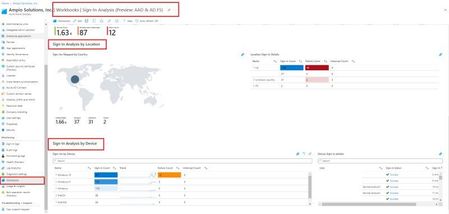
This workbook will help you analyze your organization's sign-ins for both Azure AD and AD FS Sign-Ins This workbook will show you the General Analysis and Error Analysis. General Analysis: :pushpin: Sign-in Activity Summary :pushpin: Sign-in Analysis by Location :pushpin: Sign-in Analysis by Device Error Analysis: :pushpin: Sign-in Activity Summary :pushpin: Top Sign-In Errors by User or IP1.5KViews1like1Comment
Creating alerts for custom errors with auditing and Log Analytics
Errors are an inherent part of any application. As a database professional managing an Azure SQL Managed Instance, you may be interested in understanding when specific errors occur and how to leverage user-generated errors to respond swiftly when particular scenarios arise. On this post we will see how we can setup alerts for scenarios like query blocking and long open transactions. This will be an extend of what is described on How to setup alerts for deadlocks using Log Analytics | Microsoft Community Hub Step 1 - Setup Log Analytics and auditing Follow steps 1, 2, 3 and 4 described on How to setup alerts for deadlocks using Log Analytics | Microsoft Community Hub Step 2 - Create a table to save the details of the blocking chain / long open transaction Getting an alert itself is not useful if you don`t have a way of getting details for later analysis. Create the table on a database of your choice. If you are interested on blocking: CREATE TABLE [dbo].[blocking_report] ( [DateTime] [datetime] NULL ,[HeadBlocker] [varchar](1) NOT NULL ,[SessionID] [smallint] NOT NULL ,[Login] [nvarchar](128) NOT NULL ,[Database] [nvarchar](128) NULL ,[BlockedBy] [smallint] NULL ,[OpenTransactions] [int] NULL ,[Status] [nvarchar](30) NOT NULL ,[WaitType] [nvarchar](60) NULL ,[WaitTime_ms] [bigint] NULL ,[WaitResource] [nvarchar](256) NULL ,[WaitResourceDesc] [nvarchar](3072) NULL ,[Command] [nvarchar](32) NULL ,[Application] [nvarchar](128) NULL ,[TotalCPU_ms] [int] NOT NULL ,[TotalPhysicalIO_MB] [bigint] NULL ,[MemoryUse_KB] [int] NULL ,[LoginTime] [datetime] NOT NULL ,[LastRequestStartTime] [datetime] NOT NULL ,[HostName] [nvarchar](128) NULL ,[QueryHash] [binary](8) NULL ,[BlockerQuery_or_MostRecentQuery] [nvarchar](max) NULL ) If you are interested on open transactions: CREATE TABLE [dbo].[opentransactions]( [CapturedTime] [datetime] NOT NULL, [tran_elapsed_time_seconds] [int] NULL, [transaction_begin_time] [datetime] NOT NULL, [session_id] [int] NOT NULL, [database_name] [nvarchar](128) NULL, [open_transaction_count] [int] NOT NULL, [host_name] [nvarchar](128) NULL, [program_name] [nvarchar](128) NULL, [login_name] [nvarchar](128) NULL, [status] [nvarchar](30) NULL, [text] [nvarchar](max) NULL ) Step 3 - Create a SQL Agent job Schedule the two SQL Agent jobs using the queries below. You might be interested on schedule that runs every X amount of seconds/minutes. Describing very briefly what each query does: if a query is being blocked for more than 60 seconds, save the blocking chain on a table and raise an error if a transaction is open for more than 120 seconds, save the query details on a table and raise an error Make the necessary adjustments according to your goals. Query for blocking: IF ( SELECT count(*) FROM sys.dm_exec_requests WHERE wait_type LIKE 'LCK%' AND wait_time > 60000 ) > 0 -- checks for queries waiting to obtain a lock for more than 30 seconds BEGIN INSERT INTO database_name.dbo.Blocking_report -- make sure that you change the database_name value SELECT ( SELECT getdate() ) ,[HeadBlocker] = CASE WHEN r2.session_id IS NOT NULL AND ( r.blocking_session_id = 0 OR r.session_id IS NULL ) THEN '1' ELSE '' END ,[SessionID] = s.session_id ,[Login] = s.login_name ,[Database] = db_name(p.dbid) ,[BlockedBy] = w.blocking_session_id ,[OpenTransactions] = r.open_transaction_count ,[Status] = s.STATUS ,[WaitType] = w.wait_type ,[WaitTime_ms] = w.wait_duration_ms ,[WaitResource] = r.wait_resource ,[WaitResourceDesc] = w.resource_description ,[Command] = r.command ,[Application] = s.program_name ,[TotalCPU_ms] = s.cpu_time ,[TotalPhysicalIO_MB] = (s.reads + s.writes) * 8 / 1024 ,[MemoryUse_KB] = s.memory_usage * 8192 / 1024 ,[LoginTime] = s.login_time ,[LastRequestStartTime] = s.last_request_start_time ,[HostName] = s.host_name ,[QueryHash] = r.query_hash ,[BlockerQuery_or_MostRecentQuery] = txt.TEXT FROM sys.dm_exec_sessions s LEFT OUTER JOIN sys.dm_exec_connections c ON (s.session_id = c.session_id) LEFT OUTER JOIN sys.dm_exec_requests r ON (s.session_id = r.session_id) LEFT OUTER JOIN sys.dm_os_tasks t ON ( r.session_id = t.session_id AND r.request_id = t.request_id ) LEFT OUTER JOIN ( SELECT * ,ROW_NUMBER() OVER ( PARTITION BY waiting_task_address ORDER BY wait_duration_ms DESC ) AS row_num FROM sys.dm_os_waiting_tasks ) w ON (t.task_address = w.waiting_task_address) AND w.row_num = 1 LEFT OUTER JOIN sys.dm_exec_requests r2 ON (s.session_id = r2.blocking_session_id) LEFT OUTER JOIN sys.sysprocesses p ON (s.session_id = p.spid) OUTER APPLY sys.dm_exec_sql_text(ISNULL(r.[sql_handle], c.most_recent_sql_handle)) AS txt WHERE s.is_user_process = 1 AND ( r2.session_id IS NOT NULL AND ( r.blocking_session_id = 0 OR r.session_id IS NULL ) ) OR blocked > 0 ORDER BY [HeadBlocker] DESC ,s.session_id; THROW 50000 ,'There are queries being blocked for more than 60 seconds' ,1; END Query for open transactions: DECLARE @count INT = ( SELECT count(*) FROM sys.dm_tran_active_transactions at INNER JOIN sys.dm_tran_session_transactions st ON st.transaction_id = at.transaction_id LEFT OUTER JOIN sys.dm_exec_sessions sess ON st.session_id = sess.session_id LEFT OUTER JOIN sys.dm_exec_connections conn ON conn.session_id = sess.session_id OUTER APPLY sys.dm_exec_sql_text(conn.most_recent_sql_handle) AS txt WHERE DATEDIFF(SECOND, transaction_begin_time, GETDATE()) > 120 -- 120 seconds ) IF @count > 0 BEGIN INSERT INTO database_name.dbo.opentransactions -- change database_name to where the table was created SELECT GETDATE() AS CapturedTime ,DATEDIFF(SECOND, transaction_begin_time, GETDATE()) AS tran_elapsed_time_seconds ,at.transaction_begin_time ,st.session_id ,DB_NAME(sess.database_id) AS database_name ,st.open_transaction_count ,sess.host_name ,sess.program_name ,sess.login_name ,sess.STATUS ,txt.TEXT FROM sys.dm_tran_active_transactions at INNER JOIN sys.dm_tran_session_transactions st ON st.transaction_id = at.transaction_id LEFT OUTER JOIN sys.dm_exec_sessions sess ON st.session_id = sess.session_id LEFT OUTER JOIN sys.dm_exec_connections conn ON conn.session_id = sess.session_id OUTER APPLY sys.dm_exec_sql_text(conn.most_recent_sql_handle) AS txt WHERE DATEDIFF(SECOND, transaction_begin_time, GETDATE()) > 120 --120 seconds ORDER BY tran_elapsed_time_seconds DESC; THROW 50000 ,'There are open transactions for more than 120 seconds' ,1; END Step 4 - Create the alert based on a Log Analytics query Just as described on steps 6 and 7 of How to setup alerts for deadlocks using Log Analytics | Microsoft Community Hub, you can create the two separate alerts using the queries below. For blocking: AzureDiagnostics | where TimeGenerated > ago(15m) //last 15 minutes | where LogicalServerName_s == "server_name" //server name | where Category == "SQLSecurityAuditEvents" | where additional_information_s contains "There are queries being blocked for more" | project TimeGenerated, LogicalServerName_s, database_name_s, additional_information_s For open transactions: AzureDiagnostics | where TimeGenerated > ago(15m) //last 15 minutes | where LogicalServerName_s == "server_name" //server name | where Category == "SQLSecurityAuditEvents" | where additional_information_s contains "There are open transactions for more than" | project TimeGenerated, LogicalServerName_s, database_name_s, additional_information_s235Views0likes0CommentsHow to setup alerts for deadlocks using Log Analytics
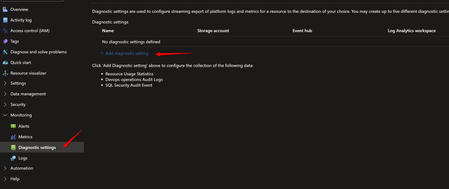
Managed Instance diagnostic events do not support sending deadlock information to Log Analytics. However, through auditing, it's possible to query failed queries along with their reported error messages—though this does not include deadlock XML. We will see how we can send information to Log Analytics and setup an alert for when a deadlock occurs. Step 1 - Deploy Log Analytics Create a Log Analytics workspace if you currently don't have one Create a Log Analytics workspace Step 2 - Add diagnostic setting On the Azure Portal, open the Diagnostic settings of your Azure SQL Managed Instance and choose Add diagnostic setting Select SQL Security Audit Event and choose has destination your Log Analytics workspace Step 3 - Create a server audit on the Azure SQL Managed Instance Run the query below on the Managed Instance Rename the server audit and server audit specification to a name of your choice. CREATE SERVER AUDIT [audittest] TO EXTERNAL_MONITOR GO -- we are adding Login audit, but only BATCH_COMPLETED_GROUP is necessary for query execution CREATE SERVER AUDIT SPECIFICATION audit_server FOR SERVER AUDIT audittest ADD (SUCCESSFUL_LOGIN_GROUP), ADD (BATCH_COMPLETED_GROUP), ADD (FAILED_LOGIN_GROUP) WITH (STATE = ON) GO ALTER SERVER AUDIT [audittest] WITH (STATE = ON) GO Step 4 - Check events on Log Analytics It may take some time for records to begin appearing in Log Analytics. Open your Log Analytics workspace and choose Logs To verify if data is being ingested, run the following query in Log Analytics and wait until you start getting the first results: Make sure that you change servername with your Azure SQL Managed Instance name AzureDiagnostics | where LogicalServerName_s == "servername" | where Category == "SQLSecurityAuditEvents" | take 10 Example: Step 5 - (Optional) Create a deadlock event for testing Create a deadlock scenario so you can see a record on log analytics. Example: Open SSMS and a new query window under the context of a user database (you can create a test database just for this test). create a table on a user database and insert 10 records: create table tb1 (id int identity(1,1) primary key clustered, col1 varchar(30)) go insert into tb1 values ('aaaaaaa') go 10 You can close the query window or reuse for the next step. Open a new query window (or reuse the first query window) and run (leave the query window open after executing): begin transaction update tb1 set col1 = 'bbbb' where id = 1 Open a second query window and run (leave the query window open after executing): begin transaction update tb1 set col1 = 'bbbb' where id = 2 Go back to the first query window opened and run (the query will be blocked - will stay executing): update tb1 set col1 = 'bbbb' where id = 2 Go back to the second query window opened and run (this transaction will be victim of deadlock): update tb1 set col1 = 'bbbb' where id = 1 You can rollback and close all windows after the deadlock exception. Step 6 - (Optional) Check the deadlock exception on Log Analytics Note: the record can take some minutes to appear on Log Analytics Use the query below to obtain the Deadlock events for the last hour (we are looking for Error 1205) Make sure that you change servername with your Azure SQL Managed Instance name AzureDiagnostics | where TimeGenerated > ago(1h) | where LogicalServerName_s == "servername" | where Category == "SQLSecurityAuditEvents" | where succeeded_s == "false" | where additional_information_s contains "Err 1205, Level 13" Step 7 - Use query to Create an Alert Use the query below to create an Alert on Azure Log Analytics Make sure that you change servername with your Azure SQL Managed Instance name. The query checks for deadlocks that occurred on the previous hour. AzureDiagnostics | where TimeGenerated > ago(1h) | where LogicalServerName_s == "servername" | where Category == "SQLSecurityAuditEvents" | where succeeded_s == "false" | where additional_information_s contains "Err 1205, Level 13" Run the query and click on New alert rule Create the alert with the desired settings
Optimizing Microsoft Sentinel: Resolving AMA-Induced Syslog & CEF Duplicates
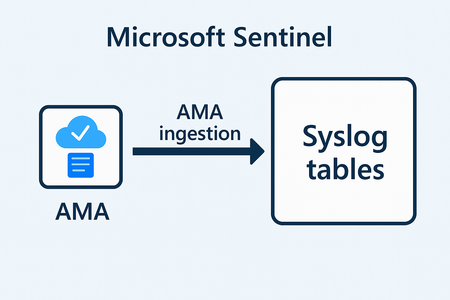
2) Recommended Solutions When collecting both Syslog and CEF logs from the same Linux collector using the Azure Monitor Agent (AMA) in Microsoft Sentinel, duplicate log entries can occur. These duplicates arise because the same event may be ingested through both the Syslog and CEF pipelines, leading to redundancy in the Log Analytics Workspace (LAW). The following solutions aim to eliminate or reduce duplicate log ingestion, ensuring that: CEF events are parsed correctly and only once. Syslog data remains clean and non-redundant. Storage and analytics efficiency is improved. Alerting and incident investigation are not skewed by duplicate entries. Each option provides a different strategy based on your environment’s flexibility and configuration capabilities—from facility-level separation, to ingestion-time filtering, to daemon-side log routing. Option 1: Facility Separation (Preferred) Configure devices to emit CEF logs on a dedicated facility (for example, 'local4'), and adjust the Data Collection Rules (DCRs) so that the CEF stream includes only that facility, while the Syslog stream excludes it. This ensures CEF events are parsed once into 'CommonSecurityLog' and never land in 'Syslog'. CEF via AMA DCR (include only CEF facility): { "properties": { "dataSources": { "syslog": [ { "streams": ["Microsoft-CommonSecurityLog"], "facilityNames": ["local4"], "logLevels": ["*"], "name": "cefDataSource" } ] }, "dataFlows": [ { "streams": ["Microsoft-CommonSecurityLog"], "destinations": ["laDest"] } ] } } Syslog via AMA DCR (exclude CEF facility): { "properties": { "dataSources": { "syslog": [ { "streams": ["Microsoft-Syslog"], "facilityNames": [ "auth","authpriv","cron","daemon","kern","mail", "syslog","user","local0","local1","local2","local3", "local5","local6","local7" ], "logLevels": ["*"], "name": "syslogDataSource" } ] }, "dataFlows": [ { "streams": ["Microsoft-Syslog"], "destinations": ["laDest"] } ] } } Option 2: Ingest-time Transform (Drop CEF from Syslog) If facility separation is not feasible, apply a transformation to the Syslog stream in the DCR so that any CEF-formatted messages are dropped during ingestion. Syslog stream transformKql: { "properties": { "dataFlows": [ { "streams": ["Microsoft-Syslog"], "transformKql": "source | where not(SyslogMessage startswith 'CEF:')", "destinations": ["laDest"] } ] } } Option 3: Daemon-side Filtering/Rewriting (rsyslog/syslog-ng) Filter or rewrite CEF messages before AMA sees them. For example, route CEF messages to a dedicated facility using syslog-ng and stop further processing: # Match CEF filter f_cef { message("^CEF:"); }; # Send CEF to local5 and stop further processing log { source(s_src); filter(f_cef); rewrite { set_facility(local5); }; destination(d_azure_mdsd); flags(final); } 3) Verification Steps with KQL Queries Detect CEF messages that leaked into Syslog: Syslog | where TimeGenerated > ago(1d) | where SyslogMessage startswith "CEF:" | summarize count() by Computer | order by count_ desc Estimate duplicate count across Syslog and CommonSecurityLog: let sys = Syslog | where TimeGenerated > ago(1d) | where SyslogMessage startswith "CEF:" | extend key = hash_sha256(SyslogMessage); let cef = CommonSecurityLog | where TimeGenerated > ago(1d) | extend key = hash_sha256(RawEvent); cef | join kind=innerunique (sys) on key | summarize duplicates = count() Note : You should identify the RawEvent that might be causing the duplicates. 3.1) Duplicate Detection Query Explained This query helps quantify duplicate ingestion when both Syslog and CEF connectors ingest the same events. It works as follows: Build the Syslog set (sys): Filter the 'Syslog' table for the last day and keep only messages that start with 'CEF:'. Compute a SHA-256 hash of the entire message as a stable join key ("key"). Build the CEF set (cef): Filter the 'CommonSecurityLog' table for the last day and compute a SHA-256 hash of the 'RawEvent' field as the same-style join key. Join on the key: Use 'join kind=innerunique' to find messages that exist in both sets (i.e., duplicates). Summarize: Count the number of matching rows to get a duplicate total. 4) Common Pitfalls - Overlapping DCRs applied to the same collector VM causing overlapping facilities/severities. - CEF and Syslog using the same facility on sources, leading to ingestion on both streams. - rsyslog/syslog-ng filters placed after AMA’s own configuration include (ensure your custom rules run before '10-azuremonitoragent.conf'). 5) References - Microsoft Learn: Ingest syslog and CEF messages to Microsoft Sentinel with AMA (https://learn.microsoft.com/en-us/azure/sentinel/connect-cef-syslog-ama)Hunting for MFA manipulations in Entra ID tenants using KQL
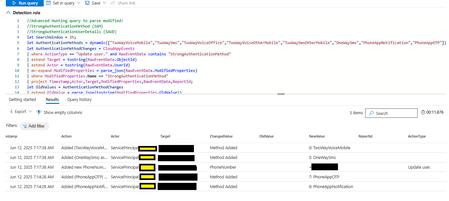
The following article, Hunting for MFA manipulations in Entra ID tenants using KQL proved to be an invaluable resource in my search for an automated way to notify users of MFA modifications. I've adapted the KQL query to function within Defender Advanced Hunting or Azure Entra, my objective is to establish an alert that directly E-Mails the affected user, informing them of the MFA change and advising them to contact security if they did not initiate it. While the query runs correctly under Defender Advanced Hunting, I'm currently unable to create a workable custom alert because no "ReportId" is being captured. Despite consulting with Copilot, Gemini, CDW Support, and Microsoft Support, no workable solution has been achieved. Any insight would be greatly appreciated - Thank You! //Advanced Hunting query to parse modified: //StrongAuthenticationUserDetails (SAUD) //StrongAuthenticationMethod (SAM) let SearchWindow = 1h; let AuthenticationMethods = dynamic(["TwoWayVoiceMobile","TwoWaySms","TwoWayVoiceOffice","TwoWayVoiceOtherMobile","TwoWaySmsOtherMobile","OneWaySms","PhoneAppNotification","PhoneAppOTP"]); let AuthenticationMethodChanges = CloudAppEvents | where ActionType == "Update user." and RawEventData contains "StrongAuthenticationMethod" | extend Target = tostring(RawEventData.ObjectId) | extend Actor = tostring(RawEventData.UserId) | mv-expand ModifiedProperties = parse_json(RawEventData.ModifiedProperties) | where ModifiedProperties.Name == "StrongAuthenticationMethod" | project Timestamp,Actor,Target,ModifiedProperties,RawEventData,ReportId; let OldValues = AuthenticationMethodChanges | extend OldValue = parse_json(tostring(ModifiedProperties.OldValue)) | mv-apply OldValue on (extend Old_MethodType=tostring(OldValue.MethodType),Old_Default=tostring(OldValue.Default) | sort by Old_MethodType); let NewValues = AuthenticationMethodChanges | extend NewValue = parse_json(tostring(ModifiedProperties.NewValue)) | mv-apply NewValue on (extend New_MethodType=tostring(NewValue.MethodType),New_Default=tostring(NewValue.Default) | sort by New_MethodType); let RemovedMethods = AuthenticationMethodChanges | join kind=inner OldValues on ReportId | join kind=leftouter NewValues on ReportId,$left.Old_MethodType==$right.New_MethodType | where Old_MethodType != New_MethodType | extend Action = strcat("Removed (" , AuthenticationMethods[toint(Old_MethodType)], ") from Authentication Methods.") | extend ChangedValue = "Method Removed"; let AddedMethods = AuthenticationMethodChanges | join kind=inner NewValues on ReportId | join kind=leftouter OldValues on ReportId,$left.New_MethodType==$right.Old_MethodType | where Old_MethodType != New_MethodType | extend Action = strcat("Added (" , AuthenticationMethods[toint(New_MethodType)], ") as Authentication Method.") | extend ChangedValue = "Method Added"; let DefaultMethodChanges = AuthenticationMethodChanges | join kind=inner OldValues on ReportId | join kind=inner NewValues on ReportId | where Old_Default != New_Default and Old_MethodType == New_MethodType and New_Default == "true" | join kind=inner OldValues on ReportId | where Old_Default1 == "true" and Old_MethodType1 != New_MethodType | extend Old_MethodType = Old_MethodType1 | extend Action = strcat("Default Authentication Method was changed to (" , AuthenticationMethods[toint(New_MethodType)], ").") | extend ChangedValue = "Default Method"; let AuthenticationMethodReport = union RemovedMethods,AddedMethods,DefaultMethodChanges | project Timestamp,Action,Actor,Target,ChangedValue,OldValue=case(isempty(Old_MethodType), "",strcat(Old_MethodType,": ", AuthenticationMethods[toint(Old_MethodType)])),NewValue=case(isempty( New_MethodType),"", strcat(New_MethodType,": ", AuthenticationMethods[toint(New_MethodType)])); let AuthenticationDetailsChanges = CloudAppEvents | where ActionType == "Update user." and RawEventData contains "StrongAuthenticationUserDetails" | extend Target = tostring(RawEventData.ObjectId) | extend Actor = tostring(RawEventData.UserId) | extend ReportId= tostring(RawEventData.ReportId) | mvexpand ModifiedProperties = parse_json(RawEventData.ModifiedProperties) | where ModifiedProperties.Name == "StrongAuthenticationUserDetails" | extend NewValue = parse_json(replace_string(replace_string(tostring(ModifiedProperties.NewValue),"[",""),"]","")) | extend OldValue = parse_json(replace_string(replace_string(tostring(ModifiedProperties.OldValue),"[",""),"]","")) | mv-expand NewValue | mv-expand OldValue | where (tostring( bag_keys(OldValue)) == tostring(bag_keys(NewValue))) or (isempty(OldValue) and tostring(NewValue) !contains ":null") or (isempty(NewValue) and tostring(OldValue) !contains ":null") | extend ChangedValue = tostring(bag_keys(NewValue)[0]) | extend OldValue = tostring(parse_json(OldValue)[ChangedValue]) | extend NewValue = tostring(parse_json(NewValue)[ChangedValue]) | extend OldValue = case(ChangedValue == "PhoneNumber" or ChangedValue == "AlternativePhoneNumber", replace_strings(OldValue,dynamic([' ','(',')']), dynamic(['','',''])), OldValue ) | extend NewValue = case(ChangedValue == "PhoneNumber" or ChangedValue == "AlternativePhoneNumber", replace_strings(NewValue,dynamic([' ','(',')']), dynamic(['','',''])), NewValue ) | where tostring(OldValue) != tostring(NewValue) | extend Action = case(isempty(OldValue), strcat("Added new ",ChangedValue, " to Strong Authentication."),isempty(NewValue),strcat("Removed existing ",ChangedValue, " from Strong Authentication."),strcat("Changed ",ChangedValue," in Strong Authentication.")); union AuthenticationMethodReport, AuthenticationDetailsChanges | extend AccountUpn = Target | where Timestamp > ago(SearchWindow) //| summarize count() by Timestamp, Action, Actor, Target, ChangedValue, OldValue, NewValue, ReportId, AccountDisplayName, AccountId, AccountUpn | summarize arg_max(Timestamp, *) by Action | project Timestamp, Action, Actor, Target, ChangedValue, OldValue, NewValue, ReportId, AccountDisplayName, AccountId, AccountUpn | sort by Timestamp desc549Views1like2CommentsCreating Custom Intune Reports with Microsoft Graph API
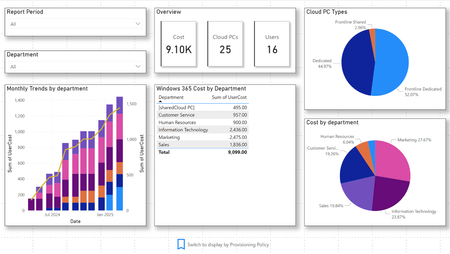
Systems administrators often need to be able to report on data that is not available in the native reports in the Intune console. In many cases this data is available to them through Microsoft Graph. However, in some instances administrators may need to pull data from other sources or store it for tracking trends over time. For example, generating a custom dashboard to track Windows 365 license costs requires pulling data from Microsoft Graph and combining it with licensing details that are not available in Graph, but may be stored in another location (an IT Asset Management Tool for example). The Windows 365 Cost Dashboard is an example of how you can combine Intune data from Microsoft Graph with information pulled from another source. This guide provides step-by-step instructions to pull data from Microsoft Graph API, ingest it to Azure Log Analytics, and connect to your workspace with Power Bi. This solution demonstrates how to gather and store Graph API data externally for richer reporting and integrate it with data from an additional data source to produce a dashboard tailored to your unique needs. By using this dashboard as an example, administrators can unlock deeper insights while leveraging Intune's powerful foundation. The solution: This dashboard and the accompanying PowerShell script are meant to demonstrate an end-to-end example of gathering data from Microsoft Graph and ultimately being able to visualize it in a Power Bi dashboard. While it does create the Azure Infrastructure needed to complete the scenario in the demonstration, it can be extended to gather and report additional information. What does this do? This example consists of two separate pieces – the Power Bi dashboard and a PowerShell script that creates all the Azure resources needed to gather data from Microsoft Graph and ingest it into a Log Analytics workbook. This post will discuss all of the infrastructure elements that are created and the steps to get your data from Log Analytics into the Power Bi dashboard, but I want to strip away all of the “extra” elements and talk about the most important part of the process first. Prerequisites The scripts shared in this blog post assume that you already have an Azure subscription and a resource group configured. You need to have an account with the role of “Owner” on the resource group (or equivalent permissions) to create resources and assign roles. The account will also need to have the “Application Developer” role in Entra Active Directory to create an App Registration. To run the resource creation script, you will need to have several modules available in PowerShell. To see the full list please review the script on GitHub. From Microsoft Graph API to Log Analytics: How we get there Microsoft Graph API can give us a picture of what our environment looks like right now. Reporting on data over time requires gathering data from Graph and storing it in another repository. This example uses a PowerShell script running in Azure Automation, but there are several different ways to accomplish this task. Let’s explore the underlying process first, and then we can review the overall scope of the script used in the example. The Azure Automation runbook [CloudPCDataCollection] calls Graph API to return details about each Windows 365 Cloud PC. It does this by making GET requests to the following endpoints: https://graph.microsoft.com/beta/deviceManagement/virtualEndpoint/cloudPCs https://graph.microsoft.com/v1.0/users/<userPrincipalName> As a best practice, we should only return the properties from an API endpoint that we need. To do that, we can append a select query to the end of the URI. Queries allow us to customize requests that are made to Microsoft Graph. You can learn more about Select (and other query operators) here. The example dashboard allows you to report on Windows 365 cost over time based on properties of the device (the provisioning policy, for example), or the primary user (department). We will request the Cloud PCs id, display name, primary user’s UPN, the service plan name and id (needed to cross reference our pricing table in Power Bi), the Provisioning Policy name, and the type (Enterprise, Frontline dedicated, or Frontline Shared). The complete URI to return a list of Cloud PCs is: https://graph.microsoft.com/beta/deviceManagement/virtualEndpoint/cloudPCs?$select=id,displayName,userPrincipalName,servicePlanName,servicePlanId,ProvisioningPolicyName,ProvisioningType Once we have a list of Cloud PCs, we need to find the primary user for each device. We can return a specific user by replacing the <userPrincipalName> value in the users URI above with the primary user UPN for a specific Cloud PC. Since we only need the department, we will minimize the results by only selecting the userPrincipalName (for troubleshooting), and department. The complete URI is: https://graph.microsoft.com/v1.0/users/<userPrincipalName>?$select=userPrincipalName,department Data sent to a data collection endpoint needs to be formatted correctly. Requests that don’t match the required format will fail. In this case, we need to create a JSON payload. The properties in the payload need to match the order of the properties in the data collection rule (explained later) and the property names are case sensitive. The automation script handles the creation of the JSON object, including matching the case and order requirements as shown here: # Get Cloud PCs from Graph try { $payload = @() $cloudPCs = Invoke-RestMethod -Uri 'https://graph.microsoft.com/beta/deviceManagement/virtualEndpoint/cloudPCs?$select=id,displayName,userPrincipalName,servicePlanName,servicePlanId,ProvisioningPolicyName,ProvisioningType' -Headers @{Authorization="Bearer $($graphBearerToken.access_token)"} $CloudPCArray= @() $CloudPCs.value | ForEach-Object { $CloudPCArray += [PSCustomObject]@{ Id = $_.id DisplayName = $_.displayName UserPrincipalName = $_.userPrincipalName ServicePlanName = $_.servicePlanName ServicePlanId = $_.servicePlanId ProvisioningPolicyName = $_.ProvisioningPolicyName ProvisioningType = $_.ProvisioningType } } # Prepare payload foreach ($CloudPC in $CloudPCArray) { If($null -ne $CloudPC.UserPrincipalName){ try { $UPN = $CloudPc.userPrincipalName $URI = "https://graph.microsoft.com/v1.0/users/$UPN" + '?$select=userPrincipalName,department' $userObj = Invoke-RestMethod -Method GET -Uri $URI -Headers @{Authorization="Bearer $($graphBearerToken.access_token)"} $userDepartment = $UserObj.Department } catch { $userDepartment = "[User department not found]" } } else { $userDepartment = "[Shared - Not Applicable]" } $CloudPC | Add-Member -MemberType NoteProperty -Name Department -Value $userDepartment $CloudPC | Add-Member -MemberType NoteProperty -Name TimeGenerated -Value (Get-Date).ToUniversalTime().ToString("o") $payload += $CloudPC } } catch { throw "Error retrieving Cloud PCs or user department: $_" } After the payload has been generated, the script sends it to a data collection endpoint using a URI that is generated by the setup script. # Send data to Log Analytics try { $ingestionUri = "$logIngestionUrl/dataCollectionRules/$dcrImmutableId/streams/$streamDeclarationName`?api-version=2023-01-01" $ingestionToken = (Get-AzAccessToken -ResourceUrl 'https://monitor.azure.com//.default').Token Invoke-RestMethod -Uri $ingestionUri -Method Post -Headers @{Authorization="Bearer $ingestionToken"} -Body ($payload | ConvertTo-Json -Depth 10) -ContentType 'application/json' Write-Output "Data sent to Log Analytics." } catch { throw "Error sending data to Log Analytics: $_" } Getting access tokens with a managed identity Security should be top of mind for any Systems Administrator. When making API calls to Microsoft Graph, Azure, and other resources you may need to provide an access token in the request. Access to resources controlled with an App Registration in Entra. In the past, this required using either a certificate or client secret. Both options create management overhead, and client secrets that are hard coded in scripts present a considerable security risk. Managed identities are managed entirely by Entra. There is no requirement for an administrator to manage certificates or client secrets, and credentials are never exposed. Entra recently introduced the ability to assign a User-assigned managed identity as a federated credential on an App Registration. This means that a managed identity can now be used to generate an access token for Microsoft Graph and other azure resources. You can read more about adding the managed identity as a federated credential here. Requesting an access token via federated credentials happens in two steps. First, the script uses the managed identity to request a special token scoped for the endpoint ‘api://AzureADTokenExchange'. #region Step 2 - Authenticate as the user assigned identity #This is designed to run in Azure Automation; $env:IDENTITY_header and $env:IDENTITY_ENDPOINT are set by the Azure Automation service. try { $accessToken = Invoke-RestMethod $env:IDENTITY_ENDPOINT -Method 'POST' -Headers @{ 'Metadata' = 'true' 'X-IDENTITY-HEADER' = $env:IDENTITY_HEADER } -ContentType 'application/x-www-form-urlencoded' -Body @{ 'resource' = 'api://AzureADTokenExchange' 'client_id' = $UAIClientId } if(-not $accessToken.access_token) { throw "Failed to acquire access token" } else { Write-Output "Successfully acquired access token for user assigned identity" } } catch { throw "Error acquiring access token: $_" } #endregion That token is then exchanged in a second request to the authentication endpoint in the Entra tenant for a token that is scoped to access 'https://graph.microsoft.com/.default' in the context of the App Registration. #region Step 3 - Exchange the access token from step 2 for a token in the target tenant using the app registration try { $graphBearerToken = Invoke-RestMethod "https://login.microsoftonline.com/$TenantId/oauth2/v2.0/token" -Method 'POST' -Body @{ client_id = $appClientId scope = 'https://graph.microsoft.com/.default' grant_type = "client_credentials" client_assertion_type = "urn:ietf:params:oauth:client-assertion-type:jwt-bearer" client_assertion = $accessToken.access_token } if(-not $graphBearerToken.access_token) { throw "Failed to acquire Bearer token for Microsoft Graph API" } else { Write-Output "Successfully acquired Bearer token for Microsoft Graph API" } } catch { throw "Error acquiring Microsoft Graph API token: $_" } #endregion Azure Resource Creation Script The PowerShell script included in this example will complete the following tasks: Creates a Log Analytics Workspace Define a custom table in the newly created workspace to store Cloud PC data Configure a data collection endpoint and data collection rule to ingest data into the custom table Create an Azure Automation account and runbook to retrieve data from Microsoft Graph and send it to the data collection endpoint Establish a User Assigned Managed Identity to run the data collection script from Azure Automation Register an App and assign a service principal with required Microsoft Graph permissions Add the Managed Identity as a federated credential within the App Registration Assign workbook operator and Monitoring Metrics Publisher roles to the Managed Identity Steps to Implement: 1. Download the script and Power BI Dashboard: Download the Power Bi dashboard and PowerShell script from GitHub: Windows 365 Custom Report Dashboard 2. Update Variables: Modify the PowerShell script to include your Tenant ID, Resource Group Name, and location Adjust other variables to fit your specific use case while adhering to Azure naming conventions 3. Run the PowerShell Script: Execute the script to create the necessary Azure resources and configurations. 4. Verify Resource Creation: Log into the Azure Portal. Navigate to Log Analytics and confirm the creation of the W365CustomReporting workspace. Click on Settings > Tables and confirm the W365_CloudPCs_CL table was created Search for Automation Accounts and locate AzAut-CustomReporting. 5. Run the Runbook and Pull Data into Log Analytics: Open the CloudPCDataCollection runbook, select Edit > Edit in portal and the click on Test Pane. Click start to test the CloudPCDataCollection runbook and ensure data ingestion into Log Analytics. The runbook may take several minutes to run. You should see a “Completed” status message and the output should include, “Data sent to Log Analytics.” Return to the Log Analytics workspace and select “Logs.” Click on the table icon in the upper left corner of the query window. Select Custom Logs > W365_CloudPCs_CL and click on “Run.” (Please note: initial data ingestion may take several minutes to complete. If the table is not available, please check later.) The table Logs should populate with data from the last 24 hours by default. Click on Share > Export to Power BI (as an M query)Export the data to Power BI using an M query. The file should download. Open the file to view the completed query. Select the contents of the file and copy it to the clipboard. 6. Import Data into Power BI Dashboard: Open the Power BI template. In the table view on the right side of the screen, right click on the CloudPCs table and select “Edit Query.” Click on “Advanced Editor” on the ribbon to edit the query. Paste the contents of the downloaded M Query file in the editor and click “Done.” A preview of your data should appear. We need to make sure the columns match the data in the template. Right click on the “Time Generated” column and select Transform > Date Only. Right click on the same column and select “Rename.” Rename the column to “Date” Click “Close and Apply” to apply your changes and update the dashboard. 7. Update the Pricing and Service Plan Details table (Optional) The Pricing and Service Plan Details table was created via manual data entry, which allows for it to be updated directly within Power BI. To update the dashboard with your pricing information, right click on PricingAndServicePlanDetails table and select edit query Click on the gear icon to the right of “Source” Find the SKU Id that matches the Windows 365 Enterprise or Frontline licenses in your tenant; update the price column to match your pricing 8. (Optional) Update the timespan on the imported M query to view data over a longer period When we initially viewed the logs in Log Analytics, we left the time period set with the default value, “Last 24 Hours.” That means that the query that was created will only show data from the last day, even if the runbook has been configured to run on a schedule. We can edit that behavior by updating the table query. Edit the Cloud PCs table as you did before. In the advanced editor find the “Timespan” property. The Timespan value uses ISO 8601 durations to select data over a specific period. For example, “P1D” will show data from the previous 1 day. The past year would be represented by “P1Y” or “P365D”. Learn more about ISO 8601 duration format here: ISO 8601 - Wikipedia Please note that this query can only return data that is stored in Log Analytics. If you set it to “P1Y,” but only have collected information from the past month, you will still only see 1 month worth of data. Parting thoughts This example demonstrates how a systems administrator can leverage Microsoft Graph, Azure Log Analytics, and Power Bi to create custom reports. The script provided creates all the required resources to create your own custom reports. You can leverage the concepts used in this example to add additional data sources and expand your Log Analytics workbooks (by adding additional columns or tables) to store other data pulled from Microsoft Graph. By following this example, Systems Administrators can build custom Intune reports that integrate data from Microsoft Graph and external sources. This solution provides comprehensive, historical reporting, helping organizations gain valuable insights into their IT environments. Additional Credit: The script to create resources was adapted from the process described by Harjit Singh here: Ingest Custom Data into Azure Log Analytics via API Using PowerShell. Please visit that post for additional information on creating the underlying resources. Limitations: This example is not intended to be ready for production use. While the script creates the underlying infrastructure, it does not automatically schedule the Azure Automation runbook, nor does it change the default retention period in Log Analytics beyond 30 days. The use of Log Analytics and Azure Automation can incur charges. You should follow your organization’s guidelines when scheduling runbooks or updating retention policies. The pricing details table was created based on the Windows 365 SKUs listed on the Product names and service plan identifiers for licensing and the corresponding retail prices for Windows 365 Enterprise and Frontline as of February 26, 2025. You may need to update the pricing details to match your license costs or connect to an outside data source where your license details are stored to accurately reflect your cost details. Disclaimer The sample scripts are not supported under any Microsoft standard support program or service. The sample scripts are provided AS IS without warranty of any kind. Microsoft further disclaims all implied warranties including, without limitation, any implied warranties of merchantability or of fitness for a particular purpose. The entire risk arising out of the use or performance of the sample scripts and documentation remains with you. In no event shall Microsoft, its authors, or anyone else involved in the creation, production, or delivery of the scripts be liable for any damages whatsoever (including, without limitation, damages for loss of business profits, business interruption, loss of business information, or other pecuniary loss) arising out of the use of or inability to use the sample scripts or documentation, even if Microsoft has been advised of the possibility of such damages.