get data
7 TopicsNew in Excel for the web: The full Power Query experience
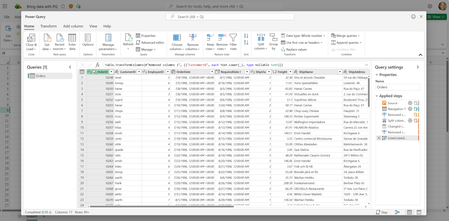
We’ve reached yet another milestone in Excel for the web: The full Power Query user experience is now generally available, including the import wizard and Power Query Editor. After we released the ability to refresh Power Query data from authenticated data sources, we were able to unlock the ability to complete the full user journey of importing data and editing it using Power Query. Getting started Learn all about Power Query in Excel for the web here > See this support article for more information on Power Query data sources in Excel versions. Note: Viewing and refreshing queries is available to all Microsoft 365 Subscribers. The full Power Query experience is available to all Microsoft 365 Subscribers with Business or Enterprise plans. Importing data You can import data into Excel using Power Query from a wide variety of data sources, for example: Excel Workbook, Text/CSV, XML, JSON, SQL Server Database, SharePoint Online List, OData, Blank Table, and Blank Query. Select Data > Get Data: In the Choose data source dialog box, select one of the available data sources: Connect to the data source. After you select the source, the authentication kind will be auto-populated, according to the relevant source (you can still change it, if you like). Press Next, and choose the table you wish to import: Press Transform data to open the table in the Power Query editor, where you can perform many powerful transformations. Note: You can open the editor whenever you need it, by using Data > Get Data > Launch Power Query Editor. When you are done, load the table – press Close & Load to load to the Excel grid: Or Close & Load to - to either load to the Excel grid, or create a connection-only query: See the query was created in the Queries & Connections pane: If you loaded to a table, you can see it on the Excel grid: You can refresh the created query from the Queries & Connections pane, or by using Data > Refresh/Refresh All. You can also perform operations, such as editing the query (with the Power Query Editor), renaming it, and more: What’s next? Future plans include adding data sources and advanced features. Feedback We hope you like this new addition to Excel and we’d love to hear what you think about it! Let us know by using the Feedback button in the top right corner in Excel - add #PowerQuery in your feedback so that we can find it easily. Want to know more about Excel for the web? See What's new in Excel for the web and subscribe to our Excel Blog to get the latest updates. Stay connected with us and other Excel fans around the world – join our Excel Community and follow us on Twitter. Jonathan Kahati, Gal Horowitz ~ Excel Team7.1KViews12likes14CommentsNew in Excel for the web: Power Query Refresh & Data Source Settings for authenticated data sources
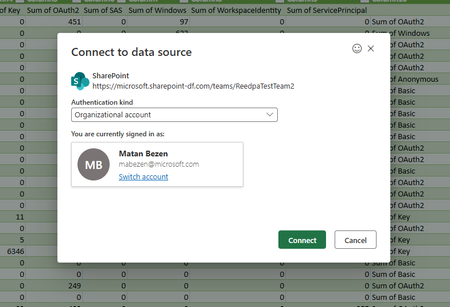
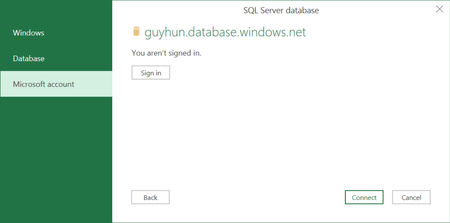
We’ve reached yet another milestone in Excel for the web: Power Query Refresh is now generally available for queries sourcing data from selected authenticated data sources. As we released the ability to refresh Power Query data from anonymous data sources (link), it was only a matter of time until we added the ability to refresh Power Query data from authenticated data sources, which are the majority of data sources used, and require users to enter credentials. This milestone also enables us to release Import with Copilot to Excel for the Web (following Win32 and Mac), as it relies on Power Query for refreshing data. Getting started These new functionalities are available to all users on Excel for the Web. See this support article for more information on Power Query data sources in Excel versions. efresh a data source in Excel for the web using Power Query Refreshing Power Query queries You can now refresh the Power Query queries in your workbook that source data from a selection of authenticated data sources: Select the Data tab > then choose Refresh All Open the Queries Pane > then select Refresh When you refresh a query, if authentication is needed, you can select the relevant method – anonymous, user and password, or your organizational account. For example, to refresh organizational data, select the respective method: Your user will be automatically identified (you can also switch it, if needed), so you can easily click “Connect” to continue the refresh process. The list of supported connectors includes: SharePoint* files (Excel workbooks, TXT, CSV, XML, JSON, PDF) SharePoint* folders SharePoint Online List SharePoint List SQL Server Database OData Feed Web API IBM Db2 Database PostgreSQL Database Azure SQL Database Azure Synapse Analytics Azure HDInsight (HDFS) Azure Blob Azure Table Azure Data Lake Storage Gen 1 Azure Data Lake Storage Gen 2 Azure Data Explorer Dataflows Dataverse Microsoft Exchange Online Dynamics 365 (Online) Salesforce Objects Salesforce Reports *SharePoint/OneDrive for work or school The refresh happens behind the scenes so you can keep editing the workbook while refreshing. Note: There is a limit for 1000 data source credentials. For example, if you connect to the same data source with 2 different users, it counts as 2.. Managing queries using Data Source Settings You can now view and manage data source credentials for the Power Query queries in your workbook using Data Source Settings: Select the Data tab > then choose 'Data Source Settings’. Choose between ‘Current Workbook’ and ‘Global Permissions’ to view and manage data sources credentials in the current workbook or across all workbooks, respectively. To delete the credentials stored for a data source, click on the ‘Delete’ button. To edit the credentials stored for a data source, click on the ‘Edit credentials’ button. In addition, we’re introducing a new functionality in Data Source Settings – authenticating to a data source that exists in the workbook from within the dialog: Select the Data tab > then choose ‘Data Source Settings’. Navigate to ‘Current Workbook’. Click on the ‘Add credentials’ button: What’s next? Future plans include releasing the full Power Query Editor experience to Excel for the Web. Feedback We hope you like this new addition to Excel and we’d love to hear what you think about it! Let us know by using the Feedback button in the top right corner in Excel - add #PowerQuery in your feedback so that we can find it easily. Want to know more about Excel for the web? See What's new in Excel for the web and subscribe to our Excel Blog to get the latest updates. Stay connected with us and other Excel fans around the world – join our Excel Community and follow us on Twitter. Jonathan Kahati, Gal Zivoni ~ Excel Team6.9KViews12likes28Comments
Introducing the new Get Data dialog in Excel for Windows
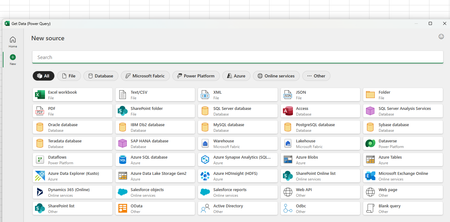
We are excited to announce a first step towards modernizing Power Query in Excel for Windows - a new way to connect to data that will make finding and using external data sources faster and more intuitive! The modern Get Data dialog gives you a clean, simple starting point for connecting to data. With built-in search and quick access to popular data sources, you can easily find the right source and start working on your data. How it works Select the Data tab on the ribbon, then select Get Data > Get Data (Preview) to open the new dialog. Browse through popular data sources on the Home tab or use the search bar to find a specific source. Select the New tab under the categories list on the left to browse through all available data sources. What it does When you open the modern Get Data dialog, you’ll be able to search for the connector you need or pick from recommended options—all in one clean view. When you select a source, Excel takes you straight into the familiar, current Power Query import flow and you’ll be able to see the same steps you know today. For more information, check out modern Get Data Dialog in Excel for Windows. Note: You can still import external data from the Get Data dropdown categories as well as from the new Get Data dialog. More to come The new dialog is the first step toward a modernized Power Query experience in Excel, paving the way for upcoming innovations like modern import flows and a modern Power Query editor. In addition, you’ll see more modules integrated into this dialog soon, making it easier than ever to discover, connect, and prepare your data. Availability This feature is gradually rolling out to M365 subscribers in Excel for Windows, with Version 2509 Build 16.0.19328.20000 or later. Feedback We’d love to hear about your experience with the modern Get Data dialog. Let us know: ✔️ Did the overall experience feel intuitive and helpful? ✔️ Which new additions would you like to see? Just click on the 🙂button in the upper right-hand side of the dialog to share your feedback. Your feedback helps us refine the experience and prioritize what’s next.7.9KViews5likes3Comments
Get Data From Web
I'm trying to get data from the web which has multiple pages- however when it only recognizes the first page. It won't let me go to the other pages- it ends up freezing. I've been trying to do this as a macro as we want to create a live connection between the online information and a spreadsheet, is there any way around this? Thanks in advance!873Views0likes0Comments