general
4 TopicsCreate an Organizational Assets Library (including Multi-Geo & Information Barriers guidance)
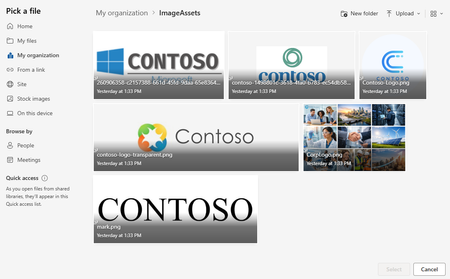
Overview This guide walks through a practical approach to setting up SharePoint Online (SPO) Organizational Assets Libraries (OAL). It includes optional guidance for more complex tenants—such as Multi-Geo and Information Barriers (IB) - because those scenarios are often under-documented. What you’ll accomplish: Create and register Organizational Assets Libraries so templates, fonts, and brand images are available in Office apps, with notes for Multi-Geo, Information Barriers, Brand Center, and Copilot integration where applicable. Applies to: Standard (single-geo) tenants, Multi-Geo tenants, tenants with Information Barriers, and environments using Brand Center and/or Copilot features for organizational assets. Quick start (standard single-geo tenant) Create a SharePoint site to host Organizational Assets Libraries (often the Brand Center site). Create three document libraries (typical): ImageAssets, DocumentAssets (templates), FontAssets. Grant your intended audience Read access (commonly Everyone except external users via the site’s Visitors group). Enable the SharePoint Online Public CDN (tenant setting). Add a Public CDN origin for each library path (one origin per library). Upload approved assets (images, templates, fonts) into their respective libraries. Register each library with Add-SPOOrgAssetsLibrary (repeat per library). Validate registration and end-user experience, then allow up to 24 hours for Office apps to reflect changes. If you’re Multi-Geo or using Information Barriers: follow the same flow, but repeat per geo and complete registration while the site is in Open IB mode (details below). Key constraints and gotchas Multi-Geo: plan a repeatable per-geo pattern (typically one Org Assets site + matching libraries per geo) and keep naming consistent. Information Barriers (IB): Add-SPOOrgAssetsLibrary cannot be run when the target site is segmented—create and register libraries first (site in Open mode), then segment if needed. The “Everyone except external users” principal may be hidden by default, but it’s still commonly used for broad read access. Brand Center: many orgs host Org Assets Libraries in the Brand Center site; if Brand Center is created after libraries exist, it typically detects and uses them automatically. A public CDN must be enabled to support Organizational Assets Libraries. The “Everyone except external users” principal may be hidden by default, but it’s still commonly used for broad read access. Brand Center: many orgs host Org Assets Libraries in the Brand Center site; if Brand Center is created after libraries exist, it typically detects and uses them automatically. A public CDN must be enabled to support Organizational Assets Libraries. Implementation steps Prerequisites: SharePoint Online Management Shell access (or equivalent), permission to manage tenant settings, and the ability to create sites and libraries in each geo. Create a site to host your Organizational Assets Libraries (many orgs use a communication site). For ease of support, keep the site name, library names, and structure consistent over time. Note: A Communication site is recommended, but a Team site can also work. Example site URLs: In a standard tenant you’ll have one site; in Multi-Geo you’ll typically use one per geo. Primary geo: https://contoso.sharepoint.com/sites/BrandCenter EUR geo: https://contosoEUR.sharepoint.com/sites/BrandCenter APC geo: https://contosoAPC.sharepoint.com/sites/BrandCenter If your tenant uses Information Barriers, keep each site in Open IB mode while creating the Org Assets Libraries. You can segment the site later (if required) after libraries are created. Configure a public CDN (required) To use Brand Center and Organizational Assets Libraries, configure SharePoint Online to use a Public CDN. Set-SPOTenantCdnEnabled -CdnType Public -Enable $true Example output: Public CDN enabled locations: SITES/BRANDCENTER/FONTS */MASTERPAGE (configuration pending) */STYLE LIBRARY (configuration pending) */CLIENTSIDEASSETS (configuration pending) Note: You will see the new CDN is in a pending state until complete. This will take some time. Wait for the CDN to finish provisioning. Re-run the status/list commands until “pending” entries clear. Get-SPOTenantCdnEnabled -CdnType Public Get-SPOTenantCdnOrigins -CdnType Public Add CDN origins for each library Add allowed CDN origins for each asset library path (typically one origin per library). Example: Add-SPOTenantCdnOrigin -OriginUrl sites/BrandCenter/ImageAssets -CdnType Public Add-SPOTenantCdnOrigin -OriginUrl sites/BrandCenter/TemplateAssets -CdnType Public Add-SPOTenantCdnOrigin -OriginUrl sites/BrandCenter/FontAssets -CdnType Public Set permissions (required for broad consumption) To ensure most users can consume the assets, grant Everyone except external users (often abbreviated as EEEU) Read access (commonly via the site’s Visitors group). Example: add Everyone except external users to the Visitors group of the Organizational Assets site. Connect-SPOService -Url 'https://contoso-admin.sharepoint.com' $tenant = "9cfc42cb-51da-4055-87e9-b20a170b6ba3" $site = Get-SPOSite -Identity "https://contoso.sharepoint.com/sites/BrandCenter" $group = Get-SPOSiteGroup $site -Group "BrandCenter Visitors" Add-SPOUser -LoginName ("c:0-.f|rolemanager|spo-grid-all-users/" + $tenant) -Site $site -Group $group.Title Note: Organizational Assets Libraries respect SharePoint security trimming. If you need a narrower audience, grant Read to the appropriate groups instead of tenant-wide access. In many environments, Everyone except external users is required during registration (Add-SPOOrgAssetsLibrary) so Office can enumerate the library—test and confirm in your tenant before removing broad access. Create libraries and upload assets Create a document library for each asset type you plan to publish (for example: images, Office templates, fonts). For example: Upload your assets into the appropriate libraries. Example: Register each library using Add-SPOOrgAssetsLibrary. For this to work, Everyone except external users must already have access to the site (for example, via the Visitors group). Office Template Library Example: Add-SPOOrgAssetsLibrary -LibraryUrl 'https://contoso.sharepoint.com/sites/BrandCenter/DocumentAssets' -OrgAssetType OfficeTemplateLibrary Image Document Library Example: Add-SPOOrgAssetsLibrary -LibraryUrl 'https://contoso.sharepoint.com/sites/BrandCenter/ImageAssets' -OrgAssetType ImageDocumentLibrary Font Document Library Example: Add-SPOOrgAssetsLibrary -LibraryUrl 'https://contoso.sharepoint.com/sites/BrandCenter/FontAssets' -OrgAssetType OfficeFontLibrary -CdnType Public Optional: Enable Copilot support for an image library (only applicable to ImageDocumentLibrary). Set-SPOOrgAssetsLibrary -LibraryUrl 'https://contoso.sharepoint.com/sites/BrandCenter/ImageAssets' -OrgAssetType ImageDocumentLibrary -CopilotSearchable $true Multi-Geo mini runbook (recommended pattern) Use this as a simple tracking sheet so each geo ends up with a complete, consistent setup. Geo Site URL Libraries CDN origins added Libraries registered Primary https://<tenant>.sharepoint.com/sites/<BrandCenterOrAssetsSite> ImageAssets / DocumentAssets / FontAssets Yes/No Yes/No EUR https://<tenant>EUR.sharepoint.com/sites/<BrandCenterOrAssetsSite> ImageAssets / DocumentAssets / FontAssets Yes/No Yes/No APC https://<tenant>APC.sharepoint.com/sites/<BrandCenterOrAssetsSite> ImageAssets / DocumentAssets / FontAssets Yes/No Yes/No Naming standard (strongly recommended): keep the same site path and the same library names in every geo (for example, always ImageAssets, DocumentAssets, FontAssets). This minimizes per-geo scripting differences and reduces support effort. Wrap-up At this point, each geo should have its own site, libraries, CDN origins, and registered Organizational Assets Libraries. From here, focus on governance (who can publish/approve assets), naming standards, and ongoing lifecycle management (retire old templates/fonts and keep branding current). Validate configuration Admin checks (PowerShell) Confirm the Public CDN is enabled. Confirm CDN origins include one entry per assets library path. List registered Org Assets Libraries and verify each URL + type is present. Get-SPOTenantCdnEnabled -CdnType Public Get-SPOTenantCdnOrigins -CdnType Public Get-SPOOrgAssetsLibrary End-user checks (Office apps) In PowerPoint/Word, confirm organizational templates appear in the template picker (if you registered an OfficeTemplateLibrary). In Office font lists, confirm your org fonts appear (if you registered an OfficeFontLibrary). For image libraries, confirm approved brand images appear in supported pickers; if you enabled -CopilotSearchable, confirm images are discoverable as expected. Timing: New registrations and updates can take up to 24 hours to appear in Office apps. If you updated content, run Set-SPOOrgAssetsLibrary for each changed library, then wait for propagation. Updating content in existing Org Assets Libraries If you already have Organizational Assets Libraries registered and you need to publish updated templates, fonts, or images, use the process below. The high-level flow is: update content → run Set-SPOOrgAssetsLibrary (per library) → wait for propagation. Replace or update content in each library. Upload the new versions of templates/fonts/images into the appropriate library (and remove/retire older versions if needed). If Multi-Geo applies, repeat per geo. Update the matching libraries in each geo’s site so users in each geo get the same (or intentionally regional) set of assets. Run Set-SPOOrgAssetsLibrary for each updated library. Execute the cmdlet against the library URL to refresh the configuration after content changes (run it once per library you updated). Wait for Office app propagation. Allow up to 24 hours for updates to begin showing in Office apps. Example: Set-SPOOrgAssetsLibrary -LibraryUrl 'https://contoso.sharepoint.com/sites/BrandCenter/DocumentAssets' -OrgAssetType OfficeTemplateLibrary Notes: If your site is segmented by Information Barriers, confirm the cmdlet behavior in your environment before making changes, and prefer performing registration/updates while the site is in Open mode when possible. For image libraries, if you are using Copilot integration settings (for example -CopilotSearchable), keep the setting consistent when you run Set-SPOOrgAssetsLibrary. Make sure the intended audience still has Read access to the site/library; otherwise users may not see updates due to security trimming. Please note: After registering (or updating) your assets libraries, it can take up to 24 hours before changes become available in Office apps. Once fully enabled, Office apps will surface your templates and fonts. Below is an example. Example of interacting with Org Assets from M365 Apps Org Fonts from PowerPoint: From SharePoint: From Office Apps: Troubleshooting tips If Add-SPOOrgAssetsLibrary fails, confirm the site is not segmented by Information Barriers (Open mode during setup). If assets don’t appear in Office apps, wait for propagation (up to 24 hours) and re-check that the library was registered successfully. If CDN commands show “pending”, allow time for provisioning and re-run the status command. If users can’t see assets, verify the site/library permissions include Everyone except external users (or the intended audience group). Guidance: Using the SharePoint Online Public CDN Enabling the SharePoint Online Public CDN is a required and supported configuration for Organizational Assets Libraries, Brand Center, and related Office experiences. While the word “public” can sound concerning, it’s important to understand what is (and is not) exposed. We take great care to protect the data that runs your business. Data stored in the Microsoft 365 CDN is encrypted both in transit and at rest, and access to data in the Microsoft 365 SharePoint CDN is secured by Microsoft 365 user permissions and token authorization. Requests for data in the Microsoft 365 SharePoint CDN must be referred (redirected) from your Microsoft 365 tenant or an authorization token won't be generated. See: Content delivery networks - Microsoft 365 Enterprise | Microsoft Learn What “Public CDN” actually means Only explicitly approved library paths are cached The CDN does not expose your entire tenant. Administrators must explicitly register CDN origins (specific library paths). If a library is not registered as a CDN origin, it is not served via the CDN. No new content types are exposed The CDN is intended for static, non-sensitive assets such as: Brand images Office templates Fonts It is not designed for documents containing confidential or regulated data. Why Microsoft requires a Public CDN for Org Assets? Performance and reliability Office clients worldwide retrieve assets faster using geographically distributed edge caching. This avoids repeated downloads from SharePoint origin sites. Consistent Office app experiences PowerPoint, Word, Excel, and Copilot rely on CDN-backed delivery to surface: Templates Fonts Brand images Without a public CDN, these features may not function correctly or at all. Best practices Use the practices below to keep Organizational Assets Libraries reliable, secure, and easy for end users to adopt. Where relevant, notes call out additional considerations for Multi-Geo, Information Barriers, Brand Center, and Copilot. Governance and ownership checklist Owners/publishers: named group who can add/change assets (limited membership). Approvals: defined review/approval step before publishing new templates/fonts/images. Versioning/retention: how you retire old assets and prevent outdated branding from appearing in pickers. Rollback plan: how to revert a bad template/font/image quickly. Change communication: how you notify users about new/updated assets and expected timing (up to 24 hours). Assign clear owners (typically Brand/Comms) and a small admin group (typically IT) for each geo’s library and site. Decide what is “approved” vs “draft” content, and enforce it with a simple publishing process (for example, a review checklist or an approvals flow). Version and retire assets deliberately: keep one “current” template set and archive old assets to prevent users from picking outdated branding. Information architecture and naming Keep library names and structures consistent across geos (same library names, same folder conventions) to simplify support and documentation. Use descriptive filenames users can recognize in pickers (for example, “Contoso_Proposal_Template_v3”). Prefer a small number of clearly defined libraries by asset type (images, templates, fonts) rather than many small libraries. Permissions and access Ensure your intended audience has at least Read access to the site and libraries; Organizational Assets still follow SharePoint security trimming. If you use broad access (for example, Everyone except external users), document it and pair it with tight contributor permissions so only approved publishers can change assets. Avoid breaking inheritance in ways that make troubleshooting difficult—keep permissions simple and predictable whenever possible. CDN configuration Plan CDN changes ahead of time: enabling and provisioning can take time, and changes may not be immediate. Register only the origins you need (one per assets library path) and keep them consistent across environments. After changes, allow for propagation time before validating in Office apps. Multi-Geo and Brand Center Use a repeatable pattern: one site + matching libraries per geo, with the same structure and operational runbook. Be aware Brand Center is created in the primary geo; confirm how your org wants to manage global vs regional assets. Document which assets are global (shared everywhere) vs regional (geo-specific) to avoid confusion for publishers and users. Information Barriers (IB) sequencing Create and register Org Assets Libraries before segmenting the site when IB is enabled (create while the site is in Open mode, then segment later if required). After segmentation, re-validate that the right audience can still read the libraries (and that publishers can still manage content). Copilot readiness (image libraries) Use consistent, high-quality metadata for images (titles, descriptions, and tags). Copilot search quality depends heavily on this. If enabling image tagging integration, standardize on a tagging vocabulary (for example, brand terms, campaigns, departments, regions) so results are predictable. Only enable Copilot searchable settings on libraries where content is approved and intended for broad reuse. Q&A Q: What is an Organizational Assets Library (OAL)? A: It’s a SharePoint document library (or set of libraries) that you register so Office apps can surface approved templates, fonts, and images to users directly within the app experience. Q: Do I need SharePoint Brand Center to use OAL? A: No. You can use Organizational Assets Libraries without Brand Center. Brand Center can make asset management more accessible, for example, allowing SharePoint sites to use organizational branding, but OAL can be configured on its own. Q: Why is a “Public CDN” required, and is it safe? A: Office experiences rely on CDN-backed delivery for performance and reliability. “Public CDN” does not mean your whole tenant is exposed—only the specific library paths you register as CDN origins are cached. Access is still governed by Microsoft 365 authentication, token authorization, and SharePoint permissions. Q: Can I use this guide in a standard (single-geo) tenant? A: Yes. In a standard tenant you usually create one site and one set of libraries. The Multi-Geo guidance is only needed if your tenant is Multi-Geo (in which case you’ll typically repeat the pattern per geo). Q: How do Information Barriers (IB) affect setup? A: If a site is segmented, Add-SPOOrgAssetsLibrary cannot register the library. Create the site and register the libraries while the site is in Open mode, then segment afterward if required. Q: Why does “Everyone except external users” (EEEU) matter? A: In many environments, EEEU is required during library registration so Office can enumerate the library. However, OAL still respects SharePoint security trimming. If broad internal availability is the goal, a common pattern is to grant EEEU Read (often via the Visitors group) so Office apps can surface the assets to most internal users. If you need a narrower audience, use a group instead. Q: How long until assets show up (or update) in Office apps? A: It can take up to 24 hours for new registrations or updates to propagate. If you replaced content in an existing library, run Set-SPOOrgAssetsLibrary for each updated library, then allow time for Office apps to refresh. Q: How do I update content in an existing Org Assets Library? A: Replace the files in the library (and repeat across geos if applicable), then run Set-SPOOrgAssetsLibrary against each library you updated. After that, allow up to 24 hours for the updated assets to start showing in Office apps. Q: Do I need to run Set-SPOOrgAssetsLibrary every time I replace files? A: If you want Office apps to reliably pick up changes, run Set-SPOOrgAssetsLibrary after you update content (especially when publishing new/updated templates, fonts, or images). Treat it as the “refresh” step, then wait for propagation. Q: When should I enable Copilot support (CopilotSearchable) for an image library? A: Enable it only for libraries that contain approved, broadly reusable images and have strong metadata (title/description/tags). This helps ensure search results are on-brand and reduces the chance of surfacing unreviewed content. Q: Can I undo this later? A: Yes. You can unregister an Organizational Assets Library using SharePoint Online PowerShell (for example, Remove-SPOOrgAssetsLibrary) and remove CDN origins if you no longer need them. Plan governance so you can retire assets cleanly without disrupting users. Q: Users can’t see the assets (or updates)—what should I check first? A: Start with (1) permissions to the site/library (security trimming), (2) successful registration via Add-SPOOrgAssetsLibrary, (3) if you’re expecting an update, confirm you ran Set-SPOOrgAssetsLibrary for that library, (4) CDN provisioning status and configured origins, and (5) propagation time (up to 24 hours). Additional Reading Create an organization assets library - SharePoint in Microsoft 365 | Microsoft Learn Connect organizational asset libraries to Copilot for an on-brand experience - SharePoint in Microsoft 365 | Microsoft Learn Connect organizational asset libraries to PowerPoint for an on-brand experience - SharePoint in Microsoft 365 | Microsoft Learn Set up and connect organizational asset library (OAL) with image tagging to Copilot search | Microsoft Learn Add-SPOOrgAssetsLibrary (Microsoft.Online.SharePoint.PowerShell) | Microsoft Learn SharePoint Brand Center - SharePoint in Microsoft 365 | Microsoft Learn How to Enable Enterprise Brand Images with PowerPoint Copilot - SharePoint in Microsoft 365 | Microsoft Learn Office 365 Content Delivery Network (CDN) Quickstart - Microsoft 365 Enterprise | Microsoft Learn Use Office 365 Content Delivery Network (CDN) with SharePoint Online - Microsoft 365 Enterprise | Microsoft Learn Content delivery networks - Microsoft 365 Enterprise | Microsoft Learn Multi-Geo Capabilities in OneDrive and SharePoint - Microsoft 365 Enterprise | Microsoft Learn Use Information Barriers with SharePoint | Microsoft Learn337Views3likes0CommentsOptimizing Exchange Online PowerShell
The Exchange Online PowerShell module is a powerful tool. As environments scale and tasks grow in complexity, performance and reliability become critical. This post takes a holistic approach to optimizing Exchange Online management and automation in four parts: Windows PowerShell performance tips Best practices that apply to all M365 PowerShell modules Best practices specific to the Exchange Online PowerShell module The future of automation ================= General Windows PowerShell Performance Tips Seemingly obvious but often overlooked, if you want to get peak performance from any PowerShell module, you need to optimize Windows PowerShell itself. Keep PowerShell Updated: Always use the latest supported version of PowerShell for security, compatibility, and performance improvements. Windows PowerShell 5.1 is preinstalled on the currently supported versions of Windows. Security updates and other patches are included in Windows Updates. For PowerShell 7, follow the steps here. Disable telemetry if not needed by setting the POWERSHELL_TELEMETRY_OPTOUT environment variable: $env:POWERSHELL_TELEMETRY_OPTOUT = "true" ================= Best Practices for all M365 PowerShell Modules These best practices are vital for, but not specific to Exchange Online PowerShell. In other words, although I’ve used Exchange Online cmdlets in the examples provided, all tips in this section apply to other M365-specific modules like SharePoint, Teams, or Security and Compliance PowerShell. Use the latest module version to benefit from performance improvements and bug fixes. For Admins, establish a regular update cadence for all M365 PowerShell modules. Testing new releases on local machines or management servers is ideal for admins, as it offers flexibility and low risk if problems occur. Leverage auto-updates for automation tools, if available. For example, the Managed Dependencies feature for Azure Functions Apps. Use service principal or app-only (sometimes called app-based) authentication for automation to avoid interactive logins and improve script reliability. App-only authentication in Exchange Online PowerShell and Security & Compliance PowerShell The exact name, requirements and config for app-only authentication can differ across other services or even in our documentation, but the use-case and benefits are universal for all M365 services. Script smarter, not harder… Parallel Processing: Leverage ForEach-Object -Parallel (in PowerShell 7+) or background jobs to perform bulk operations faster. Use -ResultSize to return only the necessary data. This is especially beneficial when querying many objects. Get-EXOMailbox -ResultSize 100 This example retrieves only the first 100 mailboxes (rather than default of 1,000), reducing resources and time to execute. Prioritize service-side filtering when available. Not all filters are created equal. Understanding how, or more importantly, where filtering is done when using different methods can have a substantial impact on performance. Experienced PowerShell users know about pipelining with Where-Object to filter data. This is one example of client-side filtering. Most cmdlets available in the various M365 PowerShell modules support the -Filter parameter. This leverages service-side (a.k.a. server-side) filtering. Get-EXOMailbox -Filter "Department -eq 'Sales'" This example limits results to mailboxes for the sales department and leverages service-side filtering to ensure only the data we want is returned to the client. Service-side filtering is much more efficient for several reasons. A deep-technical explanation of this is outside the scope of the current post, so you can take my word for it or seek out more information for yourself. There are plenty of great, easy to find articles across the web on this topic. Following the above recommendations helps ensure that we, the users (and our tools), have a solid foundation for optimal performance. Next, let’s look at ways to ensure we get the best performance out of the Exchange Online module itself. ================= Exchange Online PowerShell (EXO) The Exchange Online PowerShell module (EXO V3+) introduced significant performance improvements, especially around how cmdlet help files are handled. Use the Exchange Online V3 Module: The latest module supports REST-based cmdlets, offering better performance and reliability. How much better and more reliable? I thought you’d never ask… From REST API connections in the EXO V3 module: The following table compares the benefits of REST API cmdlets to unavailable remote PowerShell cmdlets and the exclusive Get-EXO* cmdlets in the EXO V3 module Remote PowerShell cmdlets (deprecated) Get-EXO* cmdlets REST API cmdlets Security Least secure Highly secure Highly secure Performance Low performance High performance Medium performance Reliability Least reliable Highly reliable Highly reliable Functionality All parameters and output properties available Limited parameters and output properties available All parameters and output properties available Follow the guidelines from this doc. Don’t skip this!! Microsoft Tech Community: Reducing Memory Consumption in EXO V3 ================= The Future! Microsoft Graph PowerShell SDK The Microsoft Graph PowerShell SDK is the future of Microsoft 365 automation. It’s modular, cross-platform, and supports modern authentication. Graph can feel overwhelming to those who are comfortable with the current PowerShell modules. If you haven’t started using Graph because you aren’t sure where to start, I recommend you Install the Microsoft Graph PowerShell SDK and check out our aptly named “Getting started” documentation (don’t look at me like that). Better yet, if you’re a Support for Mission Critical customer, ask your Customer Success Account Manager or Customer Solution Lead about the Microsoft-led training options and learn from an expert! If you’re already using the Microsoft Graph PowerShell SDK, great! The tips outlined throughout this post can provide the same benefits with Graph. ================= ✅ Final Thoughts Optimizing PowerShell performance isn’t just about speed – it’s about reliability, scalability, and resource efficiency. Whether you’re using PowerShell for daily management or building and maintaining automation tools for your organization, following these guidelines should have immediate and lasting benefits.895Views0likes4Comments
Preparing for Azure PostgreSQL Certificate Authority Rotation: A Comprehensive Operational Guide
The Challenge It started with a standard notification in the Azure Portal: Tracking-ID YK3N-7RZ. A routine Certificate Authority (CA) rotation for Azure Database for PostgreSQL. As Cloud Solution Architects, we’ve seen this scenario play out many times. The moment “certificate rotation” is mentioned, a wave of unease ripples through engineering teams. Let’s be honest: for many of us—ourselves included—certificates represent the edge of our technical “comfort zone.” We know they are critical for security, but the complexity of PKI chains, trust stores, and SSL handshakes can be intimidating. There is a silent fear: “If we touch this, will we break production?” We realized we had a choice. We could treat this as an opportunity, and we could leave that comfort zone. We approached our customer with a proactive proposal: Let’s use this event to stop fearing certificates and start mastering them. Instead of just patching the immediate issue, we used this rotation as a catalyst to review and upgrade the security posture of their database connections. We wanted to move from “hoping it works” to “knowing it’s secure.” The response was overwhelmingly positive. The teams didn’t just want a quick fix; they wanted “help for self-help.” They wanted to understand the mechanics behind sslmode and build the confidence to manage trust stores proactively. This guide is the result of that journey. It is designed to help you navigate the upcoming rotation not with anxiety, but with competence—turning a mandatory maintenance window into a permanent security improvement. Two Levels of Analysis A certificate rotation affects your environment on two distinct levels, requiring different expertise and actions: Level Responsibility Key Questions Actions Platform Level Cloud/Platform Teams Which clusters, services, and namespaces are affected? How do we detect at scale? Azure Service Health monitoring, AKS scanning, infrastructure-wide assessment Application Level Application/Dev Teams What SSL mode? Which trust store? How to update connection strings? Code changes, dependency updates, trust store management This article addresses both levels - providing platform-wide detection strategies (Section 5) and application-specific remediation guidance (Platform-Specific Remediation). Business Impact: In production environments, certificate validation failures cause complete database connection outages. A single missed certificate rotation has caused hours of downtime for enterprise customers, impacting revenue and customer trust. Who’s Affected: DevOps engineers, SREs, database administrators, and platform engineers managing Azure PostgreSQL instances - especially those using: - Java applications with custom JRE cacerts - Containerized workloads with baked-in trust stores - Strict SSL modes (sslmode=verify-full, verify-ca) The Solution What we’ll cover: 🛡️ Reliability: How to prevent database connection outages through proactive certificate management 🔄 Resiliency: Automation strategies that ensure your trust stores stay current 🔒 Security: Maintaining TLS security posture while rotating certificates safely Key Takeaway: This rotation is a client trust topic, not a server change. Applications trusting root CAs (DigiCert Global Root G2, Microsoft RSA Root CA 2017) without intermediate pinning are unaffected. Risk concentrates where strict validation meets custom trust stores. 📦 Platform-Specific Implementation: Detailed remediation guides for Java, .NET, Python, Node.js, and Kubernetes are available in our GitHub Repository. Note: The GitHub Repository. contains community-contributed content provided as-is. Test all scripts in non-production environments before use. 1. Understanding Certificate Authority Rotation What Changes During CA Rotation? Azure Database for PostgreSQL uses TLS/SSL to encrypt client-server connections. The database server presents a certificate chain during the TLS handshake: Certificate Chain Structure: Figure: Certificate chain structure showing the rotation from old intermediate (red, deprecated) to new intermediate (blue, active after rotation). Client applications must trust the root certificates (green) to validate the chain. 📝 Diagram Source: The Mermaid source code for this diagram is available in certificate-chain-diagram.mmd. Why Root Trust Matters Key Principle: If your application trusts the root certificate and allows the chain to be validated dynamically, you are not affected. The risk occurs when: Custom trust stores contain only the old intermediate certificate (not the root) Certificate pinning is implemented at the intermediate level Strict validation is enabled (sslmode=verify-full in PostgreSQL connection strings) 2. Who Is Affected and Why Risk Assessment Matrix Application Type Trust Store SSL Mode Risk Level Action Required Cloud-native app (Azure SDK) OS Trust Store require 🟢 Low None - Azure SDK handles automatically Java app (default JRE) System cacerts verify-ca 🟡 Medium Verify JRE version (11.0.16+, 17.0.4+, 8u381+) Java app (custom cacerts) Custom JKS file verify-full 🔴 High Update custom trust store with new intermediate .NET app (Windows) Windows Cert Store require 🟢 Low None - automatic via Windows Update Python app (certifi) certifi bundle verify-ca 🟡 Medium Update certifi package (pip install --upgrade certifi) Node.js app (default) Built-in CAs verify-ca 🟢 Low None - Node.js 16+, 18+, 20+ auto-updated Container (Alpine) /etc/ssl/certs verify-full 🔴 High Update base image or install ca-certificates-bundle Container (custom) Baked-in certs verify-full 🔴 High Rebuild image with updated trust store How to Read This Matrix Use the above matrix to quickly assess whether your applications are affected by CA rotation. Here is an overview, how you read the matrix: Column Meaning Application Type What kind of application do you have? (e.g., Java, .NET, Container) Trust Store Where does the application store its trusted certificates? SSL Mode How strictly does the application validate the server certificate? Risk Level 🟢 Low / 🟡 Medium / 🔴 High - How likely is a connection failure? Action Required What specific action do you need to take? Risk Level Logic: Risk Level Why? 🟢 Low Automatic updates (OS/Azure SDK) or no certificate validation 🟡 Medium Manual update required but straightforward (e.g., pip install --upgrade certifi) 🔴 High Custom trust store must be manually updated - highest outage risk SSL Mode Security Posture Understanding SSL modes is critical because they determine both security posture AND rotation impact. This creates a dual consideration: SSL Mode Certificate Validation Rotation Impact Security Level Recommendation disable ❌ None ✅ No impact 🔴 INSECURE Never use in production allow ❌ None ✅ No impact 🟠 WEAK Not recommended prefer ❌ Optional ✅ Minimal 🟡 WEAK Not recommended require ❌ No (Npgsql 6.0+) ✅ No impact 🟡 WEAK Upgrade to verify-full verify-ca ✅ Chain only 🔴 Critical 🔵 MODERATE Update trust stores verify-full ✅ Chain + hostname 🔴 Critical 🟢 SECURE Recommended - Update trust stores Key Insight: Applications using weak SSL modes (everything below verify-ca) are technically unaffected by CA rotation but represent security vulnerabilities. The safest path is verify-full with current trust stores. ⚖️ The Security vs. Resilience Trade-off The Paradox: Secure applications (verify-full) have the highest rotation risk 🔴, while insecure applications (require) are unaffected but have security gaps. Teams discovering weak SSL modes during rotation preparation face a critical decision: Option Approach Rotation Impact Security Impact Recommended For 🚀 Quick Fix Keep weak SSL mode (require) ✅ No action needed ⚠️ Security debt remains Emergency situations only 🛡️ Proper Fix Upgrade to verify-full 🔴 Requires trust store updates ✅ Improved security posture All production systems Our Recommendation: Use CA rotation events as an opportunity to improve your security posture. The effort to update trust stores is a one-time investment that pays off in long-term security. Common Scenarios Scenario 1: Enterprise Java Application Problem: Custom trust store created 2+ years ago for PCI compliance Risk: High - contains only old intermediate certificates Solution: Export new intermediate from Azure, import to custom cacerts Scenario 2: Kubernetes Microservices Problem: Init container copies trust store from ConfigMap at startup Risk: High - ConfigMap never updated since initial deployment Solution: Update ConfigMap, redeploy pods with new trust store Scenario 3: Legacy .NET Application Problem: .NET Framework 4.6 on Windows Server 2016 (no Windows Update) Risk: Medium - depends on manual certificate store updates Solution: Import new intermediate to Windows Certificate Store manually 3. Trust Store Overview A trust store is the collection of root and intermediate CA certificates that your application uses to validate server certificates during TLS handshakes. Understanding where your application’s trust store is located determines how you’ll update it for CA rotations. Trust Store Locations by Platform Category Platform Trust Store Location Update Method Auto-Updated? OS Level Windows Cert:\LocalMachine\Root Windows Update ✅ Yes Debian/Ubuntu /etc/ssl/certs/ca-certificates.crt apt upgrade ca-certificates ✅ Yes (with updates) Red Hat/CentOS /etc/pki/tls/certs/ca-bundle.crt yum update ca-certificates ✅ Yes (with updates) Runtime Level Java JRE $JAVA_HOME/lib/security/cacerts Java security updates ✅ With JRE updates Python (certifi) site-packages/certifi/cacert.pem pip install --upgrade certifi ❌ Manual Node.js Bundled with runtime Node.js version upgrade ✅ With Node.js updates Custom Custom JKS Application-specific path keytool -importcert ❌ Manual Container image /etc/ssl/certs (baked-in) Rebuild container image ❌ Manual ConfigMap mount Kubernetes ConfigMap Update ConfigMap, redeploy ❌ Manual Why This Matters for CA Rotation Applications using auto-updated trust stores (OS-managed, current runtime versions) generally handle CA rotations automatically. The risk concentrates in: Custom trust stores created for compliance requirements (PCI-DSS, SOC 2) that are rarely updated Baked-in container certificates from images built months or years ago Outdated runtimes (old JRE versions, frozen Python environments) that haven’t received security updates Air-gapped environments where automatic updates are disabled When planning for CA rotation, focus your assessment efforts on applications in the “Manual” update category. 4. Platform-Specific Remediation 📦 Detailed implementation guides are available in our GitHub repository: azure-certificate-rotation-guide Quick Reference: Remediation by Platform Platform Trust Store Location Update Method Guide Java $JAVA_HOME/lib/security/cacerts Update JRE or manual keytool import java-cacerts.md .NET (Windows) Windows Certificate Store Windows Update (automatic) dotnet-windows.md Python certifi package pip install --upgrade certifi python-certifi.md Node.js Built-in CA bundle Update Node.js version nodejs.md Containers Base image /etc/ssl/certs Rebuild image or ConfigMap containers-kubernetes.md Scripts & Automation Script Purpose Download State Scan-AKS-TrustStores.ps1 Scan all pods in AKS for trust store configurations PowerShell tested validate-connection.sh Test PostgreSQL connection with SSL validation Bash not tested update-cacerts.sh Update Java cacerts with new intermediate Bash not tested 5. Proactive Detection Strategies Database-Level Discovery: Identifying Connected Clients One starting point for impact assessment is querying the PostgreSQL database itself to identify which applications are connecting. We developed a SQL query that joins pg_stat_ssl with pg_stat_activity to reveal active TLS connections, their SSL version, and cipher suites. 🔍 Get the SQL Query: Download the complete detection script from our GitHub repository: detect-clients.sql Important Limitations This query has significant constraints that you must understand before relying on it for CA rotation planning: Limitation Impact Mitigation Point-in-time snapshot Only shows currently connected clients Run query repeatedly over days/weeks to capture periodic jobs and batch processes No certificate details Cannot identify which CA certificate the client is using Requires client-side investigation (trust store analysis) Connection pooling May show pooler instead of actual application Use application_name in connection strings to identify true source Idle connections Long-running connections may be dormant Cross-reference with application activity logs Recommended approach: Use this query to create an initial inventory, then investigate each unique application_name and client_addr combination to determine their trust store configuration and SSL mode. Proactive Monitoring with Azure Monitor To detect certificate-related issues before and after CA rotation, configure Azure Monitor alerts. This enables early warning when SSL handshakes start failing. Why this matters: After CA rotation, applications with outdated trust stores will fail to connect. An alert allows you to detect affected applications quickly rather than waiting for user reports. Official Documentation: For complete guidance on creating and managing alerts, see Azure Monitor Alerts Overview and Create a Log Search Alert. Here is a short example of an Azure Monitor Alert definition as a starting point. { "alertRule": { "name": "PostgreSQL SSL Connection Failures", "severity": 2, "condition": { "query": "AzureDiagnostics | where ResourceType == 'SERVERS' and Category == 'PostgreSQLLogs' and Message contains 'SSL error' | summarize count() by bin(TimeGenerated, 5m)", "threshold": 5, "timeAggregation": "Total", "windowSize": "PT5M" } } } Alert Configuration Notes: Setting Recommended Value Rationale Severity 2 (Warning) Allows investigation without triggering critical incident response Threshold 5 failures/5min Filters noise while catching genuine issues Evaluation Period 5 minutes Balances responsiveness with alert fatigue Action Group Platform Team Ensures quick triage and coordination 6. Production Validation Pre-Rotation Validation Checklist Inventory all applications connecting to Azure PostgreSQL Identify trust store locations for each application Verify root certificate presence in trust stores Test connection with new intermediate in non-production environment Update monitoring alerts for SSL connection failures Prepare rollback plan if issues occur Schedule maintenance window (if required) Notify stakeholders of potential impact Testing Procedure We established a systematic 3-step validation process to ensure zero downtime. This approach moves from isolated testing to gradual production rollout. 🧪 Technical Validation Guide: For the complete list of psql commands, connection string examples for Windows/Linux, and automated testing scripts, please refer to our Validation Guide in the GitHub repository. Connection Testing Strategy The core of our validation strategy was testing connections with explicit sslmode settings. We used the psql command-line tool to simulate different client behaviors. Test Scenario Purpose Expected Result Encryption only (sslmode=require) Verify basic connectivity Connection succeeds even with unknown CA CA validation (sslmode=verify-ca) Verify trust store integrity Connection succeeds only if CA chain is valid Full validation (sslmode=verify-full) Verify strict security compliance Connection succeeds only if CA chain AND hostname match Pro Tip: Test with verify-full and an explicit root CA file containing the new Microsoft/DigiCert root certificates before the rotation date. This validates that your trust stores will work after the intermediate certificate changes. Step 1: Test in Non-Production Validate connections against a test server using the new intermediate certificate (Azure provides test endpoints during the rotation window). Step 2: Canary Deployment Deploy the updated trust store to a single “canary” instance or pod. Monitor: - Connection success rate - Error logs - Response times Step 3: Gradual Rollout Once the canary is stable, proceed with a phased rollout: 1. Update 10% of pods 2. Monitor for 1 hour 3. Update 50% of pods 4. Monitor for 1 hour 5. Complete rollout 7. Best Practices and Lessons Learned Certificate Management Best Practices Practice Guidance Example Trust Root CAs, Not Intermediates Configure trust stores with root CA certificates only. This provides resilience against intermediate certificate rotations. Trust Microsoft TLS RSA Root G2 and DigiCert Global Root G2 instead of specific intermediates Automate Trust Store Updates Use OS-provided trust stores when possible (automatically updated). For custom trust stores, implement CI/CD pipelines. Schedule bi-annual trust store audits Use SSL Mode Appropriately Choose SSL mode based on security requirements. verify-ca is recommended for most scenarios. See Security Posture Matrix in Section 2 Maintain Container Images Rebuild container images monthly to include latest CA certificates. Use init containers for runtime updates. Multi-stage builds with CA certificate update step Avoid Certificate Pinning Never pin intermediate certificates. If pinning is required for compliance, implement automated update processes. Pin only root CA certificates if absolutely necessary SSL Mode Decision Guide SSL Mode Security Level Resilience When to Use require Medium High Encrypted traffic without certificate validation. Use when CA rotation resilience is more important than MITM protection. verify-ca High Medium Validates certificate chain. Recommended for most production scenarios. verify-full Highest Low Strictest validation with hostname matching. Use only when compliance requires it. Organizational Communication Model Effective certificate rotation requires structured communication across multiple layers: Layer Responsibility Key Action Azure Service Health Microsoft publishes announcements to affected subscriptions Monitor Azure Service Health proactively Platform/Cloud Team Receives Azure announcements, triages criticality Follow ITSM processes, assess impact Application Teams Execute application-level changes Update trust stores, validate connections Security Teams Define certificate validation policies Set compliance requirements Ownership and Responsibility Matrix Team Responsibility Deliverable Platform/Cloud Team Monitor Azure Service Health, coordinate response Impact assessment, team notifications Application Teams Application-level changes (connection strings, trust stores) Updated configurations, validation results Security Teams Define certificate policies, compliance requirements Policy documentation, audit reports All Teams (Shared) Certificate lifecycle collaboration Playbooks, escalation paths, training Certificate Rotation Playbook Components Organizations should establish documented playbooks including: Component Recommended Frequency Purpose Trust Store Audits Bi-annual (every 6 months) Ensure certificates are current Certificate Inventory Quarterly review Know what certificates exist where Playbook Updates Annual or after incidents Keep procedures current Team Training Annual Build knowledge and confidence Field Observations: Common Configuration Patterns Pattern Observation Risk Implicit SSL Mode Teams don’t explicitly set sslmode, relying on framework defaults Unexpected behavior during CA rotation Copy-Paste Configurations Connection strings copied without understanding options Works until certificate changes expose gaps Framework-Specific Defaults Java uses JRE trust store, .NET uses Windows Certificate Store, Python depends on certifi package Some require manual updates, some are automatic Framework Trust Store Defaults Framework Default Trust Store Update Method Risk Level Java/Quarkus JRE cacerts Manual or JRE update Medium - requires awareness .NET Windows Certificate Store Windows Update Low - automatic Node.js Bundled certificates Node.js version update Low - automatic Python certifi package pip install --upgrade certifi High - manual intervention required Knowledge and Confidence Challenges Challenge Impact Mitigation Limited certificate knowledge Creates uncertainty and risk-averse behavior Proactive education, hands-on workshops Topic intimidation “Certificates” can seem complex, leading to avoidance Reality: Implementation is straightforward once understood Previous negative experiences Leadership concerns based on past incidents Document successes, share lessons learned Visibility gaps Lack of visibility into application dependencies Maintain certificate inventory, use discovery tools Monitoring Strategy (Recommended for Post-Rotation): While pre-rotation monitoring focuses on inventory, post-rotation monitoring should track: Key Metrics: - Connection failure rates (group by application, SSL error types) - SSL handshake duration (detect performance degradation) - Certificate validation errors (track which certificates fail) - Application error logs (filter for “SSL”, “certificate”, “trust”) Recommended Alerts: - Threshold: >5 SSL connection failures in 5 minutes - Anomaly detection: Connection failure rate increases >50% - Certificate expiry warnings: 30, 14, 7 days before expiration Dashboard Components: - Connection success rate by application - SSL error distribution (validation failures, expired certificates, etc.) - Certificate inventory with expiry dates - Trust store update status across infrastructure These metrics, alerts and thresholds are only starting points and need to be adjusted based on your environment and needs. Post-Rotation Validation and Telemetry Note: This article focuses on preparation for upcoming certificate rotations. Post-rotation metrics and incident data will be collected after the rotation completes and can inform future iterations of this guidance. Recommended Post-Rotation Activities: Here are some thoughts on post-rotation activities that could create more insights on the effectiveness of the preparation. Incident Tracking: After rotation completes, organizations should track: - Production incidents related to SSL/TLS connection failures - Services affected and their business criticality - Mean Time to Detection (MTTD) for certificate-related issues - Mean Time to Resolution (MTTR) from detection to fix Success Metrics to Measure Pre-Rotation Validation: - Number of services inventoried and assessed - Percentage of services requiring trust store updates - Testing coverage (dev, staging, production) Post-Rotation Outcomes: - Zero-downtime success rate (percentage of services with no impact) - Applications requiring emergency patching - Time from rotation to full validation Impact Assessment Telemetry to Collect: - Total connection attempts vs. failures (before and after rotation) - Duration of any service degradation or outages - ustomer-facing impact (user-reported issues, support tickets) - Geographic or subscription-specific patterns Continuous Improvement Post-Rotation Review: - What worked well in the preparation phase? - Which teams or applications were unprepared? - What gaps exist in monitoring or alerting? - How can communication be improved for future rotations? Documentation Updates: - Update playbooks with lessons learned - Refine monitoring queries based on observed patterns - Enhance team training materials - Share anonymized case studies across the organization 8. Engagement & Next Steps Discussion Questions We’d love to hear from the community: What’s your experience with certificate rotations? Have you encountered unexpected connection failures during CA rotation events? Which trust store update method works best for your environment? OS-managed, runtime-bundled, or custom trust stores? How do you handle certificate management in air-gapped environments? What strategies have worked for your organization? Share Your Experience If you’ve implemented proactive certificate management strategies or have lessons learned from CA rotation incidents, we encourage you to: Comment below with your experiences and tips Contribute to the GitHub repository with additional platform guides or scripts Connect with us on LinkedIn to continue the conversation Call to Action Take these steps now to prepare for the CA rotation: Assess your applications - Use the Risk Assessment Matrix (Section 2) to identify which applications use sslmode=verify-ca or verify-full with custom trust stores Import root CA certificates - Add DigiCert Global Root G2 and Microsoft RSA Root CA 2017 to your trust stores Upgrade SSL mode - Change your connection strings to at least sslmode=verify-ca (recommended: verify-full) for improved security Document your changes - Record which applications were updated, what trust stores were modified, and the validation results Automate for the future - Implement proactive certificate management so future CA rotations are handled automatically (OS-managed trust stores, CI/CD pipelines for container images, scheduled trust store audits) 9. Resources Official Documentation Azure PostgreSQL: Azure PostgreSQL SSL/TLS Concepts Azure PostgreSQL - Connect with TLS/SSL PostgreSQL & libpq: PostgreSQL libpq SSL Support - SSL mode options and environment variables PostgreSQL psql Reference - Command-line tool documentation PostgreSQL Server SSL/TLS Configuration Certificate Authorities: DigiCert Root Certificates Microsoft PKI Repository Microsoft Trusted Root Program Community Resources Let’s Encrypt Root Expiration (2021 Incident) NIST SP 800-57: Key Management Guidelines OWASP Certificate Pinning Cheat Sheet Neon Blog: PostgreSQL Connection Security Defaults Tools and Scripts PowerShell AKS Trust Store Scanner (see Platform-Specific Remediation) PostgreSQL Interactive Terminal (psql) PostgreSQL JDBC SSL Documentation Industry Context Certificate rotation challenges are not unique to Azure PostgreSQL. Similar incidents have occurred across the industry: Historical Incidents: - Let’s Encrypt Root Expiration (2021): Widespread impact when DST Root CA X3 expired, affecting older Android devices and legacy systems - DigiCert Root Transitions: Multiple cloud providers experienced customer impact during CA changes - Internal PKI Rotations: Enterprises face similar challenges when rotating internally-issued certificates Relevant Standards: - NIST SP 800-57: Key Management Guidelines (certificate lifecycle best practices) - OWASP Certificate Pinning: Guidance on balancing security and operational resilience - CIS Benchmarks: Recommendations for TLS/SSL configuration in cloud environments Authors Author Role Contact Andreas Semmelmann Cloud Solution Architect, Microsoft LinkedIn Mpho Muthige Cloud Solution Architect, Microsoft LinkedIn Disclaimers Disclaimer: The information in this blog post is provided for general informational purposes only and does not constitute legal, financial, or professional advice. While every effort has been made to ensure the accuracy of the information at the time of publication, Microsoft makes no warranties or representations as to its completeness or accuracy. Product features, availability, and timelines are subject to change without notice. For specific guidance, please consult your legal or compliance advisor. Microsoft Support Statement: This article represents field experiences and community best practices. For official Microsoft support and SLA-backed guidance: Azure Support: https://azure.microsoft.com/support/ Official Documentation: https://learn.microsoft.com/azure/ Microsoft Q&A: https://learn.microsoft.com/answers/ Production Issues: Always open official support tickets for production-impacting problems. Customer Privacy Notice: This article describes real-world scenarios from customer engagements. All customer-specific information has been anonymized. No NDAs or customer confidentiality agreements were violated in creating this content. AI-generated content disclaimer: This content was generated in whole or in part with the assistance of AI tools. AI-generated content may be incorrect or incomplete. Please review and verify before relying on it for critical decisions. See terms Community Contribution: The GitHub repository referenced in this article contains community-contributed scripts and guides. These are provided as-is for educational purposes and should be tested in non-production environments before use. Tags: #AzurePostgreSQL #CertificateRotation #TLS #SSL #TrustStores #Operations #DevOps #SRE #CloudSecurity #AzureDatabaseA Quick Introduction to Microsoft's Support for Mission Critical Offering
The Support for Mission Critical offering is a comprehensive and holistic support program designed to enhance the overall health, resiliency, and performance of mission-critical systems. Customers typically have several questions about the offering, so here are quick answers to five of the top questions we get about this program.8.2KViews17likes0Comments